I used to treat Google Messages like a basic texting app because it never felt fun. If you also think like that, let me introduce you to Google’s expressive features. From full-screen animations, Photomoji, to voice moods, you can add personality to everyday chats.
Some features are obvious, some are hidden behind specific phrases, and a few depend on RCS. In this article, I’ll share my favorite Google Messages effects, how they work, and what to try if they don’t show up on your phone.
What are Google Messages’ expressive features?
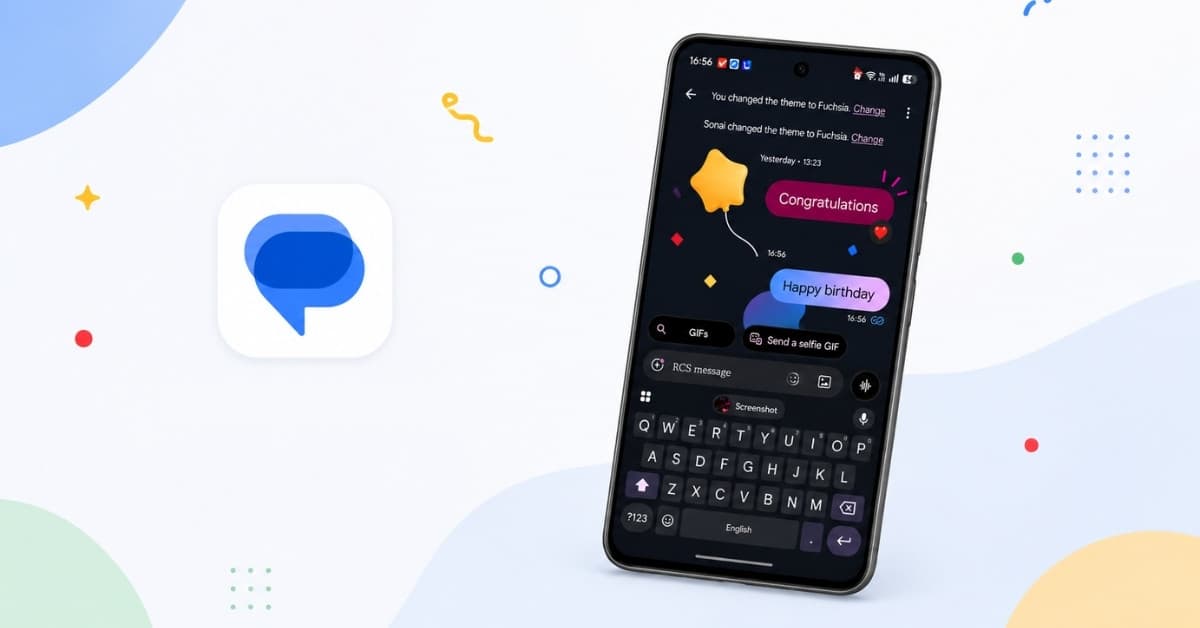
Google Messages’ expressive features are the visual extras that add life to conversations. They include emoji reactions, animated emoji, full-screen message effects, Photomoji, and voice message animations.
Google started pushing many of the expressive messaging experiences as part of its broader RCS messaging upgrade. Screen Effects are especially interesting because they are hidden behind trigger phrases rather than a visible button. Google says there are 20 or more hidden Screen Effects prompt words to discover.
Before you try them, make sure these settings are ready
Before testing any animation, check the basics first. Otherwise, you may type “Happy Birthday” five times and wonder why nothing happens.
Here’s what I recommend:
- Update Google Messages from the Play Store.
- Set Google Messages as your default messaging app.
- Toggle on RCS chats and show expressive animations from Messages settings. Open the Google Messages app and tap on your profile picture to go to settings.
- Test with someone who also uses Google Messages and RCS.
- Restart the app if effects suddenly stop working.
RCS matters because many modern Google Messages features work better in RCS chats than in old SMS/MMS conversations. Some reactions may also depend on country support, so don’t assume every feature will behave the same in every chat. For example, reactions for SMS and MMS are available only in the USA, France, Canada, and Australia.
My favorite Google Messages screen effects and animations
Here, I have shared the top six animation features you should try.
1. Emoji reaction animations
Emoji reactions are the feature I use the most. They fit naturally into real conversations. We don’t always want to type “okay,” “nice,” “lol,” or “same.” Sometimes a reaction is enough.
To use them,
- Long-press a message and choose an emoji reaction from the options.
- Google Messages will show a small animation around the message and add the emoji at the bottom of the message bubble.
- If your intended emoji is not showing, tap the emoji plus icon and choose from the drawer. However, the animation will not show for them.
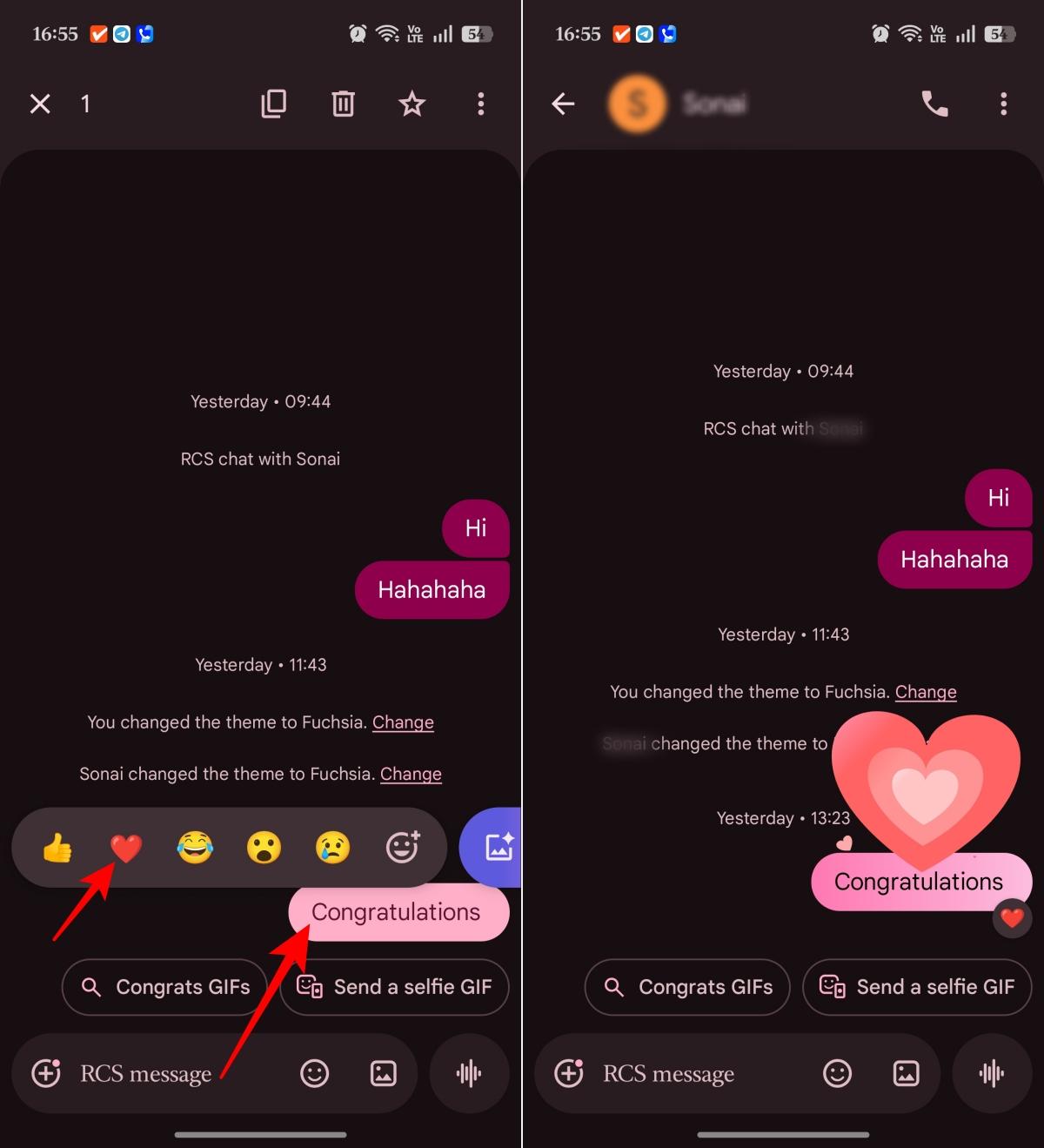
The reactions I use most are:
- 👍 for quick approval
- ❤️ when a normal reply feels too cold
- 😂 when “lol” feels lazy
- 🎉 for good news
- 😮 when something genuinely surprises me
I like how the reactions do not hijack the conversation. They simply enhance the message without creating another text bubble. Moreover, their animation is much cuter than the Tapbacks in iMessage.
2. Animated emoji effects
Animated emoji effects are the easiest ones to try because they do not require a hidden phrase. Instead, you only need to send a supported emoji, which then animates itself instead of sitting there like a flat icon. The animations remain in a loop as long as you keep scrolling through the chat. It even worked when I sent multiple emojis in one go.
Note:
Sending emojis with texts doesn’t trigger animations.
Try sending these emoji:
- ❤️
- 😂
- 👍
- 🎉
- 😮
- 😢
- 😡
According to my testing, it works for most faces, animals, celebrations, and some other emojis. You need to explore the lists to find the ones. The best part is that even if the emoji is not animated, they look alive thanks to the latest Noto 3D update.
3. Full-screen effects for special messages
Full-screen effects are the most memorable Google Messages animations. They briefly take over the chat when you send certain trigger phrases.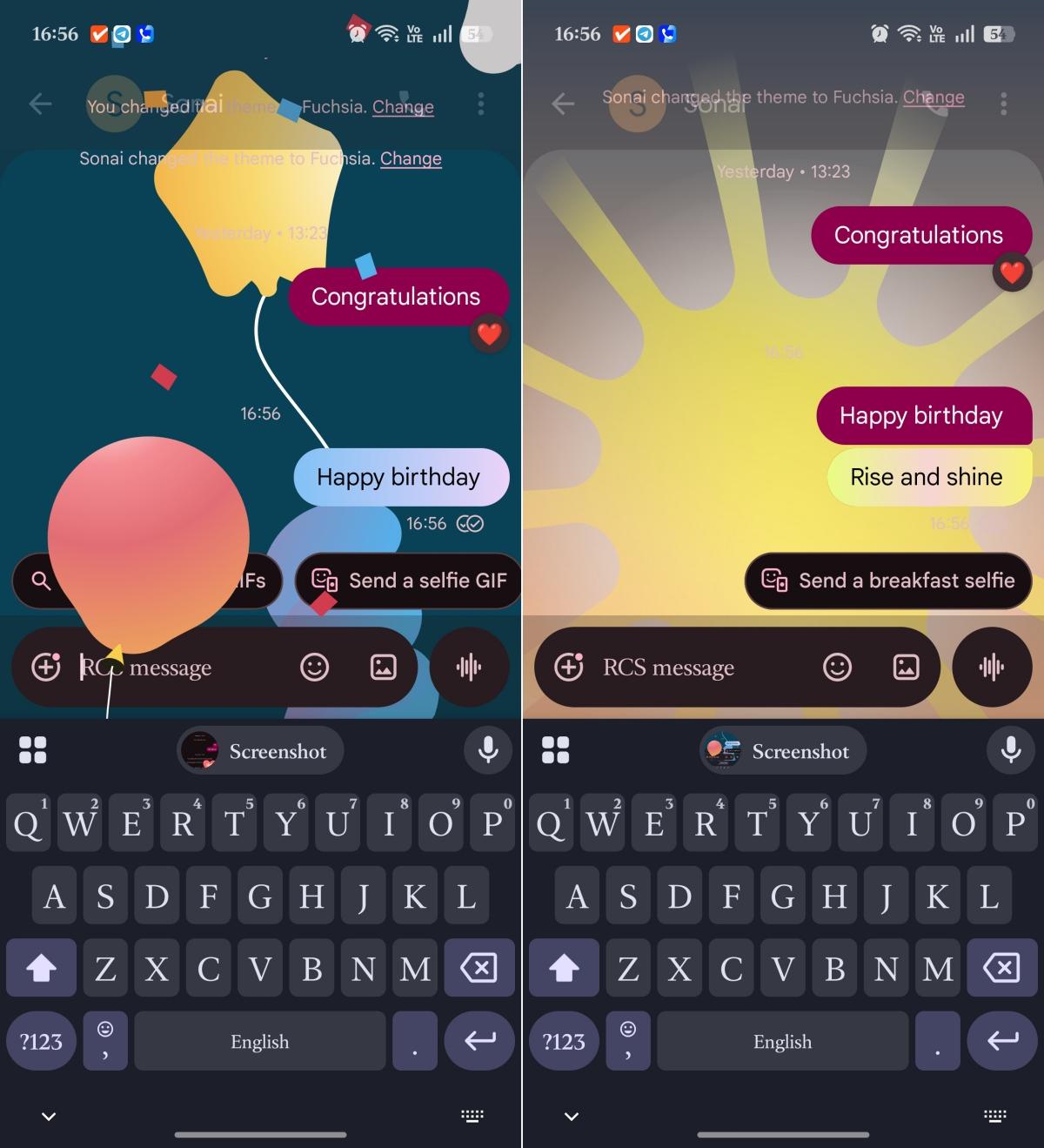
The fun part is that Google hides them like Easter eggs. There is no obvious effects button or official list. You just need to open any chat, type a supported phrase, send it as a short, standalone message and watch for the full-screen animation.
I found these trigger phrases while testing:
Celebrations:
- Happy birthday
- Congratulations / Congrats
- Happy New Year
- Pride parade
Special occasions:
- Happy Valentine’s Day
- Happy Mother’s Day
- Happy Father’s Day
- Happy Diwali
- Merry Christmas / Feliz Navidad
- Happy Easter / Easter bunny
- Happy Hanukkah
- Happy Thanksgiving / Happy Turkey Day
- Happy Lunar New Year / Happy Chinese New Year
- Happy Independence Day / Happy 4th of July / Happy 4th July
Seasonal and festive greetings:
- Happy Halloween / Trick or treat / Pumpkin carving / Pumpkin patch / Jack-o-lantern
- Spring has sprung
- Fall colors / Autumn colors / Fall leaves / Autumn leaves
Casual expressions:
- Hahahaha / Lolll / Lololol
- Booo
- Sweet dreams
- Rise and shine
- Going to the beach / Summer sun
Keep in mind that the trigger phrases and animations change with updates and context.
Another thing I noticed is that when I sent the 🎉emoji along with any text, it triggered the confetti animation. The ☀️emoji showed the beach animation. Finding these is really fun, like treasure hunting!
4. Photomoji reactions
Photomoji is the most personal Google Messages feature on this list. Instead of reacting with the same emoji everyone else uses, you can turn your own photos into sticker-like reactions. It’s similar to the Live Stickers feature in iMessage.
This is where Google Messages starts feeling less generic. These can include a pet’s confused look, your own tired selfie, a coffee mug, or even some weird joke within a group. That is something a standard emoji cannot do.
Here’s how to create your Photomoji:
- Open a conversation in Google Messages.
- Tap the emoji icon next to the text box and go to Photomoji.
- For the first time, tap Create and click a photo or choose an image from your gallery.
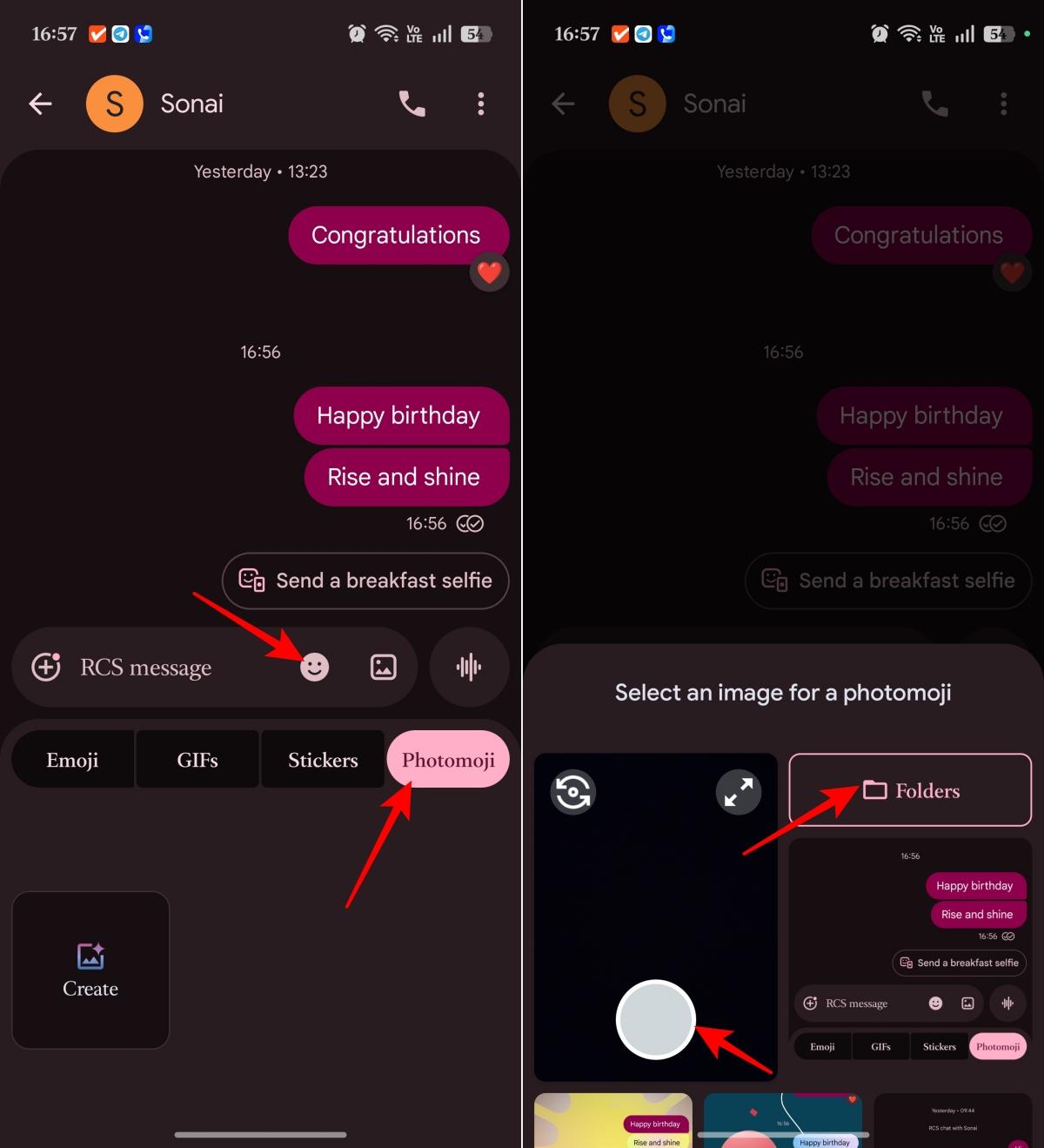
- Once it’s read, tap the send button to share it as a sticker.
- You can tap the Photomoji to save, delete, or forward it or select the Nano Banana icon to Remix and send it.
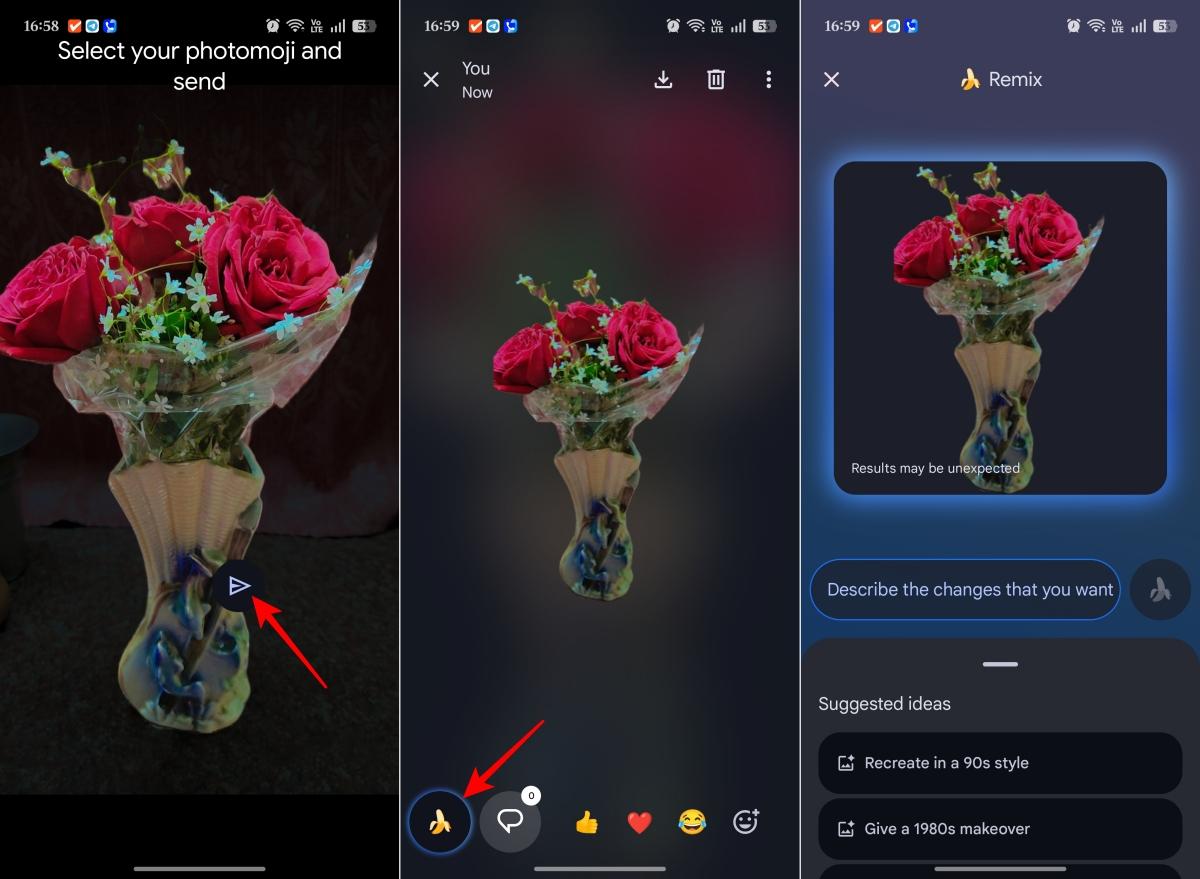
All the Photomojis you send are stored so you can reuse them. I also save others’ Photomojis that I find funny.
Google Messages even lets you use them as an emoji reaction. Simply tap and hold the message and tap the emoji plus icon. Move to the Photomoji tab and choose one to send.
5. Voice Moods: Voice notes with visual personality
Voice messages already carry more emotion than text, but Google Messages makes them feel more expressive with visual Voice Moods and improved voice message presentation.
Voice Moods add visual emotion to voice messages, with effects such as heart-eye emoji, fireballs, and party poppers. Google also said it improved voice message quality with a higher bitrate and sampling rate.
- Go to a chat and tap the voice message icon next to the textbox.
- Now, tap the mic icon to start recording. Once done, hit the stop icon.
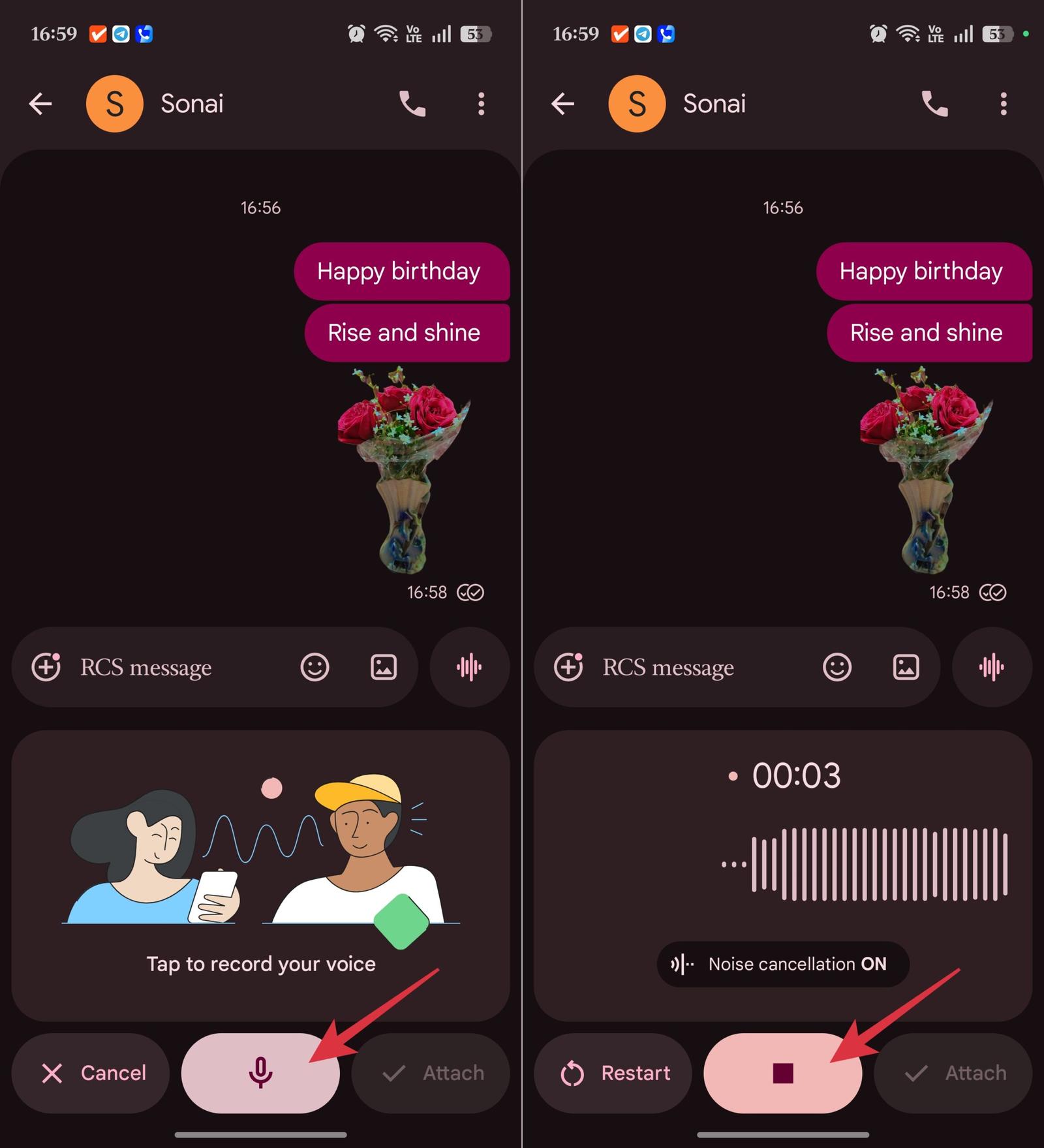
- You will see different visual effects like crying, laughter, party, etc. Select one that matches your voice note’s mood. Tap Attach.
- Finally, tap the send button.
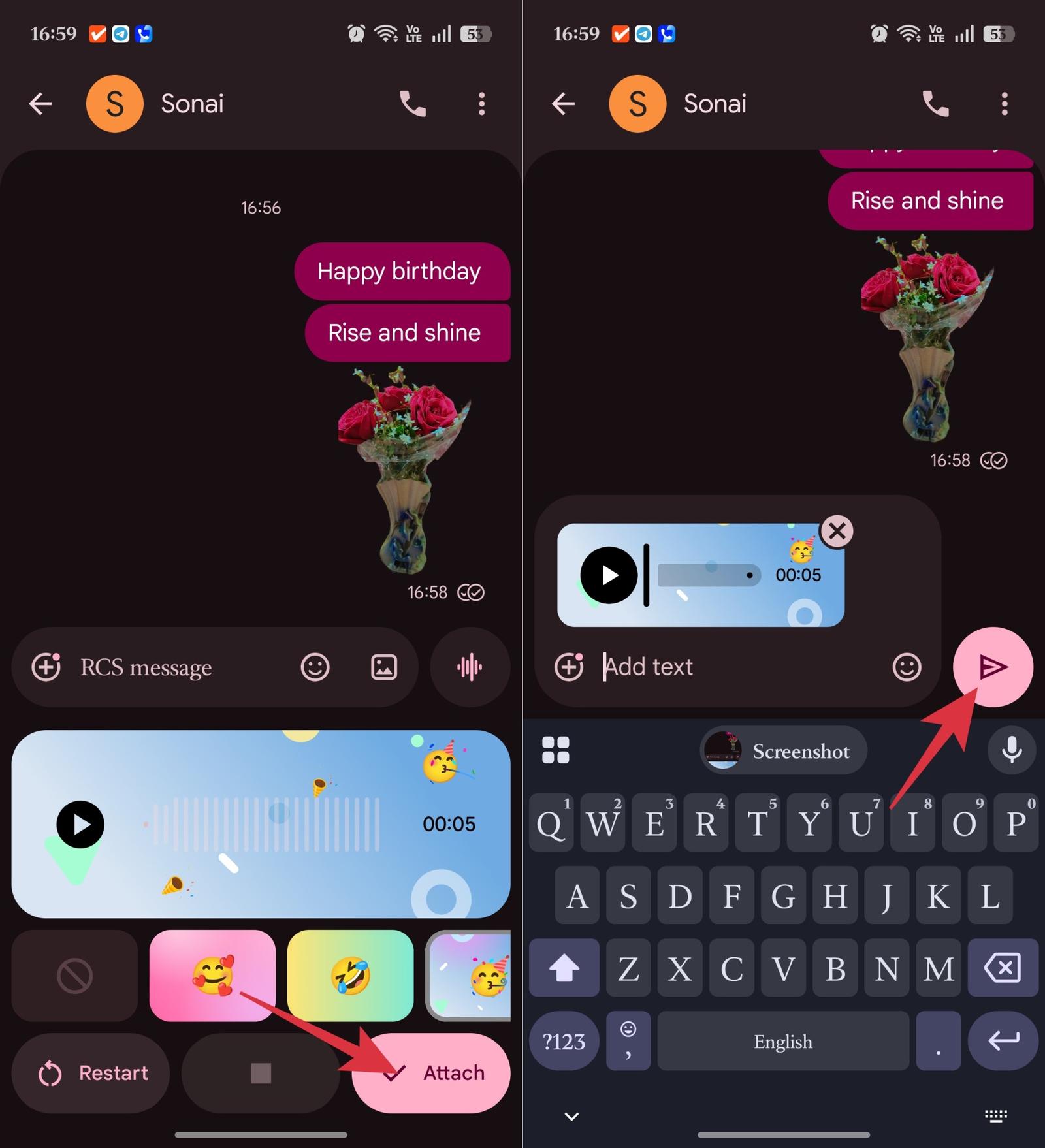
I usually prefer using Voice Mood when I have to congratulate anyone on their birthdays, share some good news, or send messages where typing would flatten the tone.
6. Selfie GIF: A quick animation you create yourself
Selfie GIF is another fun Google Messages feature that deserves a spot here because it adds motion to chats without needing a third-party app. You can record and send 3-second short videos as a GIF.
I like this for quick reactions. It is faster than recording a normal video and more personal than sending a static emoji. Also, the interface while recording is quite fun.
How to create a Selfie GIF
- From a chat screen, tap the plus icon next to the text box.
- Scroll down and select Selfie GIF.
- You can switch the camera from front to back during the countdown.
- Now, strike poses for 3 seconds and tap the send button.
Note:
that you cannot edit the recording inside that flow, but you can restart if you want to redo it.
Troubleshooting: Why Google Messages effects may not work
If Google Messages effects are not working, I would check these things first:
| Problem | What to try |
|---|---|
| Emoji reactions don’t appear | Update Google Messages and long-press the message again |
| Animated emoji don’t move | Send the emoji by itself and try supported emoji reactions like 👍, ❤️, 😂, or 🎉 |
| Full-screen effects don’t trigger | Restart the app and check the RCS status |
| Photomoji is missing | Update the app and wait for rollout |
| Voice animations are missing | Test in an RCS chat |
| Effects worked before but stopped | Restart the app and check the RCS status |
Also, check whether animations are reduced at the Android system level. If you use reduced motion or animation-related accessibility settings, some visual effects may not appear as expected.
And if everything looks right but the effect still doesn’t show, it may simply be a rollout issue. That is frustrating, but common with Google Messages features.
Final thoughts: Google Messages feels more alive now
After testing these features, I no longer see Google Messages as just a basic SMS replacement. The app has become much more expressive, especially if RCS is enabled and the latest features are available on your device.
My favorite feature overall is Reaction Effects because I use it the most. Another is Screen Effects, as it feels like discovering secret animations inside normal texts. And the feature I think more people should try is Photomoji, because it makes conversations feel personal in a way standard emoji never can.
Have you tried any Google Message effects? Share your favorite one in the comments below!
Read more: