I used to treat Google Messages like a boring SMS inbox where OTPs, bank alerts, delivery updates, and the occasional “where are you?” message piled up. But after spending time inside its settings, RCS options, and newer AI tools, I realized the app has quietly become one of the most useful productivity tools on Android.
The problem is that many of its best features are easy to miss. Some are tucked inside small menus, some rely on long-press gestures, and a few depend on your region, device, or RCS availability.
After testing them in daily use, these are the Google Messages hidden features and settings that actually make texting faster, cleaner, and more useful.
Top Google Messages hidden features you should try
Here are the most useful Google Messages features I think every Android user should know about.
1. Schedule messages to send later
This is the feature that made me take Google Messages seriously.
Scheduling texts sounds simple until you start using it for birthday wishes, work follow-ups, bill reminders, or messages you think of late at night but don’t want to send immediately.
If something crosses my mind at midnight, I write it right away and schedule it for the next morning. That way, I don’t forget, and I also don’t become the person sending random work messages while everyone else is asleep.
Here’s how to schedule a message in Google Messages:
- Open Google Messages on your Android phone.
- Open the chat where you want to send the message and type your text normally.
- Touch and hold the Send button.
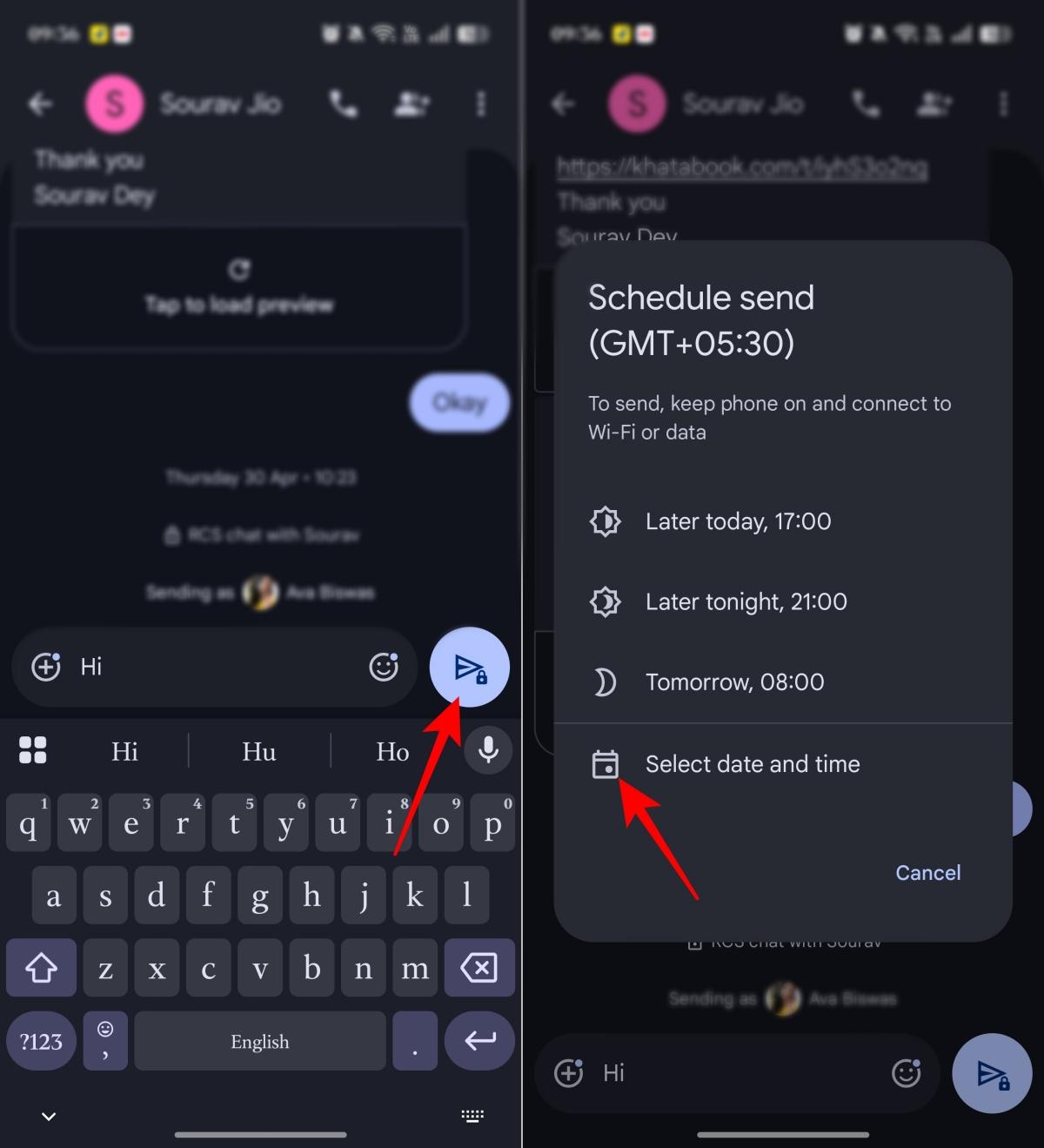
- Choose one of the suggested times or tap Select date and time.
- Now, select the date and time and tap Set.
- Finally, tap the send button again.
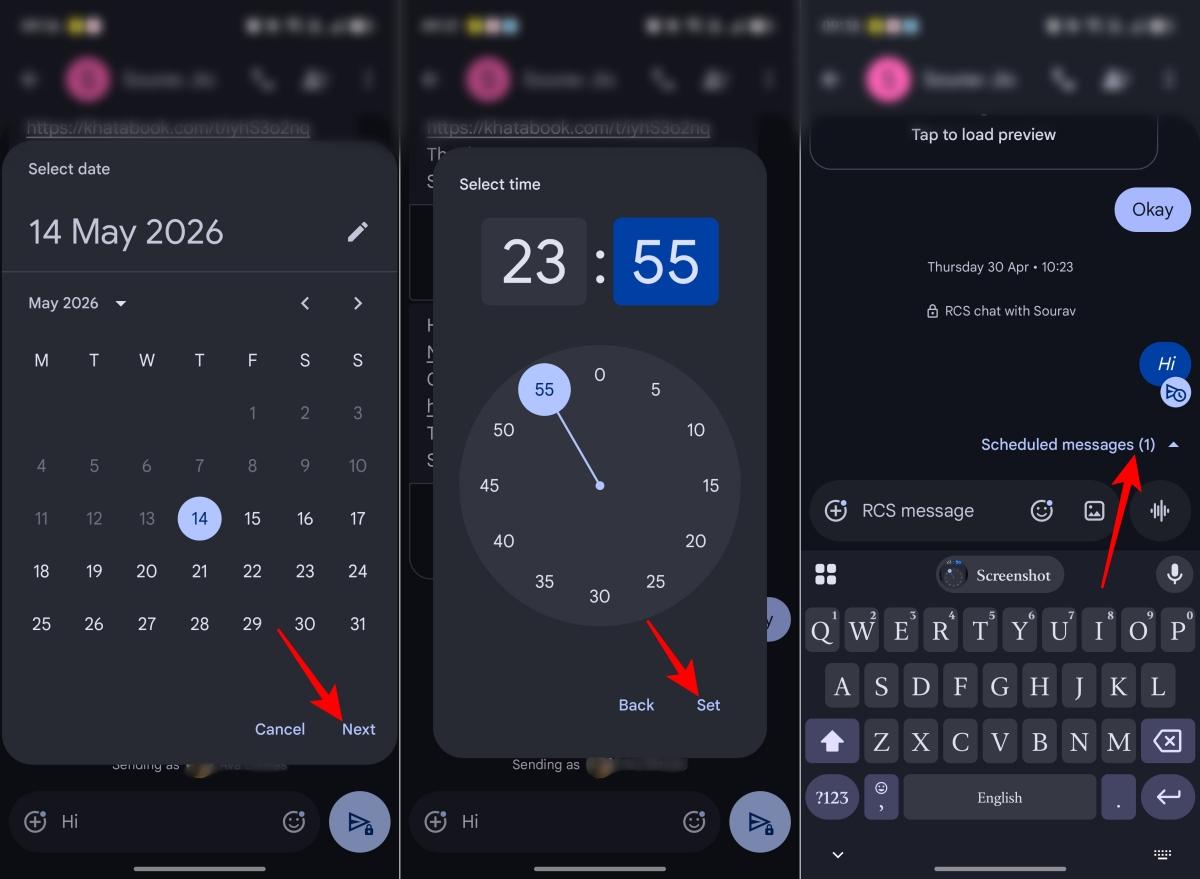
Your message will appear in the chat with a scheduled indicator. You can tap it to update the text or delete it.
One thing to remember: your phone must be turned on and connected to mobile data or Wi-Fi at the scheduled time for the message to send successfully.
2. Message yourself for quick notes
This sounds almost too simple, but it has become one of my favorite Google Messages tricks.
Instead of opening a notes app, creating a new note, naming it, and deciding where it belongs, I just message myself.
I use it for:
- Links I want to revisit
- Grocery items
- Parking locations
- Article ideas
- Random thoughts
- Quick reminders
It is not elegant, but it is fast. And fast usually wins.
The best part is that everything also syncs with Google Messages for Web, so those quick notes are available on your computer too.
Here’s how to message yourself:
- Open Google Messages.
- Tap Start chat.
- Search for your own phone number or contact name and select it.
- It will open an RCS chat with you. Now, send anything like chatting with yourself.
I also recommend pinning this conversation to the top. Touch and hold the conversation, then tap the Pin icon.
3. Use Message effects for more expressive texts
Google Messages is not just plain text anymore.
Once I noticed it had iMessage-like screen effects, I started using it more for greetings, celebrations, and quick reactions.
Typing certain phrases can trigger full-screen animations. For example:
- “Happy Birthday”
- “Congratulations”
- “Happy New Year”
- “Booo”
- “Hahahaha”
- “Rise and shine”
Depending on the phrase, you may see effects like balloons, confetti, fireworks, hearts, thumbs-up, laughter, or sunrise-style animations.
Here’s how to use message effects:
- Open Google Messages.
- Open any chat or start a new conversation.
- Type a supported trigger phrase, such as Happy Birthday or Congratulations and send the message.
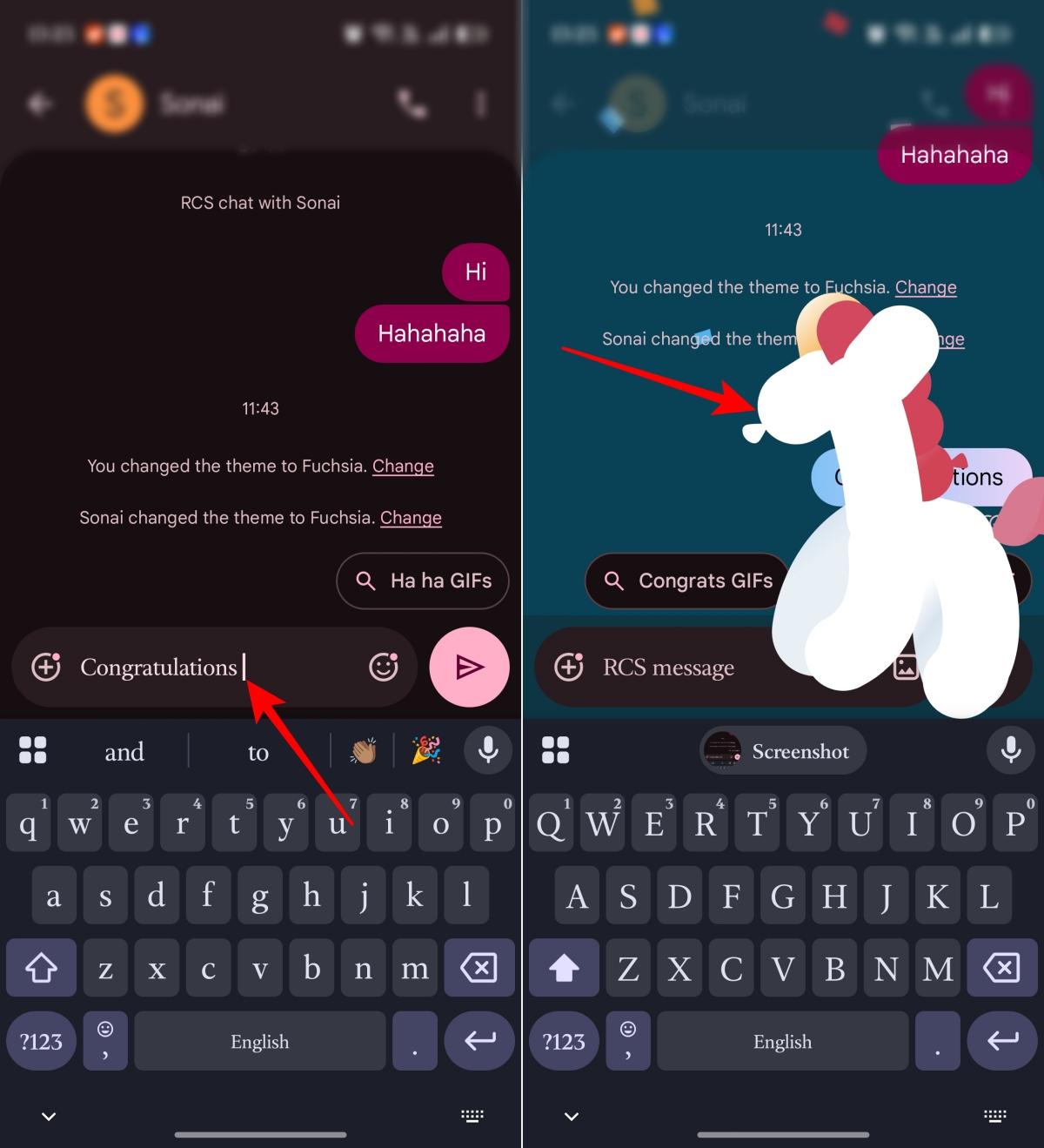
- Watch for the full-screen animation in the chat.
It is a small feature, but it makes simple messages feel more personal without needing stickers or extra apps.
4. Turn on Nudges for forgotten replies
Nudges are one of those features I ignored at first and now genuinely appreciate.
Google Messages can detect conversations you may have forgotten to respond to and gently bring them back to the top. It can also remind you to follow up when needed.
This is especially useful if your inbox is a mix of:
- Personal chats
- Work messages
- OTPs
- Delivery updates
- Bank alerts
- Spam
Important:
messages can get buried quickly. Nudges help reduce that mental load.
Here’s how to enable nudges:
- Open Google Messages.
- Tap your profile picture in the top-right corner.
- Tap Messages settings.
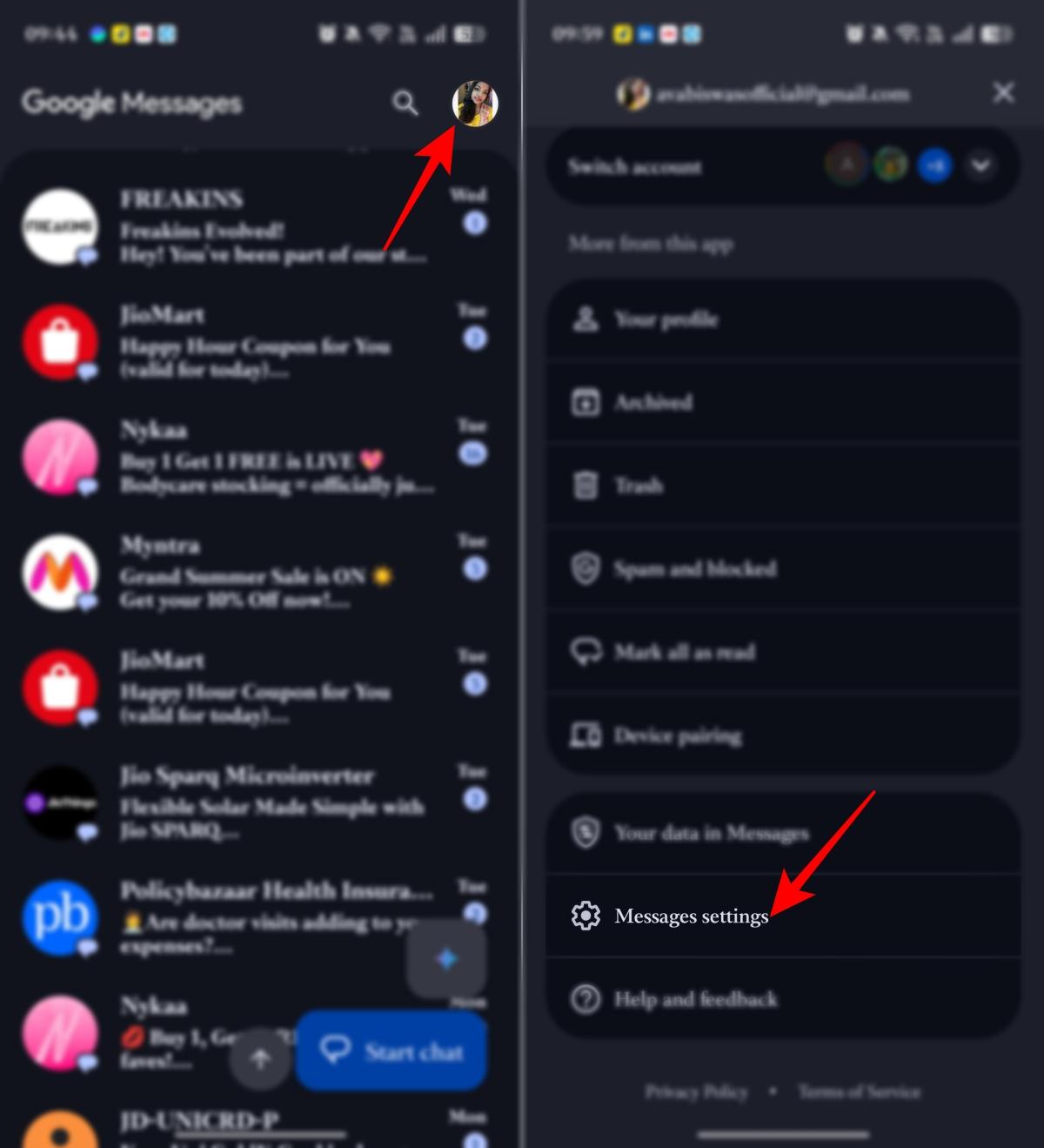
- Look for Suggestions and select it.
- Tap on Nudges and toggle on Suggest message reminders. You can also turn on birthday reminders for contacts.
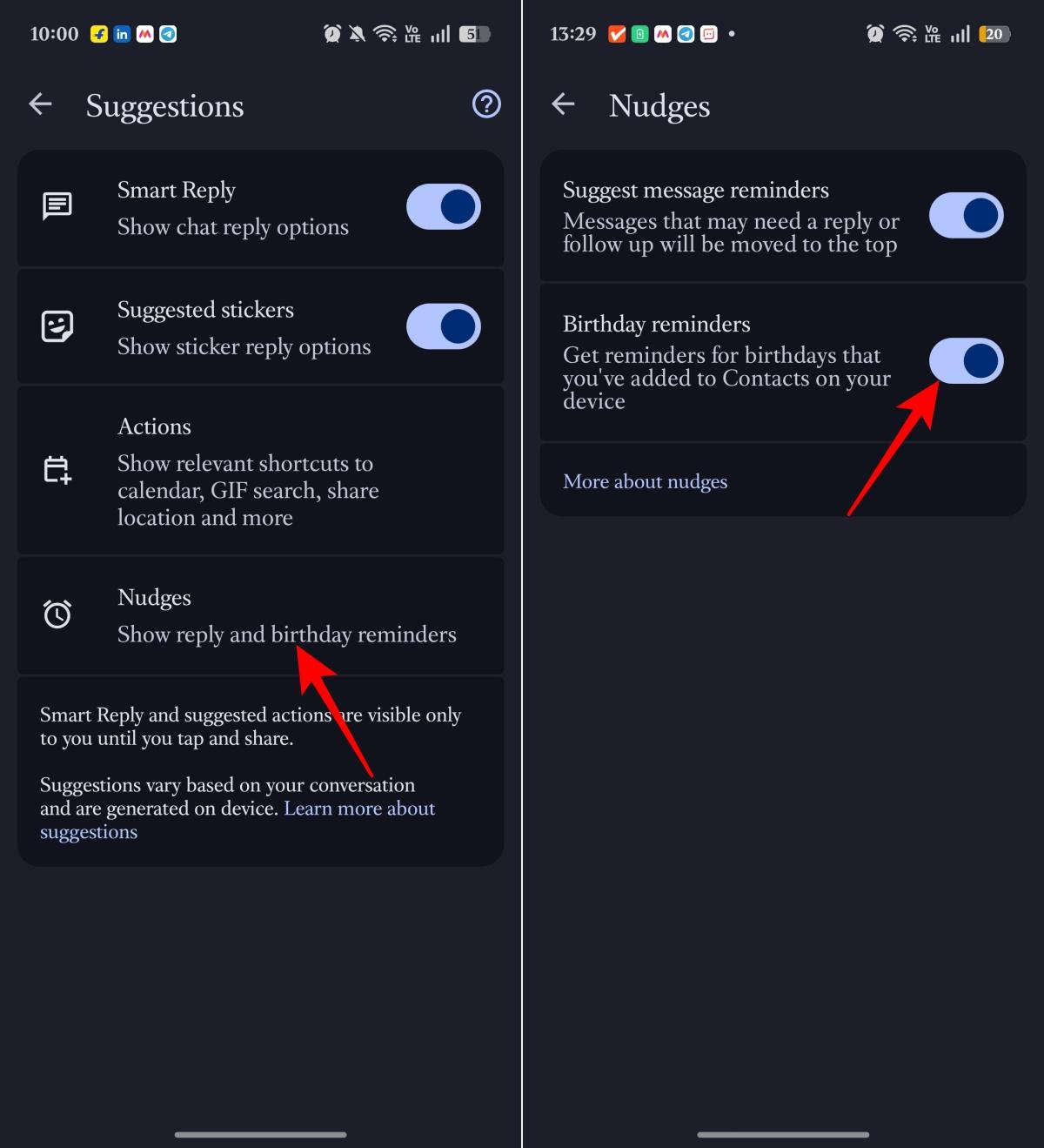
- Return to your inbox and let Messages surface chats at the top.
Once enabled, Messages will surface conversations that may need your attention.
5. Search messages using filters
The search inside Google Messages is more powerful than you expect. Similar to iMessage smart search filters, it turns your old conversations into a searchable archive and lets you narrow results by different filters.
So, you can quickly find shared addresses, screenshots, travel details, OTP-related context, payment confirmation, and more within minutes. No more scrolling endlessly!
- Open Google Messages.
- Tap the search icon at the top.
- Use available filters like Starred, Unknown, Images, Videos, Links, Places, etc. Otherwise, you can type a keyword, contact name, business name, address, or phrase.
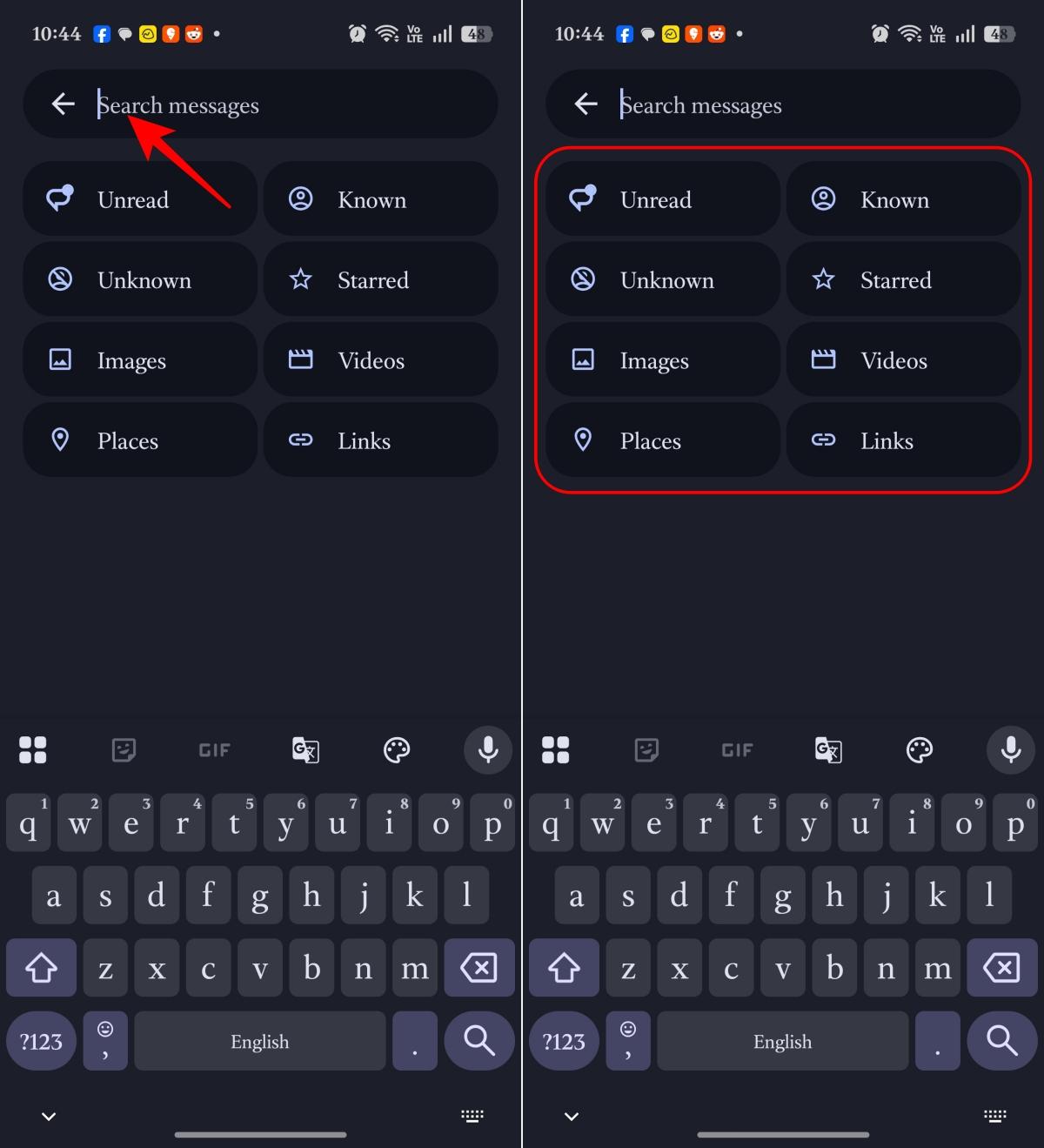
- Tap a result to jump directly into that conversation.
- If needed, search inside a specific conversation by opening it > three dot icon > Search.
6. Snooze notifications from specific conversations
Not every conversation deserves your attention right now. Some group chats are useful but noisy. Some people send five messages when one would do. Muting them forever can feel too extreme, but letting them interrupt you constantly is worse.
That is where snooze helps. Here’s how to snooze a conversation:
- Open Google Messages.
- Touch and hold the conversation you want to snooze.
- Tap the Snooze icon at the top.
- Choose a duration such as 1 hour, 8 hours, 24 hours, or Always.
- Tap Snooze.
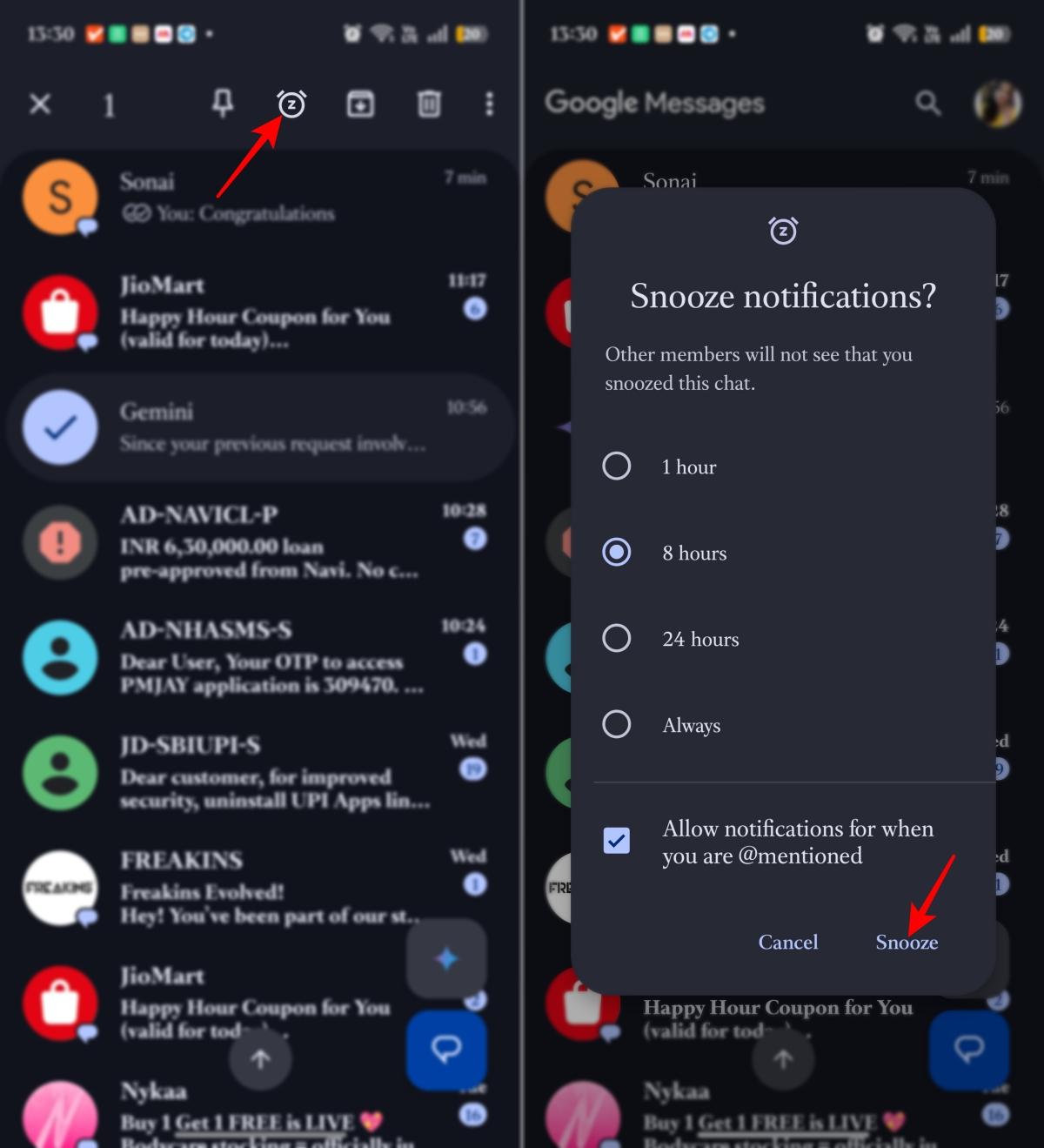
To remove snooze, touch and hold the conversation again and tap the snooze option.
I use this during work, dinner, and sleep. It is less about muting people and more about setting boundaries.
7. Enjoy Gemini AI features
This is where things get interesting.
With Gemini inside Messages, you can start a chat with Google’s AI assistant directly from the app and ask for help writing replies, brainstorming plans, translating messages, or remixing images without switching to a separate app.
- Open the Messages app.
- Tap the Gemini button above Start a Chat.
- Type what you need, such as Write a friendly birthday message or Help me reply to a work invitation.
- Copy or forward Gemini’s response in your conversation.
- You can also attach a photo and tap the Nano Banana icon to Remix the image.
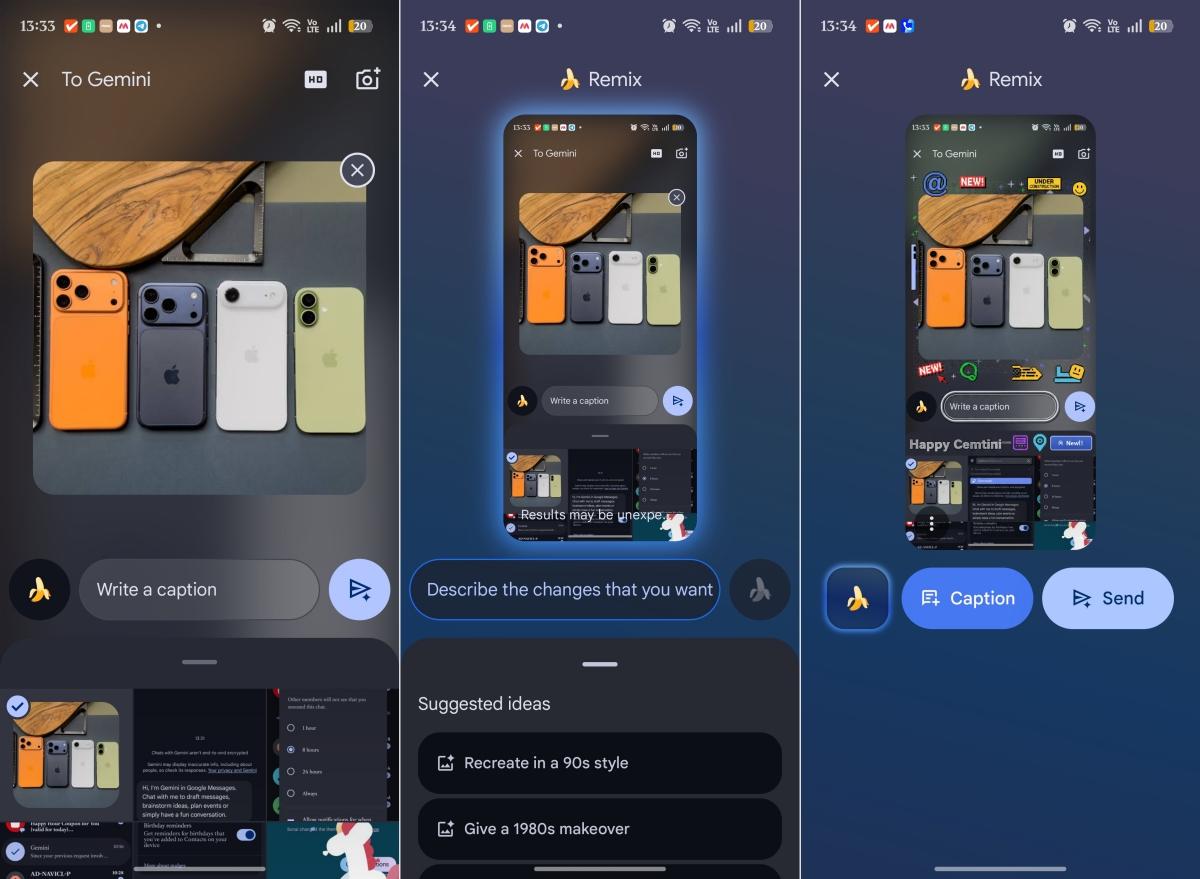
8. Customize conversation colors and themes
Google Messages lets you personalize chat bubbles and themes for individual conversations.
It is not as advanced as iMessage’s AI-powered background customization, but it is useful in a practical way. I like using different colors for important chats because it makes conversations easier to identify at a glance and helps avoid texting the wrong person.
Here’s how to change conversation colors:
- Open Google Messages.
- Open a conversation.
- Tap the contact name or three-dot menu
- Look for Change colors and choose a theme.
- Preview the change and tap Confirm.
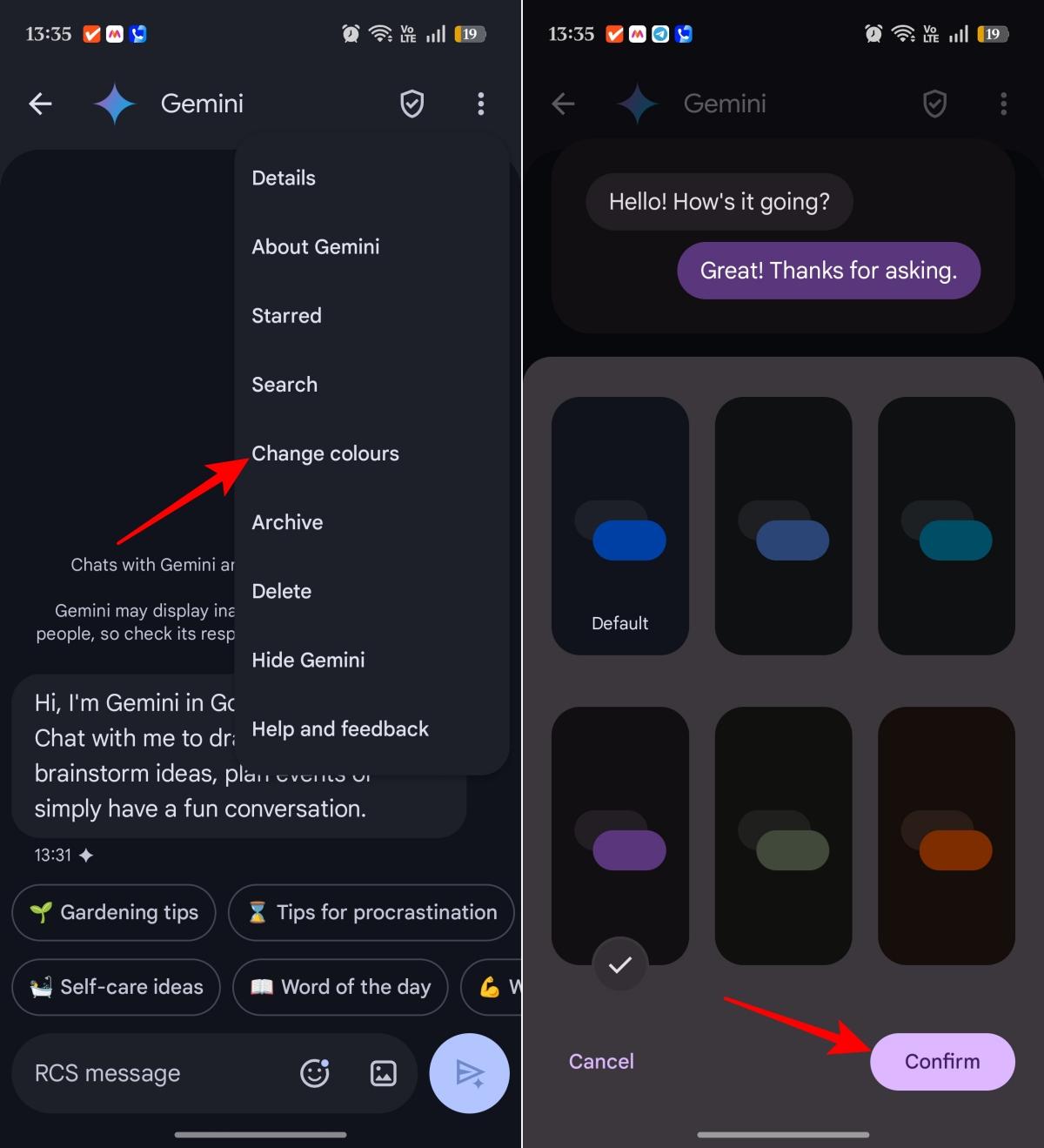
This works best with RCS chats, and availability may vary.
9. Share location quickly
Location sharing is one of those features you do not think about until you need it quickly. I regularly send location pins via iMessage as it’s easier than explaining to someone. It works similarly on Android as well.
- Open Google Messages.
- Open the conversation where you want to share your location.
- Tap the Plus button next to the text box.
- Choose Real-time location.
- Allow location permission if asked.
- It will show you your current location. Select the time duration and tap Send.
- If you are sending a meeting point, use One-time location instead. It will preserve your phone’s battery.
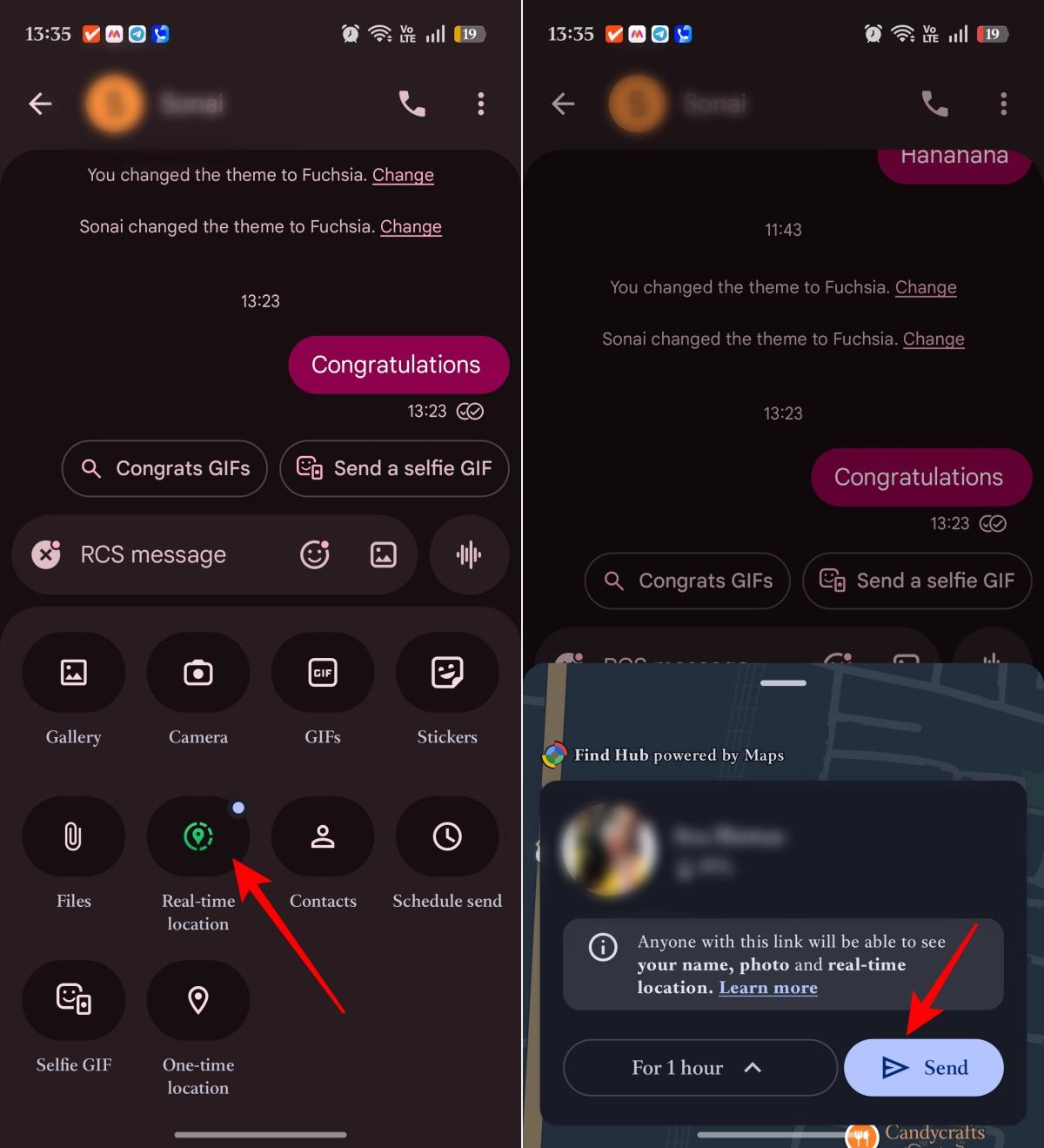
Whether you are guiding a delivery person, helping family find you, or sharing your current spot during travel, doing it from inside the chat is faster than opening a maps app separately.
Google Messages settings you should enable immediately
Some Google Messages features are not just fun extras. They make the app cleaner, safer, and easier to manage. These are the settings I recommend turning on right away.
1. Turn on RCS chats
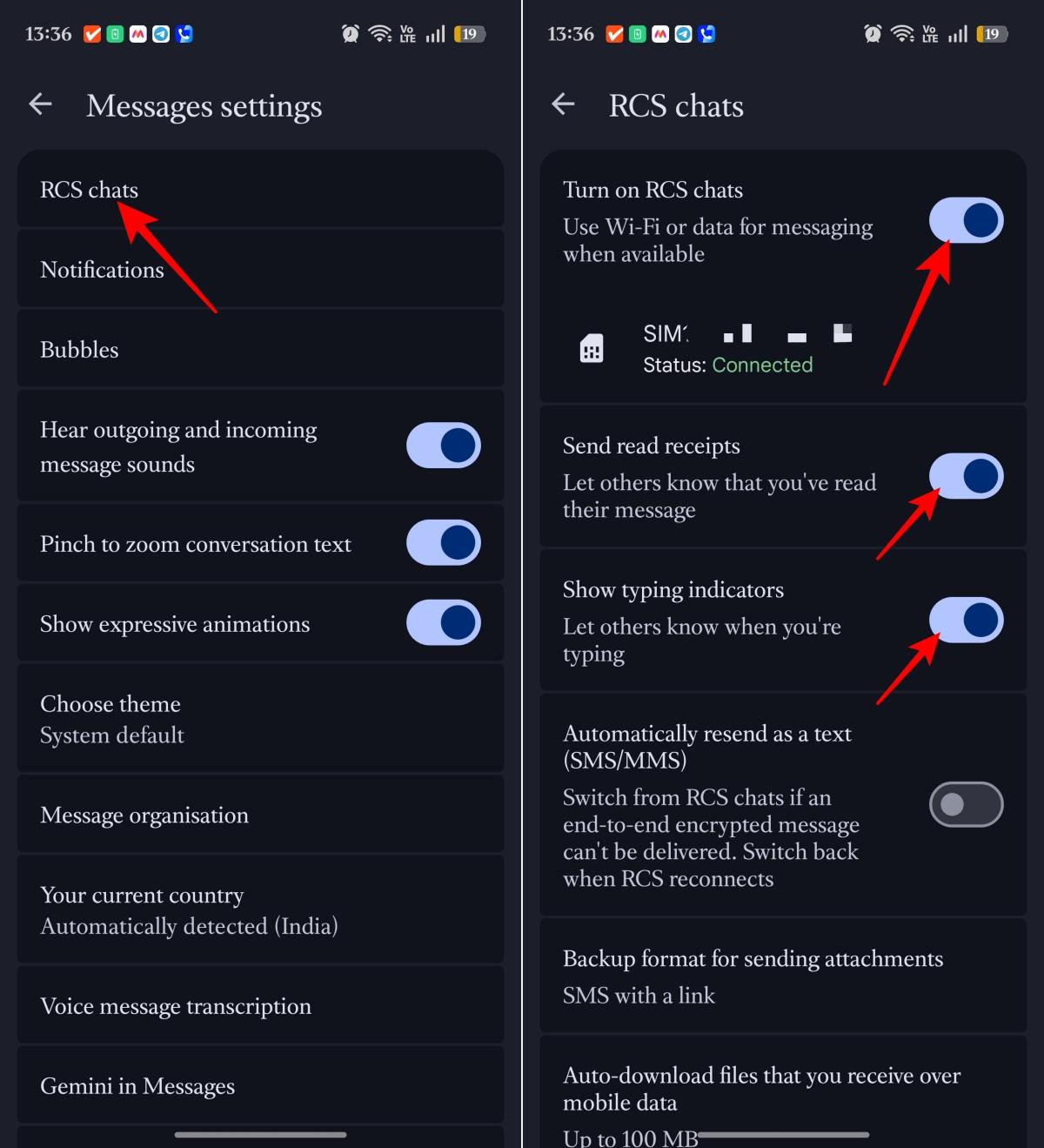
If you are using Google Messages without RCS, you are missing the main reason the app feels like a chat app like WhatsApp. When not enabled, you are basically in old SMS land.
RCS gives you richer messaging features like typing indicators, read receipts, share high-resolution photos and files, improved group chats, and more modern Android-to-Android messaging. Moreover, RCS supports texting between Android and iPhone with end-to-end encryption.
- Open Google Messages.
- Tap your profile picture in the top-right corner.
- Tap Messages settings.
- Tap RCS chats and ensure Turn on RCS chats is enabled.
- Wait for the status to show as connected.
- Scroll down and change other settings like typing indicators and read receipts.
2. Turn on Spam Protection
Spam SMS has become overly aggressive to deal with on its own. False delivery links, banking frauds, loan solicitations, phishing attacks, and random promotional offers fill up your inbox.
To enable spam protection:
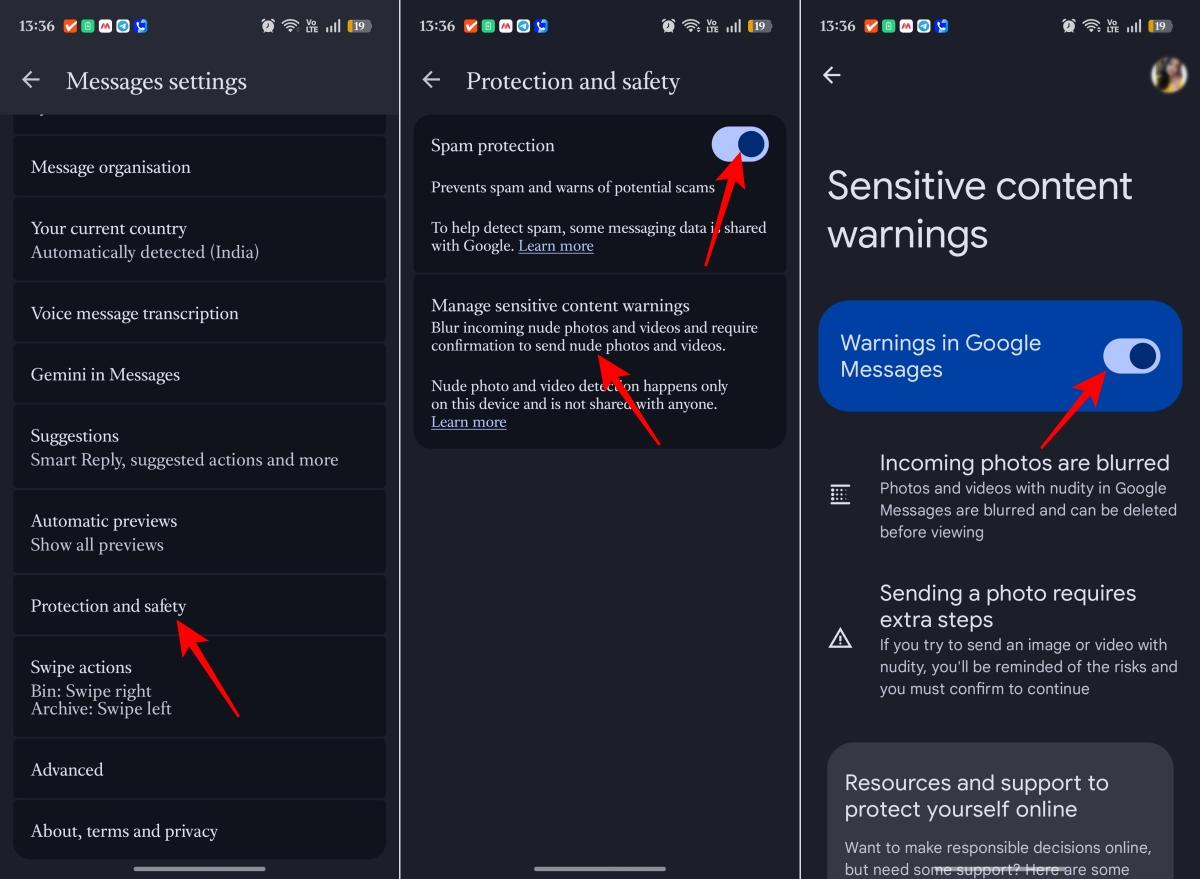
- Go to Messages settings.
- Tap Protection and safety.
- Turn on Spam protection.
- Next, tap Manage sensitive content warning and toggle on Warnings in Google Messages. Now, if you receive explicit images or videos, the preview will be blurred.
I still recommend checking the spam folder occasionally, just in case something important gets filtered by mistake.
3. Enable OTP auto-delete
OTP messages are useful for a few seconds and then become clutter.
Google Messages can automatically delete one-time password messages after 24 hours, keeping your inbox cleaner and reducing the amount of sensitive information sitting around.
Here’s how to enable it:
- From the Messages settings, look for Message organization.
- Turn on Auto-delete OTP messages after 24 hours.
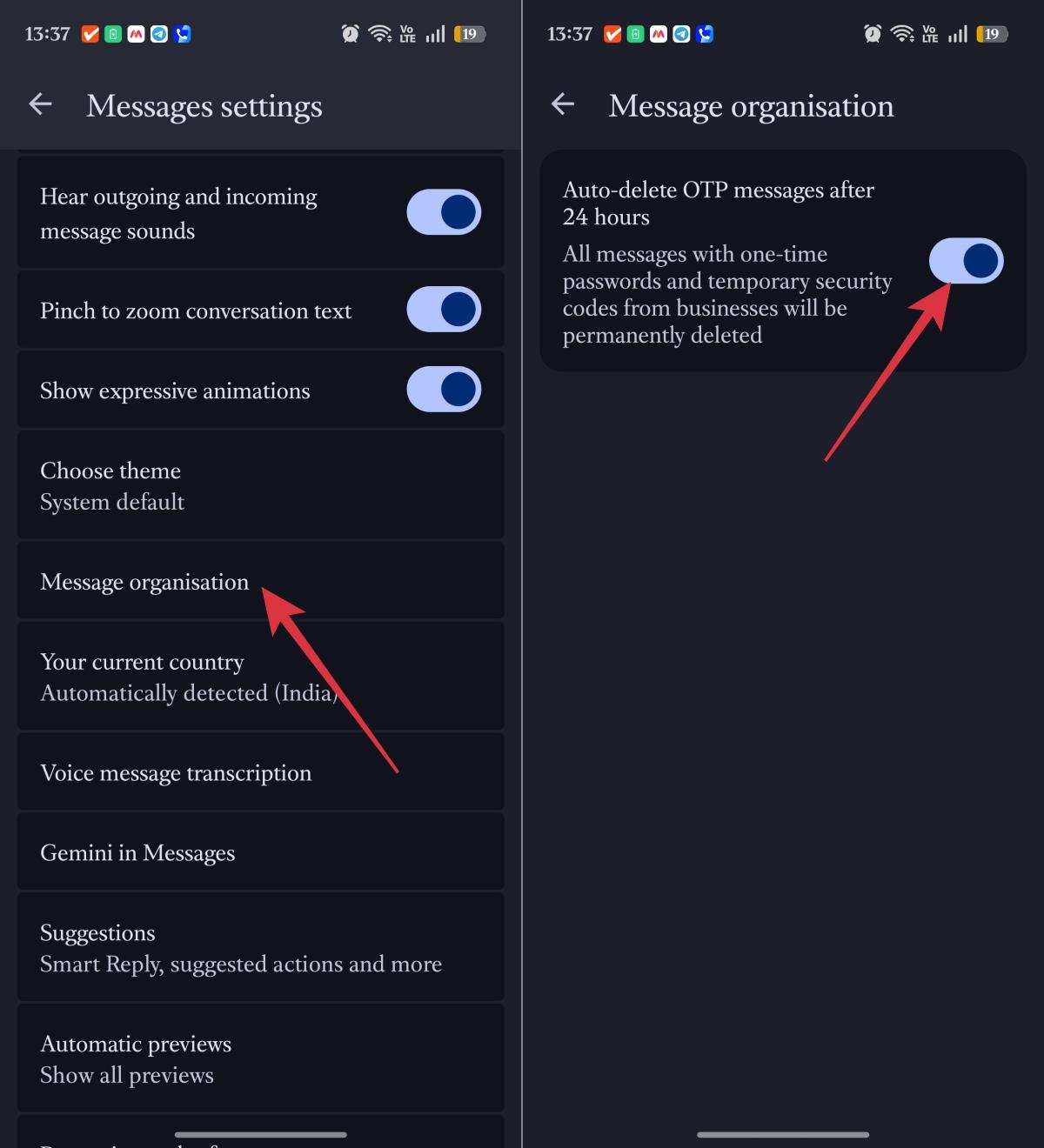
This is one of those settings you barely notice at first, but after a week, your inbox feels much cleaner.
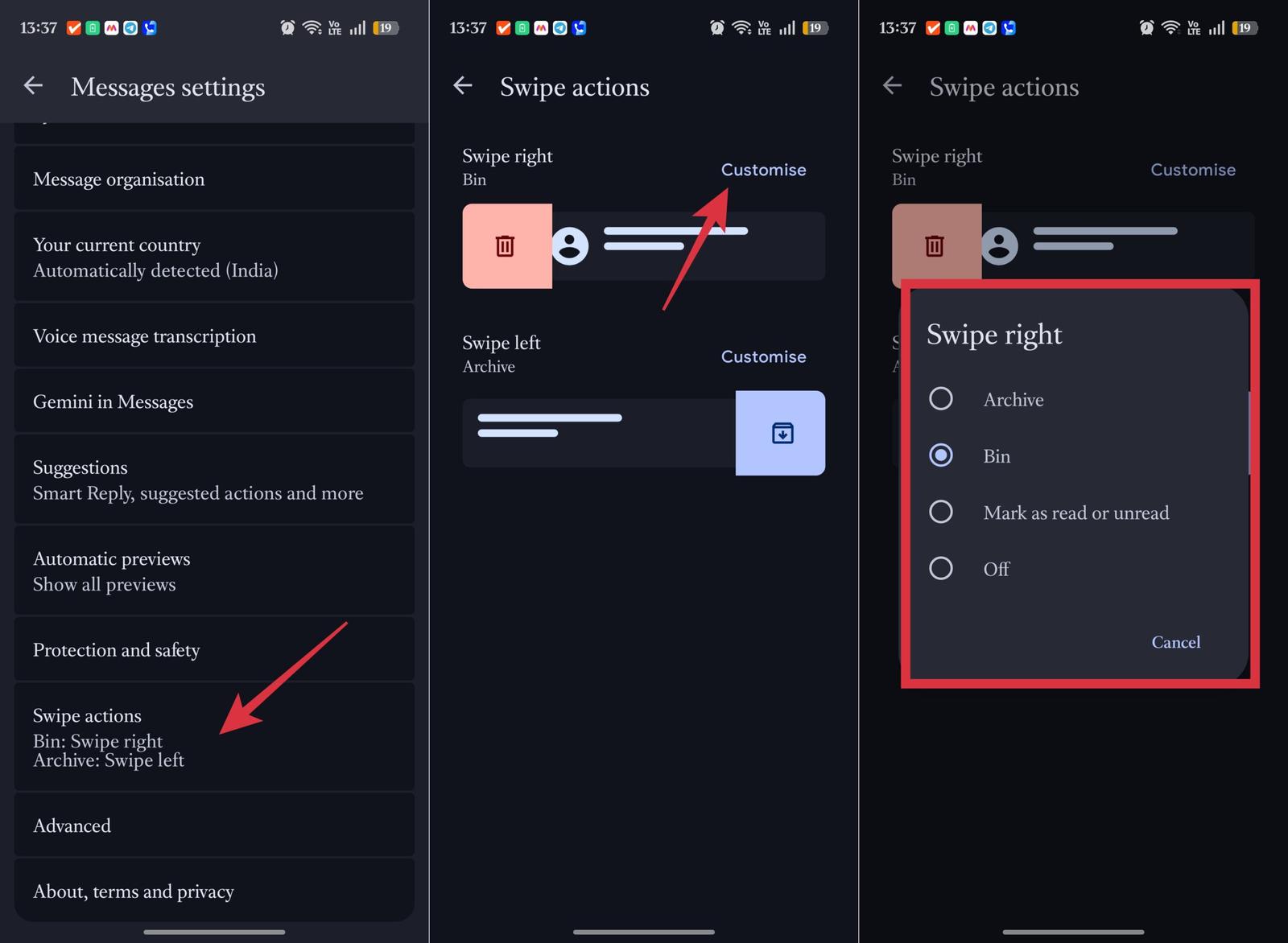
4. Customize swipe actions
Swipe actions can save a lot of small taps throughout the day.
The default settings may not match how you use your inbox. If you archive more than delete, set swipe to archive. If you prefer clearing messages quickly, set it to delete.
Here’s how:
- Open Messages settings, scroll down, and tap Swipe actions.
- Tap Customize to change what swiping left does. You can select actions like Archive, Bin, Mark as read or unread, or Off.
- Similarly, set what swiping right should do.
5. Hide sensitive lock screen content
This is one setting too many people ignore. Your lock screen should not expose OTPs, private messages, bank alerts, or personal conversations to anyone standing nearby.
Here’s how to hide sensitive message previews:
- In Messages settings, tap Notifications.
- Toggle on Hide notification details on Lock screen.
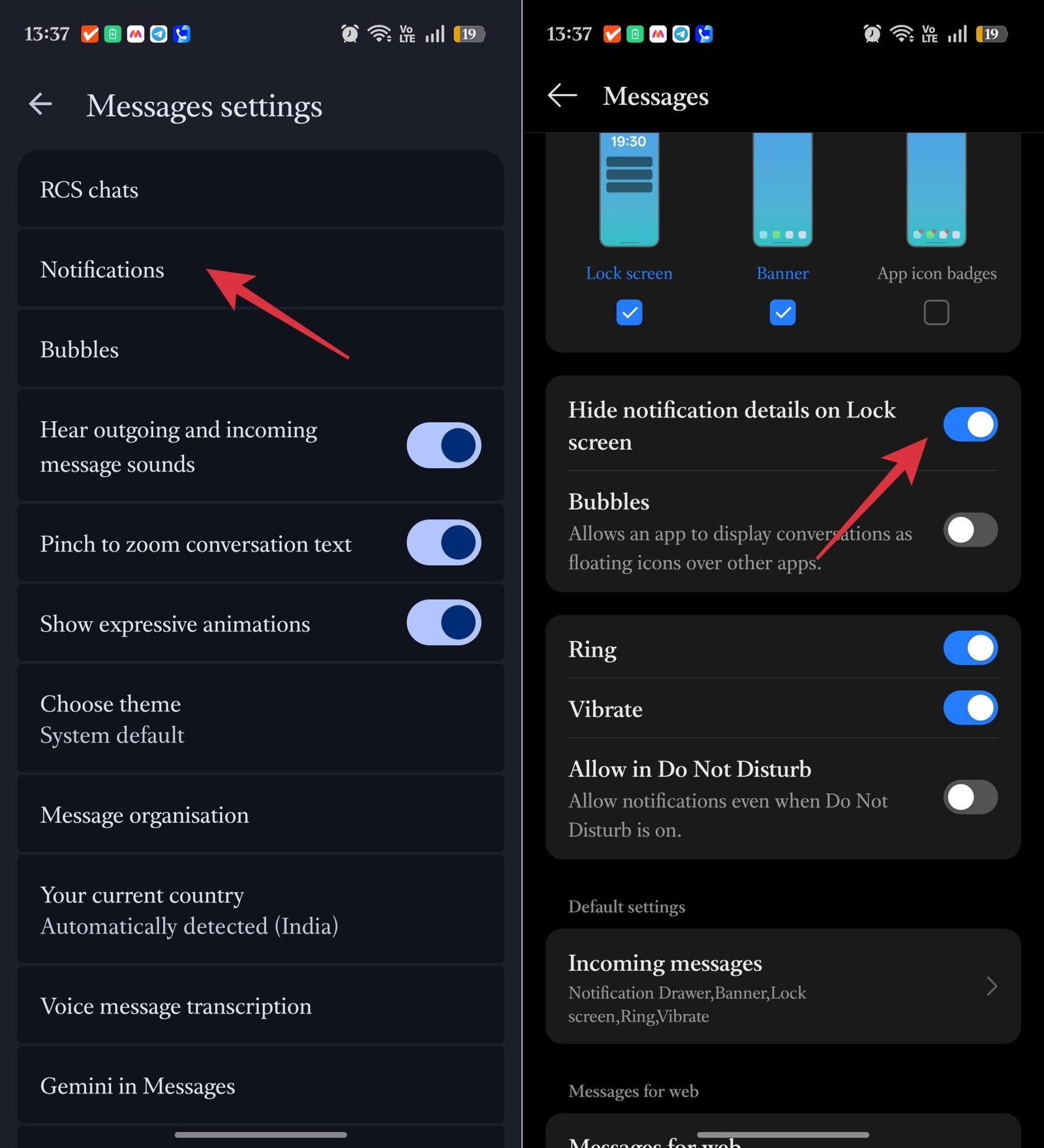
It is a small privacy change, but it makes a real difference.
Final thoughts: Google Messages is more powerful than it looks
After using these hidden Google Messages features regularly, I stopped thinking of the app as a basic SMS inbox.
Scheduled texts, self-messaging, nudges, smarter search, Gemini, RCS, spam protection, and OTP cleanup make it far more useful than it first appears.
If you already use Google Messages, spend a few minutes exploring the settings. Once you turn on the right features, the app feels cleaner, smarter, and much more modern.