Email has become much more than sending and receiving messages, with receipts, boarding passes, package updates, and reservations now filling most inboxes. In iOS 27, Apple is updating the Mail app to make those emails easier to search, manage, and act on. The update focuses on a smarter search experience, deeper Siri integration, and several Apple Intelligence features that cut down the time spent digging through emails.
Here’s everything new coming to Mail in iOS 27.
Overhauled search system
Finding an old receipt or booking confirmation can take longer than it should when promotional emails fill your inbox. Apple is tackling that with a redesigned search system that ranks results based on relevance and intent instead of relying mostly on keywords or recency.
Searching for a retailer like “Sprouts,” for example, prioritizes your latest order before promotional emails from the same business, making important messages easier to locate.
Siri AI
Siri is no longer limited to answering questions outside the Mail app. In iOS 27, it can work directly with individual emails after you long-press a message and choose Ask Siri.
Once it’s open, you can ask Siri AI to summarize the email, find a tracking number, identify a flight, save an attachment, or answer follow-up questions about the same message. It can also carry out actions such as deleting emails from a sender or creating a Reminder using information found in an email.
Write and rewrite emails with Siri
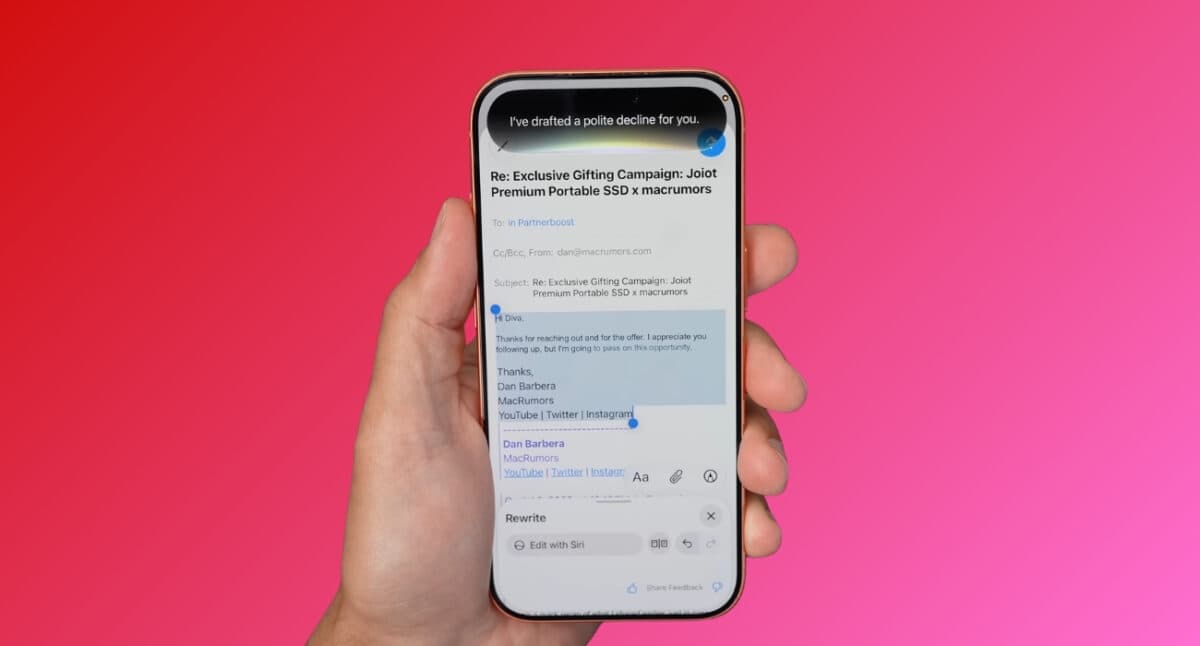
Drafting an email, rewriting a paragraph, or changing the tone of a message now happens from the same compose window. Write with Siri places Apple’s Apple Intelligence writing tools directly above the keyboard, so you don’t need to leave the Mail app while editing.
It also picks up on your writing style, punctuation, and tone instead of producing the same type of response every time. While you’re typing, iOS 27 continues checking spelling and grammar in the background.
Smart reply
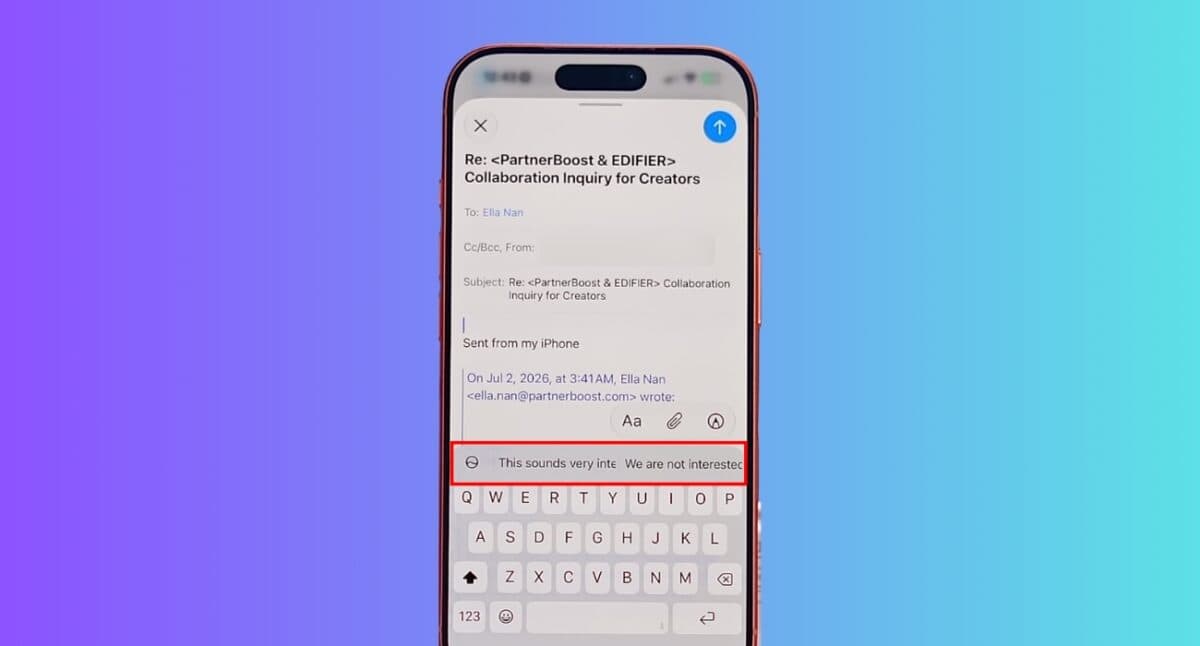
Quick replies aren’t new, but Apple is changing how they are generated. Instead of offering the same generic suggestions to everyone, Smart Reply now reflects your writing style, so suggested replies feel closer to something you’d actually send.
Contextual suggestions
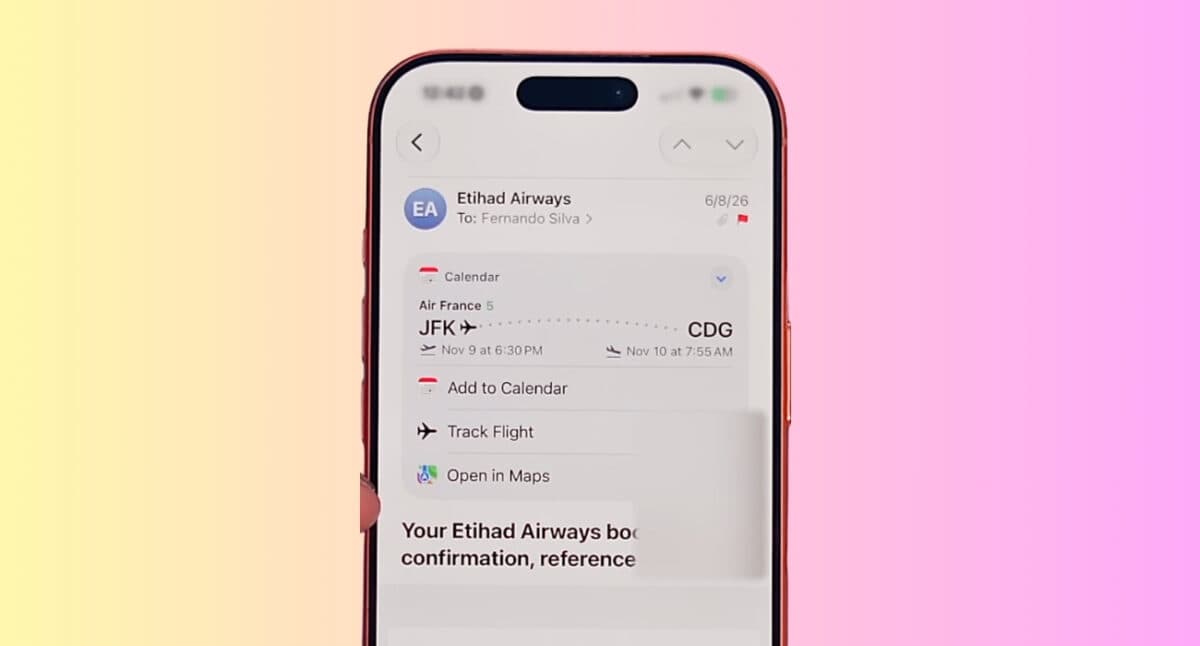
A reservation email can now do more than confirm your booking. When Mail detects details like a flight, restaurant reservation, package tracking number, or directions, it surfaces actions related to that information directly inside the message.
Depending on what’s in the email, you can add an event to Calendar, open a location in Maps, or track a shipment in Wallet. Apple is extending the same capability to third-party apps.
Call context
Calling customer support often means switching back to your inbox to find an order number or booking reference. Call Context removes that extra step by displaying relevant information from recent emails while you’re on the call.
The feature works by matching the business you’re calling with related emails stored in Mail. Apple says everything runs on-device, and your conversations aren’t analyzed.
Performance improvements
Not every Mail improvement in iOS 27 comes from Apple Intelligence. Mail also feels a little more polished overall. Messages load faster, search indexing is more reliable, unread badges stay in sync more consistently across devices, and Apple has made a few small refinements to the inbox layout.
Availability
Anyone running iOS 27 gets the redesigned Mail search experience. Siri AI, Write with Siri, Call Context, and Contextual Suggestions require an iPhone that supports Apple Intelligence.
Apple also says Siri AI won’t be available at launch in the European Union or China, while Contextual Suggestions initially support English only.
The new Mail features will roll out alongside the public release of iOS 27 later this year.
Will these new Mail features make you switch back to Apple’s Mail app? Tell us in the comments.
More to explore: