
- What Accessibility Reader does: Simplifies on-screen text across Apple devices by removing clutter, adjusting fonts, and offering audio playback for easier reading.
- Where to enable it: Available in Settings on iPhone/iPad and System Settings on Mac, with controls for autoplay, fonts, colors, and layout customization.
- How to launch it on iPhone/iPad: Use triple-click on the side button or add it to Control Center, then adjust font size, spacing, colors, or enable highlighting.
- How it works on Mac: Press Command + ESC to open it, with options to change font, color scheme, spacing, and control reading speed or voice output.
- Privacy and offline perks: Can read text from real-world images and PDFs using Magnifier, with all processing done locally for privacy and offline use.
Ever opened an article, menu, or PDF and felt the text was too small, the font hard to read, or the page cluttered with distractions? That’s where Accessibility Reader comes in.
It’s one of the new accessibility features in iOS 26, iPadOS 26, and macOS Tahoe 26 that cleans up any text and makes it easier to read.
Imagine Safari’s Reader Mode, but working in every app, document, and even on real-world text you point your camera at.
What Is Accessibility Reader?
Accessibility Reader is a system-wide reading mode available on iPhone, iPad, Mac, and even Vision Pro. It lets you:
- Remove formatting, ads, images, and extra elements from any text.
- Adjust font, size, spacing, and colors to suit your eyes.
- Listen to the text with spoken content using Apple’s built-in voices.
- Use it in almost any app and even on real-world text via Magnifier.
Whether you’re reading a restaurant menu, a dense textbook, or an article in an app that doesn’t support Reader Mode, Accessibility Reader reformats it instantly to make it easier to see or hear.
How to Enable Accessibility Reader
To get started, you’ll need to enable it in your device settings:
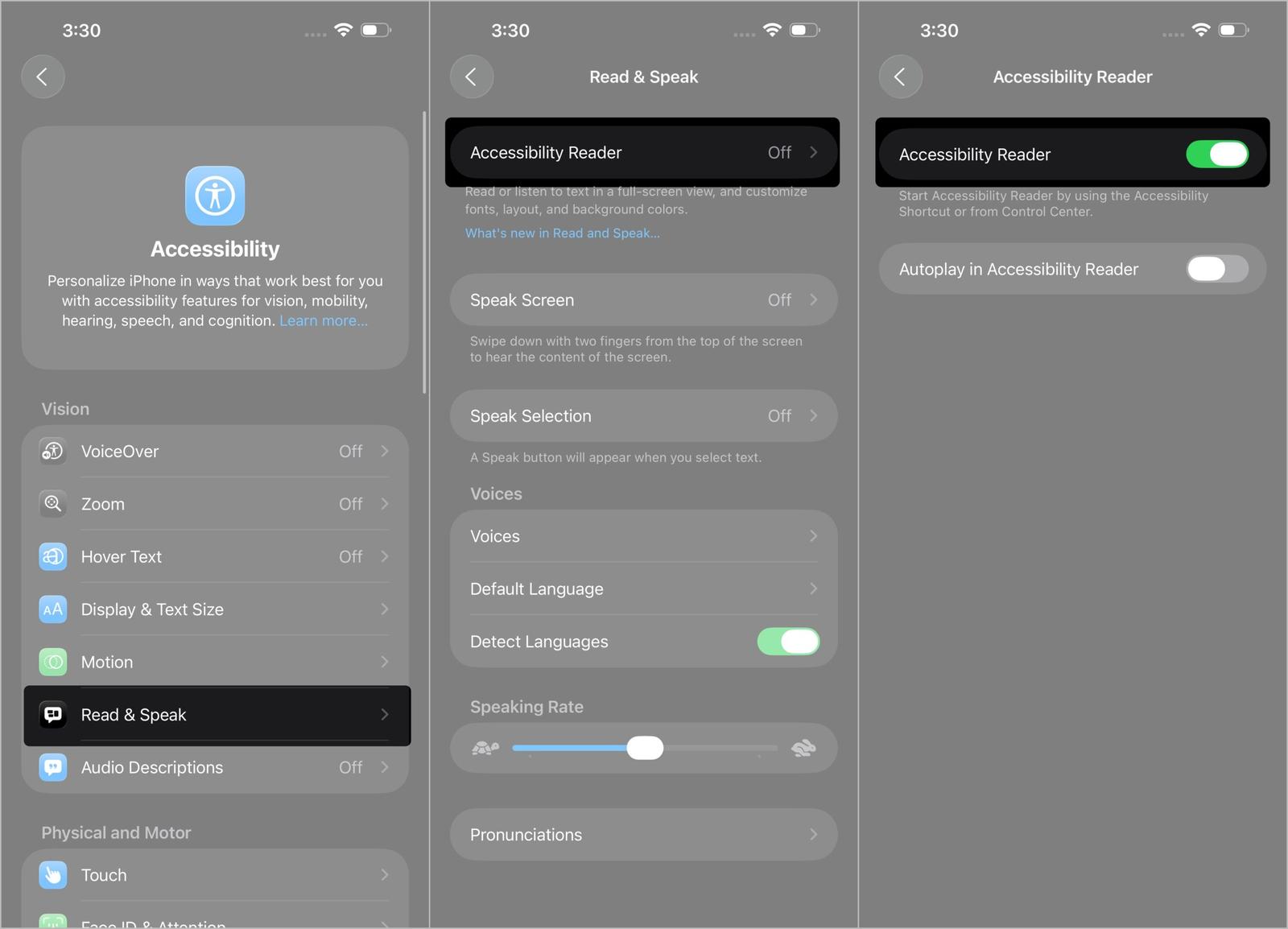
On iPhone or iPad:
- Open Settings
- Go to Accessibility.
- Select Read & Speak.
- Choose Accessibility Reader.
- Turn on the Accessibility Reader option.
On Mac:
- Open System Settings
- Click on Accessibility.
- Select Read & Speak.
- Choose Accessibility Reader.
- Turn on the Accessibility Reader option.
In the same settings, you’ll also find the Autoplay option in Accessibility Reader, which starts the voice automatically when you open the Reader.
How to Use and Customize Accessibility Reader on iPhone and iPad
Once you’ve turned it on, using it is pretty simple. Here’s how you can bring it up and start reading text the way you want.
- Open an app with text.
- Triple-click the power button and select Accessibility Reader if prompted (you can also launch it from Accessibility Shortcut, Control Center).
- The Reader will show the text in a clean, distraction-free view.
- If Autoplay is on, the text will be read aloud automatically. (Else you can tap on the play button to start playing)
- Tap the three dots (…) > Customize Reader to adjust:
- Font type, size, boldness
- Text and background color
- Spacing (line, word, character)
- Link style and color
- Highlight style for spoken text
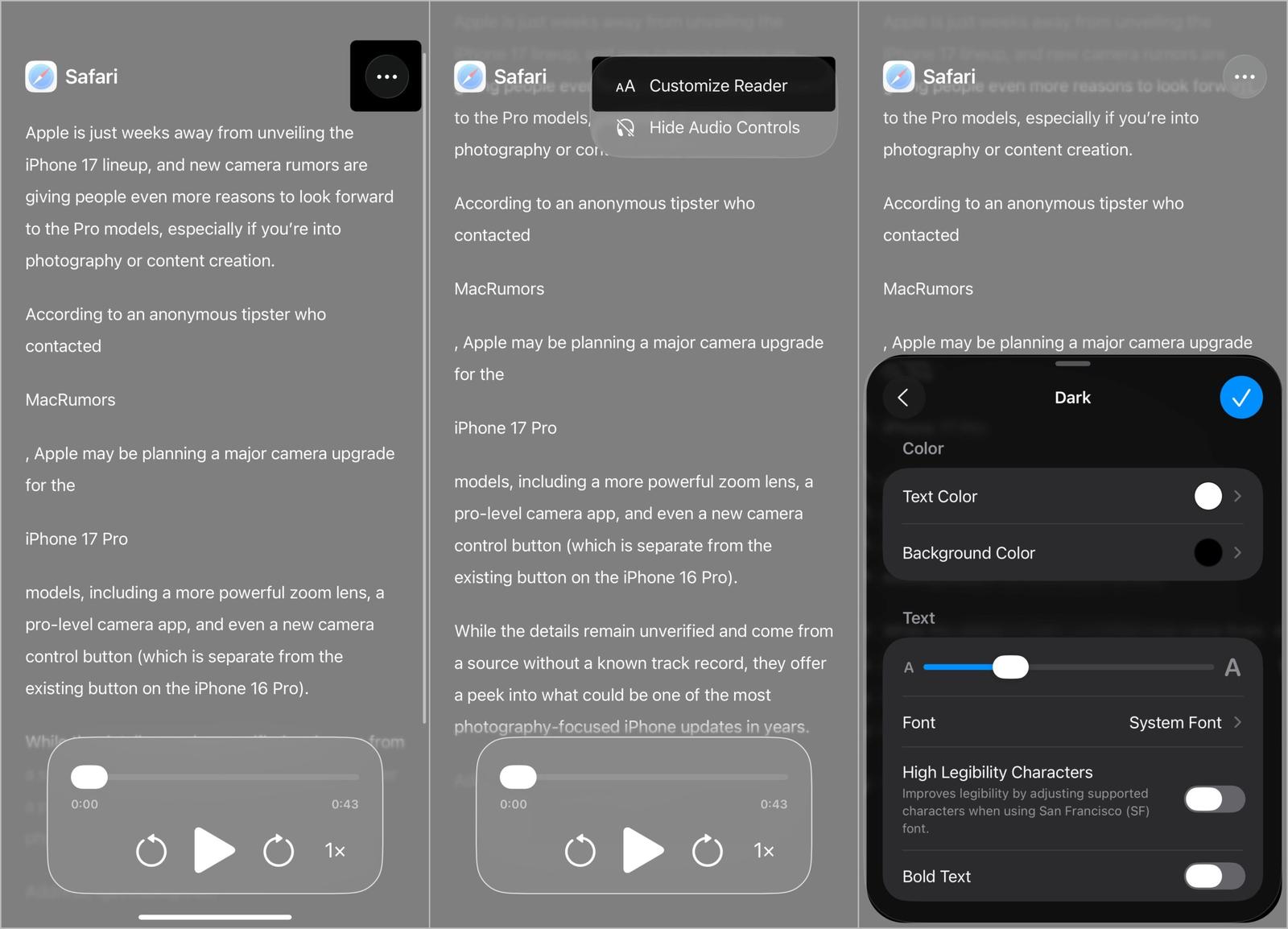
You can save these as presets (Dark, Balanced, Loose, Book, Bold, Light) or create your own.
How to Use and Customize Accessibility Reader on Mac
Once it’s turned on, using it on a Mac is just as easy. Here’s how you can open it and start reading text in a cleaner view.
- Open any app with text.
- Press Command (⌘) + ESC to launch Accessibility Reader.
- Customize fonts, colors, and spacing by clicking the AA icon.
- Use the playback controls to listen to the text.
- Close the Reader window when done.
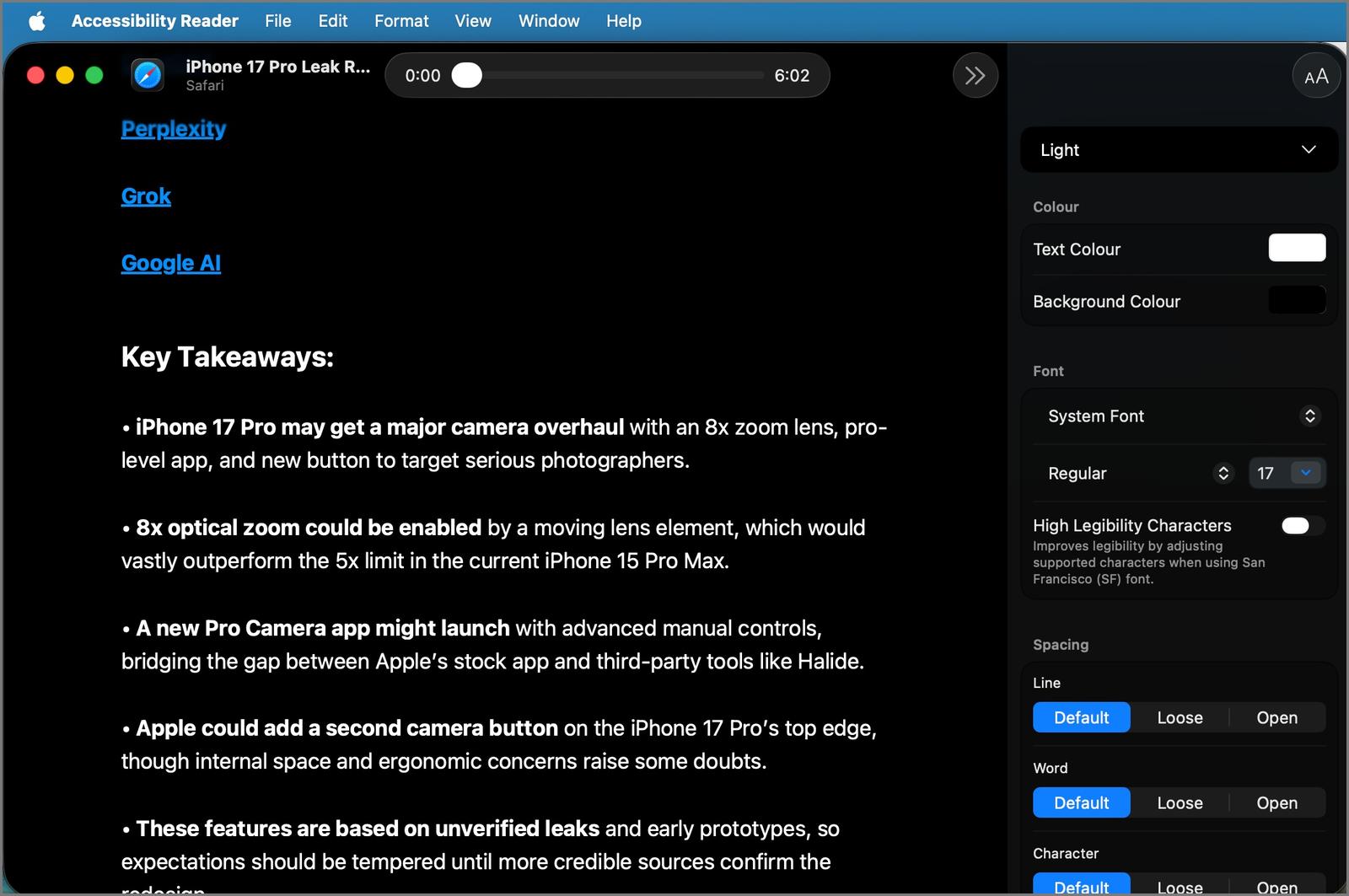
You can customize the shortcut by opening System Settings > Accessibility > Read & Speak > Info icon beside Accessibility Reader. Over here, you can change the shortcut, make sure it is not overlapping with an existing shortcut.
Real-World Text with Accessibility Reader
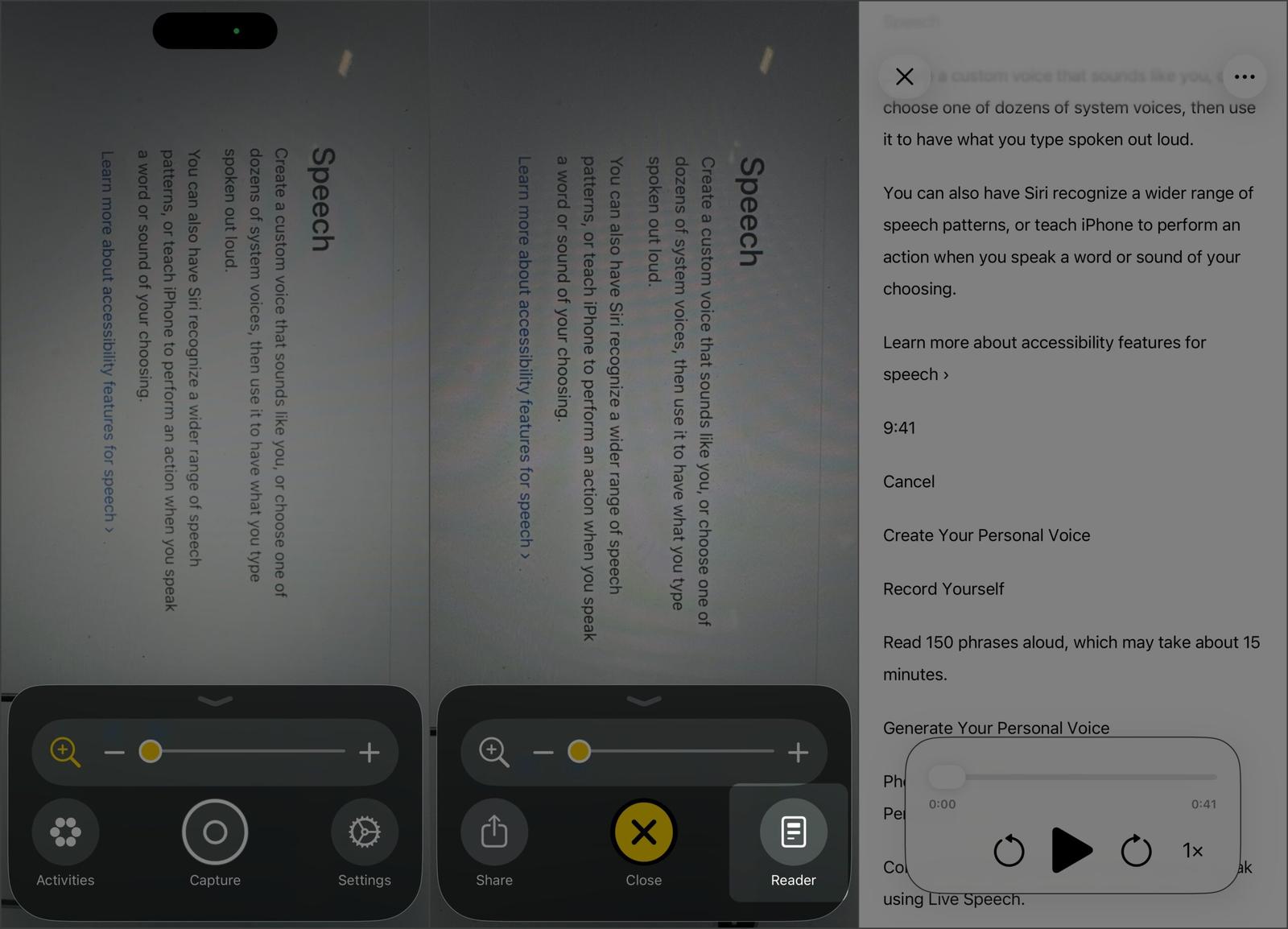
Apart from reading what’s on your screen, you can also read real-world text using the camera and Magnifier app on iPhone, iPad, and Mac:
- Open the Magnifier app.
- Point the camera at text (menu, sign, book page).
- Tap the Reader button in Magnifier.
- Adjust font, color, and spacing for comfortable reading.
- Use playback controls to hear it read aloud.
Accessibility Reader vs. Safari Reader vs. Speak Screen: What’s the Difference?
You might think Safari Reader or Speak Screen already cover this. They do. Each has its own pros and cons.
- Safari Reader: Works only in Safari and can turn an entire webpage into a clean reading view.
- Speak Screen: Reads out text on the screen but leaves the original layout untouched.
- Accessibility Reader: Works across the system, reformats text for easier reading, and adds playback. It works only with visible text on the screen, not full webpages at once.
So for webpages, Safari’s built‑in option is still the easiest choice. For reading text already on your screen, Speak Screen is a quick option. But if you want to clean up and customize how text looks anywhere on your device, Accessibility Reader is the way to go.
Why Use Accessibility Reader?
Accessibility Reader isn’t just for people with vision needs. It’s for everyone who wants a better reading experience.
- Adjust colors, contrast, and text style to make reading easier if you have low vision or color blindness.
- Change fonts and spacing to make text more comfortable if reading feels overwhelming or tricky.
- Switch to a darker background for reading in low light or glare.
- Tweak text color and brightness for relaxed late‑night reading.
- Strip away ads, images, and extra stuff so you can just focus on the words.
- Let the Reader read aloud so you can listen and follow along when needed.
Accessibility Reader is more than an accessibility feature; it’s simply a smarter, more comfortable way to read on any Apple device.
Pro Tips: Personalization & Productivity
Accessibility Reader isn’t just about cleaning up text. You can make it work smarter for you.
- Automation via Shortcuts: Set up Shortcuts so Reader opens exactly how you like it. For example, a tap could launch it in Dark Mode with your favorite font or even start reading aloud right away.
- Saving and exporting text: Need to keep what you just read? Use the Share menu to send it to Notes, Pages, or export it as a file. It’s perfect for saving study material, recipes, or meeting notes.
- Customizing for specific needs: Tweak it for you to make dyslexia-friendly layouts with special fonts and spacing, boost contrast for low vision, or strip everything down for a simple focus mode when you just need to concentrate.
- Magnifier and multi-tasking: On Mac or iPad, pair it with Magnifier to keep one window zoomed in on a slide or document, and another open in Reader for a clean, readable copy.
Security & Privacy: What You Need to Know
Privacy is built in. Accessibility Reader keeps everything on your device.
- How Reader handles sensitive information: All processing happens locally. Whether it’s a contract, medical form, or personal letter, none of it leaves your device.
- Microphone/camera permissions and privacy settings: When using Magnifier, the camera feed stays local. No snapshots are sent to Apple or stored without your action.
- Apple’s commitment to user data protection: Apple’s long-time approach to accessibility and privacy stays the same here: local processing, clear permissions, and no hidden data collection.
Final Thoughts
Apple has packed Accessibility Reader with thoughtful touches. From customizable fonts to real-time spoken content, it adapts to how you want to read. Once iOS 26, iPadOS 26, and macOS Tahoe launch this fall, you’ll have a one-tap tool to make reading cleaner, easier, and more personal.