
How to back up iPhone and iPad to iCloud, Mac or Windows PC
Your iPhone and iPad are home to some of the most critical data, and unexpected things tend to happen when you expect them the least. I learned this the hard way when I forgot my iPhone passcode. I had to let go of my data to recover it. So, never forget to regularly back up your iPhone or iPad to iCloud, Mac, or computer.
With a full backup onboard, recovering deleted files becomes relatively straightforward. This simple guide will help you understand the types and ways to back up your device easily. Let’s take a look.
Which iPhone backup method is best for you?
There are two types of iPhone backup, namely, iCloud Backup and Computer backup. Now, you may wonder, ‘should I backup my iPhone to iCloud or computer?‘
The answer is not complicated. It depends on your internet speed and allowance, free space on your computer, free iCloud storage, ease of use, etc.
If you want things to be effortless, iCloud backup is the way to go. But if you do not do it right, you will quickly fill the 5GB of free storage and thus have to buy an iCloud plan.
Mac or PC backup on the other end requires your iPhone to be connected to it and can be used to quickly backup. Plus, it requires no internet, which makes it a good option when you are in an airport, different country, or a remote location.
The following table will further help your make the correct choice.
| iCloud Backup | Computer Backup |
| The backup is safely saved in the cloud. | Backup is saved locally on your Mac or PC. |
| Backups are encrypted. | You have to enable the backup encryption option manually. |
| 5GB free iCloud space that comes with every Apple ID. If your backup size is more (which most likely will be), you will have to pay for a subscription. | No storage limitation. It depends on the free space available on your computer. |
| You can make iCloud backups from anywhere as long as you have Wi-Fi. | A Mac or PC is essential to back up your data. You do not require internet, though. |
| Freedom to choose which apps to backup. | You can’t choose to exclude desired apps from backing up. In other words, it will back up all installed apps. |
Data included: → Device settings → App data → Apple Watch backups → Home screen and app organization layout → iMessage, text (SMS), and MMS messages → Photos and videos on your iOS device → Purchase history from Apple services (music, movies, TV shows, etc.) → Visual Voicemail password → Ringtones | Data included: → Face ID or Touch ID settings → Apple Mail data → Apple Pay information and settings → The data stored in the iCloud. → The content you have synced from iTunes/Finder → Content from App Store and iTunes → The PDFs downloaded directly to Apple Books Note: Your iOS device backup on a computer won’t include Health, Activity, and Keychain data unless you enable Encrypted Backup. |
How to back up iPhone or iPad using iCloud
You can back up your iPhone or iPad with iCloud manually or automatically. You can turn on iCloud Backup so your device automatically backups your data.
- Go to Settings → [your name].
- Select iCloud → iCloud Backup.
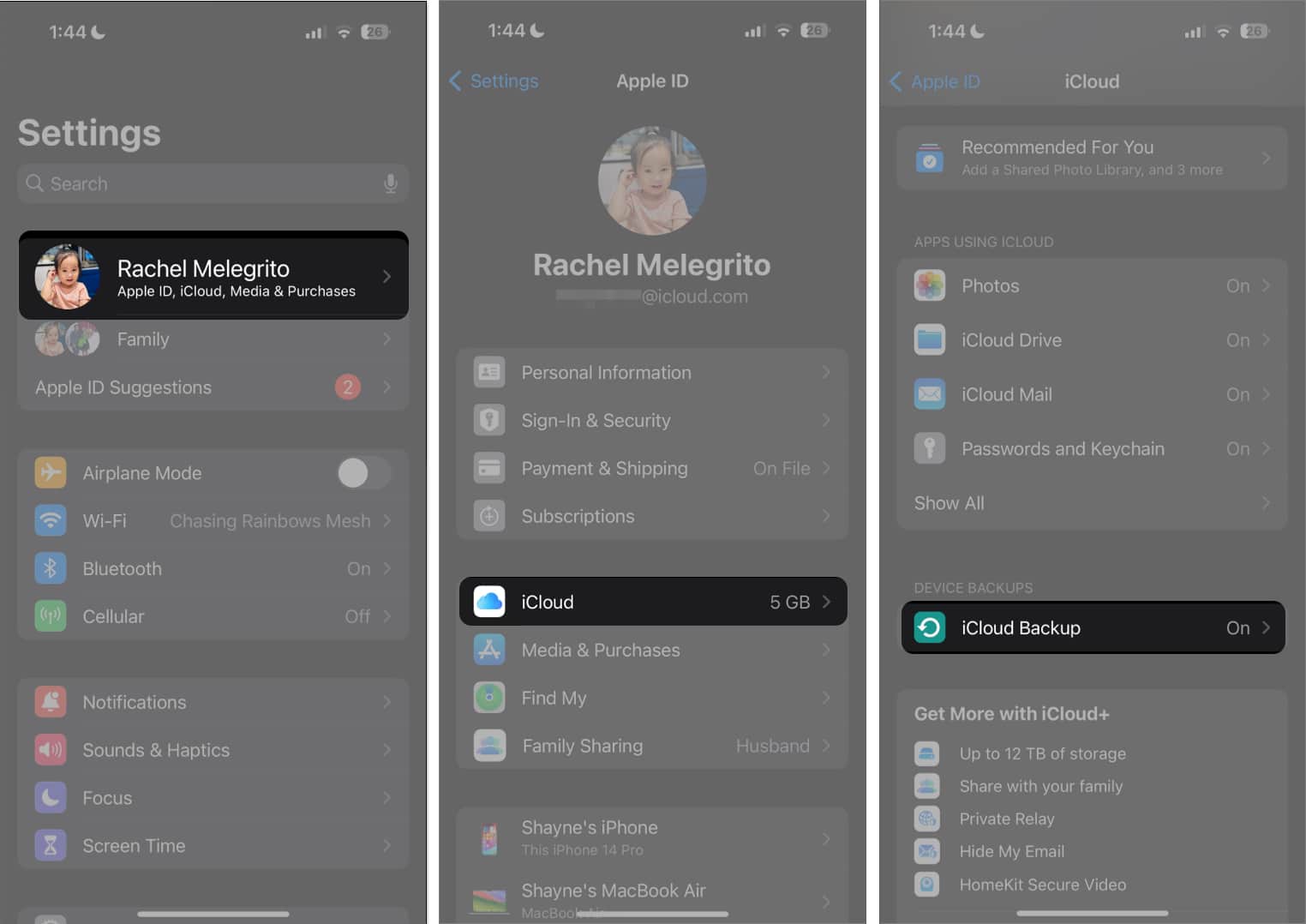
- Toggle on Back Up This [device].
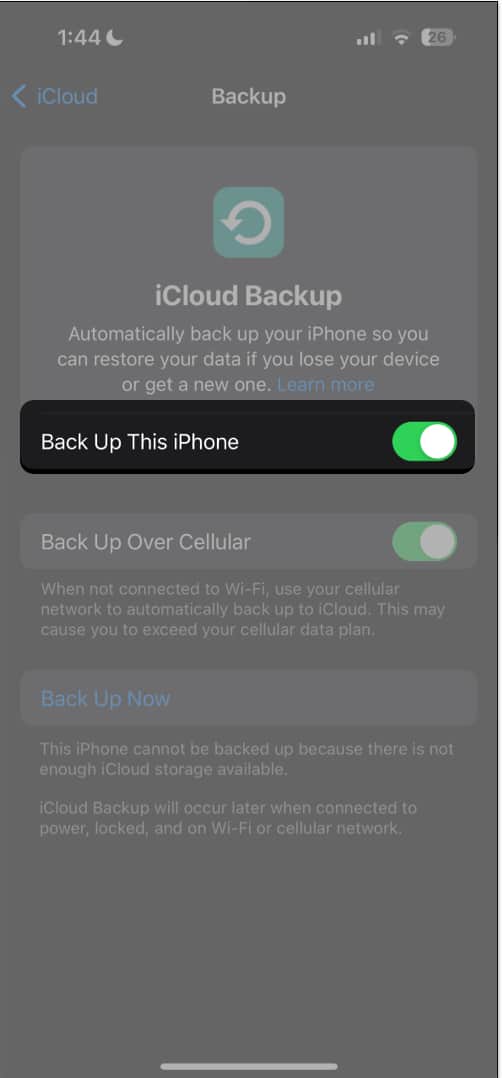
When it is enabled, your device will back up your data in the cloud as long as your device:
- Is powered on
- Is connected to Wi-Fi or cellular data (if you’ve enabled Back Up Over Cellular)
- Is screen locked
- Has enough storage space (you’ll get an alert asking you to clear up your space to continue the backup)
- Has not been successfully backed up in the last 24 hours
Otherwise, you can do a manual iCloud backup by connecting your device to a Wi-Fi network and following the steps below:
- Navigate to Settings→ [your name].
- Tap iCloud → iCloud Backup.
- Select Back Up Now.
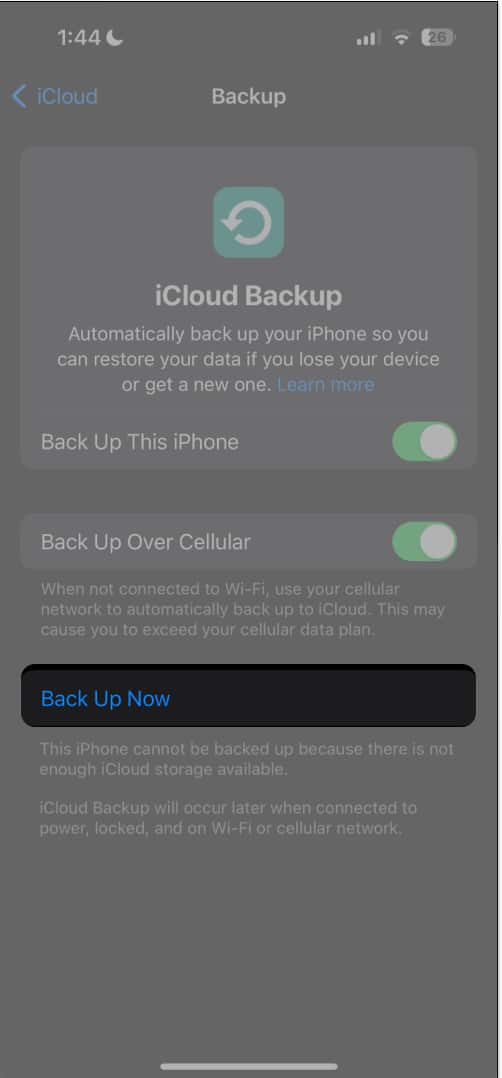
You’ll see the date and time of your last backup under Back Up Now. Once in progress, ensure your device stays connected to a Wi-Fi.
Note:
If you face any issues, refer to our guide iPhone won’t back up to iCloud
How to select which iPhone apps to back up to iCloud
You can choose which apps you want to be a part of the backup and which ones to exclude for iCloud.
If you are on the 5GB free plan or wish to speed up the backup process without consuming a lot of data, it is good to prevent unnecessary apps from backing up.
But which apps to avoid? The most straightforward answer is social media apps like Facebook, Instagram, Twitter, etc. These apps already have all the data in their cloud, and once you log in, you get everything back. Thus, it is not necessary to back up these on iCloud either.
- Go to iCloud → Manage Storage → Backups.
- Select your device.
- Toggle off apps you don’t want to back up.
Besides, the native Apple apps, such as Photos, Keychain, Notes, Messages, Health, etc., have iCloud enabled by default. So, when you log in to your Apple ID on another device, these data will be restored without a backup. This way, you can access your passwords, notes, chats, and sync health to iCloud.
How to back up your iPhone or iPad using your Mac
If you’re using a Mac running macOS Catalina or later, you can back up your iPhone or iPad using Finder.
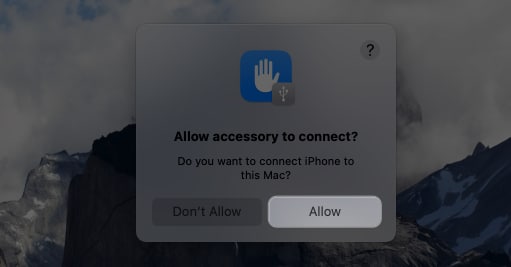
- Connect your iPhone to your Mac using a USB cable.
- Click Allow on the Allow accessory to connect to give your device permission.
- Now, locate your iPhone in the Finder sidebar.
- Click Trust in the Trust [your name] ’s [device] popup to sync with your iPhone.
You might see the same popup window appear on your iPhone or iPad. Tap Trust and enter your passcode.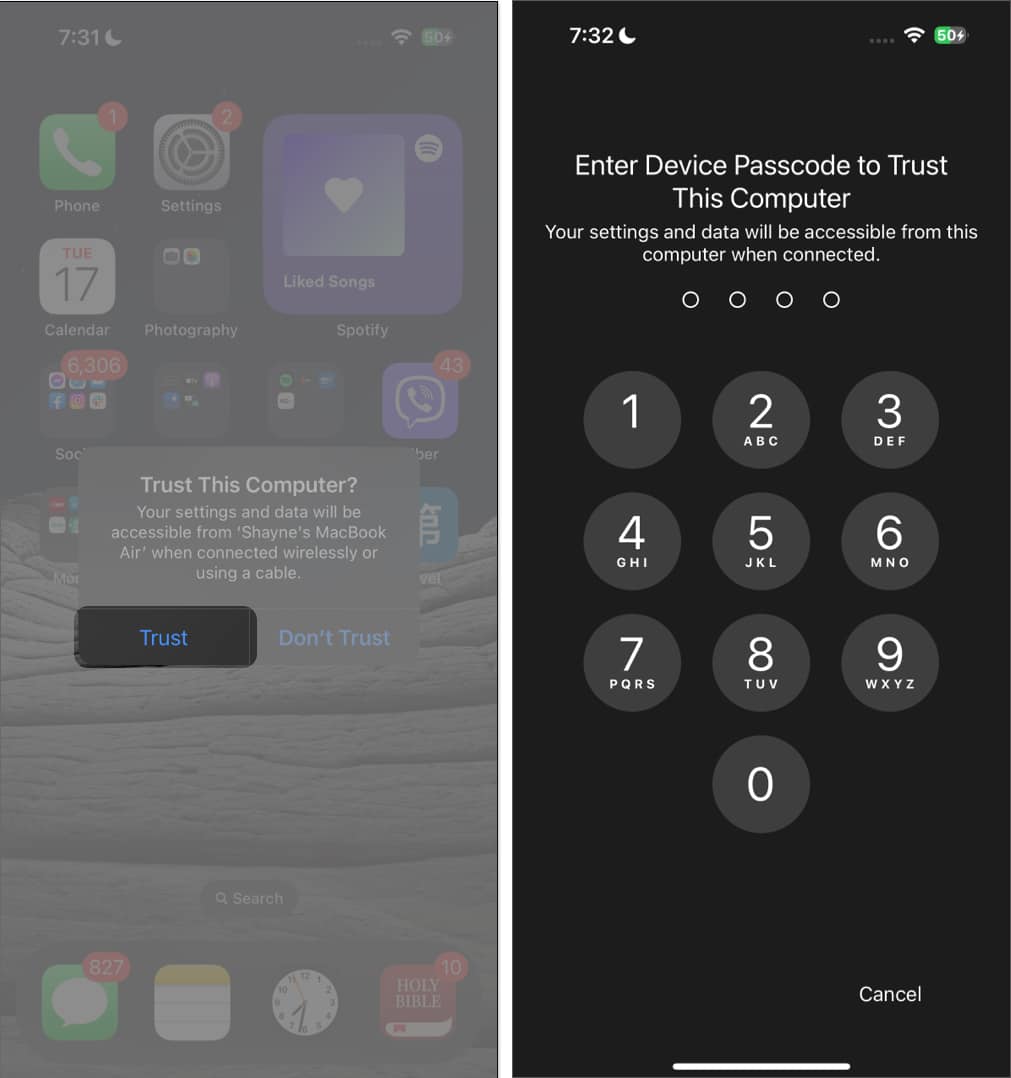
- To include your Health and Activity data in the backup, tick Encrypt local backup and create a password.
- Hit Sync.
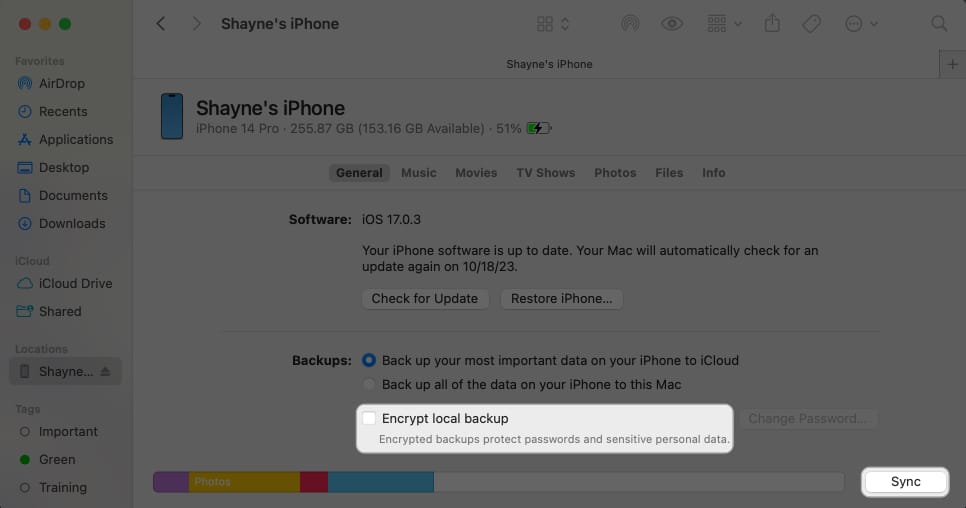
Once done with the backup, you’ll see the date and time of your last backup. Now that you’ve already backed up your device, you can restore your iPhone or iPad from a backup anytime!
How to back up your iPhone or iPad using your Windows PC
The process of backing up your iPhone or iPad using a Windows PC is similar to that of a Mac, except that you’ll be using iTunes instead of Finder.
- Just plug in your device on your computer using a cable.
- Open the iTunes app on your PC.
- Locate the iPhone button on the left side → Click Summary.
- Select Encrypt local backup and enter a password.
- Click Back Up Now.
How to back up iPhone to an external hard drive
Your Mac or PC stores all the backup files for your iPhone or iPad in a system folder called MobileSync. If you prefer to save your backups on an external hard drive rather than your local disk, you can change your device’s backup location to an external hard drive instead.
How to back up an iPhone or iPad to Mac wirelessly
After syncing your device to a Mac or PC using a cable, you can sync them wirelessly and automatically whenever both devices use the same Wi-Fi network. This means adding something on your iPhone or iPad will also appear on your Mac.
While your iPhone or iPad is connected to your Mac:
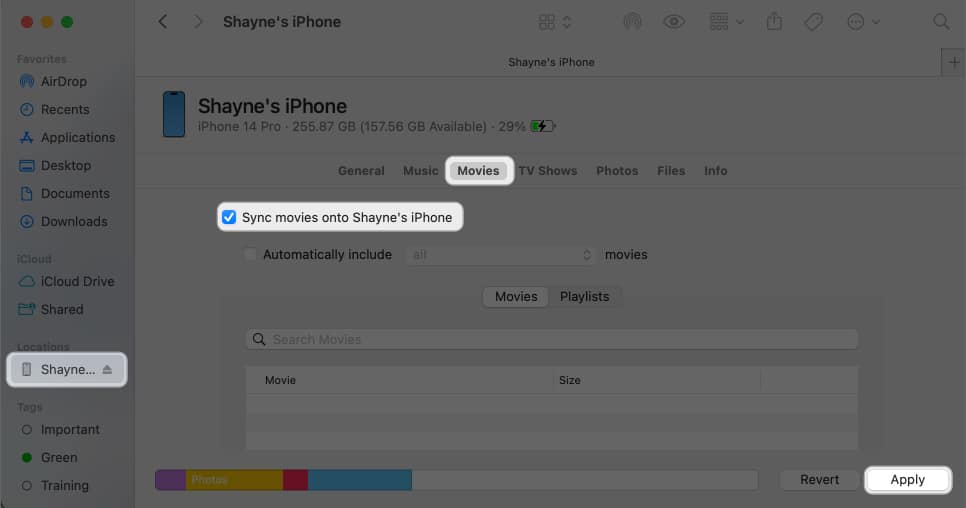
- Go to Finder and select your device in the sidebar.
- Head to the button bar → Select which content types you want to sync.
iCloud Photos and Apple Music sync automatically, so you won’t see options for syncing music and photos. - Tick Sync [content type] onto [person’s device] to enable syncing for that content.
Repeat this for each content you want to sync. - Click Apply when you’re ready to sync.
Note:
that deleting an item automatically synced from your Mac also removes the item from your device the next time you sync.
Video: How to backup iPhone: All possible methods
Wrapping up…
Backing up your iPhone or iPad to iCloud or your computer is undeniably one of the best steps to safeguard your valuable data. Whether you accidentally delete important files, face unforeseen technical glitches, or simply want to upgrade to a new device, having a reliable backup ensures that your digital world remains intact.
Which backup method do you prefer? Tell us why in the comment section below!
Frequently Asked Questions
Topics

Written by
Ankur ThakurI have been an Apple user for over seven years now. At iGeeksBlog, I love creating how-tos and troubleshooting guides that help people do more with their iPhone, iPad, Mac, AirPods, and Apple Watch. In my free time, I like to watch stand up comedy videos, tech documentaries, news debates, and political speeches.
View all posts →More from How-to

Snapchat Parental Controls: How to Set Up Family Center and Keep Your Teen Safe
Snapchat’s Family Center lets parents monitor their teen’s friend activity and screen time without reading private messages. Here’s how to set it up and what to expect.
 VikhyatMarch 3, 2026
How to Block and Unblock Someone on Instagram
Instagram lets you block or unblock someone in seconds. Follow these simple steps to take full control of your privacy and online peace.
 Ava BiswasMarch 2, 2026
Apple Watch Not Responding? 8 Fixes That Actually Work
Is your Apple Watch unresponsive or stuck on a black screen? Here are 8 proven fixes to help you unfreeze it and get it working again quickly.
VikhyatMarch 3, 2026