iMessage is one of the most convenient ways to stay connected on your iPhone, so running into an activation error can be frustrating. The good thing is that this problem is usually caused by minor issues such as network settings, time configuration, or temporary glitches. With the right steps, you can get iMessage working again in just a few minutes.
This guide walks you through quick and effective fixes to resolve the iMessage activation error so you can start sending messages without interruption. These solutions also help if FaceTime refuses to activate on your device.
Different iMessage Activation Errors You Might See on iPhone
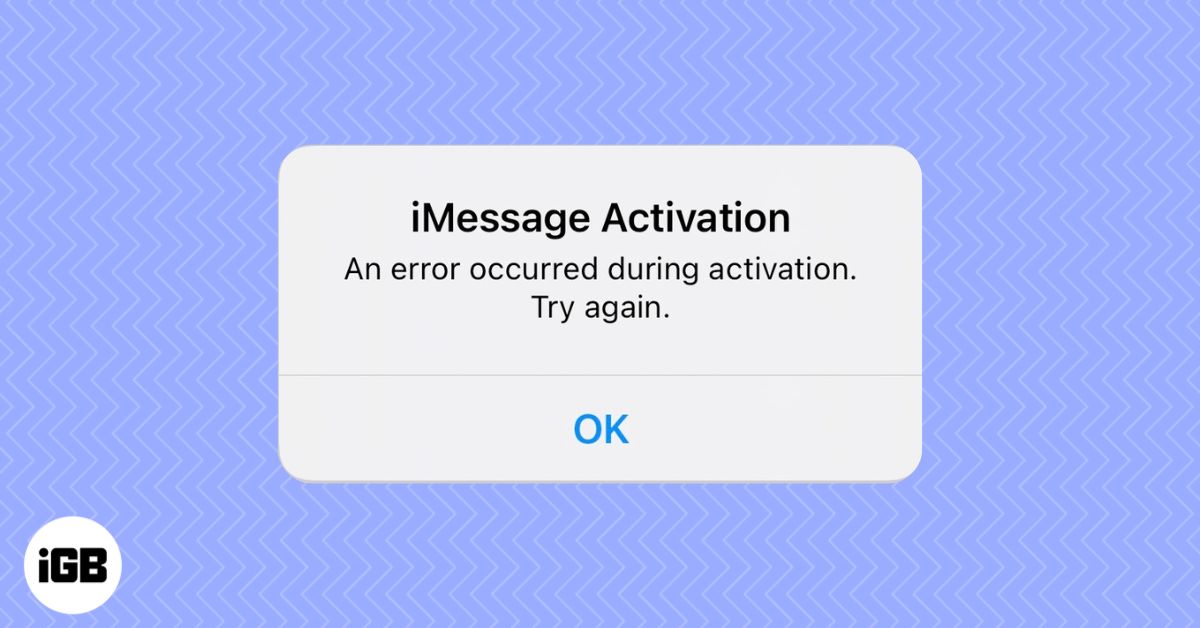
According to Apple, you may see one of the following errors when iMessage fails to activate:
- Waiting for activation.
- Activation unsuccessful.
- An error occurred during activation.
- Could not sign in, please check your network connection.
- Unable to contact the iMessage server. Try again.
Before getting into the fixes, it helps to understand why these issues show up.
Why Does My iMessage Say Waiting for Activation?
Most of the time, this happens because of something very small that is easy to correct. These are the most common reasons:
- You may not be connected to working cellular data or Wi-Fi.
- Your iPhone settings fail to send an SMS.
- Something is broken on your carrier’s end, preventing text message delivery.
- You do not have enough balance to send the iMessage activation text.
- Your date and time settings are incorrect.
- There is a temporary problem with Apple’s server.
Since many of these issues share similar roots, the same fixes work for several activation errors at once.
Note:
Quick Ways to Fix the iMessage Waiting for Activation Error on iPhone
You can usually solve iMessage activation problems quickly by trying these effective solutions.
1. Check if You Can Send Text Messages
iMessage activation requires your iPhone to send a standard SMS.
To check;
- Open the Messages app and choose a friend or family member (preferably those who use an Android phone).
- Send an SMS and see if it is successfully delivered.
- If yes, move on to the next fixes. If not, please see how to fix the iPhone not sending text messages issue.
2. Make Sure Your iPhone Has an Active Internet Connection
A working internet connection is essential for iMessage activation. Try loading a webpage in Safari or streaming a video on YouTube. If nothing loads, your Wi-Fi or mobile data may be failing. You can follow guides for fixing Wi-Fi or cellular data issues if needed.
- Wi-Fi Not Working on iPhone or iPad? 10 Ways to Fix It!
- iPhone cellular data not working? 11 Ways to fix it!
If you are using cellular data, go to Settings, open Cellular, scroll down, and make sure the toggles for Settings and FaceTime are green. Also, if a VPN is enabled, turn it off because it can interfere with the activation process.
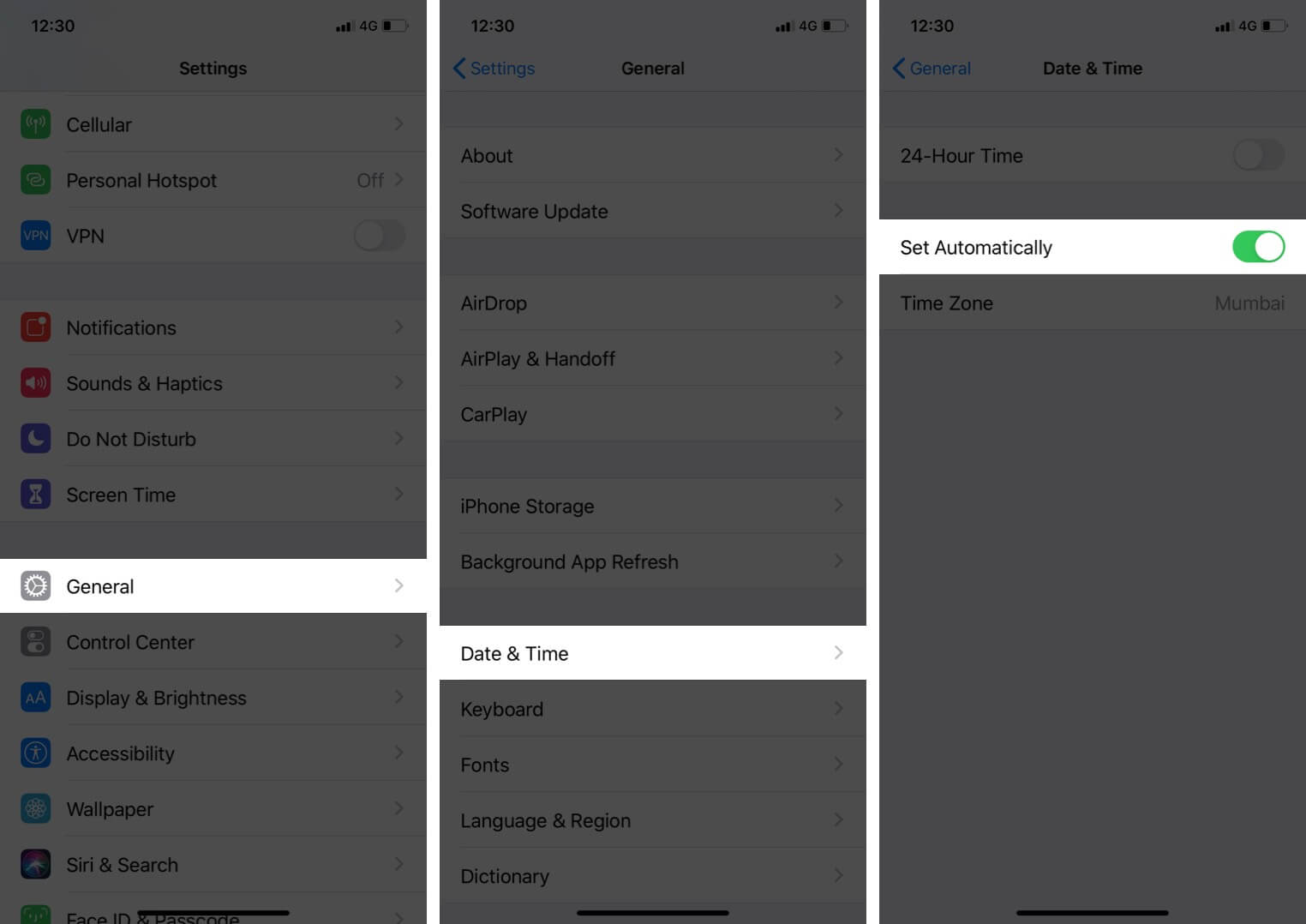
3. Set the Correct Date and Time
Incorrect date and time settings can interrupt iMessage activation. The simplest fix is setting these automatically.
- Open the Settings app and tap General.
- Tap Date & Time.
- Toggle on for Set Automatically.
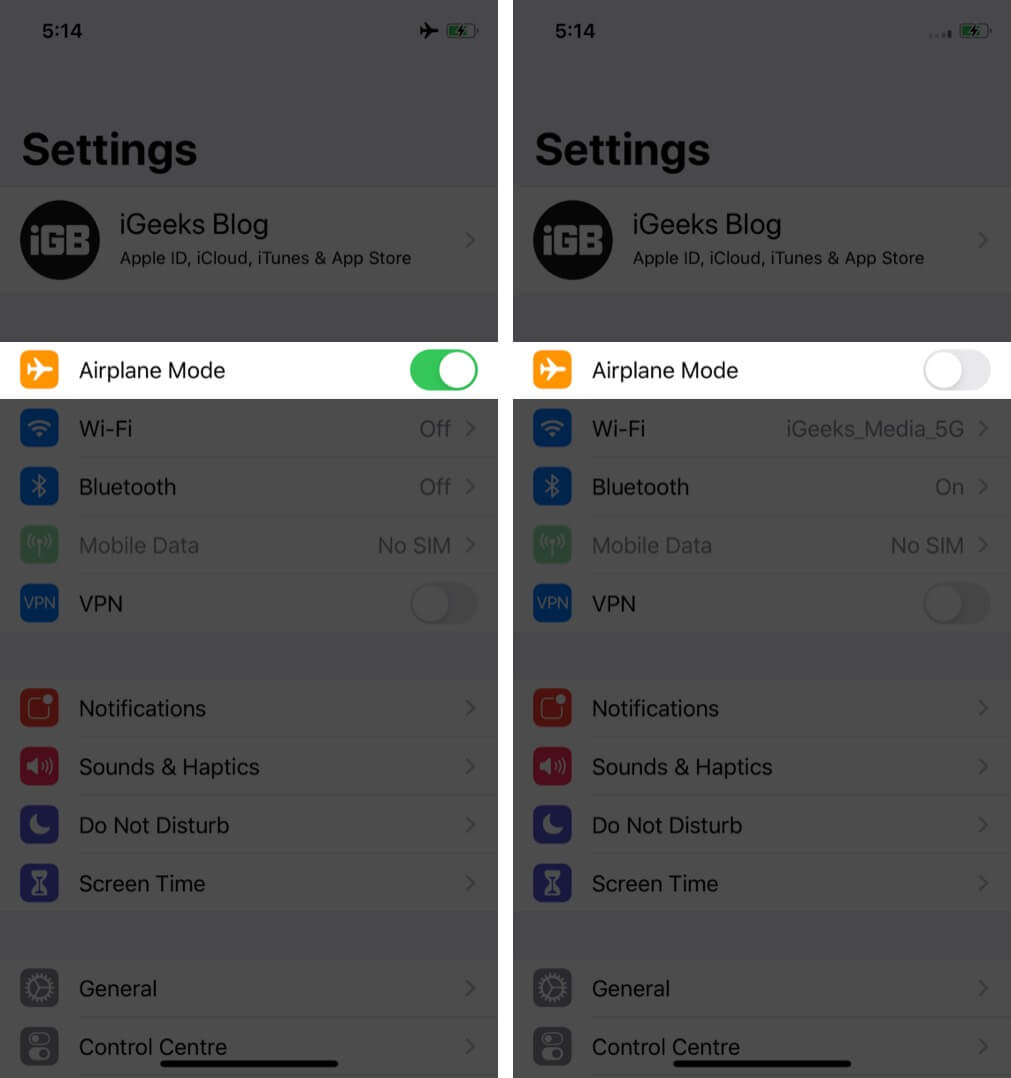
4. Turn Airplane Mode On and Off
This simple trick often fixes activation glitches. You can toggle Airplane Mode from Control Center or in the Settings app. Wait a few seconds before turning it off again.
5. Restart Your iPhone
Restarting solves more issues than most people realize. Whether it is a router, computer, or phone, rebooting can clear temporary conflicts. Restart your iPhone and see if iMessage activates afterward.
6. Check Apple’s Server Status
Sometimes the problem is not on your end at all. Visit Apple’s System Status page and check if iMessage or Apple ID services are experiencing downtime. If they are, you simply need to wait until Apple resolves the issue.
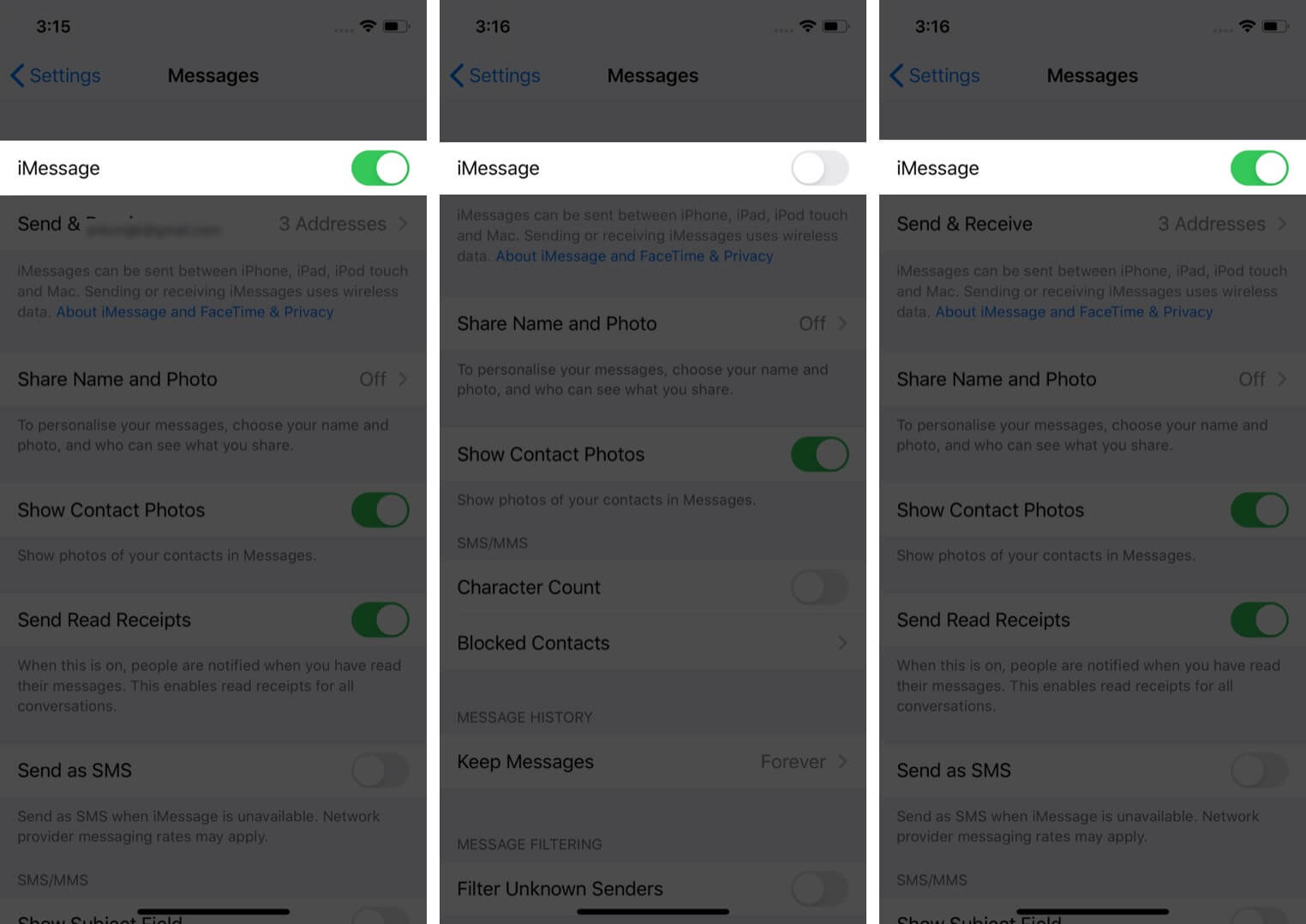
7. Turn iMessage Off and On Again
- Open the Settings → Apps → Messages.
- Toggle off iMessage.
- After a minute, toggle it on.

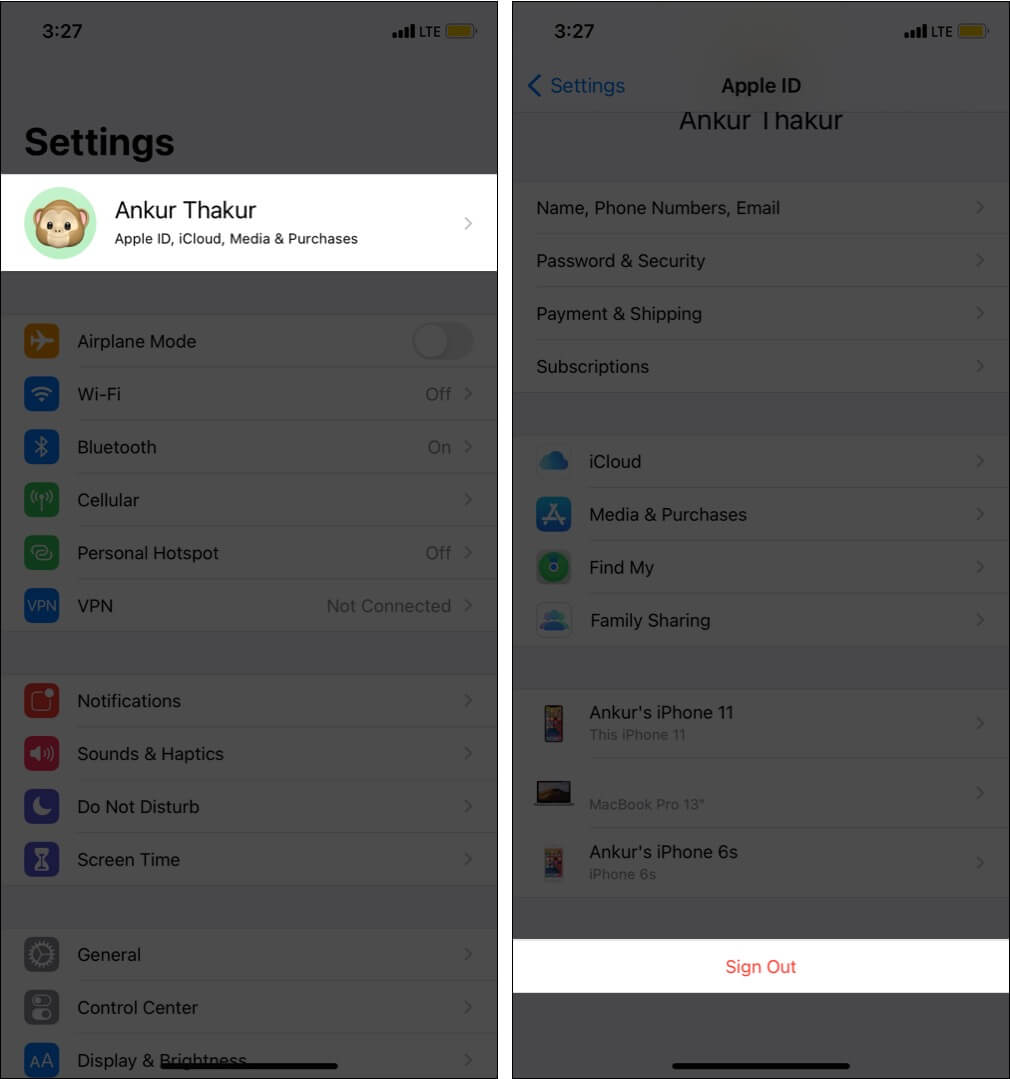
8. Sign Out of Apple ID and Sign In Again
Sometimes your Apple ID session encounters a glitch.
To fix it:
- Open the Settings app and tap your name at the top.
- Scroll to the bottom and tap Sign Out.
- Enter your Apple ID password and proceed to sign out successfully.
- Next, restart your iPhone.
- Open the Settings app and tap Sign in from the top.
- After signing in, see if the iMessage problem is fixed. If not, try to turn iMessage off and on again.

9. Update Carrier Settings and Check Carrier Issues
Carriers push updates that improve texting, calling, and internet functionality. It helps to install any pending carrier updates. You should also contact your carrier and ask whether your account has any restrictions that prevent sending text messages or activating iMessage.
10. Update iOS
A software bug may be interfering with iMessage activation. Updating to the latest version of iOS often resolves these issues. Go to Settings, tap General, and open Software Update to install any available updates.
11. Reset Network Settings
If nothing works, resetting network settings is one of the most effective solutions for iMessage activation problems
- Open the Settings app and tap General.
- Tap Reset.
- Tap Reset Network Settings.
- Enter your iPhone passcode and confirm.
- Once done, restart your iPhone and try to activate iMessage again.
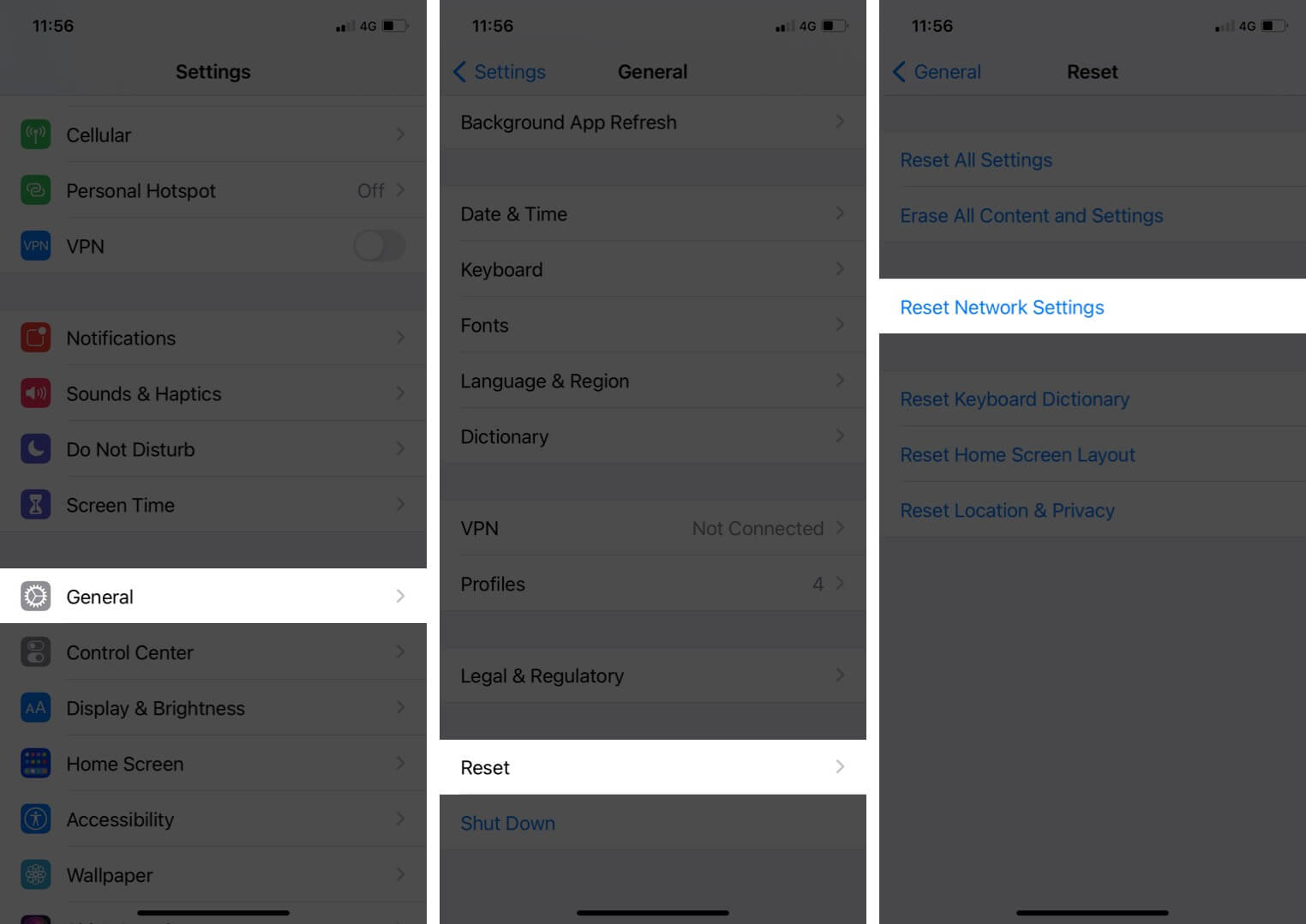

If this still doesn’t fix it, you may consider Reset All Settings. This removes modified system settings but does not erase your data. It’s still a good idea to back up your iPhone before doing this.
Back to Smooth Messaging
Once you try these simple fixes, iMessage usually activates without much trouble. Most issues come from temporary network or system glitches, and a quick reset or setting adjustment often does the job. With iMessage up and running, you can enjoy a smooth and reliable messaging experience again.
If you continue getting the same activation error, reach out to your carrier and Apple Support. They can assist you through call, chat, or even through social channels. Apple also offers the Support app, and most carriers have their dedicated support apps to make things easier.
Here are the support numbers for the most popular US carriers:
- AT&T: 1-(800)-331-0500
- Verizon: 1-(800)-922-0204
- T-Mobile: 1-(877)-746-0909
- Sprint: 1-(888)-211-4727
If you have questions or found another fix that worked for you, feel free to share it in the comments.
Read next: