I love using Shared Albums on my iPhone, especially after trips, vacations, or family events. Everyone can upload their photos, react to pictures, and keep the entire collection organized in one place. The only problem was that this convenience usually disappeared as soon as someone in the group used an Android phone.
The usual solution was sending photos over WhatsApp or uploading them somewhere else, which meant another app, another link, and another place to manage everyone’s photos.
With iOS 27, Apple is finally making Shared Albums feel useful outside its own ecosystem. I shared one with my Android friends, and they could not only view the album but also add their own photos without needing an iPhone.
Keep reading to learn how it works.
What are Shared Albums on iPhone?
Shared Albums is an iCloud Photos feature that lets you create separate albums and share them with other people. Instead of sending individual photos through messaging apps or creating separate folders elsewhere, you can keep everything inside the Photos app.
A Shared Album is much more than a regular folder in the Photos app. Regular albums only help you organize photos already in your library, but a Shared Album creates a space that other people can access.
Depending on the permissions you choose, people in the album can view photos, add their own pictures, and interact with the shared collection. It works more like a shared photo space where everyone can contribute instead of a folder that only exists on your iPhone.
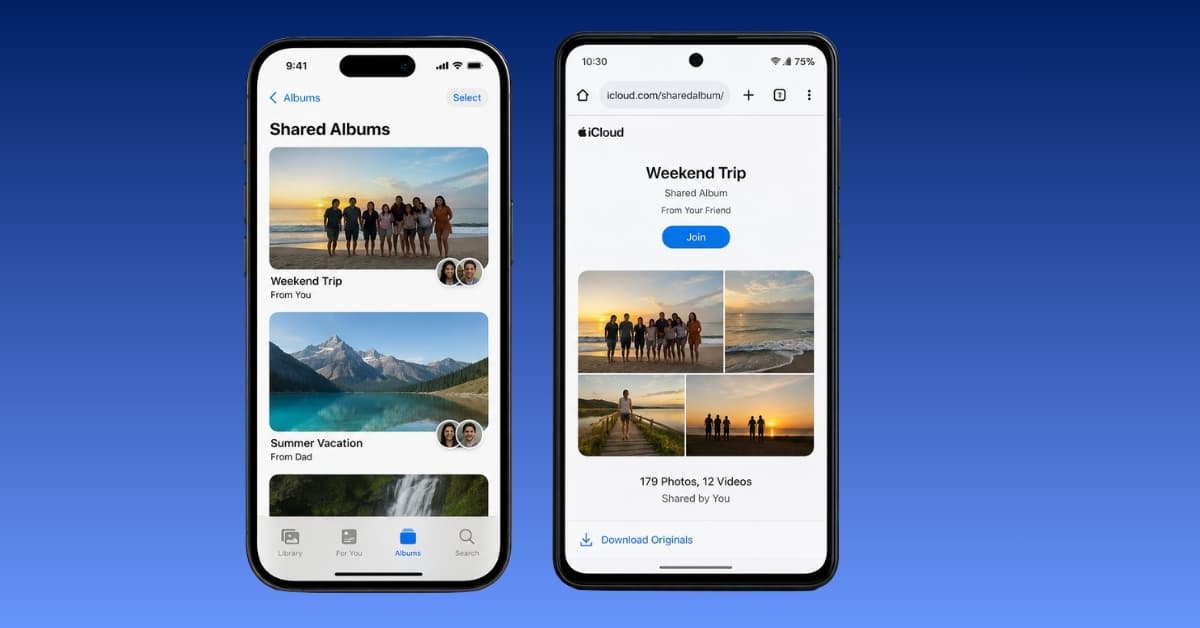
The best part is that people don’t need to use the same device as you. iPhone users can access Shared Albums directly from the Photos app, while Android users can open them through an iCloud link in their browser.
Before creating one, make sure Shared Albums are enabled on your iPhone:
- Open the Settings app, scroll down and tap iCloud.
- Here, select Photos under Saved to iCloud.
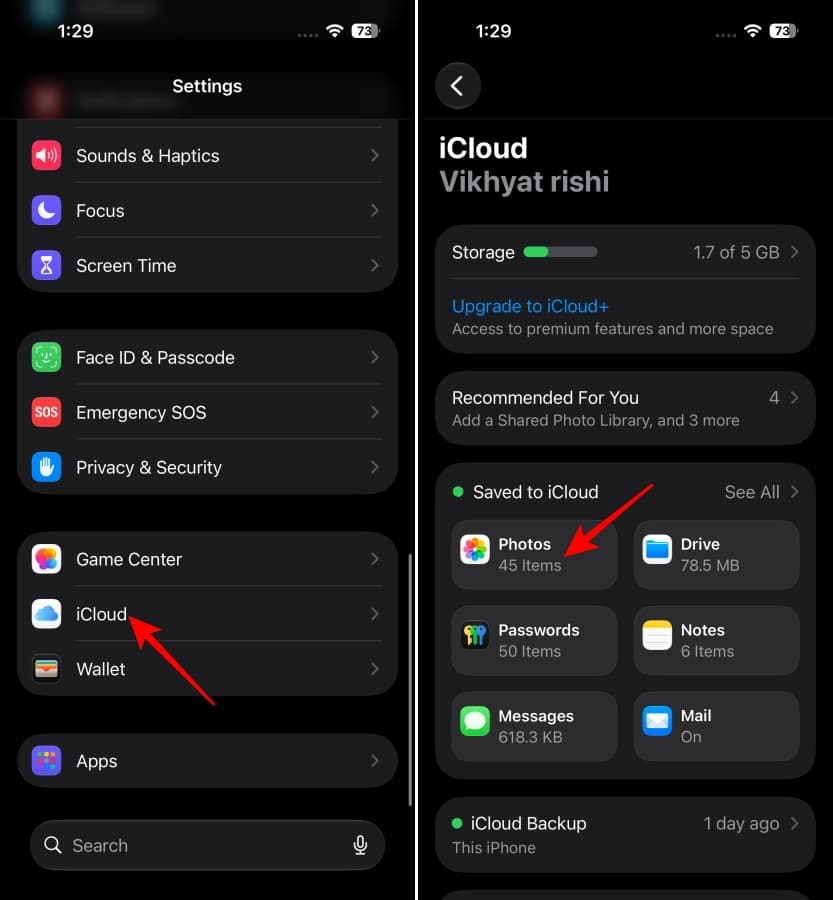
- Now, tap Shared Albums under Sharing.
- Next, toggle on Shared Albums.
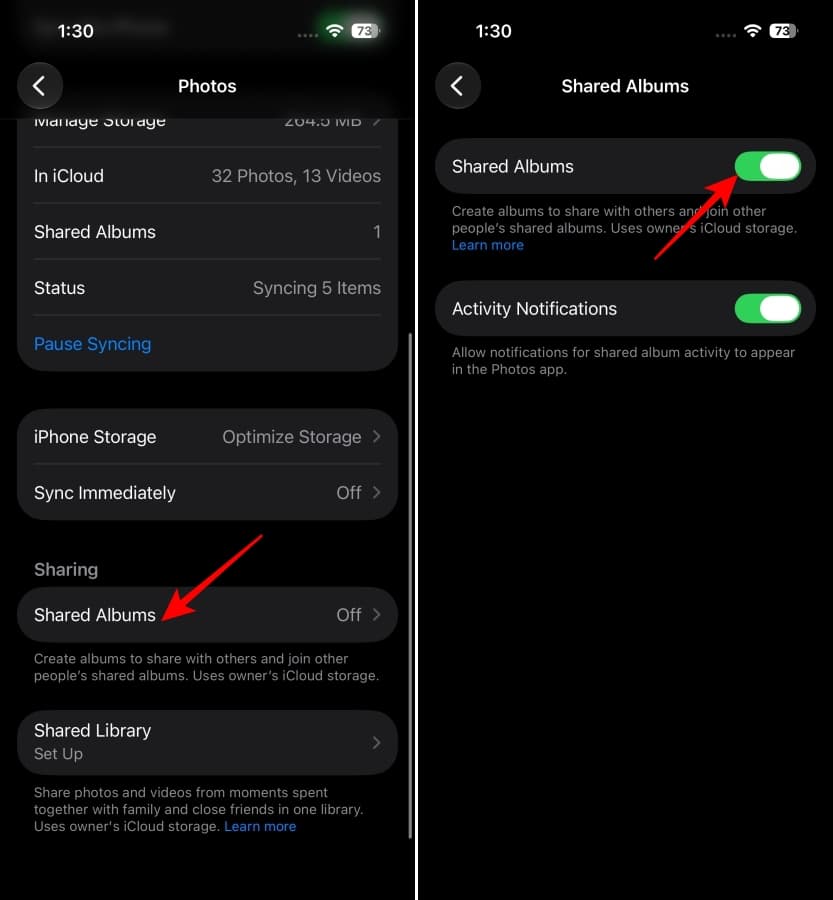
Once enabled, you can create and share albums directly from the Photos app.
How to create a Shared Album on iPhone
After enabling Shared Albums, you can create one directly from the Photos app.
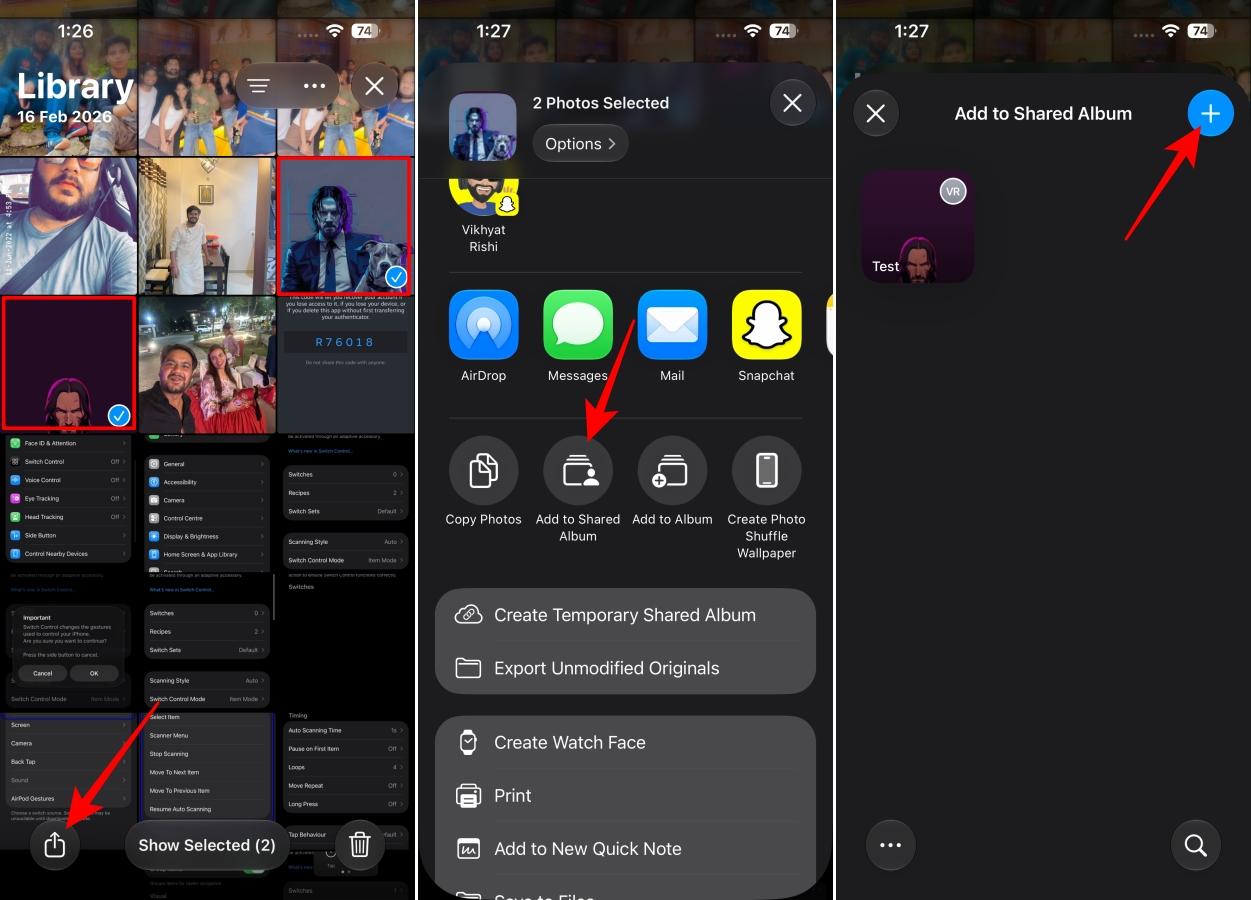
- Open the Photos app and select the photos and videos you want to add to the Shared Album.
- Tap the Share button.
- Here, tap the Add to Shared Album button.
- Now, select an existing Shared Album or tap the + (Add) button to create a new Shared Album.
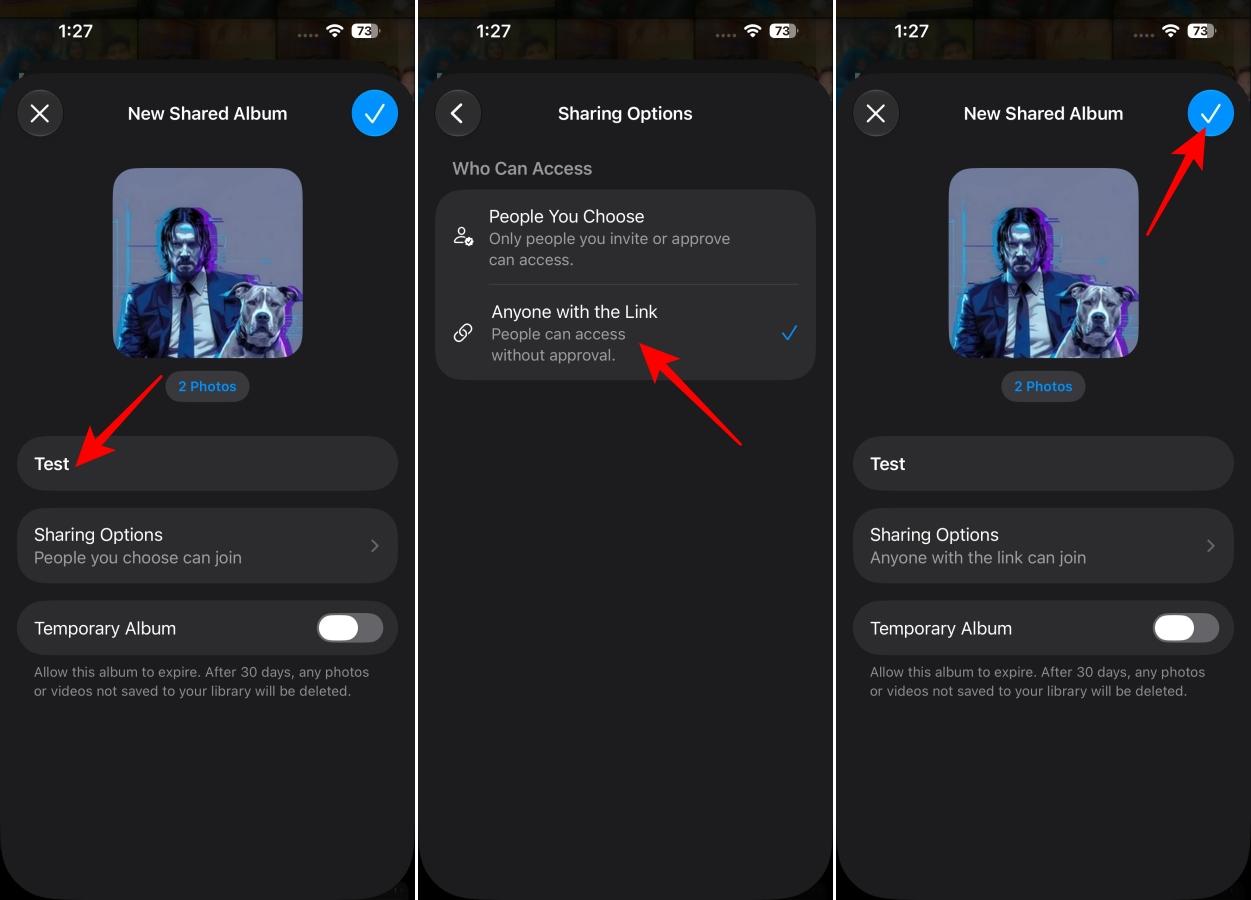
- Give your Shared Album a name.
- Next, choose one of the Sharing Options:
- People You Choose
- Anyone with the Link.
- Tap Done.
How to share an iPhone shared album with Android users
Since Android doesn’t have Apple’s Photos app, Shared Albums are accessed through an iCloud web link. Here’s how:
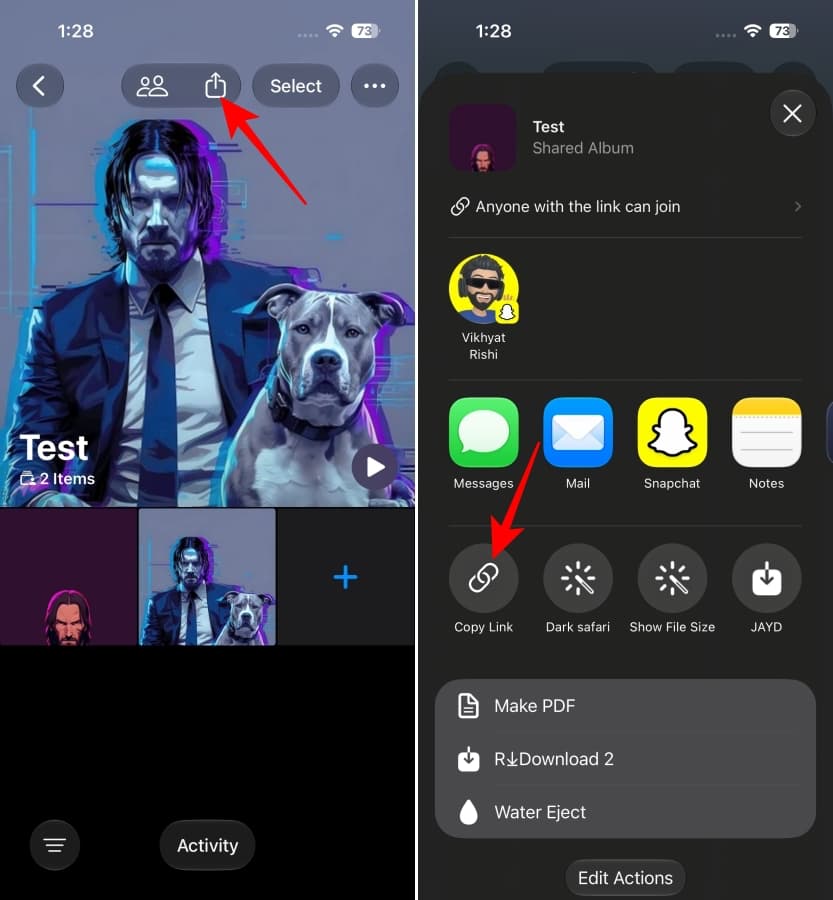
- Open the Shared Album.
- Here, tap the Share button.
- Next, share the invite link with the Android user via your preferred app.
What Android users see when they open the shared album
Opening a Shared Album link on Android feels similar to viewing any other web photo gallery. The album opens in the browser through iCloud Photos, showing the album name along with the photos and videos you have shared.
Your friends don’t need to install another app or create an Apple Account just to see the album. Everything works through the browser, which makes it much easier for groups where everyone uses different devices.
While the experience isn’t identical to using the Photos app on an iPhone, it removes the biggest limitation. Everyone can access the same photo collection from one place.
How to manage a Shared Album
You can update the Shared Album by adding more photos, changing permissions, or controlling who can contribute.
By default, participants can add their own photos and videos to the Shared Album. However, the person who created the album can change this later and set participants to view-only access.
One feature I really appreciate is that Android users aren’t limited to viewing photos. They can also upload their own pictures directly through the iCloud web interface.
Here’s how:
- Open the shared iCloud album link in a browser.
- Tap the Add Photos button at the top.
- Enter your email address and tap Continue.
- Enter the six-digit verification code sent to your email.
- Select and upload the photos you want to add.
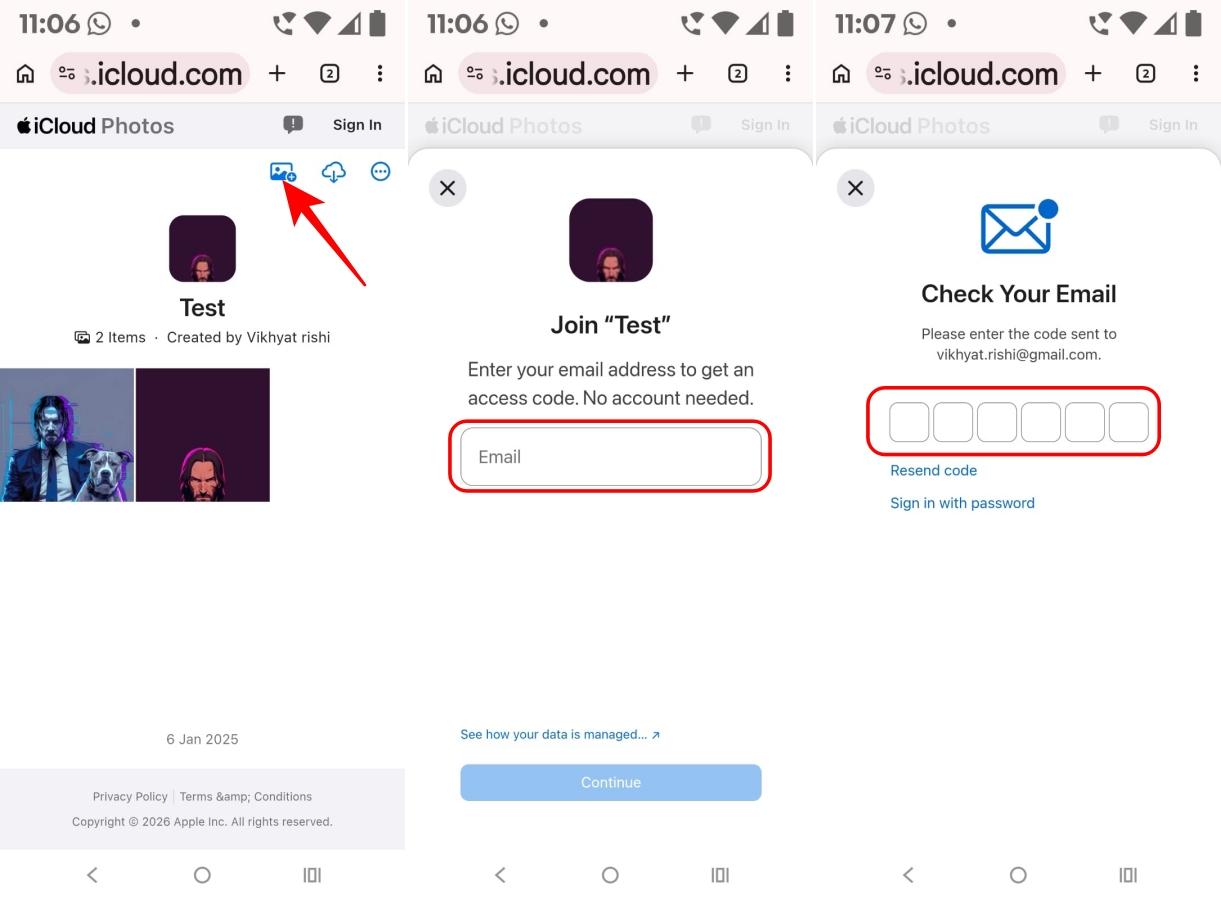
After verification, Android users can contribute their own photos to the same album without needing an iPhone or Apple Account.
This is especially useful for trips and events because everyone can add their pictures to one shared place instead of creating multiple photo dumps across different apps.
Final thoughts
Apple’s sharing features have always worked best when everyone uses Apple devices, but that’s rarely how real groups work. Friends, families, and coworkers often have a mix of iPhones and Android phones.
iOS 27 reduces that friction by keeping the experience simple for both sides. iPhone users can manage everything from the Photos app, while Android users can still view and contribute through the web.
After using it with Android friends, it finally feels like sharing memories doesn’t have to depend on everyone owning the same phone.
Related articles worth reading: