If you’re setting up WhatsApp for your child, you can now create a parent-managed account instead of a standard one. Once the accounts are linked, you can decide who can contact your child, approve group invitations, and manage several privacy settings.
While parents can manage these safety features, they can’t read their child’s messages. Chats, calls, photos, and other shared content remain protected by WhatsApp’s end-to-end encryption.
In this guide, I’ll walk you through the steps to set up a parent-managed WhatsApp account and show you what parents can manage after the account is linked.
What is a parent-managed WhatsApp account?
A parent-managed account is a new type of WhatsApp account created specifically for younger users. During setup, the child’s account is linked to a parent’s WhatsApp account, giving the parent control over certain safety and privacy features.
The goal is to give parents greater control over account safety without compromising their child’s private conversations. Chats and calls remain end-to-end encrypted, while parents can control several account settings from their own WhatsApp account.
These controls include:
- Choosing who can contact their child
- Approving or declining group invitations
- Managing privacy settings
- Reviewing requests from unknown contacts
- Protecting parental controls with a Parent PIN
Related: WhatsApp Introduces Preteen Accounts With Strict Parental Controls
Requirements before you begin
Before you begin, make sure you have:
- Your child’s phone
- Your phone with WhatsApp installed
- A separate phone number for your child’s account
- The latest version of WhatsApp on both devices
- An internet connection
Since you’ll need to scan a QR code to link the accounts, avoid closing WhatsApp on either device until the setup is complete.
How to set up a parent-managed WhatsApp account
Setting up a parent-managed WhatsApp account takes just three steps. You’ll first create your child’s account, link it to your own WhatsApp account, and then complete the setup on your child’s phone. Here’s how:
Step 1: Start the setup on your child’s phone
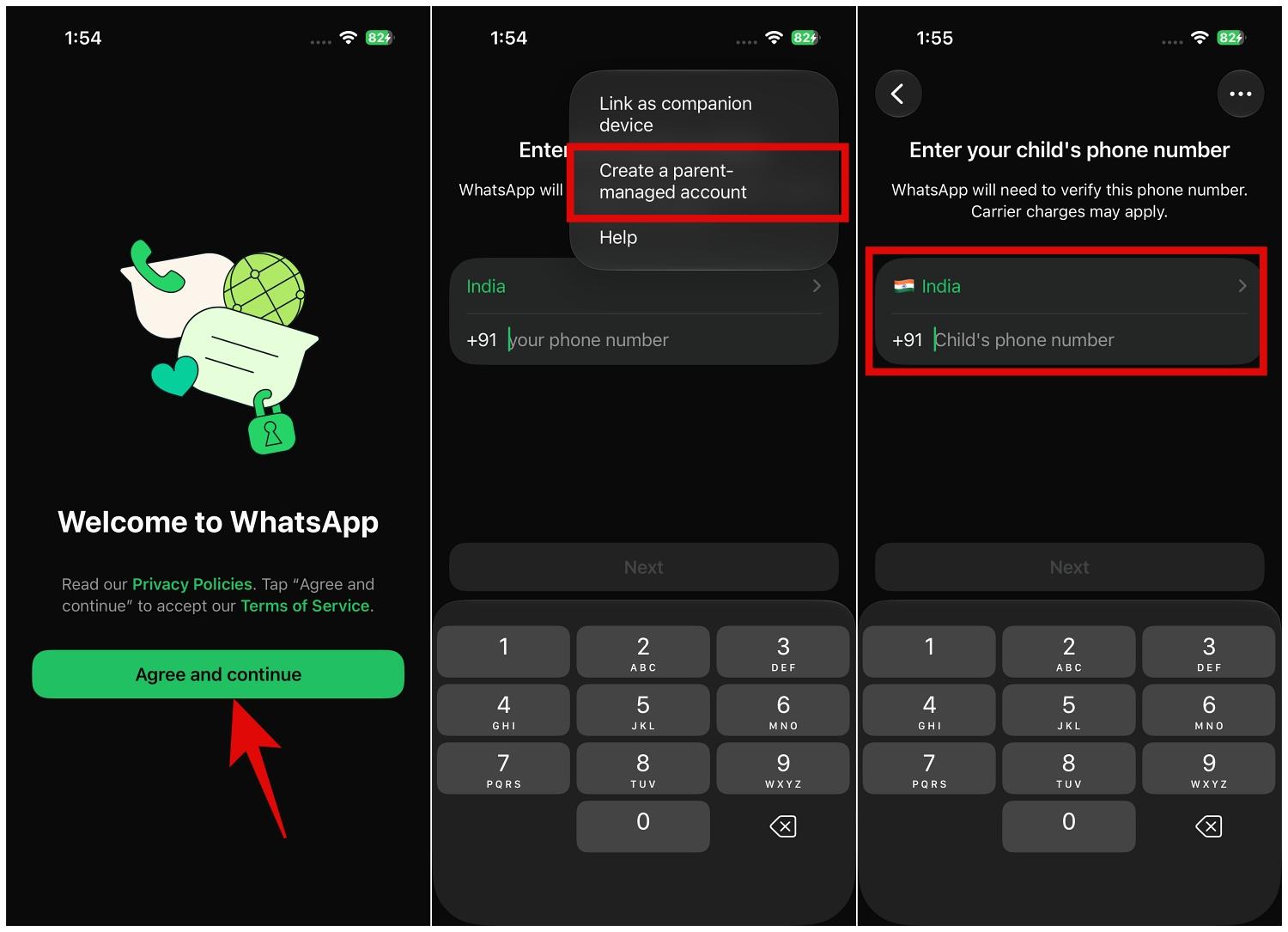
- Download the WhatsApp app on your child’s phone and open it.
- Now, tap the Agree and continue button.
- Here, tap the three-dot (More Options) button in the top right corner.
- Select the Create a parent-managed account option in the drop-down menu.
- Next, enter and verify your child’s phone number.
- Once done, enter and confirm the child’s age.
- Tap Continue. A QR code for linking a parent’s account will then appear.
Step 2: Link the parent’s WhatsApp account
- Use your phone’s camera to scan the QR code displayed on your child’s phone and tap the WhatsApp link that appears.
- Agree to the terms and conditions.
- Now, verify that you’re the parent or guardian.
- Next, create a 6-digit parent PIN and confirm it.
- Tap Done.
Step 3: Complete the account setup
- Go back to your child’s phone and enter the Parent PIN you just created.
- Tap Continue.
- Add your child’s display name and choose a profile picture (optional).
Once that’s done, the account is ready to use.
What can parents manage?
Setting up the account is just the first step. Once it’s linked, parents can manage several safety and privacy settings directly from their own WhatsApp account.
Decide who can contact your child
Instead of allowing anyone with your child’s phone number to start a conversation, WhatsApp lets parents decide who can contact them.
If an unknown person tries to get in touch, you can review the request before allowing future conversations.
Approve group invitations
Group chats can introduce children to people they don’t know. Parent-managed accounts let you approve or decline invitations before your child joins.
With a parent-managed account, you can approve or decline group invitations instead of discovering later that your child has joined several large groups.
Adjust privacy settings
Parents can also change several privacy settings, including:
- Profile photo visibility
- Last Seen
- Online status
- About information
- Status privacy
Any changes require the Parent PIN, helping prevent unauthorized updates.
Can parents read their child’s WhatsApp chats?
No. Even with a parent-managed account, parents can’t access messages, calls, or shared media. WhatsApp continues to protect conversations with end-to-end encryption.
Final thoughts
Once the account is set up, your child can use WhatsApp while you stay in control of the most important safety settings. As your child’s needs change, you can update those controls at any time.
Have questions about WhatsApp’s parent-managed accounts? Let us know in the comments, and we’ll do our best to help.
Check out these helpful guides too: