
Podcasts app not working on Mac? 7 Ways to fix it!
We’ve all been there when you’re all set to dive into your favorite podcast, but your trusty Podcast app decides it’s time for a coffee break. Well, fret not because in this guide, I’ll walk you through some simple methods to fix the Podcasts app not working on Mac issue.
1. Check your internet connection
A shaky or unreliable internet connection can mess with the app’s ability to stream or download episodes, leading to crashes. So, the first thing you should do is check your internet connection if the Podcast app on your Mac is acting up.
Yup, it might sound like a no-brainer, but before diving into any techy solutions, make sure you’re hooked up to a stable and speedy Wi-Fi or wired connection. Give it a shot, and who knows, your podcast journey might just get back on track!
2. Force quit and relaunch Podcasts app
Don’t pull out your hair just yet if the Podcasts app keeps crashing on your Mac. Try force-quitting the app and relaunching it to clear its old background activity and start fresh. Wait for a few moments before you open the Podcasts app again. This approach frequently resolves any momentary bugs or glitches causing the app to behave improperly.
3. Check focus mode
Focus mode on your Mac is a helpful tool when you’re doing something important and don’t want any distractions. But if you forget to turn it off, it can cause problems, like not working well with your Mac apps. Luckily, you can easily fix this by turning off the Focus mode.
- Head to the Control Center on your Mac.
- Select the Focus name.
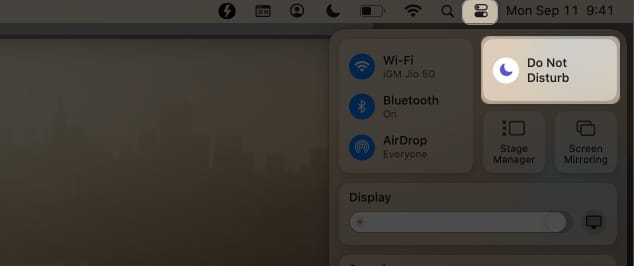
- Click the active Focus to turn it off.

4. Disable low data mode for Wi-Fi
Turning off low data mode for Wi-Fi can be the much-needed pep talk to make your Wi-Fi go full throttle. It’s an easy solution to stop the Podcast app from closing unexpectedly.
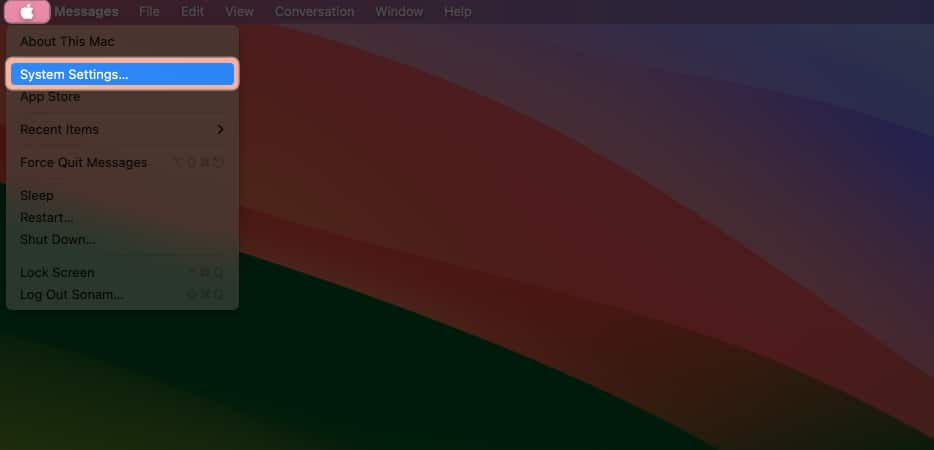
- Click the Apple logo () in the menu bar → Choose System Settings.
- Navigate to Wi-Fi → Select Details next to the Wi-Fi you’re connected to.
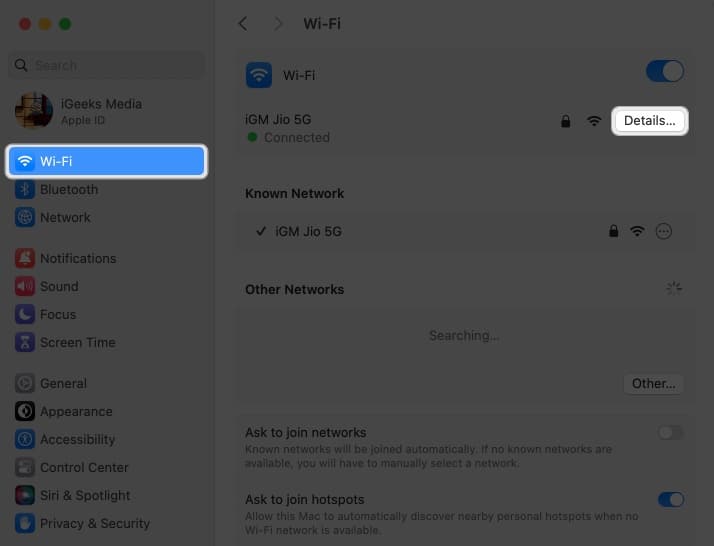
- Turn off the Low data mode switch → Click OK.
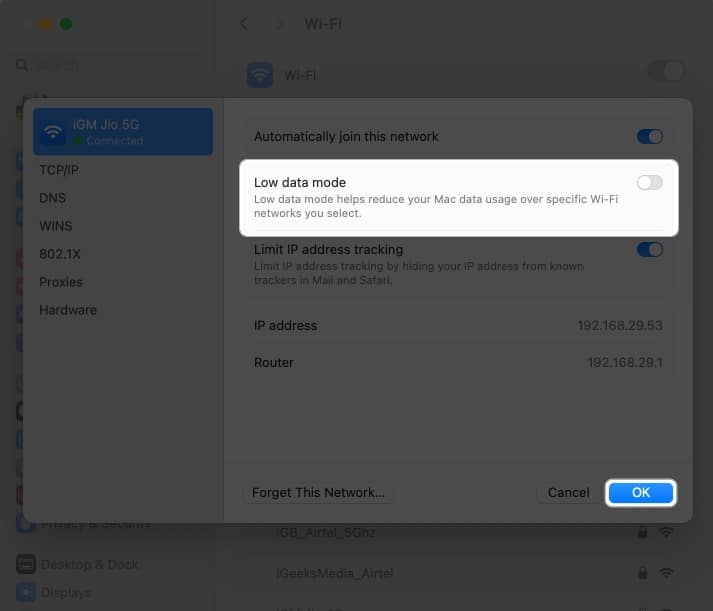
Now, you may turn off Wi-Fi for a few minutes and connect to your network again. Then restart the Podcast app and check if it’s working. If not, just don’t get disappointed follow along with the article and try other fixes.
5. Enable sync library
If you encounter your Podcasts app not working on Mac, a smart step is to verify if your podcast library syncs between your iPhone and Mac. Without this sync, you can’t access the latest episodes or the ones you’ve added to your iPhone’s library. Let’s go through the steps to bring your library back to your Mac.
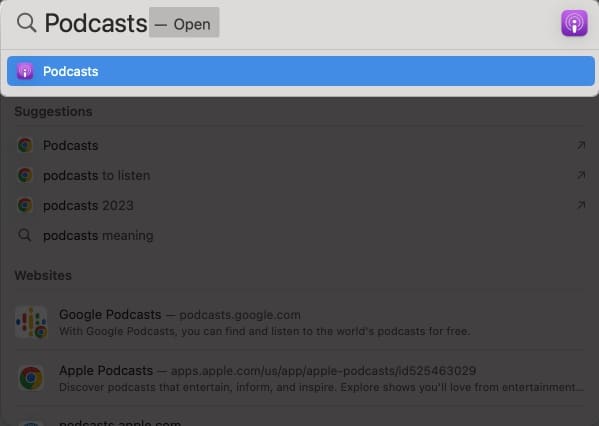
- Launch Spotlight (cmd (⌘) + Space bar) → Open Podcasts.
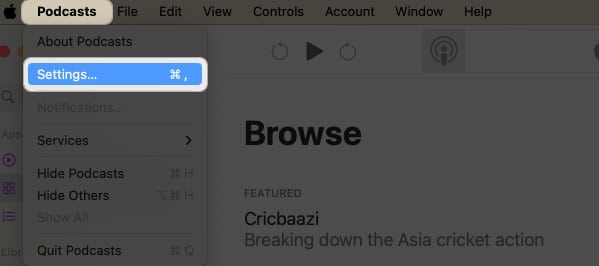
- Click Podcasts in the menu bar → Choose Settings.
- Head to the General tab → Enable Sync Library.
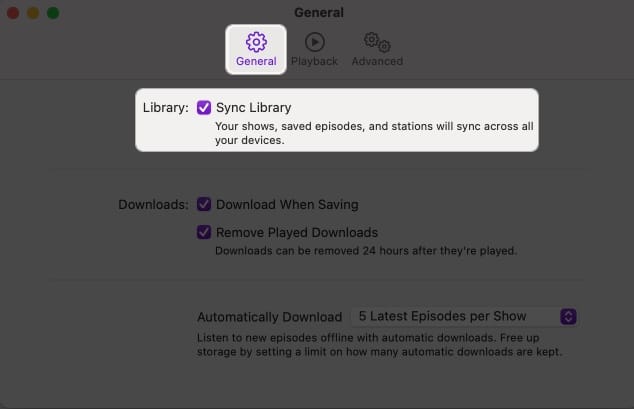
Close the app and wait for a while for the changes to take effect.
6. Restart your Mac
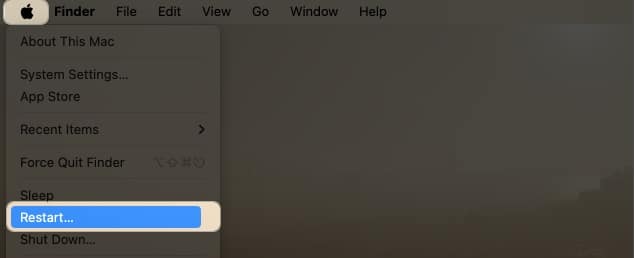
When you give your Mac a restart, it freshens up everything inside and even gives your device a nice reset. So, if your Podcasts app is not working and crashing frequently, here’s what you can do:
- Click on the Apple logo () → Hit Restart.
- Confirm by clicking Restart.
7. Other basic fixes
- Update macOS and Podcasts app: Apple releases updates to address bugs, glitches, and compatibility problems. So, upgrading your macOS or Podcasts app not only provides new features but can also resolve the Podcast app crashing problem on your Mac.
- Reset Mac: If none of the previous solutions did the trick and you’re feeling a bit stuck, then try factory resetting your Mac. But before you go all-in on that big reset button, I’d strongly advise you to back up your Mac. This way, you won’t risk losing any precious data in the process.
- Contact Apple Support: If the repairs mentioned above were ineffective for you, I’d like to offer you one last suggestion, which is getting in touch with Apple Support. Apple has a specific team set up to assist people who encounter problems when using Apple devices.
Podcasts app up and running ✅
I hope those fixes I mentioned helped you get your Podcasts app back up and running on your Mac. Did any of those solutions help you, or did you find another way to solve the issue? Feel free to share your thoughts in the feedback section.
Frequently Asked Questions
Topics

Written by
Ava BiswasAva is a die-hard Apple aficionado and seasoned writer with a knack for breaking down complex tech concepts into easily digestible content. Having honed her writing and editing skills over 4 years at renowned media houses like TechBurner, Ava crafts informative and engaging articles including troubleshooting guides, product reviews, editorials at iGeeksBlog. When not typing, you can find her exploring the latest Apple releases or pondering the future of tech innovation.
View all posts →More from How-to

How to Turn Off Location on Snapchat (Step-by-Step Guide)
Want to stop sharing your location on Snapchat? This guide explains how Snapchat location sharing works and shows simple ways to turn off your location using Ghost Mode or phone settings. Stay in control of your privacy in just a few steps.
 VikhyatMarch 5, 2026
Snapchat Parental Controls: How to Set Up Family Center and Keep Your Teen Safe
Snapchat’s Family Center lets parents monitor their teen’s friend activity and screen time without reading private messages. Here’s how to set it up and what to expect.
VikhyatMarch 3, 2026
How to Block and Unblock Someone on Instagram
Instagram lets you block or unblock someone in seconds. Follow these simple steps to take full control of your privacy and online peace.
Ava BiswasMarch 2, 2026