
View Weather Maps on iPhone: Quick Tips to See Radar and Forecasts
The iPhone Weather app gives you more than a basic forecast. With live weather maps for radar, temperature, air quality, and wind, you can track changing conditions and plan your day with confidence.
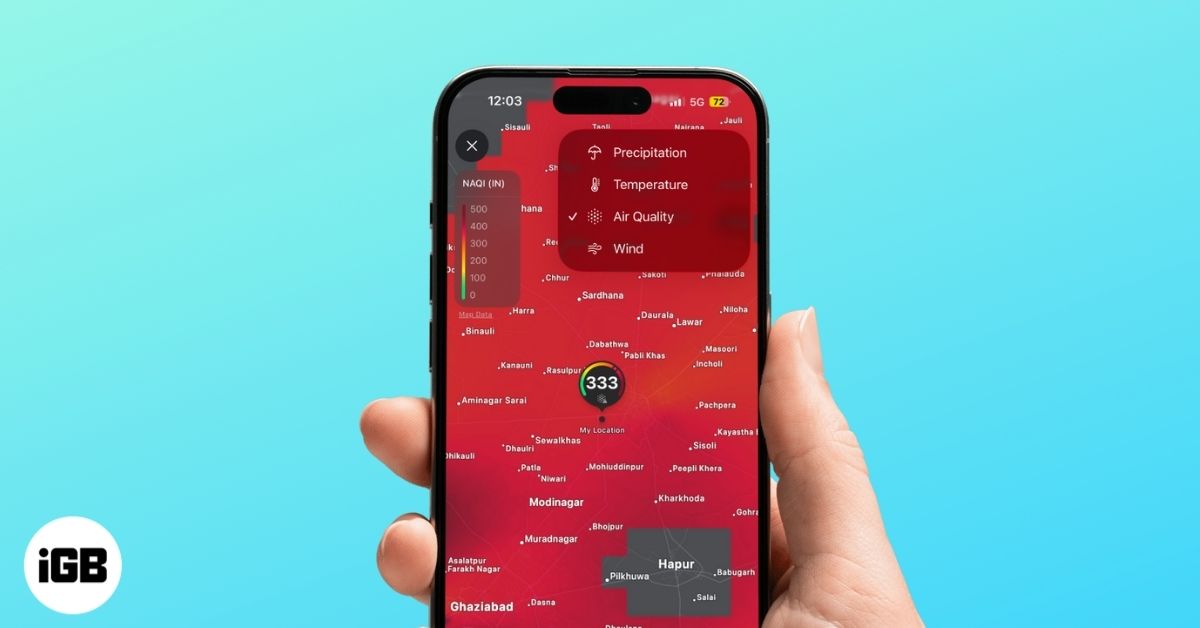
Apple has designed the iPhone Weather app to give you a clear view of weather conditions around you, not just a basic forecast. The app offers weather maps that show live radar, temperature patterns, air quality levels, and wind speed and patterns across nearby regions. With these visuals, you can track storms, monitor changing conditions, and plan your day with more confidence.
Read on to learn everything you need to know about Weather Maps on iPhone.
What You Can Do With Weather Maps on iPhone
Simply put, weather maps offer an interactive, easy-to-understand view of weather conditions across your region. You can view the following map types:
- Precipitation radar for rain and snow
- Temperature maps showing warm and cool zones
- Air Quality maps displaying AQI levels
- Wind patterns shown as overlays in select regions
These maps update in real time, so you can stay up to date on the storm movement, rainfall intensity, and temperature changes in your region. This makes the weather maps handy for travel planning, preparing for bad weather, or checking pollution before outdoor activities.
How to View Weather Maps in the Apple Weather App
If you’re already accustomed to using the Weather app on your iPhone, viewing and understanding weather maps is quick and straightforward. Here’s how:
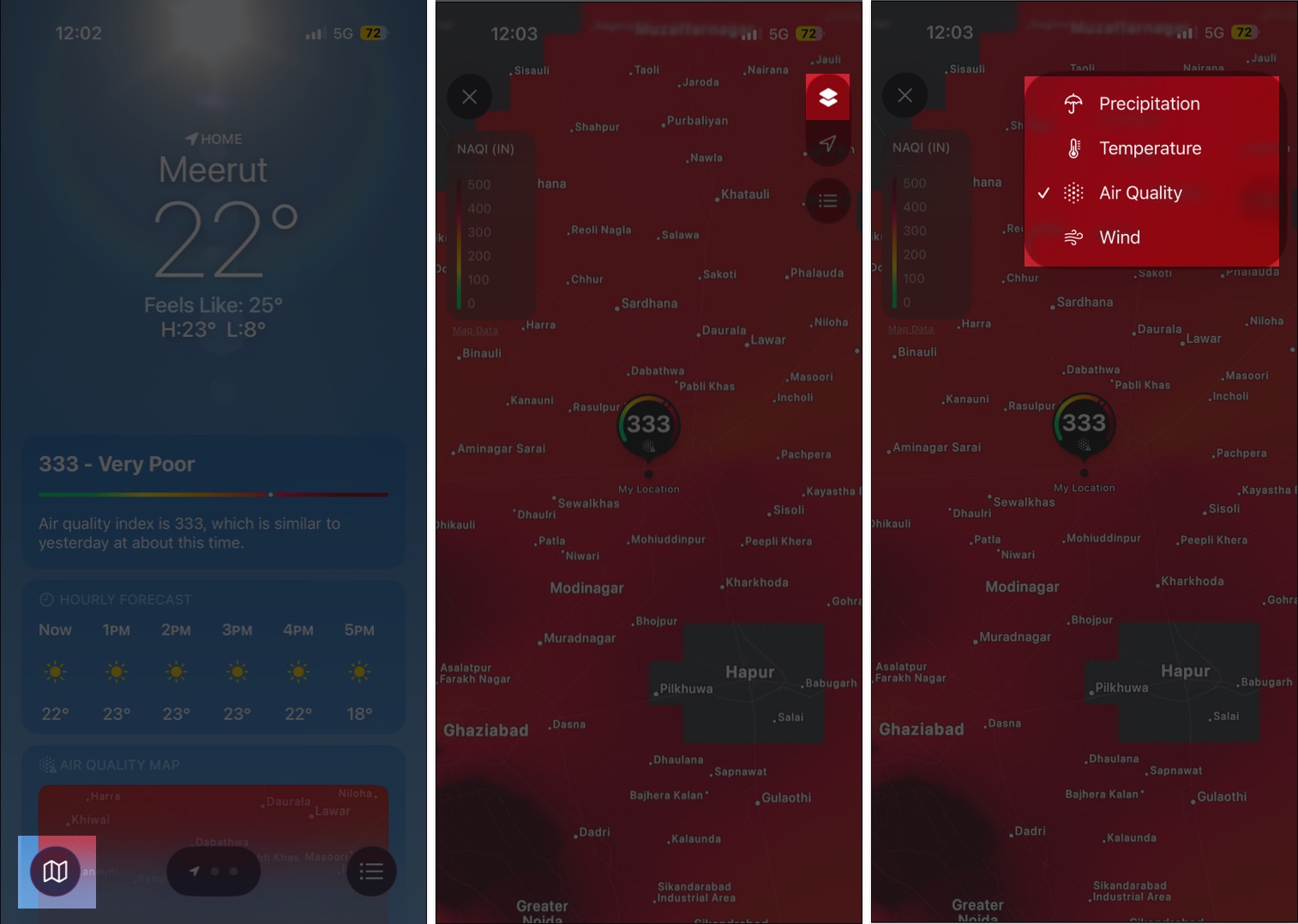
- Open the Weather app and tap the Map icon in the bottom left corner.
- Depending on your region, the Weather app shows one of the available maps. In our region, the default one is the Air Quality map.
- To view a different weather map, tap the Overlay icon at the top left and select from the available options:
- Precipitation
- Temperature
- Wind
- Pinch to zoom or swipe on the map to explore the weather conditions across your region.
- If you are seeing the Precipitation map, a slider at the bottom shows past and predicted rainfall or snowfall for the next 1 or 12 hours.
Understand Weather Map Layers
Weather maps in the Apple Weather app are built using different layers. Each layer highlights a specific type of weather information, allowing you to switch views based on what you want to track. Therefore, a proper understanding of each layer is essential to make better decisions when planning your day.
1. Precipitation Layer
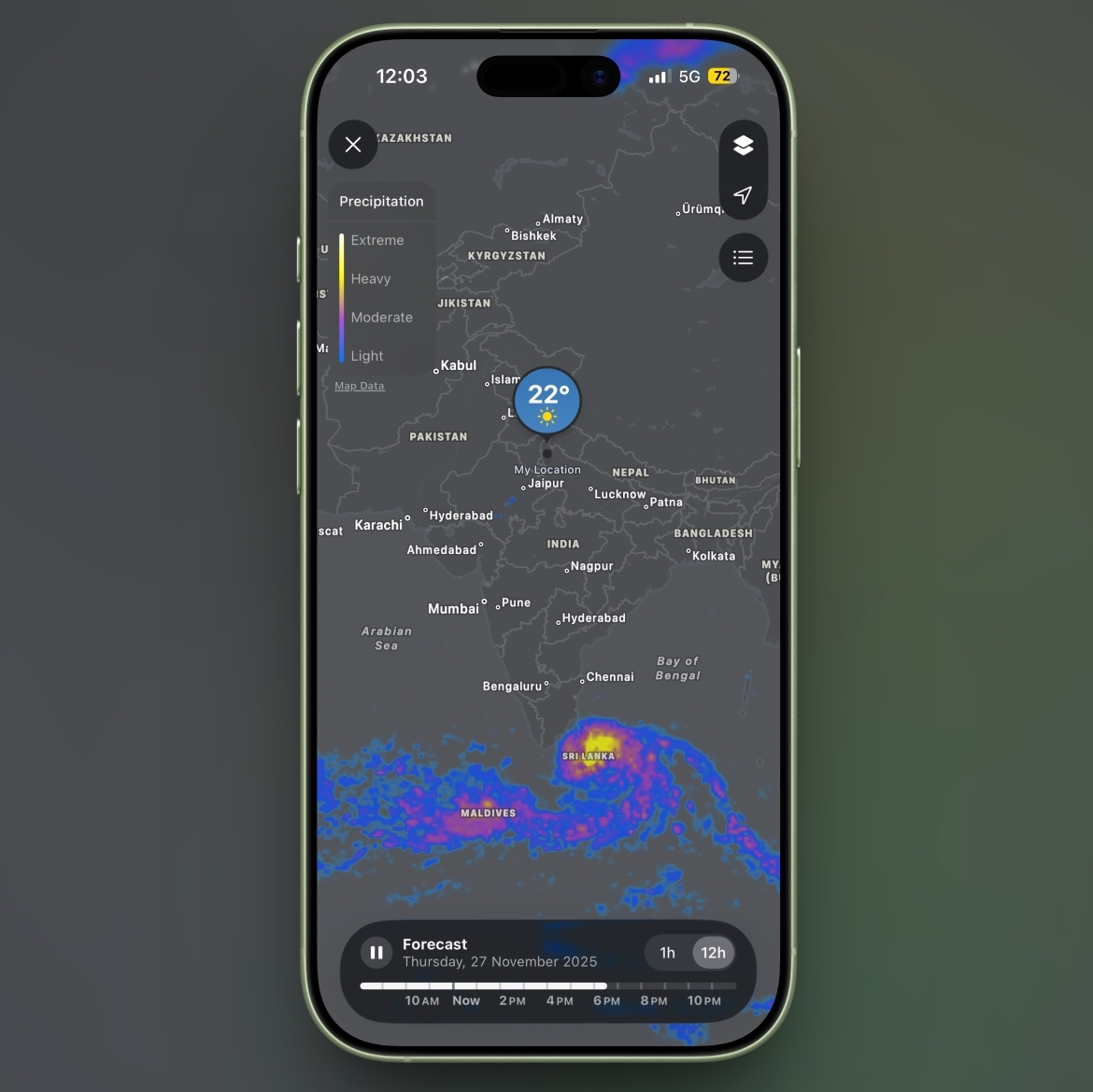
This layer shows real-time rainfall and snowfall using animated radar. Once you switch to the Precipitation layer, you’ll see different colors that indicate intensity, from light blue for light rain to darker shades for heavy rain or snow. The animation moves across the map so you can see how quickly a storm is approaching or passing. The timeline slider lets you switch between 1-hour and 12-hour timelines.
- The 1-hour timeline lets you check the past hour and the next hour of expected movement.
- The 12-hour timeline shows the expected movement over the next 12 hours.
2. Temperature Layer
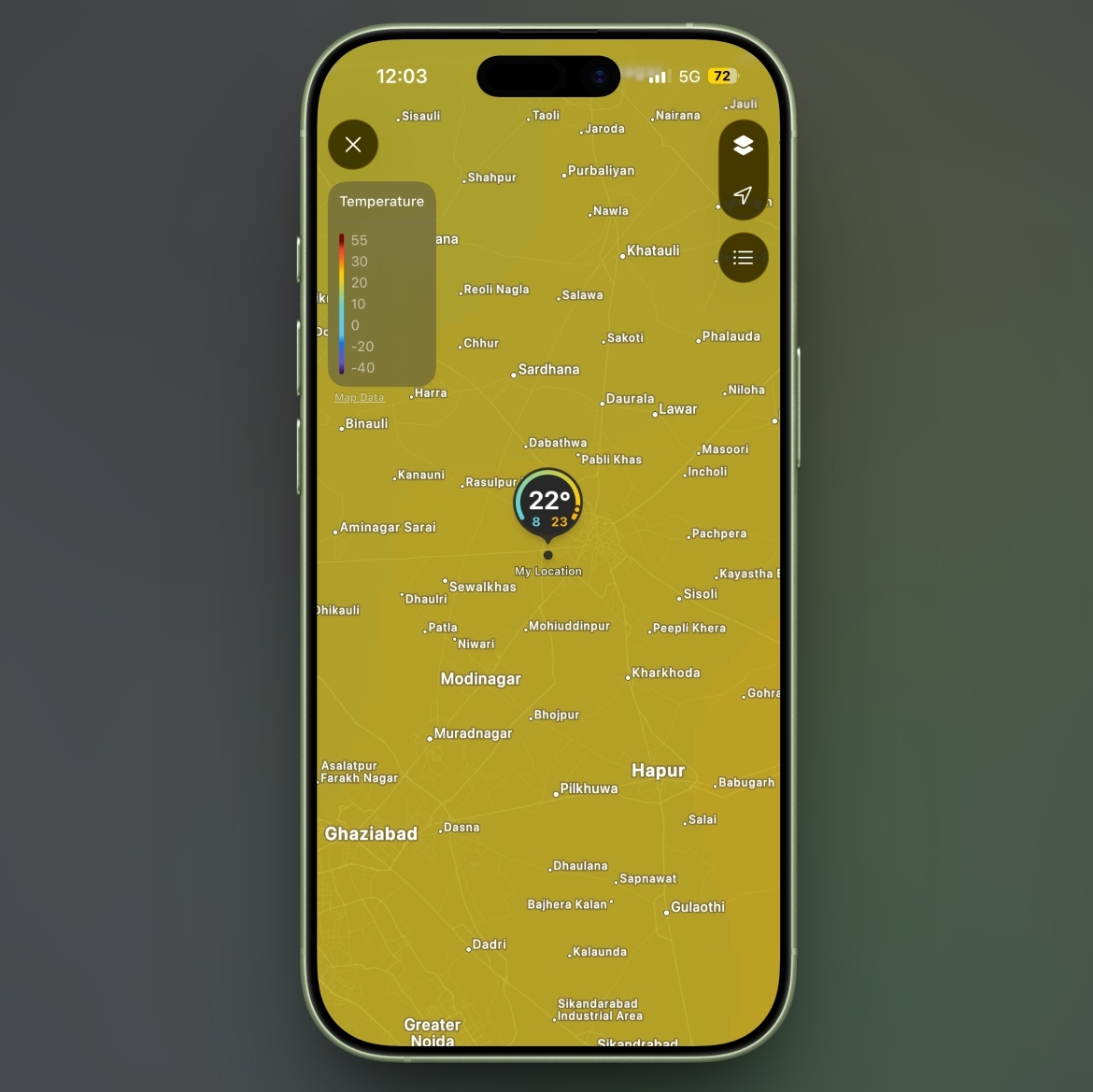
Switching to the Temperature layer displays a gradient heat map. Warm areas appear in shades of red or orange, while cooler regions show in blue or purple.
3. Air Quality Layer
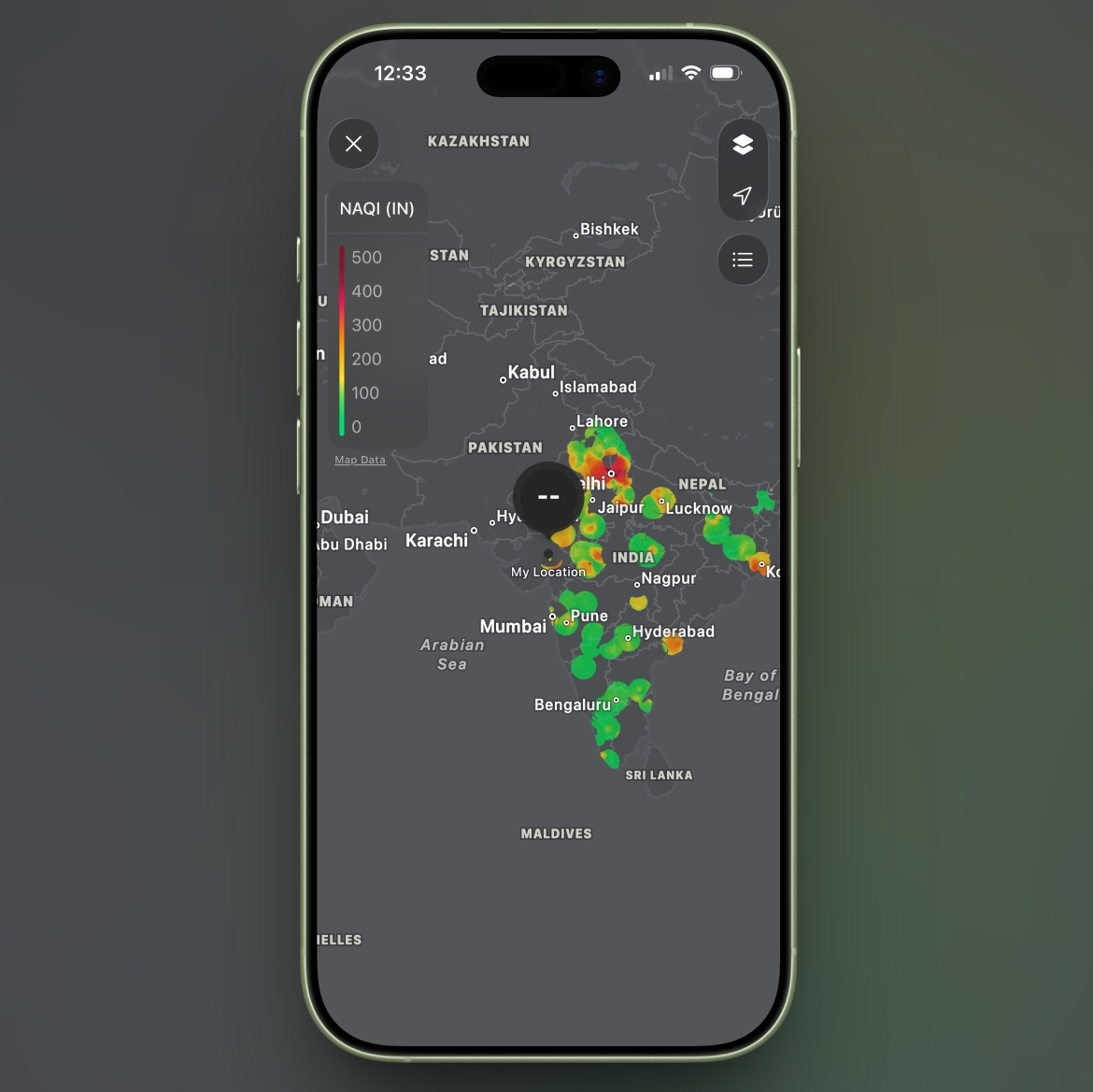
This layer displays AQI levels across your region. Colors range from green for good air quality to yellow for moderate air quality, and maroon for hazardous air quality.
4. Wind Layer
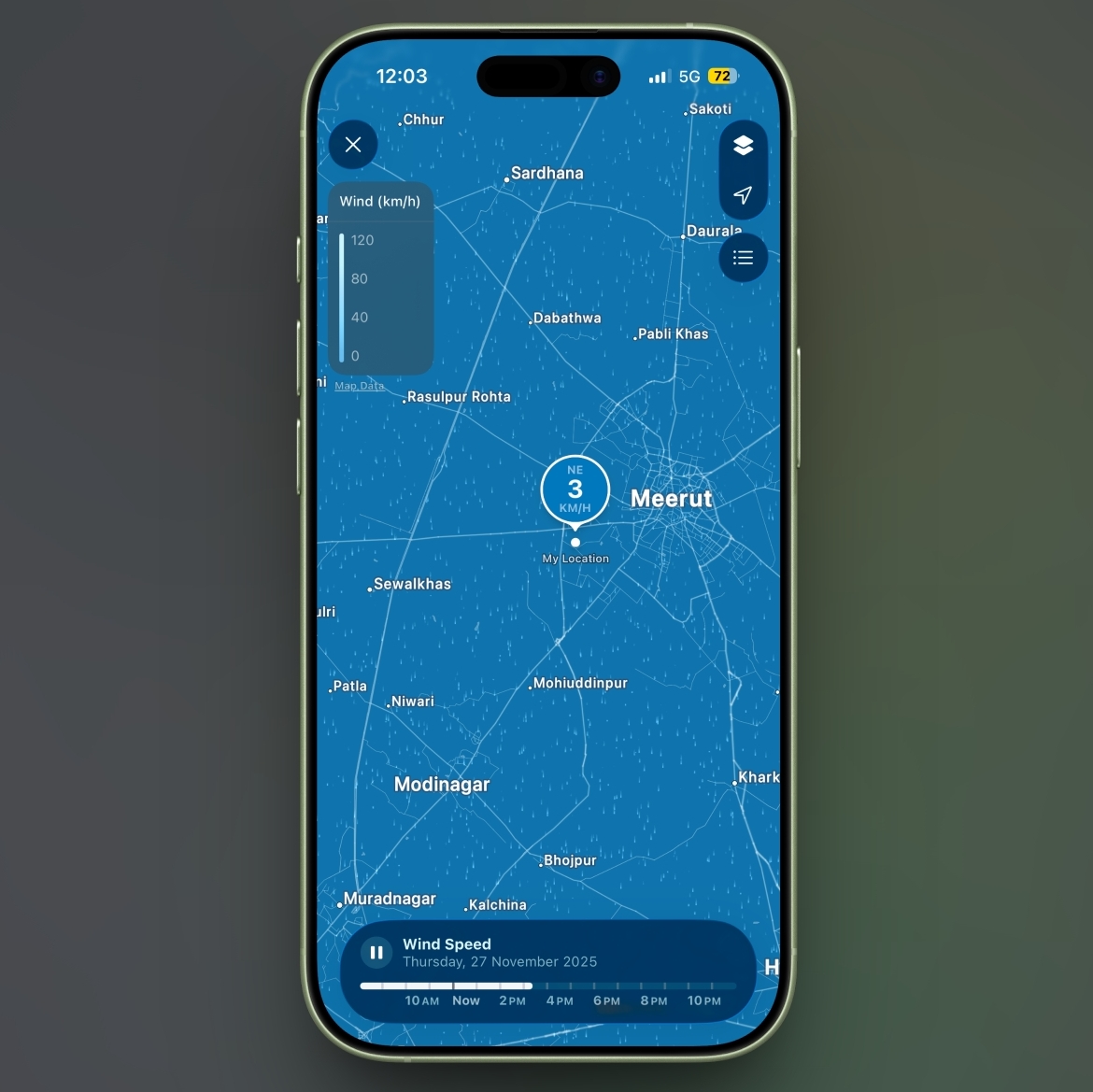
The layer shows you wind movement and wind speed with animated flow lines or arrows across your region. Wind speed units are typically in kilometers per hour or miles per hour, depending on your device settings. Denser flow lines or longer arrows represent stronger winds, and thinner flow lines or shorter arrows represent light winds.
Best Third-Party Weather Apps for Detailed Weather Maps
While the weather map feature in the Apple Weather app does its job pretty well, you can also explore some powerful third-party alternatives if you want advanced radar layers, hyperlocal tracking, storm prediction, or detailed wind maps. Here are some of the best third-party weather apps for iPhone:
- Carrot Weather
- AccuWeather
- Yahoo Weather
- RadarScope
- Windy
- Weather Underground
- Clime NOAA Weather Radar
Tips for Getting the Most Accurate Weather Map Data
A few small settings and habits can help you make the most of the weather maps and the entire Weather app in general:
- Enable Precise Location for accurate local conditions
- Use a stable Wi-Fi or mobile network for live radar
- Add multiple cities to compare the weather easily
- Keep your iPhone updated to access all available map layers
- Turn on severe weather alerts for early warnings
- Refresh the Weather app if maps look outdated
Weather Made Clear
Weather maps on iPhone bring weather information to life in a simple, visual way. Whether you are checking how fast rain is moving, comparing temperatures across cities, or keeping an eye on air quality, the map layers give you a clearer picture than a standard forecast. They make the Weather app more practical for everyday decisions and give you a quick, reliable way to stay ahead of changing conditions.
Have you tried using weather maps on your iPhone? Share your experience or questions in the comments below.
Frequently Asked Questions

Written by
Idowu OmisolaIdowu is an avid tech writer and a software surfer who loves covering knowledge gaps in consumer software, including anything related to iPhones. Well, when he's not reading and learning new things, you'll find Idowu losing gallantly on a solid chessboard or virtually on Lichess.
View all posts →More from How-to

How to Turn Off Location on Snapchat (Step-by-Step Guide)
Want to stop sharing your location on Snapchat? This guide explains how Snapchat location sharing works and shows simple ways to turn off your location using Ghost Mode or phone settings. Stay in control of your privacy in just a few steps.
 VikhyatMarch 5, 2026
Snapchat Parental Controls: How to Set Up Family Center and Keep Your Teen Safe
Snapchat’s Family Center lets parents monitor their teen’s friend activity and screen time without reading private messages. Here’s how to set it up and what to expect.
VikhyatMarch 3, 2026
How to Block and Unblock Someone on Instagram
Instagram lets you block or unblock someone in seconds. Follow these simple steps to take full control of your privacy and online peace.
 Ava BiswasMarch 2, 2026