Update:
your iPhone to iOS 27 expecting Apple’s all-new AI-powered Siri, but found the same old voice assistant waiting for you? You’re not alone.
Many users assume installing the latest iOS 27 developer beta update is enough to unlock the latest Apple Intelligence features, but that’s not how Apple is rolling them out. From hardware limitations to language settings and regional restrictions, there are several reasons why Siri AI may still be missing on your iPhone.
The good news? Most of them are easy to check. Here’s everything you need to know if the new Siri AI experience hasn’t appeared on your iPhone.
Why Siri AI isn’t available on your iPhone
Unlike other iOS 27 features that become available immediately after an update, Siri AI is part of Apple’s phased rollout. That means installing the iOS 27 developer beta doesn’t automatically replace the existing Siri experience.
If the new Siri isn’t showing up on your iPhone, it’s usually because one of the eligibility requirements hasn’t been met. Here’s what you should check.
1. Your iPhone must support Siri AI
Running the latest iOS 27 developer beta doesn’t automatically make your iPhone compatible with Siri AI.
While iOS 27 can be installed on iPhone models starting with the iPhone 11 series, Apple Intelligence requires significantly more on-device processing power. As a result, the new Siri experience is limited to supported iPhones, including the iPhone 15 Pro and newer models, because of Apple’s on-device AI requirements.
Before trying anything else, make sure your device is one of the supported models.
2. Join the Siri waitlist
Just like Apple Intelligence at launch, the new Siri AI experience is available through a waitlist. Eligible users must request access, and once Apple approves the request, the required AI models are downloaded to the iPhone in the background. After the download is complete, the upgraded Siri experience becomes available automatically. Here’s how:
- Open Settings and head to Siri.
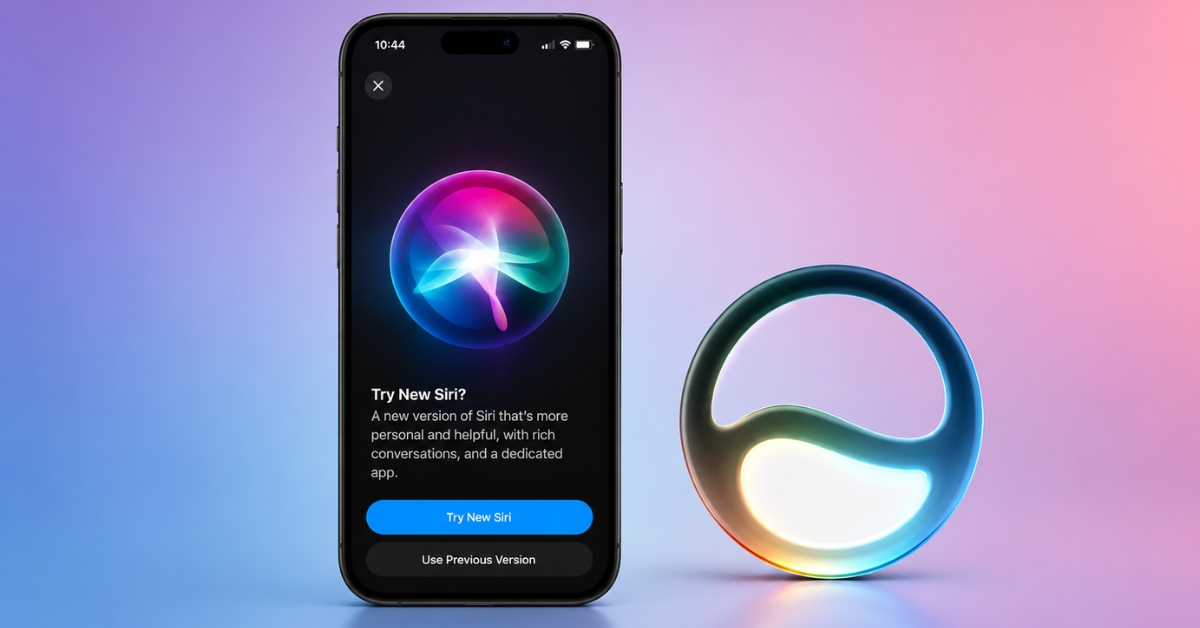
- Here, tap Try New Siri. A Siri with Apple Intelligence (Beta) banner will appear.
- Now, tap the Join Waitlist button underneath the banner.
- Next, tap Continue to confirm.
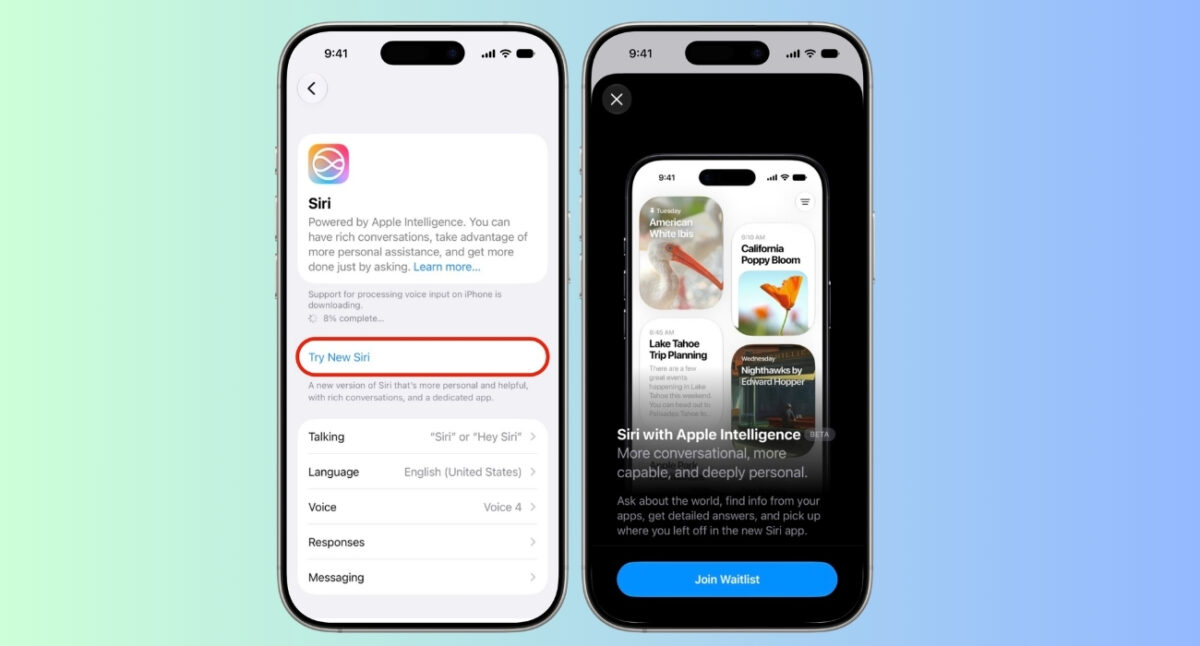
A successful waitlist request changes the New Siri section in Settings to “Joined Waiting List.” That’s the only confirmation you’ll get until Apple approves your account. Once the rollout reaches your iPhone, Apple sends a notification letting you know the new Siri is ready to use.
3. Check regional availability
Joining the waitlist doesn’t guarantee immediate access. Apple is enabling the new Siri gradually, with support limited to select regions and Siri languages during the beta period.
If the Joined Waiting List status isn’t changing, try setting your iPhone region to United States and switching Siri Language to English (U.S.). Several beta users have reported that these settings make the Join Waitlist option appear and help them receive access sooner.
Once Apple expands support to your region, you can switch back to your preferred settings without losing access.
What happens on your iPhone after you’re approved?
After Apple approves your request, the “Joined Waiting List” message disappears, and Siri AI begins rolling out to your iPhone. Your iPhone will automatically download the required AI models in the background, so you don’t need to reinstall the beta or manually enable anything.
How to check if Siri AI is finally live
Apple doesn’t leave much room for guesswork once your waitlist request is approved. The first sign is inside Settings → Siri, where the Joined Waiting List status is replaced by a Try New Siri option.
A quick glance is enough to tell the difference. The familiar full-screen Siri animation is replaced by a Dynamic Island interface that includes a Search or Ask field for both voice and text interactions.
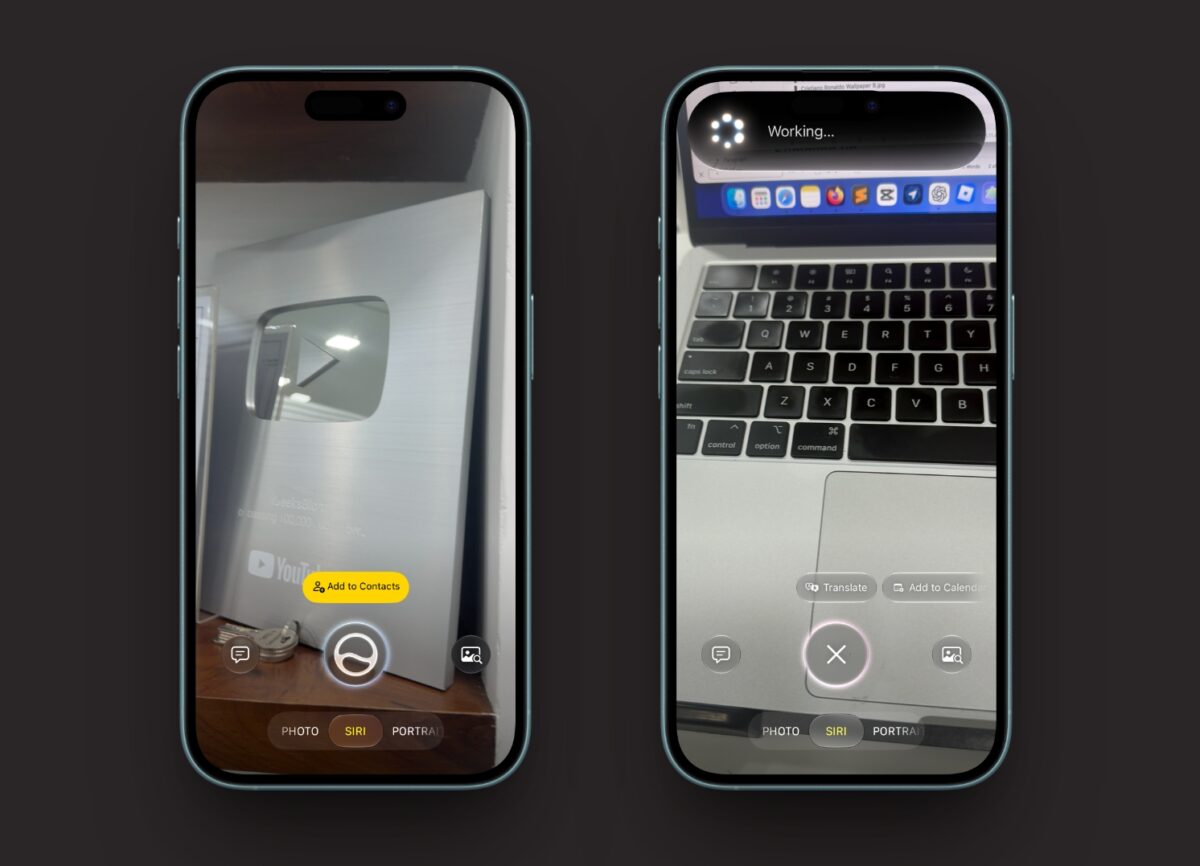
You’ll also find a dedicated Siri app that keeps your conversations in one place, as well as a Siri tab inside the Camera app, letting you ask questions about whatever you’re pointing the camera at. If none of these additions are available, your iPhone is still running the older Siri experience.
Summing up…
Installing the iOS 27 developer beta is only the first step toward getting Apple’s new Siri AI experience. If the feature isn’t showing up, check whether your iPhone is supported, join the Siri waitlist, and make sure Apple Intelligence is available in your region and preferred language.
Once your request is approved, Apple will notify you and roll out the new experience automatically. Until then, the Joined Waiting List status in Settings is the only indication that your request is in the queue.
Did the new Siri AI show up after joining the waitlist? Share your experience in the comments.
You might also like: