
Apple Pay Not Working on iPhone? Here’s How to Fix It
Apple Pay issues can be frustrating, especially when payments fail at checkout. This guide explains why Apple Pay may not work on your iPhone and how to fix it using simple, proven solutions.
Apple Pay is a fast, secure, and convenient way to pay using your iPhone. So when it suddenly stops working, it can be frustrating, especially if you are at a checkout counter or trying to complete an urgent payment.
The good news is that most Apple Pay issues are easy to fix. In this guide, you will learn why Apple Pay may not be working on your iPhone and how to fix it step by step using simple, practical solutions.
Why Apple Pay Is Not Working on Your iPhone
Apple Pay can fail for several reasons, and it is not always obvious which one is causing the problem.
Here are the most common causes:
- Device compatibility issues: Older iPhone models do not support Apple Pay because they lack NFC and secure authentication.
- Internet or network problems: Apple Pay requires an internet connection for online and in-app purchases.
- Card or bank-related restrictions: Your bank may block transactions, suspend the card, or not fully support Apple Pay.
- Software glitches or outdated iOS: Bugs or older iOS versions can disrupt Apple Pay functionality.
- Incorrect settings: If Apple Pay is not set up correctly, payments may fail.
- Region, merchant, or payment terminal issues: Not all countries, stores, or terminals support Apple Pay, even if the logo is visible.
Quick Checks Before You Start Troubleshooting
Before trying advanced fixes, rule out basic limitations.
- Confirm Apple Pay is supported in your country or region: Apple Pay is not available everywhere, and some regions limit certain card types. Check if your location is supported.
- Check if the merchant accepts Apple Pay: Look for the Apple Pay or contactless symbol at checkout.
- Make sure your device supports Apple Pay: iPhones with Face ID or Touch ID, except iPhone 5s, are required.
- Verify your card is eligible and active: Expired, suspended, or unsupported cards will not work.
- Enable required security features: Face ID, Touch ID, or a passcode must be enabled, along with two-factor authentication for your Apple Account.
Easy Fixes to Try First for Apple Pay Issues
Before changing advanced settings or contacting your bank, start with these simple fixes. They solve many Apple Pay problems.
Restart Your iPhone
Restarting clears temporary system glitches that may interfere with Apple Pay.
- Long press the Side and Volume button of your iPhone.
- You will see a power off slider. Drag it to the right.
- Wait for a few seconds and turn on your iPhone.
- After the phone boots up, try using Apple Pay again.
Check Your Internet Connection
Apple Pay needs a stable internet connection, especially for online and in-app purchases. Even in stores, your iPhone may need to communicate with Apple servers or your bank.
- Switch between Wi-Fi and mobile data.
- Turn Airplane Mode on for a few seconds, then turn it off.
- Avoid weak or restricted networks, such as public Wi-Fi that blocks secure transactions.
Check Apple System Status
Occasionally, Apple Pay issues are caused by temporary service outages.
Apple Pay relies on backend services for payment processing and authentication. If these services are down, payments may fail.
Check Apple’s System Status page to see if Apple Pay, Wallet, or iCloud services are unavailable. If there is an outage, you will need to wait until it is resolved.
Apple Pay Settings You Should Check on iPhone
If Apple Pay still does not work, review your settings carefully. Small misconfigurations can cause failures, especially after updates.
Verify the Default Card
Apple Pay uses your default card automatically.
- Go to Settings > Wallet & Apple Pay.
- Select Apple Pay Defaults.
- Here, verify all the details and settings.
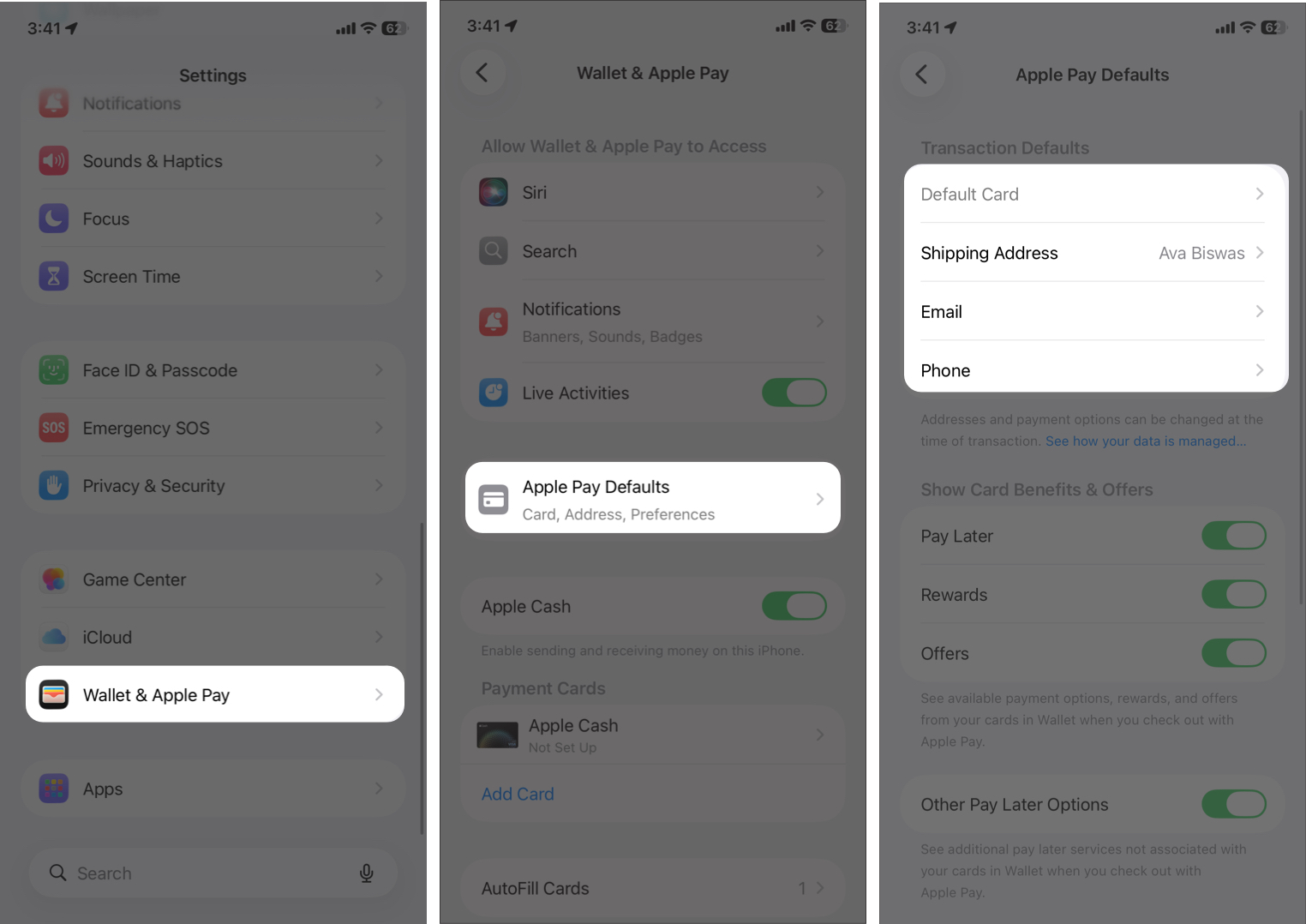
If the default card is blocked or over its limit, payments may fail even if other cards are available.
Re-authenticate Face ID or Touch ID
Apple Pay requires biometric authentication to complete payments.
- Open Settings and select Face ID & Passcode (or Touch ID & Passcode).
- Enter your device passcode.
- Make sure the Contactless & Payments toggle is enabled.
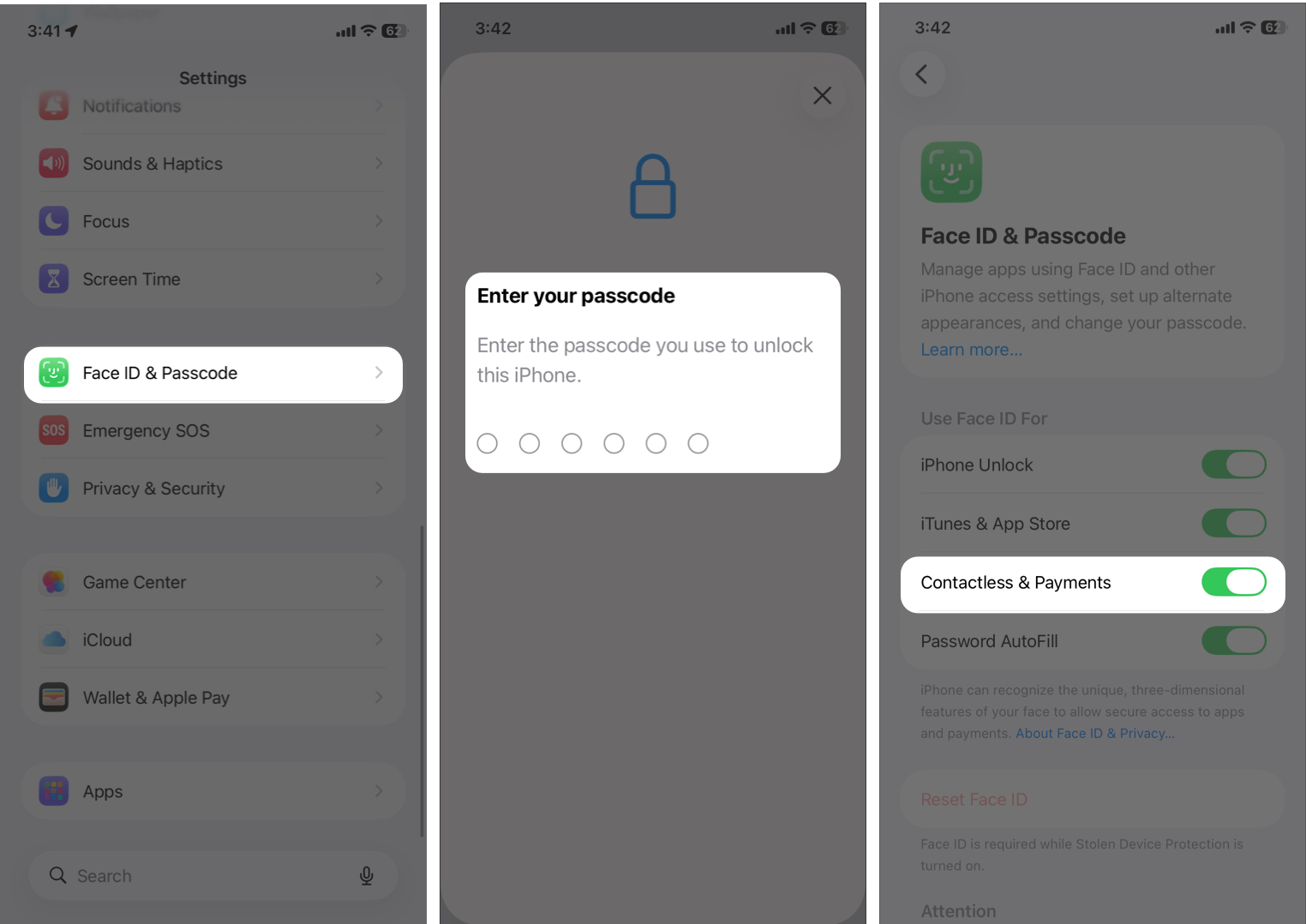
If Face ID or Touch ID has been unreliable, turn it off, restart your iPhone, and set it up again.
Fix Card-Related Problems in Apple Pay
If Apple Pay opens but transactions keep getting declined, the issue is often related to the card.
Choose a Card Manually
If your default card keeps failing, try another one.
- Double-click the side button of your iPhone and authenticate your Face ID to open the Wallet interface.
- Tap your default card. It will show you other saved card.
- Choose a different card and again verify your identity.
- Finally, hold your iPhone near the payment terminal.
Tip:
Remove and Re-Add the Card
Removing and re-adding a card can fix hidden verification issues.
- Open the Wallet app and choose the card that’s causing problems.
- Tap the the three-dot icon and select Card Details.
- Scroll down and tap Remove Card. Verify your Face ID to confirm.
- Go back to Wallet app homepage and tap the plus icon.
- Select your card type and follow the on-screen instructions to verify and add the card.
This refreshes the secure payment token used by Apple Pay.
If you are facing issues when adding cards, go through this guide for card-related fixes.
Contact Your Bank or Card Issuer
Sometimes the issue is entirely on the bank’s side. Banks may block Apple Pay due to:
- Suspected fraud
- Travel or international usage
- Large or repeated payments
- Apple Pay being disabled on your account
A quick call or chat with your bank can often resolve the issue within minutes.
Fix Apple Pay Issues Caused by iOS or System Bugs
If settings and cards look fine, the issue may be related to iOS.
Update iOS
Outdated iOS versions can cause Apple Pay to stop working.
- Go to Settings > General > Software Update and install any available updates.
- After updating, restart your iPhone before trying Apple Pay again.
Tip:
Disable Low Power Mode
Low Power Mode can limit background processes that Apple Pay depends on.
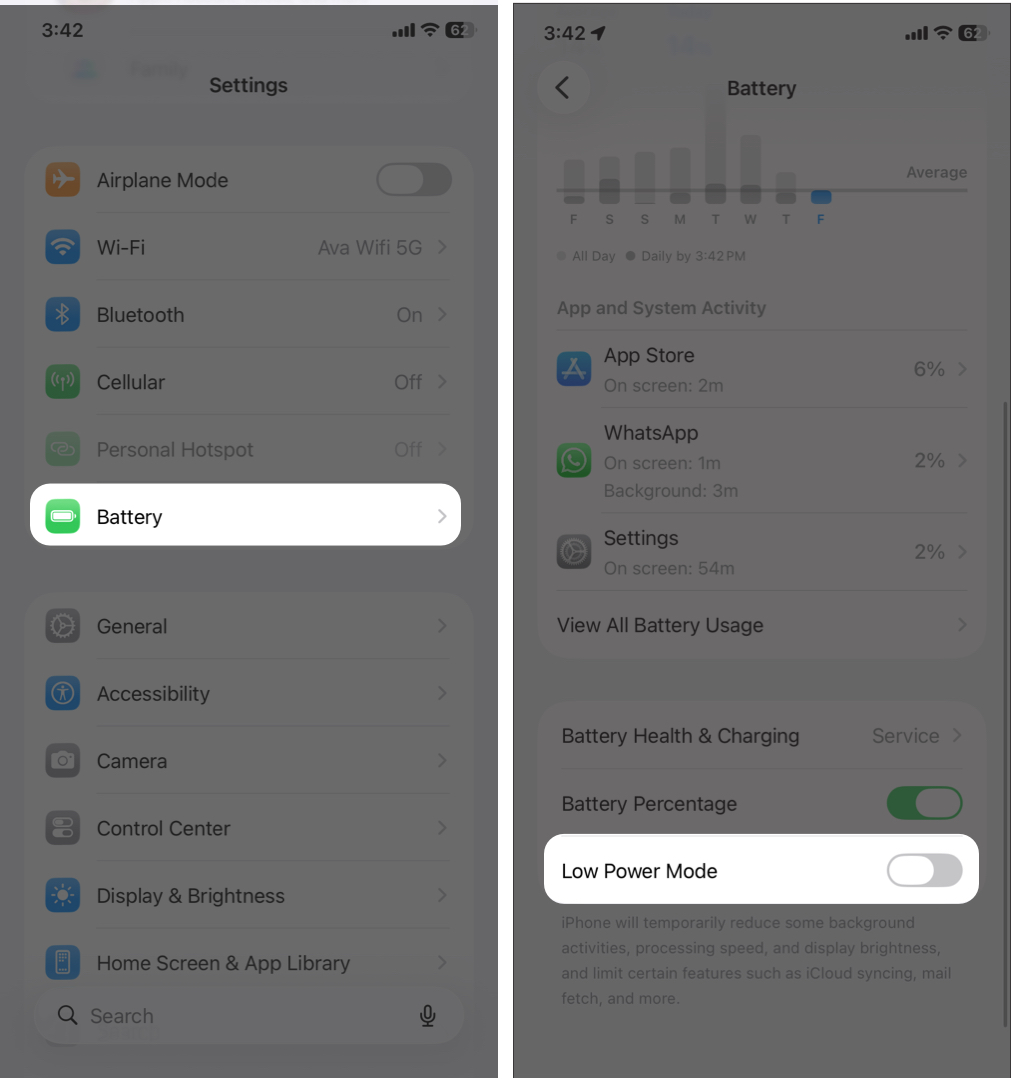
- Open Settings > Battery.
- Turn off Low Power Mode.
- Lock and unlock your iPhone, then try Apple Pay again.
Sign Out and Sign Back Into Apple ID
Apple Pay relies on your Apple ID for authentication.
- Go to Settings and tap your name at the top.
- Scroll down and tap Sign Out.
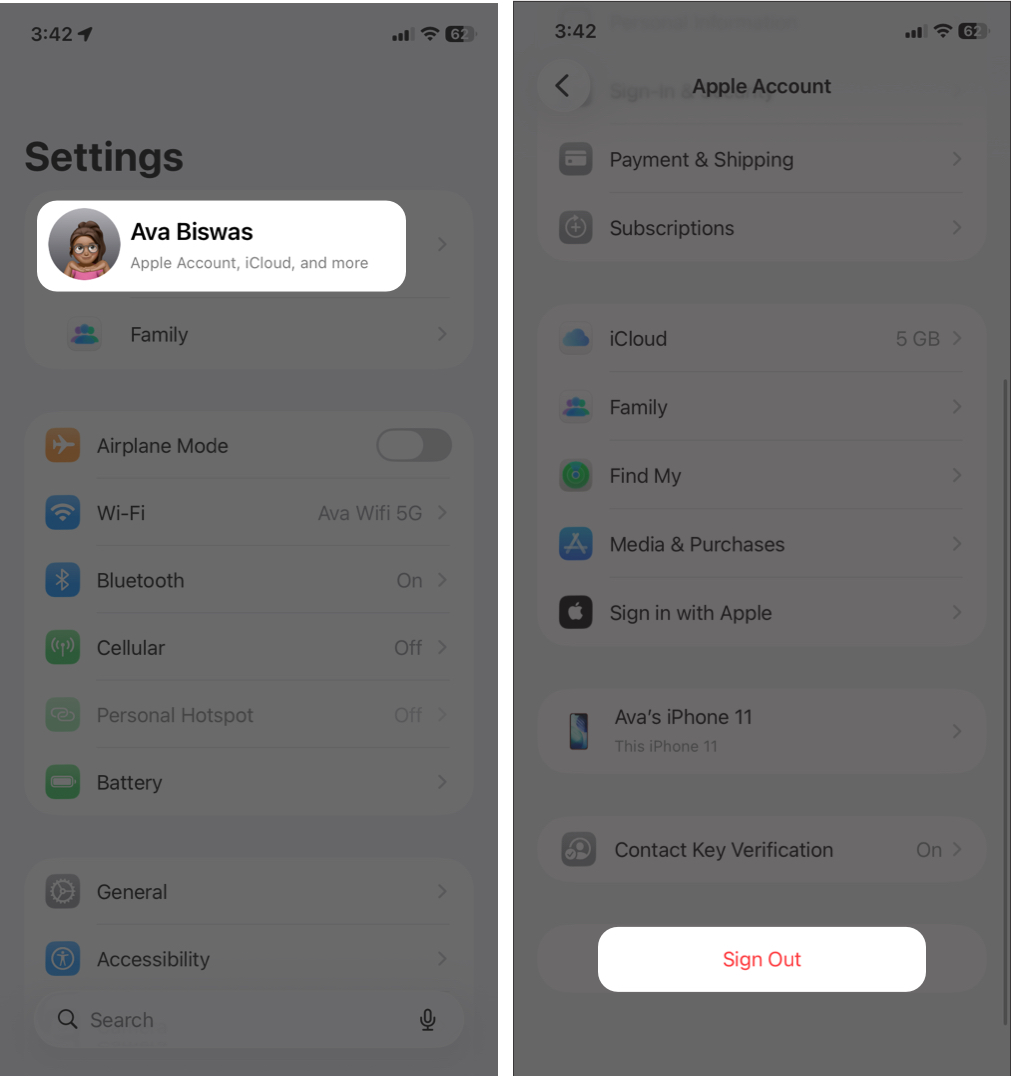
- It will show you a prompt. Select Sign Out But Don’t Erase > Continue.
- Follow the instructions to sign out of your Apple Account safely.
- Restart your iPhone.
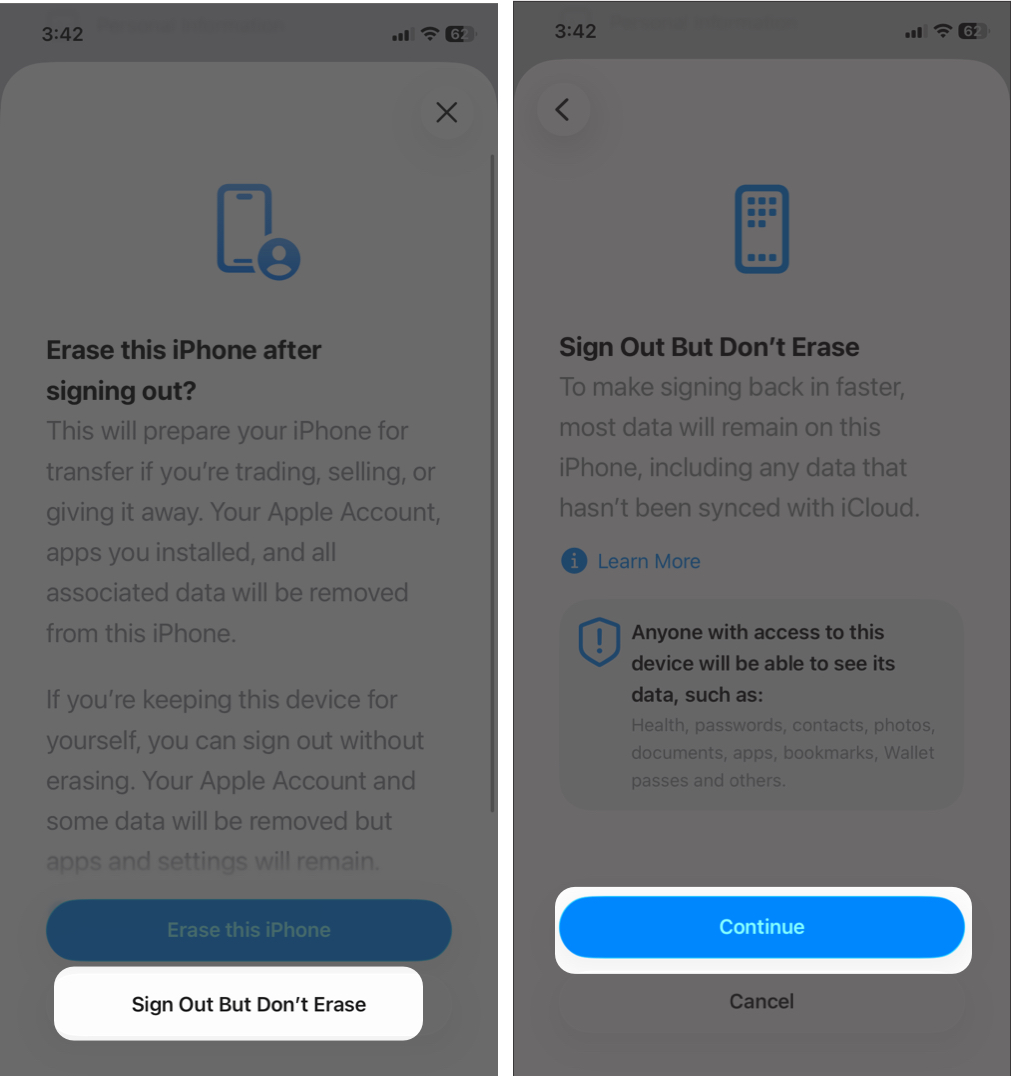
- Now, sign back in using the same Apple ID email address and password.
Check Wallet to confirm your cards are still available.
Reset Network Settings
Network issues can interfere with Apple Pay.
- Go to Settings > General > Transfer or Reset iPhone.
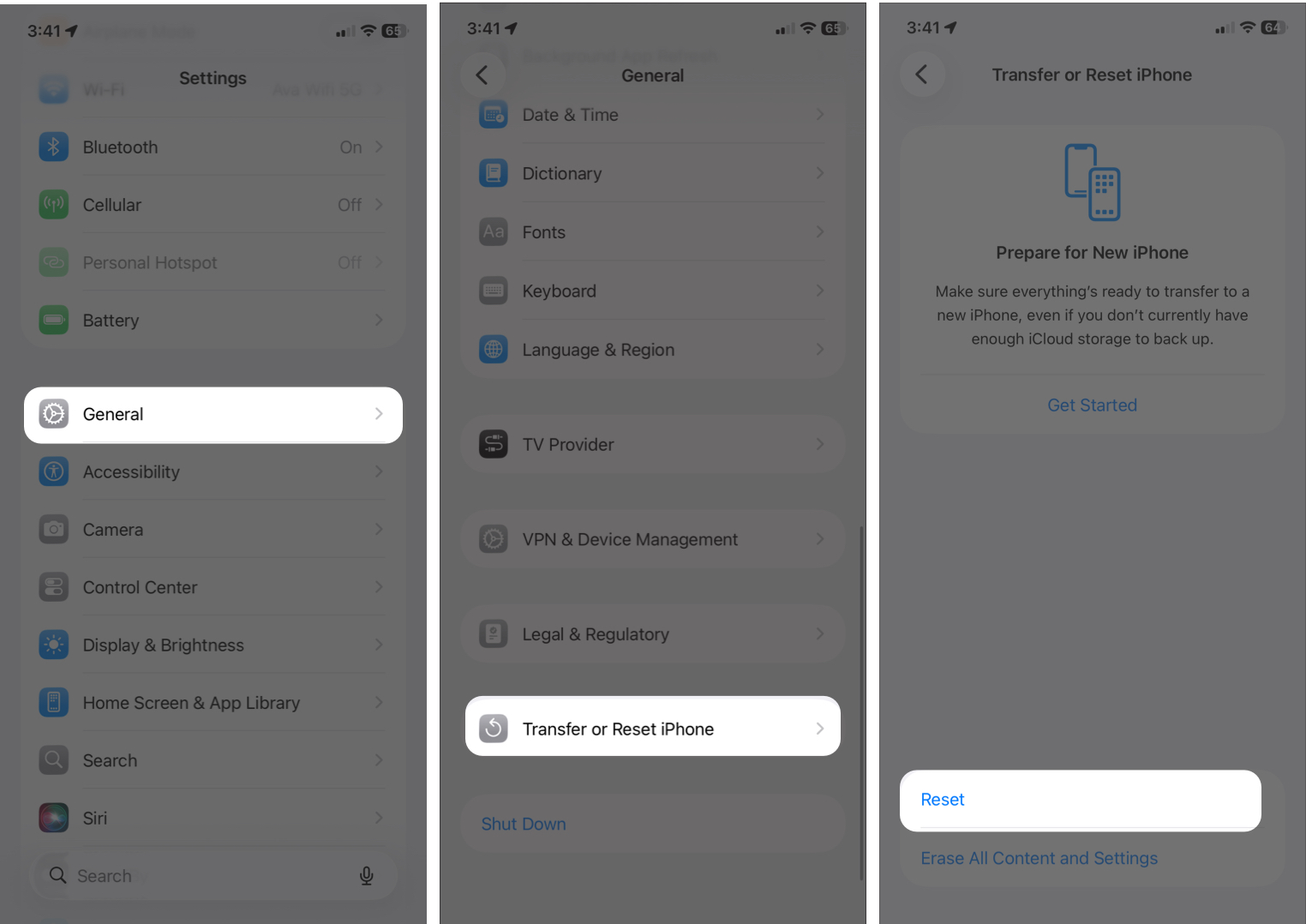
- Tap Reset and Reset Network Settings.
- Enter your passcode.
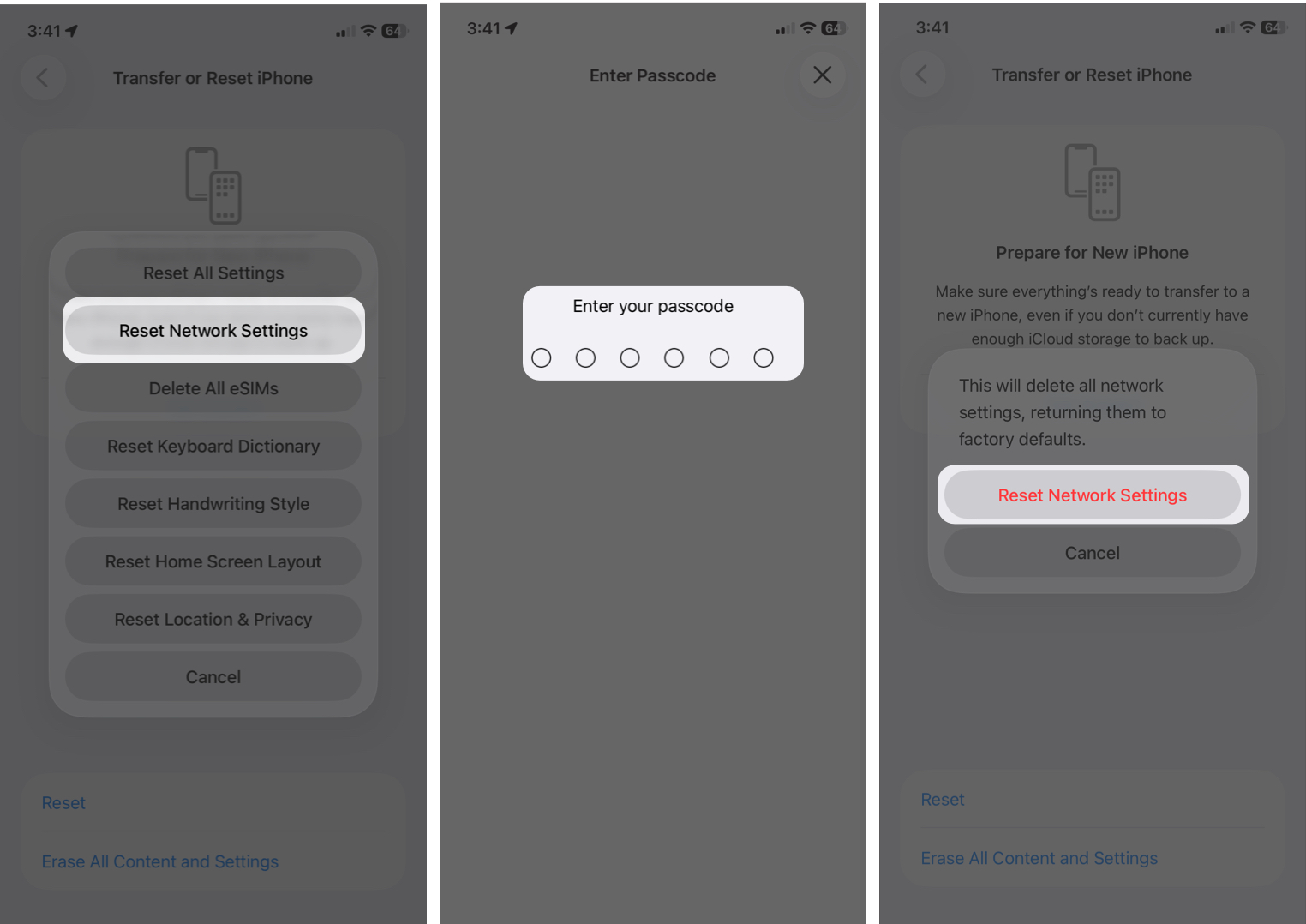
Reconnect to Wi-Fi or mobile data and test Apple Pay again.
Apple Pay Not Working in Stores vs Online Payments
Apple Pay issues often depend on where you’re trying to pay.
Apple Pay Not Working at POS Terminals
- NFC issues: Make sure NFC is working properly.
- Phone positioning tips: Hold the top of your iPhone close to the payment terminal for a few seconds.
- Remove phone case: Thick or metal cases can interfere with NFC signals.
- Traveling abroad? Currency rules or international transaction blocks may stop Apple Pay from working.
Check out our guide to learn which stores accept Apple Pay.
Apple Pay Not Working in Apps or Websites
- App compatibility issues: Some apps don’t fully support Apple Pay or need updates.
- Safari vs third-party browsers: Apple Pay works best in Safari. Many third-party browsers don’t support it.
Advanced Apple Pay Troubleshooting (Last Resort)
If nothing else works, try these only as a last step.
- Reset All Settings: This resets system preferences without deleting data.
- Erase and Restore iPhone: Always back up your iPhone first. This completely refreshes the system.
- Contact Apple Support: If Apple Pay still doesn’t work, official support can check hardware or account-level issues.
Final Thoughts
Apple Pay not working on your iPhone can be frustrating, but most issues are easy to fix.
If problems continue, contact your bank or Apple Support. In many cases, the issue is related to security restrictions rather than your device.
Which solution worked for you? Share your experience in the comments.
Frequently Asked Questions
Topics

Written by
Ava BiswasAva is a die-hard Apple aficionado and seasoned writer with a knack for breaking down complex tech concepts into easily digestible content. Having honed her writing and editing skills over 4 years at renowned media houses like TechBurner, Ava crafts informative and engaging articles including troubleshooting guides, product reviews, editorials at iGeeksBlog. When not typing, you can find her exploring the latest Apple releases or pondering the future of tech innovation.
View all posts →More from How-to

Snapchat Parental Controls: How to Set Up Family Center and Keep Your Teen Safe
Snapchat’s Family Center lets parents monitor their teen’s friend activity and screen time without reading private messages. Here’s how to set it up and what to expect.
 VikhyatMarch 3, 2026
How to Block and Unblock Someone on Instagram
Instagram lets you block or unblock someone in seconds. Follow these simple steps to take full control of your privacy and online peace.
Ava BiswasMarch 2, 2026
Apple Watch Not Responding? 8 Fixes That Actually Work
Is your Apple Watch unresponsive or stuck on a black screen? Here are 8 proven fixes to help you unfreeze it and get it working again quickly.
VikhyatMarch 3, 2026