
How to sync your Health data to iCloud?
Keep your Health data safe with iCloud syncing.
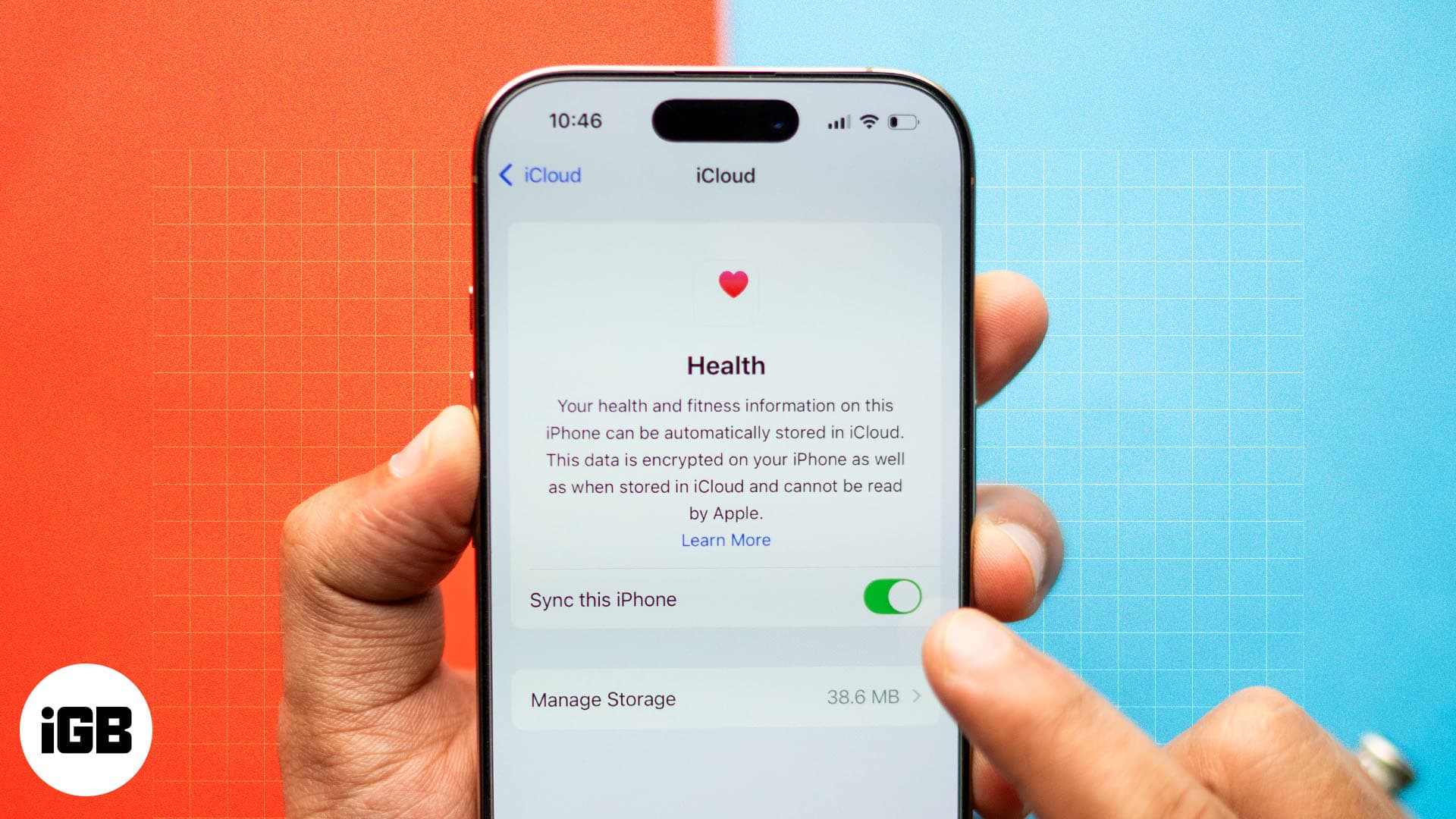
Apple allows you to sync your Health data to iCloud. Setting up the sync is crucial if you use multiple Apple devices, as it not only helps maintain accurate health records but also avoids data duplication. Follow along, and we’ll guide you through the steps to sync your Health data to iCloud.
Why sync Health data to iCloud?
Syncing your health data to iCloud offers several benefits.
- Easy access to Health data across devices: By syncing the Health app data to iCloud on any of your devices, your health information will be available on your other Apple devices connected to the same iCloud account. This ensures that all your health information is available on all your devices whenever you need it.
- Secure backup and recovery: Another important benefit of syncing your Health app data to iCloud is keeping your health data securely backed up in case you lose your device. With this, anytime you open the Health app on your new device, your health data will be updated accordingly.
- Ensure accurate health tracking: For times when you use the Health app on multiple Apple devices, syncing ensures you’re looking at real-time and accurate health data across all your devices, which is critical for health tracking.
- Simplified sharing with healthcare providers and health apps: Apple allows Health app users to seamlessly share their data with healthcare providers and third-party health apps. By ensuring that your Health data is synced, you can be confident that you’re sharing accurate and up-to-date information with your doctor and the health apps to better understand your health.
How to sync your Health data to iCloud on iPhone
- Open the Settings app on your iPhone.
- Tap your Apple Account tab at the top.
- Select iCloud, then tap See All on the app list section.
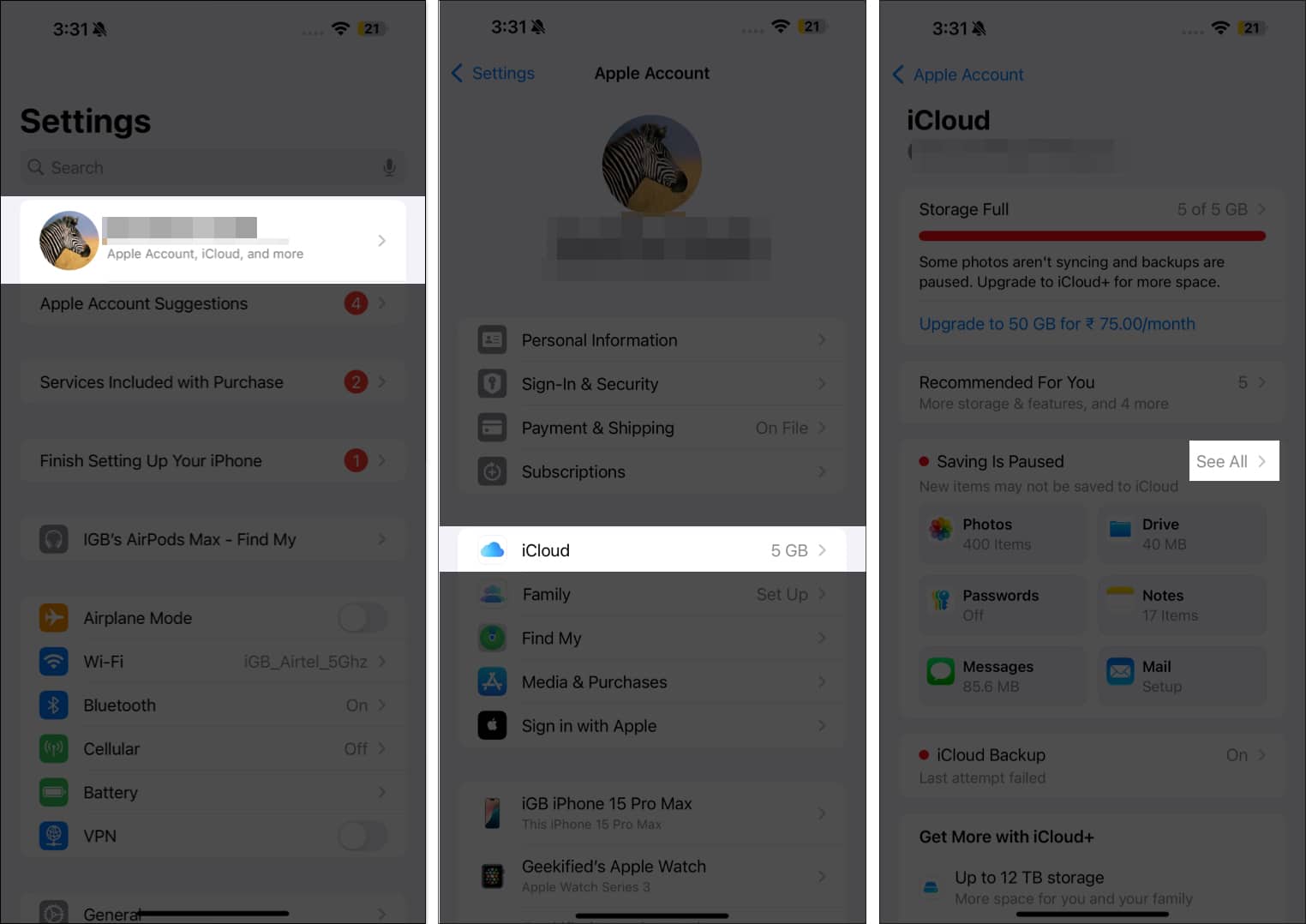
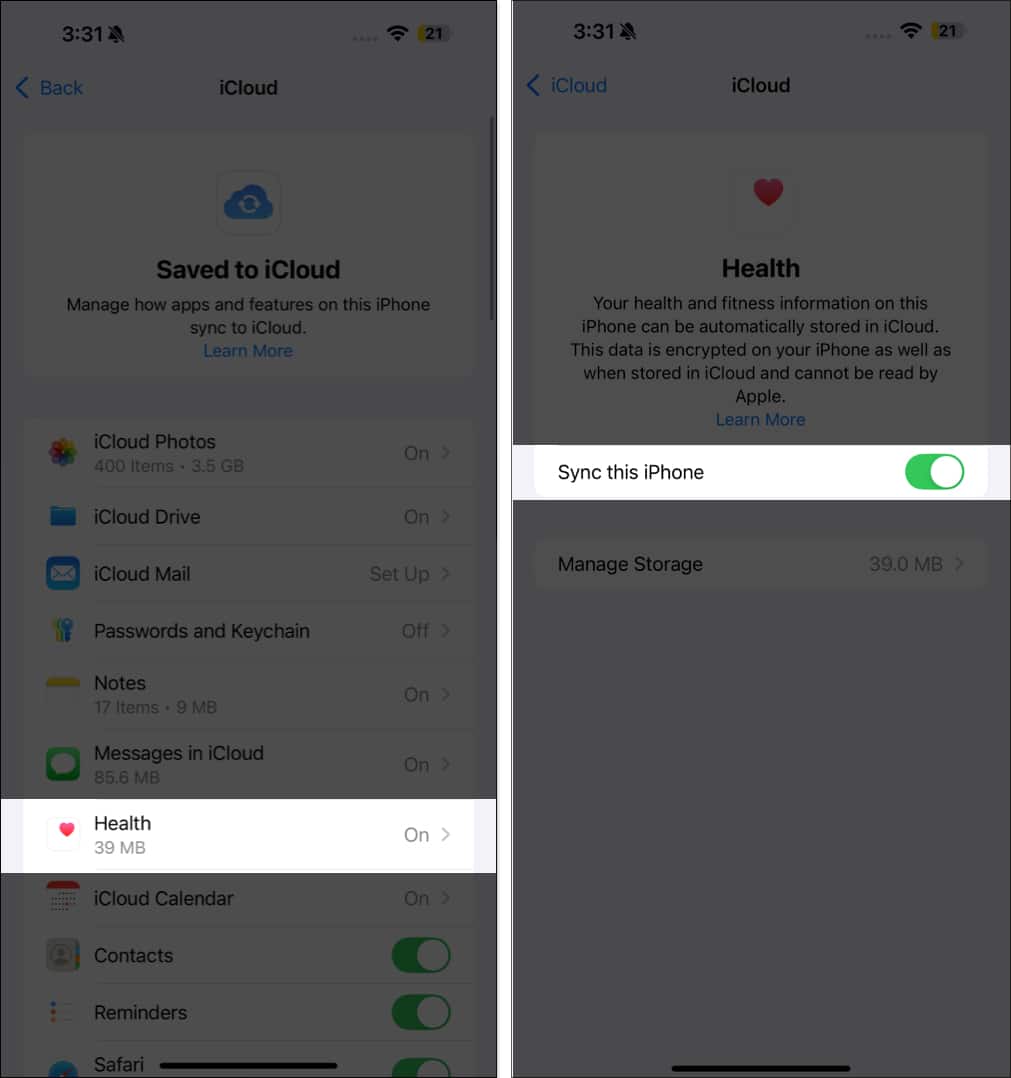
- Find and tap Health in the app list.
- Toggle on Sync this iPhone.
To make sure your Health app data syncs smoothly, here’s what you need to do:
- Make sure you’re signed in with the same Apple ID on all your devices.
- Turn on iCloud sync for the Health app on all your Apple devices.
- Keep your devices connected to the internet.
- Update each one to the latest OS version.
Note:
Verifying iCloud Health data syncing
After you turn on iCloud sync for the Health app, you can verify if the data has started syncing using these steps:
- Open Settings and tap your Apple Account tab at the top.
- Select iCloud and tap See All on the app list section.
- Find and tap Health in the app list, and you’ll see the iCloud storage space taken by your Health data next to the Manage Storage option.
How to fix when Health data fails to sync on iPhone
If your Health data isn’t syncing to iCloud, here are some steps to troubleshoot and resolve the issue.
- Check iCloud settings for Health: It’s possible the Health data sync feature isn’t enabled. To confirm, open Settings → tap your Apple ID → iCloud → See All → Health and ensure that Sync this iPhone is toggled on.
- Check iCloud storage space: A full iCloud storage may prevent Health data from syncing. Go to Settings → Apple ID → iCloud to check available storage. If iCloud storage is full or nearly full, delete unnecessary data or consider upgrading your storage plan.
- Ensure a stable network connection: iCloud syncing needs a strong internet connection. Make sure you’re connected to a stable network or try switching to another to see if the Health data syncs.
- Restart your device: Restarting your iPhone can often fix sync issues. Power off your iPhone, wait a few seconds, then turn it back on and see if the data syncs to iCloud.
- Update to the latest iOS version: If the issue persists, it could be because you’re running an outdated iOS version. To rule out that possibility, go to Settings → General → Software Update to make sure you’re on the latest iOS version.
- Sign out and sign back into iCloud: Signing out and back into iCloud can refresh the connection. Go to Settings → Apple ID → scroll down and select Sign Out. After signing out, restart your iPhone and sign back in to see if the sync resumes.
- Disable and re-enable Health sync in iCloud: Temporarily disabling Health sync in iCloud can refresh the process. Turn it off, wait a few minutes, then enable it again to see if this resolves the issue.
- Check for iCloud outages: Although rare, an iCloud outage may affect syncing. Visit Apple’s System Status page to see if there’s an outage or maintenance affecting iCloud sync.
Wrapping up…
As you’ve seen, syncing your Health data to iCloud is easy. Once done, you can stay on top of your health information on any device and manage it efficiently. Plus, it allows for easy migration when switching devices, ensuring you don’t lose access to your health information and can continue to access it like before.
Let us know if you need help syncing your Health data to iCloud in the comments section below.
Frequently Asked Questions
Topics

Written by
Luqman AbdulkabirLuqman has a strong passion for technology and provides troubleshooting support and how-to guides for iOS and macOS. Additionally, he keeps up with the latest Apple updates to provide useful content.
View all posts →More from How-to

How to Turn Off Location on Snapchat (Step-by-Step Guide)
Want to stop sharing your location on Snapchat? This guide explains how Snapchat location sharing works and shows simple ways to turn off your location using Ghost Mode or phone settings. Stay in control of your privacy in just a few steps.
 VikhyatMarch 5, 2026
Snapchat Parental Controls: How to Set Up Family Center and Keep Your Teen Safe
Snapchat’s Family Center lets parents monitor their teen’s friend activity and screen time without reading private messages. Here’s how to set it up and what to expect.
VikhyatMarch 3, 2026
How to Block and Unblock Someone on Instagram
Instagram lets you block or unblock someone in seconds. Follow these simple steps to take full control of your privacy and online peace.
 Ava BiswasMarch 2, 2026