Live Voicemail on iPhone gives you real-time transcriptions of voicemails as callers leave them, so you can instantly decide whether to answer or ignore the call. But if Live Voicemail is not showing on your iPhone, it can be frustrating. Don’t worry—this guide explains why it might not be working and walks you through step-by-step solutions to fix the issue.
Why Is Live Voicemail Not Working on My iPhone?
Several common issues can cause Live Voicemail to stop working, including:
- Live Voicemail is disabled in Settings
- Outdated iOS version causing compatibility issues
- Unsupported region or carrier
- Focus or Do Not Disturb modes silencing calls
- Weak cellular connection or incorrect network settings
- Temporary iOS glitches
Let’s go through each fix one by one.
How to Fix Live Voicemail Not Working on iPhone
Here are 7 proven fixes to get Live Voicemail working again on your iPhone:
1. Make Sure Live Voicemail Is Enabled
Live Voicemail is available on iOS 17 and later and should be enabled by default. Still, it might have been turned off manually.
To check:
- Open the Settings app.
- Tap Apps > Phone.
- Ensure Live Voicemail is turned on (toggle is green)
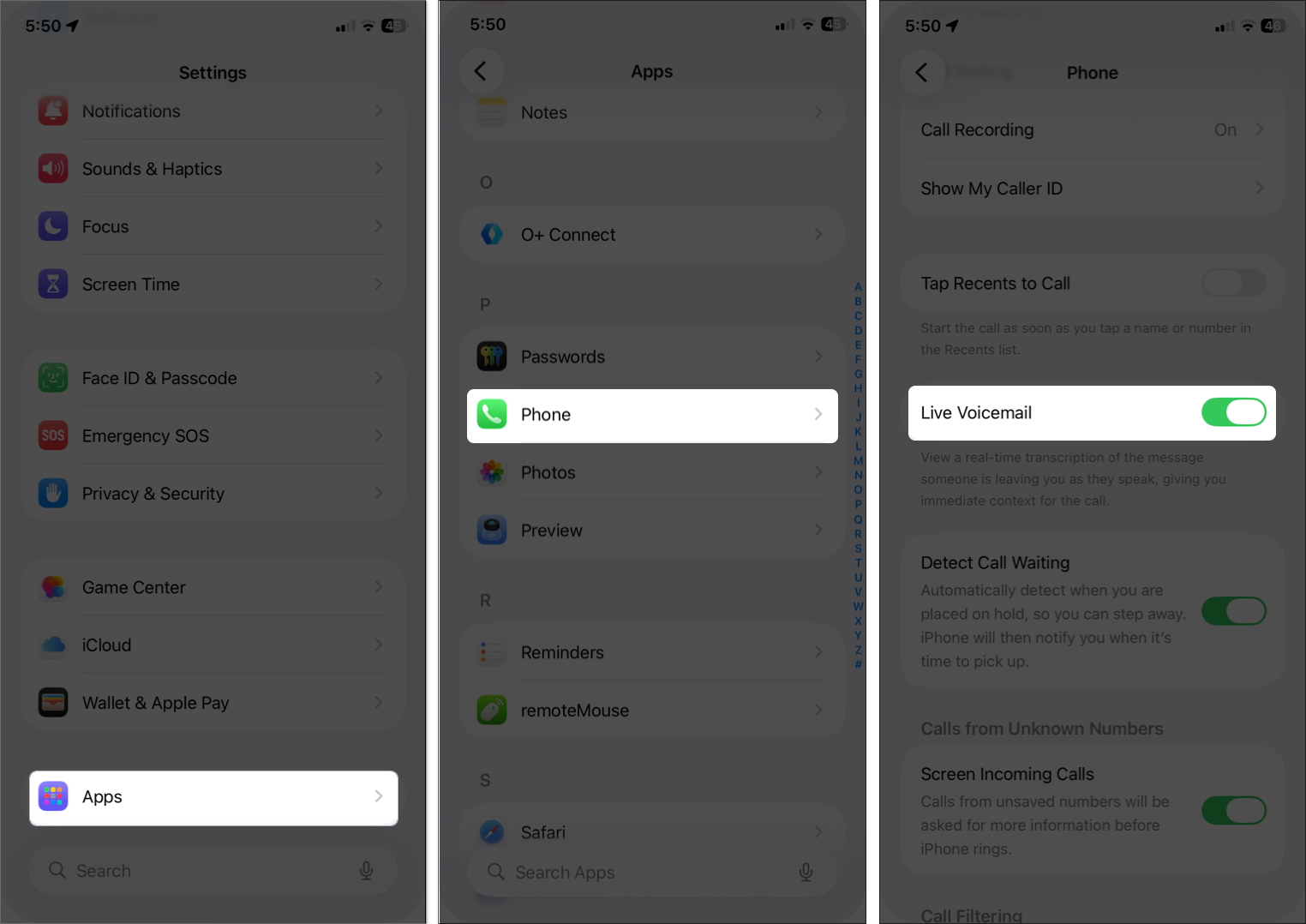
If it’s already on, toggle it off, wait a few seconds, then turn it back on. This quick refresh often resolves minor issues.
Tip:
2. Update to the Latest Version of iOS
Live Voicemail works only on iOS 17 and later. If you’re using an older version, update your iPhone:
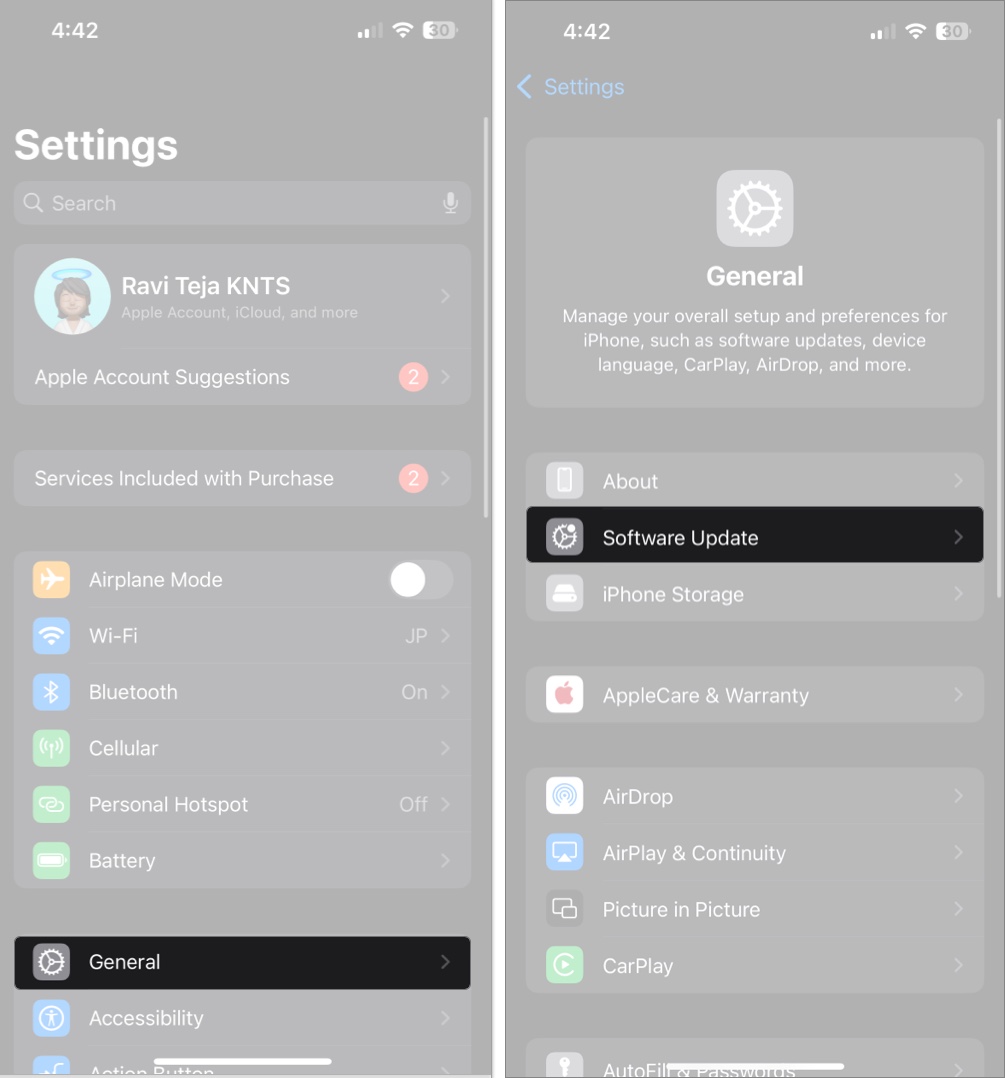
- Go to Settings > General > Software Update.
- Tap Download and Install if an update is available.
- Follow the prompts to complete the installation.
Also, check for Carrier Settings Update by going to Settings > General > About and wait a few seconds—if available, a prompt will appear.
3. Check Regional and Carrier Availability
Live Voicemail isn’t supported globally. As of iOS 18, it works in select countries including the U.S., Canada, UK, India, and Australia.
To verify:
- Go to Settings > General > Language & Region. Ensure your region and language support Live Voicemail.
- Check Apple’s official iOS Feature Availability page.
- Contact your carrier to confirm they support the feature (e.g., Videotron in Canada supports it only in English)
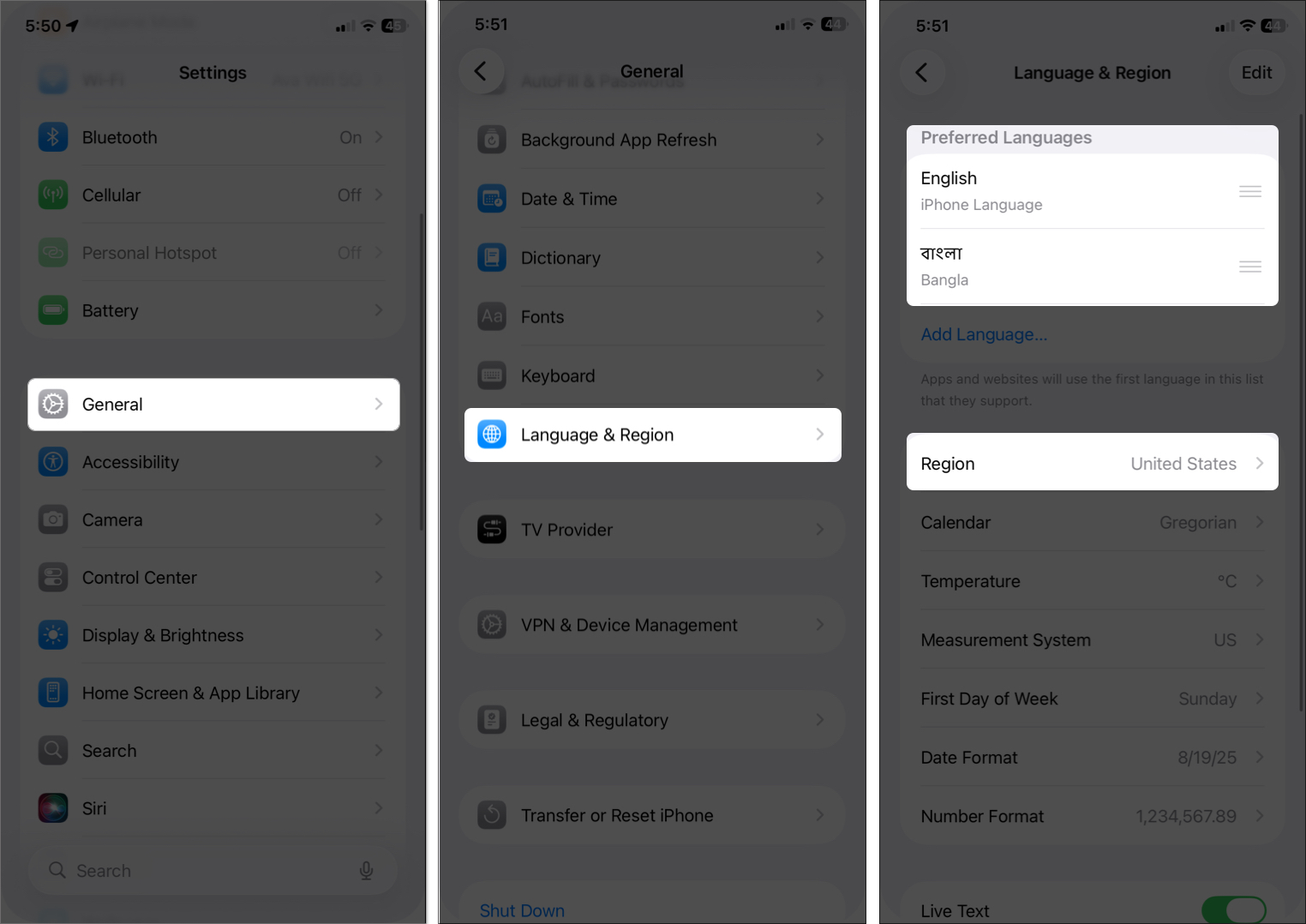
If your region or carrier doesn’t support it, you won’t see the Live Voicemail toggle.
4. Turn Off Focus or Do Not Disturb Modes
Focus modes like Do Not Disturb can silence incoming calls and route them directly to voicemail, bypassing Live Voicemail.
To disable:
- Open Control Center (swipe down from the top-right).
- Tap the Focus icon (moon).
- Tap to turn it off.
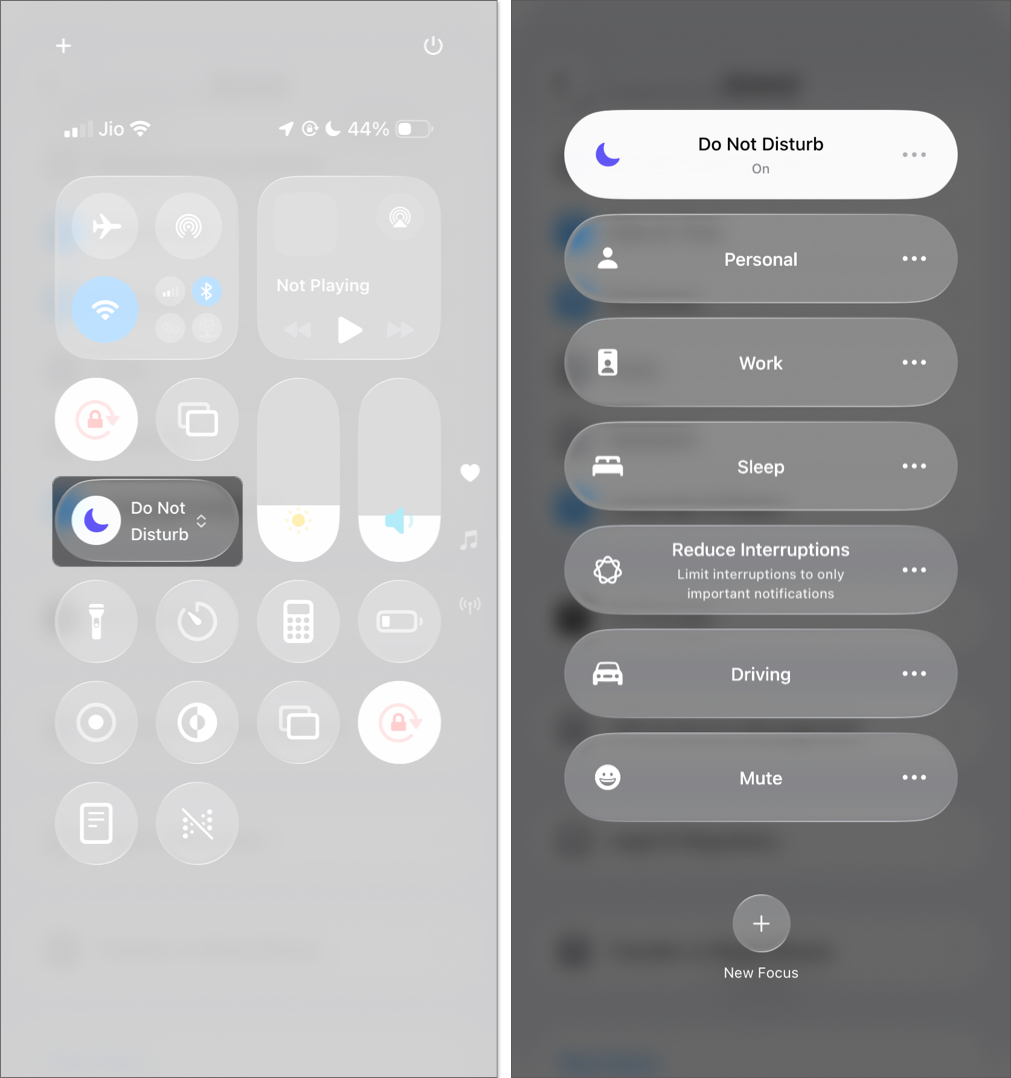

Alternatively, go to Settings > Focus and ensure all Focus modes allow calls from everyone or your contacts to avoid interference.
5. Reset Network Settings
Poor signal or incorrect network configurations can prevent Live Voicemail from working.
To reset:
- Go to Settings > General > Transfer or Reset iPhone.
- Tap Reset > Reset Network Settings.
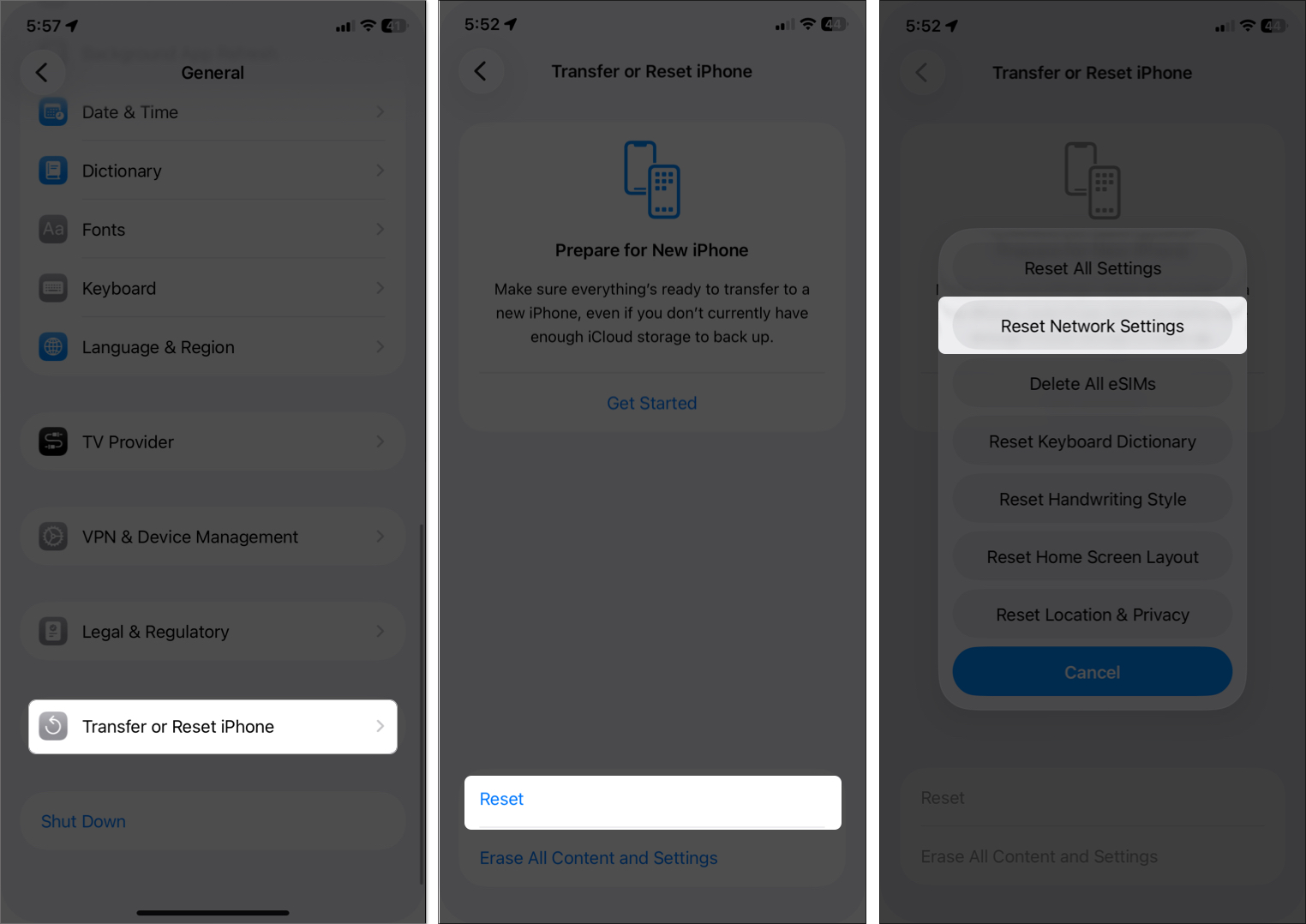
- Enter your passcode and confirm by tapping Reset Network Settings.
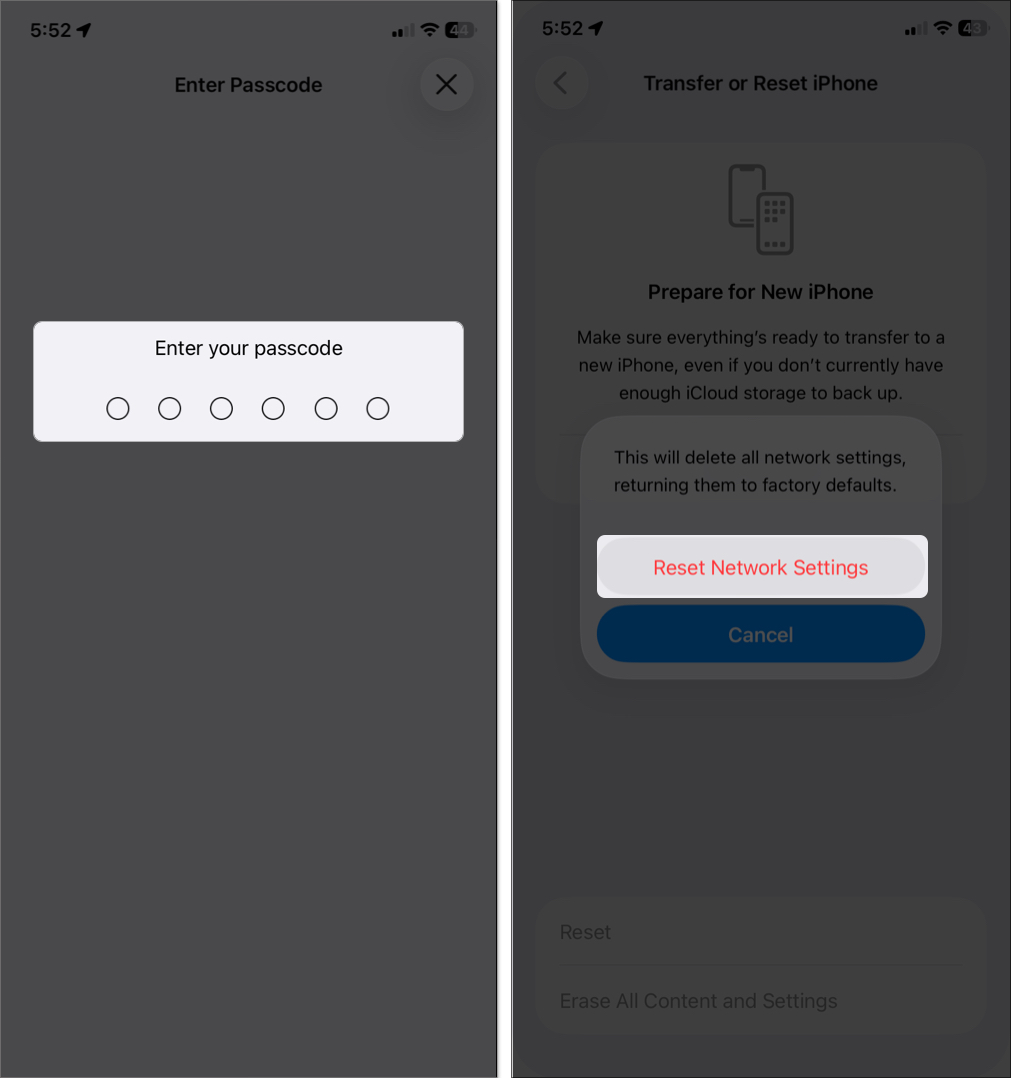


This removes saved Wi-Fi networks, VPNs, and Bluetooth pairings. Reconnect them after the reset and check if Live Voicemail appears.
6. Force Restart Your iPhone
A force restart can clear temporary bugs in iOS that affect voicemail features.
For most iPhones:
- Press and quickly release the Volume Up button, then press and quickly release the Volume Down button.
- Now, press and hold the Side button until the Apple logo appears.
Once your iPhone restarts, test Live Voicemail by asking someone to call and leave a message.
7. Contact Your Carrier
If the issue persists, it might be on your carrier’s end.
Ask your carrier:
- Do they support Visual Voicemail (required for Live Voicemail)?
- Is it available on your plan and region?
- Are there activation codes required to enable the feature?
Fix voicemail delay: If voicemails go to carrier voicemail too quickly, Live Voicemail won’t activate. Dial *#61# to check the delay, then dial *61(carrier number)1130# to increase the wait time to 30 seconds.
When to Contact Apple Support
Still not seeing Live Voicemail after trying all of the above? It’s time to contact Apple.
Reach out if:
- Live Voicemail toggle is completely missing
- You’ve ruled out region and carrier limitations
- You suspect a deeper software issue
You can contact Apple Support via the Apple Support app or at support.apple.com. Keep your iPhone model, iOS version, and troubleshooting steps handy.
Get Back Live Voicemail with Simple Steps!
Live Voicemail is one of the most intelligent features Apple has added to iOS, offering real-time transcription and enhanced call screening. If it’s not showing up, follow these steps: enable it in Settings, update your iOS, verify carrier support, and reset your network if necessary. Most issues can be fixed without needing a Genius Bar appointment.
Got questions? Leave them in the comments, and we’ll help you out!