Everyone says “reduce screen time” when your eyes start hurting. I tried that, but it didn’t really solve anything. My iPhone screen still felt too harsh. Even during short sessions, my eyes would feel dry, slightly strained, and by night, there was that familiar burning sensation. It wasn’t extreme, but it was constant enough to notice.
That’s when I started questioning something else. Turns out, nothing was wrong with my eyes. My iPhone just wasn’t set up in a way that felt comfortable to use. Once I adjusted a few overlooked settings and changed a couple of small habits, the difference was immediate.
Why using an iPhone can hurt your eyes
The uncomfortable part is this: most of us are using our iPhones in ways that quietly strain our eyes without realizing it.
Here’s what I noticed after paying attention:
- Brightness isn’t as “smart” as it feels: I used to trust auto-brightness completely. But indoors, especially under artificial lighting, it often pushed the screen brighter than necessary. It didn’t feel wrong at first, but over time, my eyes felt like they were constantly adjusting.
- Late-night scrolling feels harsher than it should: At night, the screen felt sharper and more intense. Not painfully bright, just uncomfortable in a way that built up slowly the longer I used it.
- I was holding my phone too close: I didn’t realize how close I kept my phone until I started noticing it. That small distance change made my eyes work harder to stay focused.
- I was blinking less than usual: This one stood out. While scrolling, I blink far less. That dryness is what actually causes most of the irritation and burning feeling.
- The interface itself feels visually aggressive: Bright whites, sharp contrast, small text. It looks clean, but not something your eyes enjoy for long sessions.
Best iPhone settings to reduce eye strain
I didn’t install anything or buy accessories. Everything I changed was already built into the iPhone.
1. Enable Screen Distance
This felt unnecessary at first, until it started correcting me in real time.
If you hold your iPhone too close, Screen Distance pauses the screen and asks you to move it back.
How to enable:
- Open Settings on your iPhone and select Screen Time.
- Tap Screen Distance.
- Toggle it ON.
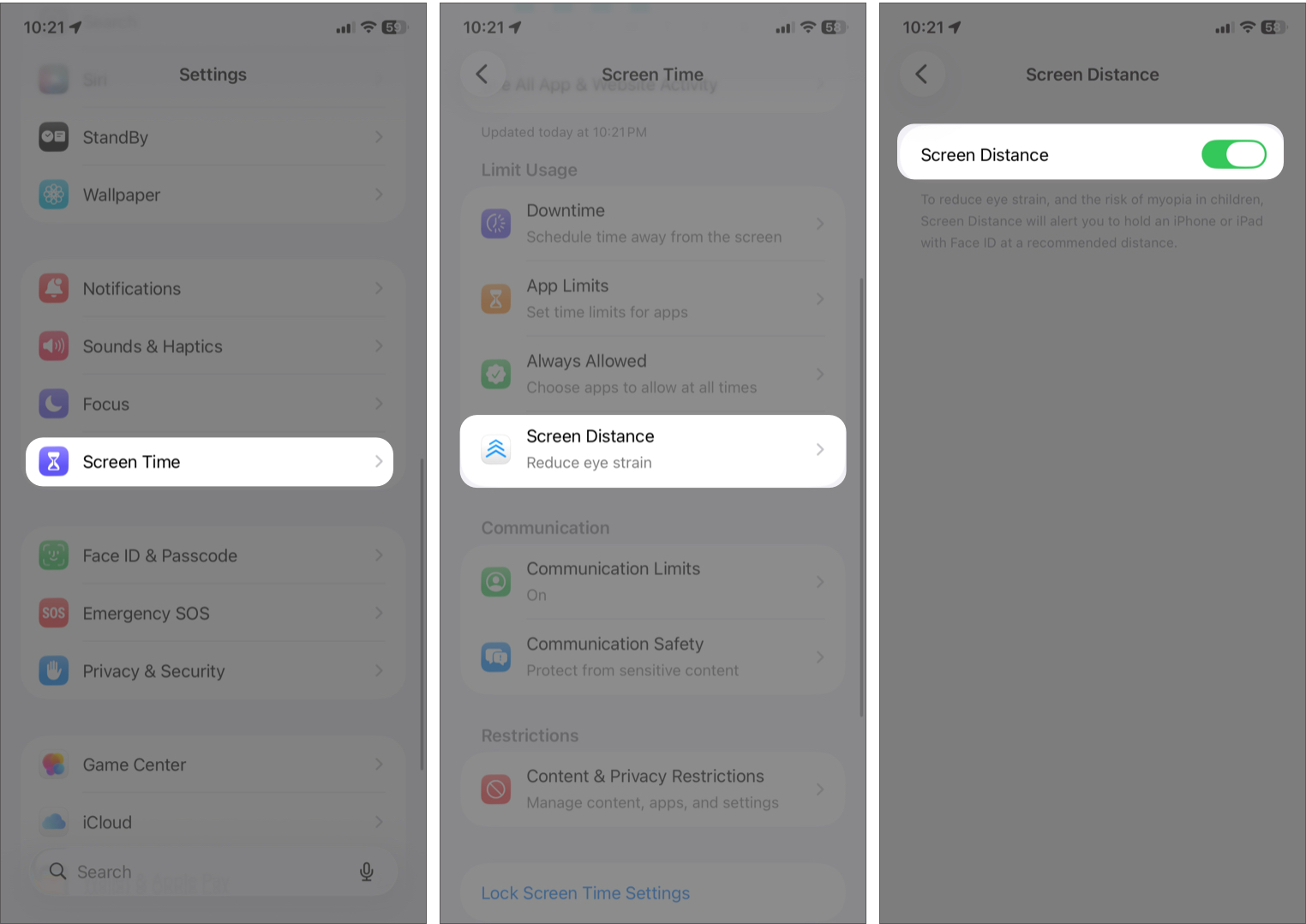
At first, it was slightly annoying. But after a day or two, I realized how often I was using my phone too close without noticing. That constant correction reduced that subtle focus strain almost immediately.
2. Stop trusting Auto-Brightness
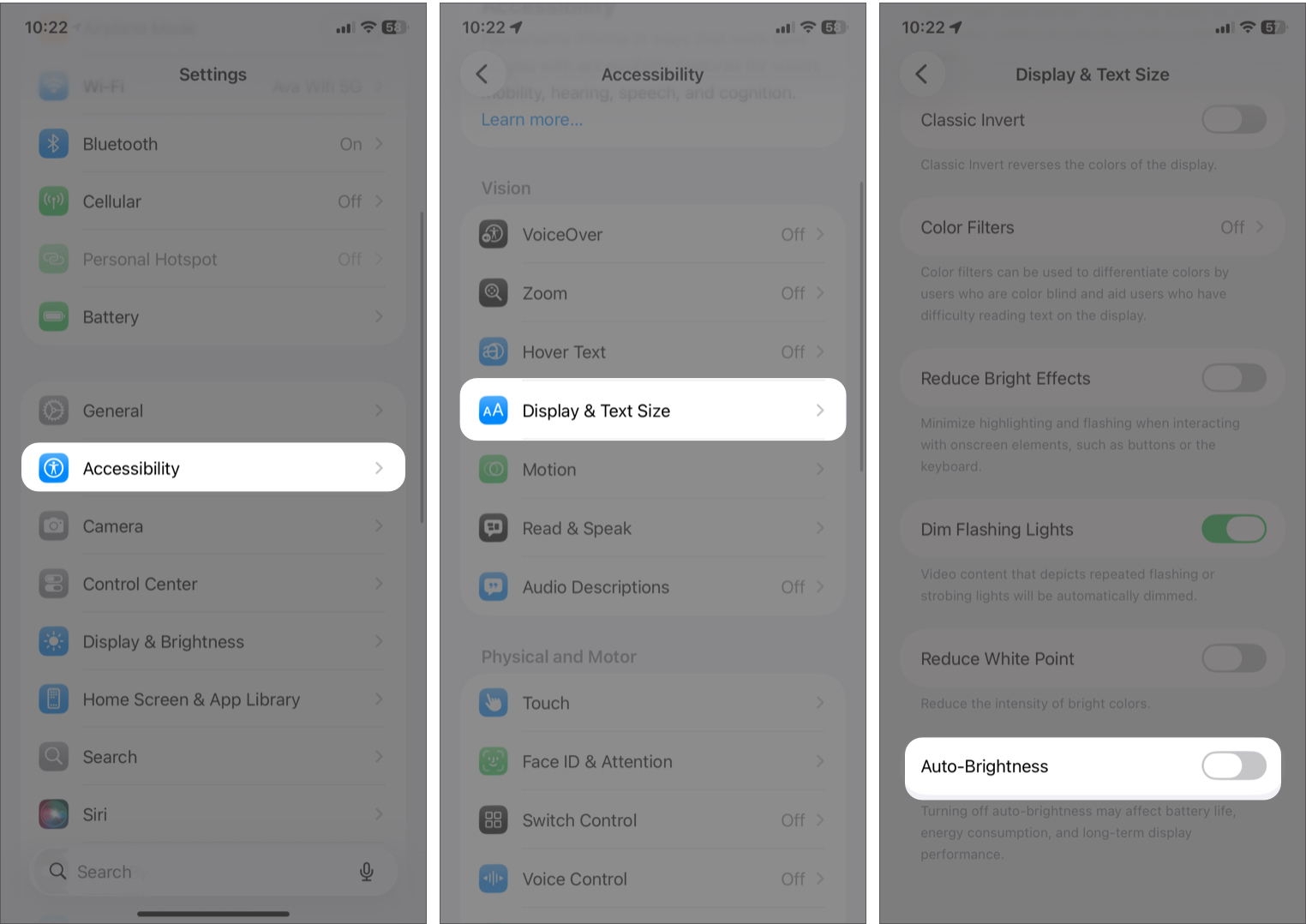
Auto-brightness sounds smart, but in my experience, it’s inconsistent, especially indoors. If the screen is too bright, it causes harsh glare, whereas a too-dim display makes it hard to see. So, I turned off auto-brightness and switched to manual control to prevent glare fatigue.
- Go to Settings, tap Accessibility, and select Display & Text Size.
- Scroll down and turn Auto-Brightness OFF.
- Then, to control brightness manually, open Control Center by swiping down from the top-right.
- Adjust the brightness slider to around 30–40% if you are indoors.
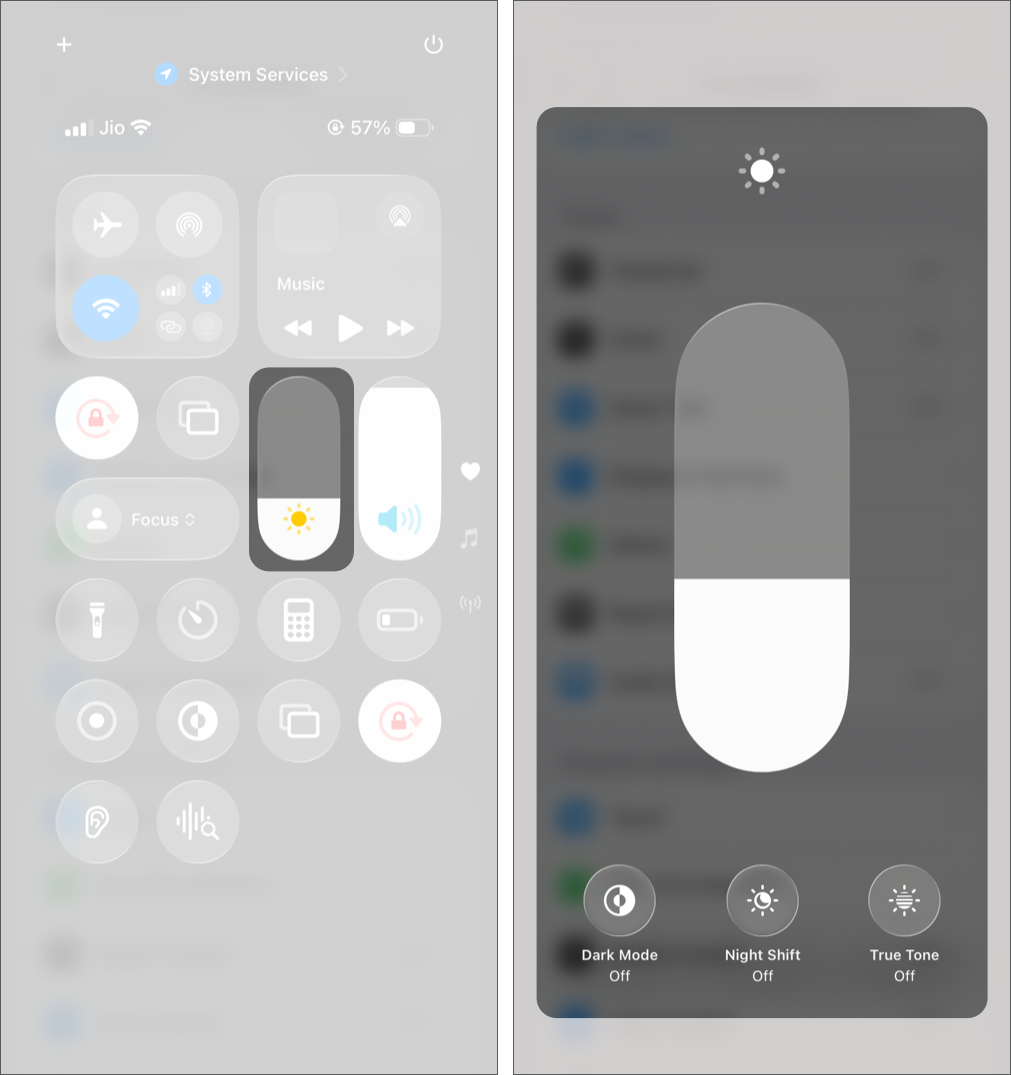

Manual control kept things stable and predictable, which my eyes clearly preferred.
3. Use Reduce White Point (The most underrated iPhone setting for eye comfort)
This was the setting that changed everything. Brightness controls the whole screen, but Reduce White Point tones down the harsh whites specifically, which is where most of the discomfort comes from.
How to enable:
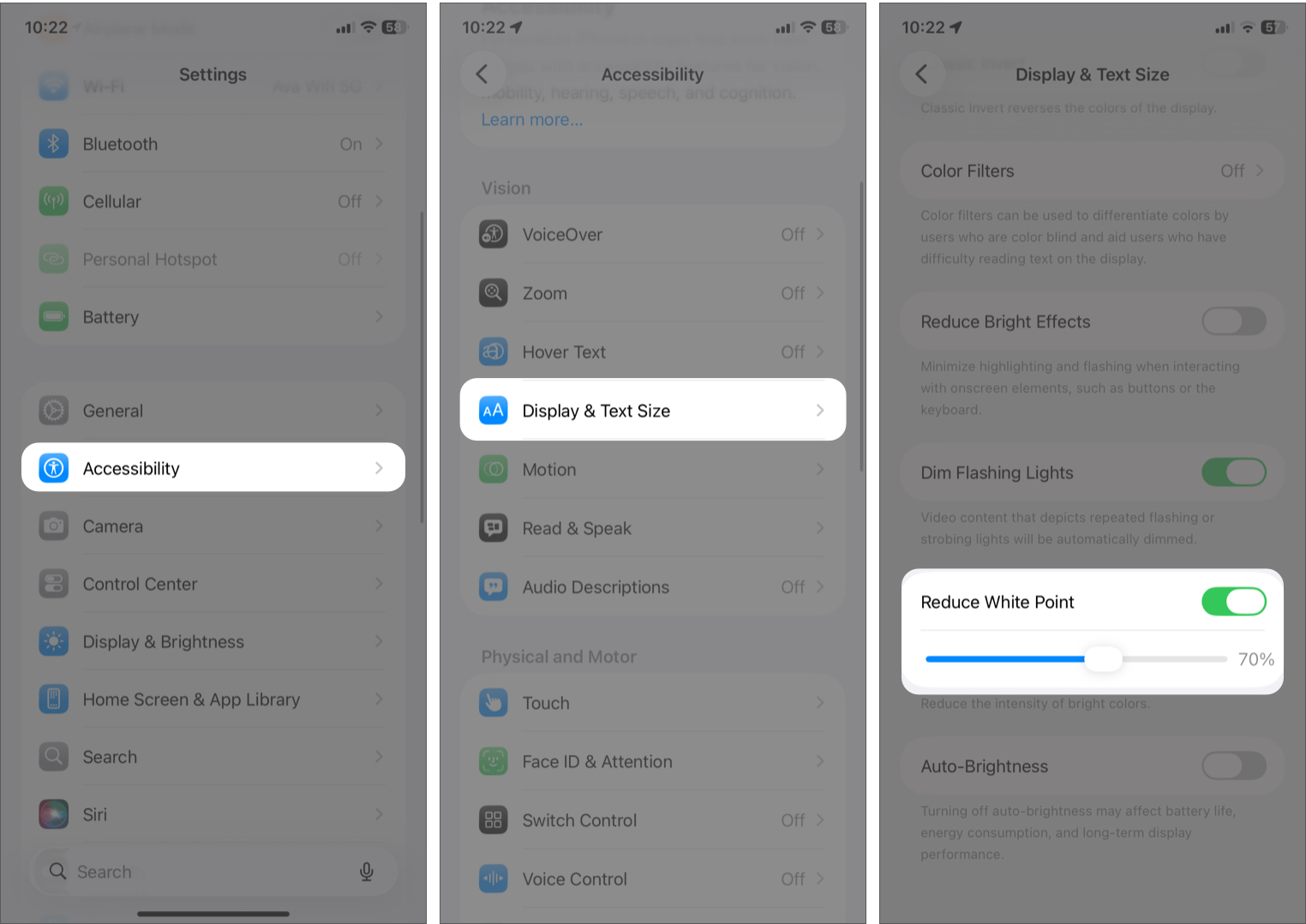
- Open Settings > Accessibility > Display & Text Size.
- Toggle ON Reduce White Point.
- Adjust the slider between 60–80%.
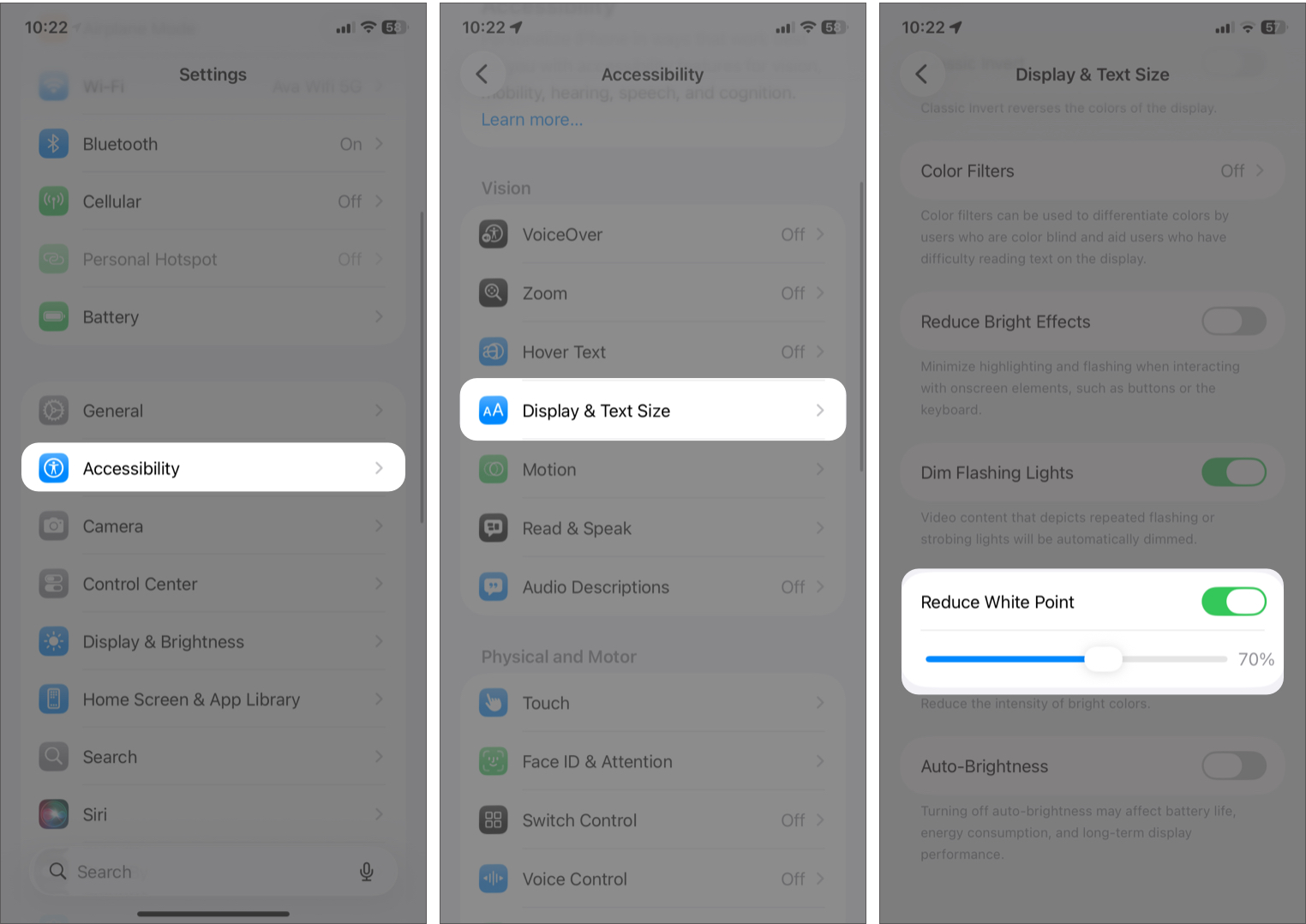

After setting it around 70%, apps like Safari and Notes stopped feeling harsh. The screen didn’t look dull, just softer and easier to look at.
4. Don’t blindly use Dark Mode
I used to keep Dark Mode on all the time, assuming it was better. It’s not always. During the day, it actually felt harder to read and slightly more tiring.
What worked better:
- Daytime: Light mode feels clearer
- Night: Dark mode reduces glare
Best setup:
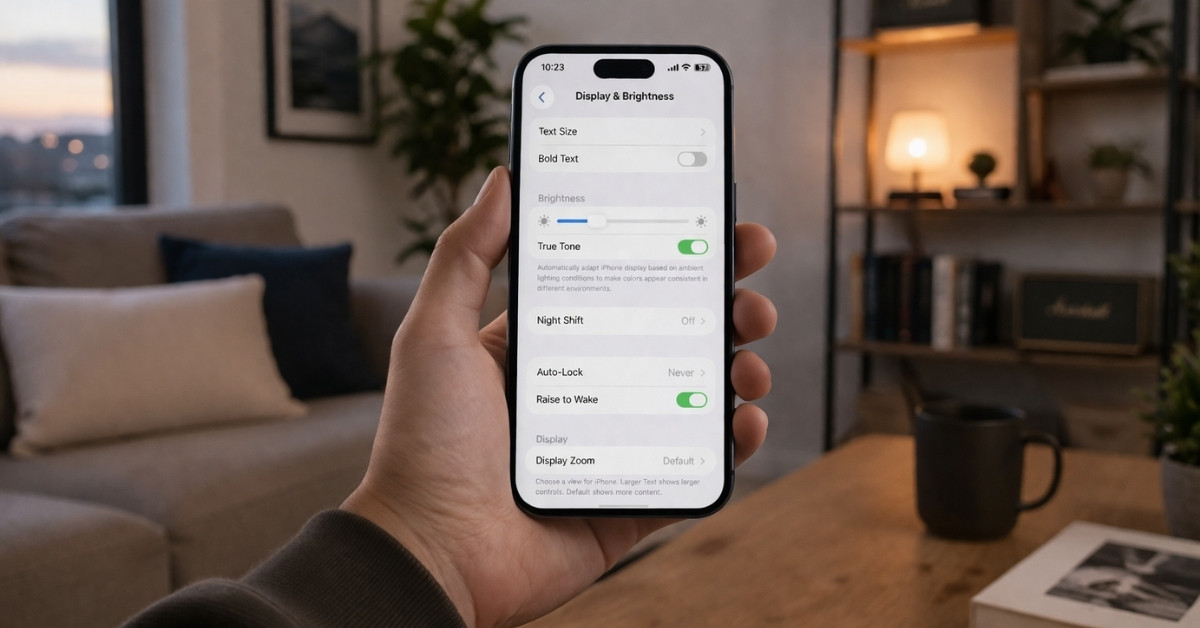
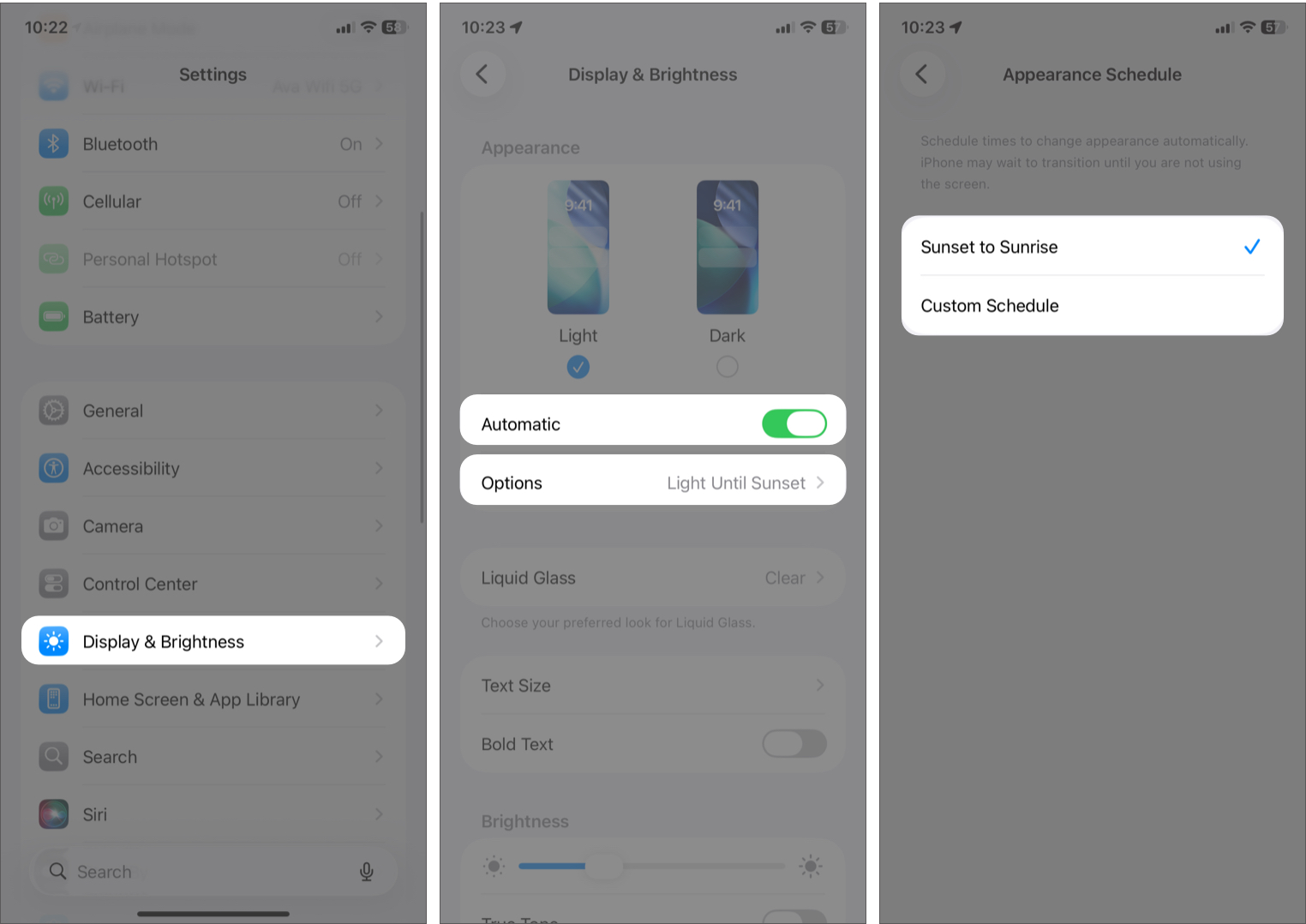
- Go to Settings > Display & Brightness.
- Toggle on Automatic under Appearance.
- Tap Options. Here select Sunset to Sunrise or set a custom schedule.

5. Turn On Night Shift and True Tone
Night Shift warms the screen, removing the harsh blue tone. On the other hand, True Tone adapts colors to ambient lighting, thus reducing the visual shock from changes in lighting conditions. This combination helped me get more comfortable with the iPhone screen.
- Go to Settings and select Display & Brightness.
- Toggle on True Tone.
- Now, tap Night Shift.
- Toggle on Scheduled.
- Set your preferred timing (I use Sunset to Sunrise).
- Adjust the color temperature slightly toward warmer.

Note:
that if you struggle with iPhone screen dimming issues, you might need to keep True Tone disabled.
6. Disable Motion, Animations, and Flashing Effects
This is something most people ignore.
iOS is full of subtle animations, such as zooms, transitions, and parallax effects. They look nice, but they add visual noise. I enabled Reduce Motion accessibility and disabled flashing lights. The interface instantly felt calmer.
- From Settings, navigate to Accessibility, and select Motion.
- Toggle on Reduce Motion.
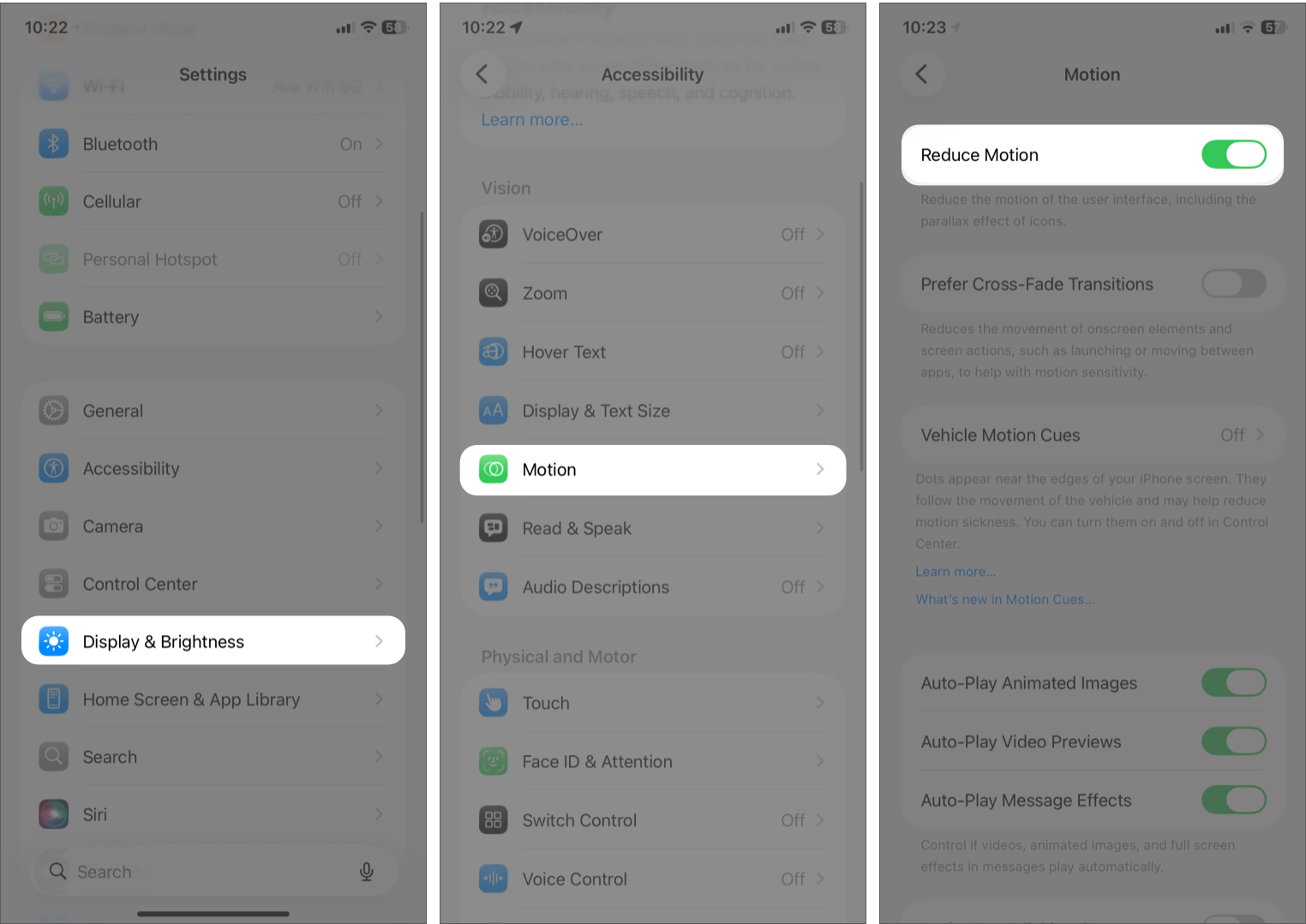
- In the same menu, turn off Auto-Play Message Effects. This lets you choose whether to see the animation or the full-screen effects.
- Now, get back and select Display & Text Size.
- Here, enable Dim Flashing Lights and Reduce Bright Effects.
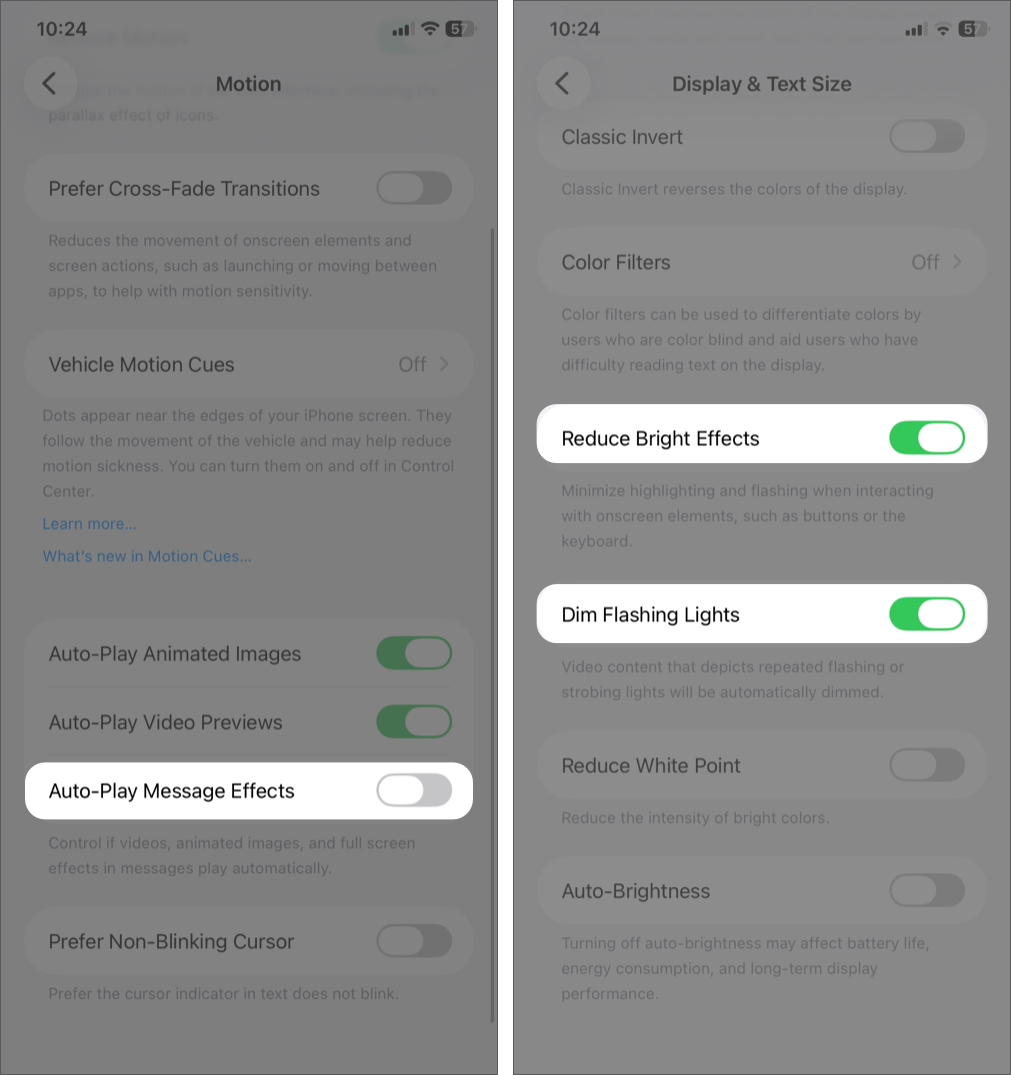


All these settings made doom scrolling at night easier.
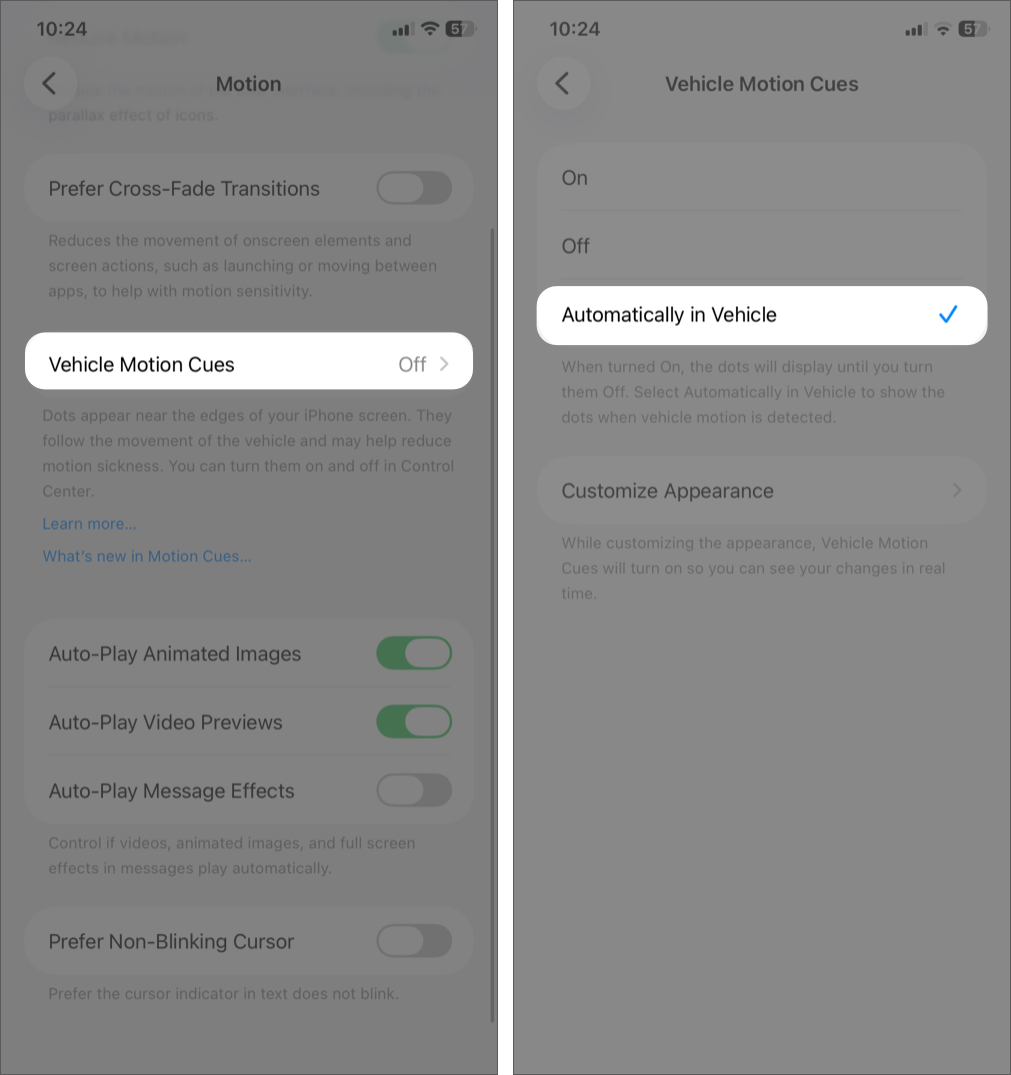
7. Try Vehicle Motion Cues
I didn’t expect much from this. It’s meant for motion sickness, but while using my phone on the move, it actually reduced that slight discomfort I used to feel.
How to enable:
- Open Settings > Accessibility > Motion.
- Tap on Vehicle Motion Cues
- Choose Automatically in Vehicle.

My best iPhone display settings for eye comfort
After trying different combinations, this is what I stuck with:
- Brightness: ~30–40% (manual control)
- Reduce White Point: 60–80%
- Night Shift: ON after evening
- Dark Mode: Scheduled (sunset to sunrise)
- Screen Distance: ON
- Text Size: Slightly increased
The change was immediate. No more burning sensation at night. No more constant adjustment.
Habits that help reduce eye strain on iPhone
This was the part I didn’t expect. Settings helped, but habits made everything consistent.
1. Started following the 20-20-20 rule
I rest my eyes every 20 minutes by looking at an object 20 feet away for 20 seconds. Though it might seem simple, it works in resetting your eye muscles. You don’t notice strain building up while scrolling. This breaks that cycle before it gets worse.
Though I don’t follow this rule strictly, its occasional implementation made a difference.
2. Stopped continuous scrolling
The worst thing for your eyes is constant scrolling. Taking short breaks in between, like 1-2 minutes, or placing my phone aside after completing one task, helped a great deal.
It’s not the use that causes eye fatigue, but the constant focus on screens. Breaking that loop dramatically reduced the heavy, tired feeling.
3. Increased text size instead of squinting
This one’s obvious in hindsight. If you’re squinting, your UI is wrong, not your eyes.
- Go to Settings > Display & Brightness > Text Size.
- Drag the slider to increase it slightly. Not huge, just comfortable.
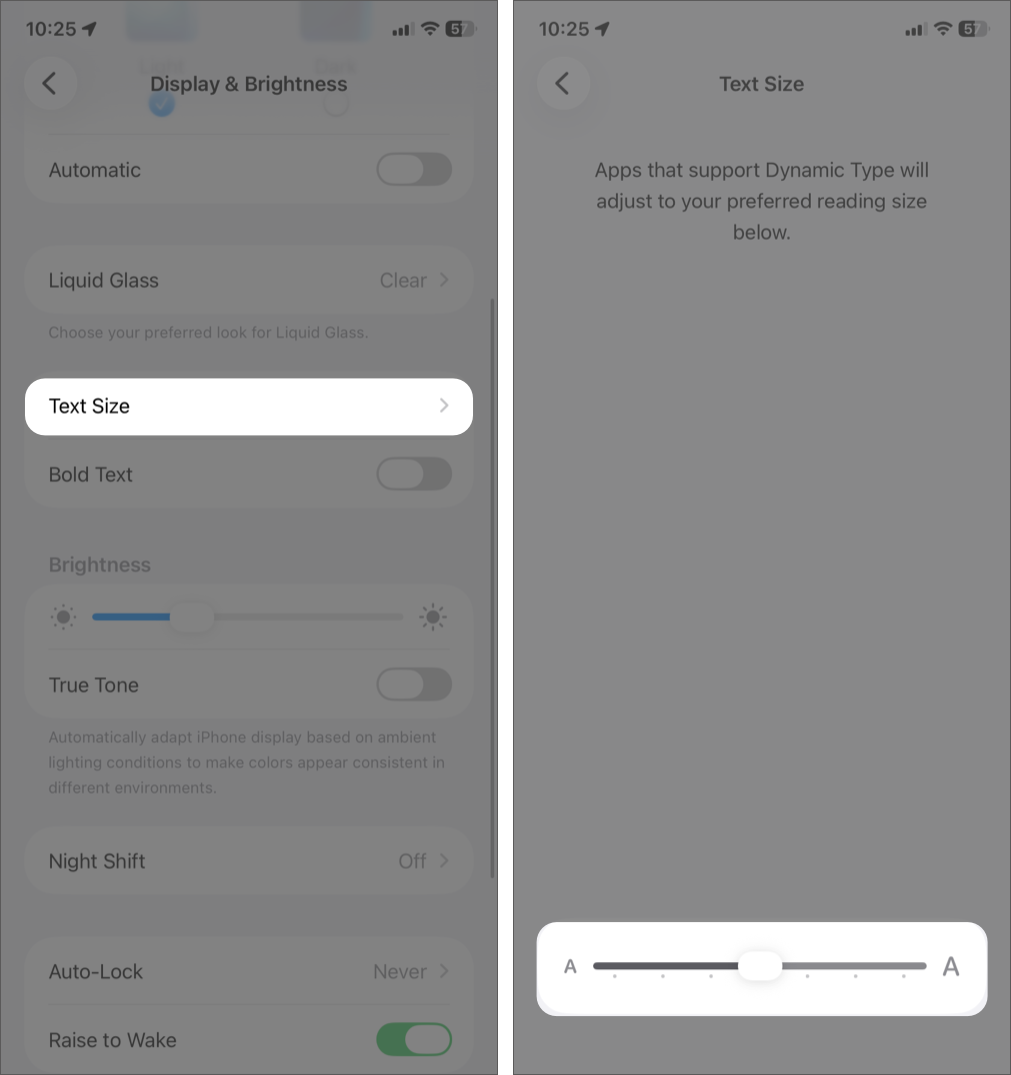

Reading became effortless. No more subtle tension in my eyes after long reading sessions.
4. Stopped using my phone in complete darkness
This was a major one for me.
Using a bright screen in a completely dark room creates extreme contrast. Your eyes are constantly adjusting, and that’s what causes that burning, dry feeling.
I keep a dim ambient light on at night or position myself where there’s at least some background light. Night scrolling stopped feeling harsh, and my eyes didn’t feel “attacked” anymore.
Who should use these iPhone eye strain fixes
You’ll benefit from this if:
- Your eyes feel tired quickly
- You get headaches after using your phone
- Night scrolling feels uncomfortable
- You read a lot on your iPhone
- Reducing screen time didn’t help
Protect your eyes from iPhone screen
I used to think my iPhone was the problem. It wasn’t. The real issue was that I was using a powerful display with completely unoptimized settings. Apple gives you the tools to make your screen comfortable. They’re just buried where most people never look.
Once I fixed a few key things, the change was immediate. Less strain. No burning sensation. No end-of-day headaches. If your eyes are hurting right now, don’t blame the screen. Fix it now!