Find My makes it easy to share your location with friends and family, but there are times when you’d prefer to keep your whereabouts private. Until now, your options were fairly limited. You either had to stop sharing your location entirely or disable Location Services, both of which could interfere with other Find My features.
iOS 27 introduces a better solution. A new “Hide Location” option lets you temporarily remove your live location from Find My without disabling the service altogether.
Here’s everything you need to know about the new feature and how it works.
What is the Hide Location feature in iOS 27?
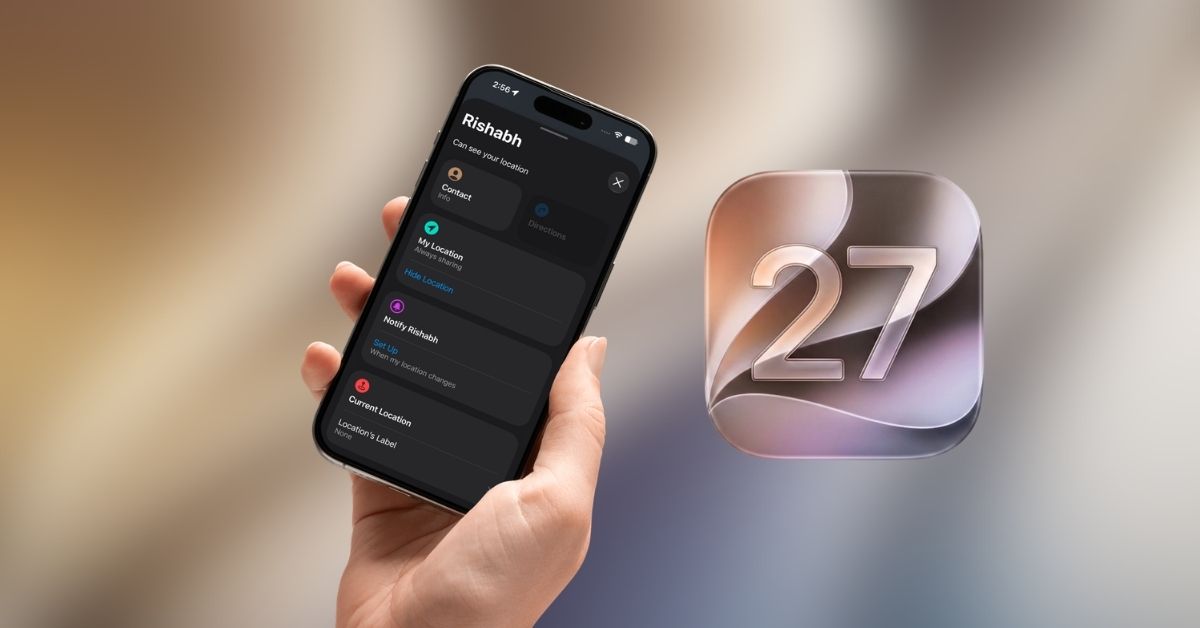
Apple has added a Hide Location button to the My Location card in the Find My app. When enabled, your live location becomes unavailable to the people you share it with, while Find My continues running normally in the background.
This allows you to temporarily stop location sharing without affecting other Find My functionality.
Your location stays hidden for 12 hours
Once enabled, Hide Location pauses your live location for up to 12 hours. You don’t need to remember to turn it off later because the feature automatically expires when the timer ends, making it ideal for situations where you want temporary privacy without permanently changing your settings.
Location sharing resumes automatically
After the 12-hour period ends, Find My automatically resumes sharing your live location. If you’d like to start sharing again sooner, you can manually disable the feature at any time by tapping Unhide Location.
People aren’t notified when you hide your location
One of the most notable aspects of the feature is that it doesn’t send alerts or notifications to the people you share your location with. Instead of seeing your live location, they’ll simply see “No Location Found.”
This makes it appear as though your location is temporarily unavailable rather than intentionally hidden.
How to temporarily hide your location in Find My on iPhone
The new Hide Location feature is located within the Find My app and only takes a few taps to enable. Here’s how:
- Open the Find My app and make sure you are on the People tab.
- Here, select the person you want to hide your location from.
- Now, tap the three-dot button that appears.
- Next, tap Hide Location.
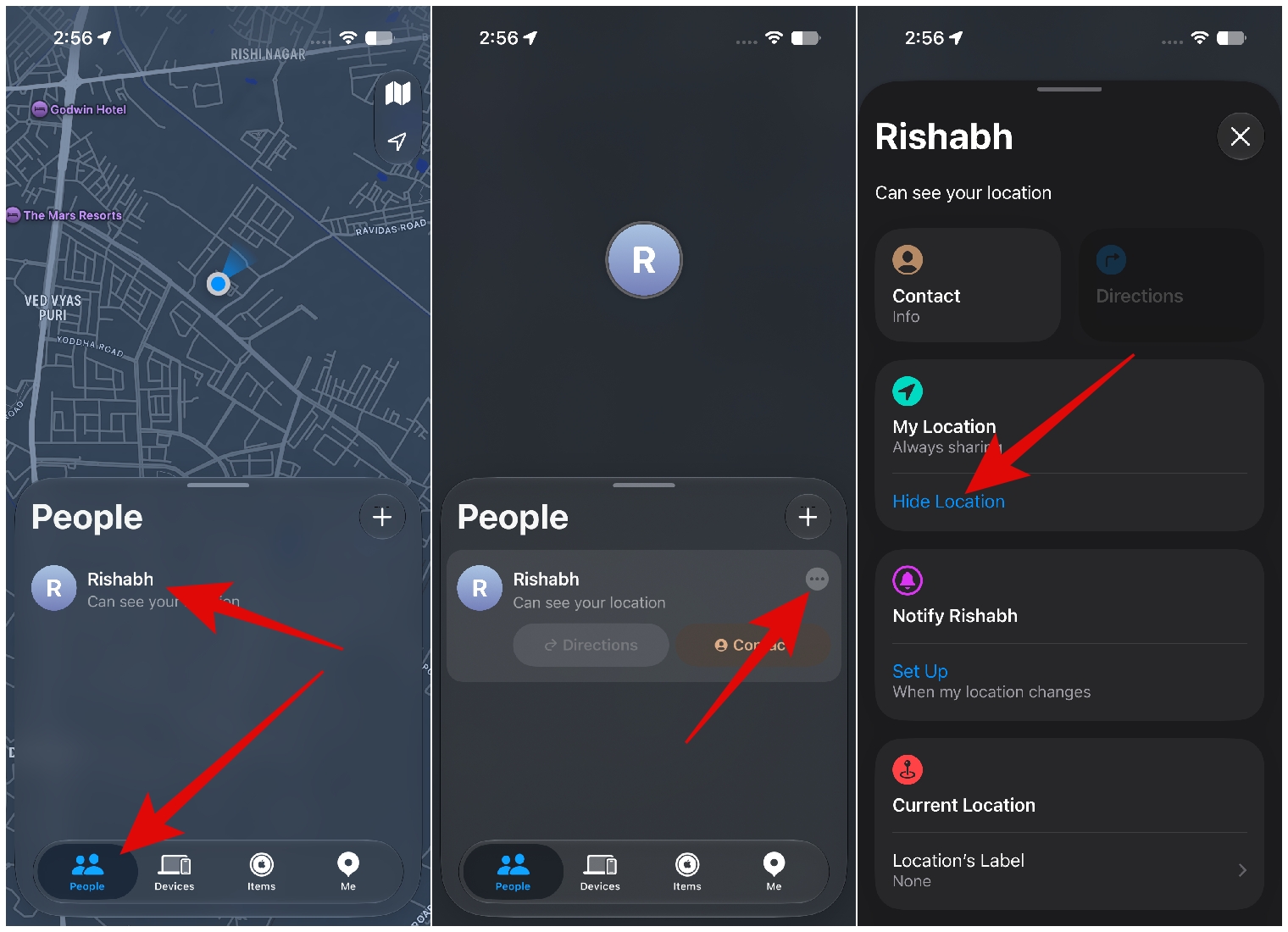
Your live location will stop updating immediately.
To resume sharing before the 12-hour timer expires, return to the same menu and tap Unhide Location.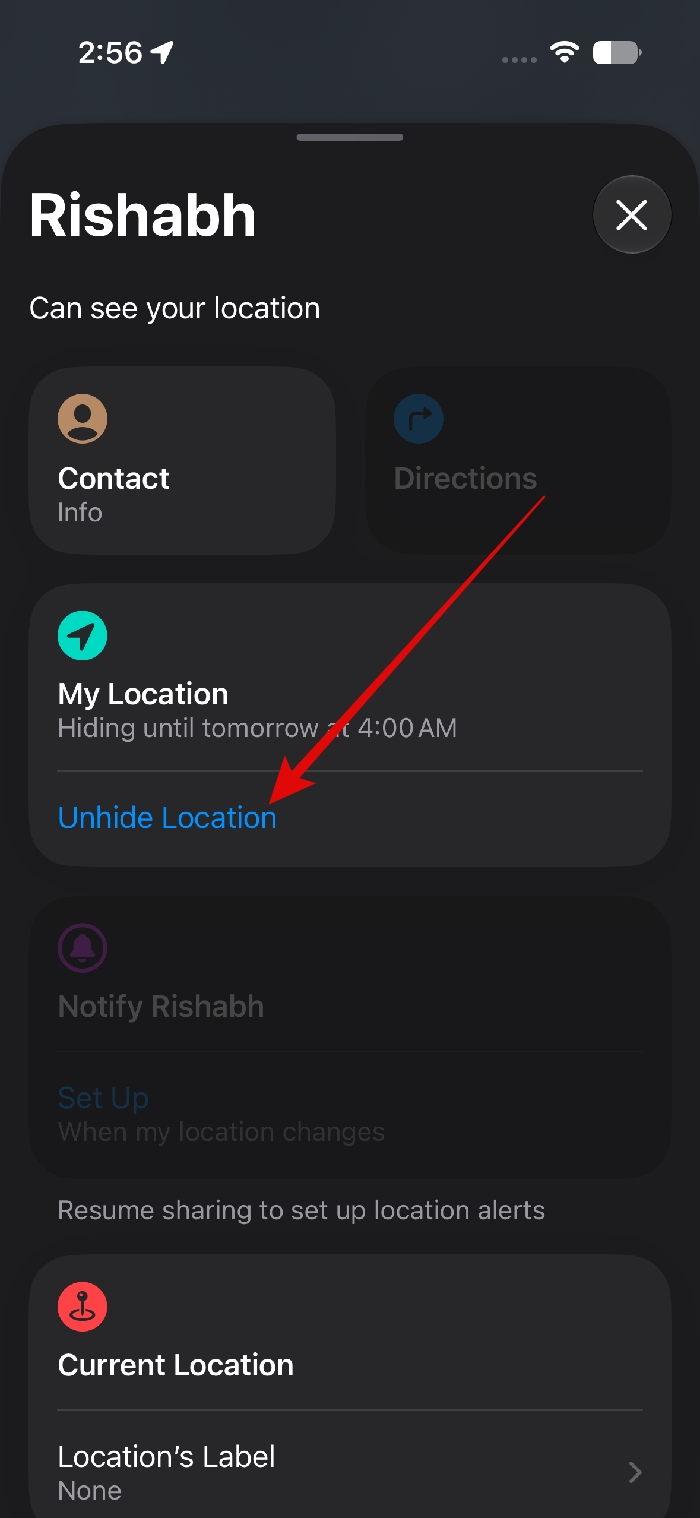
What do others see when you hide your location?
When Hide Location is active, people you share your location with won’t be able to view your current position.
Instead, Find My displays “No Location Found” in place of your live location.
The app also doesn’t show your last known location or indicate that you’ve chosen to hide it. From the other person’s perspective, your location is simply unavailable.
More location-sharing improvements are coming in iOS 27
Hide Location isn’t the only Find My improvement arriving in iOS 27. Apple is also introducing more flexible temporary location-sharing controls.
Instead of choosing between indefinite sharing and a few preset durations, users can now select custom time limits that better fit specific situations.
For example, you can share your location:
- During a road trip
- Until a concert ends
- For an entire weekend
- For any custom duration you choose
This removes the need to manually stop sharing later while giving users greater control over their privacy.
A little more privacy for Find My users
Until now, hiding your location often meant turning off location sharing entirely or disabling Location Services. The new Hide Location feature offers a more practical alternative. With a single tap, you can temporarily keep your whereabouts private while allowing Find My to continue working normally.
Once the timer expires, location sharing resumes automatically without requiring any additional action.
Planning to install the iOS 27? Let us know which new feature you’re most excited to try, including Hide Location, in the comments below.
Related articles worth reading: