
How to use WhatsApp on Mac: 2 Ways explained
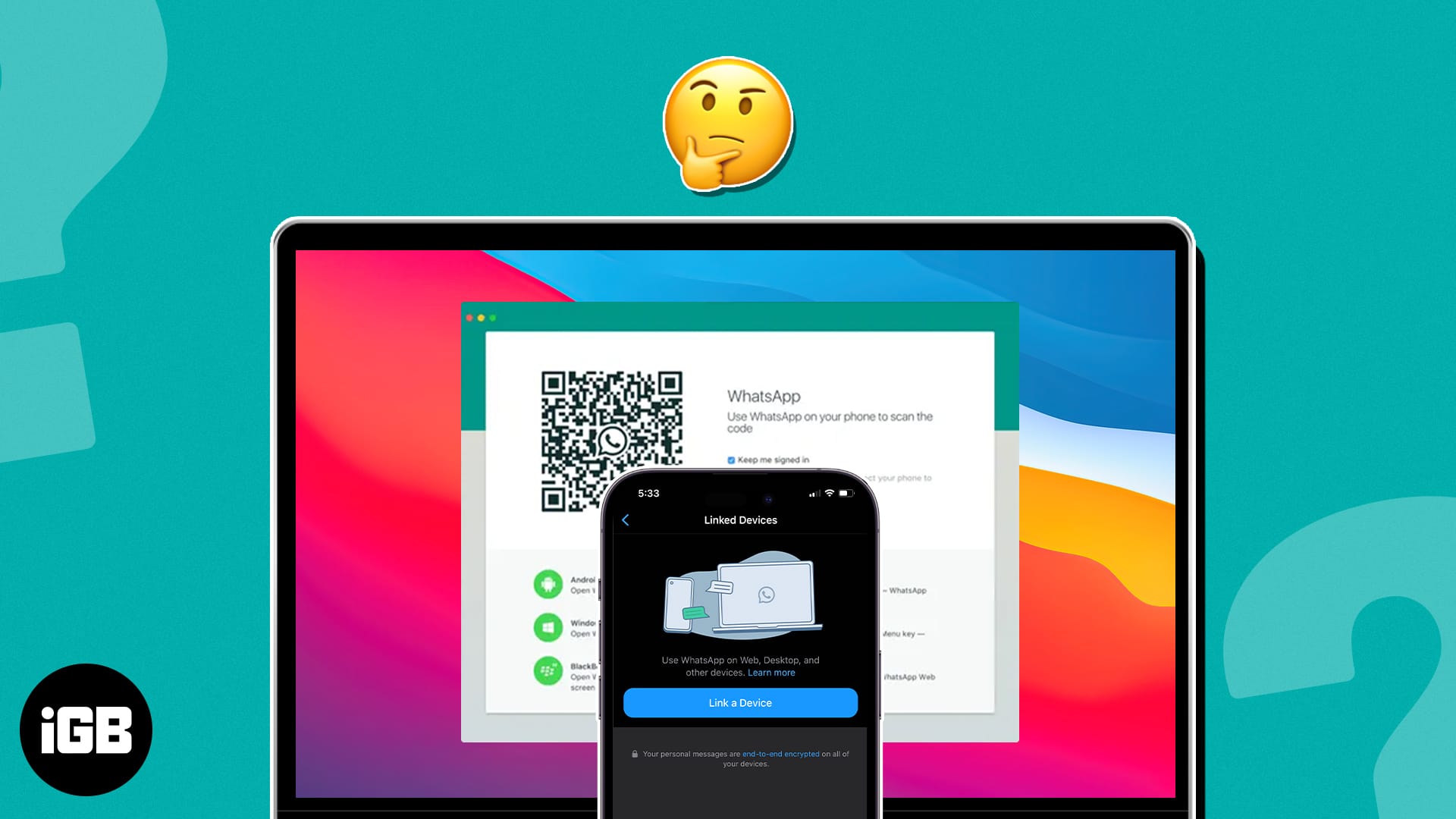
WhatsApp is one of the world’s most widely used messaging apps, and its convenience has extended beyond smartphones. This guide has everything you need to know about using WhatsApp on your Mac. Let’s get started!
How to use WhatsApp Desktop app on Mac
- Download and install the WhatsApp Desktop app from the Mac App Store.
- Open the WhatsApp Desktop app.
- On your iPhone, launch WhatsApp.
- Head to the Settings tab → Linked Devices → Link a Device.
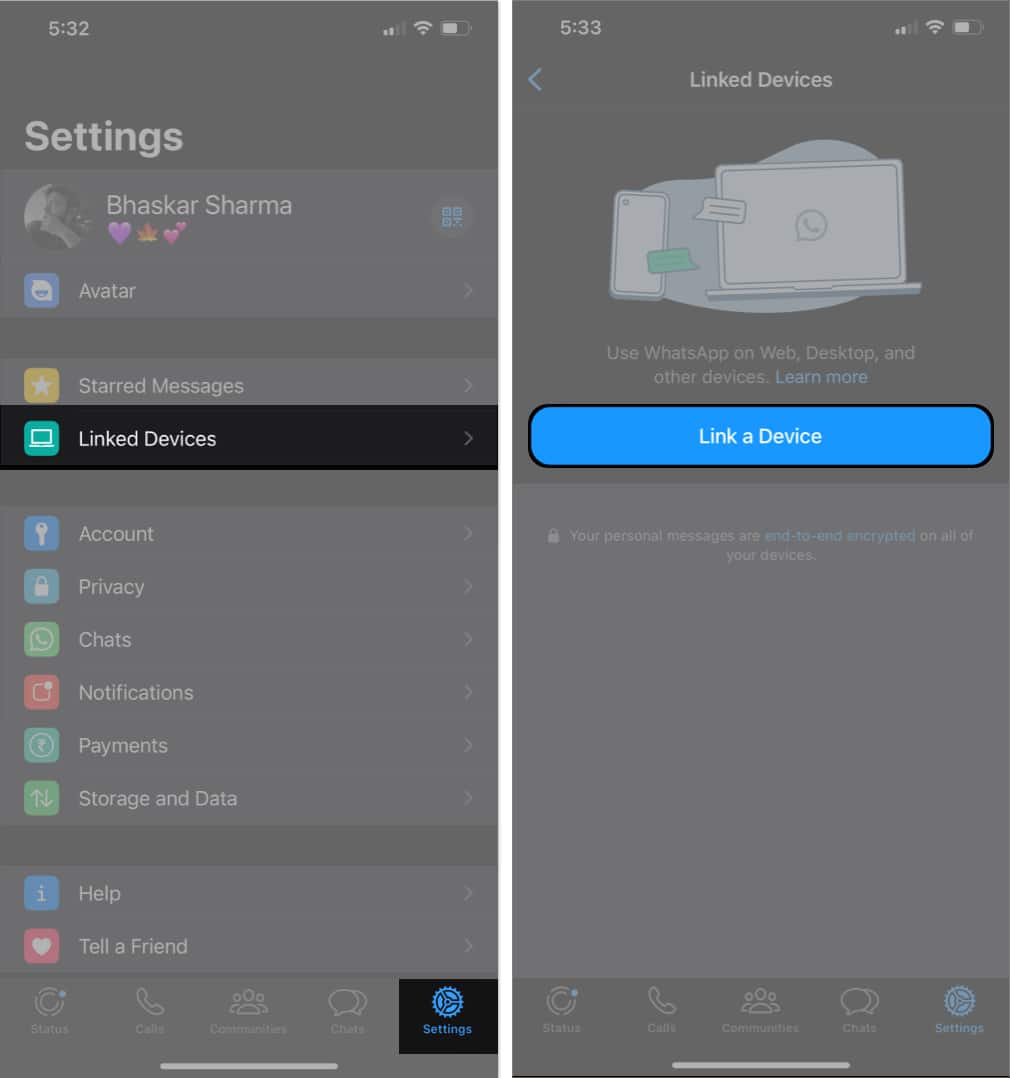
- Now, scan the QR code displayed on your Mac WhatsApp Desktop app using an iPhone camera.
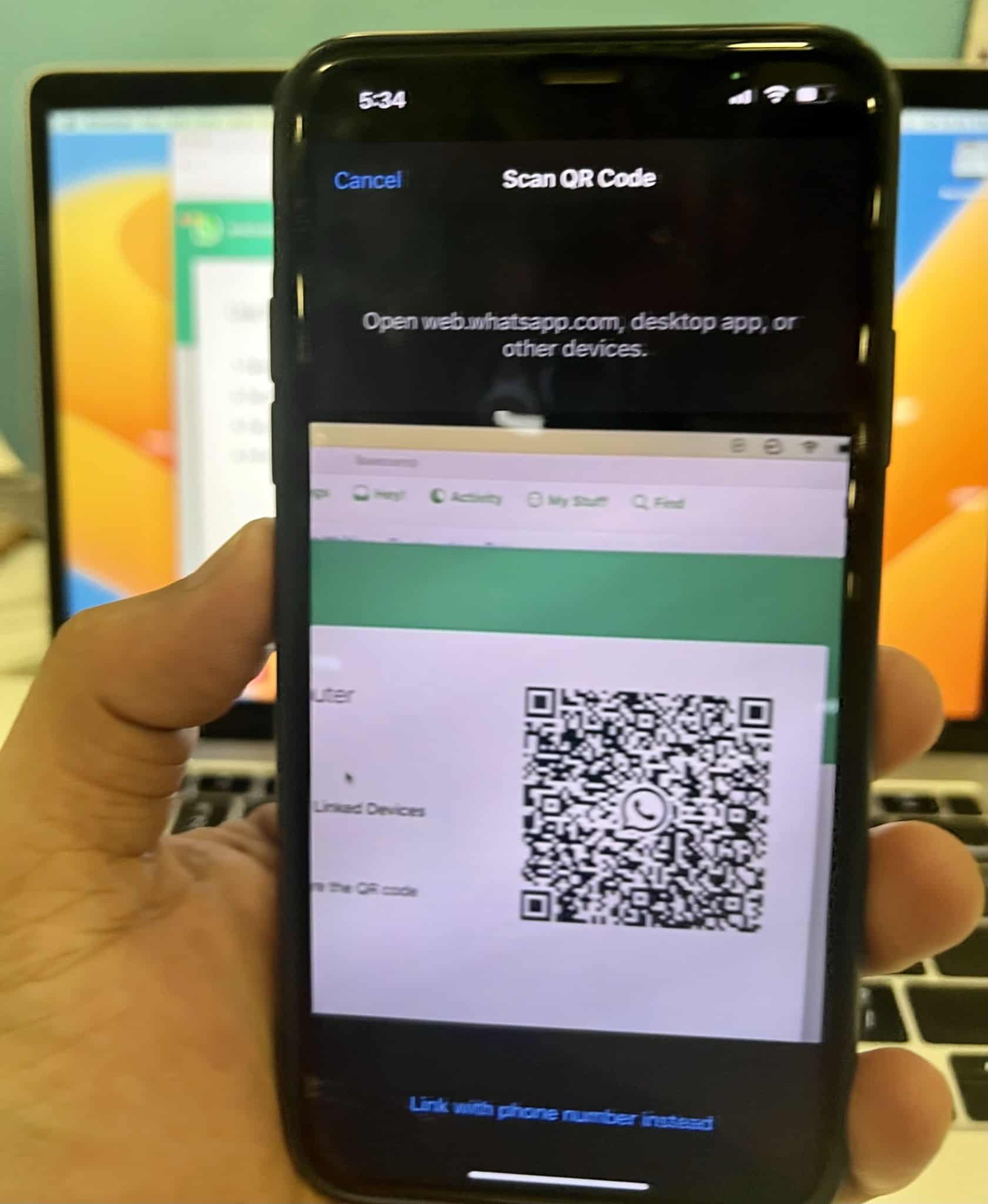
- Now, WhatsApp will take a few minutes to connect to your Mac app and sync the content. Once it’s done, you’re good to go!
You can now chat with your contacts or even make an audio or video call with them.
How to set up WhatsApp web on Mac
- Launch any web browser on your Mac → Head to WhatsApp web.
- Now, on your iPhone, open the WhatsApp app.
- Go to Settings → Linked Devices → Link a Device.
- Using the iPhone camera scan the QR code displayed on the website.
WhatsApp will take a few minutes to connect to fetch your chats and sync the content. After that, you’re good to go.
Alternate method:
You can also use your phone number to log in to your WhatsApp web in case you’re facing troubles like the iPhone camera freezing on your device. Follow the steps below to do so.
- Head to WhatsApp website.
- Click the Link with phone number.
- Select your country and enter your phone number → Click Next.
- Now on your iPhone, Launch WhatsApp.
- Navigate to Settings tab → Linked Devices → Link a Device.
- Tap the Link with phone number instead.
- Enter the code displayed on the WhatsApp website → Hit return.
How to unlink WhatsApp web/desktop
If you don’t want your WhatsApp account to be connected to any devices you’ve signed in to, you can easily unlink them using the methods below.
Method 1: Unlink WhatsApp from Mac
- Launch WhatsApp (browser or official app).
- Click the three dots icon/down arrow.
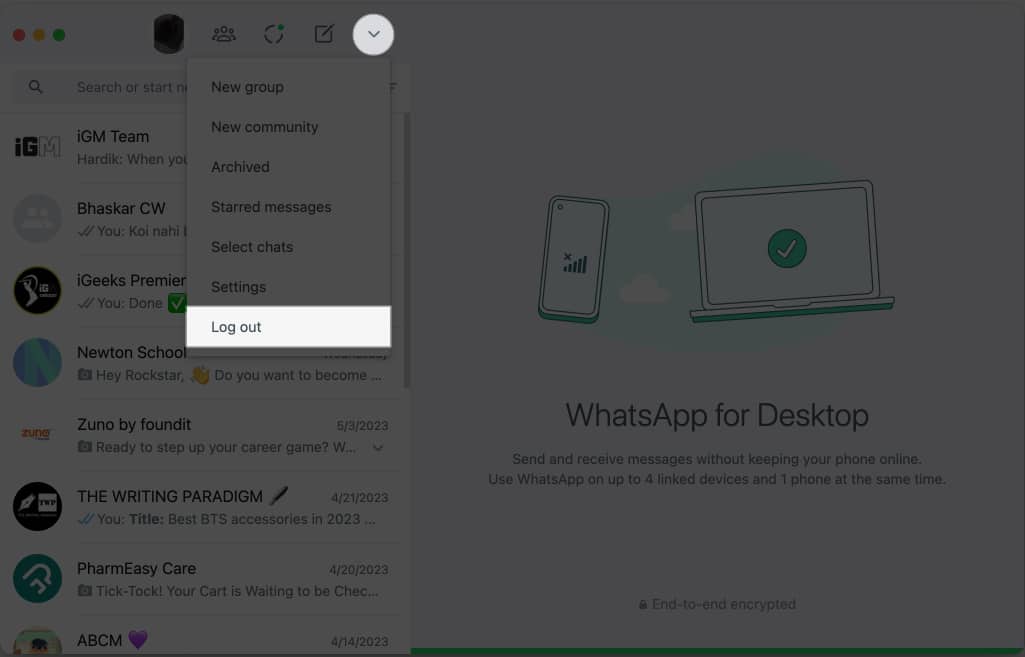
- Choose Log out → Confirm by selecting Log out.
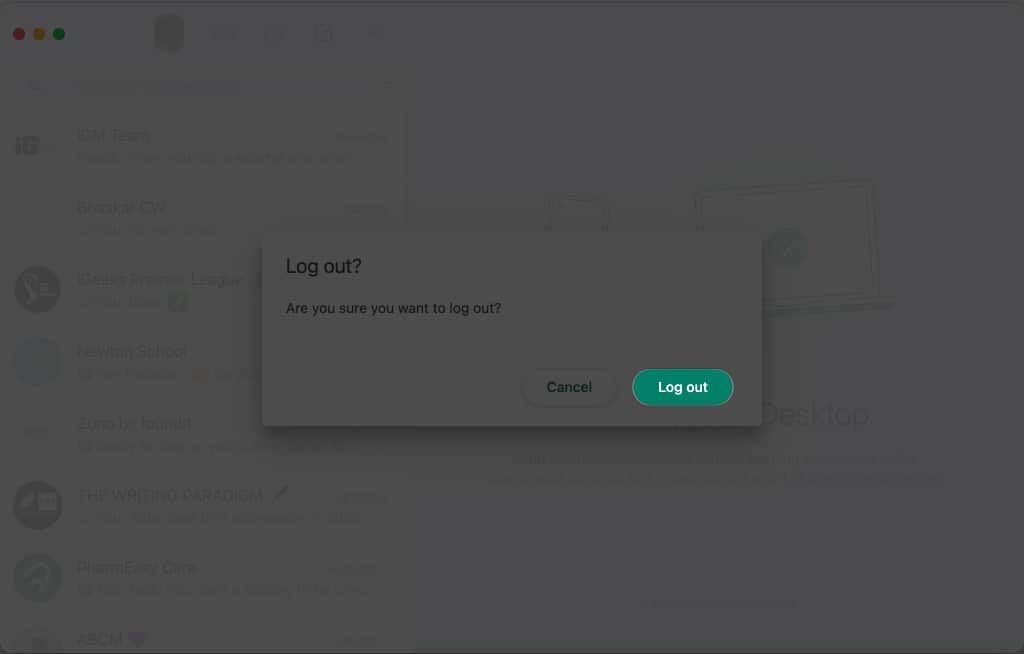
You’ll be logged out of your WhatsApp account on Mac.
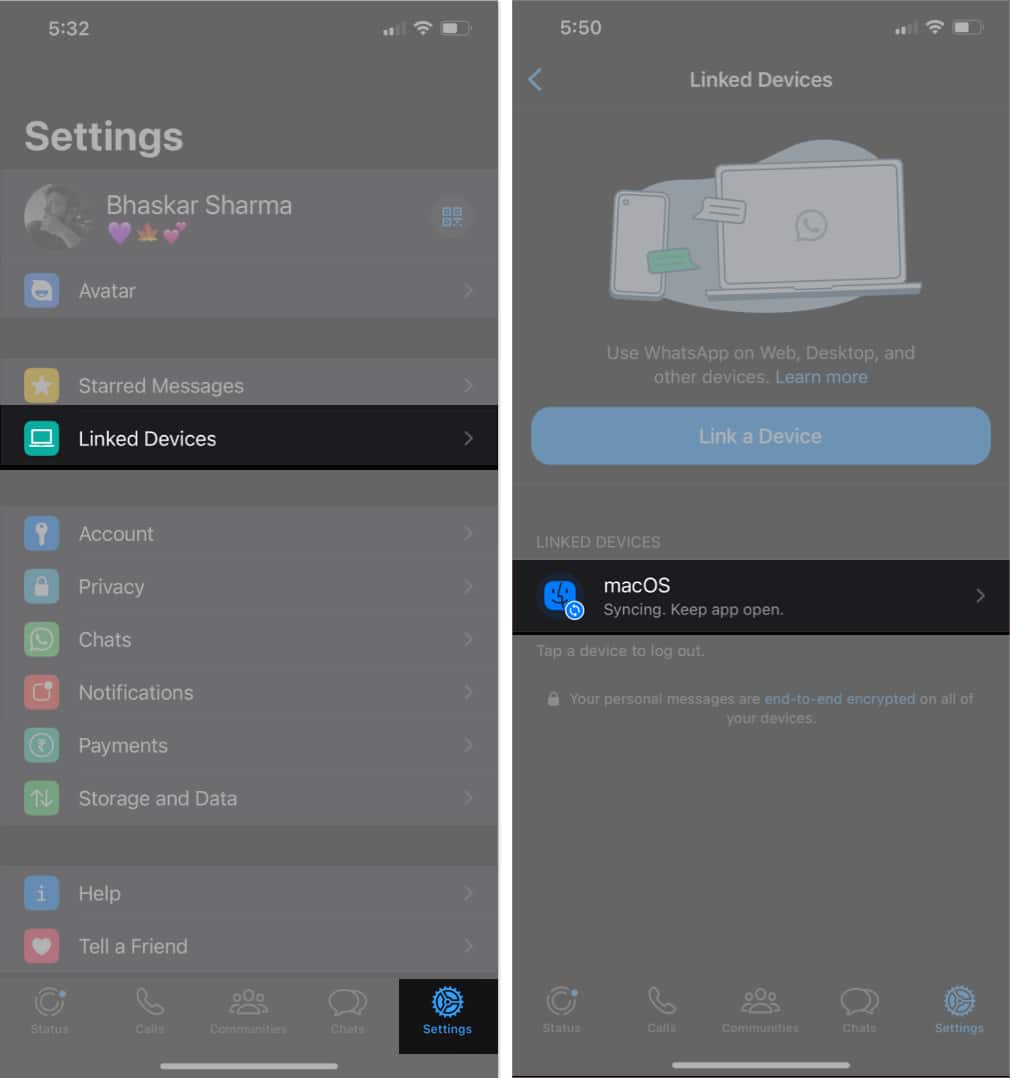
You’ll be able to see the list of devices using your WhatsApp account by going to WhatsApp → Settings → Linked Devices on your iPhone. To unlink those devices, follow the steps below.
Method 2: Unlink WhatsApp from iPhone
- Open WhatsApp.
- Head to the Settings tab.
- Choose Linked Devices → Select the device you want to log out from.
- Tap Log Out → Confirm by tapping Log Out.
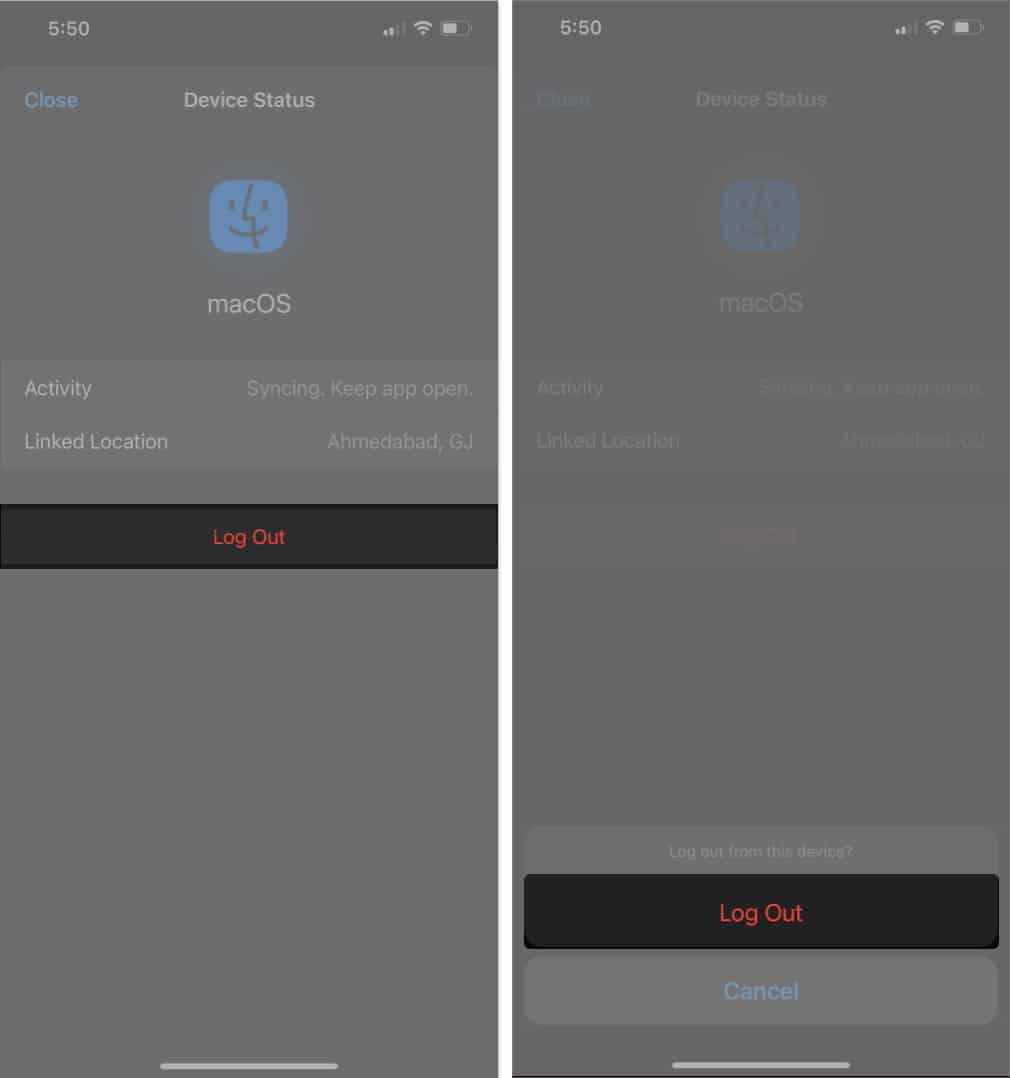
That’s it!
Benefits of WhatsApp web on Mac
WhatsApp has many tips and tricks up its sleeves. However, the web-based app now provides you with somewhat similar functionalities to the app’s mobile version. Some of the most notable features of the web version are listed below.
- Synced messages
- Native notifications
- Keyboard shortcuts
- File sharing
- Group chats
- Sticker packs
- Status updates
Limitations of WhatsApp web on Mac
Like every coin has two sides, the WhatsApp web version has some limitations. Here are a few of them.
- Chat history: You cannot access your WhatsApp chat history using the web version. It would be best if you used your iPhone to view all previous messages.
- Export chats: The web version of WhatsApp does not offer a direct option to save or export chats. It would help if you used your iPhone to preserve your conversations.
- Location sharing: To inform someone of your whereabouts, you must use your phone, as location sharing is impossible when using WhatsApp on a desktop.
- Adding new contacts: If you receive a message from an unfamiliar number while using the desktop app, you cannot add it to your contacts directly.
WhatsApp desktop app vs. WhatsApp web – Key differences
| Feature | WhatsApp desktop app | WhatsApp web |
| Setup | Requires download and installation | No setup required |
| Compatibility | Windows, macOS, and Linux | Web browser (Computer, Mac, Phone, iPhone) |
| Features | Feature-rich | Limited |
| Performance | Faster | Slow |
| Ease of Use | Easy | Easy |
Wrapping up…
Using WhatsApp on your Mac is simple. If you need help following the steps above, please comment. I’ll be happy to help. And remember to check out the read more section for more interesting content.
Frequently Asked Questions
Topics

Written by
Bhaskar SharmaBhaskar is a tech guru who turned wordsmith. Hiding his B.Tech degree in a closet, he ditched the corporate path to simplify tech for everyone. For the past 5 years, he's been dishing out how-tos, reviews, and sharp insights. But there's more! He's a witty interview champ and has been sharing his wisdom for 3 years. Furthermore, he has honed his editing skills for 1.5 years and is now delving into marketing to assist newcomers. When not jamming his fingers on those mechanical keyboards, you may find him on strings or engaging in sports. And by evening, his quotes will be appearing on your Instagram feeds.
View all posts →More from How-to

Snapchat Parental Controls: How to Set Up Family Center and Keep Your Teen Safe
Snapchat’s Family Center lets parents monitor their teen’s friend activity and screen time without reading private messages. Here’s how to set it up and what to expect.
 VikhyatMarch 3, 2026
How to Block and Unblock Someone on Instagram
Instagram lets you block or unblock someone in seconds. Follow these simple steps to take full control of your privacy and online peace.
 Ava BiswasMarch 2, 2026
Apple Watch Not Responding? 8 Fixes That Actually Work
Is your Apple Watch unresponsive or stuck on a black screen? Here are 8 proven fixes to help you unfreeze it and get it working again quickly.
VikhyatMarch 3, 2026