
How to Set Up and Use Tap to Pay on iPhone
Turn your iPhone into a contactless payment terminal. Learn how to use Tap to Pay on iPhone today.
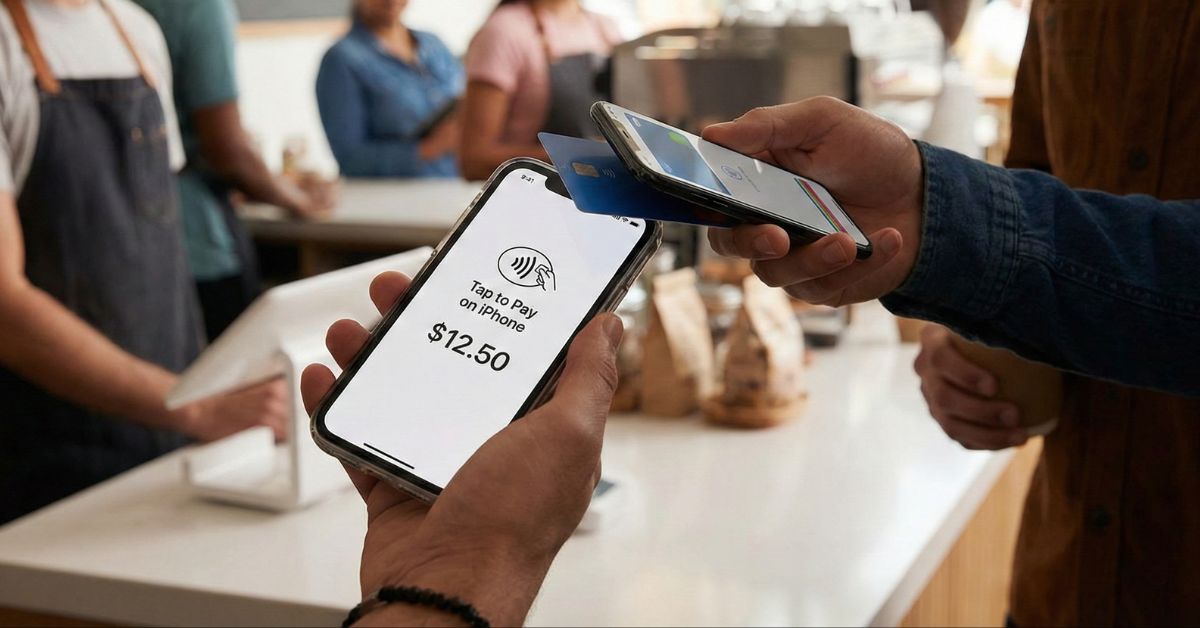
Let’s be honest. Reaching for your card while paying bills or checking out at the grocery store feels unnecessary now. Apple’s Tap to Pay solves that by letting you make secure, contactless payments using just your iPhone. No wallet, no extra hardware, no friction.
In this guide, you will learn how Tap to Pay works, which payment methods it supports, how to set it up, and how to use it confidently for everyday payments or business transactions.
How Tap to Pay Works on iPhone
Tap to Pay uses Near Field Communication (NFC) technology to securely exchange payment data when two devices are held close together.
Here is what happens behind the scenes:
- You hold your iPhone near a payment terminal or another iPhone
- The NFC chip establishes a secure connection
- Your card details are replaced with a one-time encrypted token
- Face ID, Touch ID, or passcode confirms the payment
- The transaction completes in seconds
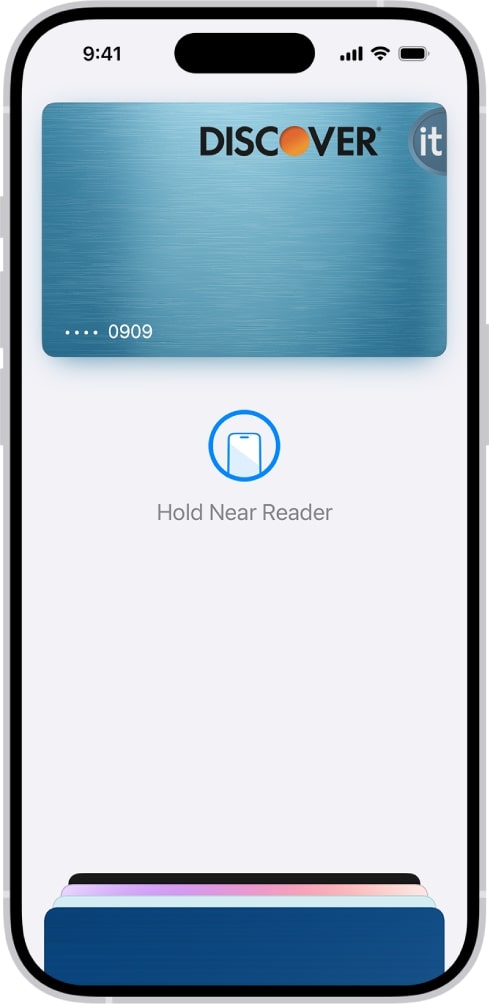
Your actual card number is never shared. This makes Tap to Pay extremely secure. For small businesses, it also means you can accept payments directly on an iPhone without buying POS hardware.
Which Cards and Wallets Work with Tap to Pay on iPhone?
Tap to Pay on iPhone supports a wide range of cards, wallets, and payment platforms.
Supported Cards
- Visa
- MasterCard
- American Express
- Discover (region dependent)
- Regional debit networks such as Interac in Canada and eftpos in Australia
Most debit and credit cards with NFC support will work.
Supported Digital Wallets
- Apple Pay
- Debit and credit cards stored in Apple Wallet
If you are a merchant, Tap to Pay also accepts NFC-based wallets such as Google Pay, Samsung Pay, and other contactless wallets.
Supported Payment Platforms for Businesses
- Stripe
- Square
- PayPal Point of Sale
- Adyen
- Other Apple-approved payment providers
Availability depends on country, bank, and payment provider. Always confirm support on Apple’s official documentation.
Tip:
Look for the Apple Pay or contactless symbol on the terminal to confirm compatibility.
How to Set Up Tap to Pay on iPhone
Setting up Tap to Pay takes only a few minutes.
Device Requirements
- iPhone XS or newer
- iOS 16 or later
- Signed in with an Apple ID
- Face ID, Touch ID, or passcode enabled
- Active internet connection
- Date and Time set to Automatic
Step by Step Setup
- Open the Wallet app and tap the plus sign.
- Tap Debit or Credit Card > Continue.
- Now, hold the iPhone near the chip on the card or enter the card details manually.
- Follow the on-screen steps to verify your card with your bank.
- Once approved, tap and hold the card and drag it to the front of the card deck to set as default.
You can also add Apple Card or cards from supported apps using the same steps.
For businesses, install a supported payment app like Stripe or Square and enable Tap to Pay inside the app.
Note:
How to Use Tap to Pay for Payments
Once your card is added, paying is quick and consistent.
Paying in Stores
- Double-click the side button.
- Authenticate using Face ID or Touch ID.
- Hold the top of your iPhone near the payment reader where the Hold Here to Pay icon appears.
- Wait for the Done checkmark and confirmation sound.
To use a different card, tap the card stack after double pressing the side button and select another card.
Accepting Payments on iPhone (For Businesses)
- Open your payment app and start a new sale entry.
- Enter the amount to charge. You may need to select Tap to Pay as a payment method.
- Ask the customer to hold their contactless card or phone on your iPhone.
- Payment completes instantly.
Payment completes instantly. In iOS 26, Tap to Pay also works in supported apps and websites through Apple Pay checkout.
Also Read: iOS 26 Wallet App: Everything New You Need to Know
Security Features of Tap to Pay
Tap to Pay is built with multiple layers of protection:
- End-to-end encryption
- Tokenization (real card numbers are never shared)
- Face ID / Touch ID authentication
- Secure Element chip inside the iPhone
- Apple does not store or track your transactions
Even if your iPhone is lost, payments cannot be made without biometric verification. You can also disable Apple Pay remotely using Find My.
Benefits of Using Tap to Pay
Tap to Pay stands out for a few simple reasons:
- Fast payments that take seconds
- No need to carry a wallet
- Contactless and hygienic
- Works across stores, apps, and online
- Businesses save money on hardware
It benefits both users and merchants without changing habits.
Tap to Pay Not Working on iPhone? Fixes That Actually Help
If Tap to Pay isn’t working on your iPhone, don’t worry. Here are the most common reasons and quick fixes:
| Issues | Solutions |
| iPhone model or iOS version isn’t supported | Tap to Pay works only on newer iPhone models and requires an updated version of iOS. |
| NFC is turned off or not responding | If your iPhone case is too thick or you’re tapping in the wrong spot, the payment may fail. Try removing the case and tapping again. |
| Internet connection issues | A weak internet connection can interrupt the payment process. Make sure Wi-Fi or mobile data is enabled and working properly. |
| Card or wallet issue | The card in your Wallet might need verification. Remove and re-add an eligible card in Wallet to refresh. |
| Temporary software glitches | Sometimes it’s just a hiccup. Restart your iPhone and try the payment again after a few seconds. |
If the issue continues, the problem may be with the merchant’s terminal or payment app. Contact Apple Support or the POS provider if needed.
Tap to Pay vs Other Payment Methods
Tap to Pay vs Google Pay
- Apple offers tighter hardware and software integration
- Google Pay works on a wider range of Android devices
- Both use NFC and tokenization
Tap to Pay vs Samsung Pay
- Samsung Pay supports MST on older devices
- Apple relies entirely on NFC
- Apple Pay has broader app and ecosystem integration
Tap to Pay vs Contactless Cards
- iPhone payments use biometrics
- Cards can be lost or stolen
- Card numbers are never exposed on iPhone
The Future of Tap to Pay
Tap to Pay continues to expand with:
- Support for more banks and countries
- Faster confirmations
- Better app and subscription integration
- Increased adoption by small and medium businesses
Mobile payments are no longer optional. They are becoming standard.
Final Thoughts
Tap to Pay on iPhone running iOS 26 is fast, secure, and genuinely practical. Whether you are buying coffee or running a small business, it removes friction from payments while keeping security front and center. Easy setup and wide support make it one of the most useful iPhone features today.
Have you started using Tap to Pay yet? Share your experience in the comments.
Frequently Asked Questions

Written by
Arshmeet KaurA self-professed Geek who loves to explore all things Apple. I thoroughly enjoy discovering new hacks, troubleshooting issues, and finding and reviewing the best products and apps currently available. My expertise also includes curating opinionated and honest editorials. If not this, you might find me surfing the web or listening to audiobooks.
View all posts →More from How-to

Snapchat Parental Controls: How to Set Up Family Center and Keep Your Teen Safe
Snapchat’s Family Center lets parents monitor their teen’s friend activity and screen time without reading private messages. Here’s how to set it up and what to expect.
 VikhyatMarch 3, 2026
How to Block and Unblock Someone on Instagram
Instagram lets you block or unblock someone in seconds. Follow these simple steps to take full control of your privacy and online peace.
 Ava BiswasMarch 2, 2026
Apple Watch Not Responding? 8 Fixes That Actually Work
Is your Apple Watch unresponsive or stuck on a black screen? Here are 8 proven fixes to help you unfreeze it and get it working again quickly.
VikhyatMarch 3, 2026