
How to Use Emergency SOS on iPhone (Step-by-Step Guide)
Learn how to set up and use Emergency SOS on your iPhone so you can quickly get help in any urgent situation.
When something goes wrong, your iPhone can literally become a lifesaver. With Emergency SOS, you can quickly contact emergency services, share your location, and alert your emergency contacts with just a few taps or button presses.
In the latest iOS versions, Apple has also added Satellite support, so you can get help even in a remote place. In this guide, you will learn everything you need to know about how Emergency SOS works, how you can set it up on your iPhone, and how to use it in real-life situations.
What is Emergency SOS on iPhone?
Emergency SOS is a built-in safety feature that lets you instantly call emergency services from anywhere, even when you’re not connected to your usual cellular network. It can also send alerts and your real-time location to the people you trust the most.
In iOS 26, this feature got even smarter, with improved satellite connectivity and faster location sharing. It’s available on iPhone 8 and later, but satellite perks shine on iPhone 14 and up.
Key Features of Emergency SOS in iOS 26
Here’s what you can do with Emergency SOS:
- Make a quick call to your local emergency number, such as 911 in the US or 112 in Europe, using button presses or on-screen options.
- Automatically send your location and your Medical ID to first responders (in supported regions).
- Notify emergency contacts with your location updates.
- Use satellite SOS when you’re off the grid.
- Trigger Crash Detection to call for help after severe car accidents.
These features work quietly in the background but activate instantly when needed. You can also set up and use Emergency SOS on your Apple Watch. It’s quite useful when you’re experiencing an emergency, and your iPhone is out of reach.
How to Set Up Emergency SOS on iPhone
Before you rely on Emergency SOS, take two minutes to set it up.
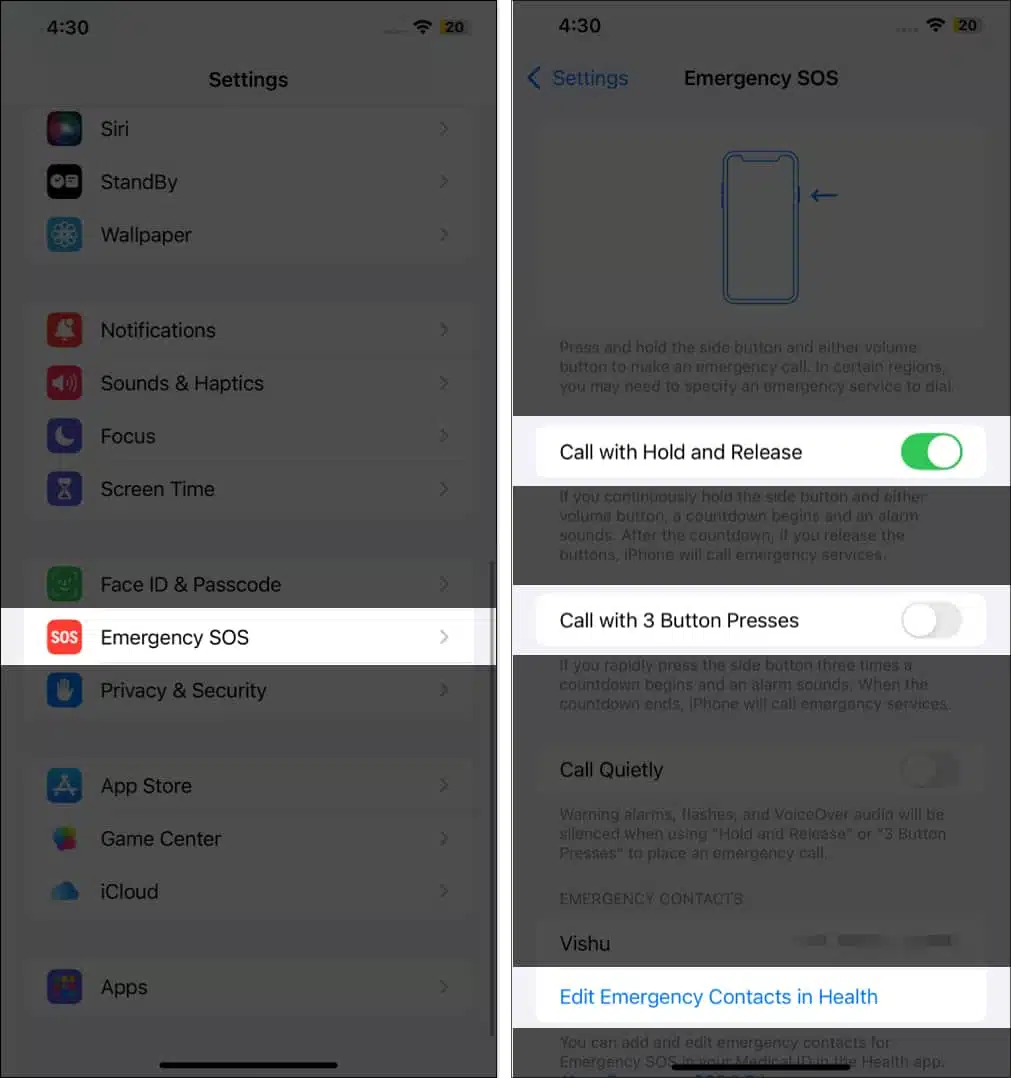
- Open the Settings app on your iPhone.
- Scroll down and tap Emergency SOS.
- Here toggle on:
- Call with Hold and Release
- Call with 3 Button Presses
- Call After Severe Crash (if available)
- Next, tap Set up Emergency Contacts in Health.
- It will take you to the Health app. Tap Create Medical ID if you have not set it up yet.
- Enter your basic details and tap the checkmark in the top-right corner.
- Tap Add Emergency Contact, then select the people you trust.
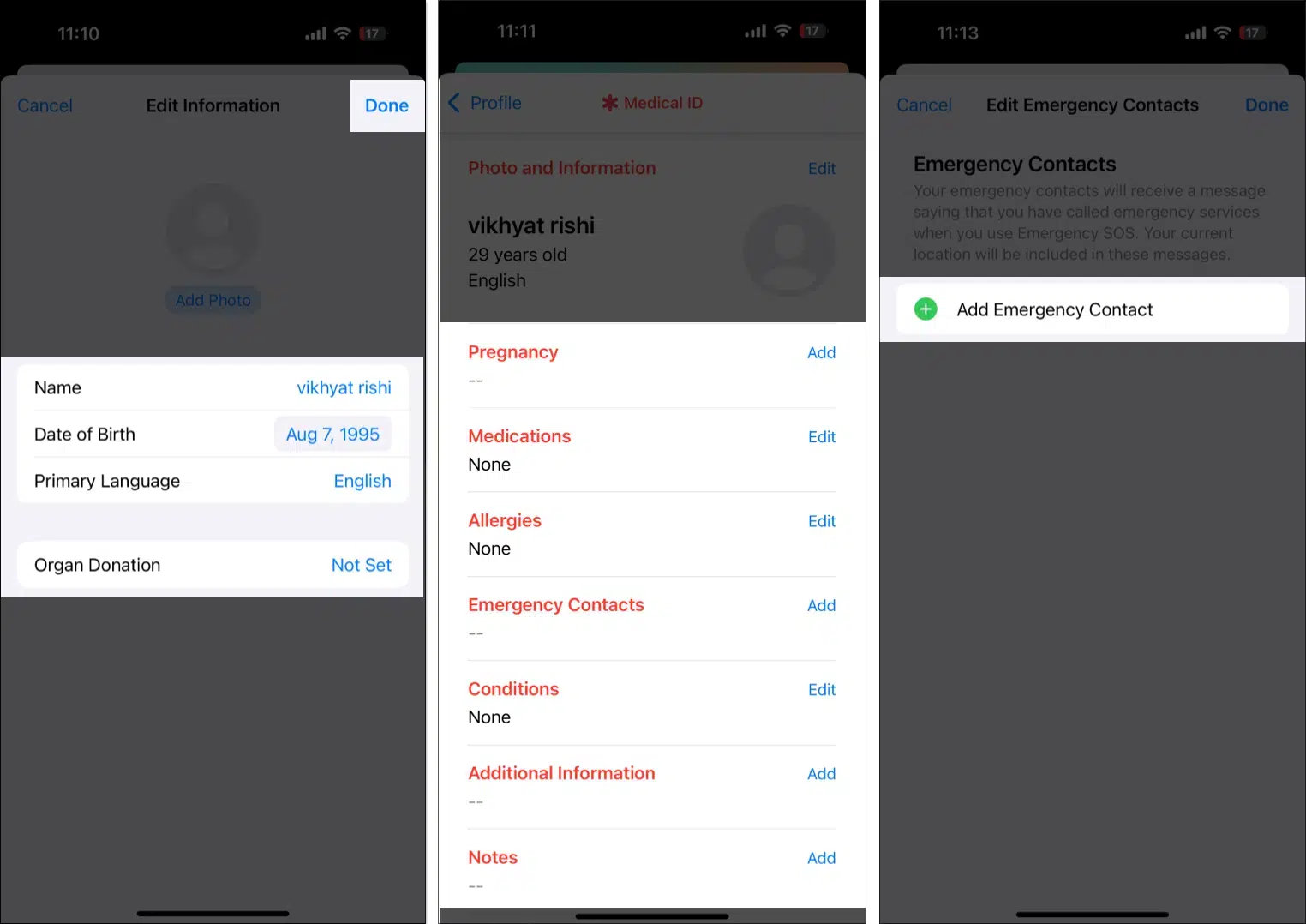
Setting up Emergency Contacts is essential as they’ll receive your location when SOS is triggered. On the other hand, Medical ID helps first responders see important info right from your Lock Screen. So, add details such as your blood type, allergies, and medications.
To learn more, check out our guide on How to set up Medical ID on iPhone and Apple Watch.
How to Use Emergency SOS on Your iPhone
When seconds count, you need speed. Here are all the ways to activate SOS in an emergency, even if your iPhone is locked.
Method 1: Hold and Release
- Press and hold the Side and Volume button together.
- Keep holding until the countdown finishes.
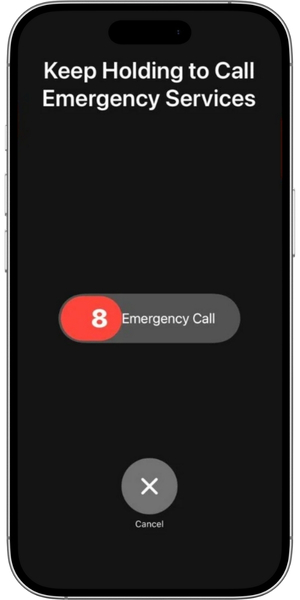
- Release to automatically call emergency services.
This is the fastest method because it works even when your screen is off.
Method 2: Press the Side Button 3 Times
This is ideal if you want to be discreet.
Just press the Side button three times quickly, and the SOS screen will appear with the countdown. Once it finishes, your iPhone will connect to the emergency services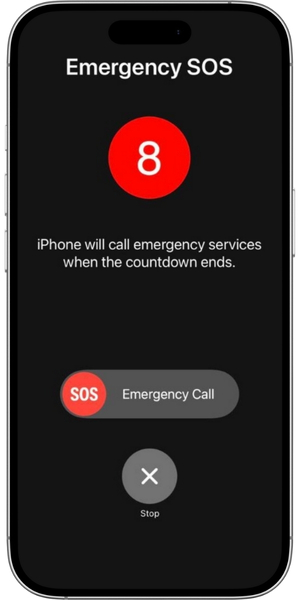
Method 3: Use the On-Screen SOS Slider
- Hold the Side + Volume button.
- When the screen appears, drag the Emergency SOS slider.
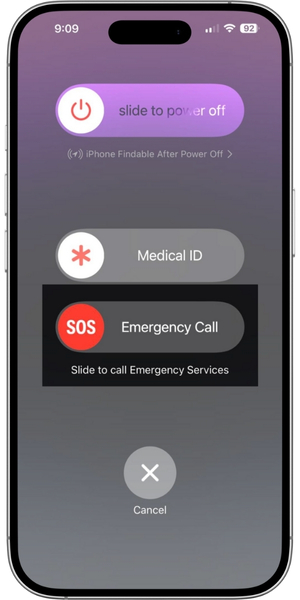
This gives you control if you want time to make a decision.
Note:
Also read: Fix iPhone Stuck in Emergency SOS Mode
How Emergency SOS Works After You Call
Once a call is made, the iPhone automatically does the following:
- Sends your location: Your emergency contacts receive your initial location plus updates for a period, usually 10–20 minutes if you move.
- Shares your Medical ID: If turned on, emergency responders can access critical health information.
It also notifies you with follow-up options. You can even stop location sharing at any time.
Share Live Photo or Video to Emergency Services
Emergency services can send a prompt to share live videos or upload previously recorded photos and videos to understand your surroundings. This live video won’t be saved on your device.
- When asked to start sending live videos to emergency personnel, tap Share.
- To pause or resume sharing at any moment, select the Camera button.
- Tap the End Call button and then select Stop Sharing Camera to end live streaming.
If you only want to share an existing photo or video, select Choose on the prompt, then select the image or video. Finally, if you don’t want to share images or videos with emergency personnel, tap Not Now when asked.
How Satellite Emergency SOS Works (iOS 26)
If you’re somewhere without cellular or Wi-Fi, like hiking or camping in a remote area, your iPhone can use satellite connection to contact emergency services. Here’s how to use Emergency SOS via satellite on iPhone:
- If your call to emergency services doesn’t connect, you get an alert. Tap Emergency Text via Satellite > Report Emergency.
- Now, you need to answer quick questions, like what’s the emergency, are you injured, your current surroundings, etc.
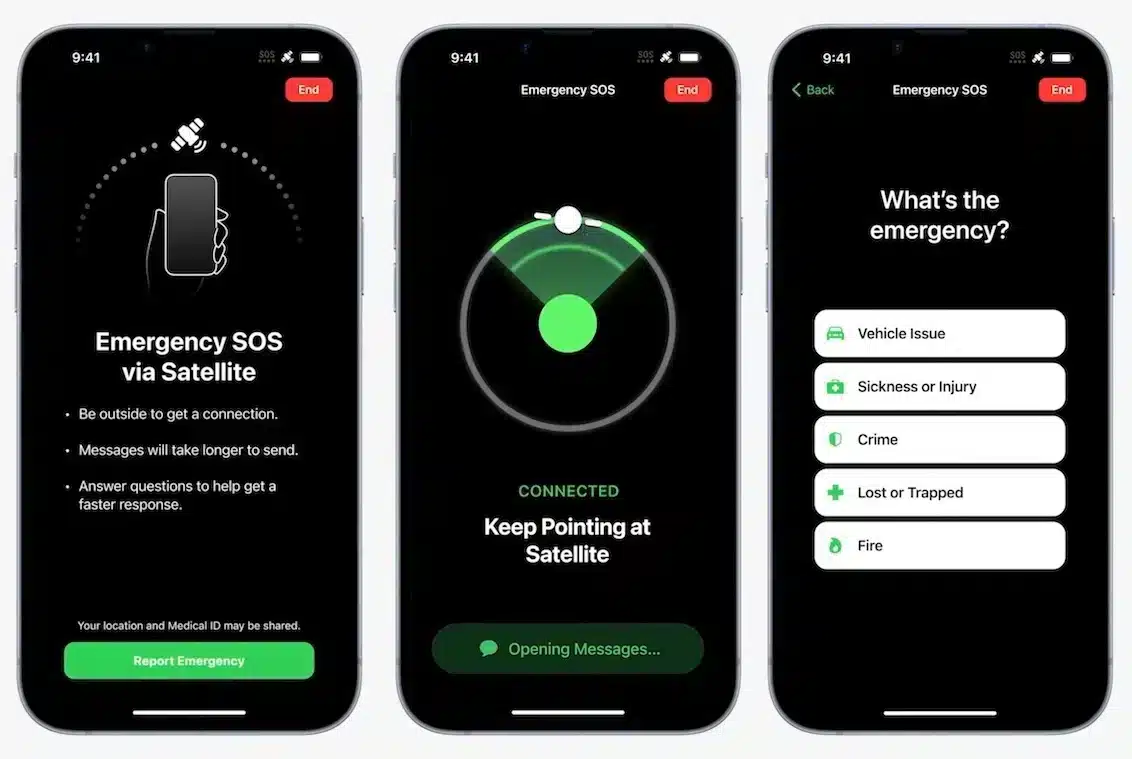
- Apple sends your info to emergency responders through a relay center. Your iPhone guides you to point your device toward a satellite.
- Once you’re connected, start a conversation with emergency responders.
Note:
that you need a clear view of the sky for the satellite connection. Also, messages may take several seconds to send, and it’s available only in supported countries on iPhone 14 and later.
Tips for Using Emergency SOS Safely
- Be careful with accidental triggers, especially if “Call with 3 Presses” is on.
- Keep your Medical ID updated for accurate help.
- Tell your emergency contacts that they may receive alerts from you.
- Practice the SOS Demo so you don’t panic during a real emergency.
Emergency SOS is a Must for Every iPhone User!
Emergency SOS is one of the most important features on your iPhone. You might never need it, but if you do, it can save your life or someone else’s. With iOS 26 improvements, it’s faster, smarter, and easier to activate than ever before.
Take a few minutes today to set it up. You’ll thank yourself later.
Topics

Written by
Ava BiswasAva is a die-hard Apple aficionado and seasoned writer with a knack for breaking down complex tech concepts into easily digestible content. Having honed her writing and editing skills over 4 years at renowned media houses like TechBurner, Ava crafts informative and engaging articles including troubleshooting guides, product reviews, editorials at iGeeksBlog. When not typing, you can find her exploring the latest Apple releases or pondering the future of tech innovation.
View all posts →More from How-to

How to Turn Off Location on Snapchat (Step-by-Step Guide)
Want to stop sharing your location on Snapchat? This guide explains how Snapchat location sharing works and shows simple ways to turn off your location using Ghost Mode or phone settings. Stay in control of your privacy in just a few steps.
 VikhyatMarch 5, 2026
Snapchat Parental Controls: How to Set Up Family Center and Keep Your Teen Safe
Snapchat’s Family Center lets parents monitor their teen’s friend activity and screen time without reading private messages. Here’s how to set it up and what to expect.
VikhyatMarch 3, 2026
How to Block and Unblock Someone on Instagram
Instagram lets you block or unblock someone in seconds. Follow these simple steps to take full control of your privacy and online peace.
Ava BiswasMarch 2, 2026