
How to Take ECG Reading on Apple Watch
Apple Watch ECG lets you record your heart rhythm in 30 seconds, here’s how to use it correctly.

The Apple Watch ECG feature turns a smartwatch into a practical heart‑health tool. In just 30 seconds, it lets you record your heart rhythm from your wrist and store it securely on your iPhone. For many users, this means reassurance during normal days and clarity when something feels off.
This guide explains what an ECG is, how Apple Watch records it, which models support it, and how to take accurate readings. You’ll also learn how to understand results, track trends, and share reports with your doctor, so you can use the feature with confidence and purpose.
What Is an ECG and How Apple Watch Measures Your Heart Rhythm
An electrocardiogram (ECG) records the electrical signals that control your heartbeat. These signals show how fast your heart is beating and whether the rhythm is regular or irregular.
Apple Watch records a single‑lead ECG (Lead I). When you touch the Digital Crown with your opposite hand, the watch completes an electrical circuit across your body. It captures 30 seconds of heart activity and converts it into a waveform stored in the Health app.
The ECG feature is designed to detect certain rhythm irregularities, most notably atrial fibrillation (AFib). It does not continuously monitor your heart and cannot detect heart attacks, strokes, or all cardiac conditions. Think of it as an early‑warning and screening tool, not a diagnosis.
Key Benefits of Using ECG on Apple Watch
The biggest strength of the Apple Watch ECG is accessibility. It brings heart‑rhythm awareness into daily life without medical equipment or appointments.
- Take an ECG anytime, anywhere, in under a minute
- Spot irregular heart rhythms early, even without symptoms
- Automatically save readings in the Health app for long‑term tracking
- Export ECG reports as PDFs to share with healthcare providers
The ECG app is FDA‑cleared as a consumer health feature. It supports informed conversations with doctors but does not replace professional testing or medical care.
Apple Watch ECG Compatibility: Supported Models and Requirements
Not every Apple Watch supports ECG, so checking compatibility is essential.
The ECG app works on Apple Watch Series 4 and later, including all Ultra models. Apple Watch SE models do not support ECG.
Your watch must run the latest version of watchOS and be paired with an iPhone running the latest iOS. Apple limits ECG use to users 22 years and older, and availability varies by country based on local regulatory approval. Here’s a list of all countries ECG feature is supported on Apple Watch.
How to Set Up the ECG App on Apple Watch
ECG setup is quick and done once through your iPhone.
- Open the Health app on your iPhone.
- Tap on Search → Heart → Electrocardiograms (ECG).
- Follow the on‑screen setup instructions.
- Confirm which wrist you wear your watch on in the Watch app → General → Watch Orientation.
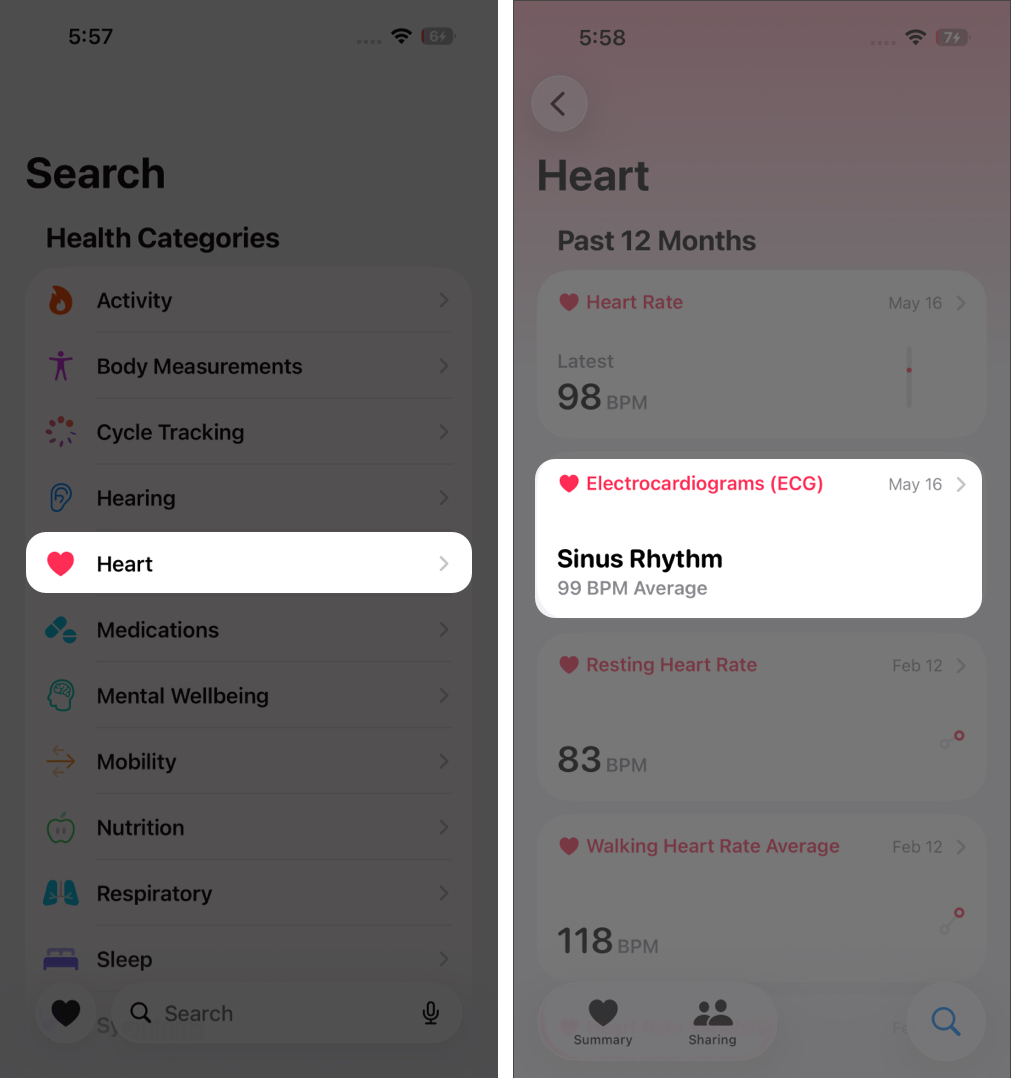

After setup, the ECG app will appear on your Apple Watch automatically.
How to Prepare Your Apple Watch and Wrist for an ECG Reading
Preparation plays a major role in ECG accuracy.
- Make sure your Apple Watch fits snugly on your wrist and maintains full contact with your skin.
- Clean and dry both your wrist and the back of the watch. Moisture from sweat, lotions, swimming, or showering can interfere with readings.
- Remove any lotions or oils that may prevent proper skin contact.
- Ensure your iPhone and Apple Watch are updated to the latest software before recording an ECG.
How to Do an ECG on Your Apple Watch
Once set up, taking an ECG is simple and repeatable.
- Open the ECG app on your Apple Watch.
- Sit down and rest your arm on a table or your lap.
- With your opposite hand, lightly place one finger on the Digital Crown—do not press it.
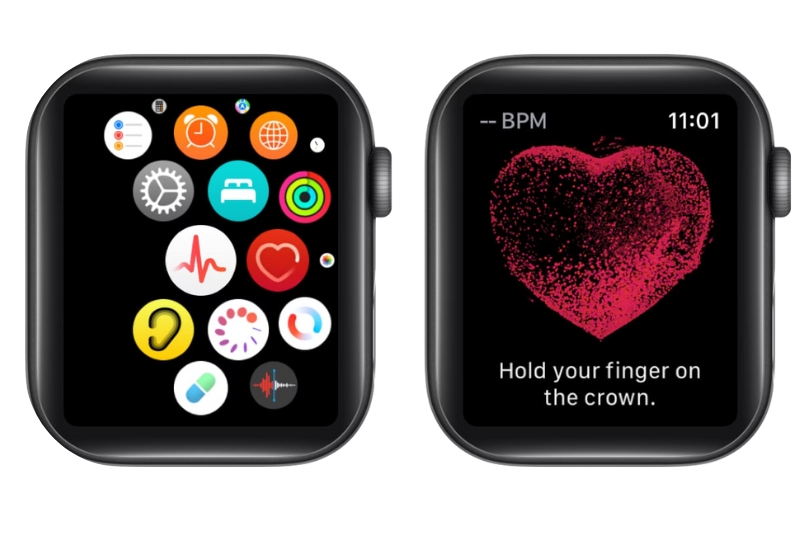
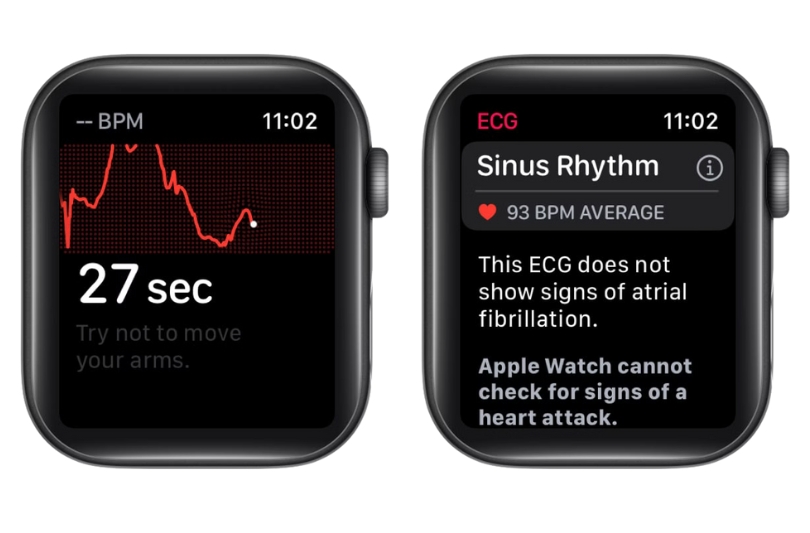
- Stay still and relaxed for the full 30 seconds while the recording completes.
- When the recording ends, your result appears instantly and is saved automatically to the Health app.


Understanding Apple Watch ECG Results and What They Mean
After each reading, Apple Watch classifies your heart rhythm.
- Sinus Rhythm: A normal, steady heartbeat
- Atrial Fibrillation (AFib): An irregular rhythm that may require medical review
- Inconclusive: The reading couldn’t be classified, often due to movement or poor contact
- Low or High Heart Rate: Your heart rate was outside the expected range during the test
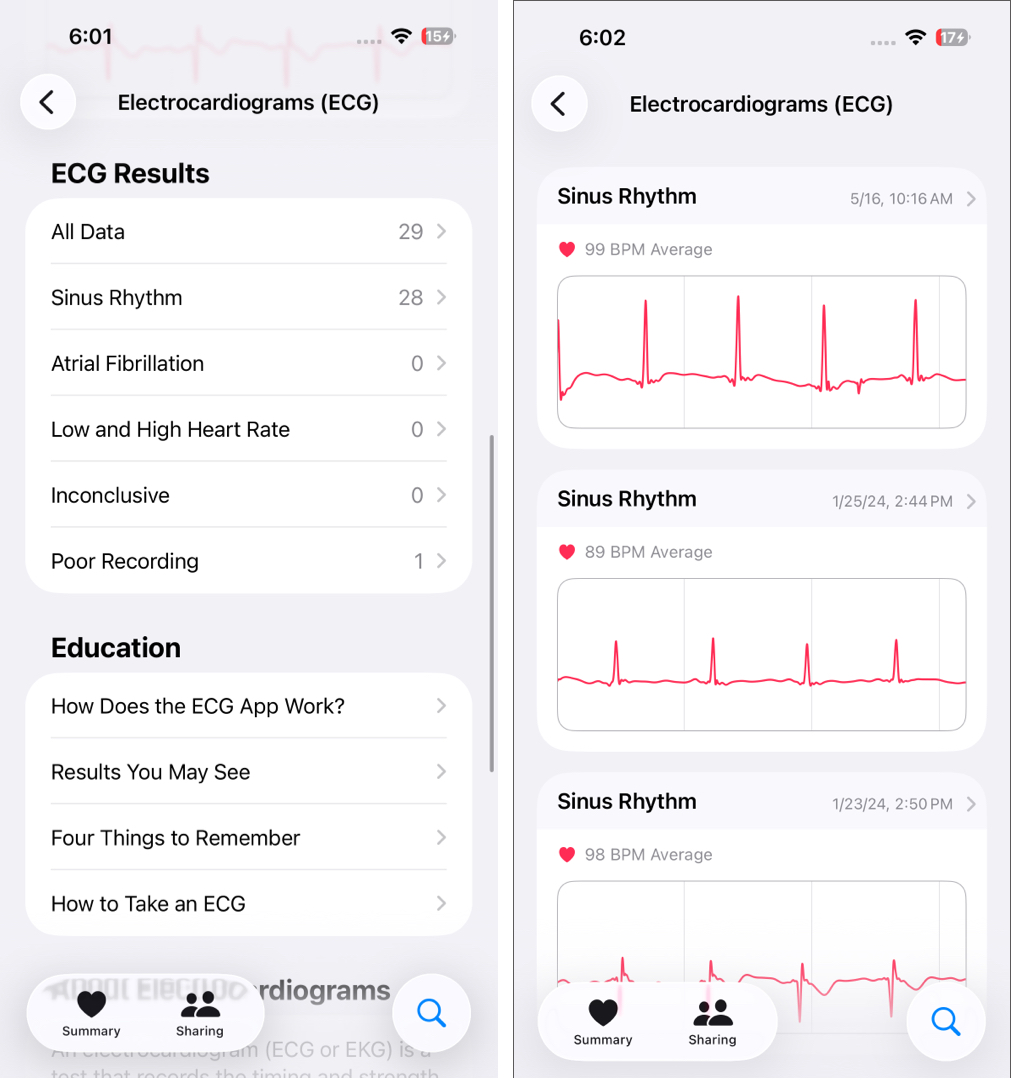

These classifications provide guidance, not a medical verdict. Any unusual or repeated results should be discussed with a healthcare professional.
Tips for Getting Accurate ECG Readings on Apple Watch
Small habits can significantly improve ECG reliability.
- Stay still and silent during the recording
- Avoid nearby plugged‑in electronics that may cause interference
- Take readings within 32°F–95°F (0°C–35°C)
- Allow your wrist and watch to fully dry after workouts or water exposure
Consistency helps produce cleaner, more useful ECG data over time.
How to Use and Monitor Your ECG Data in the Health App
All ECG recordings are stored in the Health app on your iPhone and sync automatically when your watch reconnects.
Instead of focusing on a single reading, review patterns over time. Long‑term trends are often more meaningful and helpful when discussing heart health with your doctor.
How to Export and Share Apple Watch ECG Results With Your Doctor
Sharing ECG data is simple and often valuable during consultations.
- Open the Health app on your iPhone.
- Go to Heart → Electrocardiograms.
- Select the ECG reading you want to share.
- Tap Export a PDF.
- Choose how you want to share the report—email it, message it, or print it for your appointment.
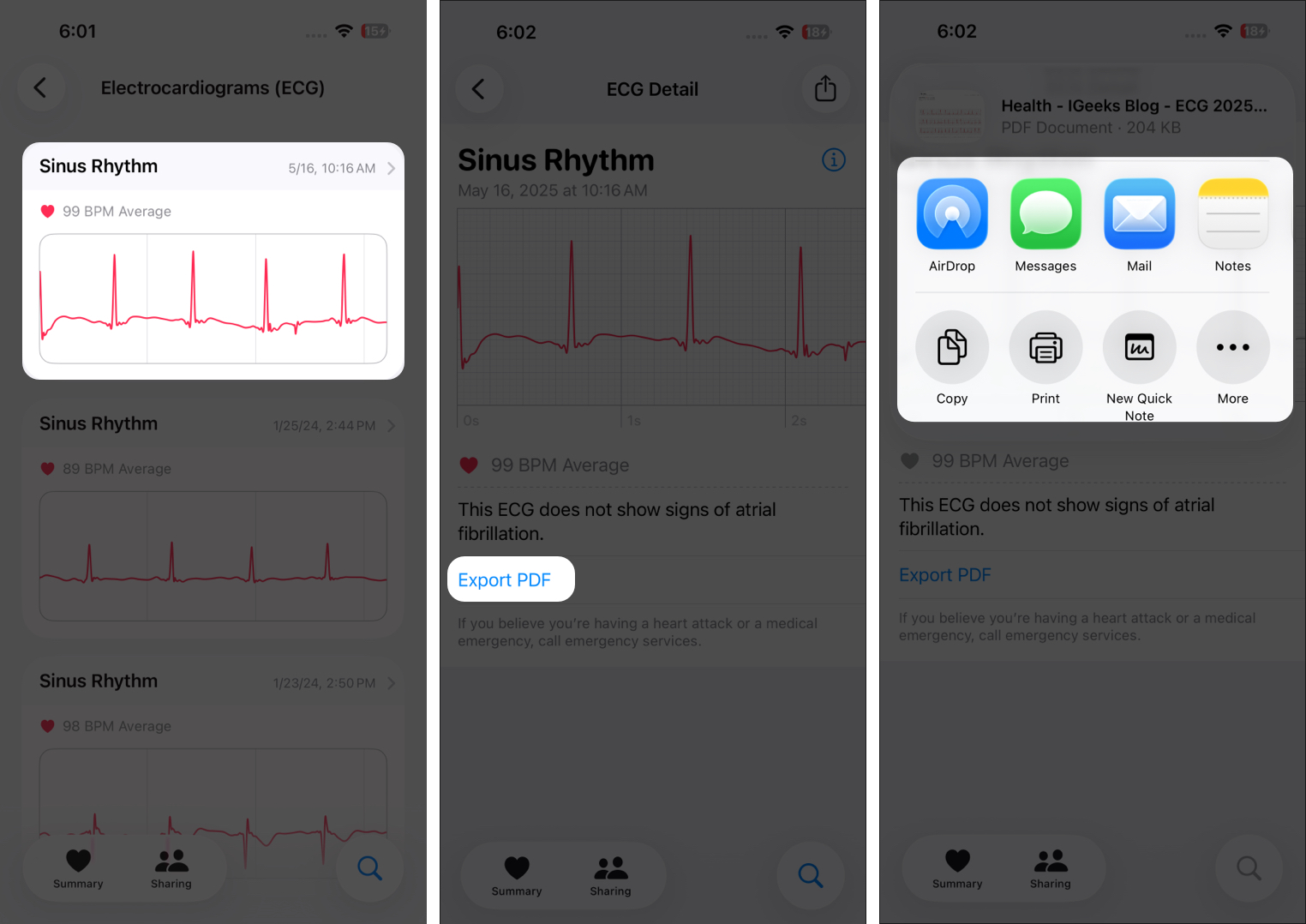

The exported PDF includes the ECG waveform, which gives doctors a clear visual context alongside your symptoms.
Final Thoughts: Using Apple Watch ECG for Better Heart Awareness
Apple Watch ECG doesn’t replace medical care, but it empowers you with timely insights and awareness. Used consistently and correctly, it helps you understand your heart better and recognize when professional advice is needed.
A 30‑second habit can build long‑term awareness—and sometimes, that awareness makes all the difference.
Frequently Asked Questions

Written by
Ravi Teja KNTSI’ve been writing about tech for over 5 years, with 1000+ articles published so far. From iPhones and MacBooks to Android phones and AI tools, I’ve always enjoyed turning complicated features into simple, jargon-free guides. Recently, I switched sides and joined the Apple camp. Whether you want to try out new features, catch up on the latest news, or tweak your Apple devices, I’m here to help you get the most out of your tech.
View all posts →More from Apple Watch

Apple Watch Not Responding? 8 Fixes That Actually Work
Is your Apple Watch unresponsive or stuck on a black screen? Here are 8 proven fixes to help you unfreeze it and get it working again quickly.
 VikhyatMarch 3, 2026
How to Mirror Your Apple Watch on Your iPhone: A Simple Guide
Want to control your Apple Watch using your iPhone? This guide explains how to turn on Apple Watch Mirroring, use it easily, and fix common issues.
 Arshmeet KaurFebruary 27, 2026
How to Restore Apple Watch From a Backup
Need to reset or switch iPhones? Here’s how to restore your Apple Watch from a backup, what data comes back, and how to make sure everything syncs properly.
VikhyatFebruary 23, 2026