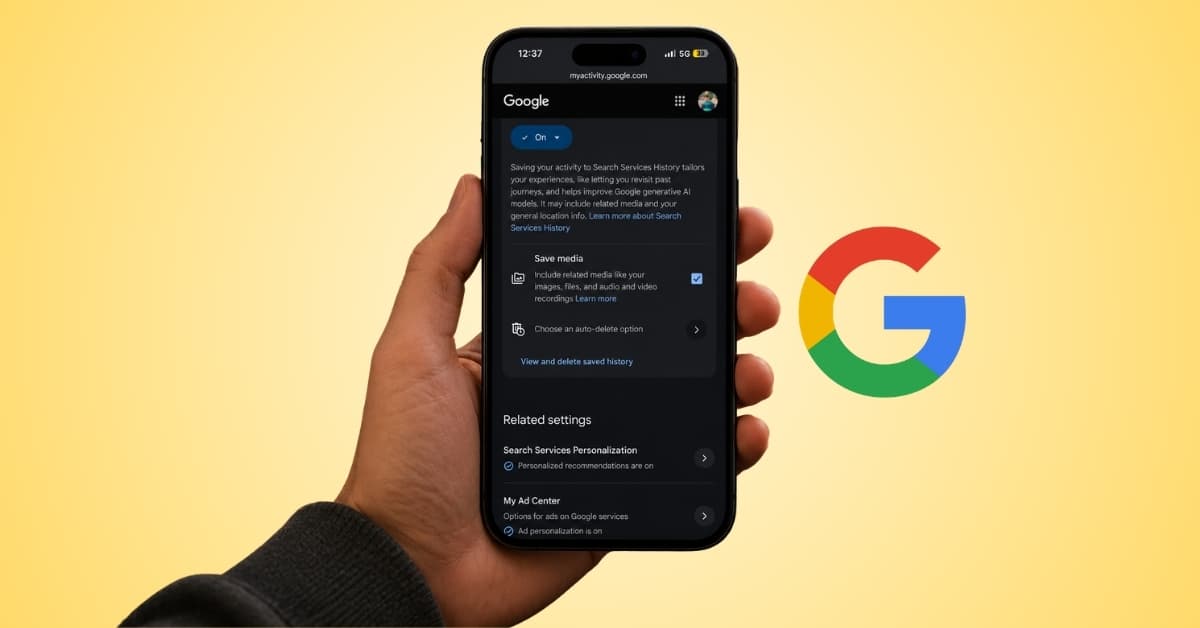
If you’ve used Google Lens to identify an object, translated text from an image, or searched with your voice recently, there’s a new Google Search setting worth paying attention to. It’s one of those privacy changes that’s easy to miss unless you’re actively reviewing your account settings.
Google has started saving some of the images and audio files users upload while searching, allowing the company to use that information across Search and certain AI-powered features.
For some people, that may be useful. For others, it raises obvious privacy concerns, especially when personal photos or voice recordings are involved.
When I first came across the setting, my immediate question was how much data Google was actually storing. The answer is more limited than some headlines suggest, but it’s still something privacy-conscious users will probably want to review.
If you’d rather keep those uploads from being saved, here’s how to turn the feature off.
What images and audio files does Google Search save?
Google isn’t accessing your entire photo library or recording every voice interaction. The setting only applies to images and audio files that you intentionally upload while using supported Google Search features.
That includes photos used for visual searches through Google Lens and audio recordings submitted through supported Search experiences.
According to Google, this uploaded content may be stored to personalize your search experience and improve AI-powered Search features. Depending on the feature you’re using and your privacy settings, the data may also be used to help develop and improve Google’s AI models and related services.
The distinction is important because some users may assume Google is automatically scanning their device content. That’s not what’s happening here. The setting only applies when you intentionally upload media while using Search.
It doesn’t give Google access to your entire photo library or all of your voice recordings. Only the images and audio files you actively submit through Search are affected by this setting.
How to stop Google Search from saving uploaded photos and audio
If you’d rather keep your uploaded photos and voice recordings out of Google’s Search history, the setting can be disabled in just a few steps.
Turn off Search Services History
- Head to myactivity.google.com and sign in to your Google account.
- Here, tap Search Services History.
- Tap Your Search Services history is on.
- Now, uncheck the box next to Save media to stop Google from saving future uploads.
- Next, tap Turn off to confirm.
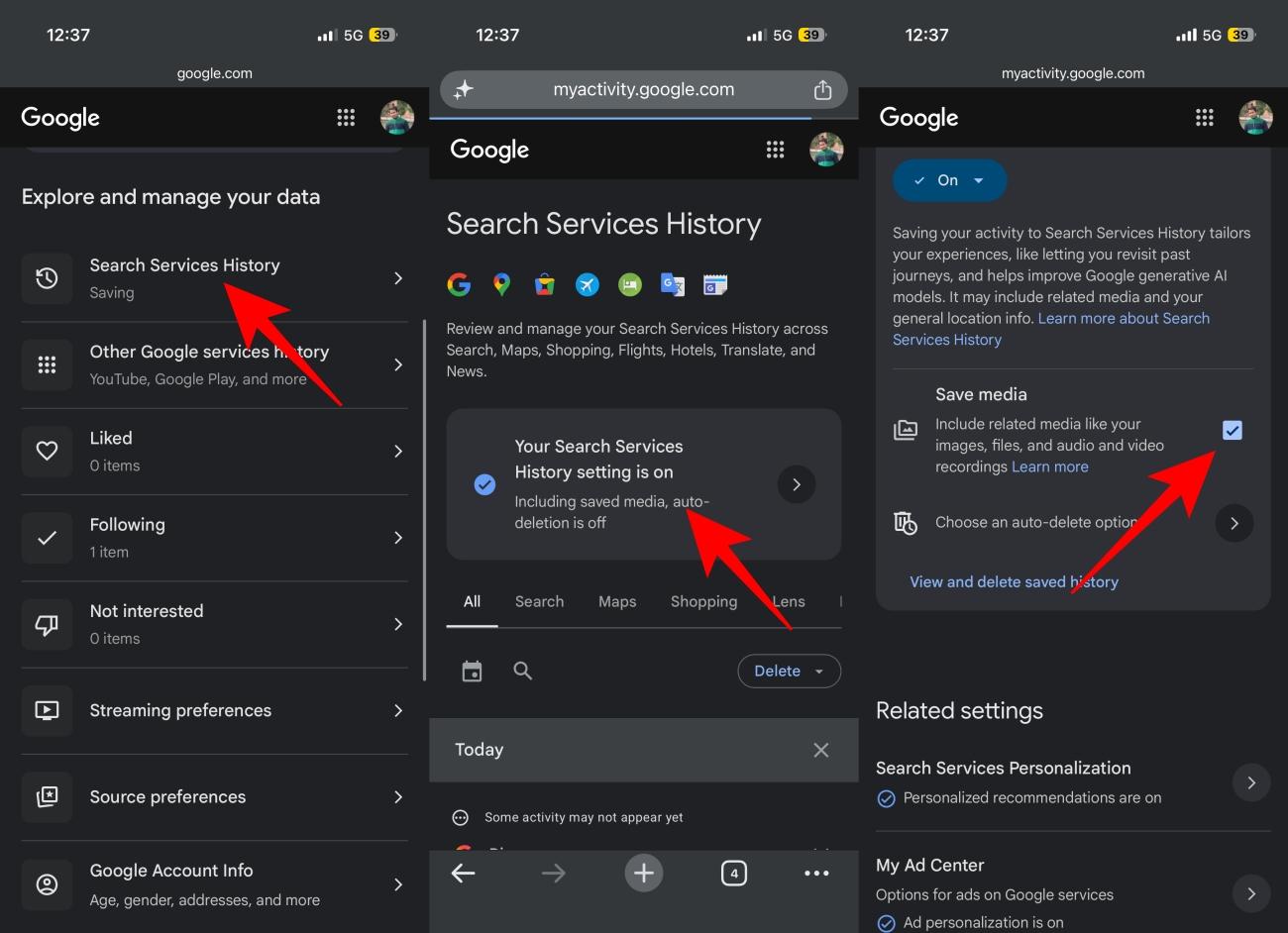
Once disabled, Google will no longer save future images and audio files you upload while using Search.
Automatically delete Search Upload History
If you’d rather not disable the feature entirely, Google also lets you automatically delete your Search Services History after a set period.
Here’s how:
- Tap Choose an auto-delete option.
- Select when you want Google to automatically delete your Search Services History. You can choose 3 months, 18 months, or 36 months.
- Tap Next, then confirm your selection.
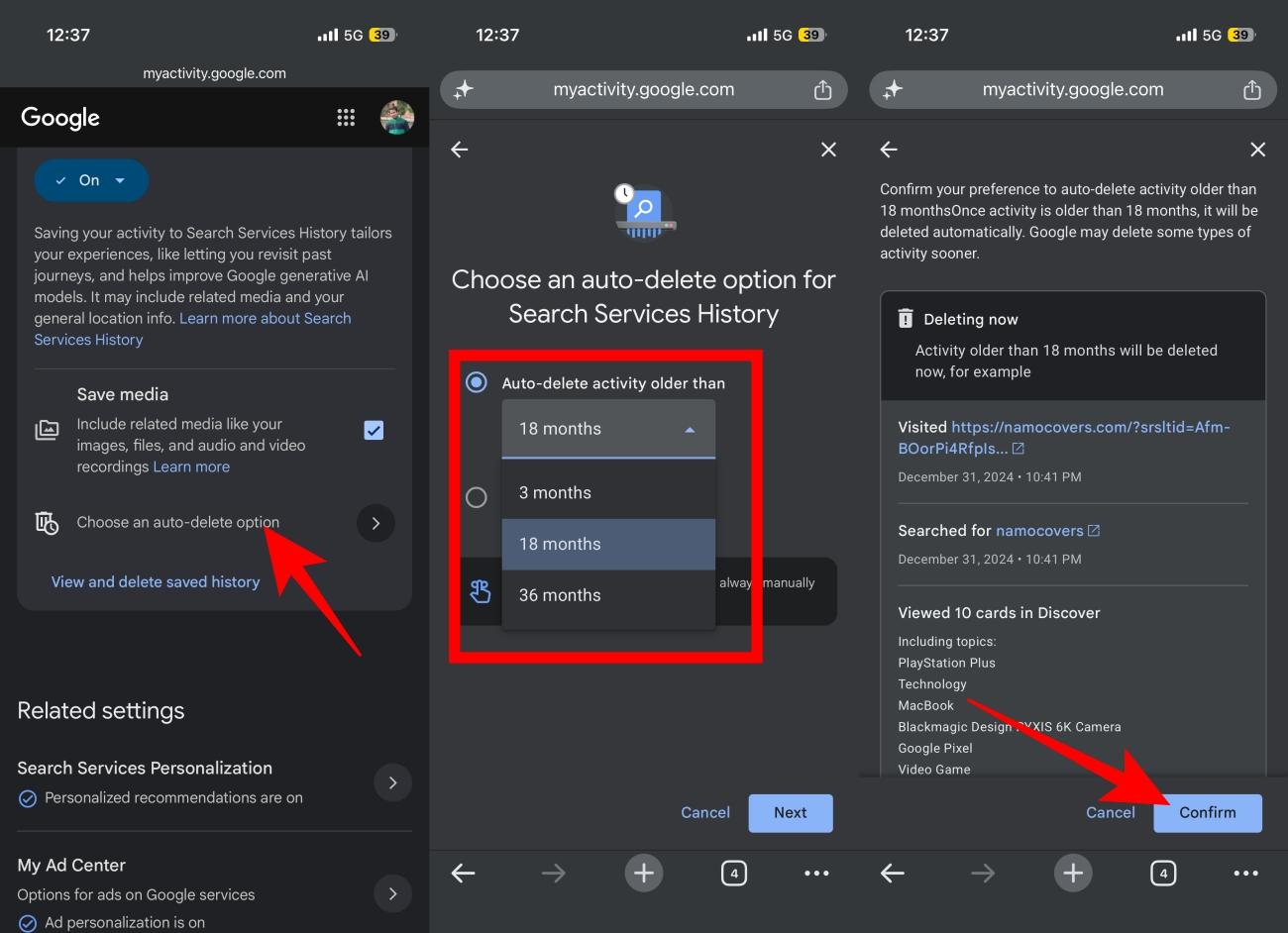
For most users, this is probably the best middle-ground option. You still get the convenience of saved Search activity without keeping that information indefinitely.
Should you turn off Google’s Upload History?
The decision ultimately depends on how you use Google Search.
If you regularly use Google Lens or visual search, keeping the setting enabled lets Google save those uploads, making it easier to revisit previous searches and personalize certain Search experiences.
Personally, I tend to favor keeping less data stored whenever possible, especially when photos and voice recordings are involved. Search history is one thing, but uploaded media can often contain far more personal information than a simple text query.
If privacy is more important to you, turning the feature off makes sense. Images and audio files can contain sensitive information, and you may not want that content stored in your Google account.
The good news is that disabling the setting doesn’t remove access to Google Lens, visual search, or voice-powered Search features. It simply prevents Google from saving future uploads associated with those searches.
Why it’s worth checking your Google privacy settings
Google’s AI-powered Search experience is becoming increasingly capable, but those improvements often come with new data controls and privacy settings that users may not notice right away.
That’s why it’s worth reviewing your Google account settings every few months. Features that seem harmless at first can sometimes end up storing more information than you realize.
In this case, disabling media storage takes only a few seconds and gives you more control over how your uploaded images and audio files are handled going forward.
Whether you decide to keep the feature enabled or turn it off, the important thing is knowing it exists and making an informed decision based on your own privacy preferences. Will you leave this feature enabled or disable it for better privacy? Let us know in the comments below.
Related articles worth reading: