
How to Tell If Someone Blocked Your Number on iPhone (Without Asking!)
Wondering if someone blocked your number on iPhone? From calls going to voicemail to missing “Delivered” in iMessage, here are the top signs to confirm.
Blocking someone’s number on an iPhone is an effective way to avoid unwanted communication without any confrontation. But what if you’re on the receiving end? While Apple doesn’t notify you when someone blocks your number, there are reliable signs that can help you figure it out.
This guide covers the most effective ways to determine if someone has blocked your number on their iPhone.
1. Calls Go Straight to Voicemail or Ring Once
One of the fastest ways to check if you’ve been blocked is by calling the person directly. If your calls go straight to voicemail or ring just once before diverting, there’s a good chance your number is blocked.
That said, this behavior can also happen if:
- The recipient’s phone is off
- They’re outside the network coverage area
- Do Not Disturb or Focus Mode is enabled
To rule out these possibilities, try calling at different times of the day.
2. iMessages Don’t Show “Delivered” or “Read”
When you send an iMessage, you normally see a “Delivered” tag, and if read receipts are enabled, a “Read” tag.
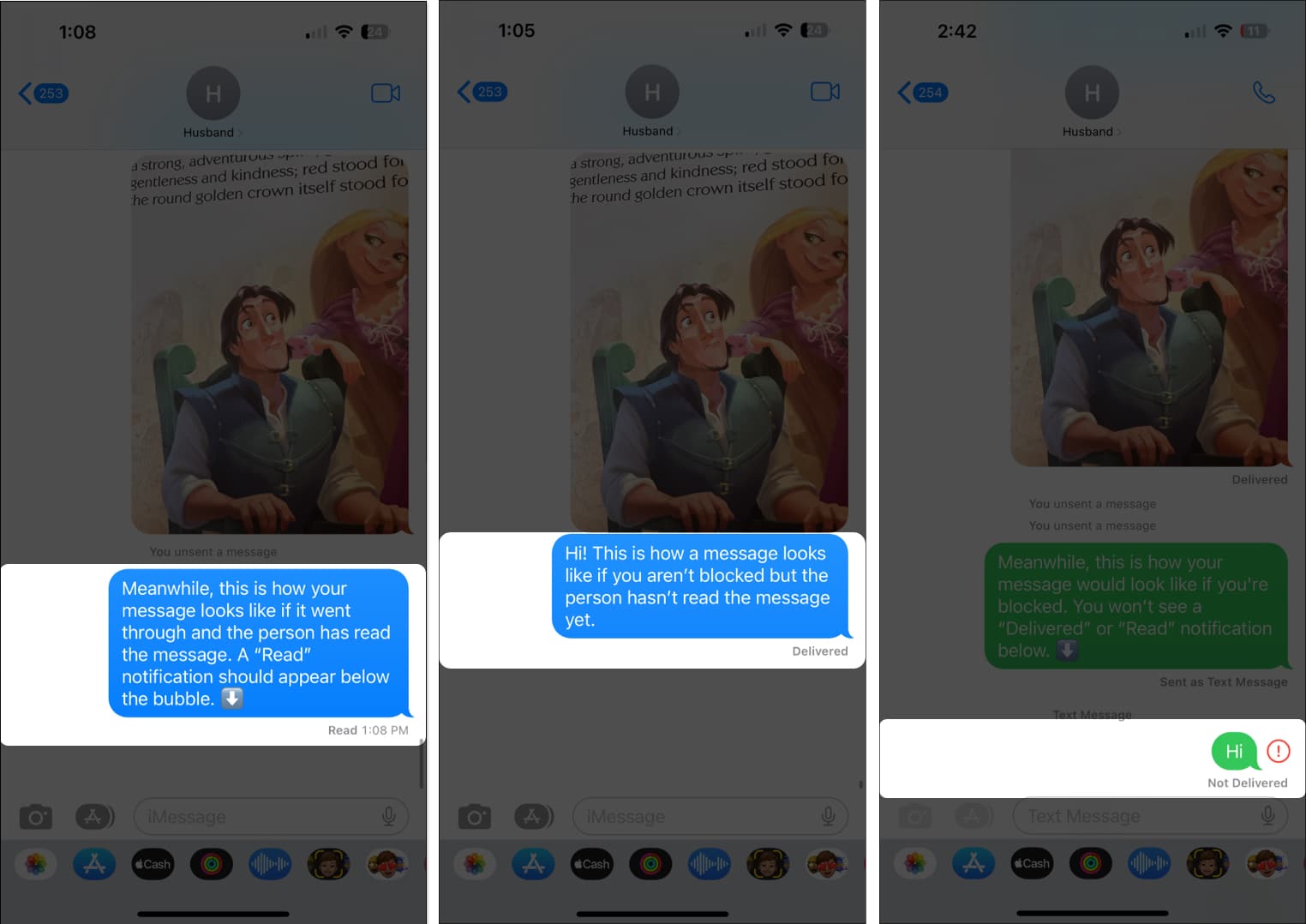
If your messages no longer show these labels, it could mean:
- The recipient doesn’t have internet access
- iMessage is disabled
- Or, your number is blocked
If your iMessages eventually turn green (sending as SMS) and still don’t show delivery status, that’s another subtle sign you may be blocked.
3. FaceTime Calls Don’t Connect Properly
FaceTime is another indicator. If your number is blocked:
- Calls may ring endlessly without connecting, or
- They may fail instantly without error
Either way, you won’t be able to contact the person through FaceTime if you’ve been blocked.
4. Mask Your Number or Disable Caller ID
Since iPhones block specific numbers, not anonymous calls, you can try masking your number.
- To mask your number: *Dial 67 before the number
- To disable Caller ID (if supported by your carrier): Go to Settings → Apps → Phone → Show Caller ID → Disable.
If your masked call rings normally but your regular one doesn’t, there’s a strong chance you’re blocked. Use this sparingly and never for harassment.
5. What About Third-Party Apps Like WhatsApp or Instagram?
If someone blocks your phone number, chances are they might block you elsewhere too.
Signs of a block on popular apps:
- WhatsApp: No profile picture, no last seen, and messages stuck on one grey tick.
- Instagram: Their profile disappears or you can’t DM them.
- Messenger: Messages don’t show as delivered.
If you can still reach them on one platform but not others, they may have overlooked blocking you there.
6. Try Calling From Another Number
Still not sure? The most reliable test is to call them from a different number. If the call connects, it’s a clear indicator your primary number is blocked.
Important:
Use this method only once or twice. Repeated attempts can come across as intrusive.
7. Check for Mutual Connections
If you share mutual friends or family, you might casually ask:
- “Hey, have you heard from [Name] lately?”
- “I’ve been trying to reach them. Is everything okay?”
Often, the issue could be unrelated—like a lost phone, vacation, or technical problems.
What Should You Do If You’ve Been Blocked?
If all signs suggest you’ve been blocked, the best move is to respect boundaries. People block numbers for various reasons, and it’s not always personal.
Here’s what to do:
- Avoid repeatedly trying to contact them
- Don’t use alternate numbers or social media to bypass the block
- Focus on your own well-being and give them space
Repeated attempts may only harm future chances of reconciliation.
Look for Patterns, Not Just One Sign
There’s no guaranteed way to confirm if someone has blocked your number on iPhone. Even if all the signs point toward it, the person may simply deny it to avoid confrontation.
The healthiest response is to accept the possibility, respect their choice, and move forward gracefully.
Have a question or another trick to spot a block? Share it in the comments below!
Read more:

Written by
Dhvanesh AdhiyaThe founder of iGeeksBlog, Dhvanesh, is an Apple aficionado, who cannot stand even a slight innuendo about Apple products. He dons the cap of editor-in-chief to make sure that articles match the quality standard before they are published.
View all posts →More from How-to

How to Turn Off Location on Snapchat (Step-by-Step Guide)
Want to stop sharing your location on Snapchat? This guide explains how Snapchat location sharing works and shows simple ways to turn off your location using Ghost Mode or phone settings. Stay in control of your privacy in just a few steps.
 VikhyatMarch 5, 2026
Snapchat Parental Controls: How to Set Up Family Center and Keep Your Teen Safe
Snapchat’s Family Center lets parents monitor their teen’s friend activity and screen time without reading private messages. Here’s how to set it up and what to expect.
VikhyatMarch 3, 2026
How to Block and Unblock Someone on Instagram
Instagram lets you block or unblock someone in seconds. Follow these simple steps to take full control of your privacy and online peace.
 Ava BiswasMarch 2, 2026