
How to Find Apple Watch if Lost or Dead (Step-by-Step Guide)
Lost your Apple Watch? Here’s how to track it using your iPhone or Find My app, even if it’s dead. Plus, what to do when you can’t find it anywhere.
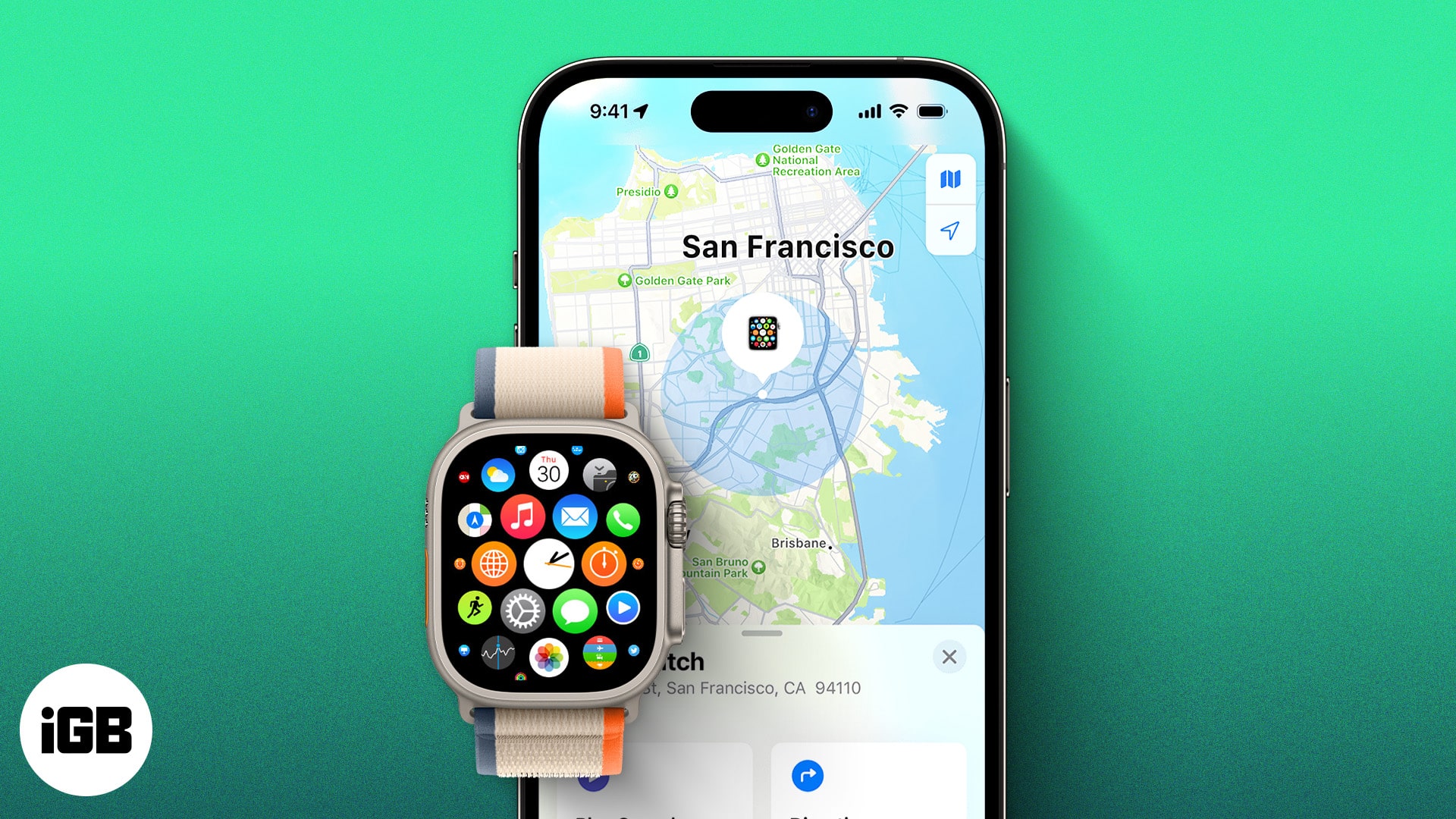
- Ping Apple Watch from iPhone: Starting with iOS 17, you can make your Apple Watch play a sound from the iPhone’s Control Center to help locate it nearby.
- Find Apple Watch in Find My app: The Find My app lets you track your Watch’s live location, play a sound, or view its position if it’s online.
- Use Lost Mode for extra security: Turning on Lost Mode from the Find My app locks your Apple Watch, shows a custom message, and helps recover a lost or stolen device.
- Steps when the Watch can’t be found: If the Watch is offline or missing, enable Lost Mode, update your Apple ID password, and contact local authorities.
- Tracking limits for a dead Watch: A powered-off Apple Watch won’t update its live location, but you can still view its last known position in the Find My app.
Losing an Apple Watch can feel like a small heart attack. It’s not just the price; it’s the personal data, health info, and photos stored inside. The good news is that Apple has built several tools that make it possible to track or recover your Apple Watch, even if it’s lost or dead.
Below, I’ll walk you through how to find your Apple Watch using your iPhone, the Find My app, and what to do when the battery is dead.
How to Use iPhone to Locate Your Apple Watch
Starting with iOS 17, Apple added a helpful feature that lets you ping your Apple Watch from your iPhone. This is perfect if you misplaced your watch somewhere nearby, like at home or in the office.
The Ping My Watch feature works the same way as “Ping My iPhone” on your Apple Watch, only in reverse. Once added to your iPhone’s Control Center, you can make your Apple Watch emit a sound so you can locate it quickly.
Here’s how to set it up and use it:
- Swipe down from the top-right corner of your iPhone screen to open Control Center.
- Here, tap the ‘+‘ button at the top right corner.
- Next, tap Add a Control at the bottom center.
- Now, find the Ping My Watch control and tap it to add it to Control Center.
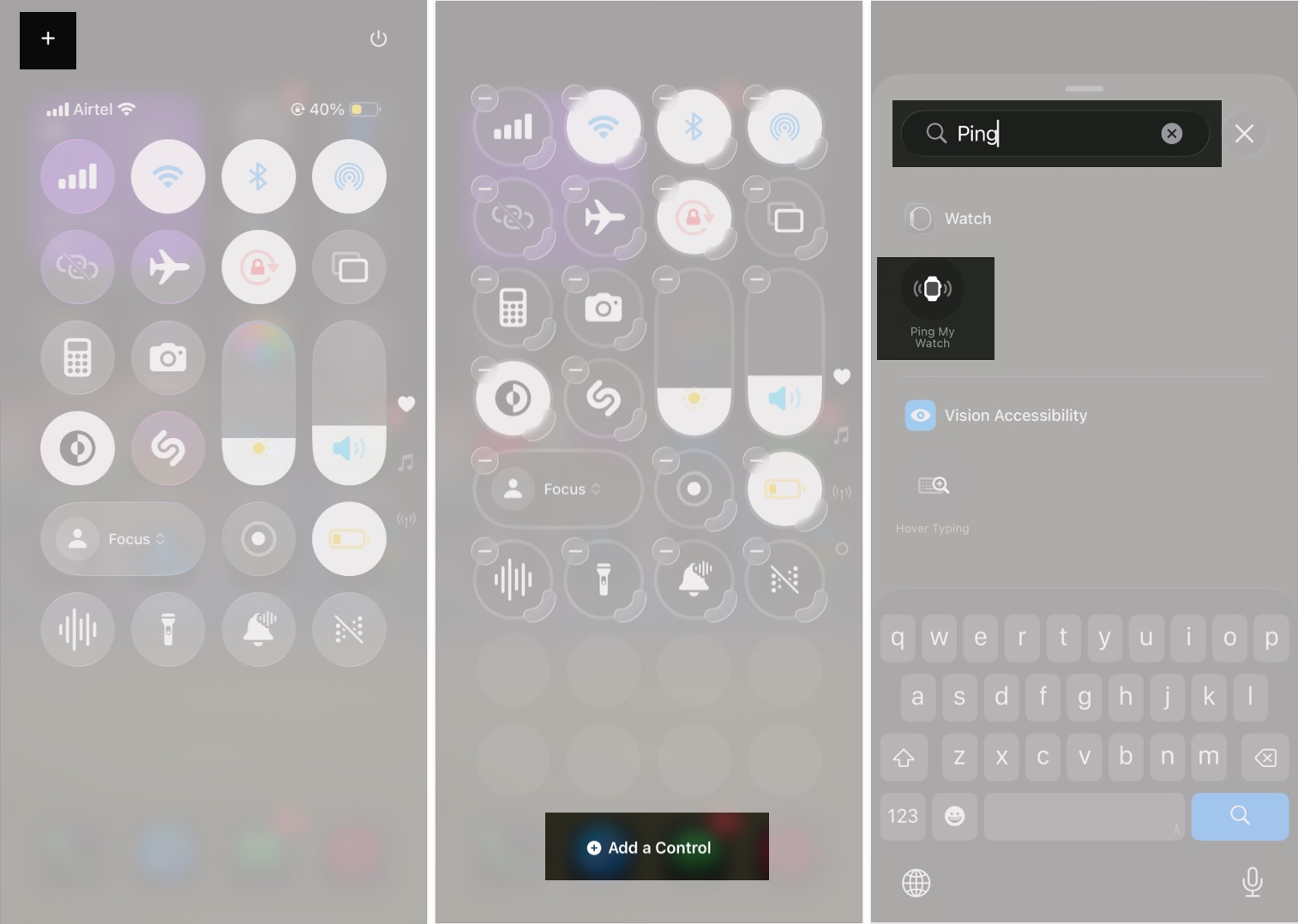
- Pull down Control Center again and tap the Ping My Watch button. Your Apple Watch will start beeping.
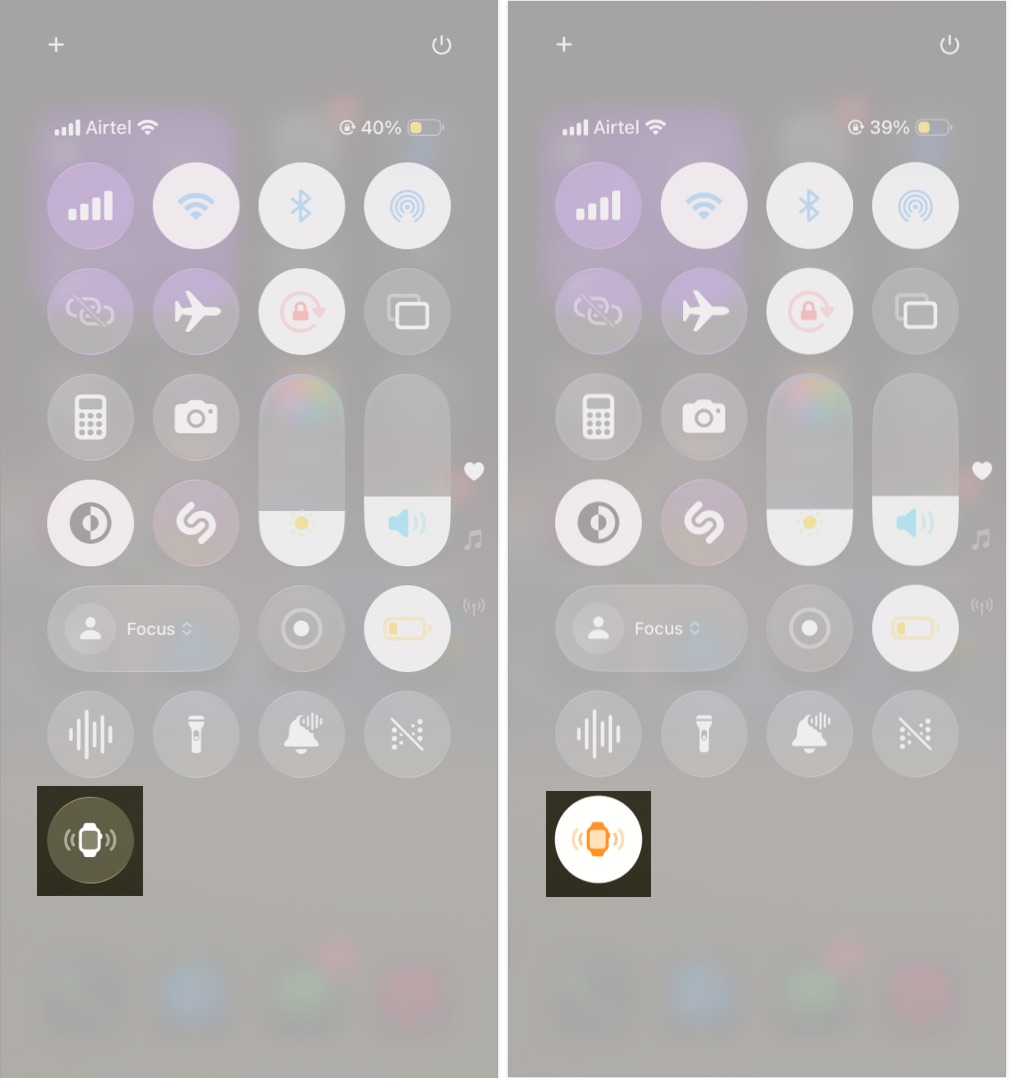
If your watch is within Bluetooth range, this is the fastest way to find it.
How to Find Apple Watch Using the Find My App
Apple’s Find My network connects millions of Apple devices to help you locate missing ones. If your Apple Watch is still online, you can see its live location on a map, play a sound, or get directions to it.
Important:
Find My must be enabled on your Apple Watch before it goes missing.
Follow these steps:
- Open the Find My app on your iPhone and tap on Devices in the bottom menu bar.
- Here, select your Apple Watch from the available devices.
- Once done, your Apple Watch location will appear on the map.
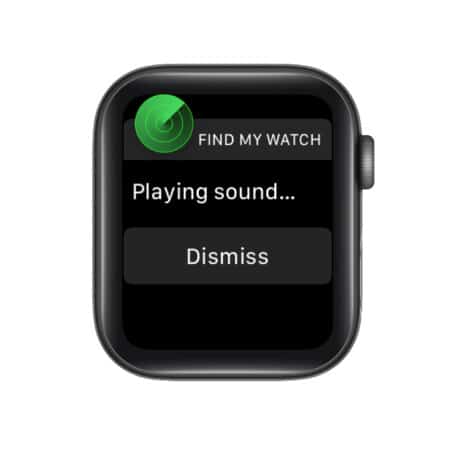
- Next, tap the Play Sound button if the Apple Watch is in the same location as yours.
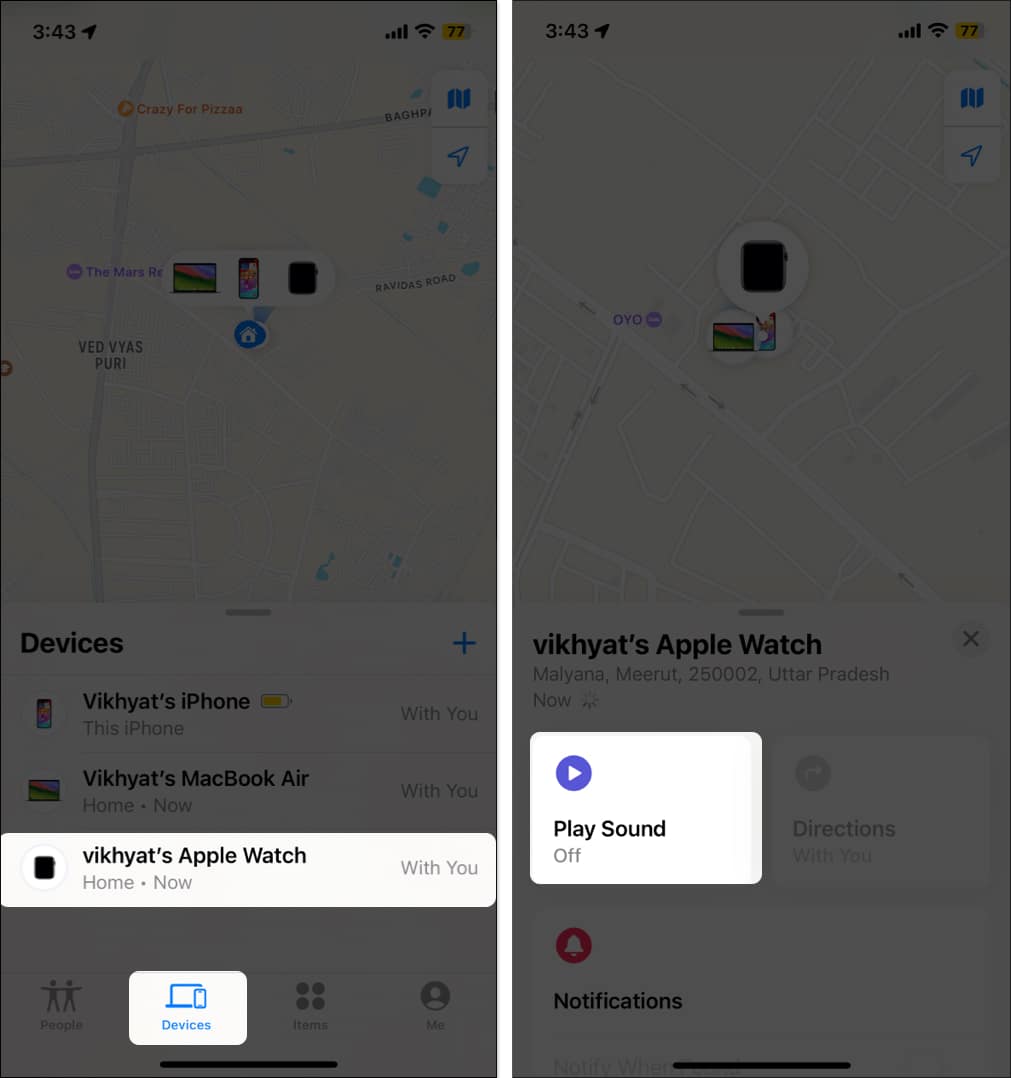
- This will make your Apple Watch emit a sound.
- When found, tap the Dismiss button to stop the sound.
- However, if your Apple Watch’s location is far away, tap Directions to get location instructions on Apple Maps and find your lost Apple Watch.
- If you see “No Location Found,” it means your lost Apple Watch can’t be found.
For this, you need to use the Find My app to put the watch in lost mode if it is dead and its location cannot be found.
How to Put Your Apple Watch in Lost Mode
If your Apple Watch is dead or offline, activating Lost Mode helps protect your data and increases your chances of recovery. When enabled, your Apple Watch locks itself and displays a custom message with your phone number so whoever finds it can contact you.
Here’s how to do it:
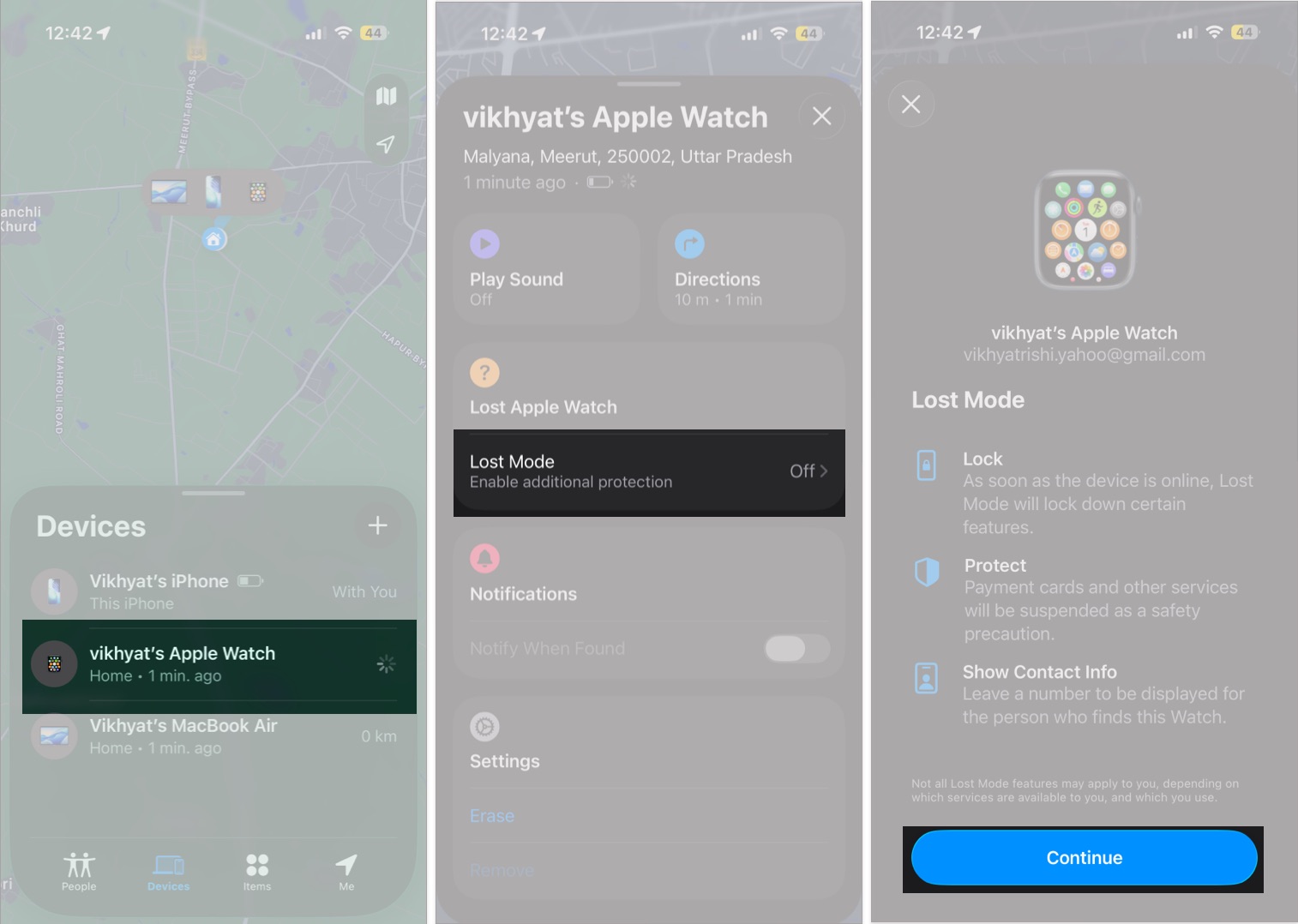
- Open Find My → Devices → Apple Watch.
- Tap Lost Mode under Lost Apple Watch.
- Tap Continue.
- Enter the phone number where the person who finds your Apple Watch can contact you.
- Type the message you want to display on your Apple Watch.
- Tap Activate.
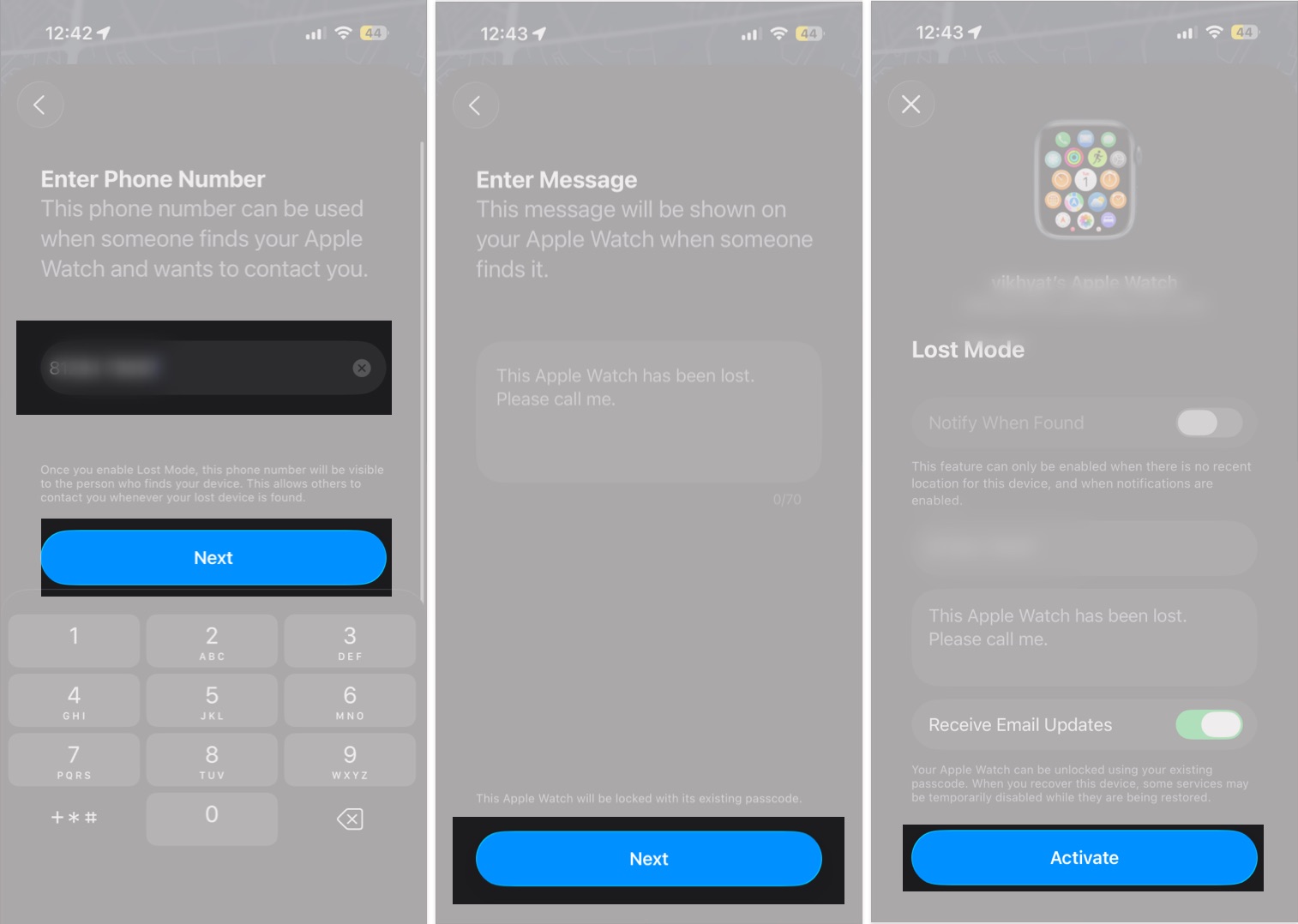
Apple will also send you a confirmation email once Lost Mode is turned on.
How to Turn Off Lost Mode
Once you recover your Apple Watch, simply unlock it with your passcode. That automatically disables Lost Mode.
You can also turn it off manually from any Apple device:
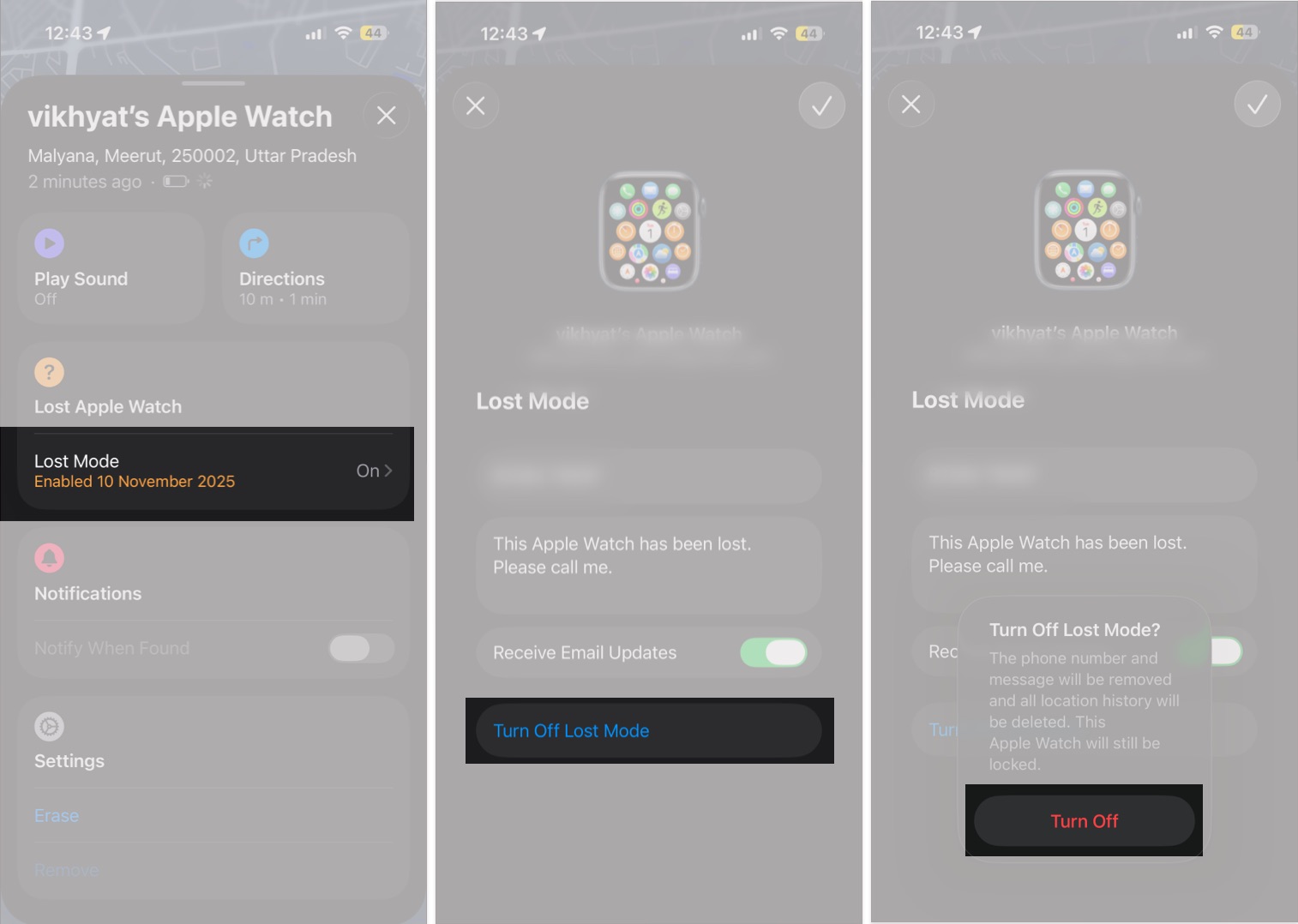
- Open the Find My app and head to Devices.
- Select your missing Apple Watch.
- Tap Lost Mode under Lost Apple Watch.
- Next, tap on Turn Off Lost Mode, then tap the Turn Off button on the confirmation prompt that appears.
What to Do if You Still Can’t Find Your Apple Watch
If Find My wasn’t turned on before your Apple Watch went missing, Apple can’t help you locate it. In that case, take these steps to protect your information and report the loss:
- Activate Lost Mode in the Find My app immediately to lock your watch.
- Change your Apple ID password to prevent unauthorized iCloud access.
- Report it to local law enforcement, especially if you think it was stolen.
- Contact your carrier if your Apple Watch has a cellular plan and ask them to disable service.
Final Thoughts
That’s everything you can do to find a lost or dead Apple Watch. To avoid future headaches, make sure Find My is turned on for all your Apple devices and get in the habit of keeping them in a designated place when not in use.
If you still have questions, drop them in the comments.
Frequently Asked Questions

Written by
Mehak SiddiquiMehak has a master’s degree in communication and over ten years of writing experience. Her passion for technology and Apple products led her to iGeeksBlog, where she specializes in writing product roundups and app recommendations for fellow Apple users. When not typing away on her MacBook Pro, she loves being lost in a book or out exploring the world.
View all posts →More from Apple Watch

Apple Watch Not Responding? 8 Fixes That Actually Work
Is your Apple Watch unresponsive or stuck on a black screen? Here are 8 proven fixes to help you unfreeze it and get it working again quickly.
 VikhyatMarch 3, 2026
How to Mirror Your Apple Watch on Your iPhone: A Simple Guide
Want to control your Apple Watch using your iPhone? This guide explains how to turn on Apple Watch Mirroring, use it easily, and fix common issues.
 Arshmeet KaurFebruary 27, 2026
How to Restore Apple Watch From a Backup
Need to reset or switch iPhones? Here’s how to restore your Apple Watch from a backup, what data comes back, and how to make sure everything syncs properly.
VikhyatFebruary 23, 2026