
How to turn on Wi-Fi Assist on iPhone or iPad
Almost all of us at some point have been stuck with poor Wi-Fi connectivity. Above that, the most frustrating part is when your iPhone or iPad is struggling to get hold of poor Wi-Fi. We had to go all the way to settings, disable Wi-Fi and turn on cellular data; in order to continue internet connectivity.
If Wi-Fi bandwidth is too slow or there is hardly any connectivity; Wi-Fi Assist will move to cellular data. The only thing to be done from your part is to turn on this smart feature called Wi-Fi Assist.
What does Wi-Fi Assist do?
Wi-Fi Assist is a pre-installed feature on iPhones and cellular iPads that automatically switches to cellular or mobile data whenever you are receiving poor internet connectivity. This ensures that you can continue browsing the web or using an app while your Wi-Fi network is congested or slow.
It acts out as a reliable feature for those who are constantly bothered by bad connections and cannot depend on Wi-Fi alone. Furthermore, Wi-Fi Assist can save data costs by switching to cellular data only when Wi-Fi is unusable and the user’s data plan has room for it.
How to enable or disable Wi-Fi Assist on iPhone and iPad
Wi-Fi Assist is enabled by default, so you don’t have to do anything to take advantage of it. However, if you’re not able to use this feature, then follow the steps outlined below to enable it:
- Launch the Settings app on your iPhone.
- Navigate to Mobile Data or Cellular Data.
- Scroll down and toggle on Wi-Fi Assist.
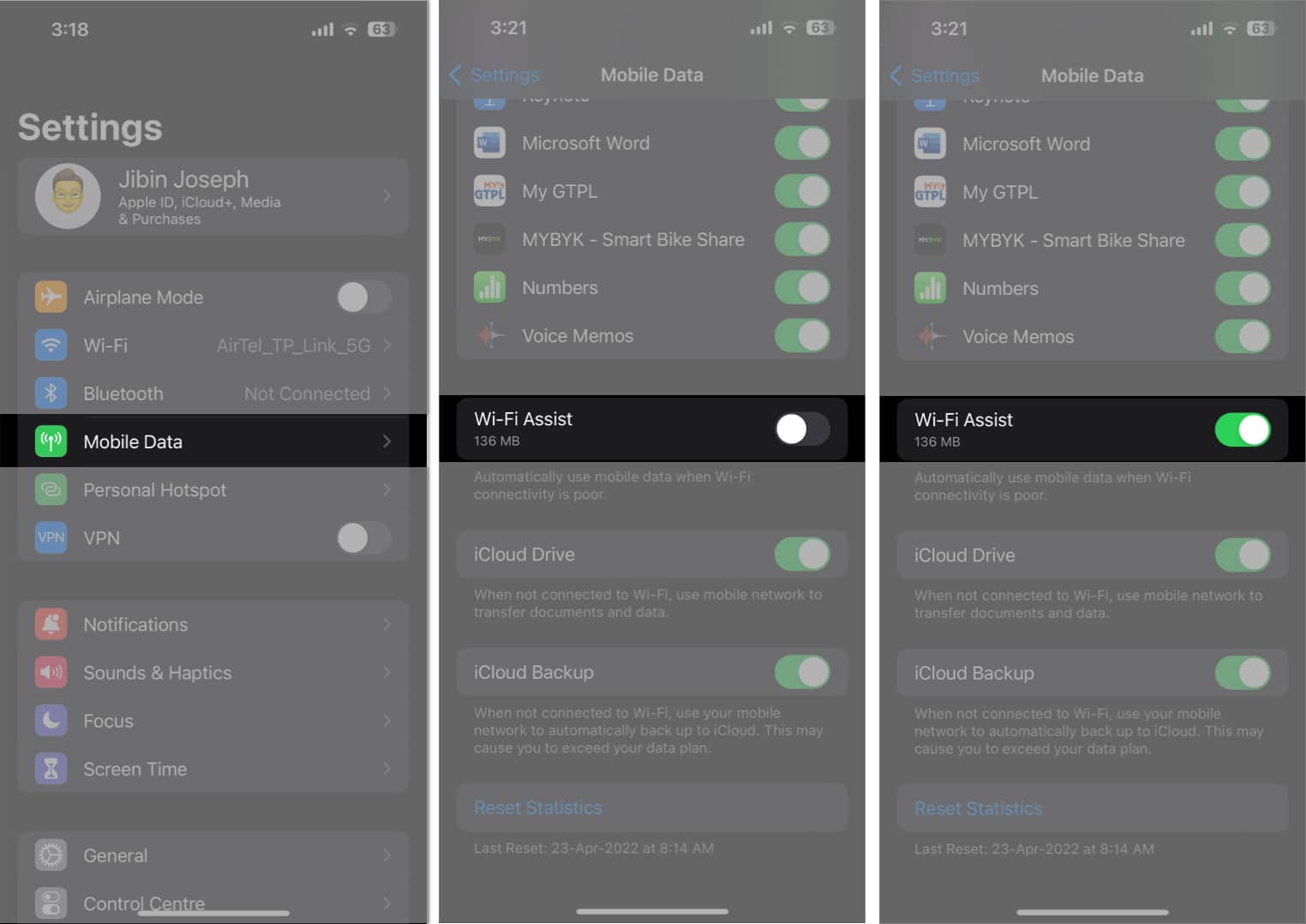
In case you seek to turn off Wi-Fi Assist in the near future, you can simply follow the same steps again and toggle off the switch.
Note:
Apart from iPhones, these steps work for only the cellular iPads on the market right now.
Important factors to consider while using Wi-Fi Assist
Wi-Fi Assist can seamlessly boost your signal strength, when necessary, on your iPhone and cellular iPad. However, it’s important to consider some factors before turning on this feature, as it could lead to additional charges.
- Make sure you have an appropriate data plan for your carrier and that you monitor your data usage closely when you have Wi-Fi Assist activated.
- Wi-Fi Assist will not work if you’re on a roaming network.
- Wi-Fi Assist does not support background downloading of content; it’s only feasible for foreground apps.
- To avoid large consumption of data, Wi-Fi Assist does not work for third-party apps that stream audio or video content.
Ensure a healthy signal strength!
There is no denying the fact that Wi-Fi Assist is an incredibly useful feature for all iPhone and cellular iPad users. It’s specifically designed to keep you connected regardless of the signal strength. With this feature, you no longer have to worry about losing an important connection or having to manually switch to a stronger signal.
Thank you for reading, and don’t hesitate to drop your thoughts below.
Frequently Asked Questions

Written by
Dhvanesh AdhiyaThe founder of iGeeksBlog, Dhvanesh, is an Apple aficionado, who cannot stand even a slight innuendo about Apple products. He dons the cap of editor-in-chief to make sure that articles match the quality standard before they are published.
View all posts →More from How-to

How to Turn Off Location on Snapchat (Step-by-Step Guide)
Want to stop sharing your location on Snapchat? This guide explains how Snapchat location sharing works and shows simple ways to turn off your location using Ghost Mode or phone settings. Stay in control of your privacy in just a few steps.
 VikhyatMarch 5, 2026
Snapchat Parental Controls: How to Set Up Family Center and Keep Your Teen Safe
Snapchat’s Family Center lets parents monitor their teen’s friend activity and screen time without reading private messages. Here’s how to set it up and what to expect.
VikhyatMarch 3, 2026
How to Block and Unblock Someone on Instagram
Instagram lets you block or unblock someone in seconds. Follow these simple steps to take full control of your privacy and online peace.
 Ava BiswasMarch 2, 2026