
How to Download Instagram Reels on iPhone
Learn how to download Instagram reels on your iPhone. Discover safe, easy methods with and without third-party apps. Step-by-step guide inside!
- Instagram now lets you download public Reels in-app if the creator enables it—downloads include a watermark and are saved directly to your Photos app.
- Use third-party apps like InSaver for more flexibility—you can save Reels without watermarks by pasting the link into the app.
- The ‘R↓Download’ iOS Shortcut automates saving Reels—just share the Reel to the shortcut from Instagram to download it instantly.
- Screen recording is another option but watch privacy laws—this method works for private content but may raise copyright concerns.
- Saved Reels appear in Photos or Files app depending on how they’re downloaded—check app-specific folders for third-party tools.
If you’ve ever come across an Instagram Reel you loved and wished you could download it to your iPhone, you’re not alone! Fortunately, Instagram has a built-in option to save public Reels for offline viewing or sharing with friends. You can also download private Reels on your iPhone if you follow that person, and they have enabled the option.
However, if you don’t find the Download button, worry not! In this guide, I’ll walk you through the easiest ways to download Instagram Reels on your iPhone—so you can watch them anytime, even offline!
3 Ways to Download Instagram Reels on iPhone
There are multiple ways to download reels on an iPhone, regardless of whether the creator allows it, from using the official Instagram app to using a third-party app or an iOS shortcut.
1. Download Reels Using the Instagram Ios App
Starting in November 2023, Instagram finally listened to the community’s feedback & demands and rolled out the option to download public reels from the official app itself. However, to keep the creators’ privacy in check, Instagram has empowered them to choose whether they want their reels to have a download option.
Also, note that the downloaded reel will have a watermark of Instagram logo and the creators name. Additionally, you can’t save reels from private accounts unless they approve you as a follower and enable the download option.
- Open the Instagram app.
- Play the reel you want to download from the app’s Feed, Discover, or Saved posts section.
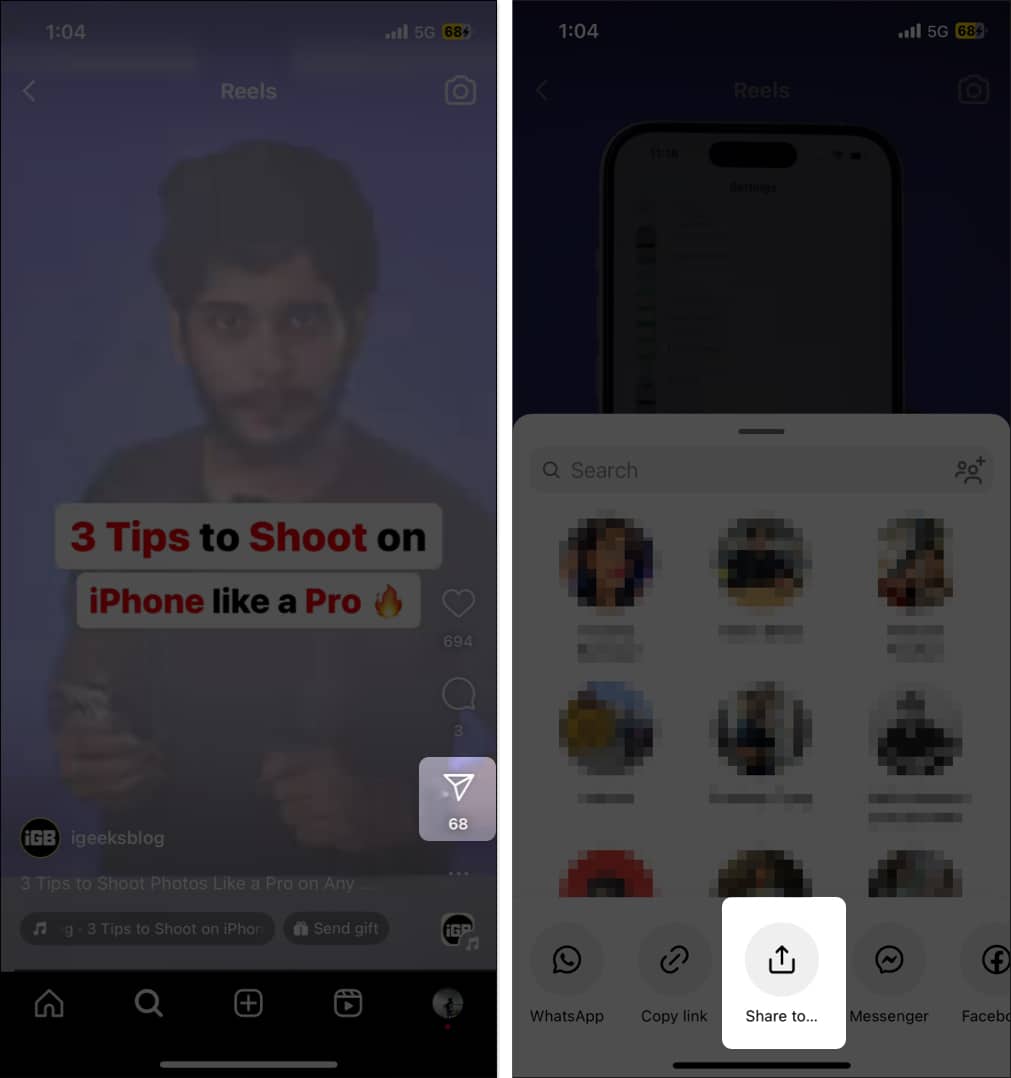
- Tap the Share button (flying paper plane) on the right.
- Tap the Download button at the bottom. If the Download option isn’t available, the creator has turned off downloading in the first place.
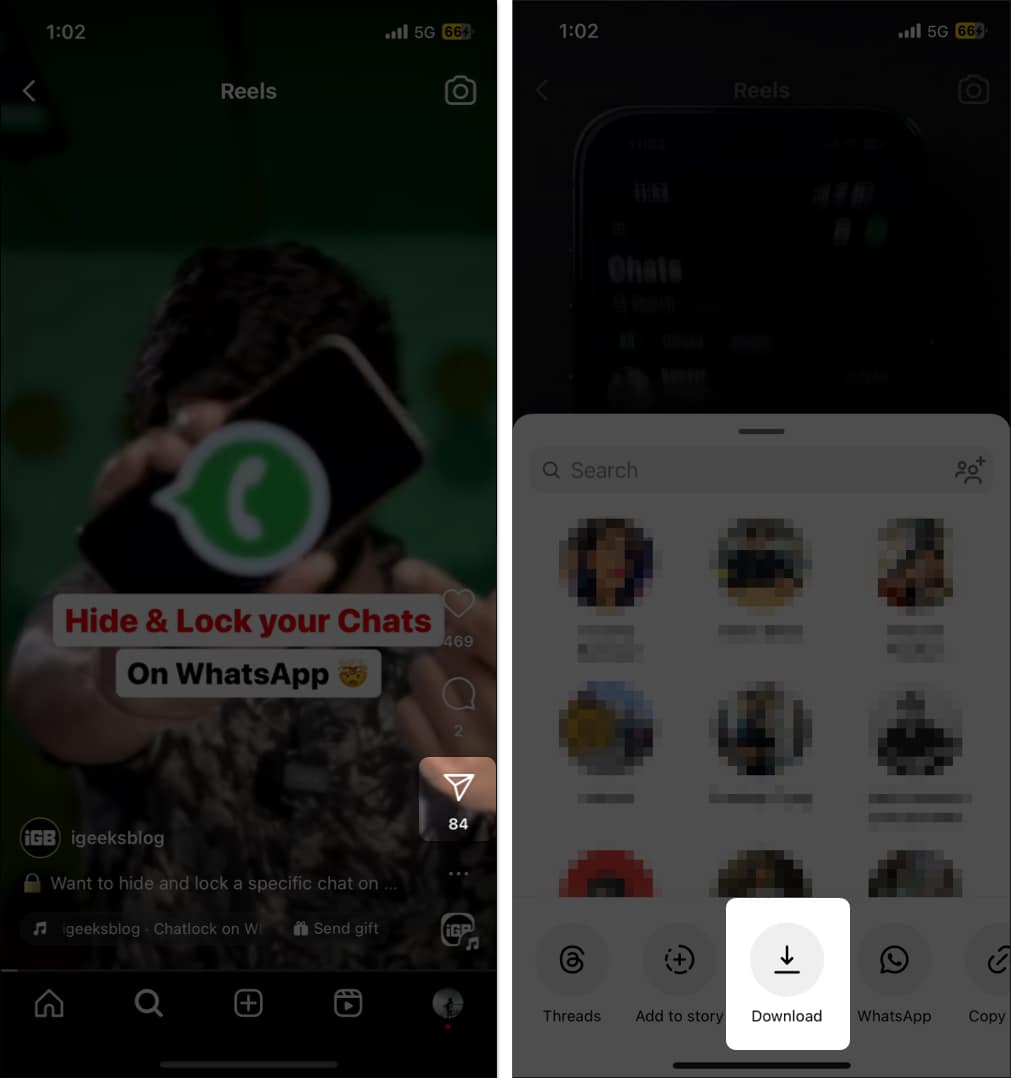
- Wait for the download to complete, then head to the Photos app to view the downloaded reel.
2. Save Instagram Reels to iPhone Camera Roll With a Third-Party App
As mentioned, whether you can download an Instagram reel is in the creator’s control. So what if the creator has turned off downloading? Luckily, there are several third-party apps, such as InSaver, available on the App Store, which you can install and use to download Instagram reels on your iPhone. Here’s how:
- Download and install the InstDown app on your iPhone.
- Open the Instagram app and play the reel you want to download.
- Next, tap the Share button, then tap the Copy Link button.
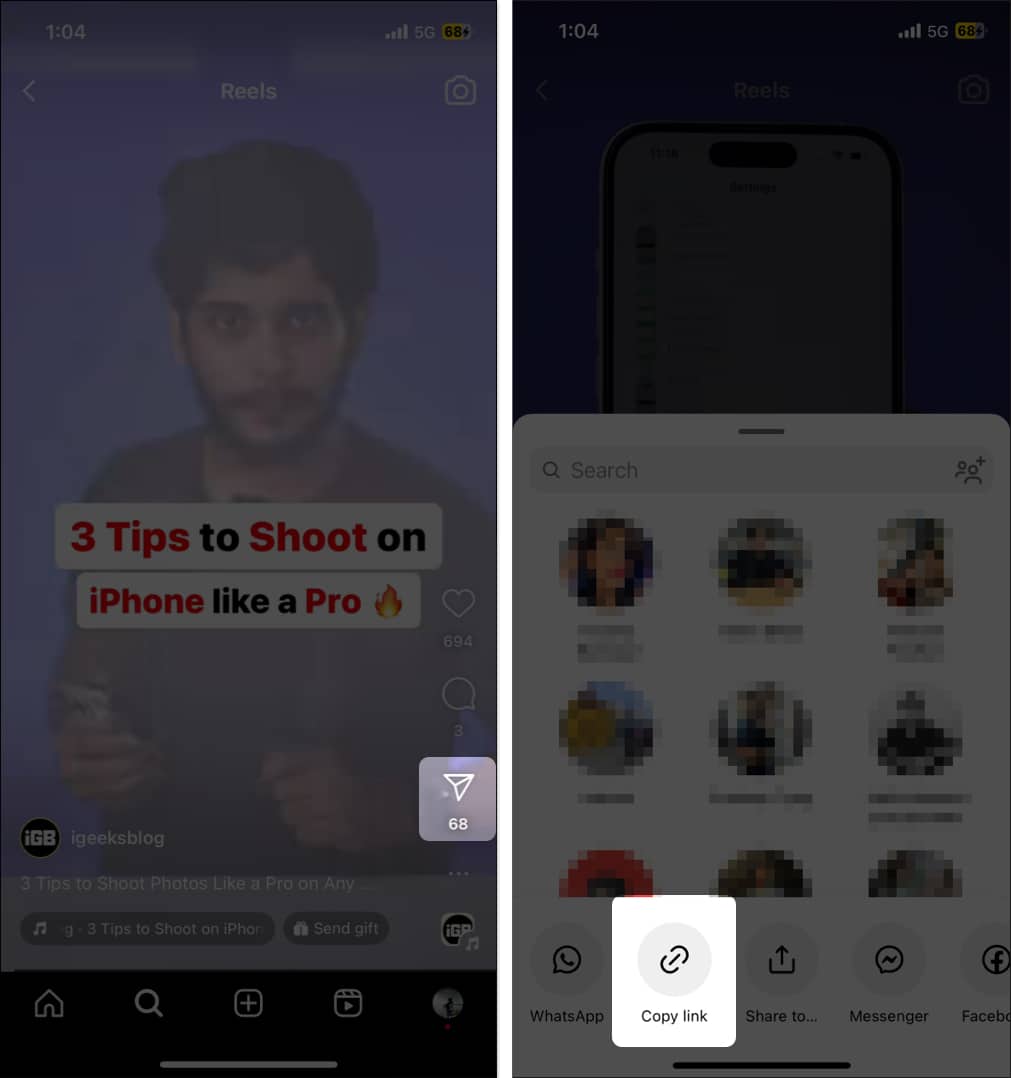
- Close the Instagram app and head to the InstDown app.
- Now, paste the copied link in the search bar and hit Find.
- Wait for the app to find the reel. Once it finds it, tap the Save button to save the Instagram reel to your iPhone’s camera roll.
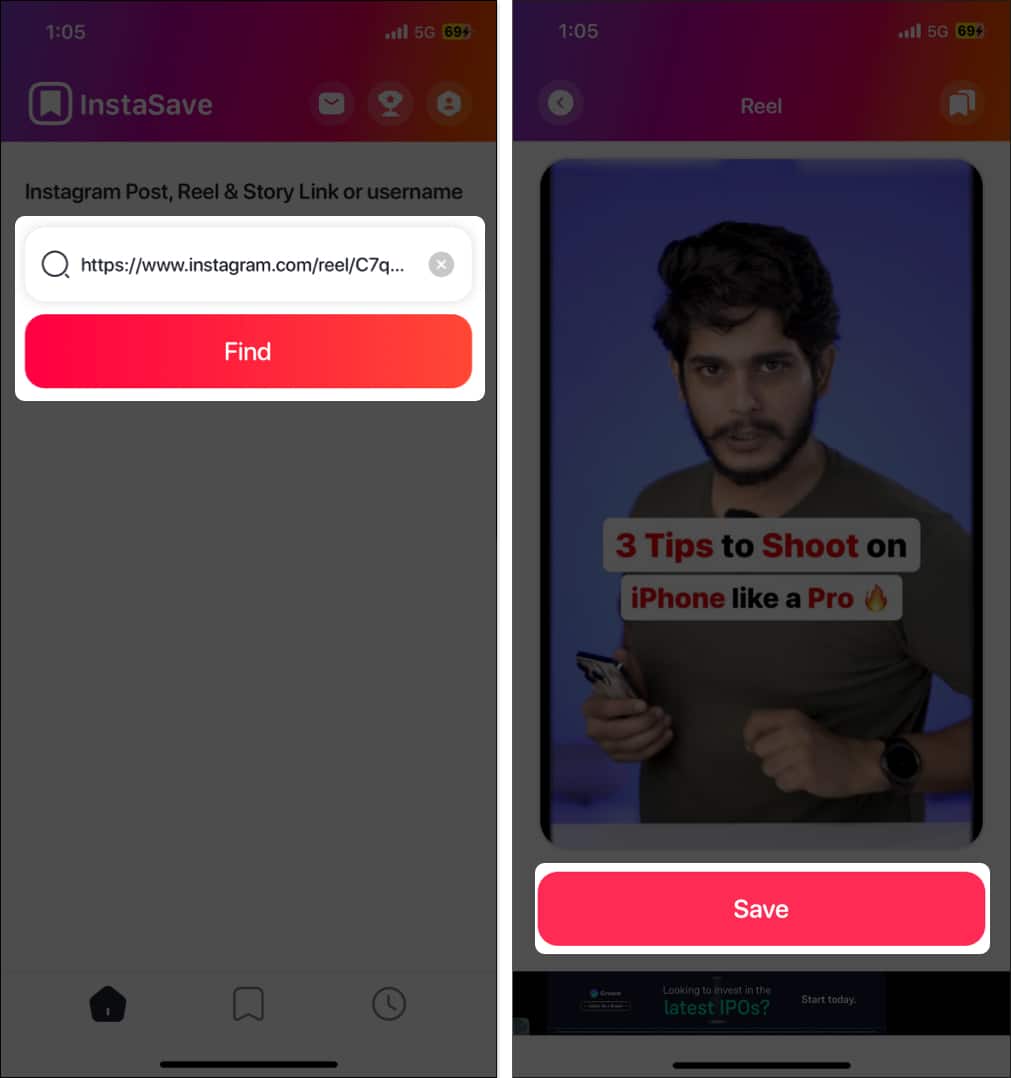
Now, you can view the reel from your Photos app library. The best part about this method is that it doesn’t include a watermark on the downloaded reel.
3. Download Instagram Reels Using the Shortcuts App
If using a third-party app or heading to a third-party website whenever you want to download an Instagram reel seems complex, you can use the R↓Download iOS Shortcut to do the job. Visit the link and add the shortcut to your Shortcuts app library. Then, follow these steps to download a reel using this shortcut:
- Open the Instagram app and play the reel you want to download.
- Tap the Share button on the left and select the Share to option at the bottom.
- Next, tap the R↓Download Shortcut tab in the Share Sheet that appears.
- If you are using this Shortcut for the first time, it will ask for a few permissions. Hit Allow to continue.
- Wait for the download process to complete, and the Instagram reel will get saved to your camera roll.
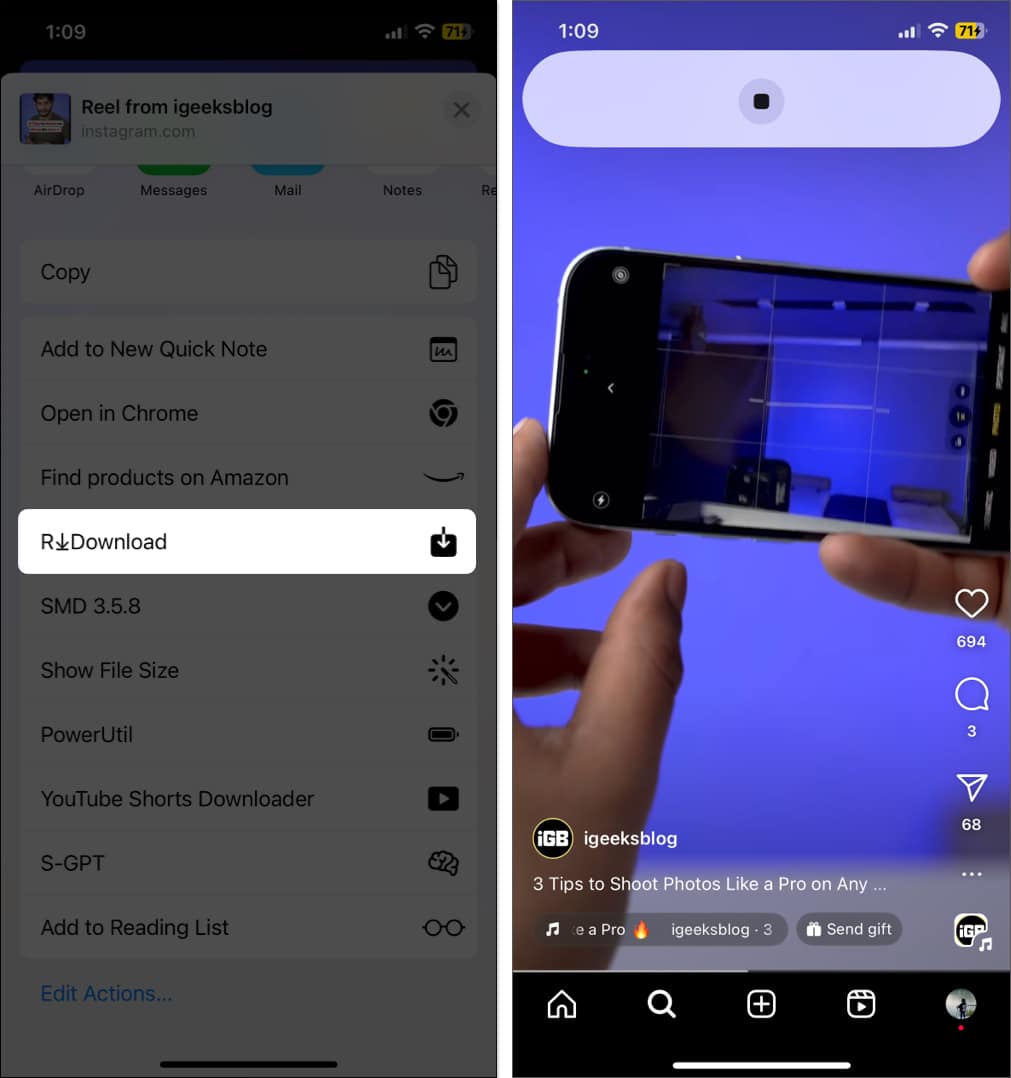
I prefer to use this method to save Instagram reels on my iPhone directly from the app without any watermarks.
Video: How to Download Instagram Reels on iPhone
Signing off…
That’s how easy it is to download reels from Instagram on an iPhone. While these methods should help you download the reels you want, if the original creator has turned off downloading and you don’t want to use a third-party app or iOS shortcut or don’t have enough data, you can use an iPhone’s screen recording tool to record them for offline viewing.
Frequently Asked Questions
Topics

Written by
Mahit HuilgolMahit is an engineer by Education with a corporate stint to his name. He ditched the corporate boardroom wars in favor of the technology battleground. For the better part of a decade, he has worked for popular publishing outlets, including Dennis Publishing, BGR India, AppStorm, MakeUseOf, and iPhonehacks.
View all posts →More from How-to

Snapchat Parental Controls: How to Set Up Family Center and Keep Your Teen Safe
Snapchat’s Family Center lets parents monitor their teen’s friend activity and screen time without reading private messages. Here’s how to set it up and what to expect.
 VikhyatMarch 3, 2026
How to Block and Unblock Someone on Instagram
Instagram lets you block or unblock someone in seconds. Follow these simple steps to take full control of your privacy and online peace.
 Ava BiswasMarch 2, 2026
Apple Watch Not Responding? 8 Fixes That Actually Work
Is your Apple Watch unresponsive or stuck on a black screen? Here are 8 proven fixes to help you unfreeze it and get it working again quickly.
VikhyatMarch 3, 2026