
How to disable iMessage screen effects on iPhone and iPad
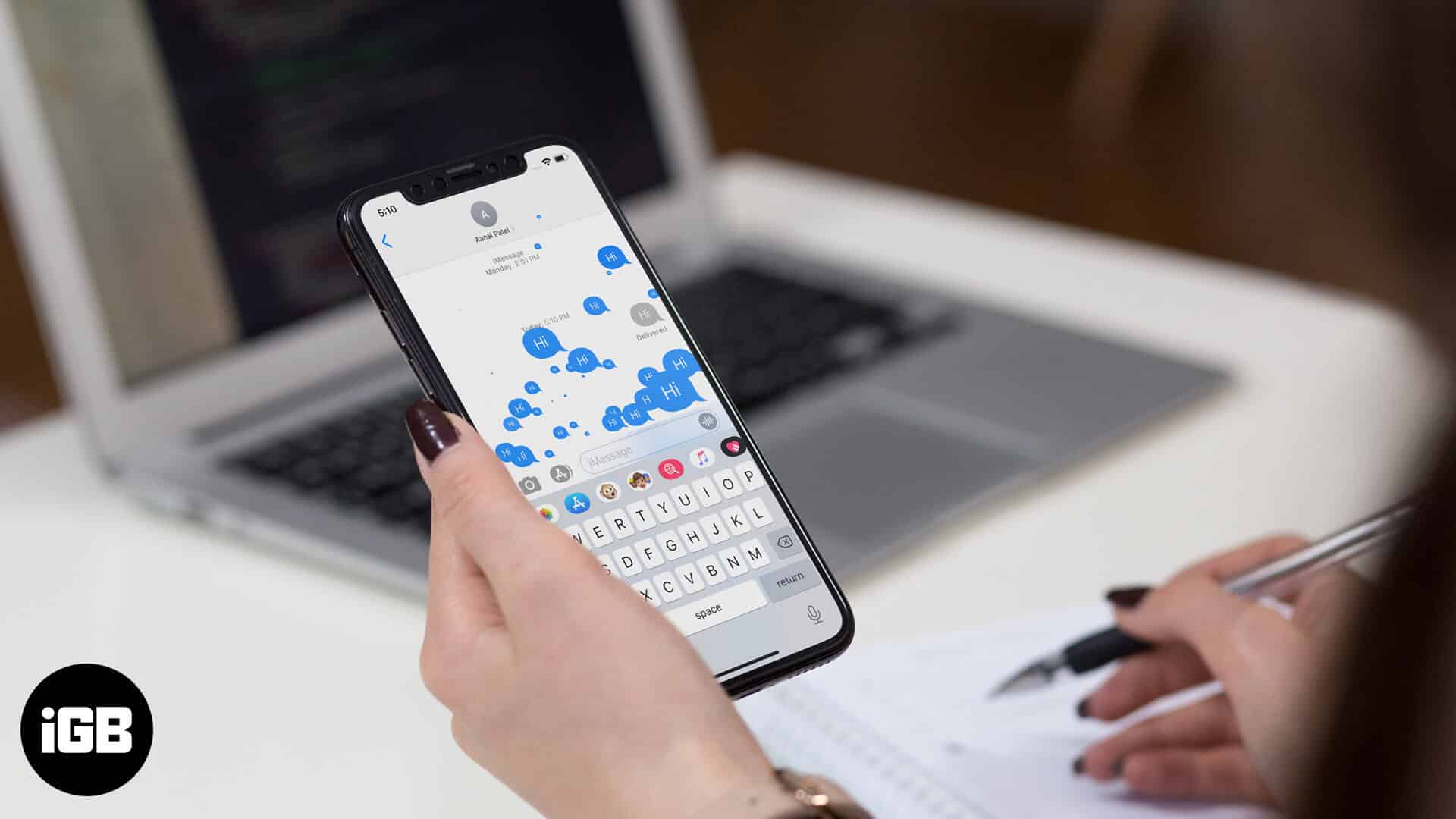
iMessage screen effects on iPhone/iPad are fun to use and can add a flair in the ‘usual communications’ with the range of screen and bubble effects. However, I keep it off to prevent unnecessary bombarding of effects. I’m just a little sensitive to motions, and these bubbly effects sometimes distract me when I am working on important things. If you too fall under the same category, here’s how you can disable iMessage screen effects.
How to disable iMessage effects from auto-playing on iPhone or iPad
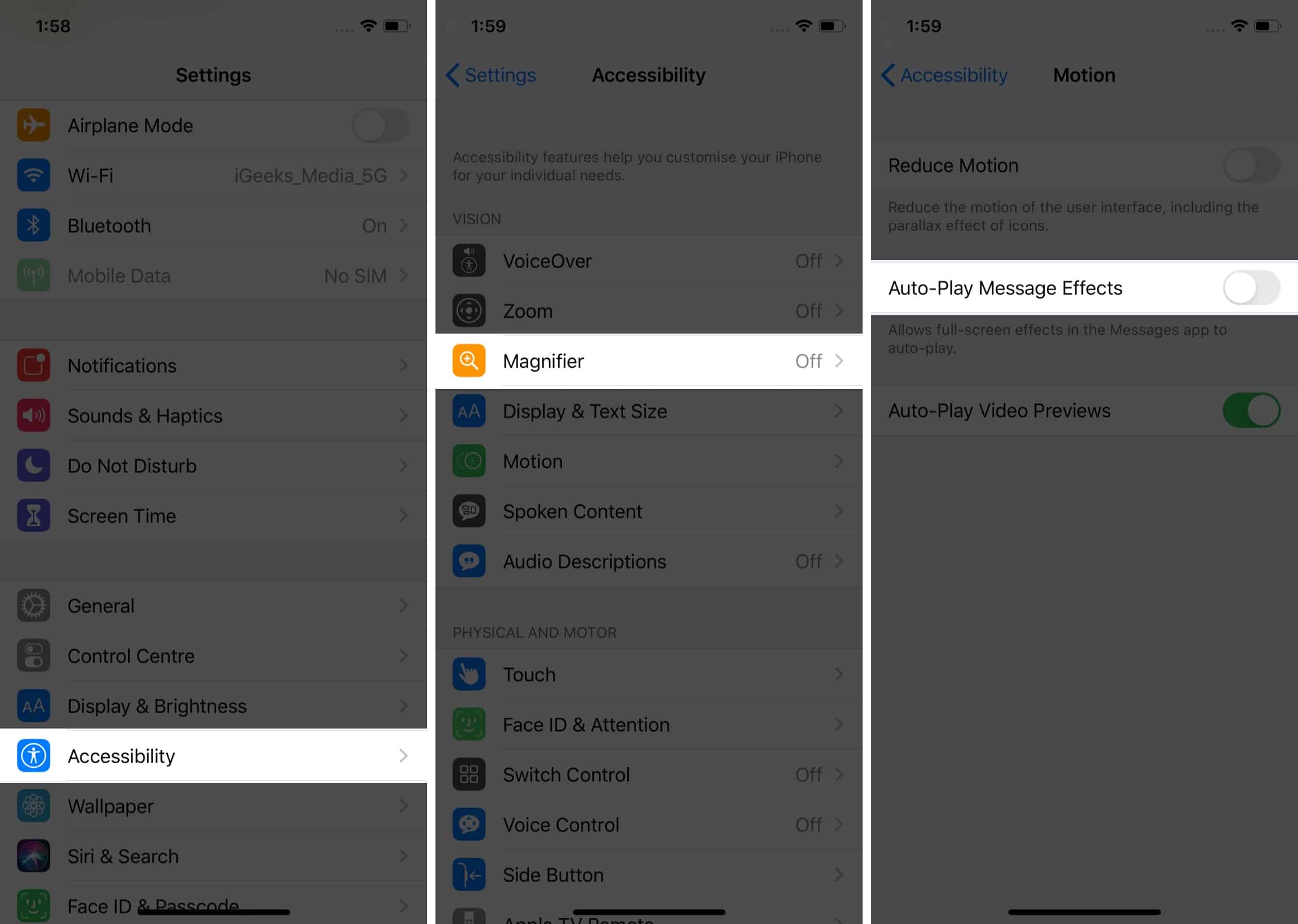
- Open the Settings app on your iPhone
- Go to the Accessibility section.
- Now select Motion and toggle off ‘Auto Play iMessage Effects.’
Note:
The steps mentioned above are only for devices operating on iOS 13 or later. If you are using a preceding version of iOS, you’ll have to open the Settings app → Accessibility → Reduce Motion → Disable iMessage Screen Effects.
Can I permanently disable iMessage screen effects?
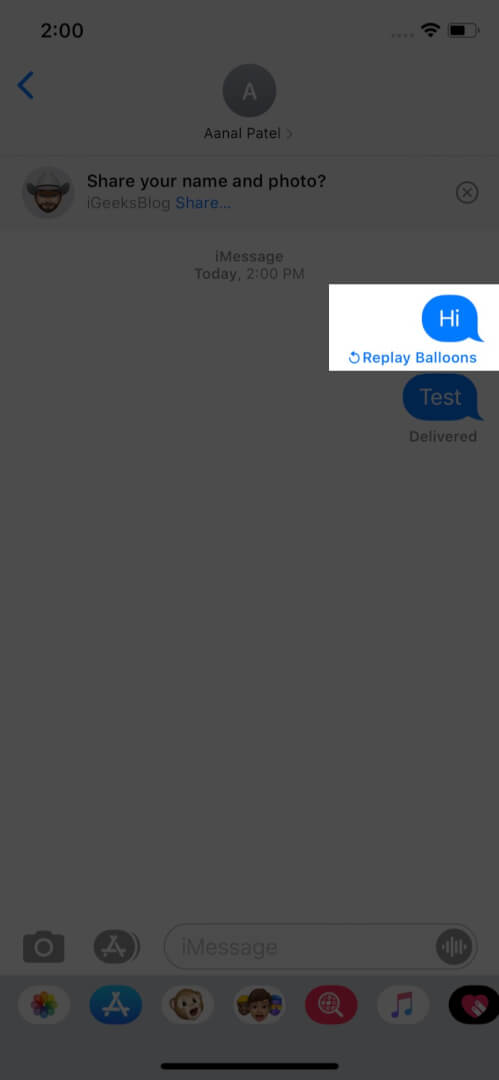
I’m afraid you can’t do that. However, the steps mentioned above will stop the unwanted display of effects and give the bait in your hand. Having said this, you can choose to manually play these effects by the ‘Replay‘ option beneath the text bubble.
Are you opting to disable iMessage screen effects on your device?
With new iMessage upgrades and features like Memojis, personalizing profile, emoji tapback, etc., Apple has undoubtedly made the default chat app engaging. However, there are days when you like things simple. I hope the steps help you. Just in case there’s anything else I can help you with, do let me know.
You would like to read these posts as well:
Topics

Written by
MayankMayank is a published author and a tech-blogger with over ten years of writing experience for various domains and industries. At iGeeks, he mostly writes about blogs that solve user-problems and guide them on unleashing the full potential of their Apple Device. He can often be found with his headphones on, typing to the rhythm of some country song.
View all posts →More from How-to

How to Turn Off Location on Snapchat (Step-by-Step Guide)
Want to stop sharing your location on Snapchat? This guide explains how Snapchat location sharing works and shows simple ways to turn off your location using Ghost Mode or phone settings. Stay in control of your privacy in just a few steps.
 VikhyatMarch 5, 2026
Snapchat Parental Controls: How to Set Up Family Center and Keep Your Teen Safe
Snapchat’s Family Center lets parents monitor their teen’s friend activity and screen time without reading private messages. Here’s how to set it up and what to expect.
VikhyatMarch 3, 2026
How to Block and Unblock Someone on Instagram
Instagram lets you block or unblock someone in seconds. Follow these simple steps to take full control of your privacy and online peace.
 Ava BiswasMarch 2, 2026