I have thousands of photos sitting in Google Photos, and I couldn’t tell you what half of them are. Old vacation pictures, forgotten screenshots, memes, and selfies I haven’t looked at in years are all buried somewhere in my library.
While browsing Google Photos recently, I came across Remix, an AI-powered feature that gives existing photos a completely new look. It finally gave me a reason to revisit images I’d forgotten about and see what I could create with them.
I tried all three Remix categories: Reimagine, Art Styles, and Filters using different photos. Not every result impressed me, especially when AI had to recreate faces or fine details, but a few turned out well enough that I actually wanted to keep them.
What is Google Photos Remix?
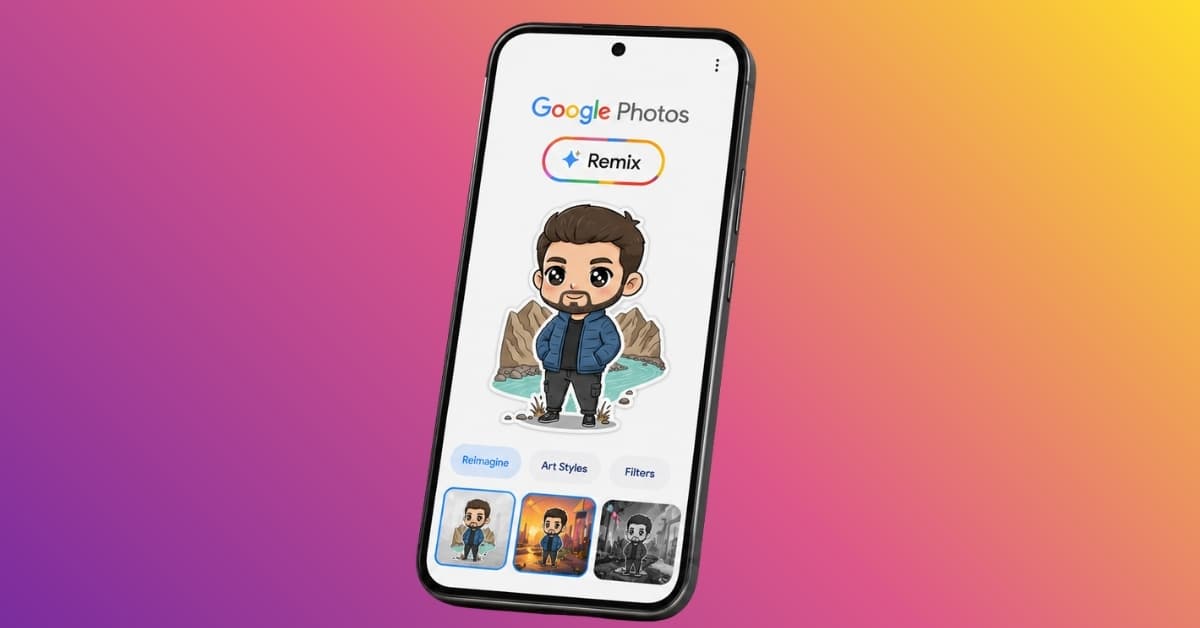
Remix lets you take any photo already saved in Google Photos and give it a completely different look using AI. All you need to do is pick a photo and choose one of the available presets. Google Photos creates a new AI-generated version while leaving your original image untouched.
The feature is divided into three categories: Reimagine, Art Styles, and Filters. Reimagine can place you in a completely different setting or turn you into something like a collectible figurine. Art Styles recreates photos as sketches, paintings, or illustrations, while Filters focuses on photographic looks such as film grain and vintage effects.
You can use Remix for simple edits, such as giving an old vacation photo a film look, or change the image entirely. For example, one of the available presets can turn a casual selfie into a professional-looking headshot.
How to use Google Photos Remix
Using Remix only takes a few taps:
- Open the Google Photos app and head to the Create tab.
- Here, tap Remix.
- Now, choose your preferred category: Reimagine, Art Styles, or Filters.
- Next, select the template you want to try.
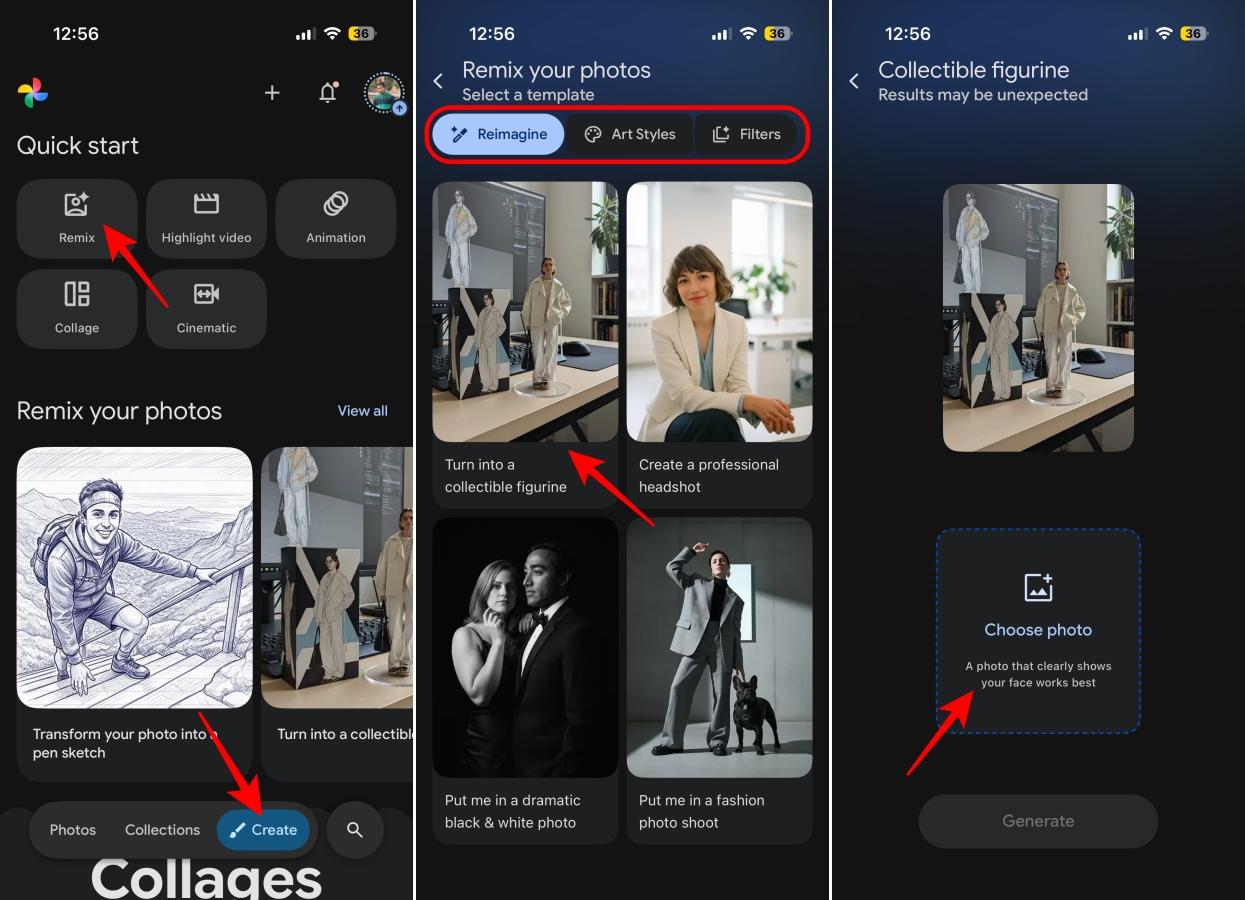
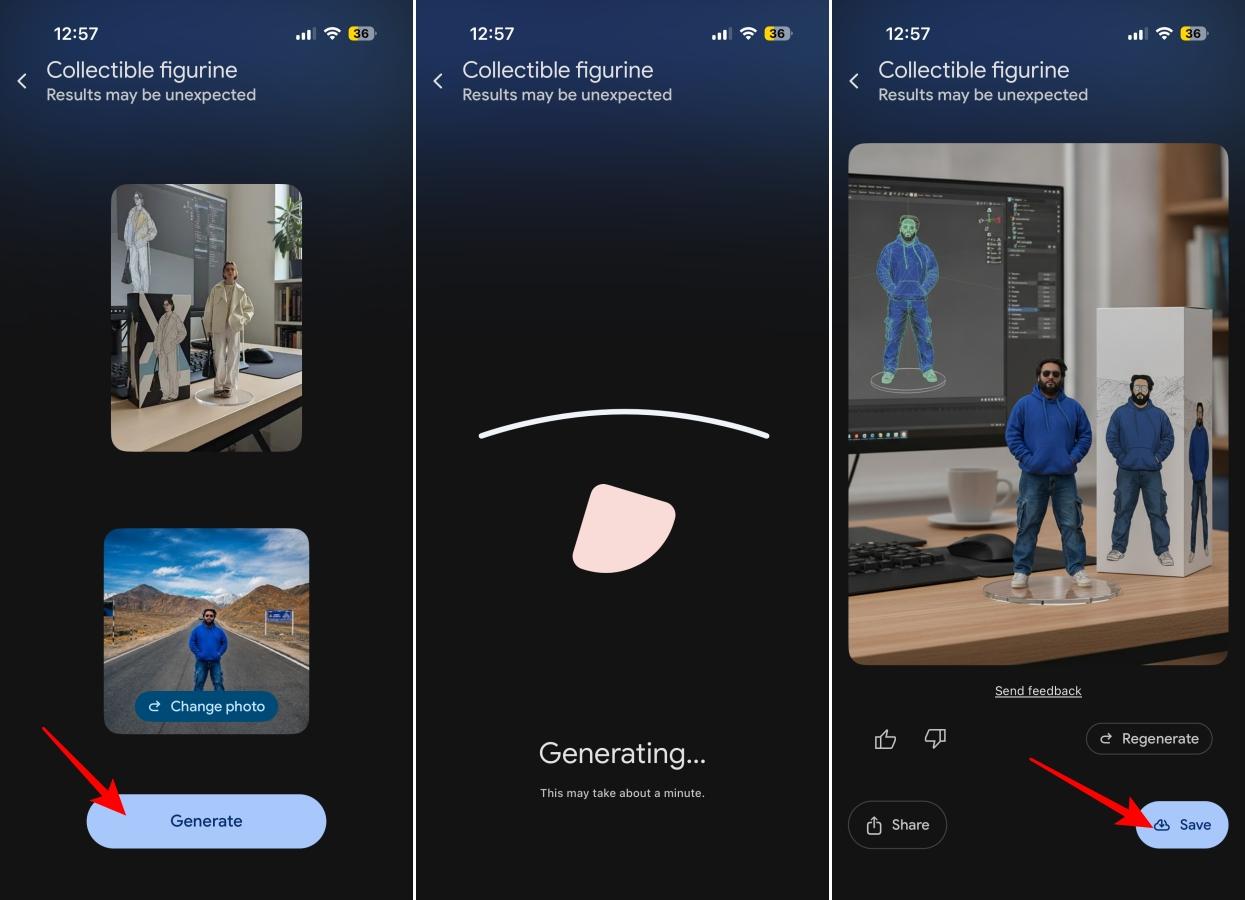
- Choose a photo from your library, then tap Generate.
- Wait for Google Photos to generate the new image.
- Once it’s ready, you can save or share the image if you like the result.
- If you don’t like it, tap Regenerate to try again.
What each Google Photos Remix category does
Although Google puts all three options under Remix, they don’t have much in common once you start using them. Reimagine makes the biggest changes to a photo, Art Styles turns it into different forms of artwork, while Filters stick to more familiar photo effects.
Reimagine: The most creative Remix mode
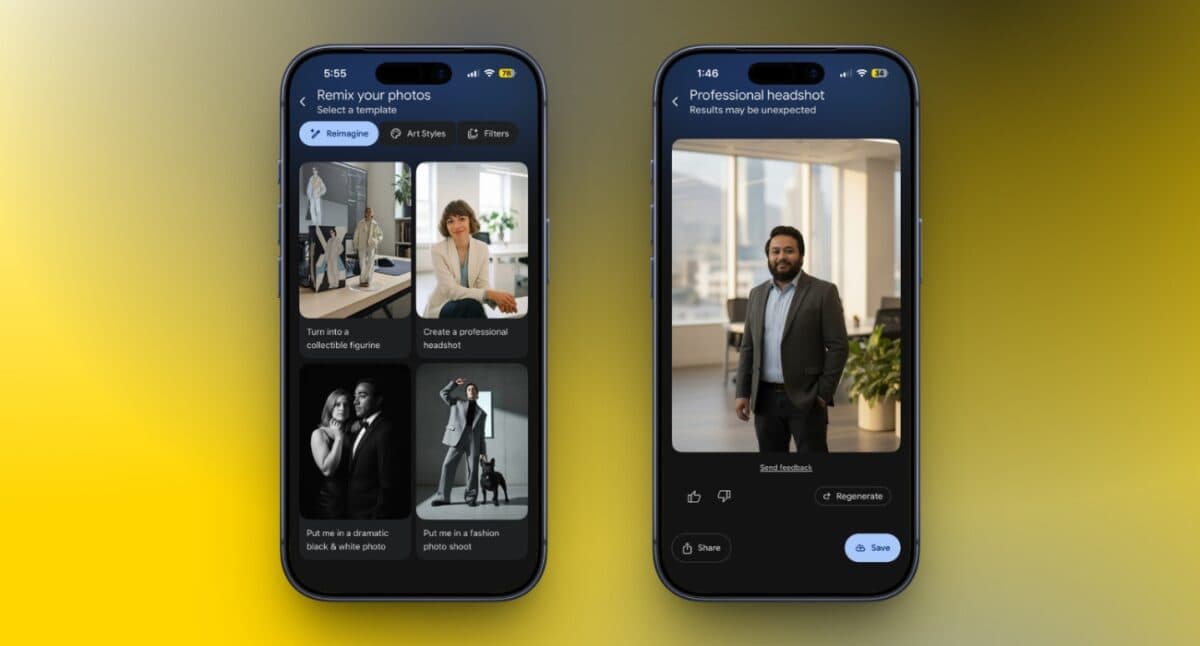
The Collectible Figurine preset was the first one I tried, and it quickly became my favorite. It transformed an ordinary photo into a miniature figure placed inside an entirely new scene.
You can also try a professional headshot, a dramatic black-and-white portrait, or a fashion photo shoot. Of all the presets, the Professional Headshot template felt the most practical. It turned an ordinary selfie into something that genuinely looked suitable for a LinkedIn profile or professional profile picture.
Reimagine can get things wrong, though. Faces occasionally looked strange in my results, and smaller details sometimes came back looking nothing like the original. I still ended up running quite a few photos through it, mostly because I never really knew what I was going to get back.
Art Styles: Turn your photos into artwork
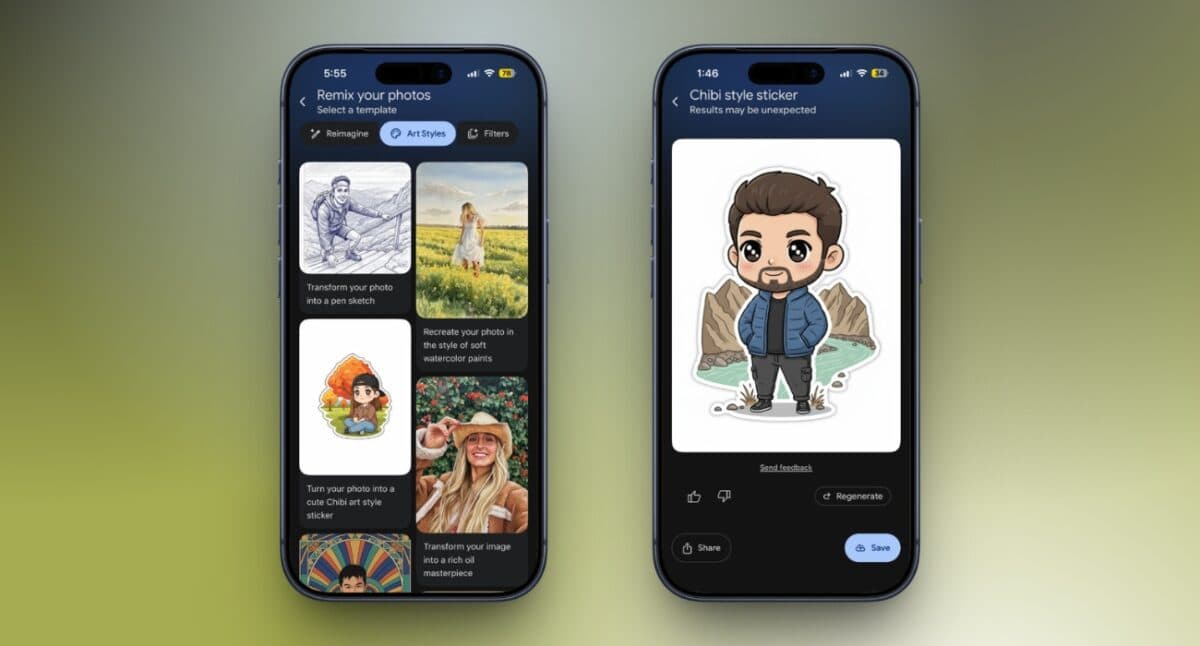
I had better luck with Art Styles when using photos that already looked good on their own. Rather than rebuilding the entire image, these presets change how the existing photo looks.
I spent the most time experimenting with Pen Sketch, Soft Watercolor, Chibi Sticker, and Oil Masterpiece. Watercolor and sketch worked particularly well on my travel photos. Chibi, on the other hand, made more sense when there was a person in the shot.
The original photo also remained much easier to recognize here. That’s probably why I preferred Art Styles for photos I actually cared about, since I could change their appearance without losing too much of what I liked about the original.
Filters: Quick film and vintage effects
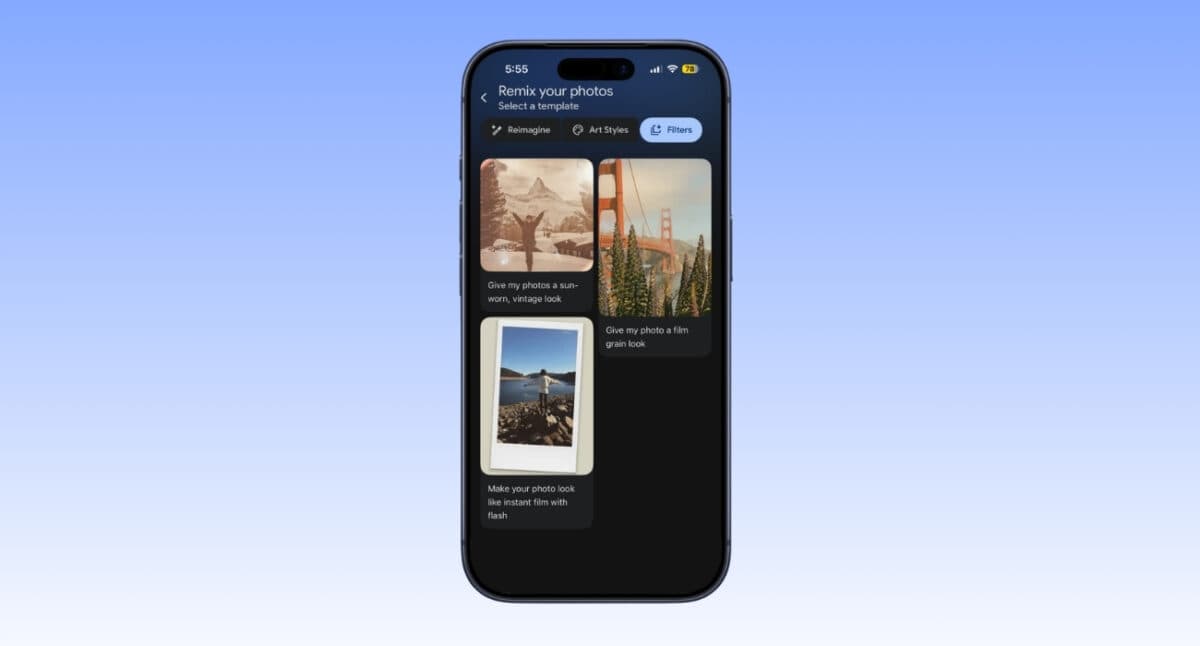
Filters will feel familiar if you’ve used almost any photo-editing app before. Remix includes options such as Sun-Worn Vintage, Film Grain, and Instant Film with Flash.
Most of the time, I used these on travel shots to give them an older film-camera look. The results weren’t as entertaining as seeing myself turned into a figurine or an illustration, but I also knew roughly what the finished photo would look like before applying the effect.
I’d use Filters when I already like a photo and only want to change its overall look. They leave the image itself mostly alone, which makes them the safest of the three Remix options.
Which Google Photos Remix mode is worth using?
After testing all three categories, Art Styles is the one I’d probably keep coming back to. It gives photos a noticeably different look while still keeping enough of the original image intact.
Reimagine was more fun to play around with. The collectible figurine and professional headshot templates are probably the first ones I’d show someone who hasn’t tried Remix before. The results aren’t always consistent, though, especially when faces or smaller details are involved.
Filters are much simpler by comparison. They work well when I just want to give a photo a quick film or vintage look, but plenty of other apps already do the same thing. It’s nice to have those options built into Google Photos, but they’re not the reason I’d open Remix.
If I had to keep just one category, I’d go with Art Styles. But if I wanted to show someone what Remix can actually do, I’d start with Reimagine.
Is Google Photos Remix worth trying?
Remix won’t replace my regular editing workflow. If I need to fix exposure, remove distractions, or make detailed edits, I’ll still rely on Google Photos’ standard editing tools.
What surprised me most was how Remix encouraged me to revisit photos I’d completely forgotten about. Instead of scrolling past old memories, I found myself wondering how they’d look as paintings, figurines, sketches, or vintage film shots.
My Google Photos library is still just as cluttered as before, but Remix has made digging through those forgotten memories a lot more enjoyable.