
How to Enable Messages in iCloud on iPhone, iPad, and Mac
Enabling Messages in iCloud will sync all your iMessage and SMS text, including images and attachments, with all your Apple devices using the same Apple ID. It will provide you with a unique messaging experience as you get the same view on every device. Besides, you also count on saving storage space as all your messages are saved on the cloud. If you’re interested in using it, let me show how you can enable Messages in iCloud on iPhone, iPad, and Mac.
- What is Messages in iCloud?
- How to Enable Messages in iCloud on your iPhone and iPad
- How to Enable Messages in iCloud on your Mac
What is Messages in iCloud?
As iCloud automatically updates and syncs up all your messages across all of your devices using your same Apple ID,, changes made on one device apply to all. Having said that, if you delete messages or conversations from your iPhone, they will be removed from all your devices. You configure conversation settings on one device, they apply to all. Saving messages to iCloud will always have your data backed up, so no matter if your Mac or iOS device ever hit upon data loss, you never lose your important messages.
Before turning on it, make sure you consider these points.
- Update your iPhone or iPad to the latest iOS or iPadOS. And your Mac to the latest macOS.
- Set up iCloud and sign in all your devices using the same Apple ID.
- Enable Two-factor authentication for Apple ID.
- Set up and enable iCloud Keychain.
How to Enable Messages in iCloud on iPhone and iPad
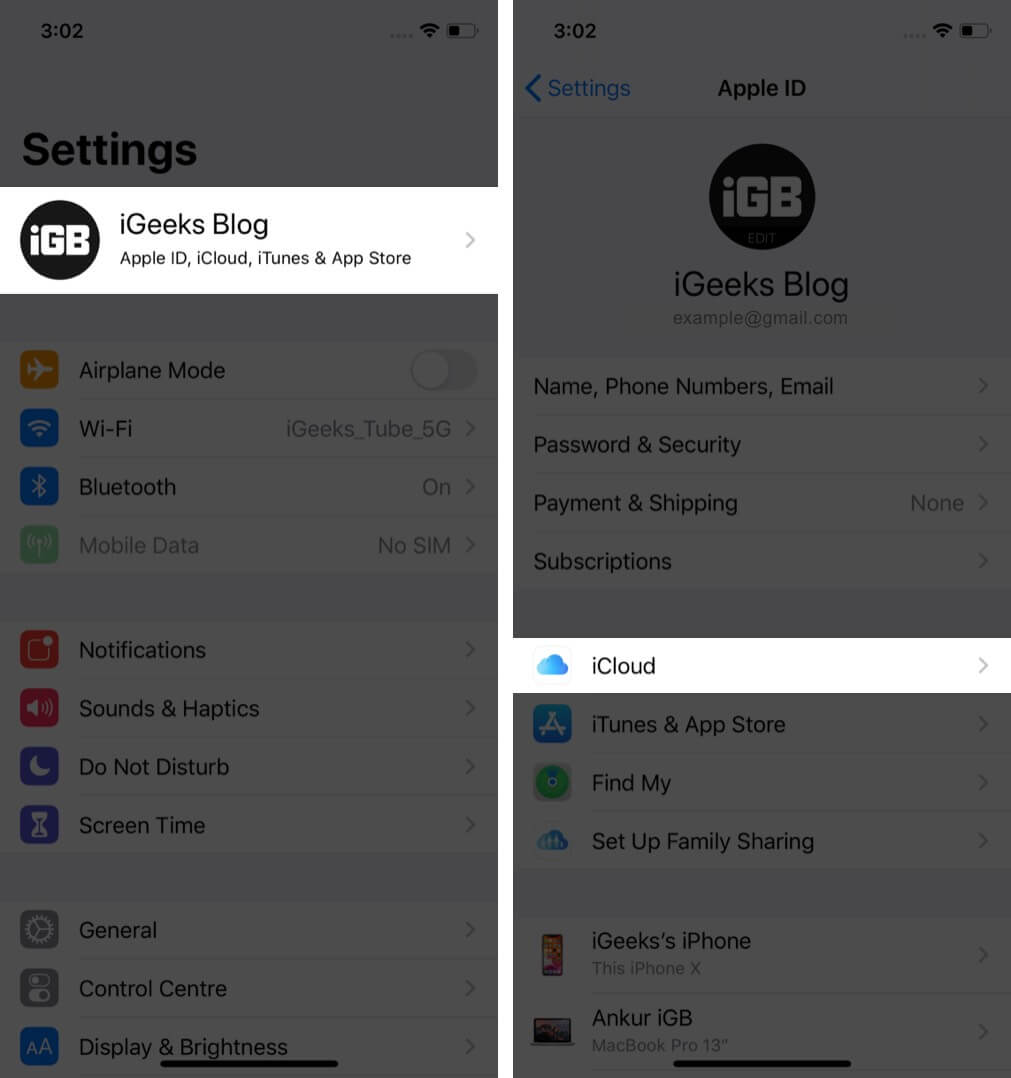
- Open the Settings app on your iOS device.
- Tap on your name at the top of all settings.
- Go to iCloud.
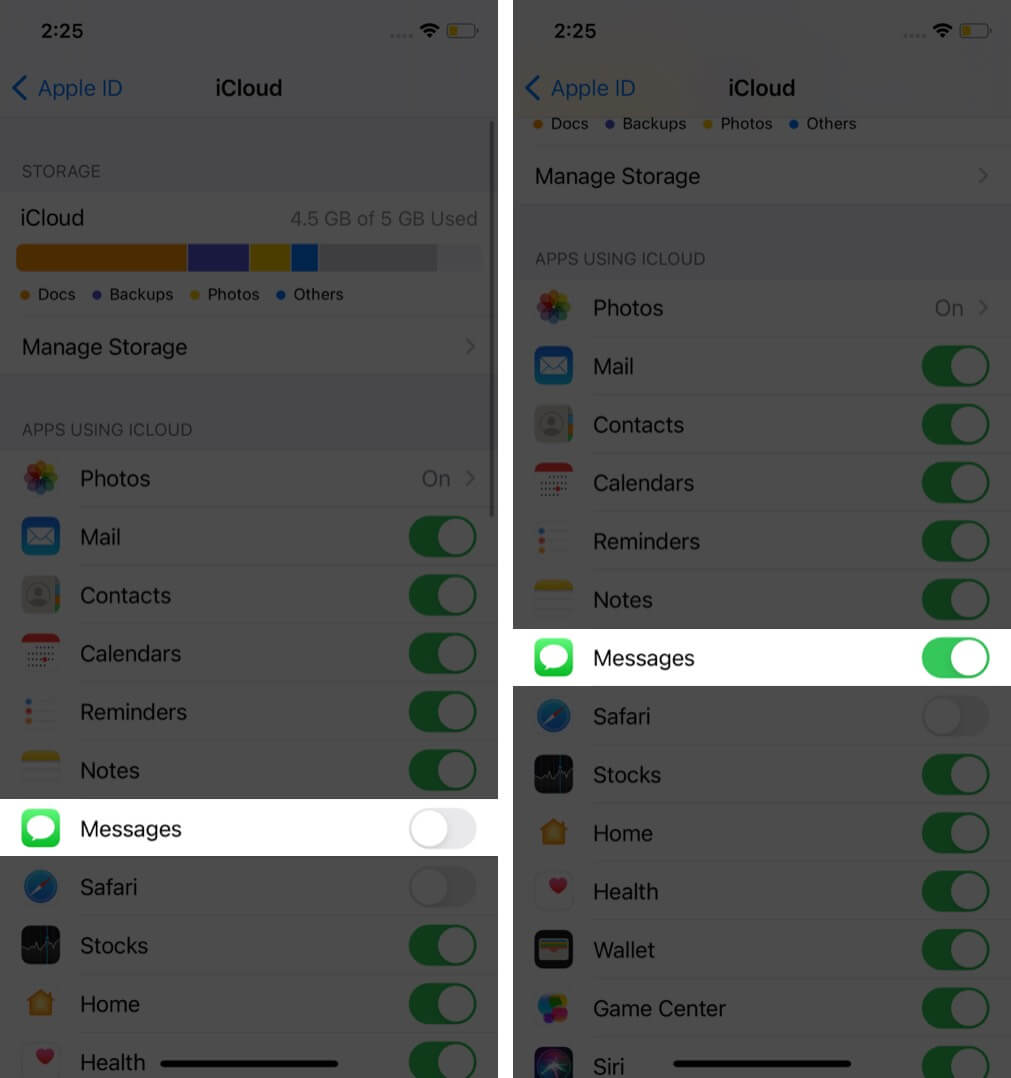
- Turn on the Messages toggle.
How to Enable Messages in iCloud on your Mac
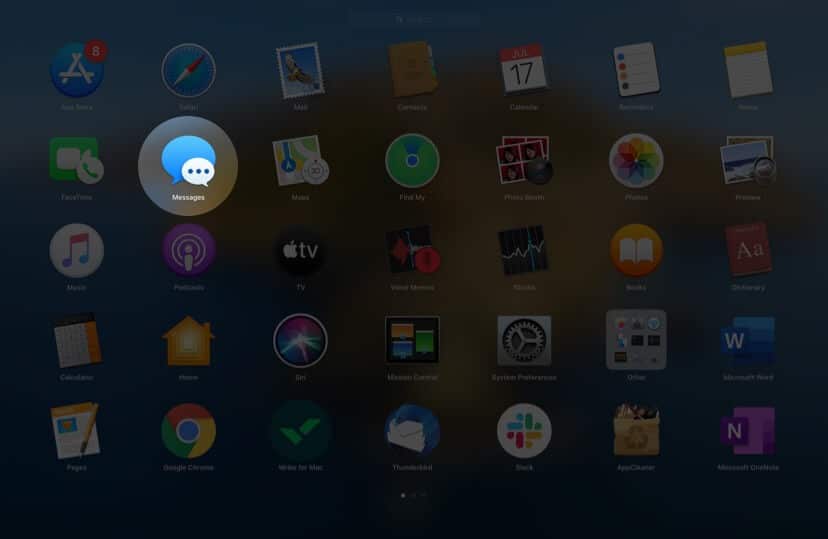
- Launch the Messages app.
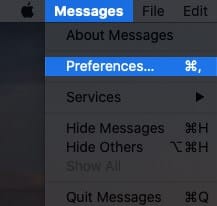
- Choose Preferences from the top menu bar.
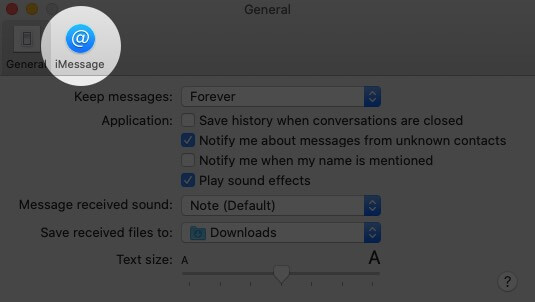
- Click on iMessage.
- Mark the checkbox of Enable Messages in iCloud.
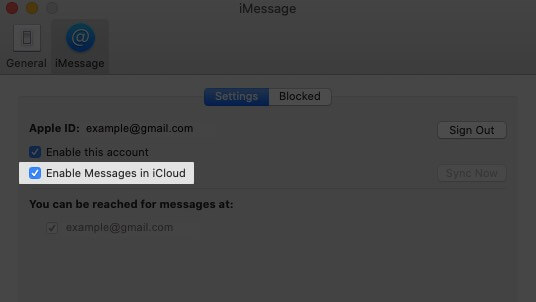
Later, if you wish to stop receiving iCloud messages on your Mac, you can disable the feature by un-marking the checkbox.
Remember, when you turn off Messages in iCloud on your iPhone or iPad, you disable it just for that one device. Other devices will keep syncing up until you disable the service for them.
What to Do If iMessage Doesn’t Sync up with iCloud?
Sometimes, users stumble upon an unexpected error while syncing up their messages to iCloud or downloading the data to their device. The error may occur due to a problem in the network settings or network connection on that device. You can troubleshoot it by connecting to another Wi-Fi network or restarting the device, or resetting the network settings. If still, it doesn’t work, get help to fix the error.
Summing Up
You’ll enjoy the whole new messaging experience as iCloud will keep you updated with the same messages and information everywhere. You can pick up any device and continue the conversation that you had left on another device. If you’ve any questions regarding the Messages in iCloud, feel free to ask away in the comment section below!
Read Next:
Topics

Written by
SagarI am an aspiring tech blogger who is always in love with new generation iPhones and iPads. At iGeeksBlog, I am dedicated to rendering the How-To's, Troubleshooting bugs, and reviewing apps that are a great deal of help. When I am not writing, I am daydreaming about the future of all things Apple and watching videos of smartphone battles on YouTube.
View all posts →More from How-to

How to Turn Off Location on Snapchat (Step-by-Step Guide)
Want to stop sharing your location on Snapchat? This guide explains how Snapchat location sharing works and shows simple ways to turn off your location using Ghost Mode or phone settings. Stay in control of your privacy in just a few steps.
 VikhyatMarch 5, 2026
Snapchat Parental Controls: How to Set Up Family Center and Keep Your Teen Safe
Snapchat’s Family Center lets parents monitor their teen’s friend activity and screen time without reading private messages. Here’s how to set it up and what to expect.
VikhyatMarch 3, 2026
How to Block and Unblock Someone on Instagram
Instagram lets you block or unblock someone in seconds. Follow these simple steps to take full control of your privacy and online peace.
 Ava BiswasMarch 2, 2026