


ChatGPT plugins help most when they save you from copying details between your inbox, calendar, files, and work apps. Google and Microsoft tools cover everyday tasks; less obvious options like Fireflies, Adobe Acrobat, and Aha! help with meeting follow-ups, PDF chores, and product roadmaps.
OpenAI marks its 2023 ChatGPT plugins announcement as outdated. Today’s plugin directory can bundle reusable instructions, connected apps, or both, so one plugin may include several apps. Start with the service you already use instead of connecting everything in the directory.
How to install and use a ChatGPT plugin
- Open Plugins in ChatGPT, or Apps if that is what your account shows. Pick a plugin and review the apps and setup it includes.
- Select Install plugin or Connect when prompted, then sign in to the service if it asks.
- In a chat, mention the plugin with
@or open+and choose More when those controls are available. Ask for a specific task.
Your account, plan, region, workspace, role, and ChatGPT surface affect which plugins appear. Work and school administrators may need to enable an app. ChatGPT can use only information the connected account can access, and actions such as editing a file or changing a store require the right permissions. Check the current OpenAI plugin guide if your menu looks different.
ChatGPT plugins for email, calendars, and files
If you use Google or Microsoft at work, start with the tools that already hold your information. Connecting duplicate services usually adds another account to manage without giving ChatGPT useful new context.
Gmail for finding email and preparing for meetings

Gmail can search and reference your inbox. Ask it to find the latest message about a project, pull out a deadline, or gather recent correspondence before a call. For example: @Gmail Find the latest email about the launch and list the deadline and next steps. See the Gmail plugin.
Google Drive for working from your documents

Drive can search Docs, Sheets, Slides, PDFs, and other files you can access. Use it to compare two budget sheets, find a decision in meeting notes, or draft a status update from a project folder. Where the feature and permissions are available, ChatGPT can also update the source file; our coverage of editing Google Drive files in ChatGPT explains that workflow. Browse the Google Drive plugin.
Google Calendar for checking when you are free

Calendar can look up events and availability, which is useful when you are trying to find a free afternoon or prepare for an upcoming meeting. Try: @Google Calendar When am I free for a 30-minute call on Thursday? See the Google Calendar plugin.
Outlook Email for searching work messages
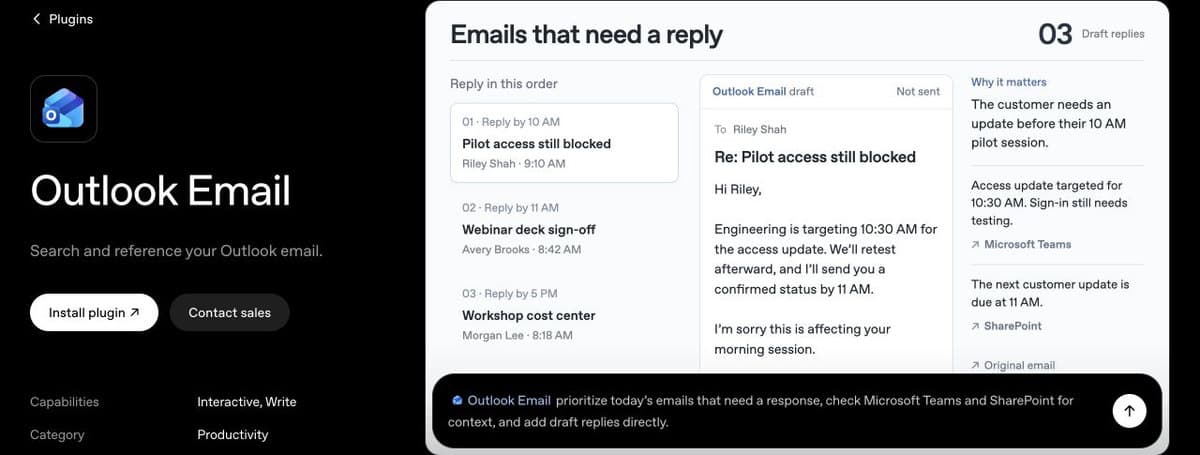
Outlook Email is the Microsoft equivalent to Gmail: search your mailbox, find the latest message about a project, or gather context before replying. Connect it if Outlook is your work email. See the Outlook Email plugin.
Outlook Calendar for checking your schedule

Use Outlook Calendar to look up events and availability before suggesting a meeting time. If Outlook is your work email, this gives ChatGPT the calendar side of that setup. Browse the Outlook Calendar plugin.
Microsoft Teams for catching up on chats
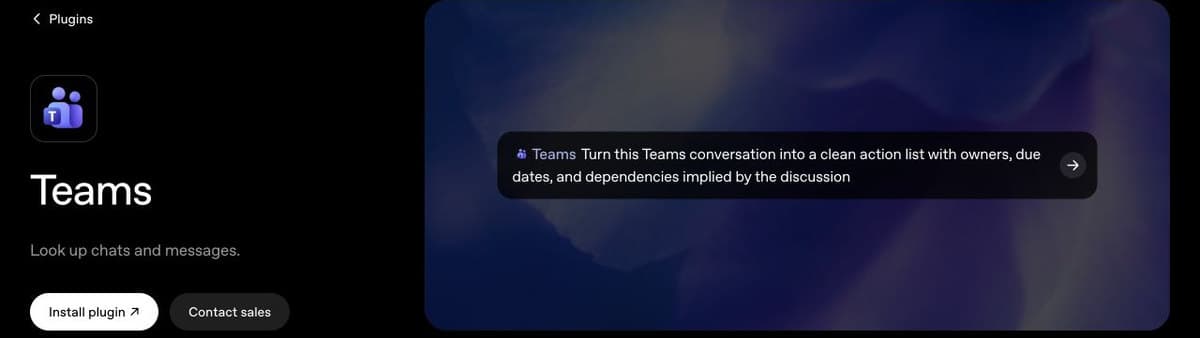
Teams can look up chats and messages, helping you find a decision or catch up on a conversation without scrolling through a busy channel. Try: @Teams Find the latest decision about the launch plan and summarize the next steps. See the Microsoft Teams plugin.
SharePoint for finding shared work files

SharePoint searches shared sites and files, including OneDrive content available to your connected account. Ask it to find a policy, project brief, or the latest version of a team document. See the SharePoint plugin.
Plugins for team knowledge, design, and code
Connect a team chat, wiki, design tool, or code repository only if you use it regularly.
Slack for decisions buried in channels
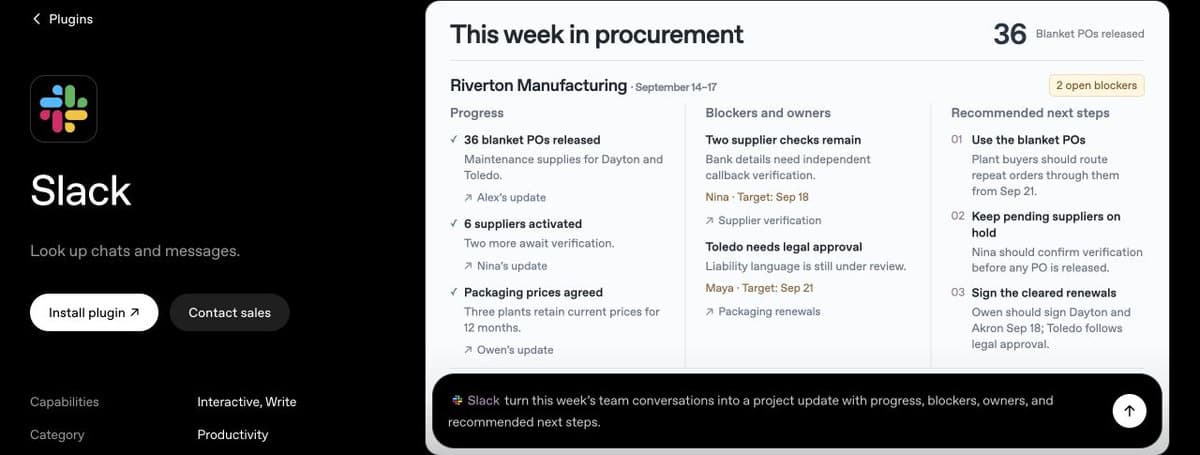
Slack can search messages, threads, and channels you have permission to access. Ask it to find the decision on a project or summarize what changed in a conversation. Try: @Slack What did the team decide about the launch date? Link the messages that support the answer. Browse the Slack plugin.
Notion for searching a team wiki
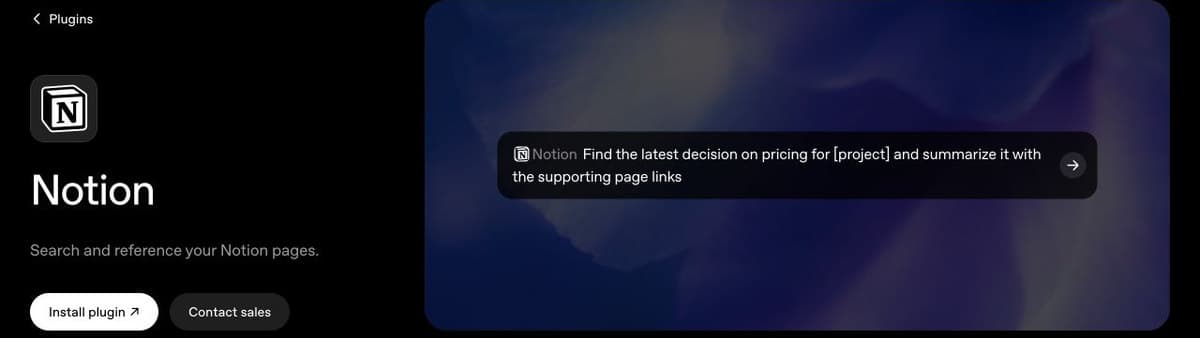
Notion helps find project notes, plans, and decisions across pages you can access. Depending on the plugin, permissions, and workspace settings, it may also create or update pages and databases. Try: @Notion Find the latest decision about [project] and summarize it with the page link. See the Notion plugin.
Canva for editable presentations and graphics
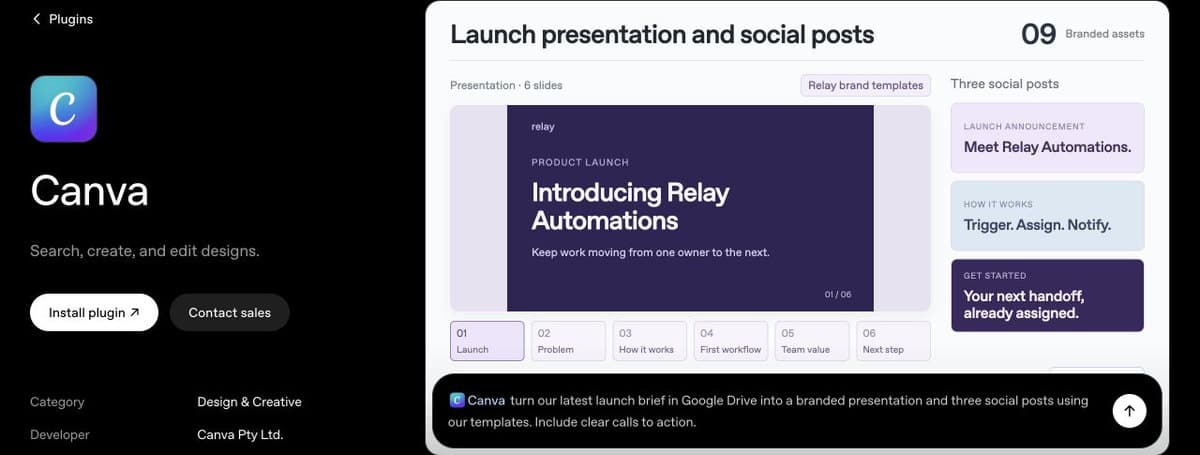
Canva can turn a prompt into a presentation, flyer, or social post you can keep editing in Canva. Use it when you want a first design built from your brief or existing brand assets; skip it if you only need help writing the copy. Browse the Canva plugin.
GitHub for understanding a repository
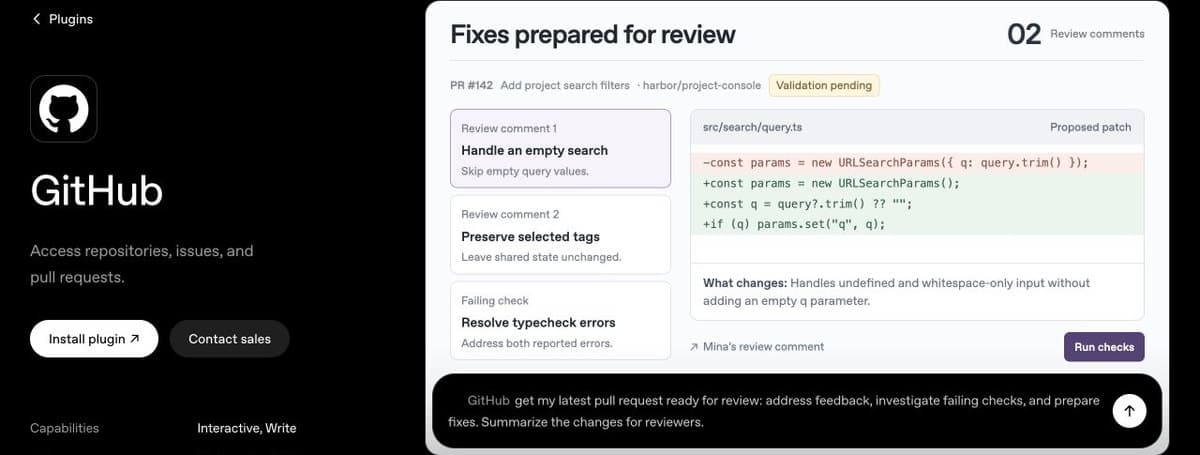
GitHub gives ChatGPT access to repositories, issues, and pull requests you authorize. Ask it to explain an unfamiliar project, summarize a pull request, or find where a feature is implemented. It is a specialist pick for people who work with code, not a general productivity add-on. See the GitHub plugin.
Lesser-known ChatGPT plugins for specific jobs
Each one is worth adding only if your work already depends on that service.
Adobe Acrobat for fixing and converting PDFs

Acrobat can reorder, split, or merge PDF pages, convert files, redact sensitive details, and extract information from scans with OCR. It can save a round trip to a separate PDF editor when you need to tidy a form or turn a scanned table into editable data. Review the processed file, especially redactions, before sharing it. See the Adobe Acrobat plugin.
Fireflies for searching meeting transcripts

If your meetings are already recorded in Fireflies, ChatGPT can search those transcripts, summarize decisions, and pull out action items with the supporting quote or timestamp. Try: @Fireflies List the action items from my last [project] meeting, including owners and due dates if stated. See the Fireflies plugin.
Dropbox for turning stored files into a draft

Dropbox can search files you already have there, summarize what changed, and use a folder to draft a project plan or status update. Choose it if Dropbox is where your work lives; if your files are already in Drive or SharePoint, you probably do not need another connection. Browse the Dropbox plugin.
Atlassian Rovo for Jira and Confluence work

Rovo searches Jira issues, Confluence pages, and Compass project information. It can also turn a discussion into Jira tasks when those actions are enabled, which is handy after a meeting or planning session. This only pays off if your team already uses Atlassian; everyone else can skip it. See the Atlassian Rovo plugin.
Shopify for checking products and inventory

Shopify can help store owners review product listings, check inventory across locations, and understand sales or orders. It can also handle supported store actions, such as creating discount codes. Try: @Shopify Show me products with fewer than 10 units in stock by location. Review any change before it goes live. Browse the Shopify plugin.
Aha! for product roadmaps and release notes

Aha! brings product roadmaps and feature updates into ChatGPT. Product teams can ask what is scheduled next, spot initiatives at risk, summarize customer feedback, or draft release notes from recent updates. Use it only if your team tracks features in Aha!; it will not help much if your roadmaps live elsewhere. See the Aha! plugin.
Which plugin should you install first?
Pick the one tied to the information you search for most. Try Gmail or Outlook for email, Drive or SharePoint for files, and Slack or Teams for work conversations. Add Fireflies, Acrobat, Rovo, Shopify, or Aha! only if you already use that service.
Review the requested access before connecting an account, and be especially careful with plugins that can edit files, create tasks, or change store settings. On Apple silicon Macs, the Apple Messages plugin works in the desktop app’s ChatGPT Work and Codex views, where it can search conversations and prepare replies.