

Claude connectors help most when they cut the shuffling between your inbox, Drive, Slack, and task board. Start with Google Workspace or Microsoft 365, then add a project or design app only if Claude needs that context too.
Anthropic now groups Skills, Connectors, and Plugins under Customize. For app access, choose Connectors. Each listing shows what Claude can read or change, so check it before connecting an account.
How to install and use a Claude connector
- Open Customize, choose Connectors, then click + and Browse connectors.
- Choose a service, review its capabilities, click Connect, and sign in to that account.
- In a chat, open + > Connectors and turn on the service you want to use.
Claude may suggest a connected app when it fits your request, but you can turn connectors on or off for each chat. Claude only gets the access your account already has. Team and Enterprise users may need an owner to enable a connector first, and some services let admins restrict actions such as sending messages or editing files. See Claude’s connector setup guide if your menu looks different.
Claude connectors for email, files, and calendars
If most of your work is in Google or Microsoft apps, connect that account first. Google’s three Workspace connectors can read data and take supported actions; Claude asks before acting by default. Gmail can see attachment details, but not attachment contents. Anthropic’s Google Workspace connector guide lists the available actions and limits.
1. Google Drive for searching and working with files
Google Drive can search and read Docs, Sheets, Slides, PDFs, and Office files. Ask Claude to compare two spreadsheets, find a decision in your notes, or save a file it created to Drive. The connector can also make supported file changes when your account allows them. Browse the Google Drive connector.
If you also use ChatGPT, its Google Drive integration can open and edit supported files beside the chat.
2. Gmail for finding email and drafting replies
Gmail is useful when you remember the subject of a conversation but not which message has the detail you need. Ask Claude to find the latest emails about a vendor quote, summarize the thread, or draft a reply. See the Gmail connector.
3. Google Calendar for finding a time that works
Calendar can check your availability, compare schedules, and create or update events. Try: Find three 30-minute slots next week when Maya and I are both free. See the Google Calendar connector.
4. Microsoft 365 for Outlook, Teams, and company files
One Microsoft 365 connection can search work content in SharePoint, OneDrive, Outlook, and Teams. Use it to find a project document and pull in the latest team discussion. You need a work or school account tied to Microsoft Entra. Personal Outlook.com, Hotmail, and Live accounts are not supported, and an admin must set up the connection for your organization. Admins also control which write actions are available. Check the Microsoft 365 connector before connecting a work account.
Connectors for conversations, notes, and projects
5. Slack for decisions buried in channels
Slack can search messages, threads, channels, files, and users. Ask it to find what the team decided about a launch date, then draft a short update for the channel. It can also send messages and create Slack canvases, so review the result before it goes out. Browse the Slack connector.
6. Notion for searching a team wiki
If your plans and meeting notes live in Notion, Claude can find a decision, update a page, or create a new one from a conversation. It can also create and update databases. See the Notion connector.
7. Asana for managing tasks and projects
Asana works well if your team tracks projects there. Claude can find tasks, summarize project status, and create or update assignments. Its interactive board can also appear in the conversation, so you can review tasks without switching apps. Try: Show me the overdue tasks in the product launch project. See the Asana connector.
8. Linear for issues and development work
Use Linear if your team tracks product or engineering work there. Claude can search issues, create or update tickets, check project progress, and review cycle work. It is a better fit than Asana if your day revolves around bug reports and development tasks. Browse the Linear connector.
9. Atlassian MCP for Jira and Confluence
Atlassian MCP connects Claude to Jira, Confluence, Bitbucket, Loom, and other Atlassian tools using your existing permissions. Ask it to find the project decision in Confluence and the open Jira issues tied to it. Admin settings control which changes Claude can make, so this is best for teams that already use Atlassian. See the Atlassian MCP connector.
Connectors for design and specialist work
10. Canva for creating and editing designs
Canva can search your designs, create new ones, fill templates, and export finished files. Use it when you want Claude to turn a campaign brief into a social post or presentation you can keep editing in Canva. Its interactive editor can open directly in a Claude conversation. Browse the Canva connector.
11. Figma for turning design context into code
Figma is a specialist pick for product designers and developers. Claude can inspect selected frames and components, use that context to draft code that matches your design system, or create a flowchart in FigJam. Figma also supports an interactive design view in Claude. See the Figma connector.
12. HubSpot for customer and sales context
HubSpot gives Claude access to CRM records such as contacts, companies, deals, tickets, and campaigns. Use it to prepare for a sales call, summarize open deals, or review campaign performance. It can update CRM records too, so connect it only if your work already runs through HubSpot. Browse the HubSpot connector.
13. GitHub for understanding a codebase
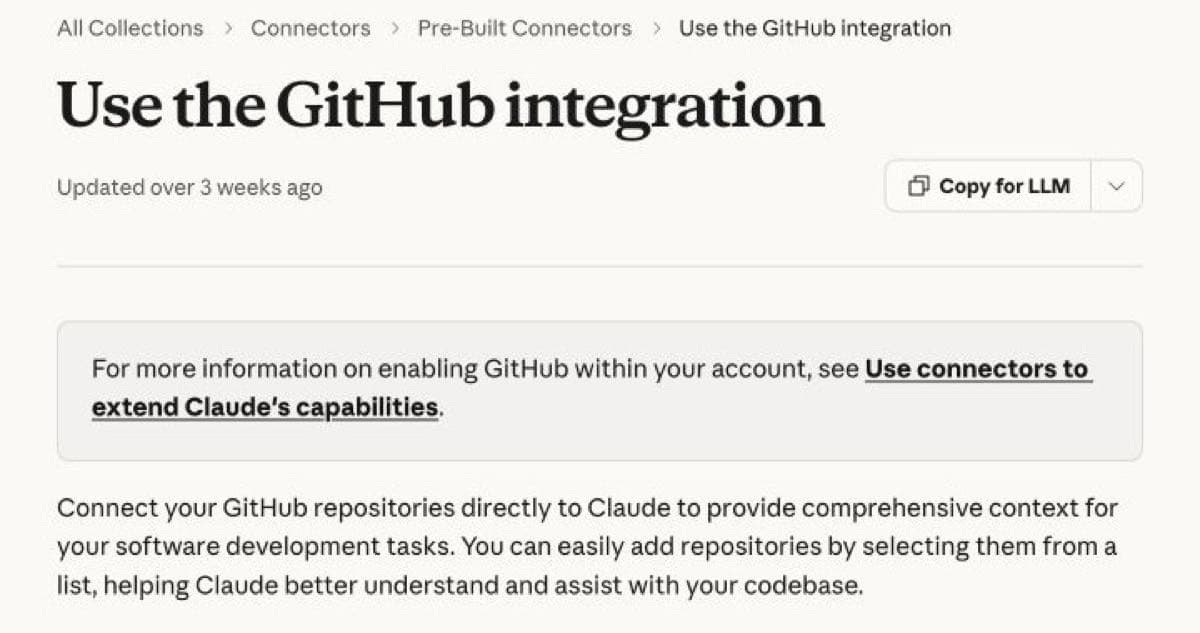
GitHub works differently from the directory connectors. You can add selected files and folders from a repository to a chat or Project, then ask Claude to explain a feature or an unfamiliar codebase. It does not pull in commit history, pull requests, or other repository metadata. Private repositories may need approval from an organization admin. Read the GitHub integration guide.
Which Claude connector should you connect first?
Choose the app where you spend the most time searching. For Google users, start with Drive, Gmail, or Calendar. For a Microsoft workplace, connect Microsoft 365. Then add Slack, Notion, or the project tool your team already uses. You probably do not need both Asana and Linear, or separate Teams and SharePoint connectors on top of Microsoft 365.
Avoid turning on every tool in every chat. If you keep 10 or more connectors active, Claude’s Tool access setting can switch to On demand to give the conversation more room. For longer jobs, connected apps also work in Cowork; Claude’s chat and Cowork experiences are merging. Mac users who want Claude to search local clipboard history can also try Paste MCP.