
I write a lot of messages every day, and often end up rewriting them before hitting send. Sometimes a message is too long, the wording feels awkward, or I just can’t find the right tone.
That’s why I was curious about Write With Siri in iOS 27. Apple says Siri can now help write, rewrite, proofread, and improve text using Apple Intelligence. But does it actually make everyday messages better without making them sound like they were written by AI?
What is Write With Siri in iOS 27?
Write With Siri is part of Apple’s next-generation Apple Intelligence features in iOS 27. It lets you use Siri AI to compose, rewrite, proofread, edit, and get feedback on text without leaving the app where you’re writing.
In practice, that means I can be inside Messages, Mail, Notes, Reminders, or a supported third-party app and ask Siri to generate text from scratch based on a natural-language request. It can also work with text I’ve already written and modify it based on instructions such as making it more formal, friendly, concise, or polished.
More interestingly, Apple says Siri can reflect how you normally communicate with a particular person, including your usual punctuation and tone in Mail and Messages.
My first test: Asking Siri AI to write a message
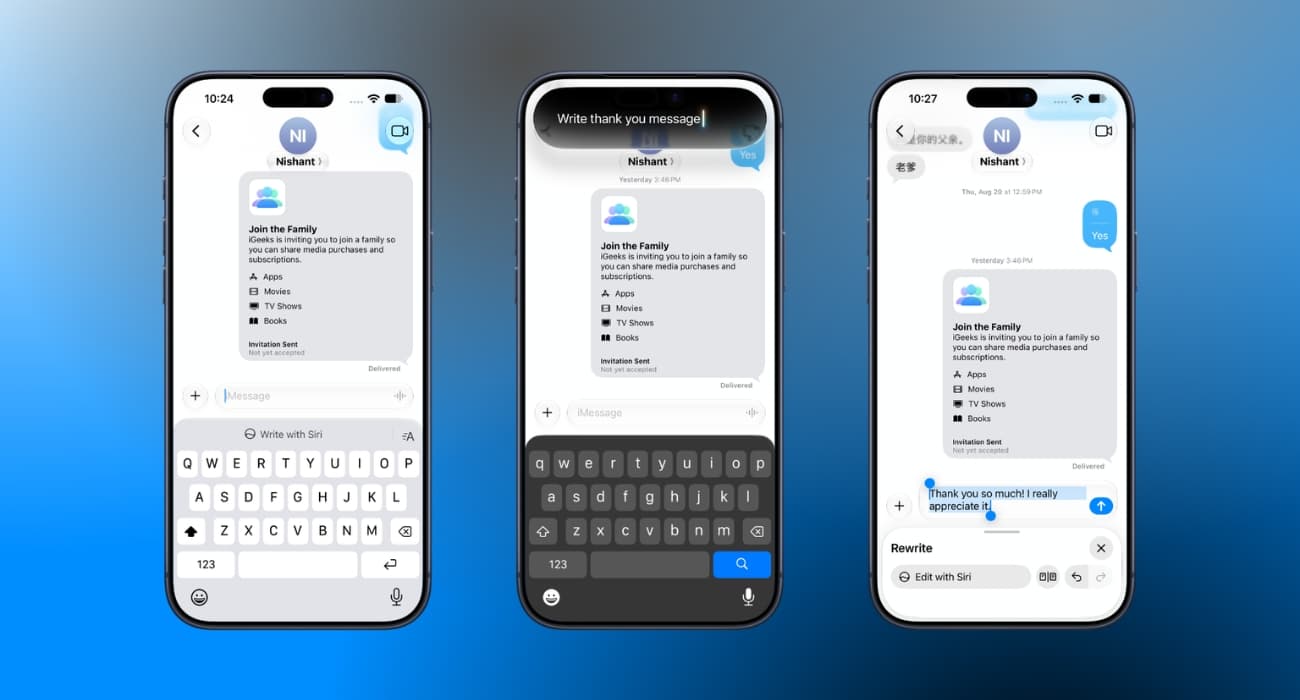
My first test was deliberately simple. Instead of writing a message myself, I asked Siri AI to create one from scratch.
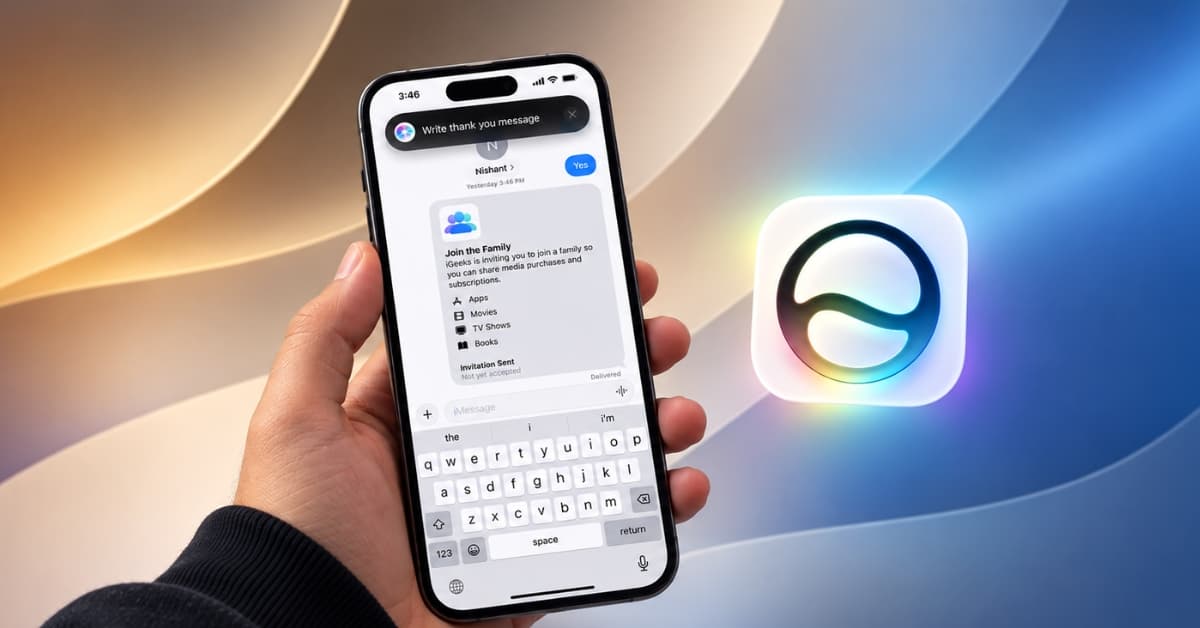
The workflow is surprisingly straightforward. When the writing field is active in a supported app, you can see the Write With Siri button above your keyboard. Tap it to type your prompt or use the microphone to tell Siri your request. Then hit the search button in the keyboard.
I tried vague prompts like asking Siri to write a short thank-you message. The first thing I noticed was how little I needed to specify. It doesn’t need a perfect prompt such as: “Generate a warm but concise thank-you message with a conversational tone.” You can simply describe what you want in normal language.
The generated message was polished, grammatically clean, and usable. But there was one catch. And that became a recurring theme during my testing.
For a professional email or an important message, that’s useful. For a casual text to someone I know well, I sometimes found myself removing the polished wording because it sounded more formal than I would naturally type.
Rewrite existing text with Siri AI
This is where Write With Siri became much more useful.
Writing something from scratch is nice, but there are already plenty of AI tools that can do that. The feature became interesting when I started writing messages myself and then asking Siri AI to improve them.
For example, I’d type a rough message with missing punctuation, awkward wording, or a sentence that was much longer than it needed to be.
Instead of deleting it and starting again, I could ask Siri to rewrite it.
To do so:
- Write or select the text.
- Tap the Siri AI icon on the floating menu.
- Now, you can tell Siri what changes you want.
- Review the rewritten version.
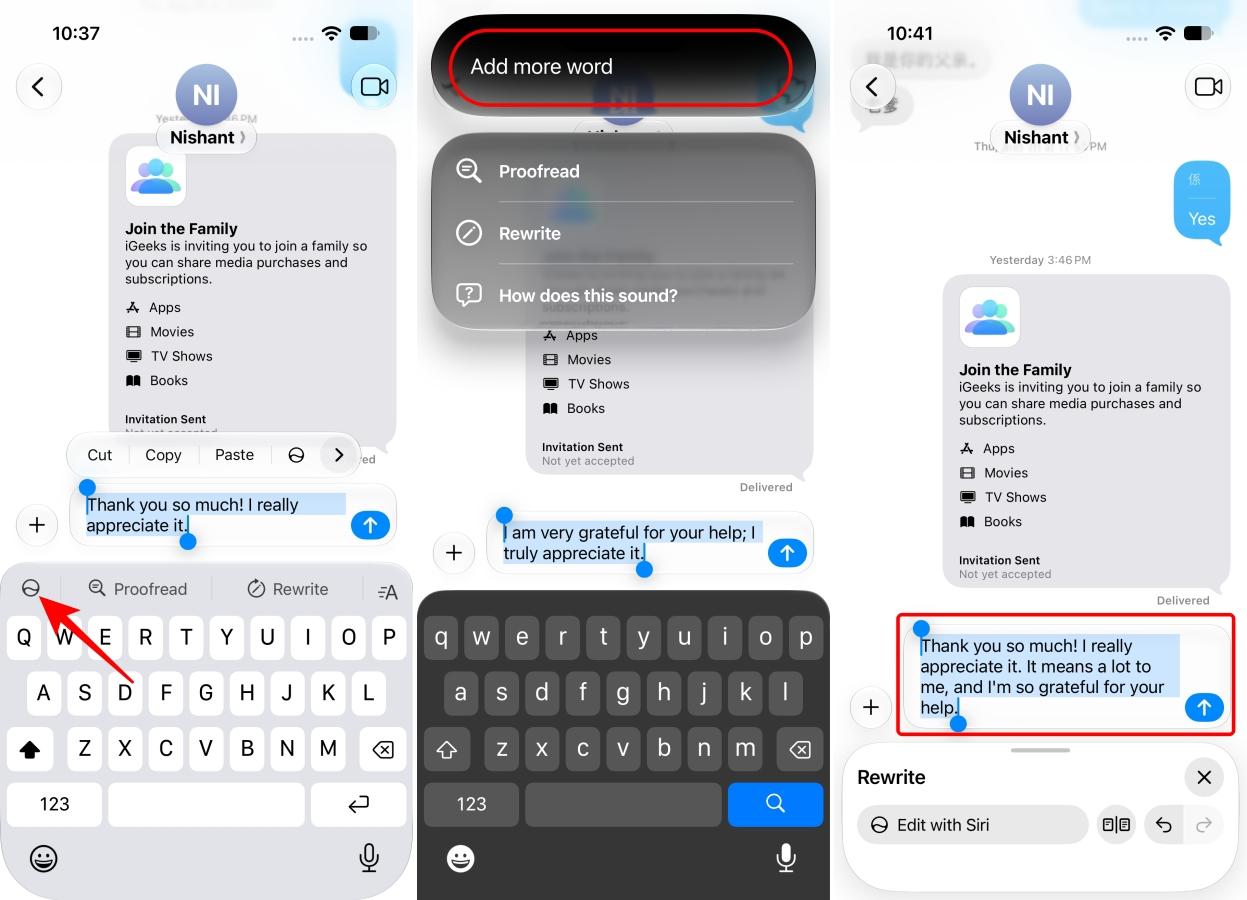
- Keep it, modify it again using the Edit with Siri option, or return to the original by tapping the undo button.
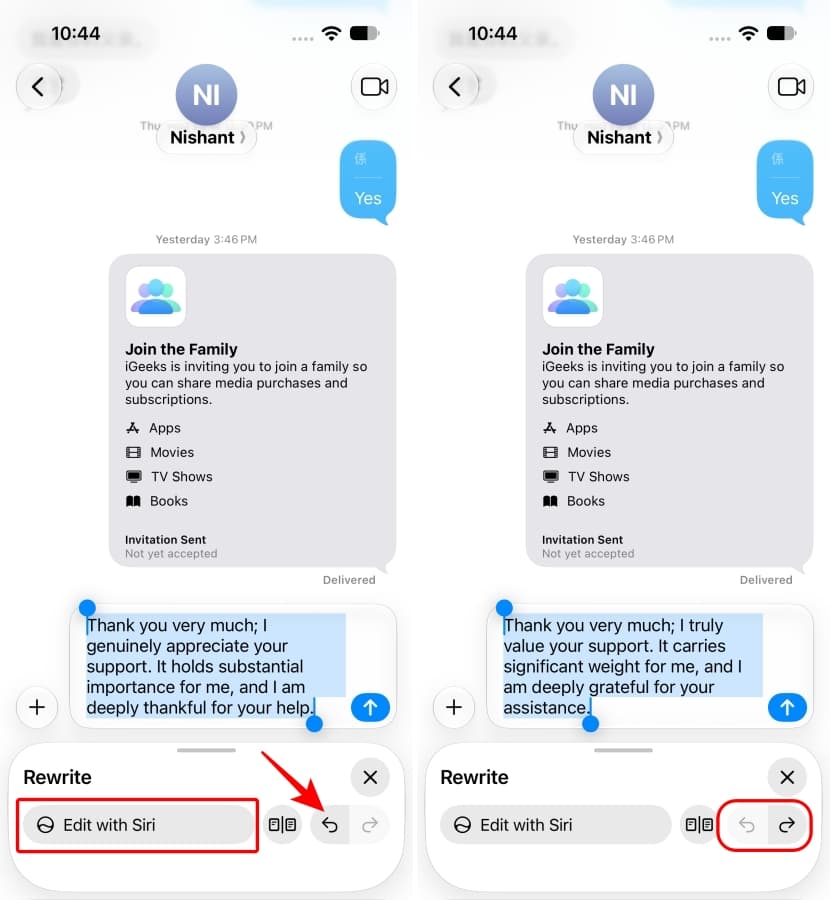
Furthermore, Apple offers a Compare option that allows me to review the original and rewritten versions rather than blindly accepting the AI-generated text.
I also tested different instructions:
- “Make this shorter.”
- “Make this more friendly.”
- “Make this sound professional.”
- “Make this less formal.”
- “Fix the grammar.”
- “Make this clearer.”
- “Expand this slightly.”
The results were generally predictable. The shorter version actually became shorter. The formal version sounded more professional. The proofreading request focused on grammar rather than completely rewriting everything.
That sounds basic, but it makes a difference when I’m already happy with what I wrote and only want one specific thing changed.
Does Write With Siri actually preserve my voice?
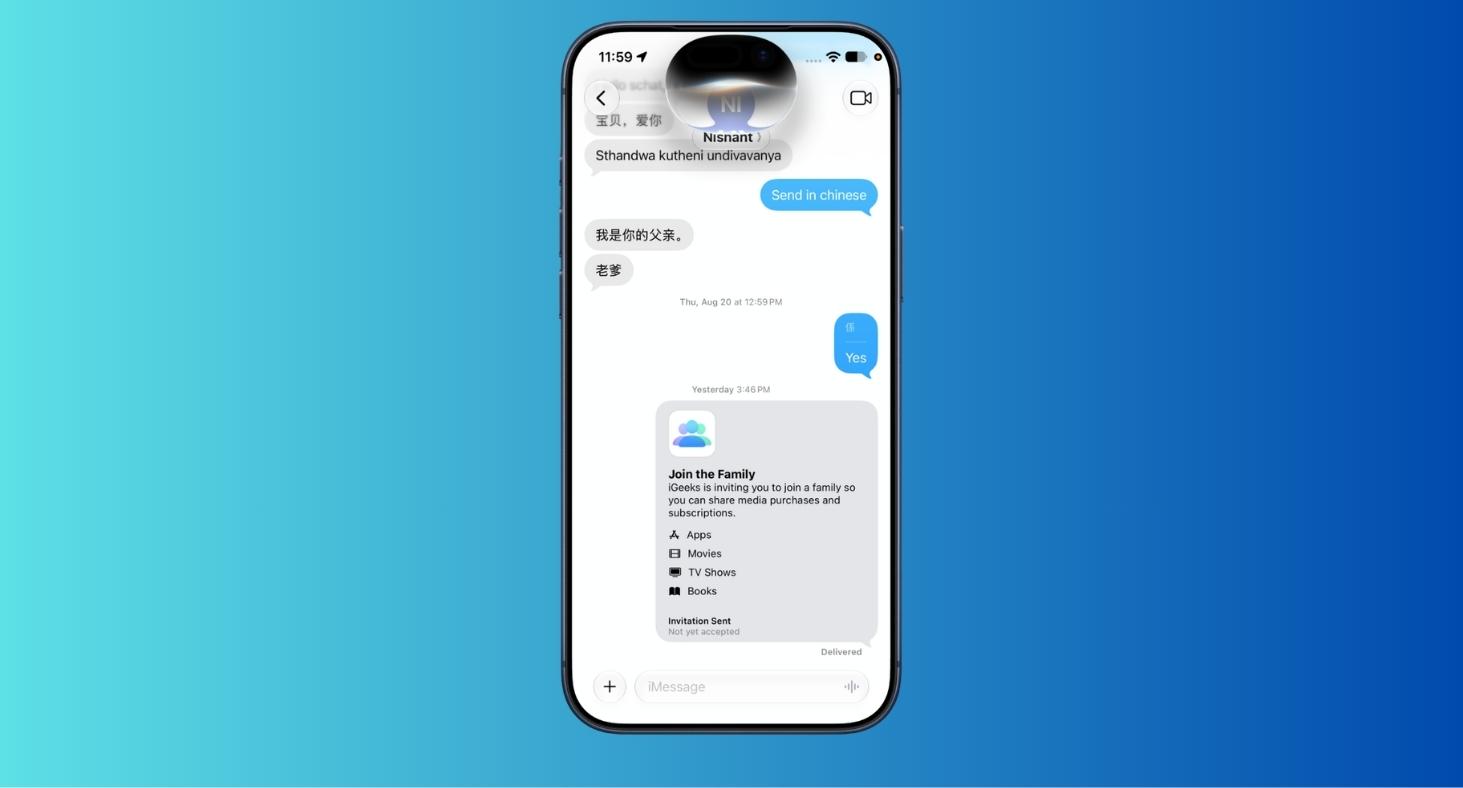
This was the test I cared about most.
AI can fix grammar all day long, but if the result sounds nothing like me, I probably won’t use it for personal messages.
Apple says Siri AI can match a user’s writing style, punctuation, and tone in Messages and Mail, including adapting to the way they communicate with individual recipients.
In my testing, I found that the idea works better when I give Siri something to work with. If I ask Siri to create a message from scratch, the result can feel like a generic AI-written message.
But when I give it my own rough text and ask for a rewrite, the result feels much closer to my original intent.
Other useful Write With Siri features
The more I used Write With Siri, the more I realized that rewriting a message is only one small part of what Apple’s AI writing assistant can actually do.
What makes it interesting in iOS 27 is that Write With Siri works systemwide wherever you type. So you’re not limited to Messages. You can use it while writing emails, notes, documents, and other supported text fields without having to jump into a separate AI app.
Automatic proofreading while I type
iOS 27 adds automatic proofreading for spelling and grammar while typing in apps. The system can catch common writing problems as I’m composing text.
For someone who types quickly, this is arguably more useful than having to stop, select everything, and ask an AI to proofread it afterward.
Ask Siri how my writing sounds
Instead of simply asking Siri to rewrite your text, you can select something you’ve written and select the “How does this sound?” option. That turns Siri into something closer to a writing editor. You can even ask the following questions to make your writing comprehensive.
For example, if I’m writing a presentation or an important email, I can ask for feedback rather than immediately replacing my words. This approach is ideal when you don’t want AI to rewrite your work.
Edit text using natural-language instructions
This is probably my favorite part of Write With Siri.
Instead of manually editing a paragraph, I can simply select the text and describe the change I want.
For example:
- “Make this email sound more formal.”
- “Rewrite this to be friendlier.”
- “Shorten this to three sentences.”
- “Turn these bullet points into a paragraph.”
- “Make this easier to understand.”
If the existing text was written by Siri AI, you will see a Rewrite option when you select the text. It will give you a different version. If it’s still not good enough, tap the Edit with Siri button and describe your changes.
Turn rough notes into proper writing
Another useful trick is taking fragmented thoughts and turning them into something readable.
For example, you might have several bullet points that make sense to you but aren’t ready to send to someone. Instead of rewriting each point manually, you can ask Siri to turn the bullet points into a paragraph.
This could be particularly useful for:
- Work notes
- Meeting summaries
- Emails
- Project updates
- Personal notes
- Presentation content
It’s a small feature, but it’s exactly the sort of repetitive writing task where AI can save time.
Shorten without starting over
I also found myself using Siri when something I had written was simply too long.
Rather than deleting half the paragraph myself, I can tell Siri to shorten it.
The best part is you can ask it to reduce something to a particular number of sentences or make it more concise while keeping the important information.
The bigger advantage: I don’t have to leave what I’m doing
I’ve used plenty of AI writing tools before. The problem isn’t usually whether they can rewrite something.
The problem is friction. Normally, the process looks something like this:
Select text → copy → open AI app → paste → write prompt → copy result → return to original app → paste again.
Write With Siri cuts out most of those steps.
You can stay inside the app where you’re already writing and ask Siri to handle the change. That’s what makes this feel less like another AI chatbot and more like an actual iPhone writing feature.
When I’d actually use Write With Siri
After testing it, I don’t think Write With Siri is needed for every message. That would actually defeat the point. If I’m texting a friend: “Where are you?” I don’t need AI.
But there are plenty of situations where I’d happily use it.
- Important messages: If you’re sending something where wording matters, use Siri AI to check it. A quick rewrite can make an important message clearer.
- Work emails: When you know what you want to say but the wording feels messy, asking Siri to make it more professional or concise is much faster than starting again.
- Messages written in a hurry: We’ve all sent messages that were basically one long sentence with no punctuation. Instead of fixing it manually, I can ask Siri to clean it up.
- When English isn’t coming naturally: Sometimes finding the right English phrasing takes longer than it should. Write With Siri can bridge that gap.
When I wouldn’t use it
There are also plenty of situations where I wouldn’t bother.
- Casual conversations: Overly polished messages can make conversations with friends and family feel strange.
- Very short messages: If your message is only one or two sentences, rewriting it with AI can take longer than simply fixing it yourself.
- Messages where my exact wording matters: AI rewriting can change emphasis, personality, or nuance even when the grammar becomes better.
- When the original already sounds good: If my message is saying exactly what I want it to say, there’s no need for any optimization.
One thing that still bothered me about Write With Siri
The concept is excellent, but the first version of the feature isn’t completely frictionless.
While testing, I found several early issues in iOS 27. Sometimes, the writing interface disappeared after taking a screenshot, comparison screens became awkward to exit, and the keyboard or interface occasionally vanished while rewriting.
I also think Apple’s decision to make Write With Siri so prominent while typing may not appeal to everyone. Let’s hope Apple improves the experience through next iOS 27 updates.
Final take: Did Write With Siri improve my messages?
Yes, but not in the way I initially expected.
I don’t think Write With Siri is going to replace dedicated AI writing tools for serious writing. What makes it interesting is how quickly it handles the small writing problems I encounter throughout the day.
A message that’s too long, an email that’s too formal, a sentence with terrible grammar, a thought that makes sense in my head but looks terrible when I type it. Those are exactly the moments where Write With Siri makes sense.
Will you use Write With Siri? Let me know in the comments below!
You might also like: