
How to View Battery Usage History on Mac
If your Mac’s battery drains faster than expected, this guide can help. See how to view battery usage history and identify the apps causing the issue.
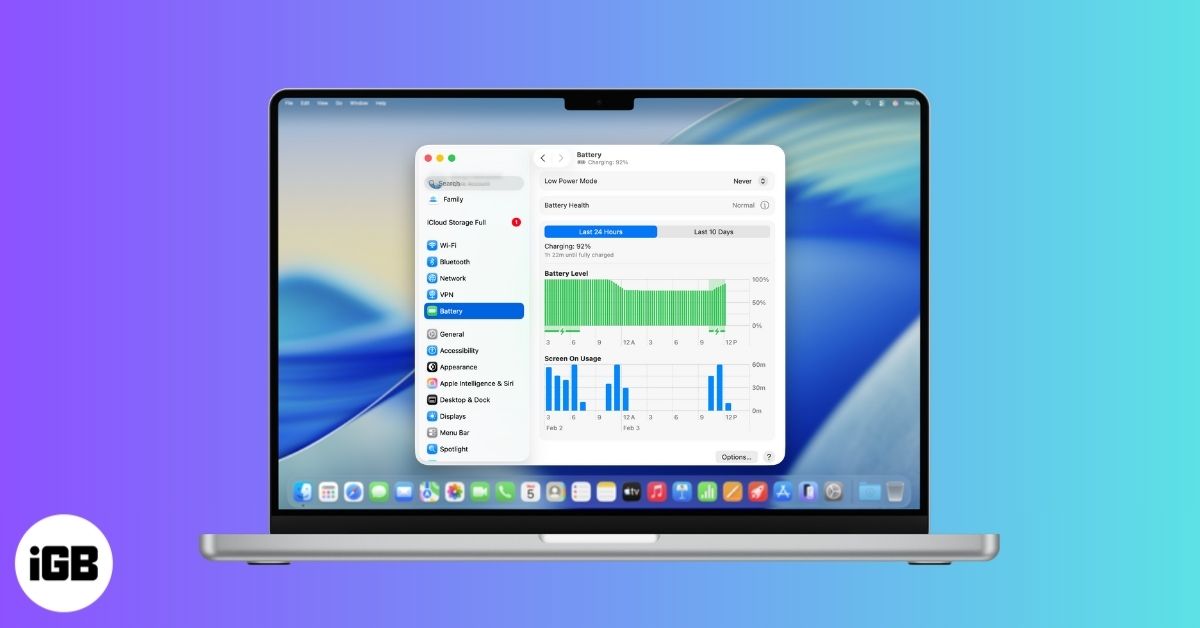
Your MacBook’s battery plays a quiet but important role in how your day unfolds. When it drains faster than expected, it can interrupt work, calls, or travel plans. Battery usage history helps explain why this happens by showing how your Mac uses power over time.
Many users look for this information to understand why their battery drains quickly, which background apps are using it, or have concerns about battery health. While macOS does not offer the same long-term battery graphs as iPhone, it still provides clear, reliable tools to understand battery behavior and make better decisions.
This guide explains what battery data macOS shows, how to access it step by step, and what to do when you need deeper insight. Everything covered here relies on built-in macOS features and safe, practical methods.
What Battery Usage Data Can You See on a Mac?
macOS focuses on recent and short-term battery behavior rather than long-term history. The data it provides is limited but useful when interpreted correctly.
You can see:
- Battery level changes over short periods
- Screen on usage by hour or by day
- Daily energy usage across recent days
macOS does not show continuous battery history over weeks or months, nor does it provide detailed historical battery usage per app in a single view.
How to Check Battery Usage on Mac Using System Settings
System Settings is the primary place to view battery usage history. It works on macOS Big Sur and later and requires no additional apps.
To access it:
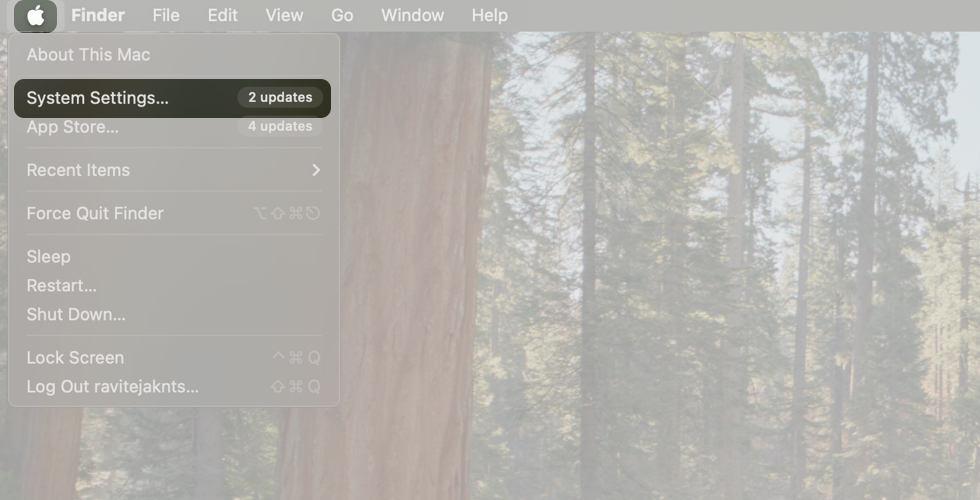
- Click the Apple menu.
- Open System Settings.
- Select Battery from the sidebar.
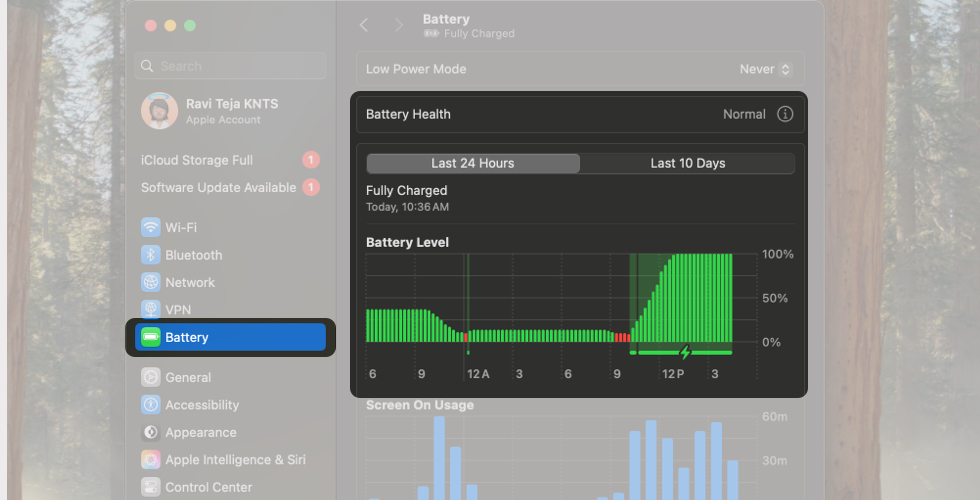
You can also click the battery icon in the menu bar and choose Battery Settings. At the top of the Battery page, you will see two views:
- Last 24 Hours
- Last 10 Days
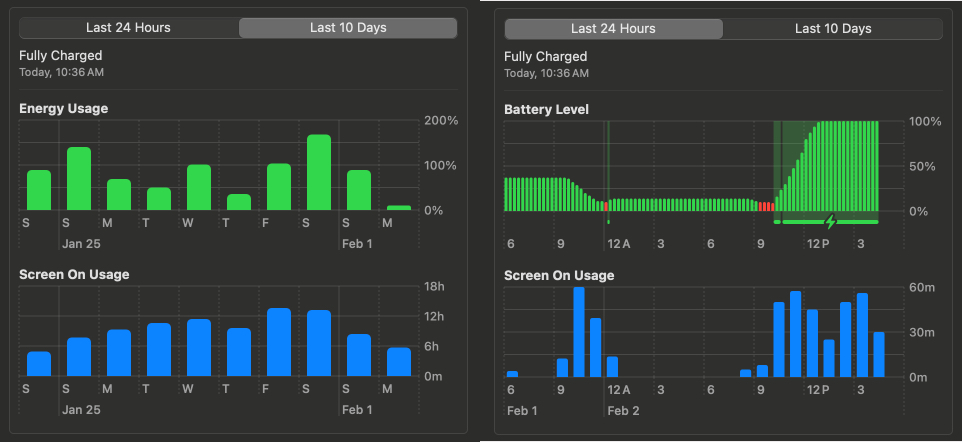
These views are designed to work together, each showing a different part of your battery story.
View Battery Usage by Apps on macOS
Battery settings do not show a detailed historical breakdown of battery usage by individual apps. Instead, they focus on overall usage patterns, screen time, and total energy consumption.
If you are looking for app-level battery history similar to iPhone, macOS does not currently provide that data in Battery settings.
Understanding Screen On vs Screen Off Usage
Screen on usage shows the time your Mac’s display is actively turned on. This matters because the display is one of the largest contributors to battery drain.
Screen off time includes periods when your Mac is sleeping, idle, or the display is turned off. Battery usage during these periods is usually low unless background apps or system processes are active.
Understanding Battery Usage Views on Mac at a Glance
The Last 24 Hours and Last 10 Days views are easiest to understand when compared side by side.
| View | Battery level in 15-minute intervals and an hourly screen on usage | What It Helps You Understand |
|---|---|---|
| Last 24 Hours | Daily screen usage and total energy used per day | Helps you spot recent battery drain, charging behavior, and how your Mac performed today or yesterday |
| Last 10 Days | Daily screen on usage and total energy used per day | Helps you identify usage trends, heavy-use days, and repeated battery drain patterns |
Charging periods appear as shaded or green sections in the battery level graph. Screen on usage bars often explain sudden drops, while energy usage highlights days when your Mac worked harder overall.
How to View Battery Usage Using Activity Monitor on Mac
Activity Monitor does not show long-term battery history, but it is useful for understanding real-time and short-term energy usage, especially at the app level.
To check energy usage:
- Open Activity Monitor.
- Click the Energy tab.
Here you can see:
- Energy Impact, which shows how much power an app is using right now
- 12 hr Power, which shows average energy usage over the last 12 hours or since startup (Mac laptops only)
- Whether an app is using App Nap, a high-performance graphics card, or preventing sleep
At the bottom of the window, Mac laptops also show battery-related details such as remaining charge, time on battery, time to full charge, and battery level over the last 12 hours.
Activity Monitor works best alongside Battery settings. It helps identify which apps are actively draining power at the moment, while Battery settings show broader usage patterns.
Can You See Long-Term Battery Usage History on Mac?
macOS does not provide long-term battery usage history beyond the Last 10 Days view. There is no built-in way to see weeks or months of battery graphs.
Users who need long-term tracking must rely on external tools or manual monitoring.
Workarounds to Track Battery Usage Over Time on Mac
When built-in tools are insufficient, some users employ additional methods to understand battery behavior.
Using Battery Data via Terminal
Advanced users can retrieve battery health information from Terminal using built-in system commands.
By running:
ioreg -l | grep -e "CurrentCapacity" -e "MaxCapacity" -e "CycleCount"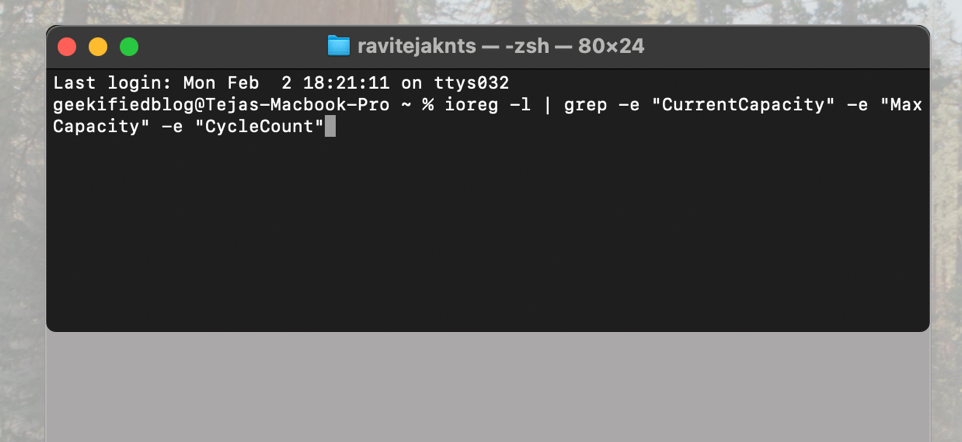
You can see:
- CurrentCapacity, which shows the current battery charge
- MaxCapacity, which shows the maximum charge the battery can hold
- CycleCount, which shows how many charge cycles the battery has completed
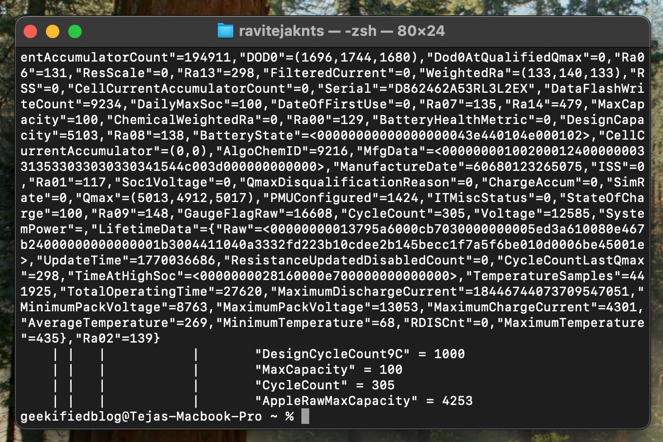
This method is useful for quickly checking battery health data, but it does not show usage history, graphs, or app-level energy data. It is best suited for users comfortable with Terminal.
Should You Use Third-Party Battery Monitoring Apps?
Third-party battery apps can offer long-term tracking and additional details such as time on battery, battery age, and charging history.
They can be helpful, but they also come with trade-offs, including privacy considerations, background processes, and varying accuracy. Most everyday users can rely on macOS tools unless they need deeper monitoring.
Why Your Mac Battery Drains Fast Even with Normal Usage
Fast battery drain is usually linked to usage patterns, system settings, or battery condition rather than sudden hardware issues.
Common causes include:
- Reduced battery capacity over time
- High screen brightness and constant wireless connections
- Apps running in the background
- Connected accessories drawing power
- Outdated system software
Battery usage history helps confirm which of these factors is responsible.
Tips to Improve Battery Life Based on Usage Data on Mac
Once you understand how your Mac uses power, small adjustments can make a noticeable difference:
- Check battery condition to confirm whether capacity has declined
- Lower screen brightness and adjust display sleep settings
- Turn on Low Power Mode when possible
- Quit unused apps running in the background
- Disconnect accessories you are not using
- Keep macOS updated
These changes are most effective when guided by battery usage data rather than guesswork.
Conclusion
macOS may not offer long-term battery graphs, but it provides enough information to understand how your Mac uses power and why battery drain happens. Battery settings show usage patterns, Activity Monitor highlights active drains, and Terminal tools reveal battery health details.
By regularly checking battery usage and adjusting habits based on real data, you can reduce unnecessary drain and extend your MacBook’s battery life.
Frequently Asked Questions

Written by
Ravi Teja KNTSI’ve been writing about tech for over 5 years, with 1000+ articles published so far. From iPhones and MacBooks to Android phones and AI tools, I’ve always enjoyed turning complicated features into simple, jargon-free guides. Recently, I switched sides and joined the Apple camp. Whether you want to try out new features, catch up on the latest news, or tweak your Apple devices, I’m here to help you get the most out of your tech.
View all posts →More from How-to

Snapchat Parental Controls: How to Set Up Family Center and Keep Your Teen Safe
Snapchat’s Family Center lets parents monitor their teen’s friend activity and screen time without reading private messages. Here’s how to set it up and what to expect.
 VikhyatMarch 3, 2026
How to Block and Unblock Someone on Instagram
Instagram lets you block or unblock someone in seconds. Follow these simple steps to take full control of your privacy and online peace.
 Ava BiswasMarch 2, 2026
Apple Watch Not Responding? 8 Fixes That Actually Work
Is your Apple Watch unresponsive or stuck on a black screen? Here are 8 proven fixes to help you unfreeze it and get it working again quickly.
VikhyatMarch 3, 2026