After replacing my Mac with a Windows laptop, I thought iCloud for Windows could handle everything. On paper, it sounded like the perfect cross-platform setup with iPhone. Apple promises sync, continuity, ecosystem magic. So, why wouldn’t it work the same on Windows?
Within a few days, I realized something important. iCloud on Windows isn’t broken, but it’s intentionally limited. It works just enough to keep you connected, but not enough to feel like a complete ecosystem.
Here’s my Apple iCloud Windows experience after testing it for a month, along with its pros and cons, and actual limitations. But before that, let’s start with the basics!
How to get iCloud on Windows
First and foremost, you need to install iCloud from Microsoft Store. You can use the link to directly go to the download page.
Once installed:
- Open the iCloud app and click Get Started.
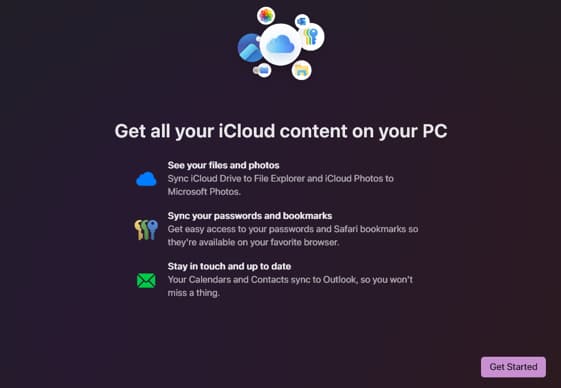
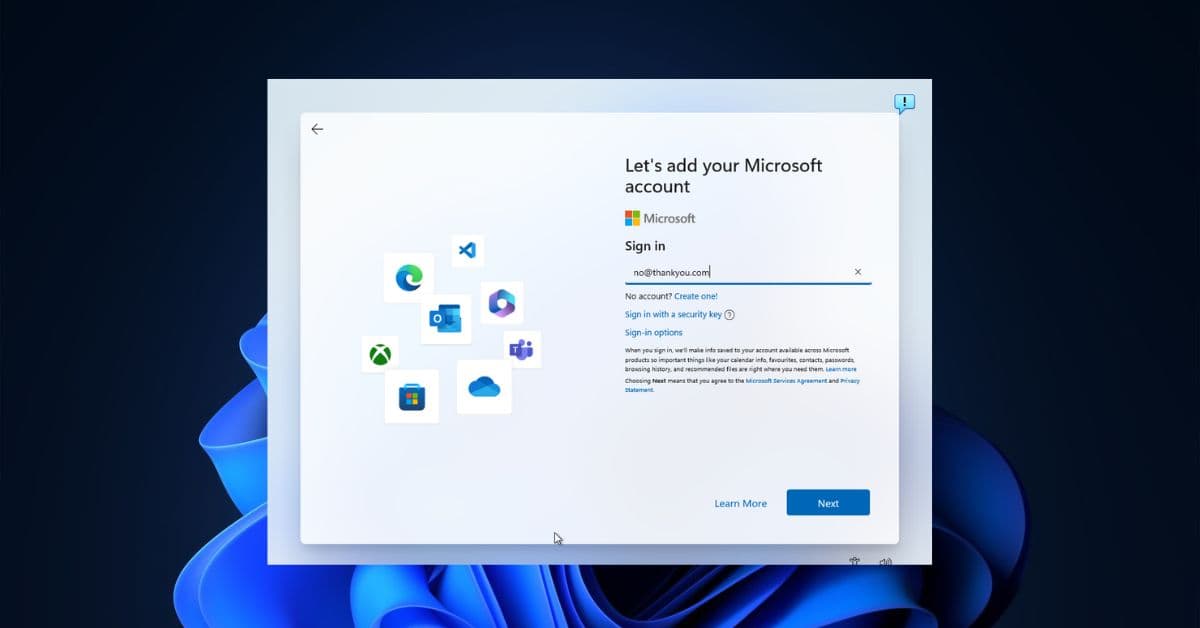
- Sign in with your Apple ID and password.
- Enter the 2FA code from your iPhone.
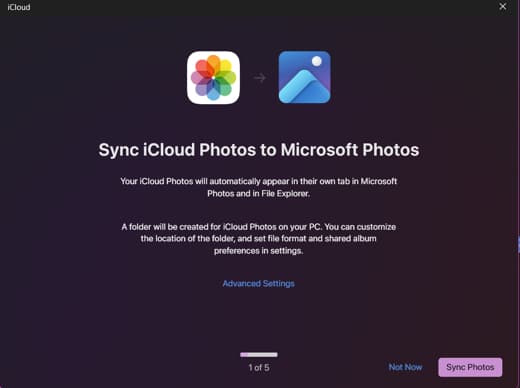
- You’ll see prompts to sync Photos and Drive.
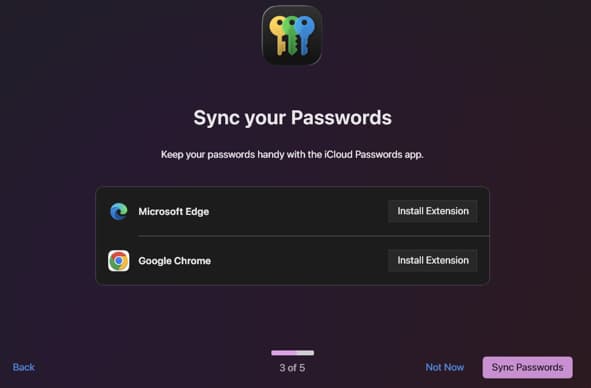
- For Passwords sync, you can install iCloud extensions for Chrome, Edge, or Firefox.
- Next, you may sync your iCloud Calendar and Contacts to Outlook.
- Lastly, click Finish Setup.
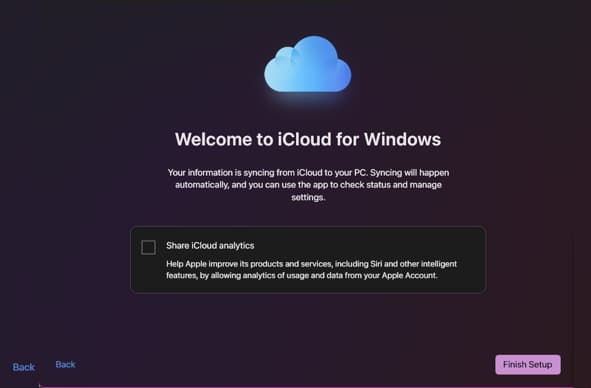
For the testing, I only enabled iCloud Drive, Photos, and Passwords. Later opted for Bookmarks and Calendar. Apple confirms you can selectively enable features during setup and control what syncs on Windows.
How I Use iCloud on Windows (Real workflow)
iCloud on Windows isn’t perfect, but if you use it intentionally, it can integrate both ecosystems. Here’s the real workflow I follow daily.
iCloud Drive = Cross-device file system
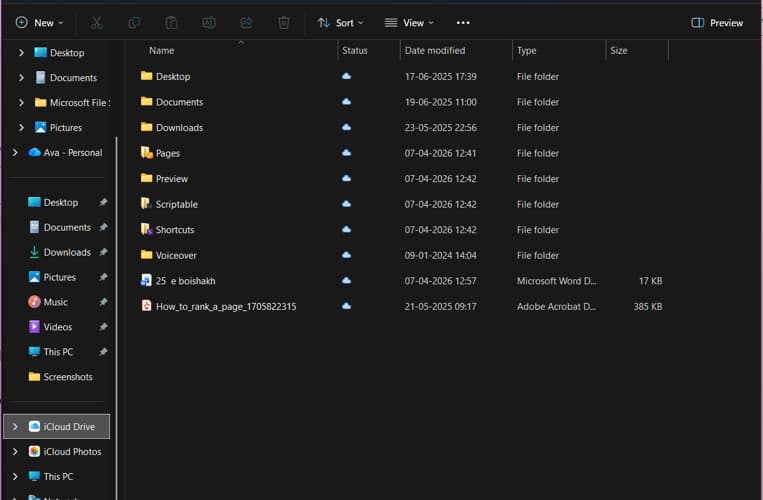
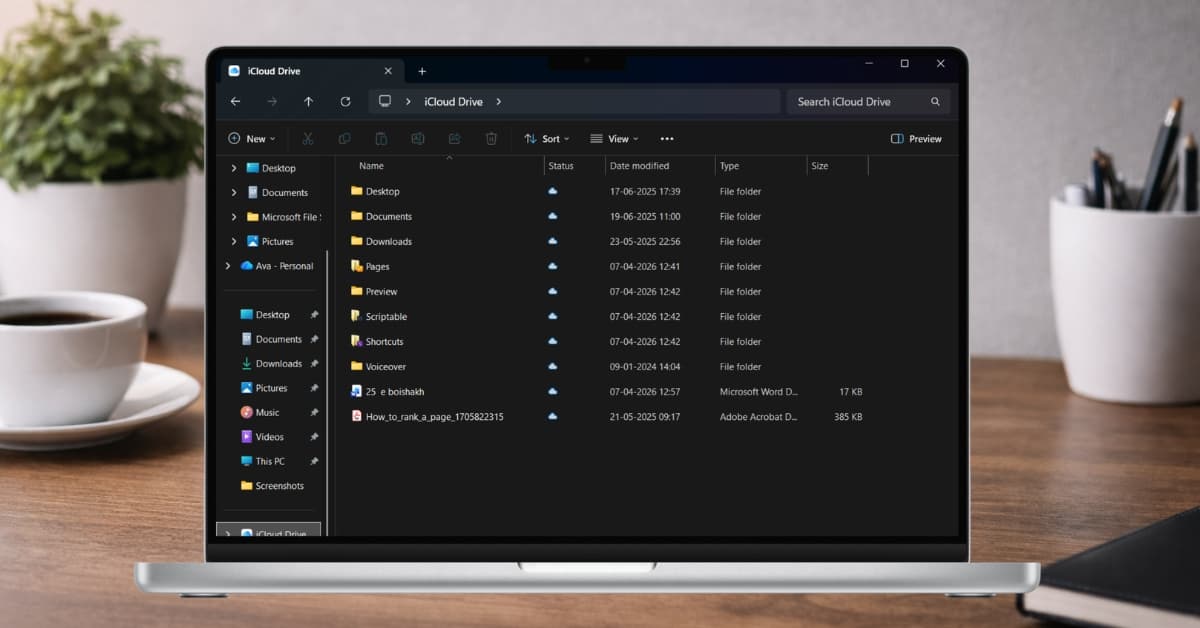
Once enabled, iCloud Drive shows up inside File Explorer like a normal folder. This is the part that changed everything for me.
I use it like a “bridge” between ecosystem because iCloud Drive syncs files both ways between devices automatically. Instead of uploading manually, simply drag & drop files and it’s instantly available on iPhone.
Moreover, editing documents on Windows syncs to iCloud. If you need to share a file, you can directly invite people and share the link.
Things I learned the hard way:
- Files aren’t always fully downloaded (they use cloud placeholders under Status).
- Right-click and select Always keep on this device if you need offline access.
iCloud Photos syncs camera roll automatically
This is honestly the main reason I keep iCloud on Windows.
- Simply take pictures on iPhone.
- Open Photos app on Windows PC and select iCloud Photos from the left pane. All iPhone photos are already there.
- Right-click on a photo or video and start editing.

No cables. No AirDrop hacks. Everything syncs automatically across devices.
You can also download photos locally or upload from PC to iCloud.
I have tried creating a new iCloud shared album. It’s interface was quite basic but worked properly like adding new photos to exisitng albums or removing subscribers. If you don’t know much about this, check out our detailed guide on how to use iCloud Shared Albums.
What I wish I knew sooner:
- It’s not instant like AirDrop. There’s a delay sometimes depending on internet speed.
- First sync can take a long time, especially with large libraries.
- iCloud Shared Library is a separate app installed on Windows. You need to search and open it insteading to looking for it in File Explore.
Passwords Make Logging In Easier
Along with the iCloud Shared Album, I found a iCloud Passwords app installed automatically on my system. Once the sync is enabled, you can see all the stored passwords including the shared ones there. Also, it lets you set up verification codes for quick logins.
To test the autofill feature, I installed the iCloud Passwords extension for Chrome. But it doesn’t showup like the native Google password manager. So that’s a bummer!
Additionally, you can also sync your Safari bookmarks on your Windows PC by installing iCloud Bookmarks extension. It merges all your PC bookmarks to keep everything synced.
Outlook integration for better productivity
If you use Outlook, iCloud syncs Contacts + Calendar directly.
I tried it, but honestly, I prefer Google Calendar for cross-platform use.
Still, it works if you’re fully in Apple ecosystem.
iCloud for Windows Review: My Honest Experience
After actually using it daily for syncing files, photos, and passwords between my Windows PC and iPhone, these are my key takeaways,
Installation and setup were surprisingly easy
This part? Surprisingly great.
I installed iCloud from the Microsoft Store, signed in, and finished the setup. Within minutes, my files and photos started appearing in the native File Explorer and Microsoft Photos app. Apple made onboarding almost effortless.
No complaints here. In fact, this is where iCloud on Windows feels deceptively good.
The App feels too minimal
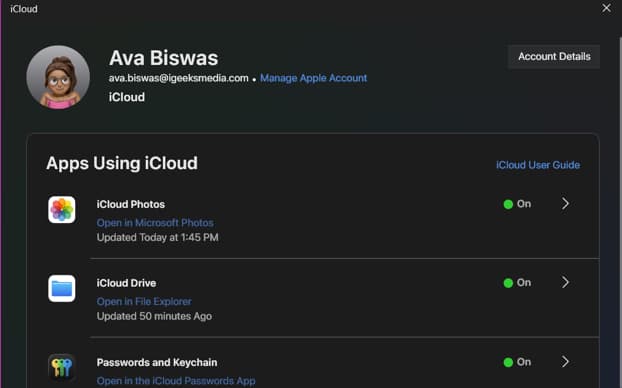
Here’s where things get weird.
The app barely feels like an app. It’s more like a control panel for syncing photos, drive, or password. You can only change the sync location and download settings.
That’s it. There’s nothing else to do.
Performance: Good Until It’s Not
This is where my experience started splitting in two:
- When it works → it feels invisible
- When it doesn’t → it becomes annoying fast
I noticed that files sometimes took time to appear, photos didn’t always sync instantly, and occasional random delays with no explanation. Also, the password sync is still a mehh!
Nothing catastrophic, but enough to make me hesitate trusting it fully. And trust is everything in a cloud service.
What Actually Works Well on iCloud for Windows
To be fair, not everything is bad. There are some truly strong aspects:
- iCloud Photos works well for basic syncing
- Accessing files through iCloud Drive is simple and clean
- Setup is quick and beginner-friendly
If your needs are light, just accessing files and photos, this might be all you need.
The Limitations That Frustrated Me the Most
This is where the real story begins.
1. No Native Notes or Reminders
This one hit me daily.
As an avid user of Notes, and on Windows, there’s no proper app. Every single time, I had to open iCloud Web.
It sounds small. It isn’t. That extra step breaks the flow. It turns something instant into something intentional, and that changes how often you actually use it.
2. It Doesn’t Feel Like Part of Windows
Compared to OneDrive, iCloud feels like a guest on Windows.
- No deep system integration
- Limited context menu options
- No native-level experience
OneDrive behaves like native Windows, whereas iCloud behaves like a plugin. And that difference is impossible to ignore once you notice it.
3. The Feature Gap Is Real
If you’ve ever used iCloud on a Mac, this becomes obvious instantly.
On Windows, I struggled with:
- Advanced photo management
- Generating strong passwords and autofill
- Full device backup control
- Seamless app syncing
4. Sync Isn’t As Instant As You Expect
This was my biggest daily annoyance.
I’d upload a file on my phone, open my PC, and wait. Sometimes it’s seconds. Sometimes longer. Sometimes I’d refresh manually.
Again, not broken. Just inconsistent.
Things I Wish I Knew Before Using iCloud on Windows
After testing everything, this became obvious to me:
- iCloud on Windows is a “companion,” not a full platform
- You will rely on iCloud on Web more than you expect
- It’s designed for access, not productivity
- Apple clearly prioritizes macOS (and doesn’t hide it)
Most importantly, if you expect the Apple ecosystem experience on Windows, you’re setting yourself up for disappointment.
Should You Use iCloud on Windows?
Here’s my honest, slightly blunt take.
You should use it if:
- You have an iPhone and just need access to files/photos
- You don’t care about deep integration
- You want something simple and “good enough.”
You should NOT rely on it if:
- You want a full productivity system
- You expect seamless cross-device workflows
- You’re used to how smooth Apple feels on macOS
Because once you’ve experienced the full Apple ecosystem, this version feels incomplete.
Final Verdict: Functional, But Not Fully Apple-Level
After using it daily, here’s my unfiltered conclusion: iCloud on Windows feels like Apple gave just enough functionality to keep you connected, but not enough to fully rely on it.
It gives you access, but not control. Your data syncs, but doesn’t integrate. And clearly, Apple prioritized macOS. Once I accepted that, everything made sense.
Have you ever used iCloud on Windows? Let me know your thoughts on it below!
Continue exploring with these related posts: