I used to ignore Windows power settings completely, assuming everything was handled well enough. But then my laptop began to slow down at very inconvenient moments when working, multitasking, or doing something more demanding.
What surprised me most was how small the fix was. Just changing the Power Mode in Windows 10/11 suddenly improved performance and responsiveness, and even impacted heat production. That’s when I realized Power Modes affect the entire system, not just battery life.
Here’s what Power Mode I use, along with the best settings for optimized Windows performance.
What is a Windows Power Mode?
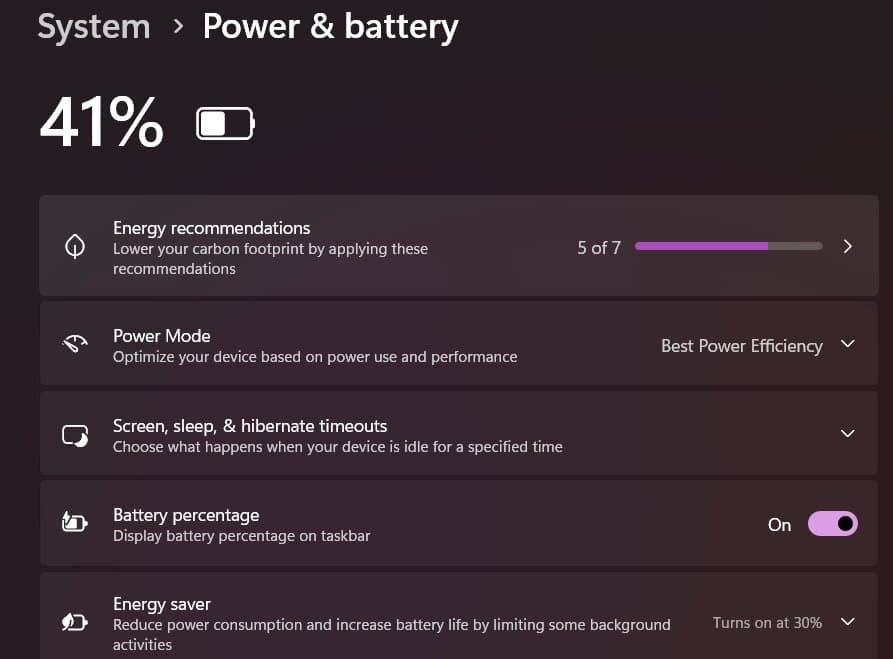
Windows Power Mode (or Power Plan) is a predefined battery settings and system behavior profile. They tell your PC how aggressively it should use system resources. But what most people don’t realize is that they actively shape how your machine responds in real time.
At a deeper level, power modes control things like CPU frequency scaling, how quickly your background processor ramps up under load, screen brightness, and how much power is delivered to components during peak usage.
Why I changed the default Power Mode on my Windows PC
The Windows default setting is Balanced mode, which sounds ideal. It dynamically adjusts CPU speed based on demand, saves power when idle, and and allows for performance improvement only under heavy loads.
But what I discovered was that the CPU runs at only 5% of its total power and delays performance ramp-up under load. This results in lag or stutter. Even Dell acknowledges the problem.
Over time, lag became apparent even when carrying out day-to-day activities.
- Apps didn’t open instantly; they paused.
- Switching between windows had a slight delay.
- Typing occasionally lagged behind input.
- Even simple animations didn’t feel smooth.
And that’s the real problem with Balanced mode. It doesn’t fail loudly. It just underperforms quietly enough that you start accepting it as normal. So I changed power settings to Best Performance, and immediately, the system felt smoother.
Power Efficiency vs. Balanced vs. Best Performance
Here’s how Windows Power Modes behave after actually testing them side by side:
| Power Mode | Performance Level | Battery Usage | Real-World Feel |
|---|---|---|---|
| Power Efficiency | Low | Best | Sluggish, delayed |
| Balanced | Medium | Moderate | Inconsistent, cautious |
| Best Performance | High | High | Fast, responsive, reliable |
| Ultimate Performance | Best | Very high (only recommended while plugged in) | Maximize hardware output |
Power Efficiency is exactly what it sounds like. It squeezes battery life at the cost of speed. Balanced tries to juggle both but often leans too conservative. Best Performance, on the other hand, neatly handles your workload.
The key distinction is not power but reliability.
I created a custom Power Mode: What it changed instantly
Activating Best Performance was already revealing, but I went further by creating a personalized setting that allows me to optimize behavior according to how I use my computer.
When plugged in, the Power Mode is set on Best Performance, whereas it uses Balanced mode on battery. Additionally, if I am on the move for longer, I switch to Power Efficiency to preserve battery life.
Bonus:
If you want the raw power for gaming, rendering, running an emulator, or compiling code, you can enable the hidden Ultimate Performance. For that, open Terminal and paste this command: powercfg -duplicatescheme e9a42b02-d5df-448d-aa00-03f14749eb61 Then you need to select it from the Control Panel. I’ll show you the steps in the later section.
And this is where things got interesting.
- Performance Boost: The first thing I noticed was how quickly everything responded. Apps launched faster, not dramatically, but consistently. Heavy tools like Chrome with dozens of tabs or Photoshop load instantly.
- System Responsiveness: Clicking, typing, switching windows, and multitasking all became immediate. There was no micro-delay between action and response.
- Thermal & Fan Behavior: With more performance comes more heat. In Balanced mode, I’d sometimes see dips under load due to aggressive power adjustments. But in my custom setup, performance stayed stable, even though fans kick in more often.
- Background Work: In default power mode, I used to see file transfers and installations slow down other tasks. But now the system remains usable even during heavy background activity.
- Battery Impact: There is no denying that the change affected my battery consumption negatively. My laptop drained faster during active use, and idle consumption increased slightly.
Things I wish I knew sooner
The biggest realization for me was that I was trying to solve the wrong problem for years. I used to think slow performance meant I needed better hardware. More RAM, faster SSD, or maybe even a new laptop. But the reality was simpler and more frustrating. My system wasn’t underpowered. It was underutilized.
Balanced mode conceals potential performance with undue caution. It assumes you always want to save power, even when you don’t. And unless you question that default, you never see what your machine is actually capable of. Windows have kept the best option hidden.
Another thing I underestimated was how much responsiveness matters. Benchmarking results and theoretical performance do not tell you much. It’s all about reaction speed. That’s what defines a “fast” computer in daily use. And power mode plays a huge role in that.
When you should switch and when you shouldn’t
Changing Power Plan to Best Performance or Ultimate Performance isn’t a universal recommendation, but it applies to more people than you might think.
If you do any of the following, it is almost a no-brainer:
- Coding or development work
- Video editing or rendering
- Gaming (even casual)
- Heavy browser usage
- Running intense background tasks like data recovery
- Multitasking across multiple apps
Especially if your system is plugged in most of the time, sticking to Balanced makes even less sense.
On the other hand, if you rely significantly on battery life all day long, use a thin laptop that already suffers from overheating issues, or mostly browse, stream, or do light tasks, the Power Efficiency mode will be most suitable for your needs.
The key is not choosing one mode forever. It’s about matching your setup to your usage.
How to change your Windows Power Mode
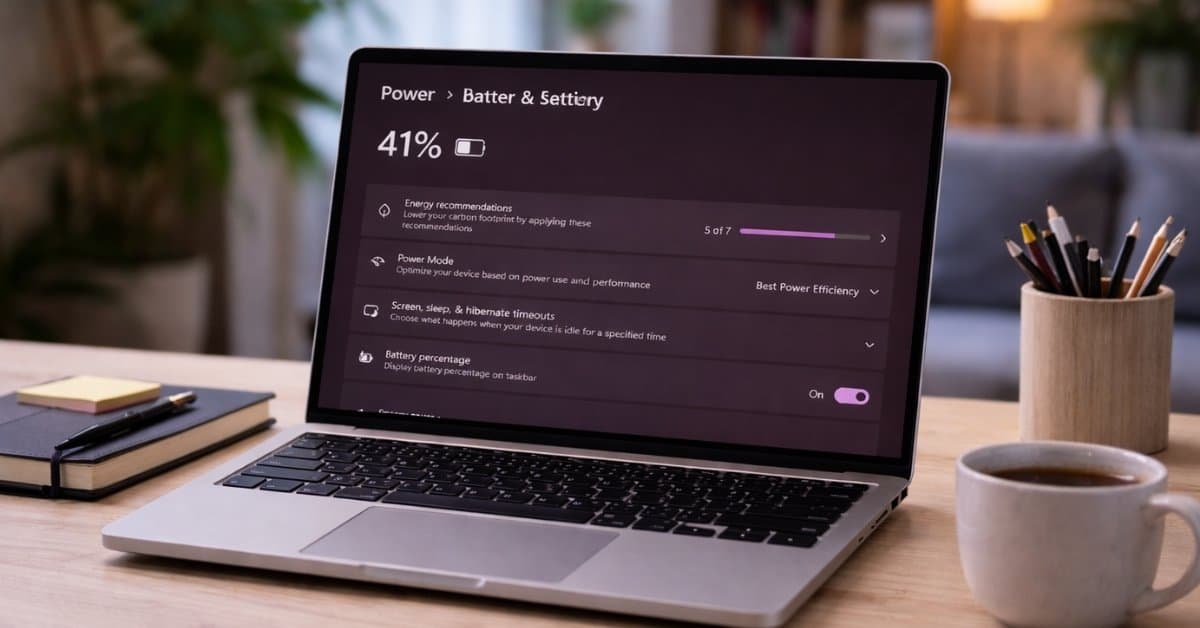
- Click on the battery icon in your system tray and select the battery again in the pop-up.
- You will be redirected to the Power & Battery settings window. Click the dropdown next to the Power Mode.
- Now, choose between Power Efficiency, Balanced, and Best Performance when Plugged in and On Battery.
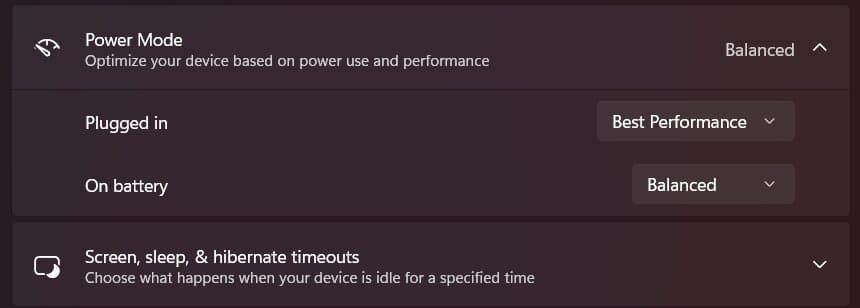
Next, you need to apply the power plan in the Control Panel. You can also customize the plan to fine-tune how your system behaves. Follow these steps:
- Search for and open the Control Panel.
- Click Hardware and Sound and select Power Options.
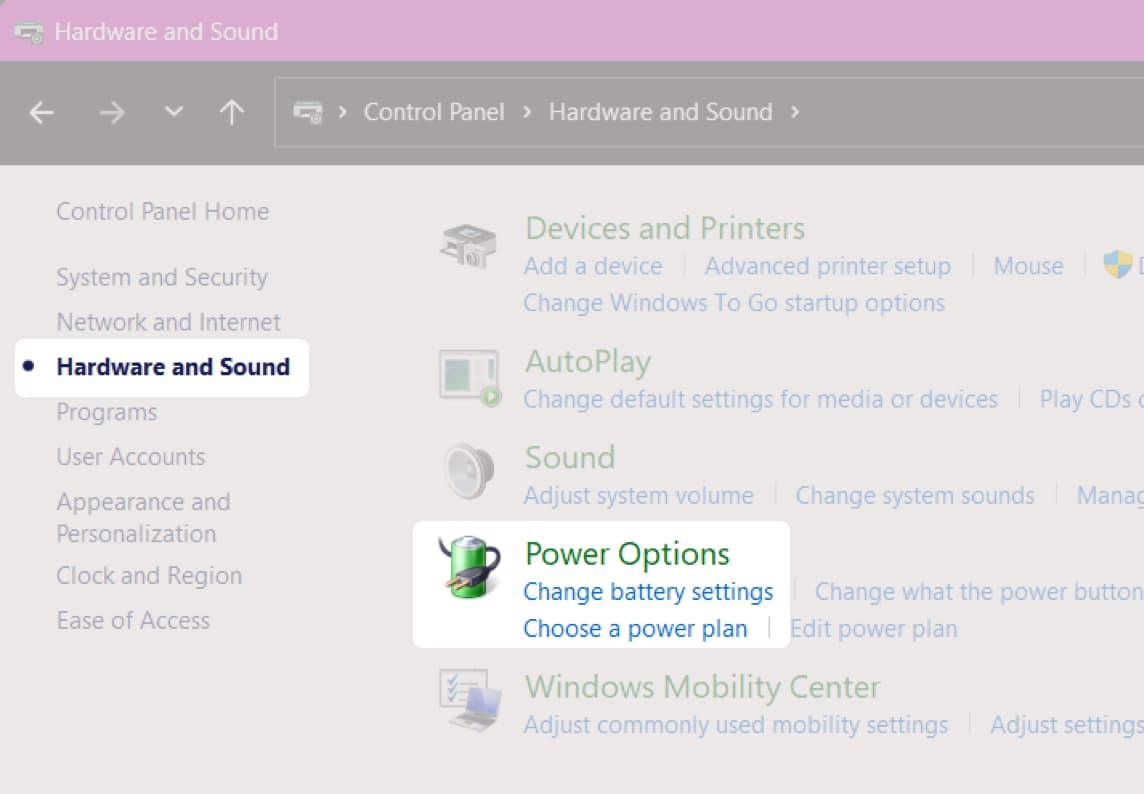
- Here, you will see Balanced is selected. Click Create a power plan from the left panel.
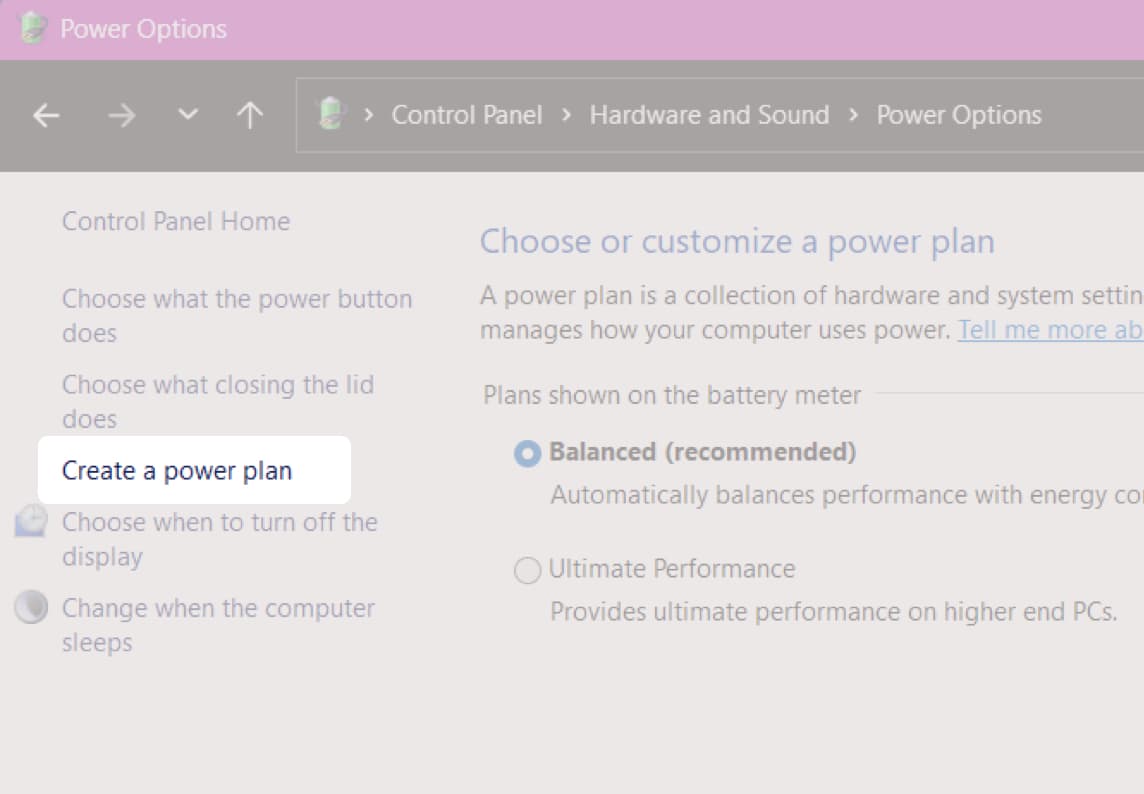
- Choose between Power Saver and High Performance and enter the plan name. Click Next.
- Now, customize the display off and sleep time and hit Create. Your PC will switch to that power plan.
- For further customization, click Change plan settings next to the plan and select Change advanced power settings.
- Here, you can adjust desktop background settings, sleep, USB settings, and more.
If you only want to enable the best Windows power plan, you don’t need to create a custom plan. Simply, open the Power Options page in Control Panel, click the down arrow next to the Show additional plans, and select Ultimate Performance.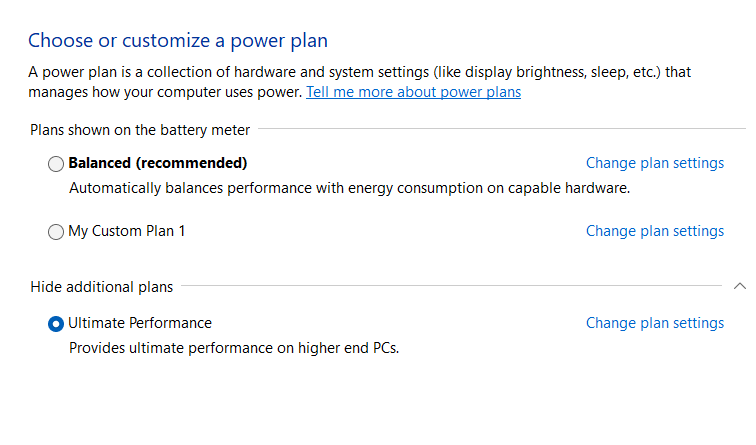
Final verdict
Setting the right power plan on my Windows PC felt less like a tweak and more like a system upgrade. I spent years optimizing software, closing background apps, even considering hardware upgrades, while running a Power Mode that quietly held everything back.
That’s the uncomfortable truth: most modern systems aren’t slow. They’re just configured to behave that way. Changing Power Mode doesn’t magically turn your weak machine into a powerful one. But it does ensure you’re actually using the performance you already have.
And once you experience that difference, it’s hard to go back.