
iPhone Notifications Not Working? Causes and Fixes That Work
Missing iPhone notifications can cause missed calls, messages, and alerts. This guide explains why notifications stop working on iPhone and how to fix them quickly using proven solutions.
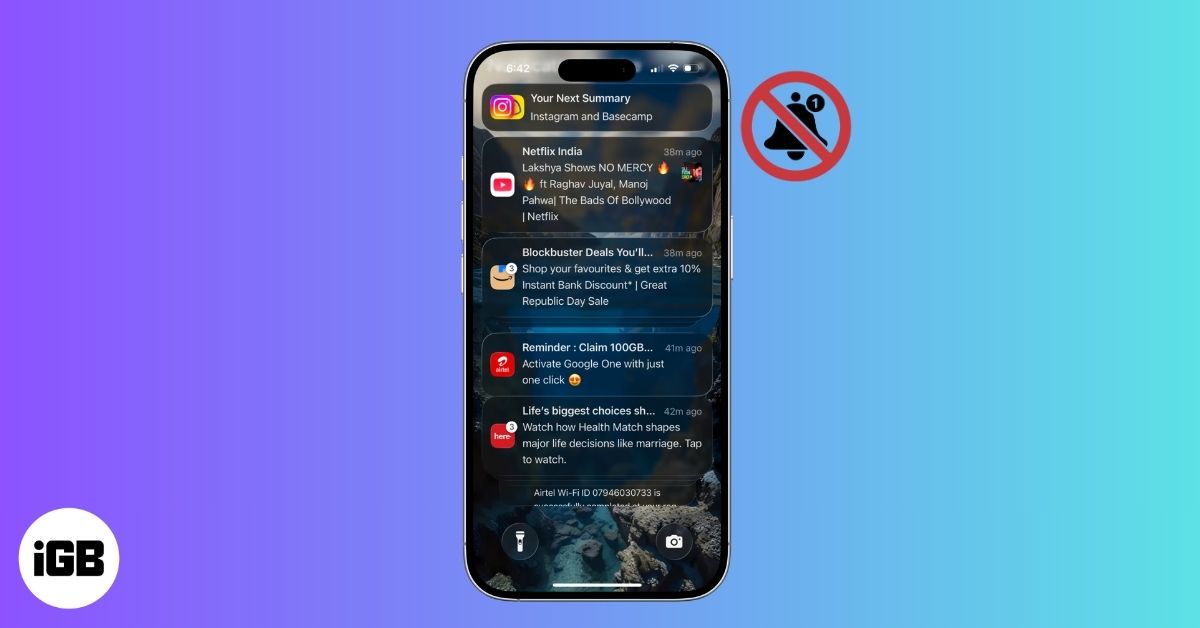
Notifications are a big part of the iPhone experience. They help you stay updated with messages, calls, emails, app alerts, reminders, and more. So when notifications are delayed or not popping up, it can feel frustrating and confusing.
In this complete guide, you’ll learn why iPhone notifications might not be working and step-by-step solutions to fix them. Whether notifications aren’t showing at all, are arriving late, or are only failing for certain apps, this guide will help you resolve the issue with ease.
Common Symptoms of iOS Notification Issues
iPhone notifications keep you connected in real time. So, when it stops popping up, you might miss urgent calls, work messages, or critical app alerts.
You may be facing a notification problem if:
- Notifications are not showing on the Lock Screen
- Alerts appear late or only when you open the app
- Sounds or vibrations don’t work
- Notifications work for some apps but not others
- Notifications stopped working after an iOS update
Why Notifications Are Not Showing on My iPhone
You get two types of alerts on your iPhone. First is the push notifications, which are sent from app servers (like messaging or social media apps) and require an internet connection.
Next is the local notifications, such as reminders or alarms, that do not always need internet access. If either type fails, notifications may stop appearing.
Common reasons include:
- Silent mode or Focus Mode is enabled
- Notifications are turned off for specific apps
- Low Power Mode is restricting background activity
- Screen Time restrictions are blocking alerts
- iOS bugs or outdated software
- App-level notification settings are disabled
Basic Checks Before Deep Troubleshooting
Before changing advanced settings or resetting anything, it’s important to start with basic checks. Many notification issues happen because of small, easy-to-miss settings. These quick checks solve the problem for a large number of users.
Check Volume Settings and Ensure iPhone Is Not on Silent Mode
If the iPhone notification sound is not working, it might be because of the active Silent mode.
- Go to Settings > Sounds & Haptics and drag the Ringtone and Alerts slider to ensure Silent mode is off.
- Tap Haptics and select Always Play.
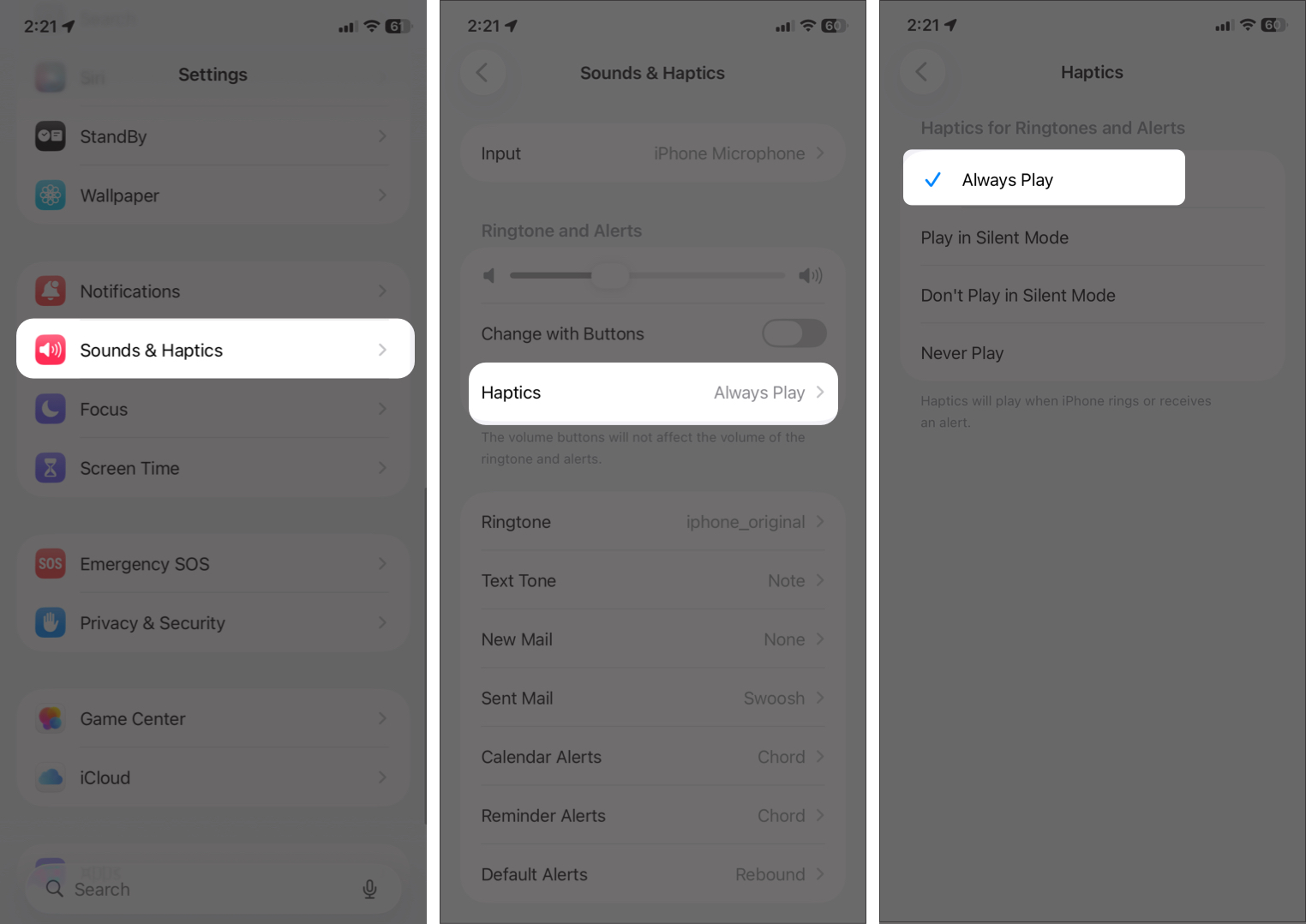
While at it, you can change the alert tone. Choose the one you can easily identify.
Confirm Stable Internet Connection
Most notifications, especially from messaging, email, and social apps, require an active internet connection.
Check the following:
- Open Control Center and ensure Wi-Fi or Mobile Data is turned on.
- Try opening a website or app to confirm the connection is working.
- Switch between Wi-Fi and Mobile Data to rule out network-specific issues.
For mobile data:
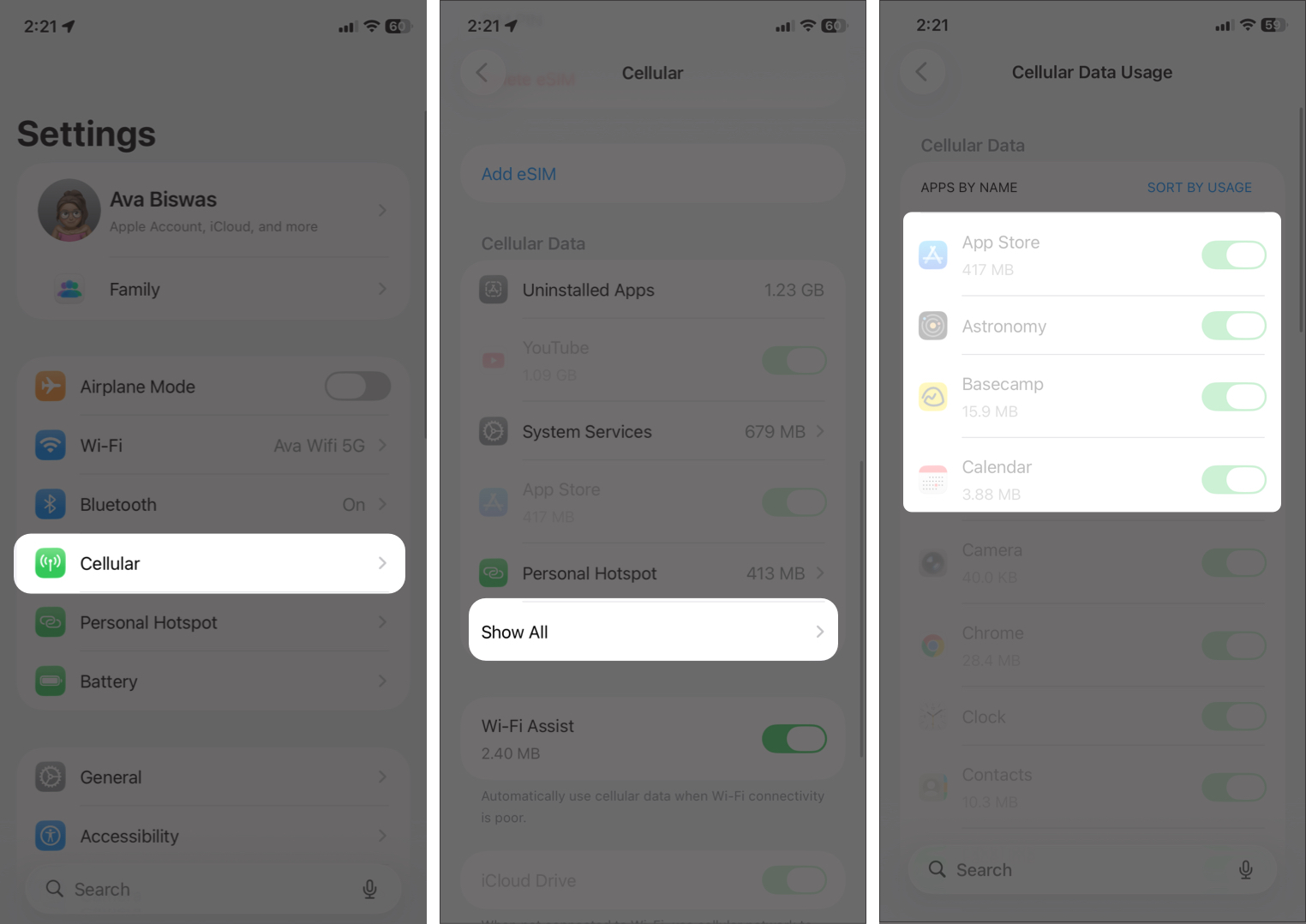
- Go to Settings > Cellular.
- Scroll down and tap Show All.
- Ensure the affected apps are allowed to use mobile data.
Connected Apple Watch or iPhone Mirroring
If you use an Apple Watch, notifications may appear on the watch instead of your phone, especially when it’s locked.
To test this:
- Unlock the iPhone and see if notifications appear there.
- Temporarily disable Bluetooth or power off the Apple Watch.
This can also happen if your Mac is connected to your iPhone.
- Click the Apple menu on your Mac and select System Settings.
- Choose Notifications in the sidebar and click Allow notifications from iPhone.
- Toggle off Allow notifications from iPhone and check if alerts are popping up on your phone.
Check Notification Settings on iPhone
If basic checks look fine, the next step is to review notification settings on the iPhone itself. iOS gives you app-level control, and a single disabled option can prevent notifications from appearing or making a sound.
- Open Settings > Notifications.
- Check that Show Previews is set to Always.
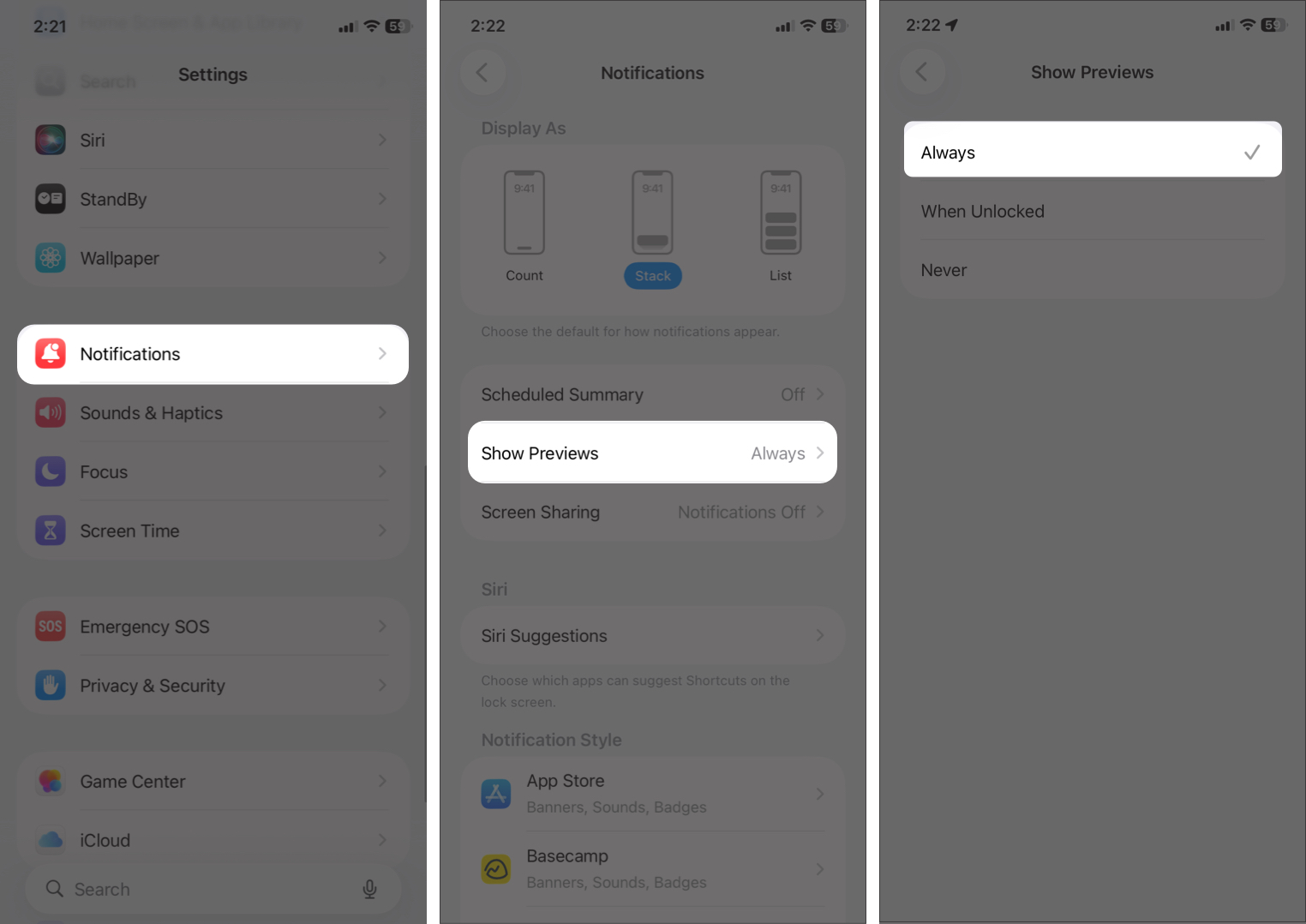
- Set the Display As option on Stack or List.
- Scroll down and select the affected app.
- Toggle on Allow Notifications.
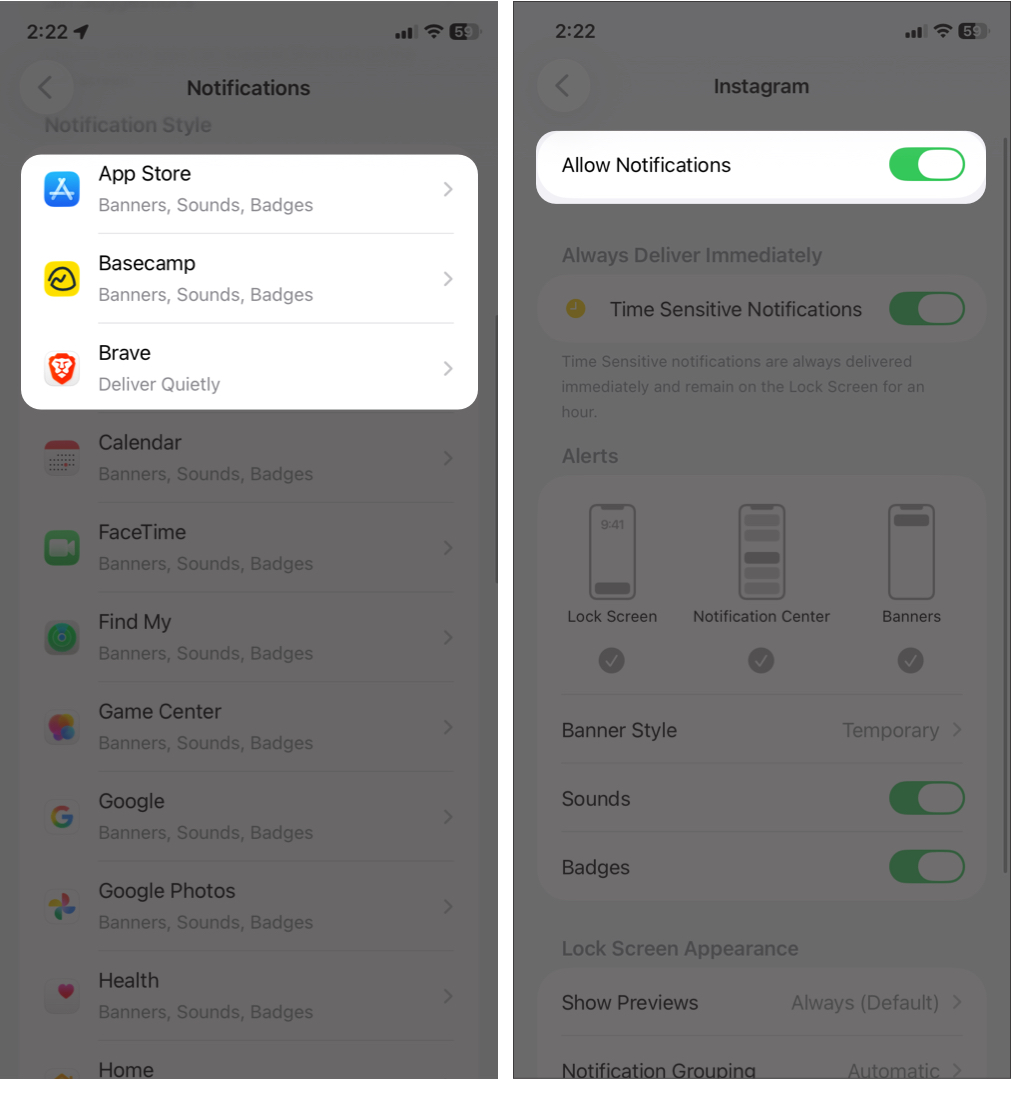
- Then verify these options:
- Alerts are enabled (Lock Screen, Notification Center, or Banners).
- Sounds are turned on.
- Badges are enabled if you rely on app icons for alerts.
- Time Sensitive Notifications (if available) are allowed.
If notifications work for some apps but not others, the issue is almost always found here.
Tip:
If Scheduled Summary is enabled, notifications may arrive at set times instead of instantly. If you want to receive them in real-time, simply turn it off.
Restart iPhone
Temporary system glitches can prevent notifications from working. Restarting your iPhone refreshes system processes and often fixes minor bugs.
- Press and hold the Side and Volume buttons until you see the power off option.
- Drag the slider to switch off your iPhone.
- Wait a few seconds, then press the Side button to power it on.
Fix Notifications Not Working for Specific Apps
Sometimes notifications work fine on your iPhone, but one or two apps don’t send alerts at all. This usually means the issue is with that specific app, not the whole system.
The first solution is to re-enable notifications for those individual apps from Settings. You may follow the above steps for this. Refreshing the app’s notification permission often fixes the issue instantly.
Enable In-App Notifications Settings
Most third-party apps have their own notification controls inside the app, separate from iPhone settings.
- Navigate to Settings > Notifications and select the affected app.
- Scroll down and tap [App name] Notifications Settings at the bottom.
- It will redirect you to the app’s settings.
- Make sure alerts, sounds, and message notifications are enabled.
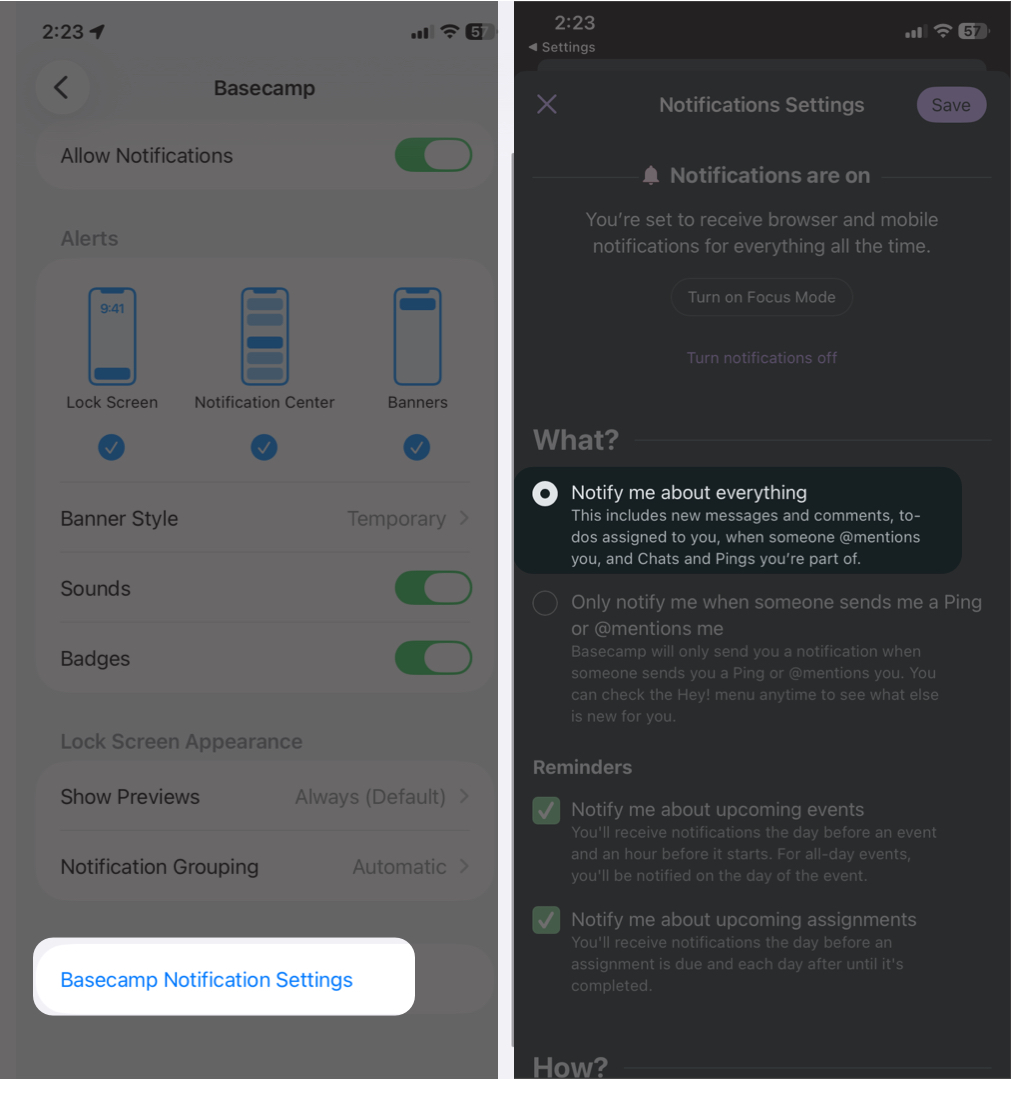
If in-app notifications are turned off, your iPhone cannot show alerts, even if system settings are correct.
Turn Off Focus Mode and Do Not Disturb
Focus Mode can silence or hide notifications from selected apps or contacts, making it seem like notifications are not working.
To turn it off:
- Swipe down Control Center and check if the Focus tile is showing any focus mode name.
- Tap the tile to open Focus lists and select the focus name to turn it off.
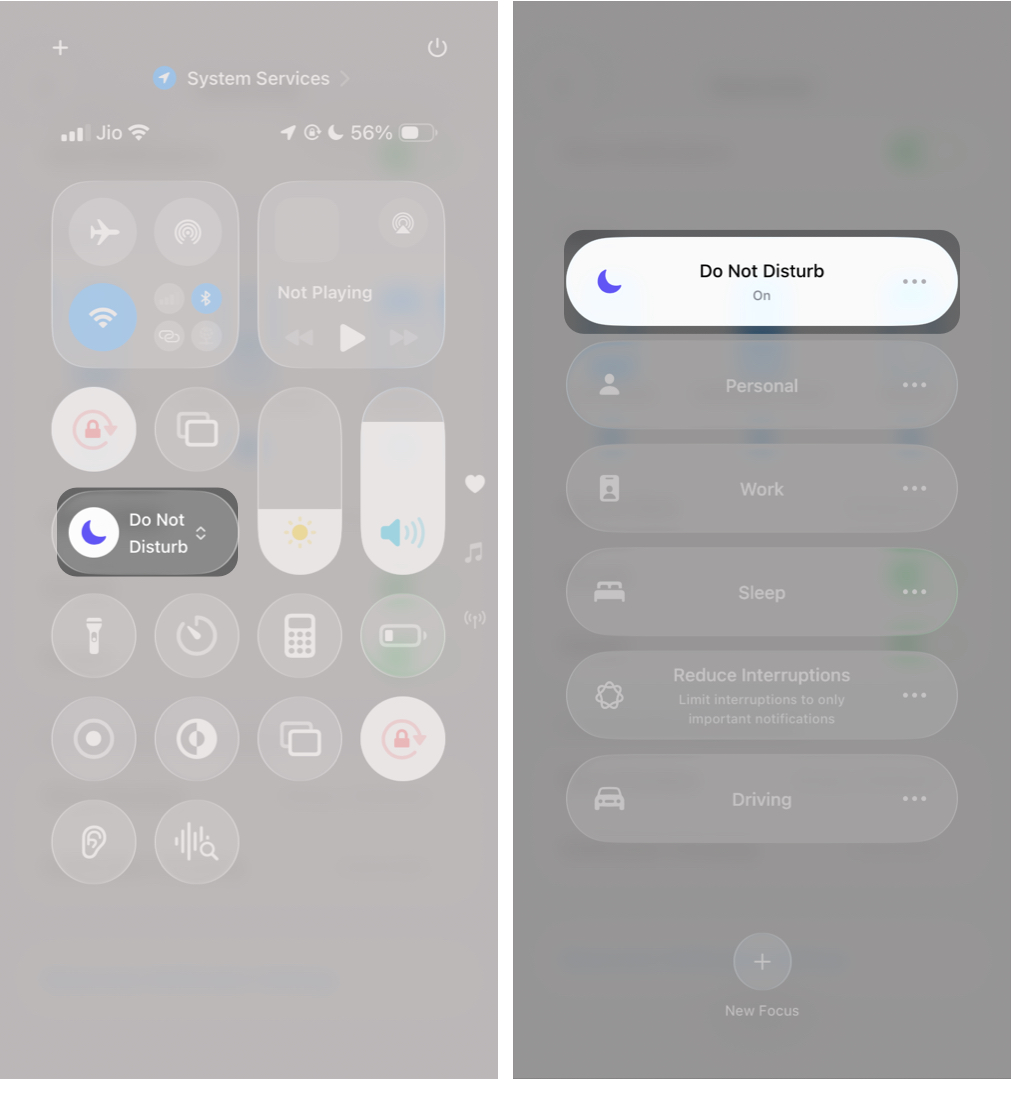
- Next, go to Settings > Focus.
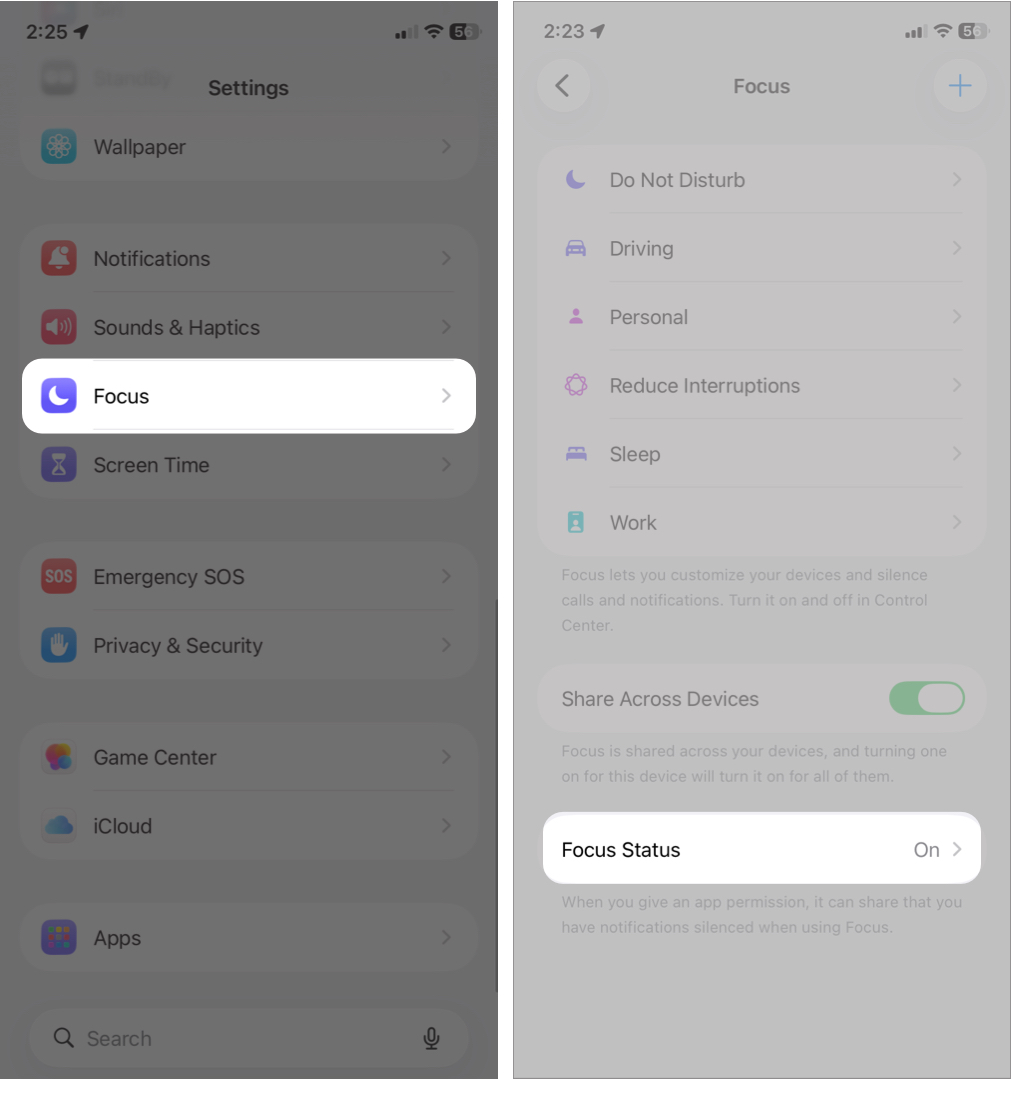
- Check Schedules or Smart Activation.
- Turn them off if you don’t want automatic activation.
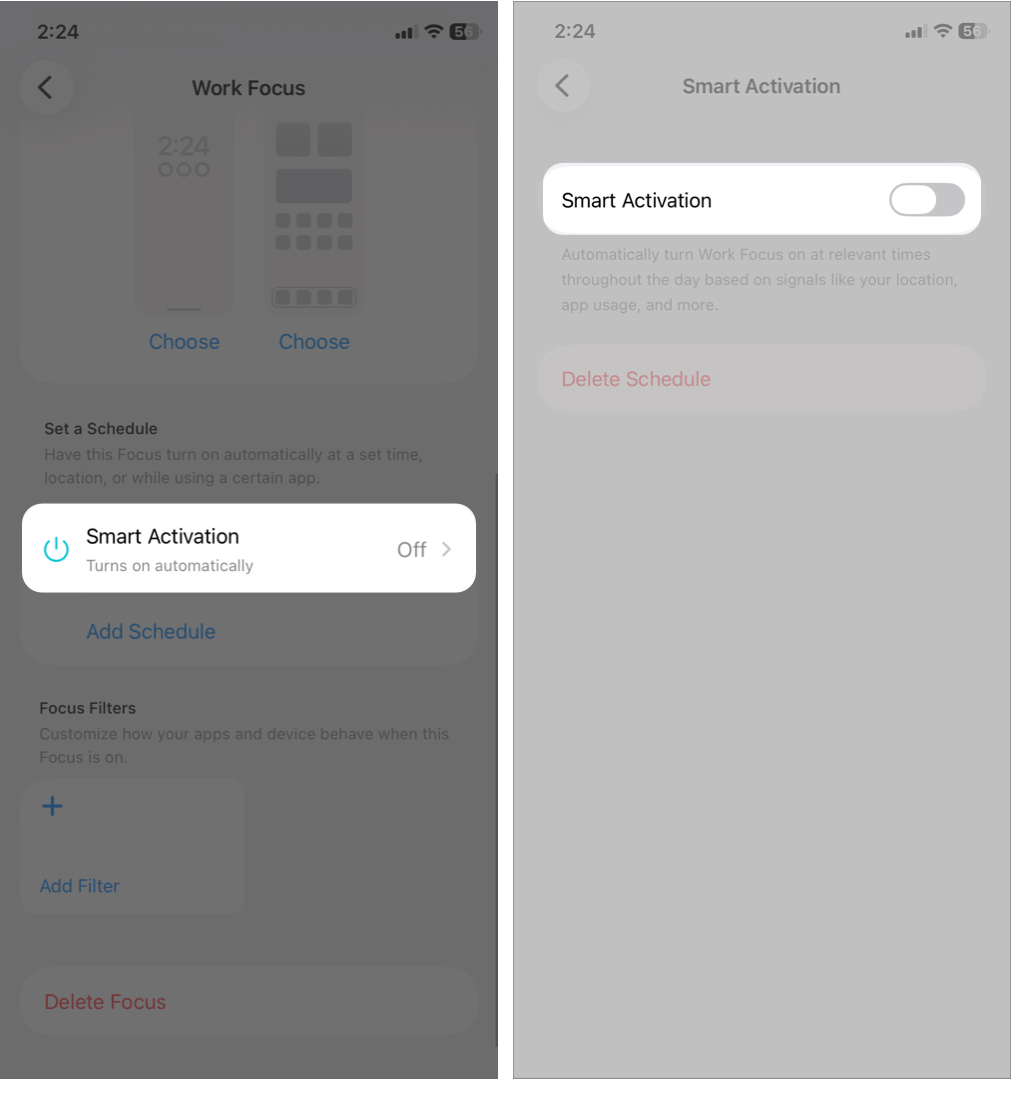
Many users don’t realize Focus Mode is scheduled, which causes repeated notification issues.
Tip:
If you want to keep Focus Mode on, add important apps to Allowed Apps and key contacts to Allowed People.
Enable Background App Refresh
Without background refresh, apps cannot:
- Fetch new data and check for new messages
- Sync new content
- Trigger timely notifications
This often causes “notifications only show when I open the app” issues.
To enable it:
- Go to Settings > General > Background App Refresh.
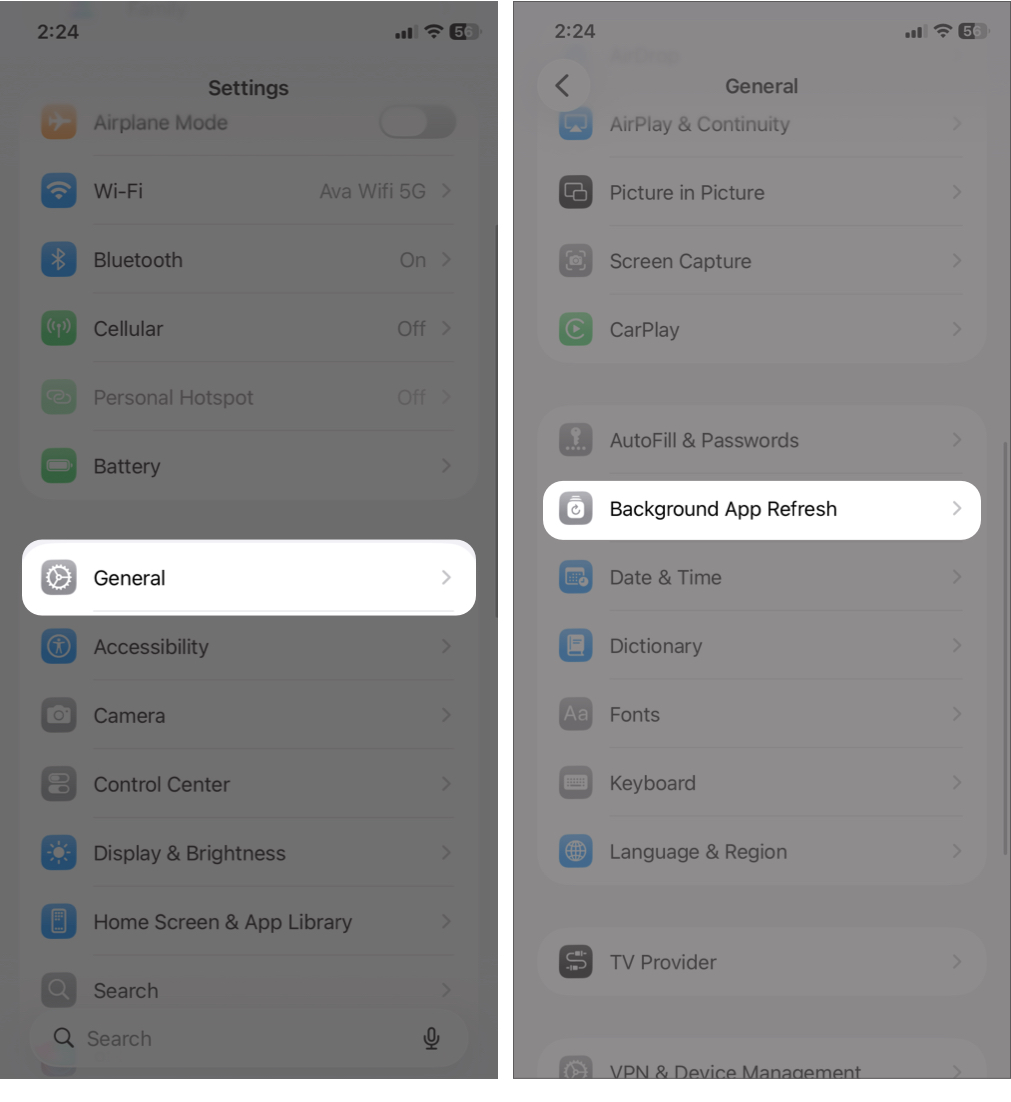
- Tap Background App Refresh.
- Select Wi-Fi & Cellular Data.
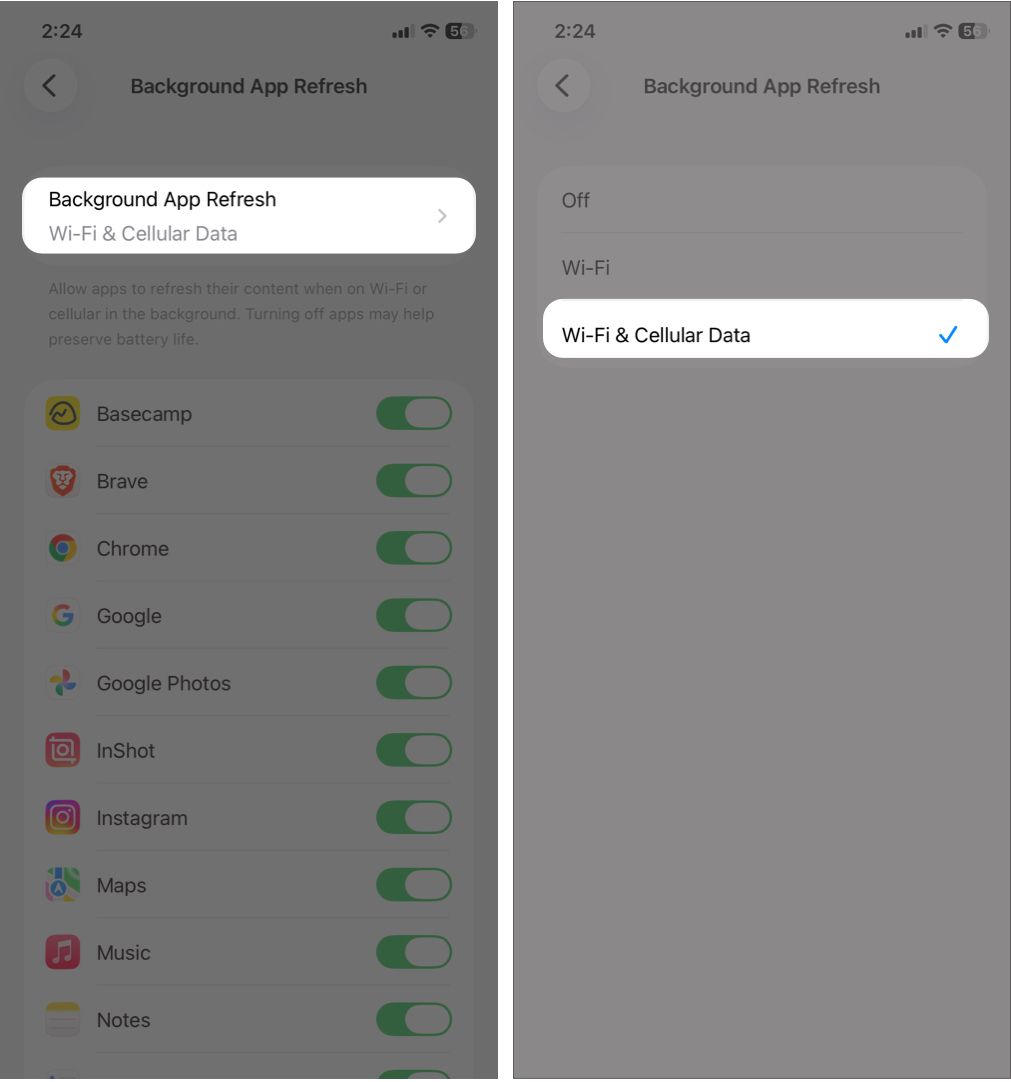
- Get back and check that each app is enabled.
Check Low Power Mode
Low Power Mode saves battery by:
- Reducing background activity
- Limiting app refresh
- Delaying notifications
This can make alerts arrive late or not at all.
To turn off Low Power Mode safely:
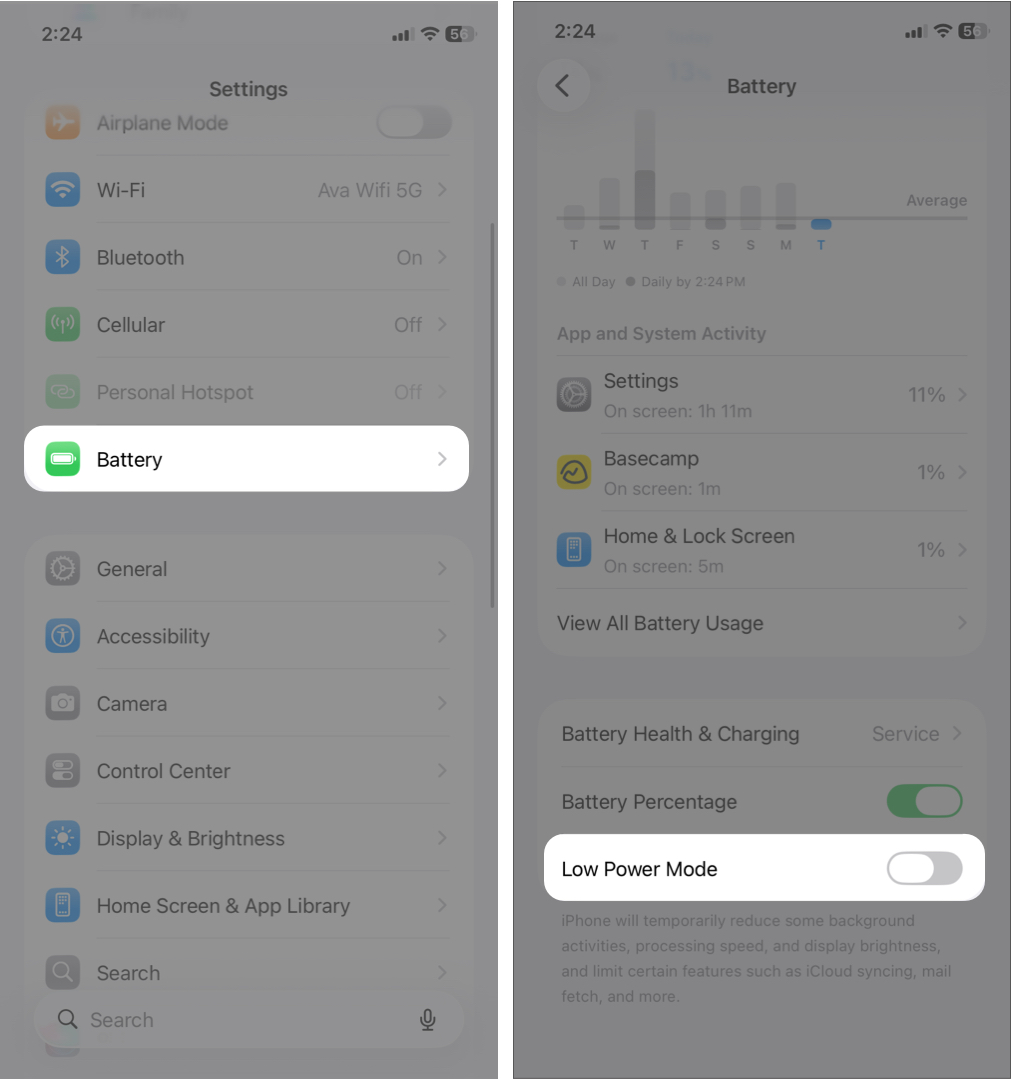
- Open Settings and go to Battery.
- Scroll down and toggle off Low Power Mode.
- Your battery will drain faster, but notifications will work normally again.
Note:
Use Low Power Mode only when the battery is low and disable it once charging is available.
Update iOS to the Latest Version
Older iOS versions may contain bugs that interfere with notifications, especially after app updates.
- Go to Settings > General > Software Update.
- Tap Update Now to install any available updates.
If the iPhone update fails, ensure enough storage space, a stable internet, and sufficient battery before retrying.
Fix Notification Issues After iOS Update
Notification problems often appear right after an iOS update. This usually happens because system settings are reindexed, background services restart, or app permissions don’t migrate perfectly to the new version.
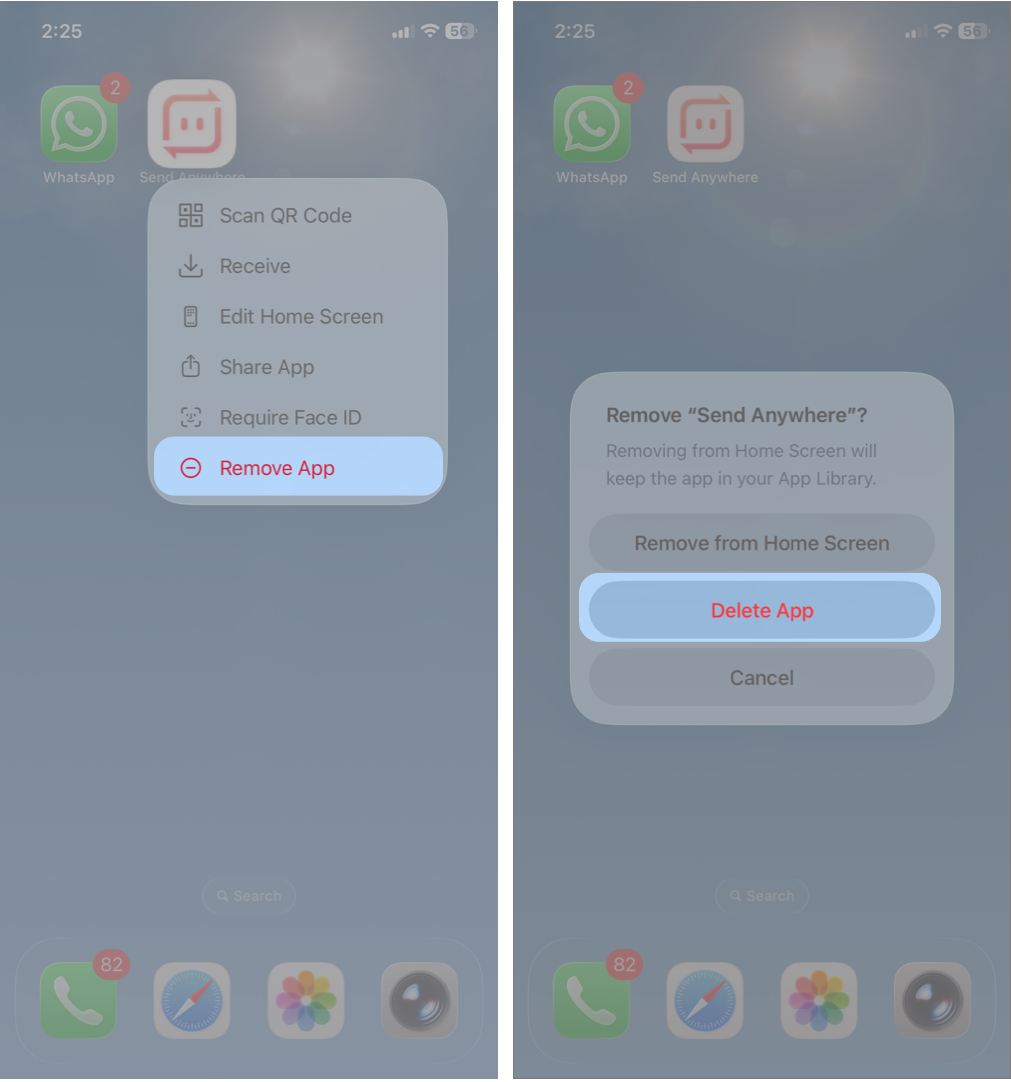
If the issue affects only specific apps, reinstalling them can help.
- Tap and hold the app on your home screen and select Remove App. Confirm your choice by tapping Delete App.
- Now, restart your iPhone to remove all temporary data.
- Then open the App Store and download the app again.
- Once it is reinstalled, go to Settings > Apps and select the app.
- Allow Notifications and Background App Refresh.
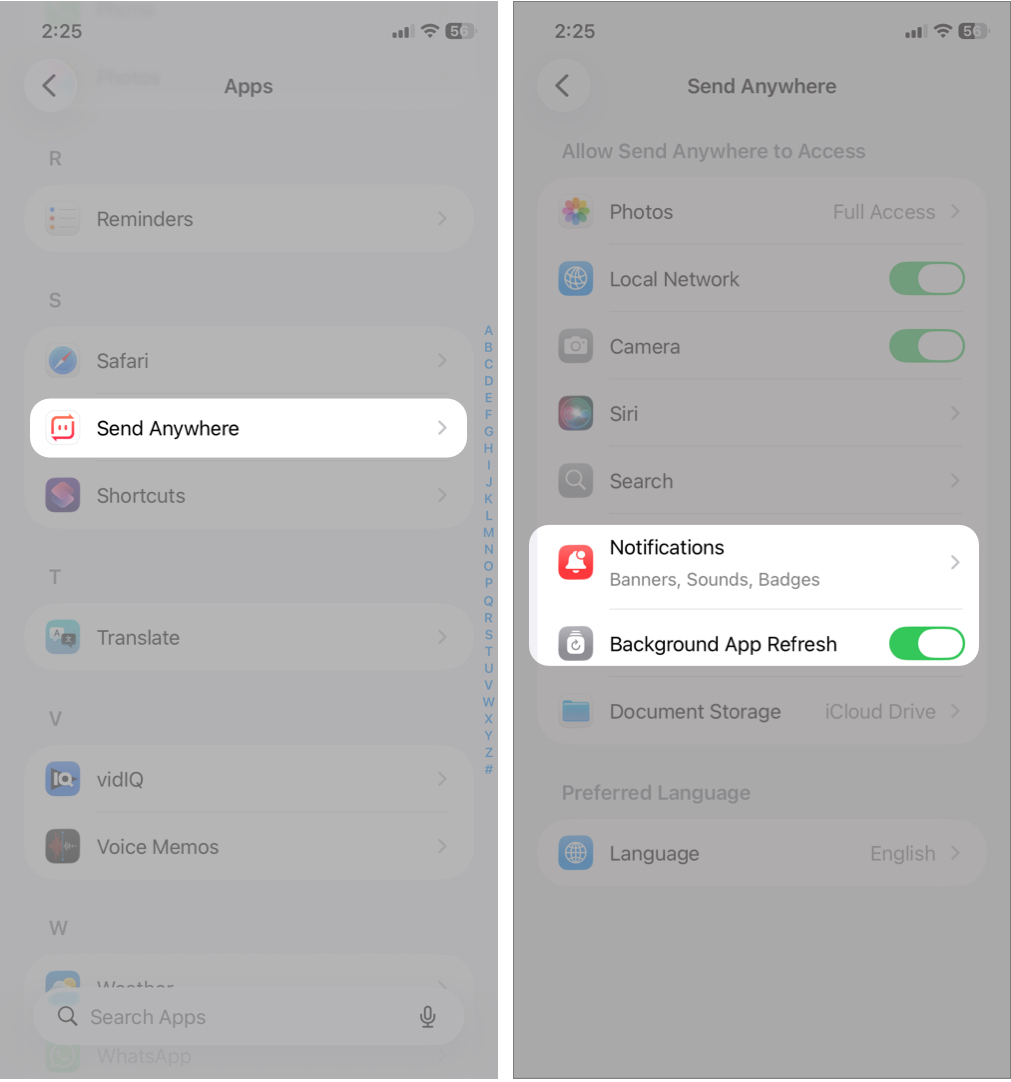
This refreshes app permissions and clears corrupted app-level notification data caused by the update.
Advanced Fixes (Last Resort)
Use these methods only if all previous steps fail, as they reset important system data or settings.
Reset Network Settings
Notification delivery is heavily dependent on network services. Resetting network settings can resolve hidden connectivity issues.
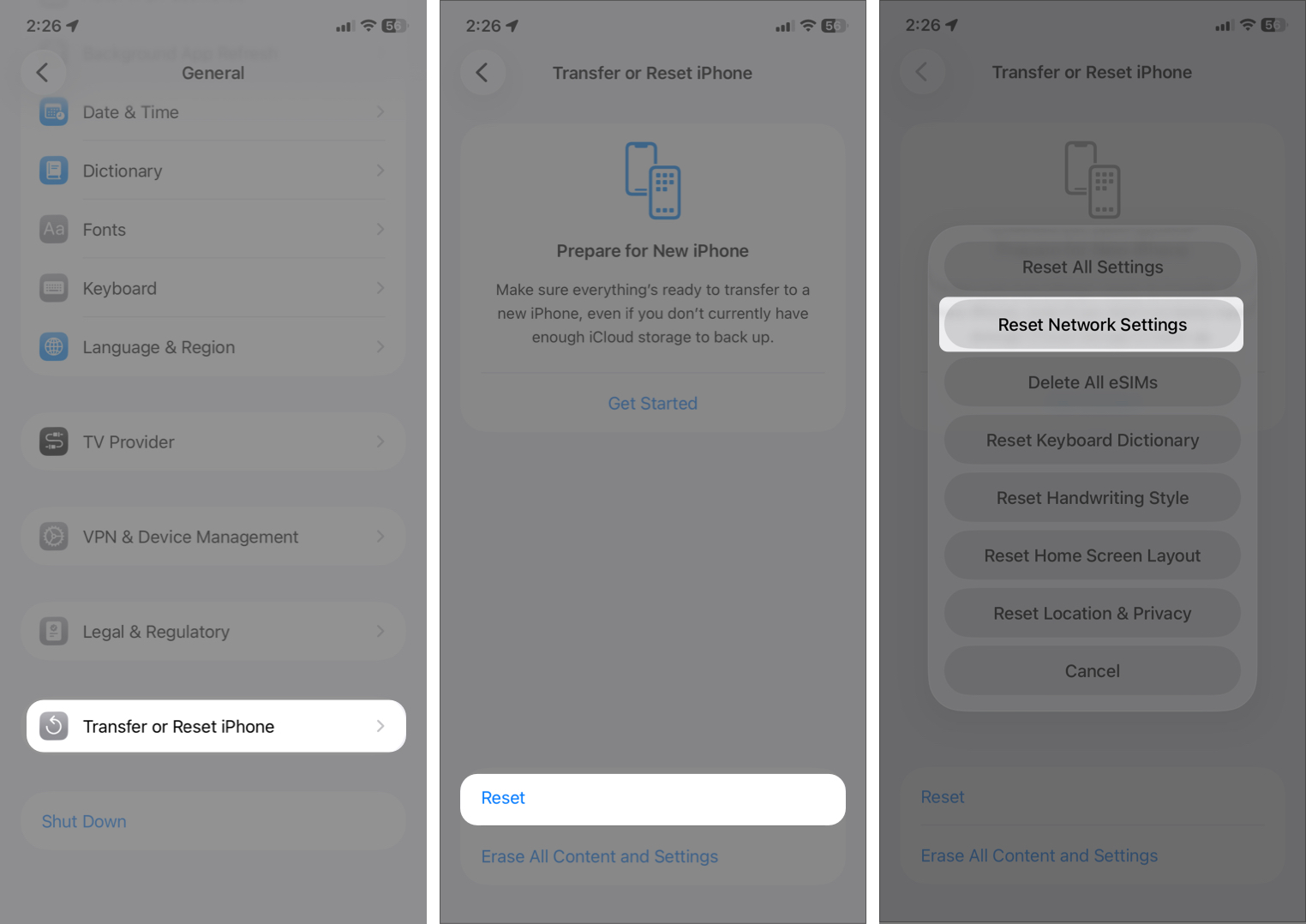
- Go to Settings > General > Transfer or Reset iPhone.
- Tap on Reset > Reset Network Settings.
- Enter your passcode and confirm your decision.
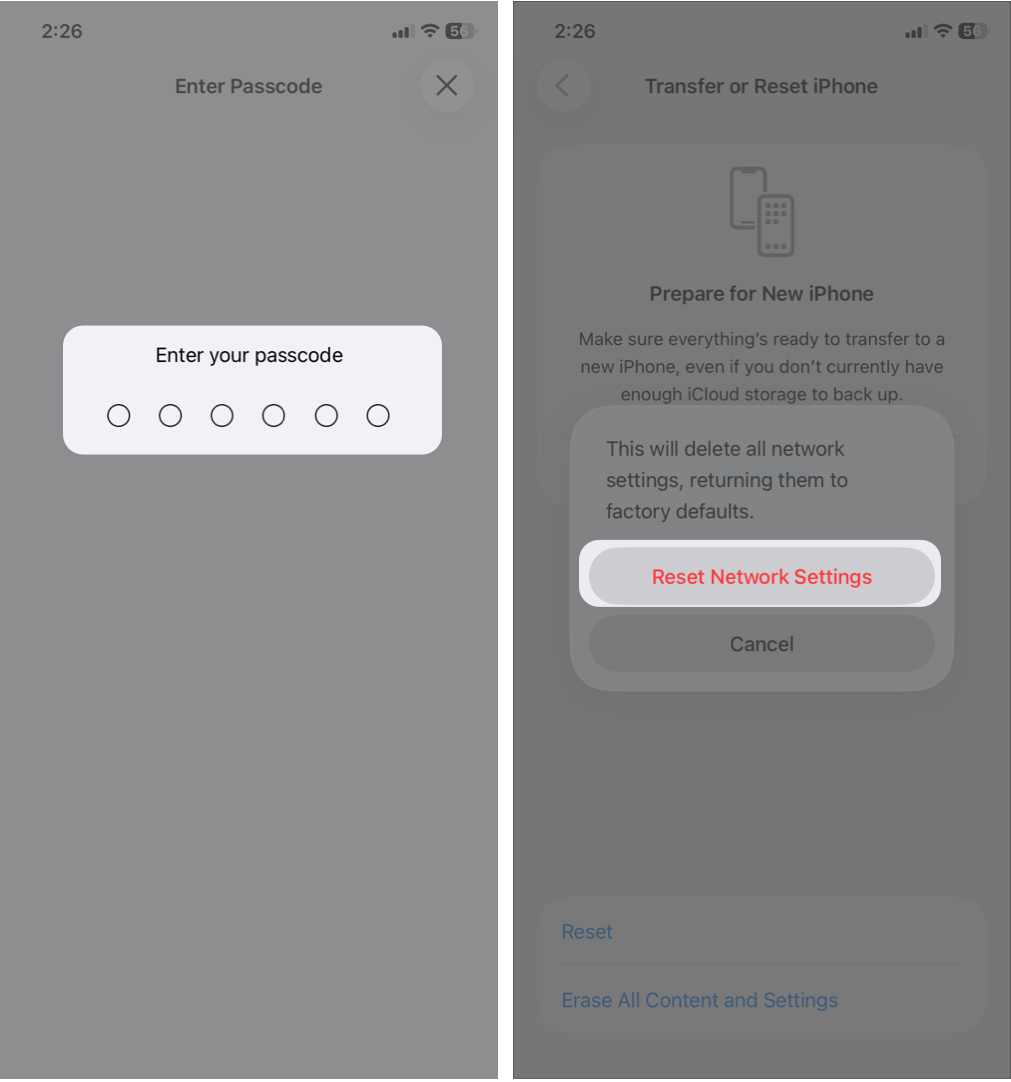
It will delete your Wi-Fi networks and passwords, VPN settings, and cellular and APN configurations. Don’t worry; your data and apps will remain untouched.
Restore iPhone Using Backup
If the notification problems persist with multiple apps and settings, a full restore may be necessary.
Best approach:
- Back up your iPhone using iCloud or a computer.
- Go to Settings > General > Transfer or Reset iPhone.
- Tap Erase All Content and Settings.
- Restore from your backup during setup.
This removes deeply rooted system bugs introduced during the iOS update.
When to Contact Apple Support
If none of the above fixes work, the problem may be tied to a deeper system or hardware issue.
You should contact Apple Support if you notice:
- Notifications fail even after a full restore
- No sound or vibration across the entire system
- Other system features malfunction (Bluetooth, Wi-Fi, Face ID)
- The issue persists across multiple iOS versions
All of the above symptoms may indicate faulty or corrupted firmware or hardware. Have your iOS version, affected apps, and troubleshooting steps ready to speed up the process.
Final Thoughts
Notifications not working on iPhone can be annoying, but most issues are easy to fix with the right steps. From checking basic settings to applying advanced fixes, this guide covers everything you need clearly and simply.
Follow each section carefully, and in most cases, your notifications will be back to normal in no time. If the problem persists, don’t hesitate to contact Apple Support for expert assistance.
Frequently Asked Questions

Written by
Ava BiswasAva is a die-hard Apple aficionado and seasoned writer with a knack for breaking down complex tech concepts into easily digestible content. Having honed her writing and editing skills over 4 years at renowned media houses like TechBurner, Ava crafts informative and engaging articles including troubleshooting guides, product reviews, editorials at iGeeksBlog. When not typing, you can find her exploring the latest Apple releases or pondering the future of tech innovation.
View all posts →More from How-to

Snapchat Parental Controls: How to Set Up Family Center and Keep Your Teen Safe
Snapchat’s Family Center lets parents monitor their teen’s friend activity and screen time without reading private messages. Here’s how to set it up and what to expect.
 VikhyatMarch 3, 2026
How to Block and Unblock Someone on Instagram
Instagram lets you block or unblock someone in seconds. Follow these simple steps to take full control of your privacy and online peace.
Ava BiswasMarch 2, 2026
Apple Watch Not Responding? 8 Fixes That Actually Work
Is your Apple Watch unresponsive or stuck on a black screen? Here are 8 proven fixes to help you unfreeze it and get it working again quickly.
VikhyatMarch 3, 2026