Every time I edited a Snapchat video, my emoji use was pretty basic. I would record a Snap, open the sticker menu, add an emoji, resize it, and place it somewhere on the screen. That was it. The emoji stayed exactly where I dropped it, even if the person or object in the video moved away.
For the longest time, I thought that was just how Snapchat stickers worked. But Snapchat actually has a clever trick that makes emojis feel much more interactive. You can pin an emoji to a specific object or person in a video, and Snapchat will automatically make it follow that movement.
The feature has been sitting inside the app for years, but it is surprisingly easy to miss if you only use Snapchat for quick photos and chats.
Snapchat lets you attach emojis to moving objects
Normally, when you add an emoji or sticker to a video, Snapchat places it as a fixed layer on top of your Snap. The video keeps playing in the background, but the emoji does not react to anything happening inside the clip.
However, it does not have to stay that way. Snapchat lets you attach the same emoji to something inside the video, whether it is a person, pet, or object. Once attached, the sticker follows the movement automatically instead of staying stuck in one place.
How to make emojis follow objects in Snapchat videos
Snapchat does not show a separate “pin” button when you add a sticker, so the feature is easy to overlook. It is available through the same sticker menu you already use, and getting an emoji to follow something in your video only takes a few extra seconds.
Here’s how to do it:
- Open Snapchat and record a video Snap.
- Now, tap the Sticker icon from the editing tools.
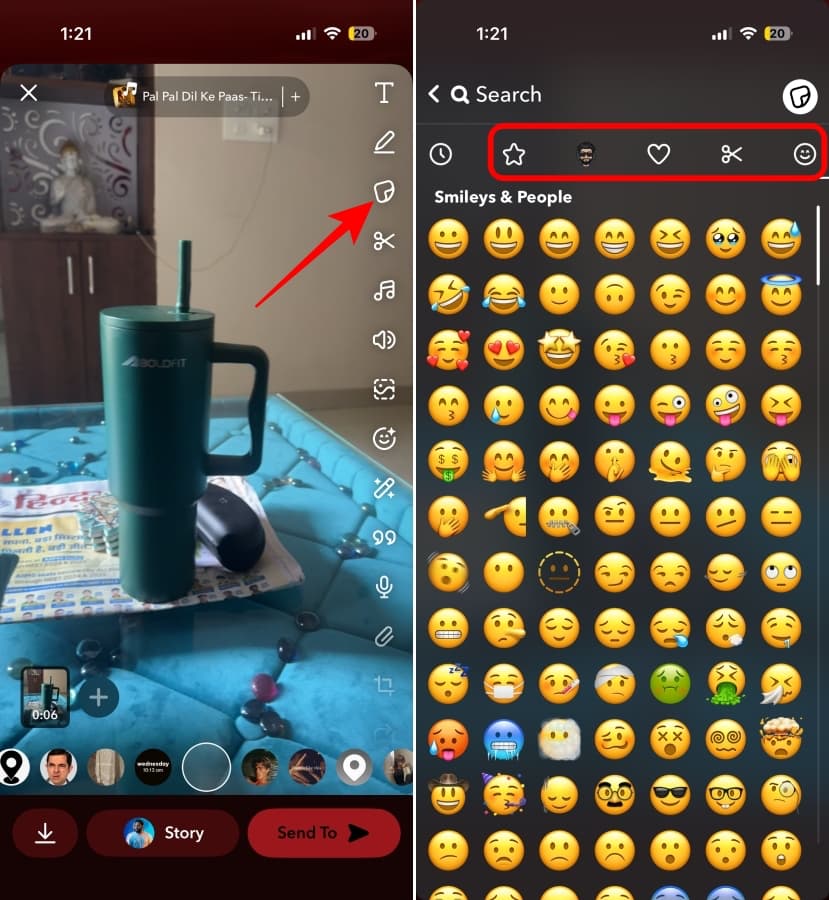
- Here, pick any emoji, Bitmoji, or sticker you want to use.
- Drag the sticker over the object or person you want it to follow.
- Now, press and hold the sticker to bring up more options.
- Select the Pin to Snap option in the pop-up window that appears.
- Wait a moment while Snapchat pins the sticker.
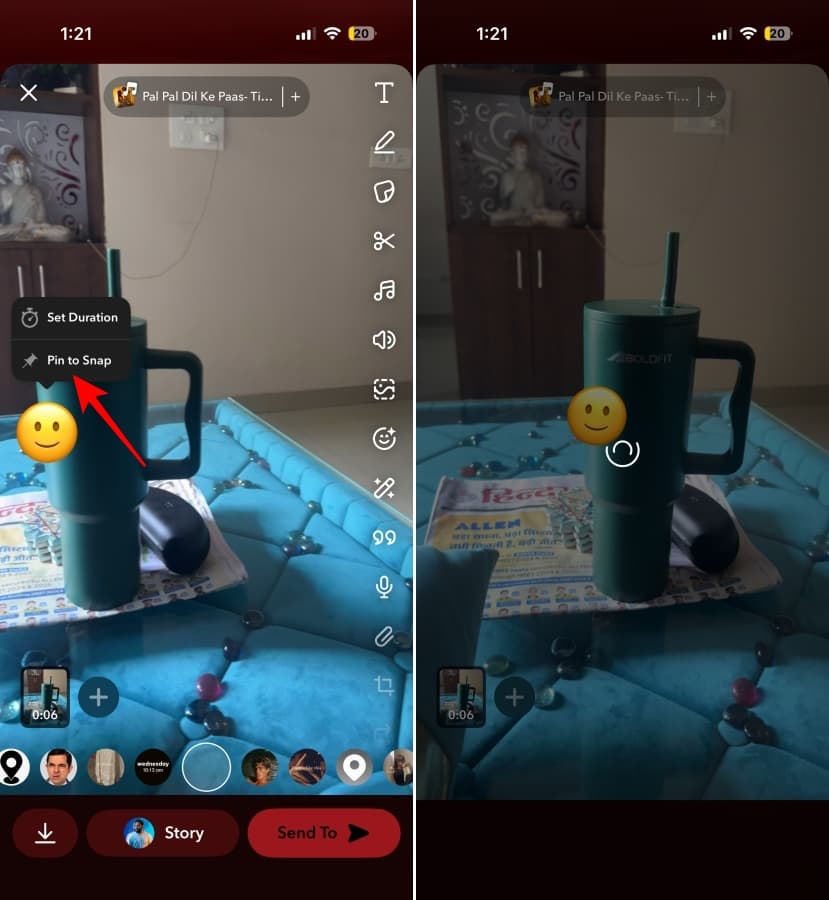
Once Snapchat finishes processing, the emoji moves with the selected object instead of staying frozen on the screen.
If you don’t like how it looks, you can simply drag and drop the sticker to any other object and use the Pin to Snap feature again.
Tips for better emoji tracking in Snapchat
Snapchat usually does a good job of keeping emojis attached, though I have had a few attempts where the sticker drifted away from the spot I picked. These small things helped me get better results:
- Keep the subject clearly visible: Snapchat needs to follow the person or object you pinned the emoji to. If it disappears from the frame or blends into the background, the sticker may lose track.
- Avoid too much movement: Slow and steady movement usually works better. Fast-moving objects or shaky videos can sometimes make the emoji drift away from where you placed it.
- Record in good lighting: Bright and clear videos make it easier for Snapchat to detect the subject and keep the emoji attached.
- Try shorter clips: The longer the video, the more movement Snapchat has to track. Short clips usually give cleaner results.
A simple trick that makes Snaps more interactive
While adding normal stickers works fine for quick Snaps, pinning takes it further by making the emoji feel connected to the moment you are trying to highlight instead of looking like something placed on top afterward.
I mostly find it useful for small edits, like hiding something in a video, following a reaction, or making a simple Snap a little more fun without opening another editing app. It only takes a few extra seconds, and once you know the option exists, regular stickers start to feel a bit limited.
Did you know Snapchat stickers could follow objects in videos, or is this a trick you missed too? Let us know in the comments.
Related articles worth reading: