
Pet recognition feature not working on iPhone? How to fix it!
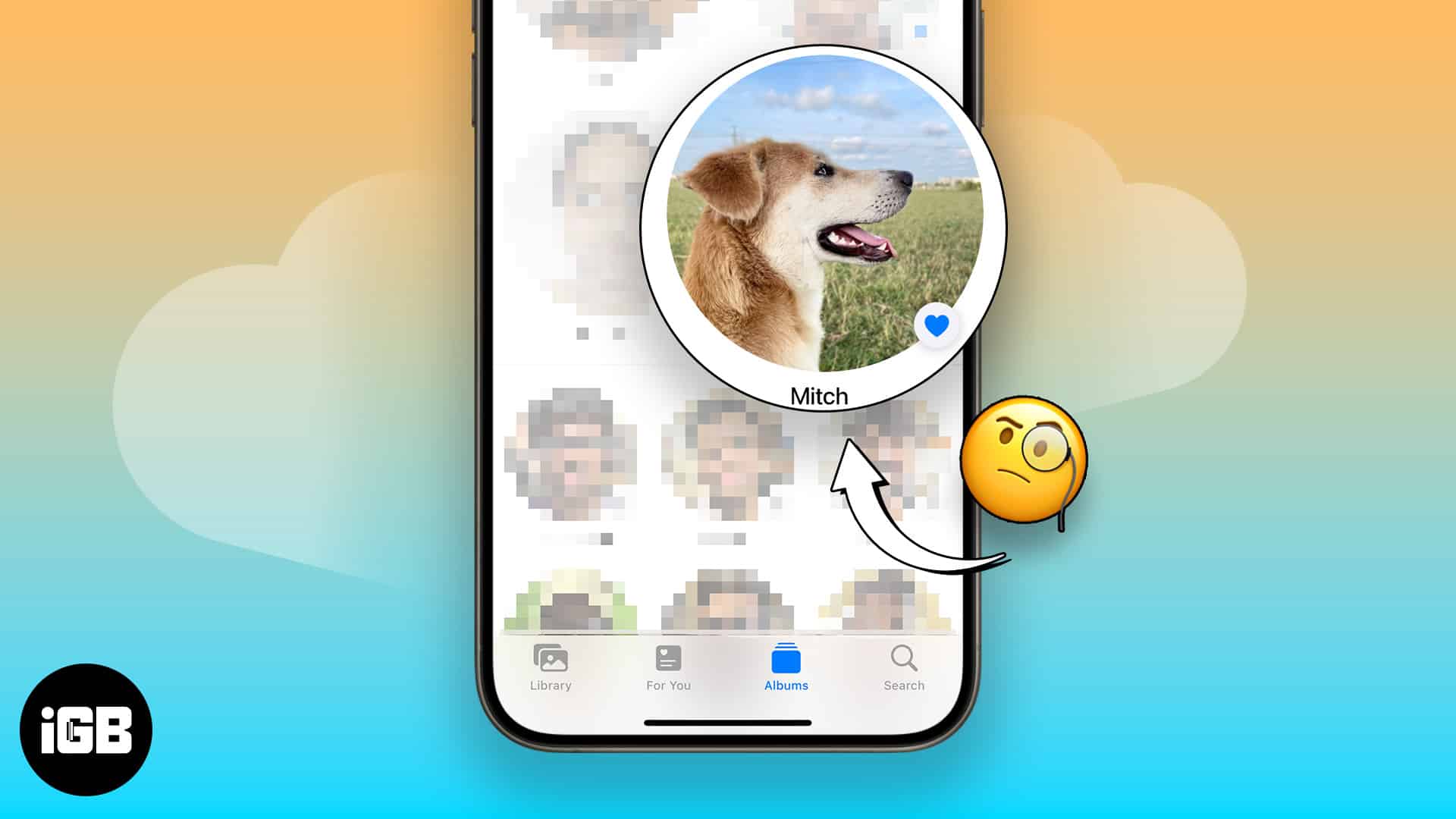
You’ll take many photos of your pet if you’ve got one. Before iOS 17, it was harder to find your pet’s photos individually. Apple introduced the People & Pets album with iOS 17, iPadOS 17, and macOS Sonoma, categorizing photos of people and pets individually. However, some of you might not be able to see it. So, in this guide, I’ll show you how to fix pet recognition not working in People & Pets album on your iPhone.
- Re-index your Photos album
- Restart your iPhone
- Reset People & Pets suggestions on iPhone
- Add People or Pets manually to your iPhone
1. Re-index your Photos album
Apple indexes your images from the Photos album and processes them in the background, including categorizing people’s and pets’ faces. Before you proceed with any other troubleshooting method, it’s an excellent idea to re-index your Photos album on your iPhone.
Follow these simple steps to re-index the photos on your iPhone:
- Connect your iPhone to Wi-Fi.
- Plug your iPhone into the charger and lock it.
- Leave your iPhone overnight.
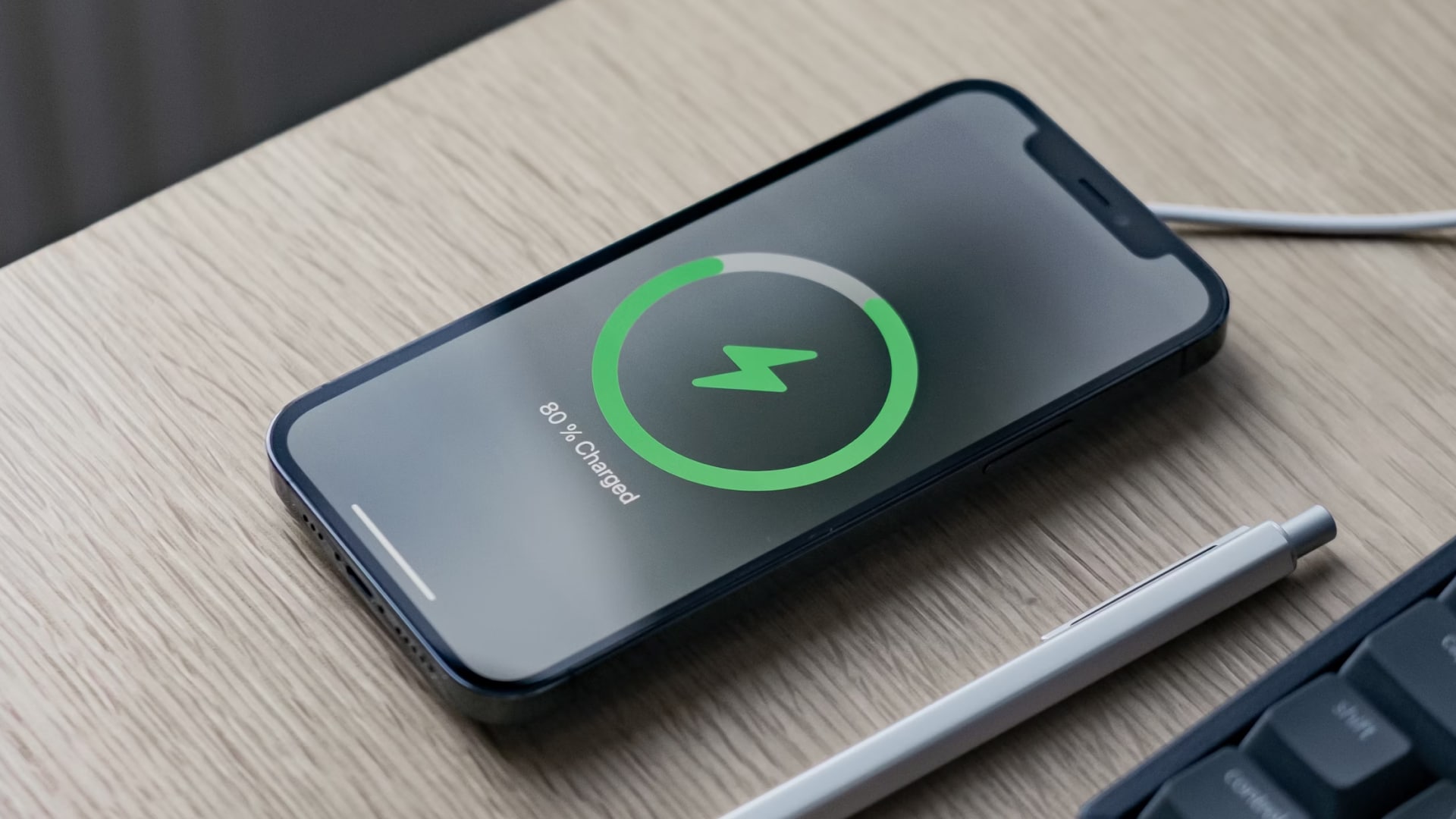
Your iPhone will start indexing the photos, and it’ll detect the people and pets in your images to create a separate People & Pets album. It can take up to two or more nights before the album gets created.
2. Restart your iPhone
To restart iPhone X or later models, follow these steps:
- Press and hold the side button + any volume button for a few seconds until the power off slider appears.
- Drag the slider to power off your iPhone and wait for 30 seconds.
- Press and hold the side button again to turn on your iPhone.
To restart iPhone 8 or earlier models, follow our detailed guide to restart iPhones.
3. Reset People & Pets suggestions on iPhone
If nothing above worked, your best option is to reset the People & Pet suggestion on your iPhone. As a result, the Photos app will start the indexing process again, and if the re-indexing method doesn’t work for you, this should work.
Nevertheless, here’s how to reset the People & Pet suggestions on your iPhone:
- Open the Settings app on your iPhone.
- Select Photos from the list.
- Scroll down and tap the Reset People & Pets Suggestions option.
- Select Reset when you see the confirmation prompt.
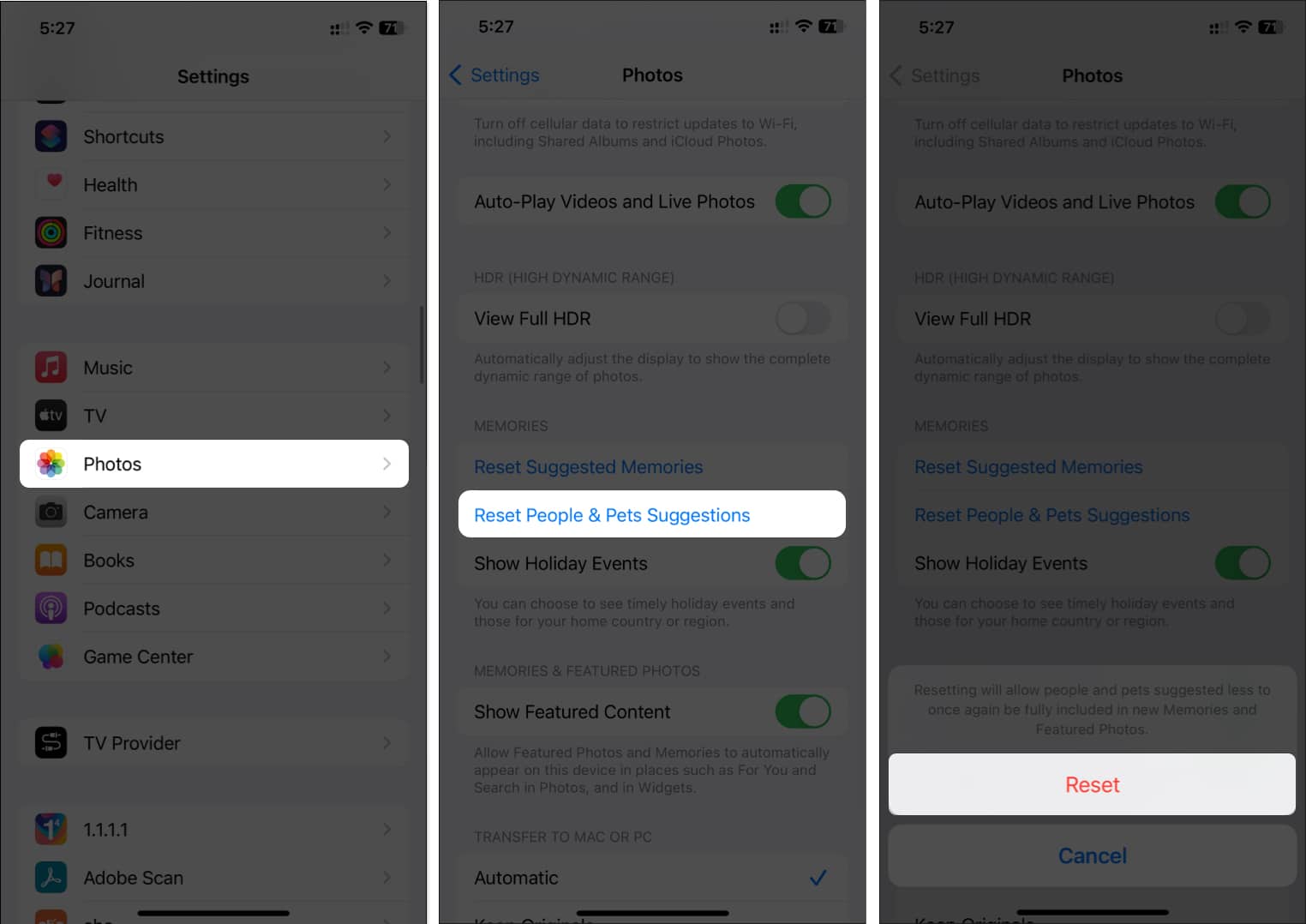
Once you reset the People & Pets suggestions, you should be able to see the People & Pets album after a few days.
4. Add People or Pets manually to your iPhone
If your iPhone fails to automatically add people or pets to your Photos app, it’s best to take the matter into your own hands and add them manually.
- Open the Photos app on your iPhone.
- Tap on the Albums tab.
- Select the People & Pets album.
- Scroll down and tap the Add People option.
- Select the people or pets you’d like to add to the album.
- Tap the Add button on the top-right to add their photos to the album.
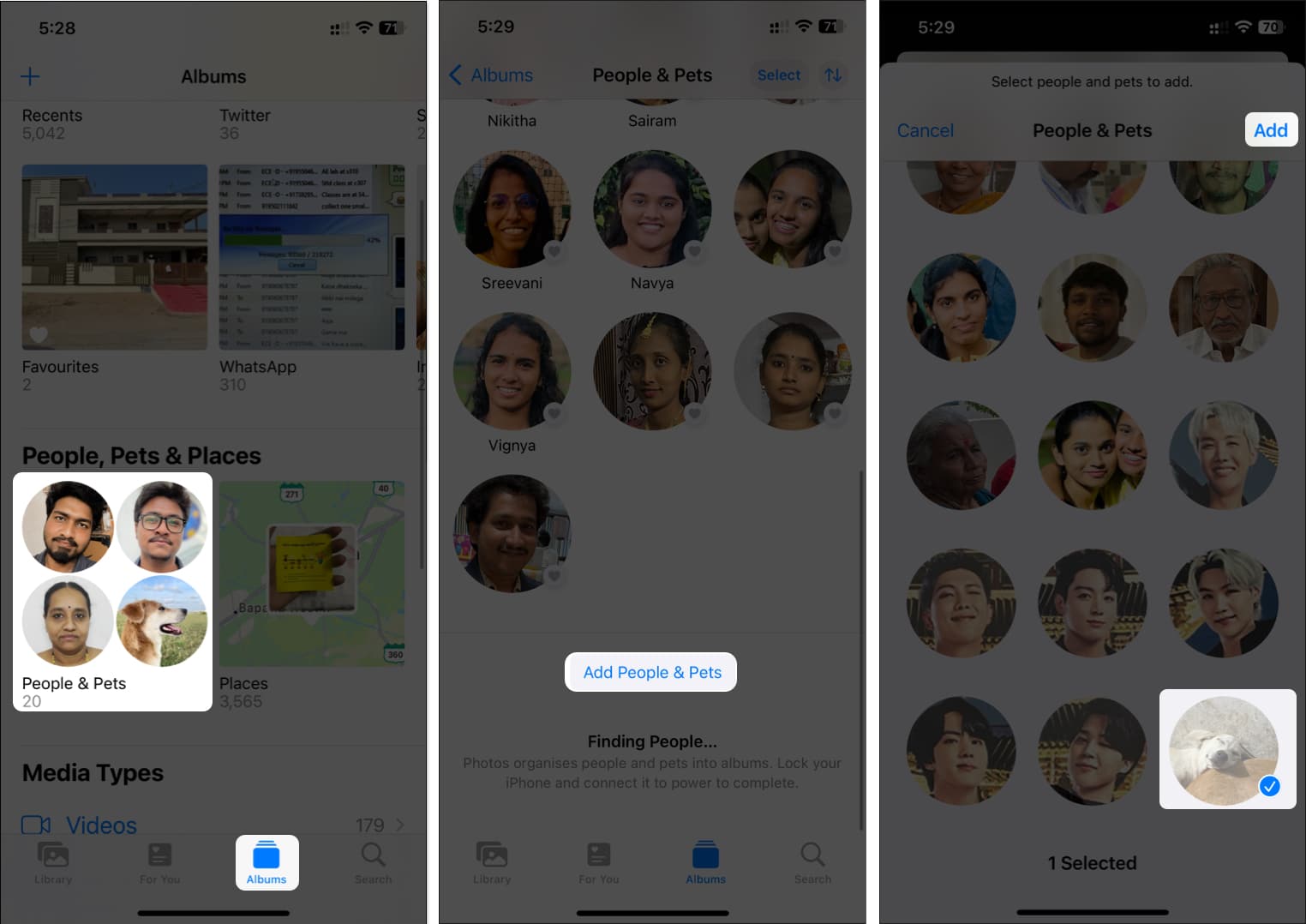
To learn more ways to do the same, you can take a look at our complete guide on how to tag pets in iOS 17.
People and Pets should be available in the Photos app!
The People and Pets album is an excellent way to search for photos of specific people and pets instantly. Once you’ve tried the troubleshooting methods above, the People and Pets album should be in the Photos app.
But if you’re running the beta or developer version of iOS, it’s best to wait for the next update, as it may be a bug in the operating system. If you’ve got any other doubts or recommendations, please leave them in the comments below.
Read more:
Topics

Written by
Sajid ShaikSajid Shaik is a tech enthusiast who explains complex concepts in a clear and concise way. For the past 7 years, he has been a regular contributor to tech blogs and publications, including MakeUseOf and iGeeksBlog. Sajid also has extensive knowledge of the Apple ecosystem, which he shares with his readers through his words. He has created a wide range of content, such as How-Tos, Reviews, Listicles, and much more. Aside from that, Sajid has a degree in Electronics and Communication Engineering, which gives him an advantage in better understanding technology at hardware level. Apart from writing, you can find him fiddling with Apple products or keeping up with all things Apple.
View all posts →More from How-to

How to Turn Off Location on Snapchat (Step-by-Step Guide)
Want to stop sharing your location on Snapchat? This guide explains how Snapchat location sharing works and shows simple ways to turn off your location using Ghost Mode or phone settings. Stay in control of your privacy in just a few steps.
 VikhyatMarch 5, 2026
Snapchat Parental Controls: How to Set Up Family Center and Keep Your Teen Safe
Snapchat’s Family Center lets parents monitor their teen’s friend activity and screen time without reading private messages. Here’s how to set it up and what to expect.
VikhyatMarch 3, 2026
How to Block and Unblock Someone on Instagram
Instagram lets you block or unblock someone in seconds. Follow these simple steps to take full control of your privacy and online peace.
 Ava BiswasMarch 2, 2026