Cellular data keeps your iPhone connected to the internet when Wi-Fi isn’t available. You use it for browsing, messaging, maps, emails, and apps on the go. But sometimes, cellular data suddenly stops working, even when your phone shows signal bars.
This problem can happen for several reasons. The good news is that it can often be fixed with a few simple steps. Let’s walk through everything you need to check and how to fix iPhone cellular data not working issues.
Why Is My iPhone Cellular Data Not Working? (Common Causes)
There isn’t just one reason cellular data fails. Multiple small issues can interrupt your connection and show errors like “Could Not Activate Cellular Data Network.”
Some of the most common causes include:
- Cellular data accidentally turned off
- Weak network coverage
- SIM card not detected properly
- Expired or limited data plan
- Incorrect date and time settings
- iOS software bugs
- Corrupted network settings
- Hardware antenna problems
Understanding these causes helps you troubleshoot faster instead of guessing.
Quick Checks Before You Start Troubleshooting
Before trying advanced fixes, it’s best to check the basics. These simple steps often solve the problem immediately.
Note:
You may see Mobile Data or Mobile Services instead of Cellular Data in Settings. Follow the steps accordingly.
1. Check If Cellular Data Is Enabled
This might sound obvious, but it’s one of the most common causes.
- Go to Settings > Cellular.
- Make sure Cellular Data is toggled ON. If it’s blurred, you may have Content & Privacy Restrictions enabled in Screen Time.
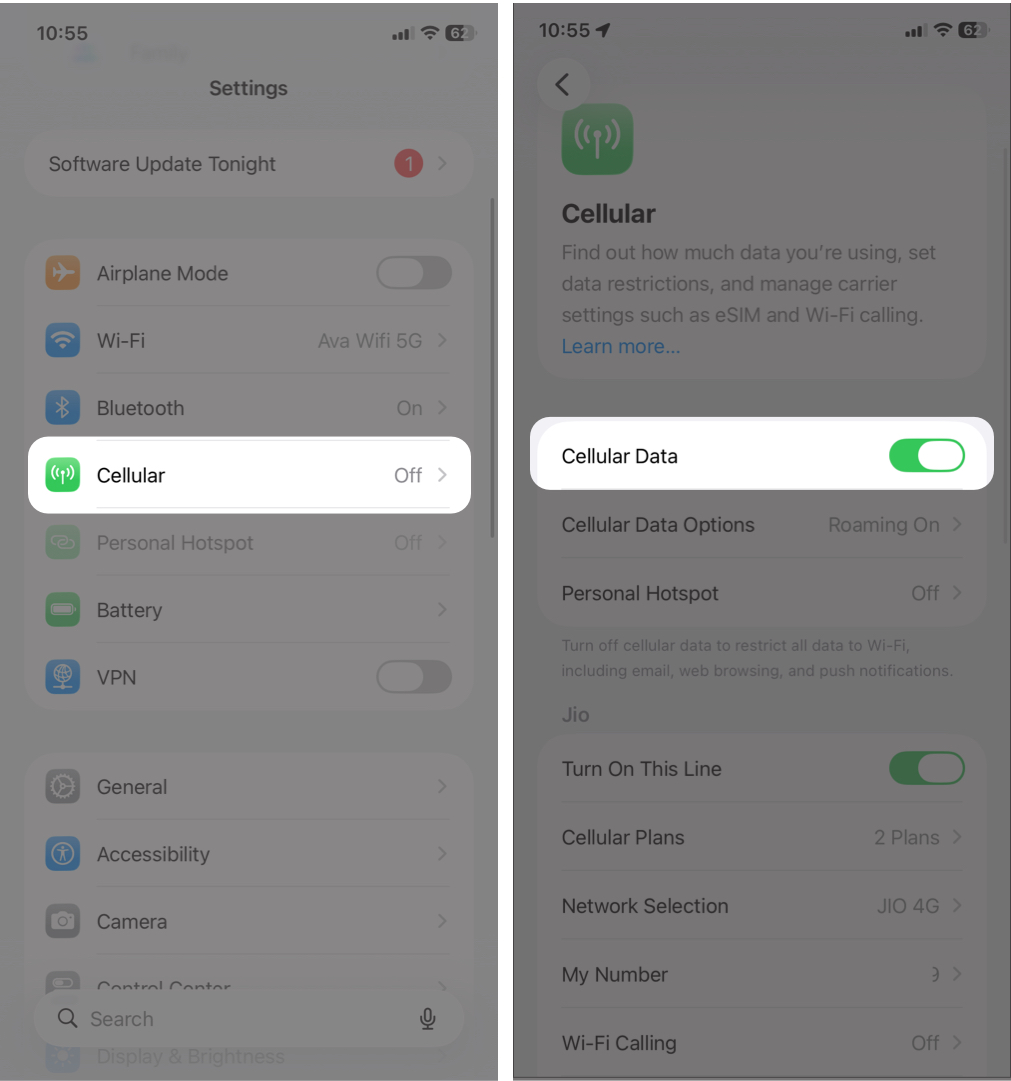
Sometimes users restrict cellular access for certain apps to save data. Later, it appears as if mobile internet isn’t working.
To fix it, scroll down in Cellular settings, tap Show All, and verify that all apps you want to use with cellular data are enabled.
2. Verify Signal Strength
Cellular data depends heavily on network signal quality.
Look at the top-right corner of your iPhone to check signal strength. If it shows one signal bar, No Service, Searching, or frequent drops, data may not work reliably.
In that case, try:
- Moving closer to a window
- Going outdoors
- Changing rooms or floors
- Traveling to a different location
Then open a browser and run an internet speed test to check connection quality.
Buildings, basements, elevators, and rural areas often have weak signals.
3. Confirm Your Data Plan Is Active
If your mobile data plan has expired or reached its limit for the billing cycle, internet access will stop even though your phone shows signal.
Check using:
- Your carrier’s mobile app
- Carrier SMS notifications
- Customer support
- Balance check codes
This is especially common for prepaid users. If it’s fully exhausted, top up your data plan or pay the pending bill to continue using mobile data.
4. Turn Off VPN
VPN apps can interfere with cellular connectivity. If you already have a weak connection, a VPN can slow it down further due to encryption processing. Some servers also block VPN traffic, which may make it seem like cellular data isn’t working.
To check:
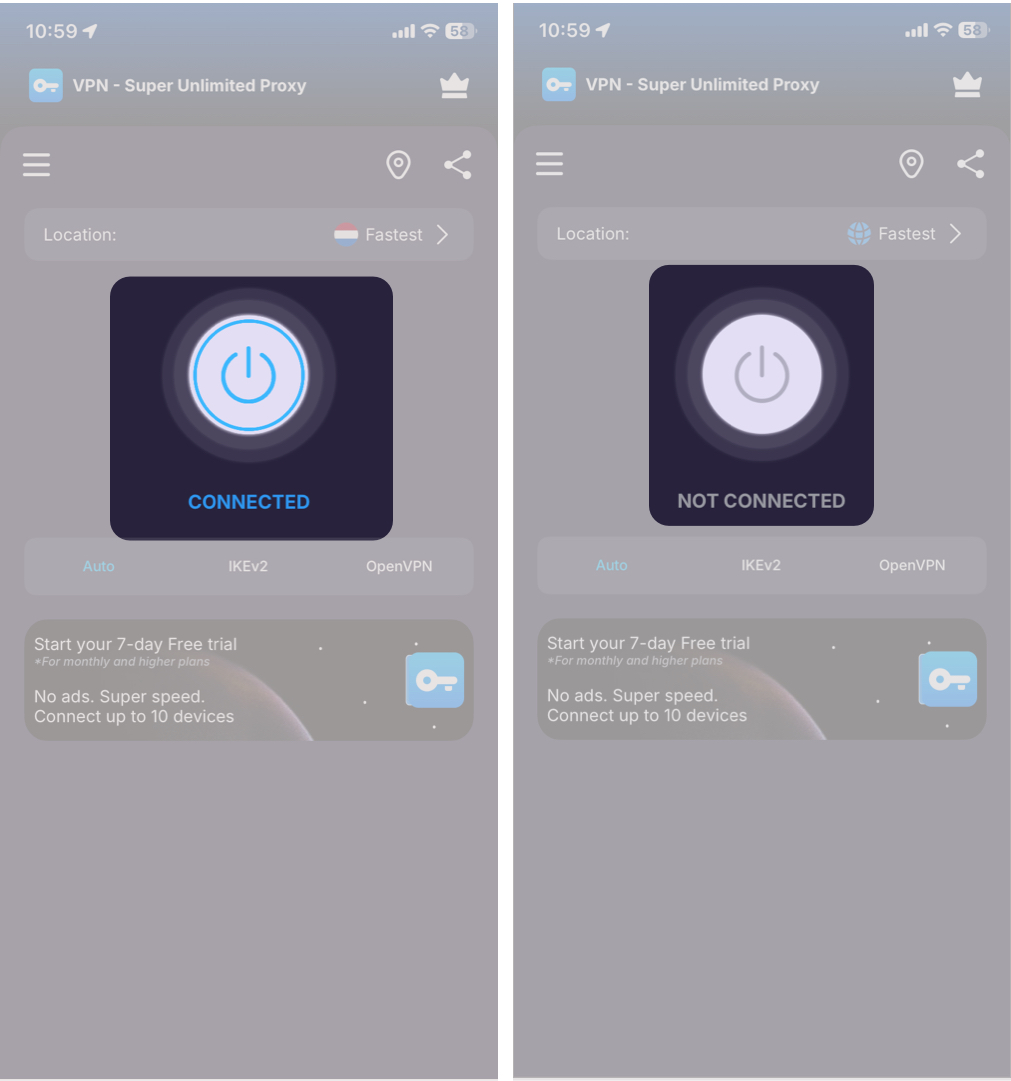
- Open Settings and look for VPN status.
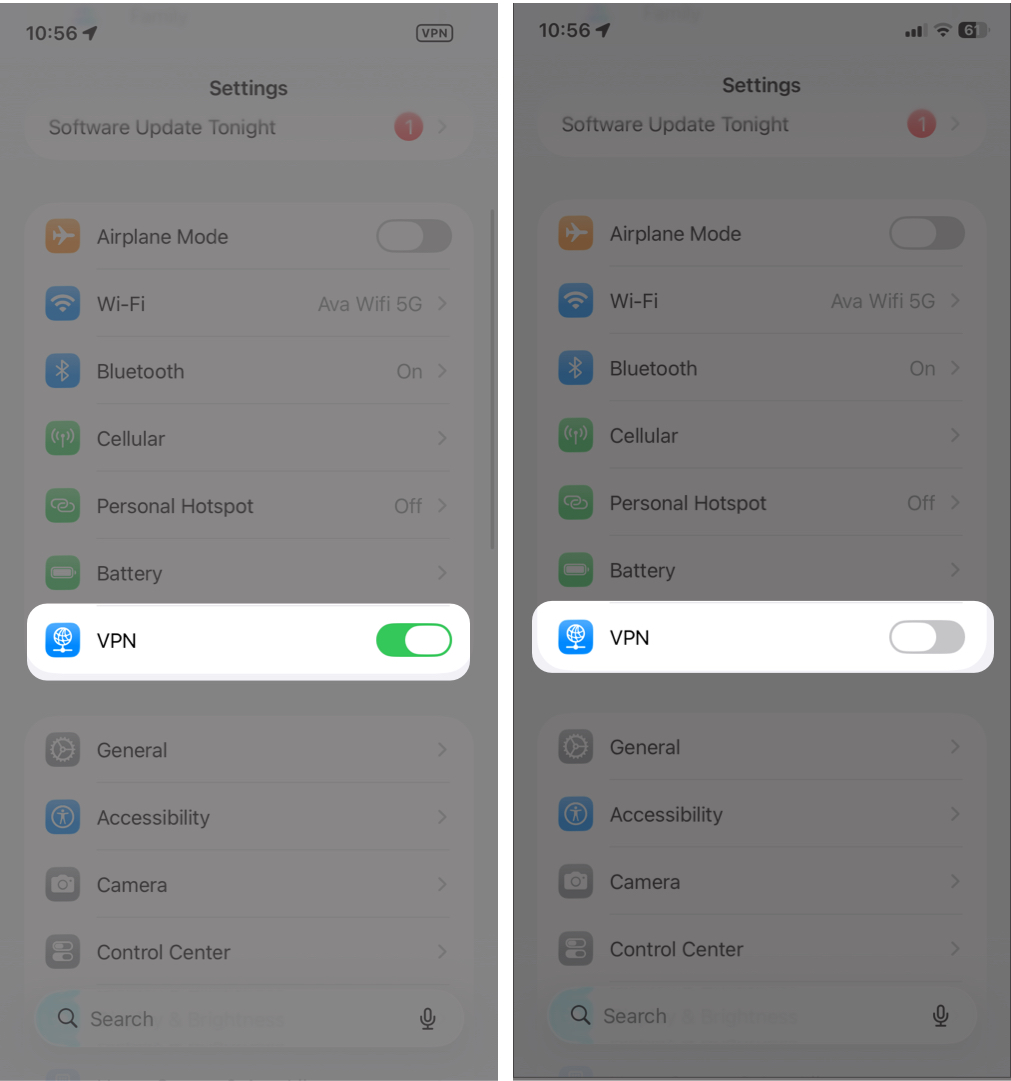
- If it’s connected, toggle it off. If it doesn’t disable from Settings, open the VPN app and disconnect it there.
- Test cellular data again. If it works, the VPN configuration may be the issue.


7 Ways to Fix iPhone Cellular Data Not Working
If the quick checks didn’t solve the issue, follow these troubleshooting steps in order.
1. Toggle Airplane Mode
Airplane Mode forces your iPhone to reconnect to the cellular network.
- Open Control Center by swiping down from the top right corner.
- Tap the flight icon to enable Airplane Mode.
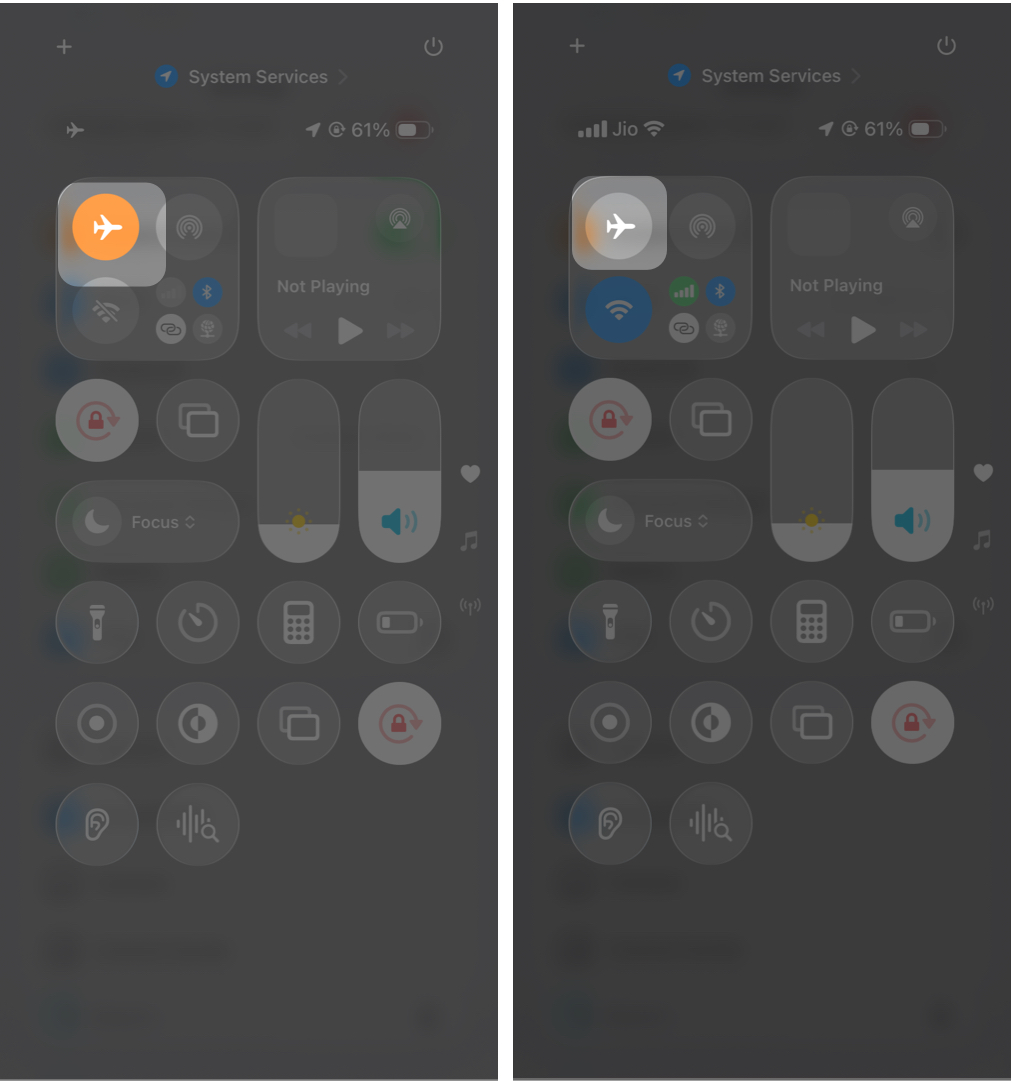
- Wait 15–20 seconds.
- Tap it again to turn it off.

Your phone will reconnect automatically. Many temporary connectivity issues are resolved with this step alone.
2. Restart Your iPhone
Restarting clears temporary system bugs and network glitches.
- Press and hold the Side and Volume buttons until the power off slider appears. Drag it to switch off your iPhone.
- Wait about 30 seconds.
- Turn it back on.
After restarting, test cellular data again.
3. Check Data Roaming Settings
If you’re traveling, roaming settings may affect connectivity.
- Navigate to Settings > Cellular > Cellular Data Options.
- Turn on Data Roaming if needed.
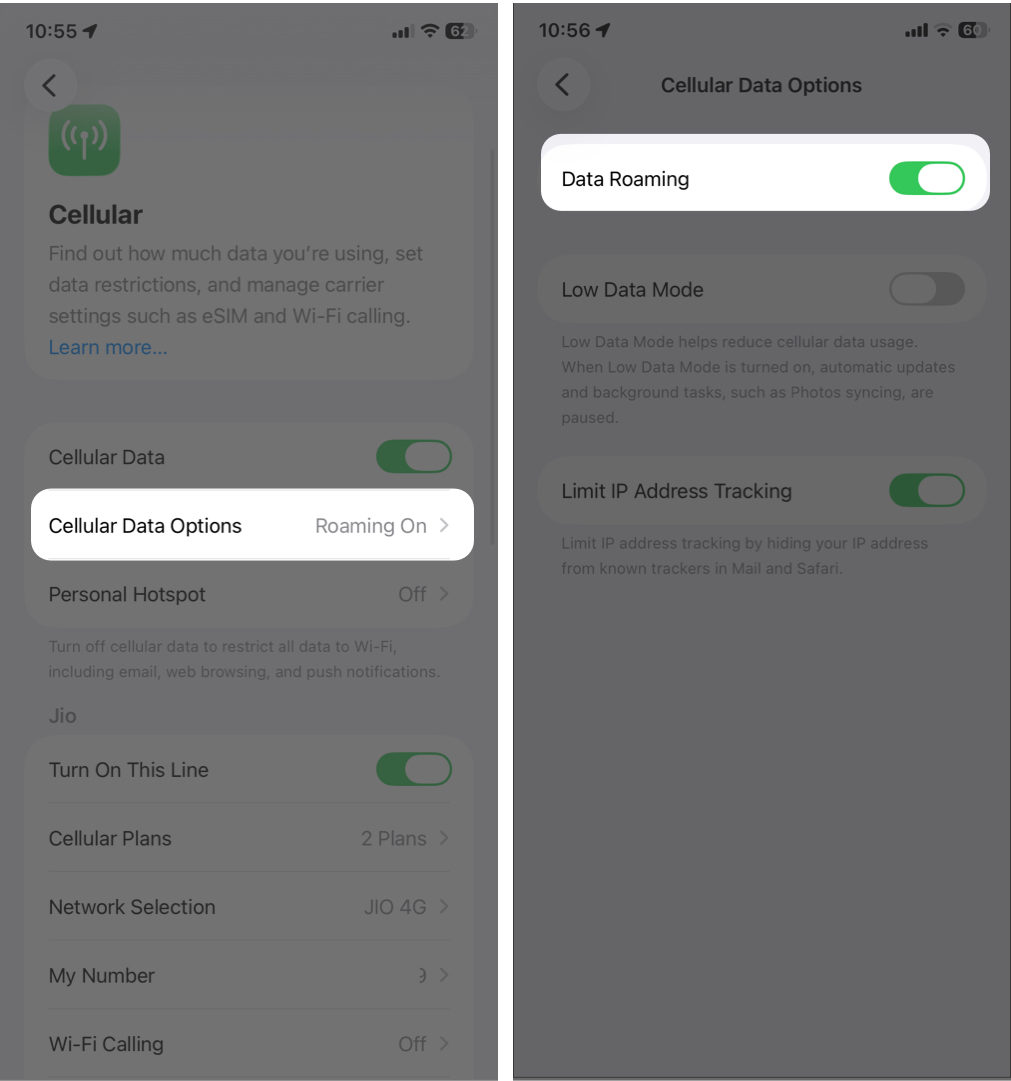

Without it, cellular data may not work outside your carrier’s main coverage area.
You can also try a manual network search:
- From Cellular settings, tap Network Selection. If you have a dual-SIM device, select the line with the issue first.
- Toggle off Automatic.
- Choose your carrier manually.
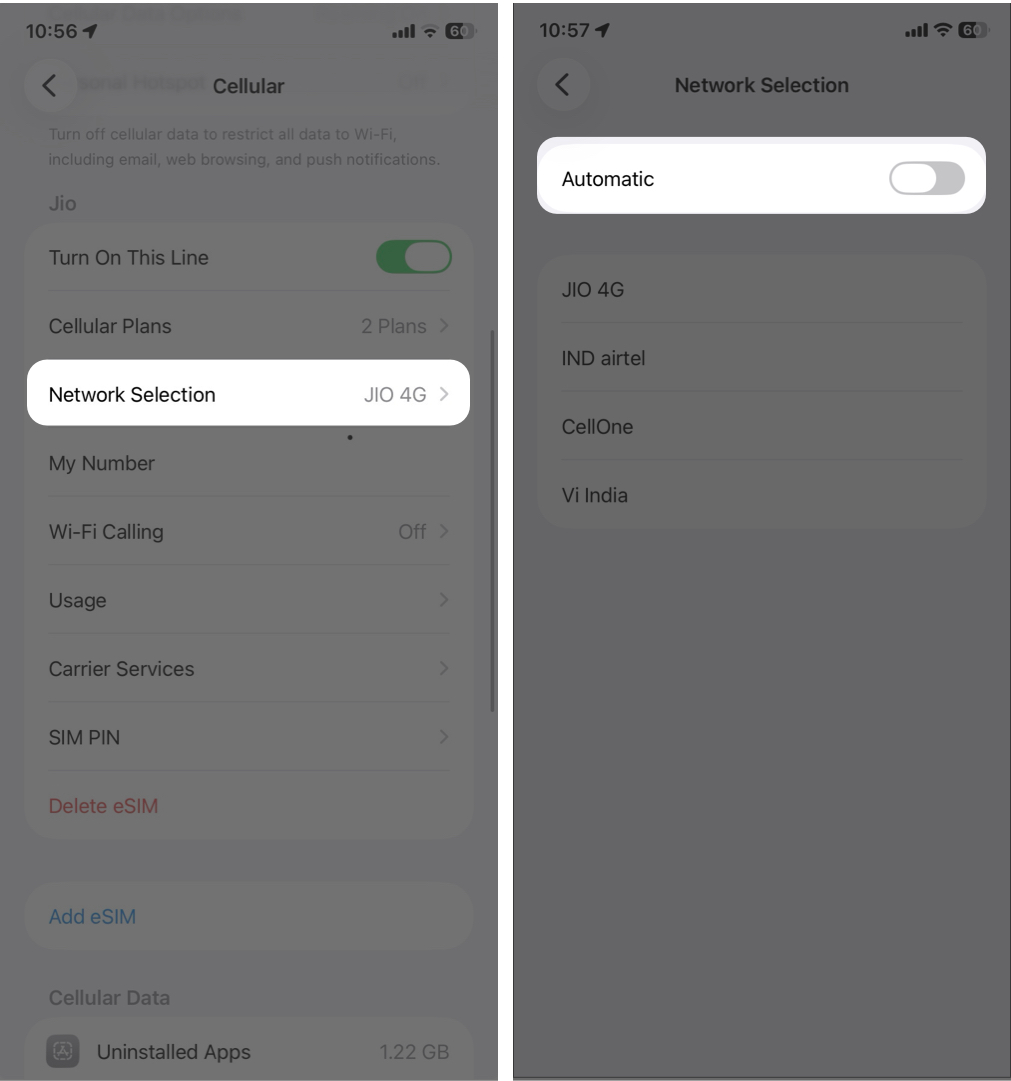

This forces the iPhone to reconnect to the correct network.
4. Set Correct Date and Time
Incorrect system time can cause network authentication problems.
- Go to Settings > General > Date & Time.
- Toggle on Set Automatically.
- Then restart your phone.
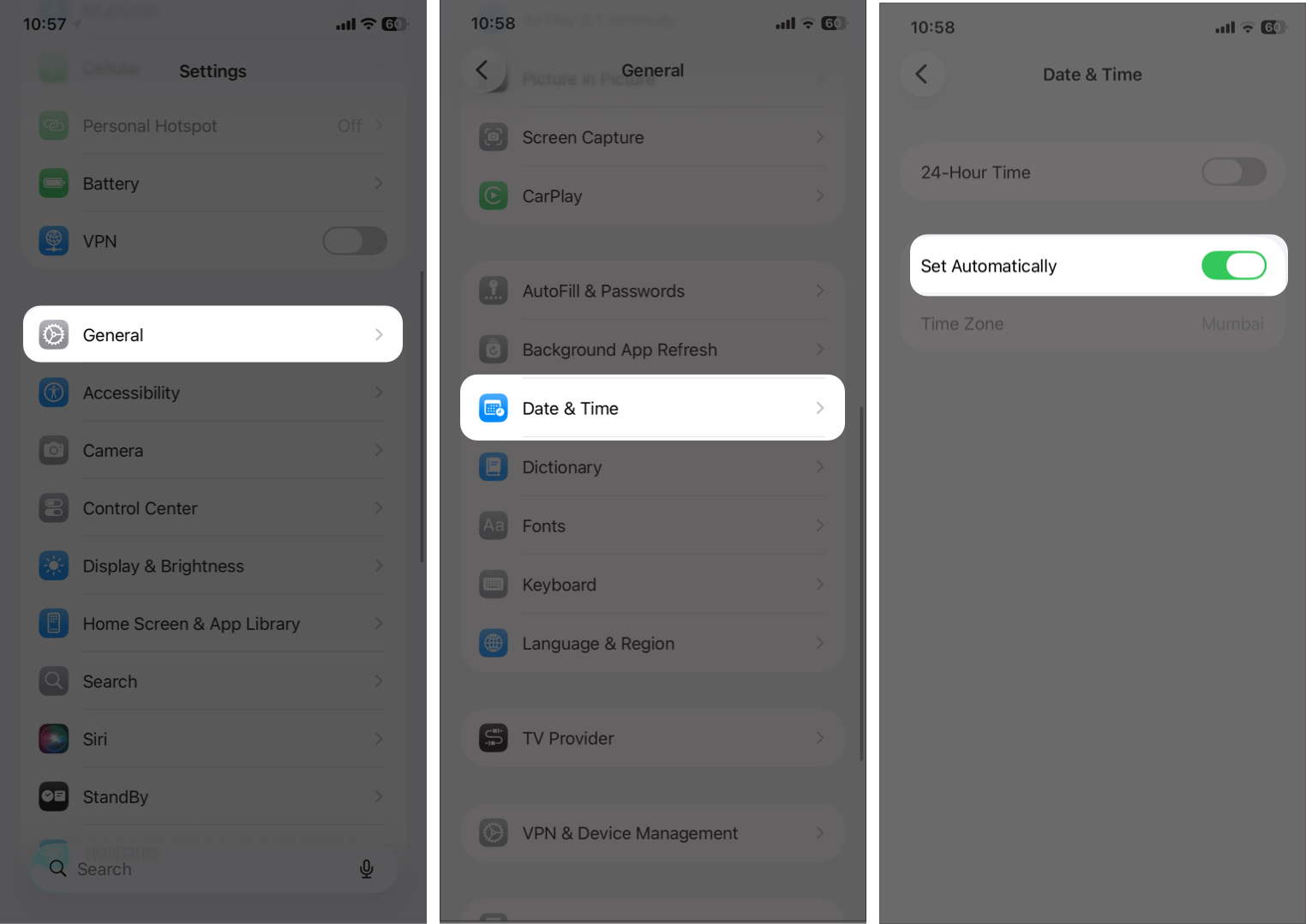

This ensures proper synchronization with carrier servers.
5. Remove and Reinstall SIM
A loose or dirty SIM card can interrupt connectivity and show SIM Not Valid or No SIM errors.
If you use a physical SIM:
- Turn off your iPhone
- Remove the SIM card
- Inspect it for dust or scratches and clean gently with a soft, dry cloth
- Reinsert it carefully
- Turn the phone back on
If possible, test the SIM in another device.
For eSIM users, contact your carrier to resolve configuration issues. If the eSIM profile was removed, your carrier will need to reissue or reactivate it.
6. Update iOS and Carrier Settings
Software updates often include connectivity fixes. Carrier updates improve network compatibility and performance.
Install both when available.
- To update iOS: Settings > General > Software Update. If a new version is available, tap Update Now.
- To update carrier settings: Settings > General > About.
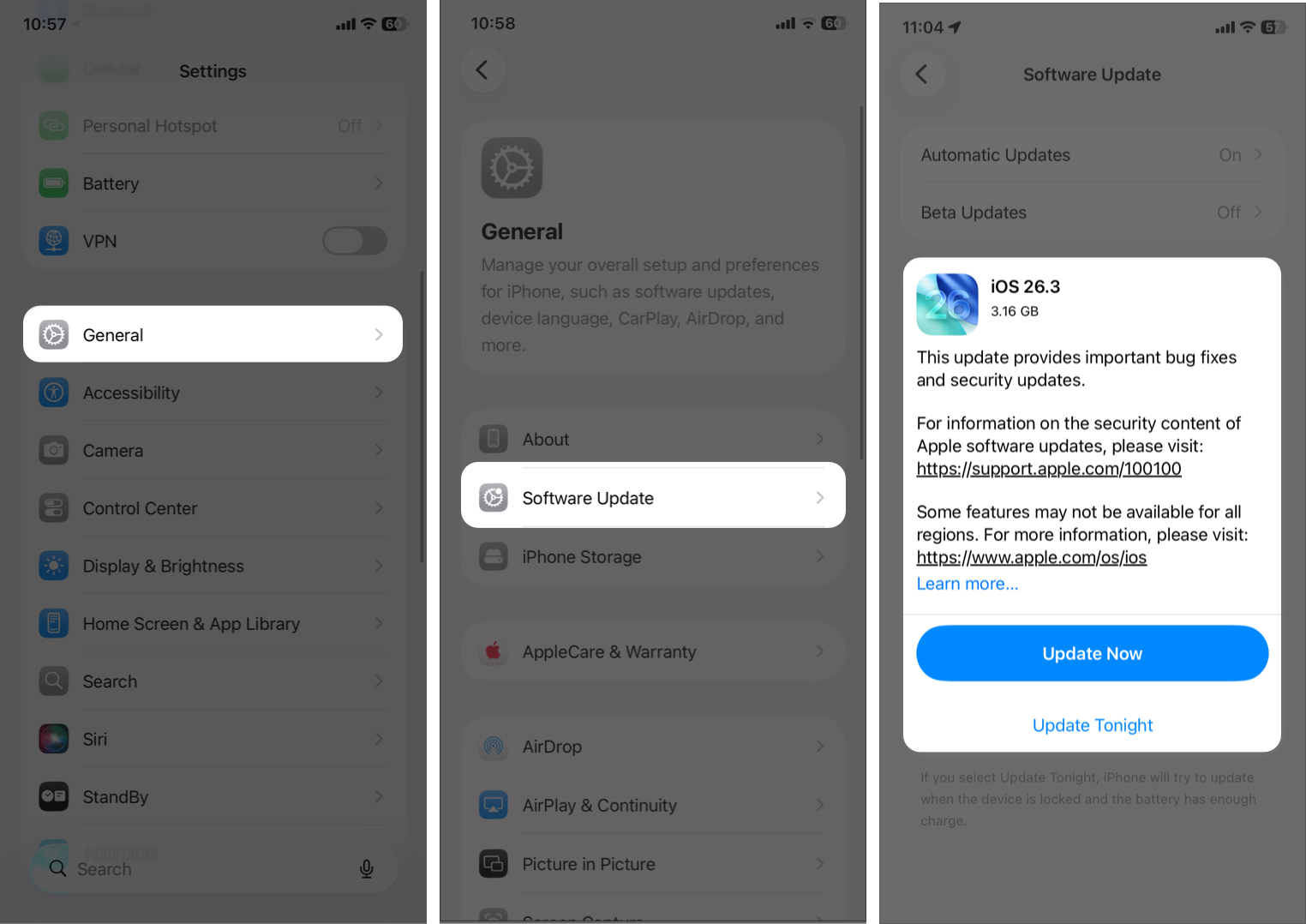

If a carrier update is available, you’ll see a prompt.
7. Reset Network Settings
If the problem continues, resetting network settings can fix corrupted configurations.
- Go to Settings > General > Transfer or Reset iPhone,
- Select Reset > Reset Network Settings.
- Now, enter your passcode and confirm your choice.
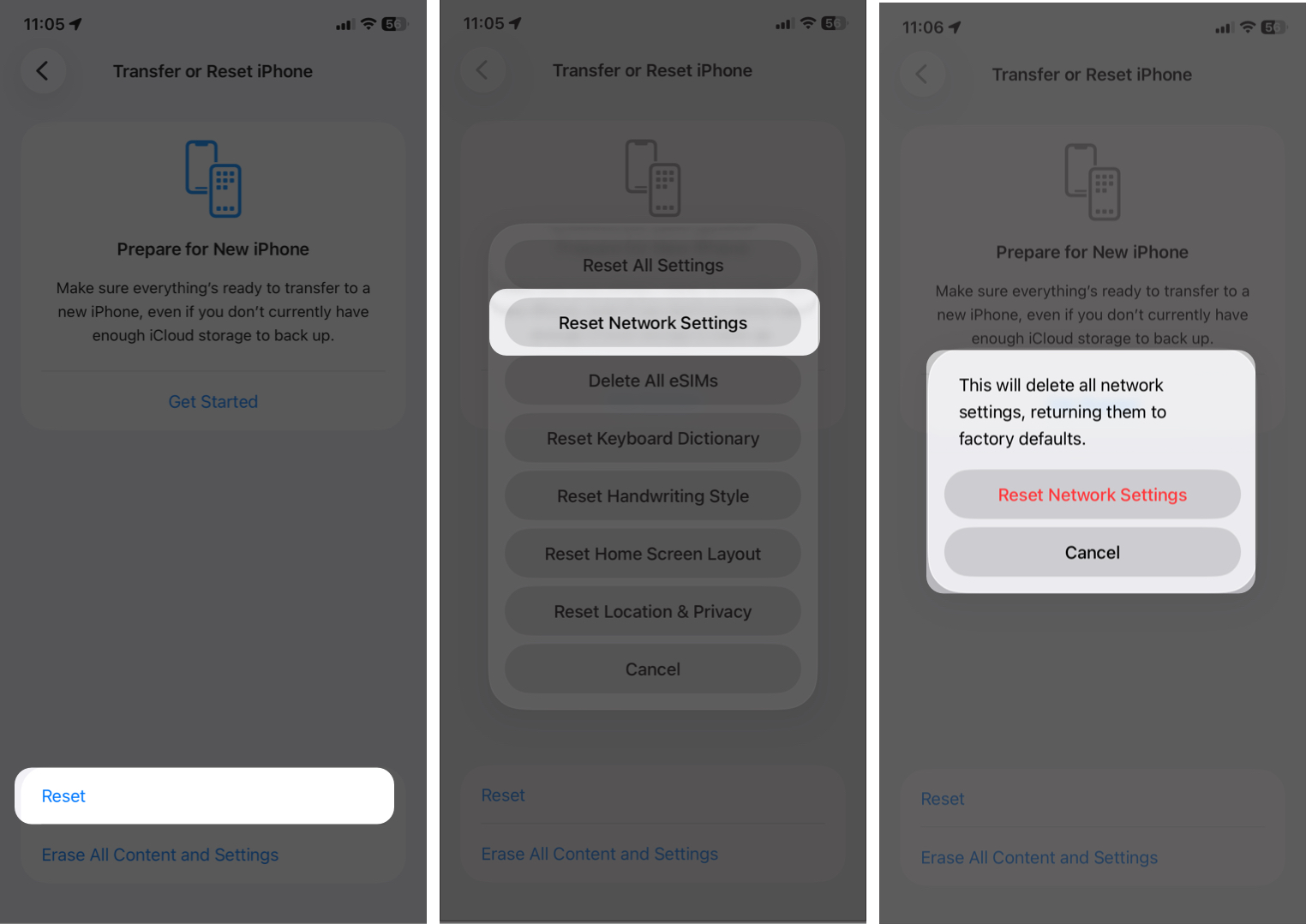

This resets cellular settings, Wi-Fi networks, APN configurations, and Bluetooth connections.
Your personal data will not be deleted. After resetting, reconnect to Wi-Fi and test cellular data again.
Cellular Data Still Not Working? Try These Advanced Solutions
If none of these fixes work, the issue may not be software-related.
Check for Hardware Damage
Your iPhone’s antenna or modem could be damaged due to drops, water exposure, or internal failure. Professional repair may be required.
Fix Carrier Provisioning or SIM Activation Issues
Your carrier may not have properly activated mobile data for your SIM.
They may need to:
- Reset network provisioning
- Refresh SIM activation
- Update account settings
Contact customer support to confirm.
Replace a Damaged or Old SIM Card
SIM cards can wear out over time. Requesting a replacement SIM is often quick and inexpensive.
Contact Apple Support for Diagnostics
If the issue still exists, Apple diagnostics can identify hardware or software faults.
Apple Support may:
- Run network diagnostics
- Check modem firmware
- Inspect internal components
How to Prevent Cellular Data Issues on iPhone
Preventing connectivity problems is easier than fixing them later.
Follow these best practices:
- Keep iOS updated
- Install carrier updates when available
- Avoid unreliable VPN apps
- Handle SIM cards carefully
- Keep your data plan active
- Restart your phone occasionally
- Avoid installing unstable network-related apps
These habits help maintain a stable cellular connection.
Final Thoughts
When cellular data stops working on your iPhone, it’s frustrating, especially if you’re outside without Wi-Fi. In most cases, the issue is caused by small configuration errors, temporary glitches, or SIM-related problems.
You can usually fix it quickly using the steps above. If nothing works, the issue may involve your carrier or hardware, and professional support may be necessary.