
Image Playground Not Working on iPhone? 8 Fixes That Worked for Me
Struggling with Image Playground on iPhone? From updating iOS to enabling Apple Intelligence and checking region support, here are 8 proven ways to fix the problem quickly.
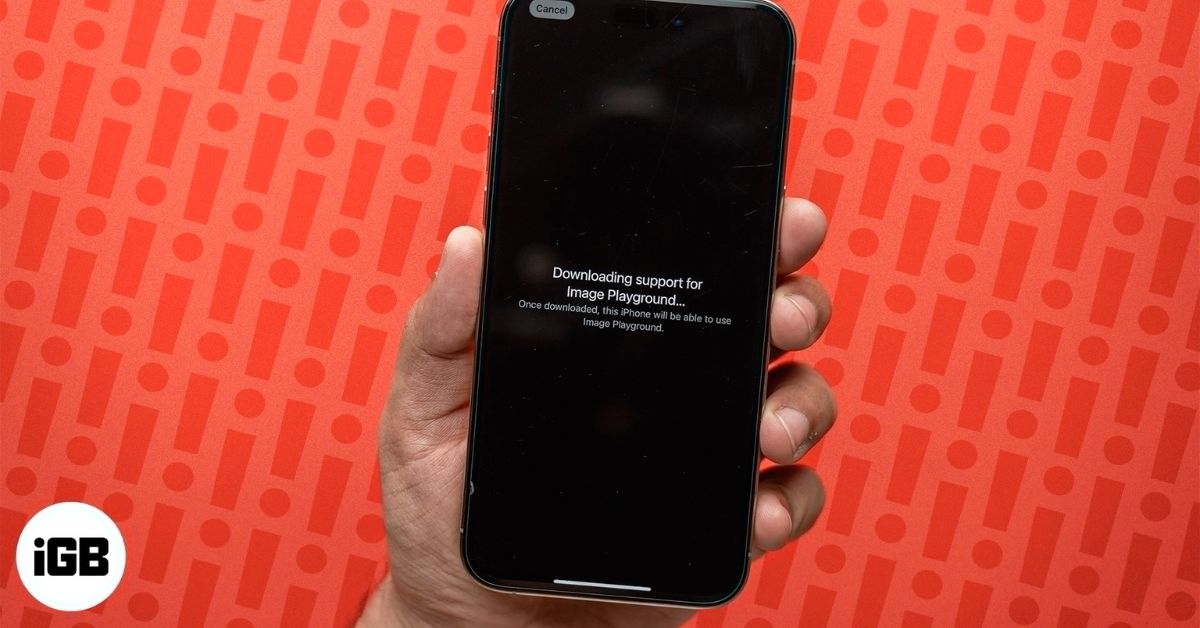
Image Playground is part of Apple Intelligence, introduced with iOS 18. While it runs smoothly on supported iPhones, you might notice it missing, stuck during setup, or showing an “unavailable” error.
In most cases, this isn’t a hardware issue. The problem usually happens because Apple Intelligence hasn’t fully finished setting up, background downloads are incomplete, or your device doesn’t meet compatibility requirements. If you’re facing this issue, don’t worry – you’re in the right place. Below, you’ll find 8 proven fixes to get Image Playground working on your iPhone again.
Why Image Playground is Not Working on iPhone
Image Playground may stop working or fail to appear due to:
- Unsupported iPhone model
- Apple Intelligence setup still in progress
- Region or language limitations
- Background AI downloads are stuck
- Outdated iOS version
- Feature not fully installed yet
Identifying the cause helps resolve the issue faster.
1. Verify Device Compatibility
If Image Playground isn’t working on your iPhone, the first thing to check is whether your iPhone supports it. Image Playground is an AI feature and is only available on Apple Intelligence-supported devices. Here’s a list of all iPhones that support Apple Intelligence:
- iPhone 15 Pro, 15 Pro Max
- iPhone 16, 16 Plus, 16e
- iPhone 15 Pro, 16 Pro Max
- iPhone 17, 17 Pro, 17 Pro Max
- iPhone Air
If you don’t own an iPhone on this list, you can not use Image Playground on it. However, if you have one but still can’t use the Image Playground app, we have other fixes.
2. Update to the Latest iOS Version
Apple introduced Image Playground alongside Apple Intelligence through incremental iOS updates. Early versions may not include all required components or stability improvements, leading to the feature malfunctioning or remaining hidden.
Installing the latest iOS version ensures your device receives updated AI frameworks, bug fixes, and feature activation updates delivered by Apple.
To update your iPhone, head to Settings → General → Software Update.
3. Ensure Apple Intelligence is Enabled
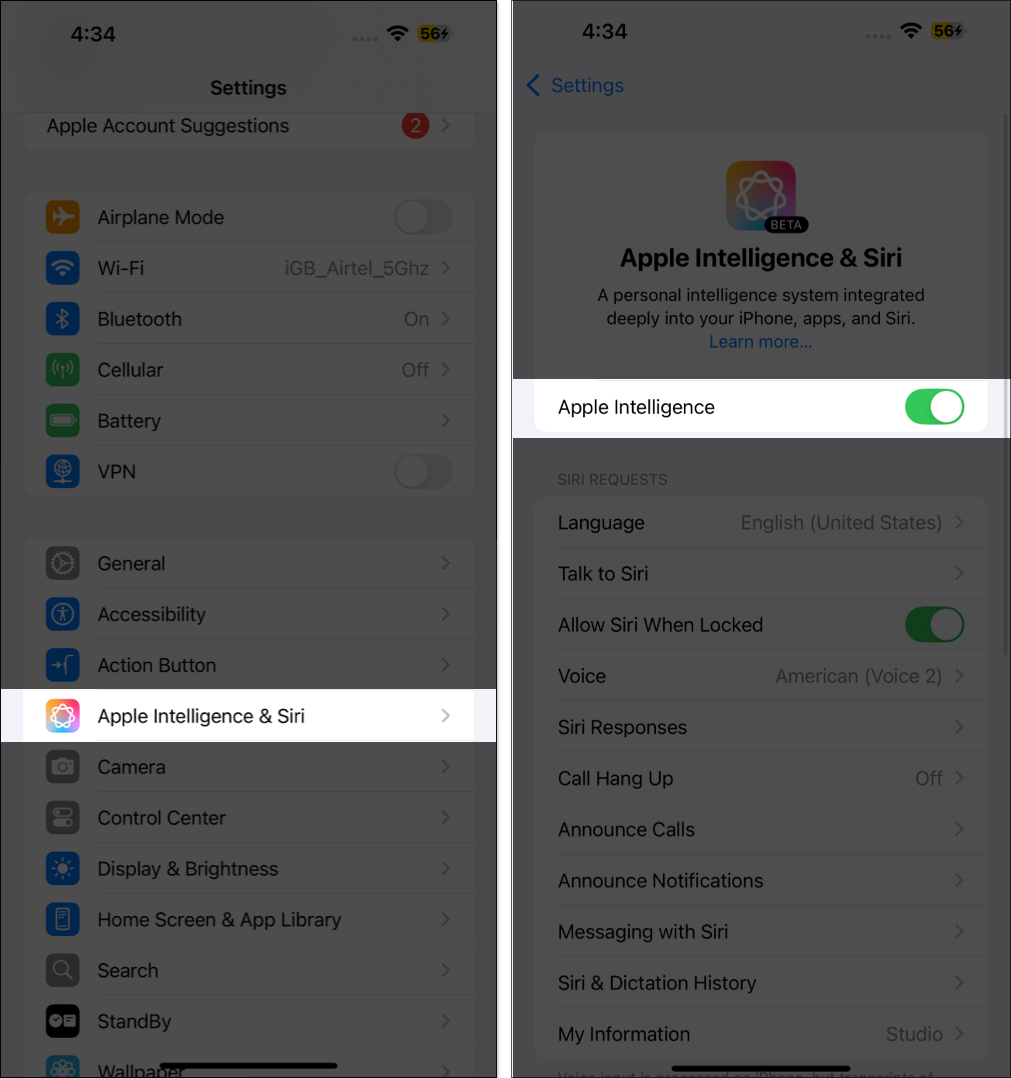
On newer iOS versions, Apple Intelligence is typically enabled automatically, but it can still be turned off manually or disabled after resetting settings. When Apple Intelligence is off, Image Playground and other AI tools stop functioning.
To verify:
- Open Settings.
- Tap Apple Intelligence & Siri.
- Make sure Apple Intelligence is turned on.
4. Check Device Language
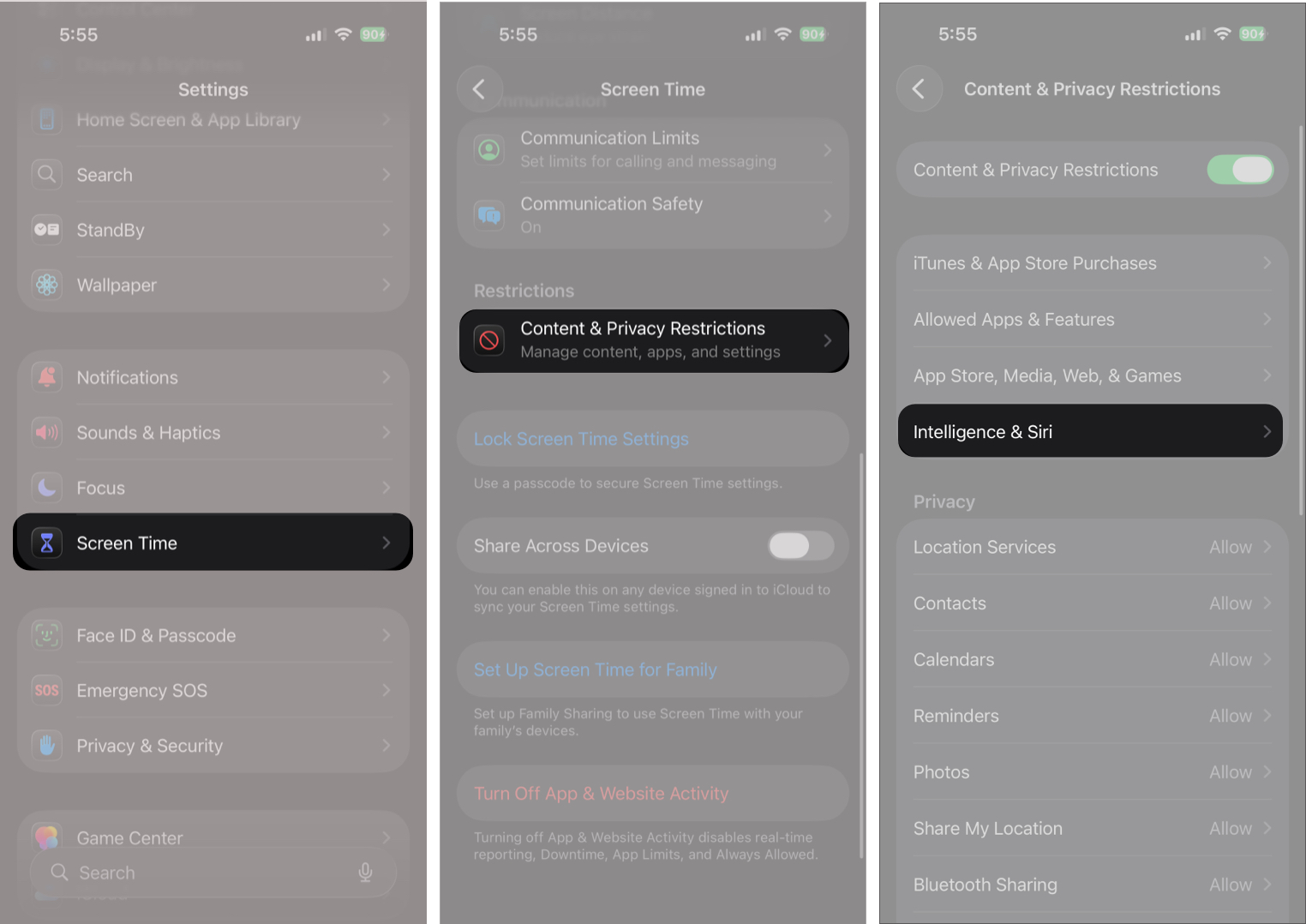
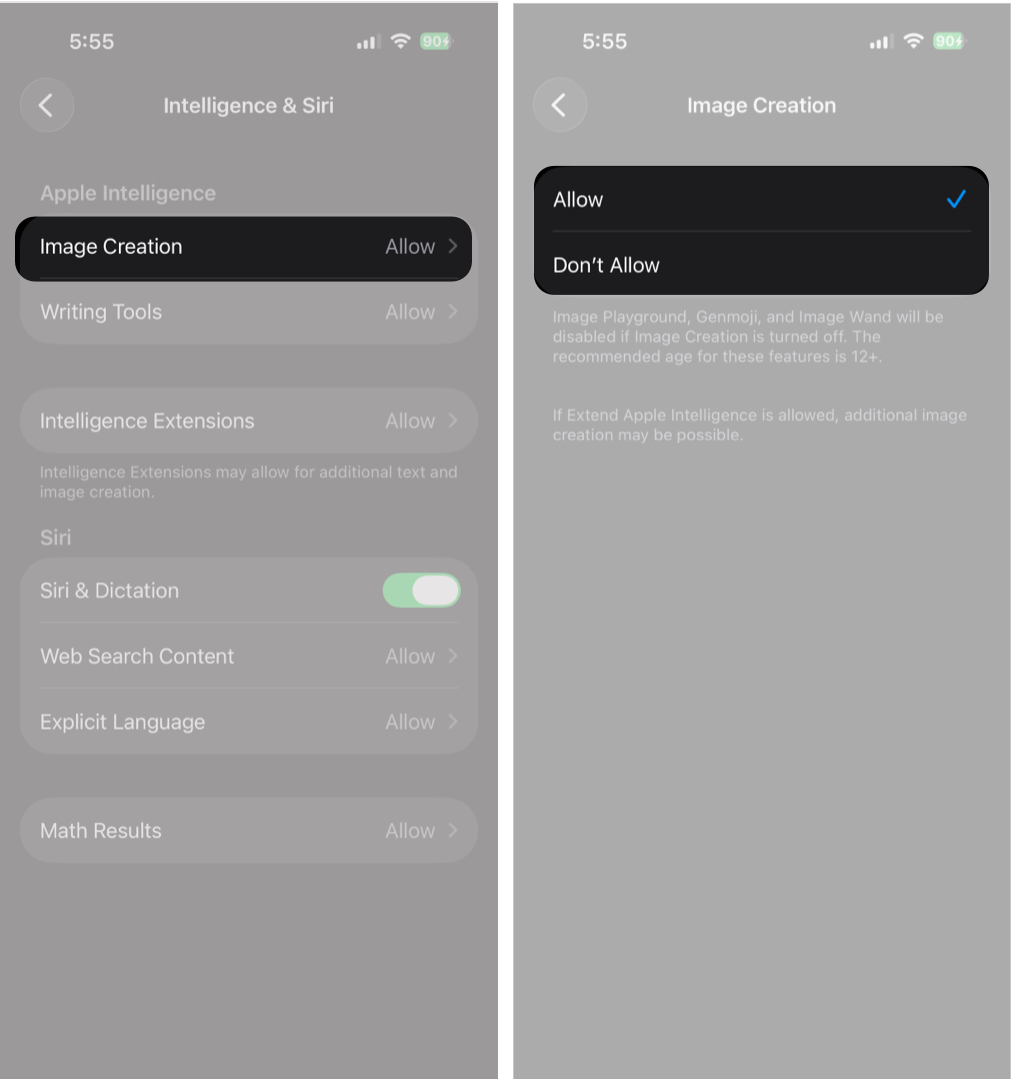
Image Playground uses generative AI features that may be restricted by Screen Time or content controls. If restrictions are enabled, the app may fail to open, or certain options may be unavailable.
To check restrictions:
- Open Settings and tap Screen Time.
- Tap Content & Privacy Restrictions.
- Tap Intelligence & Siri.
- Select Image Creation under Apple Intelligence.
- Select Allow.
5. Force Quit the Image Playground App
Another way to fix Image Playground not working is to force-quit the app. Sometimes, when you access Image Playground in the standalone app, Messages, or Notes, a minor glitch may prevent it from functioning properly. In such cases, forcing a quit of the standalone app or the one you use to access Image Playground can often eliminate the glitch causing the trouble.
Here’s how:
- Swipe up and hold from the bottom center of the display to access the App Switcher.
- Here, swipe up on the Image Playground app to force quit it.
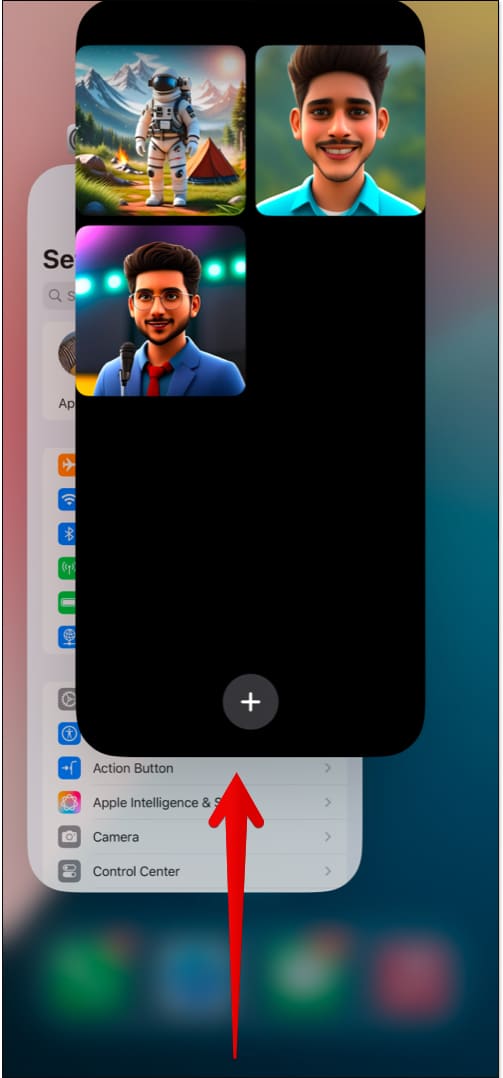
Once you’ve done this, reopen the app and check whether it is working normally; if not, move to the other solutions.
6. Try Using Image Playground Inside Supported Apps
Image Playground integrates directly with several Apple apps. If the standalone app behaves unexpectedly, testing it inside another app helps confirm that Apple Intelligence is functioning properly.
You can try it in:
- Messages
- Notes
- Freeform
- Keynote
If it works there, the issue is likely limited to the app interface rather than the feature itself.
7. Restart Your iPhone
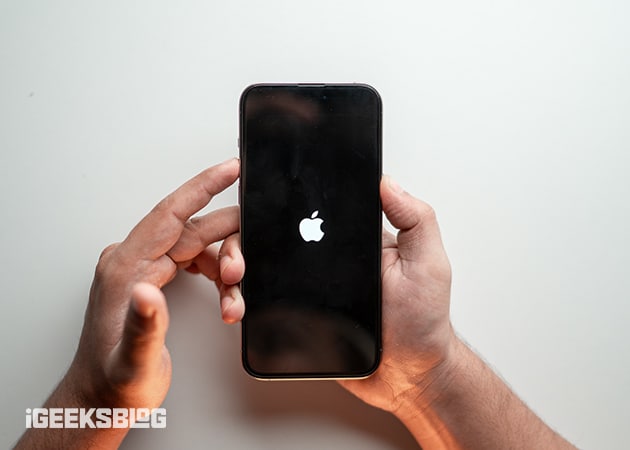
A minor software issue or glitch can often cause certain apps and services to malfunction. If force-quitting the app doesn’t resolve the issue, you can try restarting the iPhone altogether. A simple restart can eliminate the minor temporary glitches that might be preventing Image Playground from working properly.
8. Check the Provided Prompt
There are multiple ways to create AI images in the Image Playground, such as via a text prompt. In most cases, Image Playground might fail to generate images from the given prompt and display an ‘Unable to use that description’ error. While you may think there is an issue with Image Playground, the issue lies with the provided text prompt.
This is because Apple has restricted prompts to prevent inappropriate images from being generated. You will receive the same error every time your prompt contains drugs, alcohol, murder, blood, death, or other controversial words.
Whenever you get the ‘Unable to use that description’ error, just remove the prompt and provide a new description, and Image Playground will handle the rest.
Signing Off…
And that’s it; these are the 8 ways you can fix the Image Playground not working issue on your iPhone. We hope you are able to resolve the issue and have started creating stunning AI images using Apple Intelligence. However, if you need further help, feel free to reach out to us via the comments.
Also read:

Written by
VikhyatVikhyat has a bachelor's degree in Electronic and Communication Engineering and over five years of writing experience. His passion for technology and Apple products led him to the tech writing space, where he specializes in writing App features, How-to guides, and troubleshooting guides for fellow Apple users. When not typing away on his MacBook Pro, he loves exploring the real world.
View all posts →More from How-to

How to Turn Off Location on Snapchat (Step-by-Step Guide)
Want to stop sharing your location on Snapchat? This guide explains how Snapchat location sharing works and shows simple ways to turn off your location using Ghost Mode or phone settings. Stay in control of your privacy in just a few steps.
VikhyatMarch 5, 2026
Snapchat Parental Controls: How to Set Up Family Center and Keep Your Teen Safe
Snapchat’s Family Center lets parents monitor their teen’s friend activity and screen time without reading private messages. Here’s how to set it up and what to expect.
VikhyatMarch 3, 2026
How to Block and Unblock Someone on Instagram
Instagram lets you block or unblock someone in seconds. Follow these simple steps to take full control of your privacy and online peace.
 Ava BiswasMarch 2, 2026