- Genmoji only works on newer iPhones with Apple Intelligence like iPhone 15 Pro and iPhone 16 series running iOS 18.2 or later.
- Device or software mismatches can block Genmoji—especially if you’re using an unsupported model or haven’t enabled Apple Intelligence.
- Restarting your iPhone often resolves Genmoji glitches, especially after updates or if Messages is acting up.
- You need both English (US) and emoji keyboards enabled or Genmoji won’t show up in the emoji picker or work correctly.
- Force-quitting Messages or resetting all settings can help, but be careful not to erase data during troubleshooting steps.
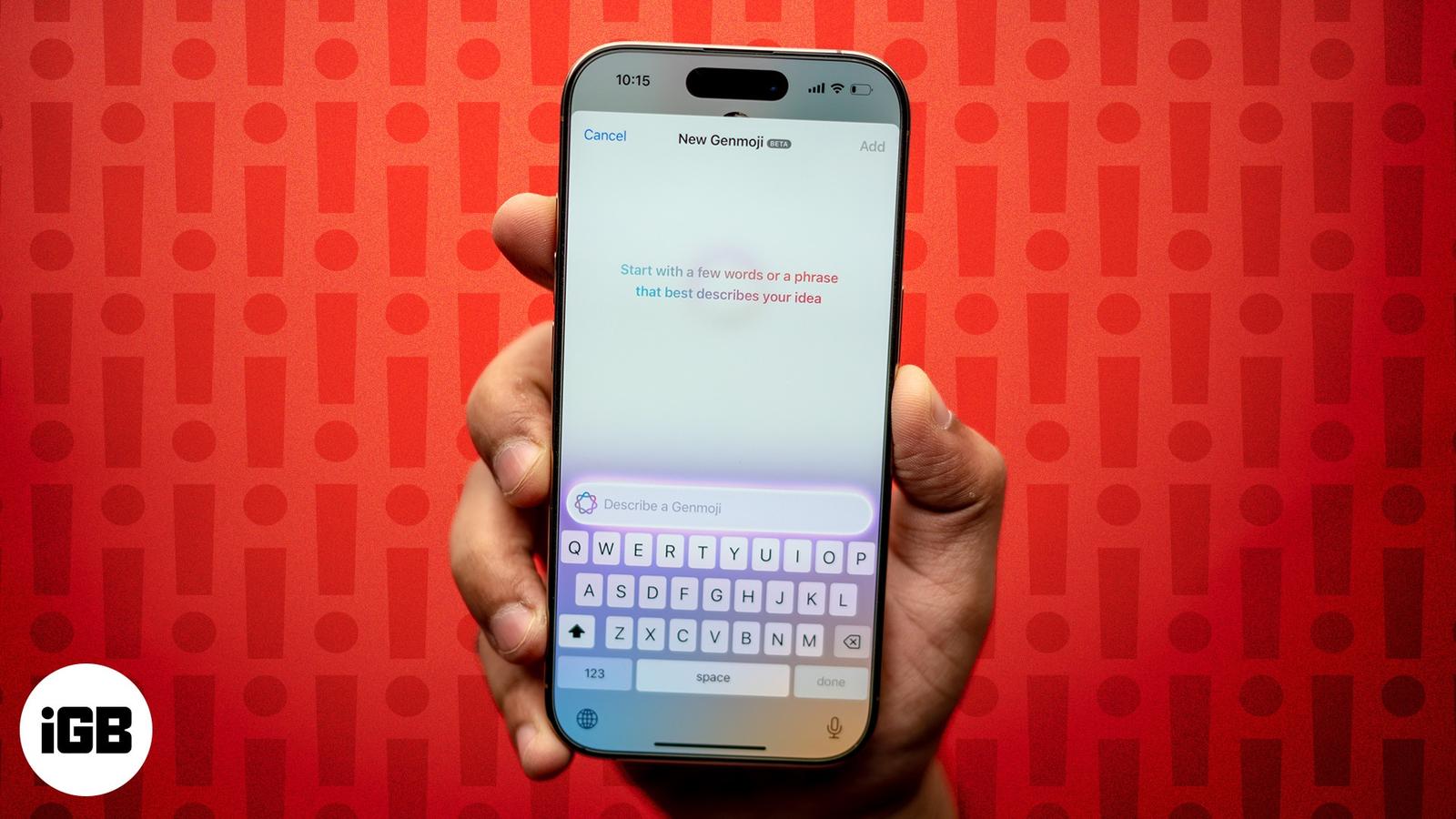
Genmoji is expected to roll out with iOS 18.2 sometime in December. However, if you’ve already installed the iOS 18.2 beta on your iPhone to try it early, but Genmoji simply isn’t working, you’re not alone. Many users are facing the same issue.
Let’s dive into why Genmoji might not be working on your iPhone and explore effective ways to fix it.
Why is Genmoji Not Working on My iPhone?
Genmoji might not function on your device due to several reasons. Below are the most common causes:
- Compatibility issues: Genmoji is available on iPhones that support Apple Intelligence only. This includes the iPhone 15 Pro, iPhone 15 Pro Max, and the entire iPhone 16 lineup. So, if you’ve installed the iOS 18.2 developer beta on any other iPhone model, Genmoji won’t work.
- iOS 18 bugs: New features can be buggy, and that might be the case with the issue you’re facing with Genmoji. In most cases, it’s a glitch that can be fixed with some simple troubleshooting, but in others, it may require an iOS update.
- Misconfigured settings: Misconfigured settings are a common reason Genmoji might not work on your iPhone. The feature may require specific permissions on your iPhone, and you may need to adjust some settings if you’re using a third-party keyboard app.
6 Ways to Fix Genmoji Not Working on iPhone
We’ve put together some effective troubleshooting steps to fix Genmoji if it’s not showing up or working properly on your iPhone.
1. Restart Your iPhone
Restarting your device often fixes minor glitches on iPhones. If Genmoji isn’t responding, a quick restart can give your device a fresh start and may solve the issue. Start with this solution and see if it resolves the issue. If the problem persists, move on to the other solutions in this article.
2. Add the English (US) Keyboard
We found out on Reddit that some users who faced this issue managed to fix it by adding the English (US) keyboard. If you’re facing the use and don’t use the English (US) keyboard on your iPhone, you can add it by following these steps:
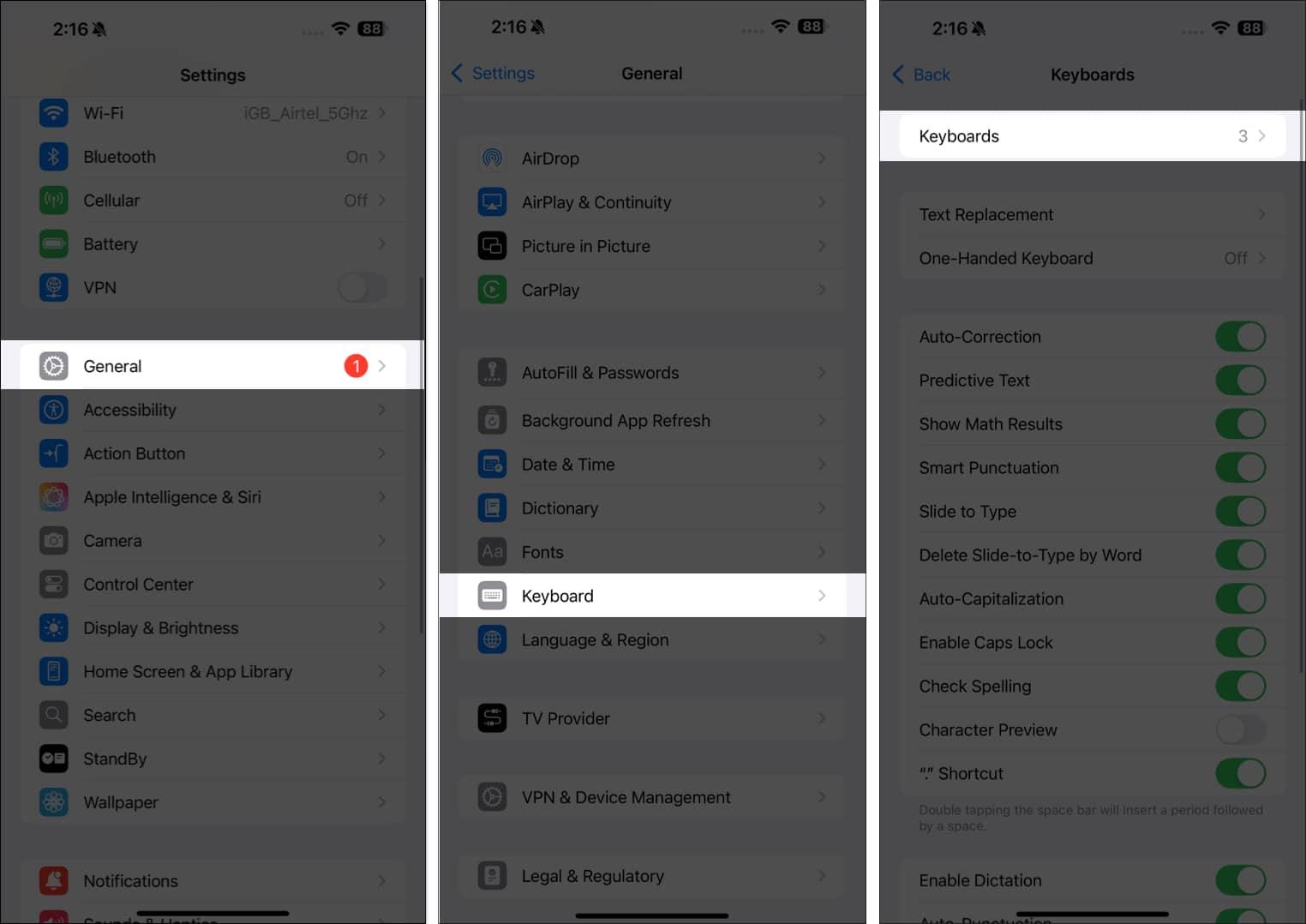
- Open the Settings app on your iPhone.
- Tap General and select Keyboard.
- Next, tap Keyboards.
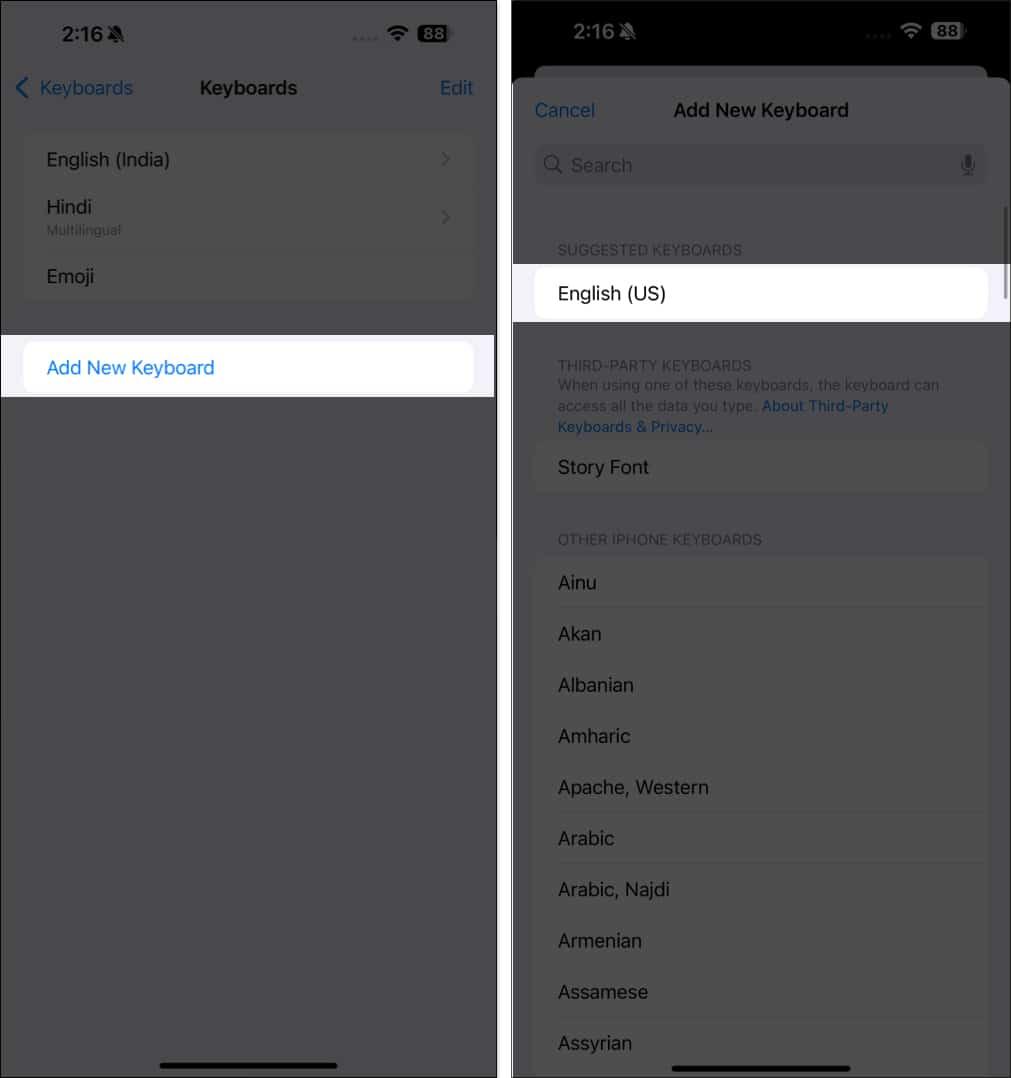
- If you don’t see English (US) on the list, tap Add New Keyboard.
- Search for “English” at the top of the keyboard options and select English (US).
3. Add the Emoji Keyboard
Emoji is usually added to your keyboard by default, but it’s possible you may have removed it. If that’s the case, you may not be able to access Genmoji on your iPhone until you add emoji back to the keyboard list. Here’s how to do that:
- Open Settings and go to General.
- Select Keyboard.
- Tap Keyboards, and if you don’t see the Emoji keyboard on the list, tap Add New Keyboard.

- Look up Emoji and tap on the relevant option to add it.
4. Check for Third-Party App Conflicts
If you’re using a third-party keyboard, there might be an app conflict with other third-party apps running on your device, which could cause Genmoji to not work. To rule out this possibility, we recommend closing those apps and then checking if Genmoji works.
Closing apps on the iPhone is easy. Simply swipe up from the bottom of your iPhone screen to access the App Switcher, then close each app one by one.
5. Force Quit the Messages App
If the issue persists, try force-quitting the Messages app on your iPhone. This solution is especially useful when Genmoji becomes unresponsive on your device. Once done, reopen the app and try accessing Genmoji again.
6. Reset All Settings
You can also reset all settings on your iPhone to fix it when Genmoji isn’t working. This restores your device’s settings to their defaults, which might help fix any misconfigured Genmoji settings and restore its functionality. Here’s what you need to do:
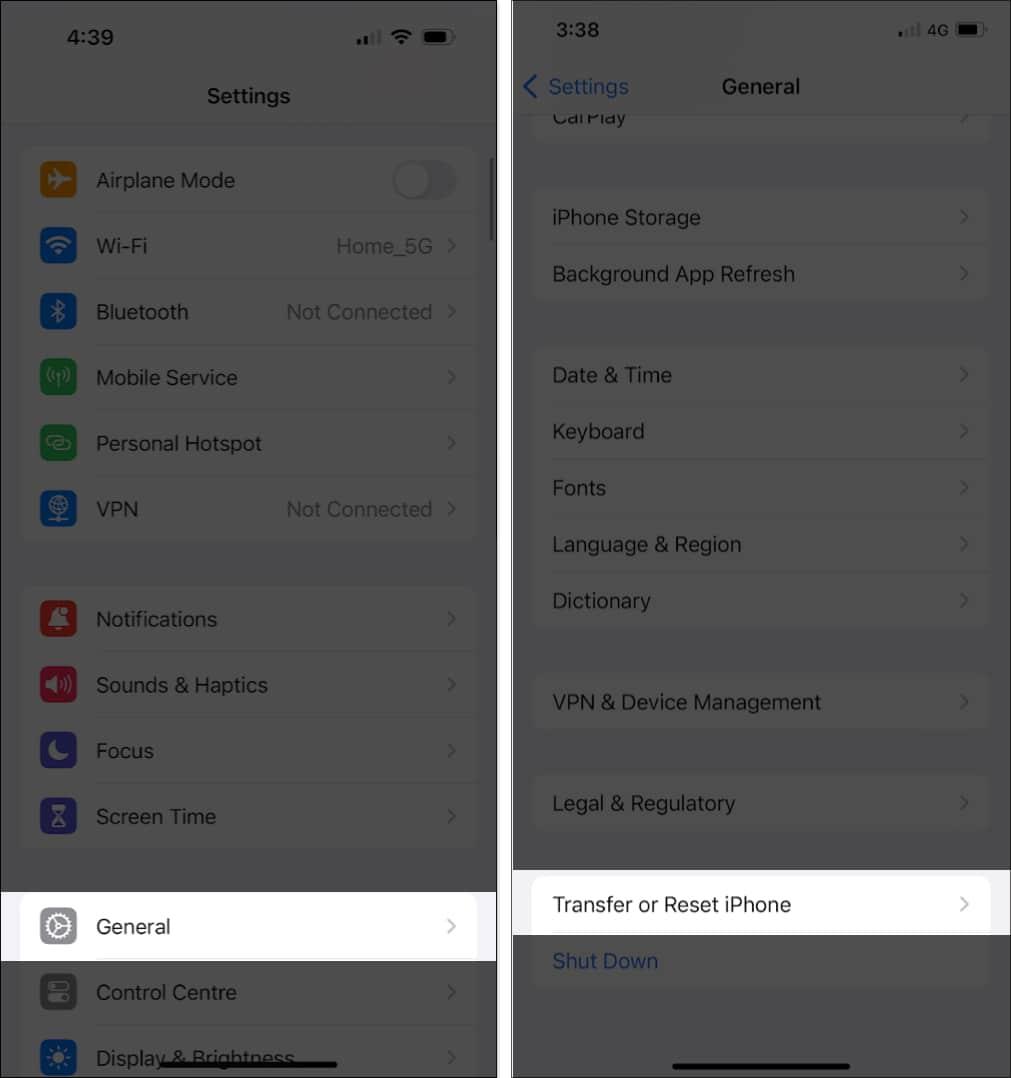
- Open Settings.
- Tap General and select Transfer or Reset iPhone.
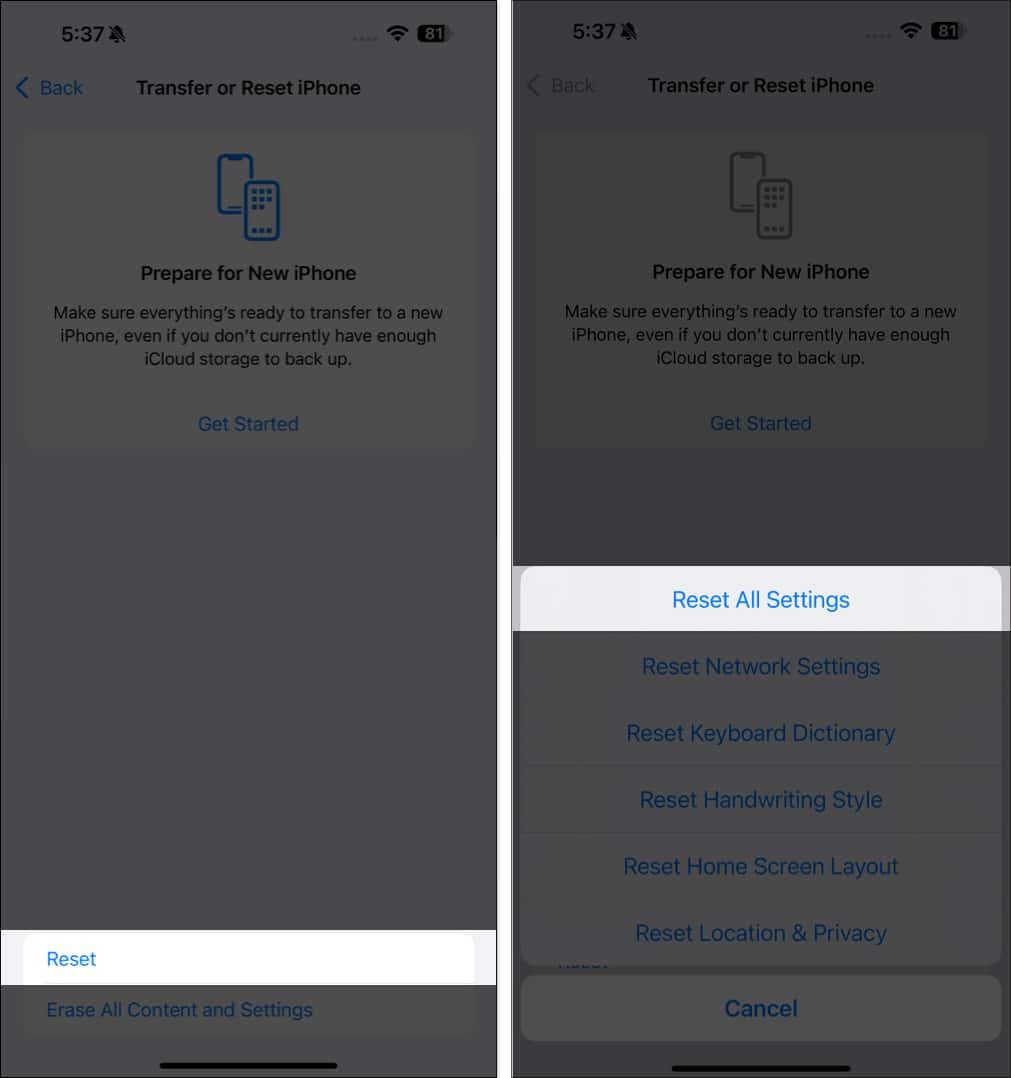
- Next, tap Reset and choose Reset All Settings.
Bonus Tip: Reinstall iOS (If Nothing Works)
If none of the solutions work, you might consider reinstalling the iOS 18.2 beta or waiting for a more stable release. Before doing this, ensure your data is backed up via iCloud or Finder.
Wrapping Up
Genmoji is one of the most exciting features of iOS 18.2, but like any beta feature, it can be hit or miss. If it’s not working on your iPhone, the methods above should help you troubleshoot the issue.
Also read: