- What is Instagram Map: Instagram Map lets you share your live location, view friends’ locations, and explore nearby posts, Reels, Stories, and Notes within the app.
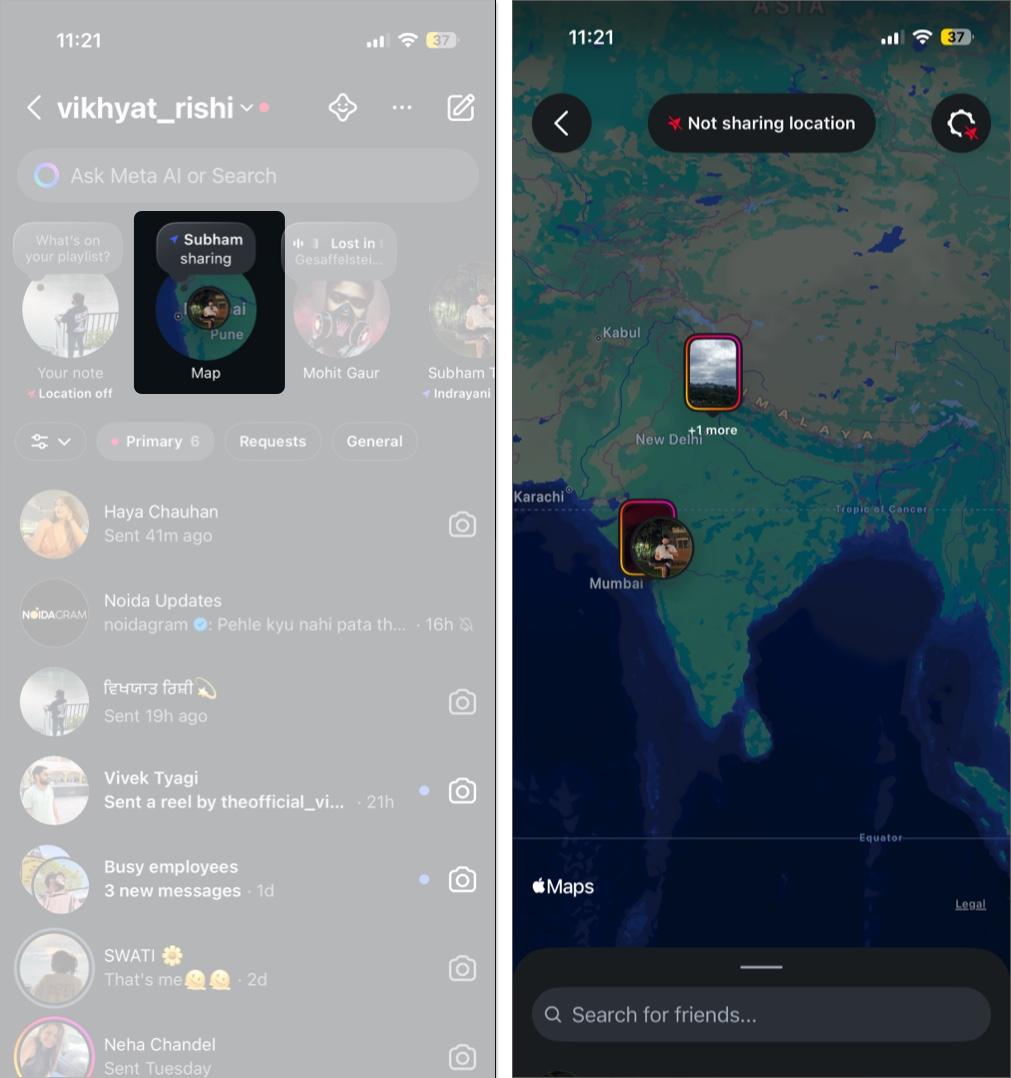
- Where to Find Instagram Map: You’ll find Instagram Map inside the DMs screen by tapping the new Map tile in the Notes tray at the top of your inbox.
- How to Share Your Location: Instagram Map’s location sharing is optional; you can choose to share with friends, close friends, or individuals via the initial prompt or DM settings.
- How to Explore Local Content: Even without sharing your location, you can explore public posts, Reels, Stories, and Notes tagged with places to see what’s trending nearby.
After the massive success of Reels (borrowed from TikTok), Instagram has now introduced Instagram Map, a feature inspired by Snapchat’s Snap Map. It lets you share your live location with friends, see where they are, and explore posts, Reels, Stories, and Notes tagged with places around you.
This makes Instagram not just about following people, but also about discovering what’s happening nearby – restaurants, events, concerts, or just where your friends are hanging out.
Here’s everything you need to know about Instagram Map and how to use it.
What is Instagram Map?
Instagram Map is a location-sharing and discovery tool built directly into the Instagram app.
- Location sharing is off by default; you need to manually enable it.
- When enabled, your last known location is shared with selected friends.
- Even if you don’t share your own location, you can still see friends who opt in and browse posts, Reels, Stories, and Notes tagged with locations.
Where to Find Instagram Map
Unlike Snapchat, which has a dedicated section, Instagram keeps Map within the DMs screen:
- Open the Instagram app.
- Tap the DM icon at the top-right corner or swipe left on the home screen to open your Inbox.
- Here you’ll see a new Map tile in the Notes tray at the top. Tap the Map tile to access Instagram Map.
How to Share Your Location with Friends
Instagram prioritizes privacy, so location sharing is opt-in only.
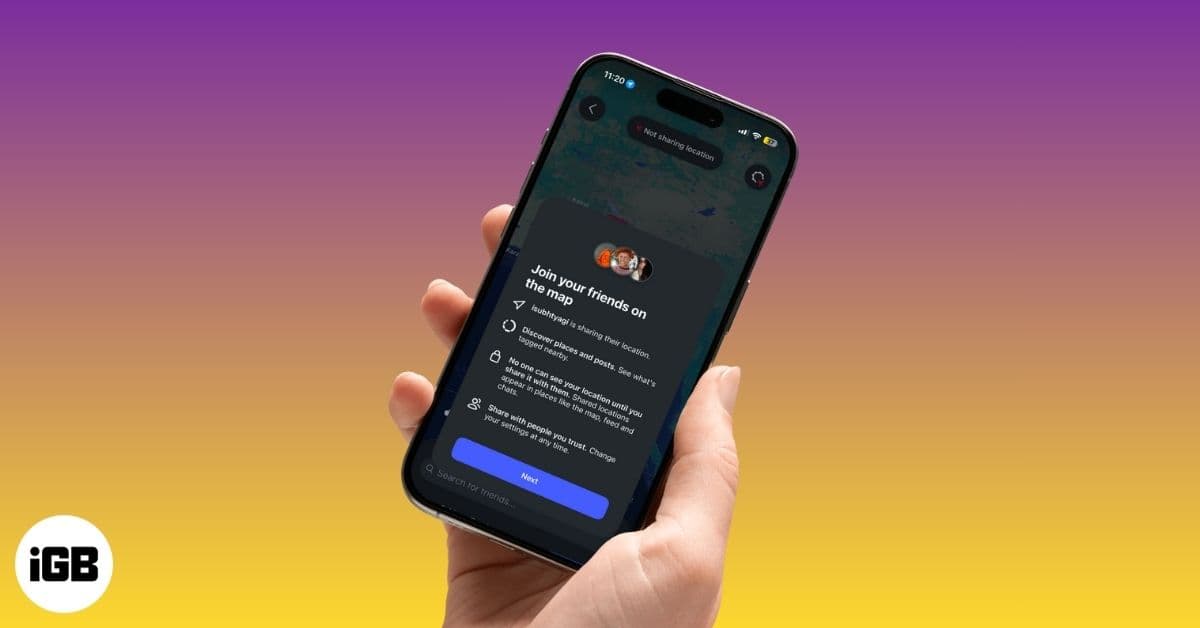
- When you open the Instagram Map for the first time, you’re greeted with an “Introducing Instagram Map” pop-up. Tap the Next button.
- Here, choose who you want to share your location with:
- Friends (mutual followers)
- Close Friends
- Only Selected Friends
- No One
- Tap Share location.
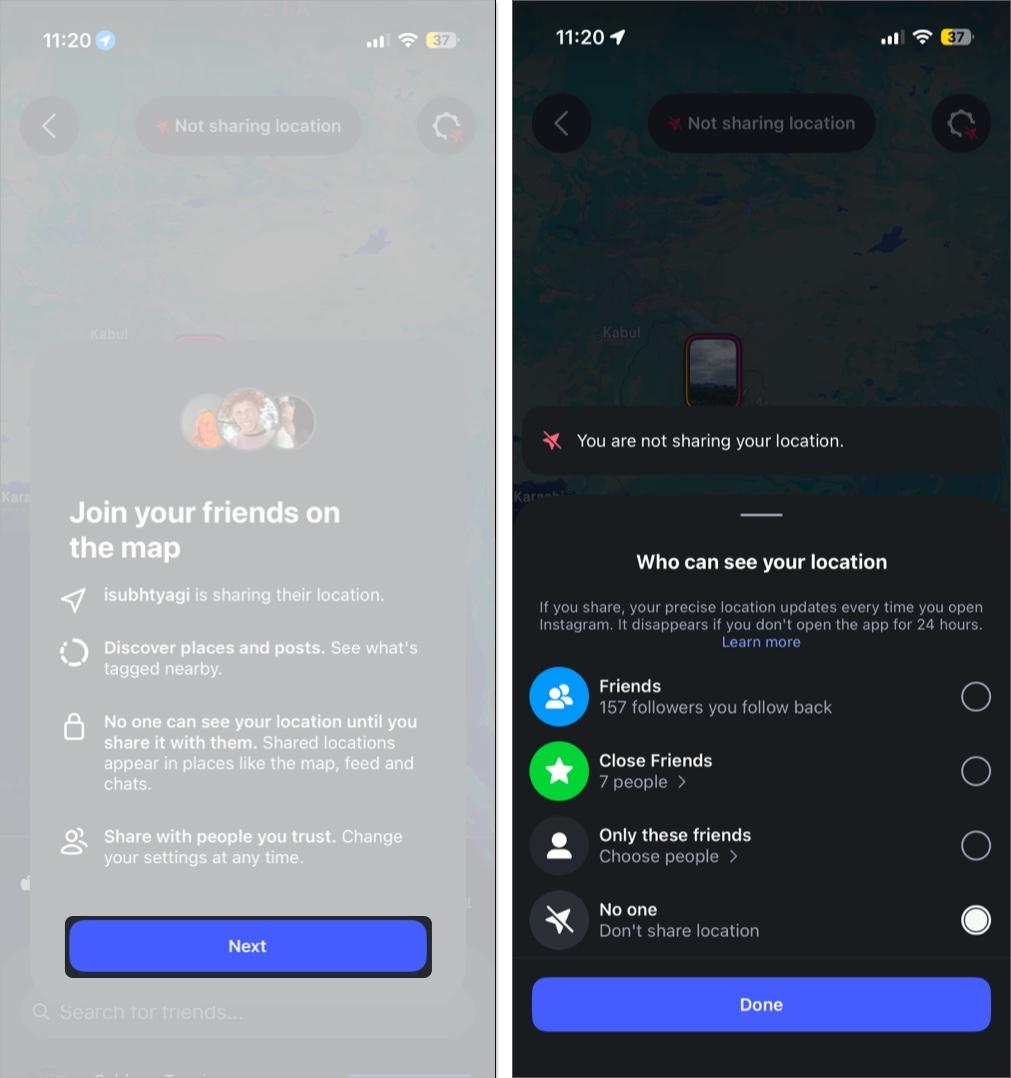
These are the steps to follow when you interact with the Instagram Map for the first time. However, if you’ve already used Instagram Map before but didn’t enable location sharing, here’s how you can do it now:
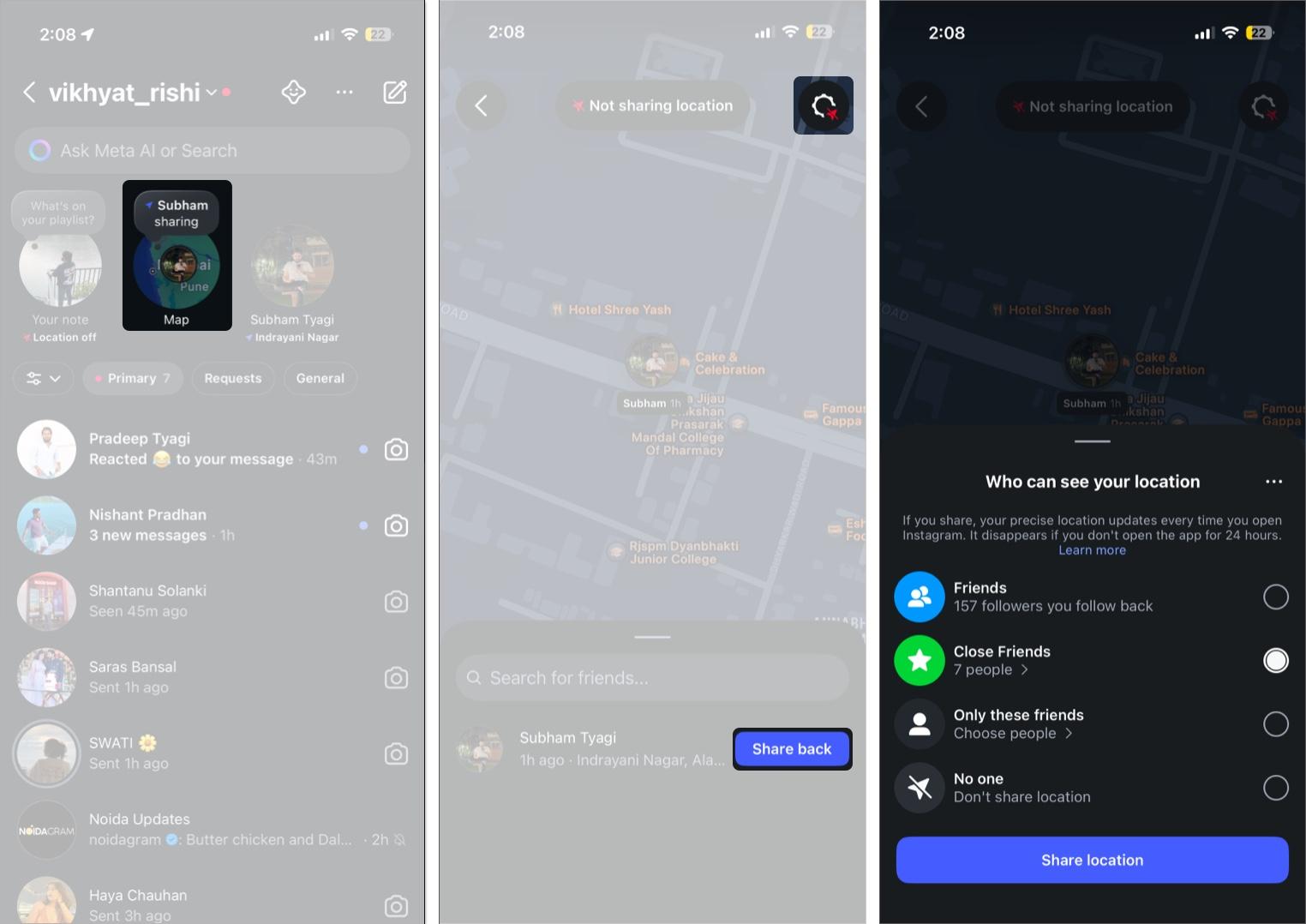
- Open Instagram and head to the DM section.
- Now, tap the Map tile at the top.
- Here, you’ll see the list of friends who are sharing their location with you. Tap the Share Back button next to the friend’s name you want to share your location with.
- To share your location with a wider group instead of a specific friend, tap ‘Not sharing location’ or the ‘Settings’ button at the top.
- Next, select who you want to share your location with and tap Share location.
How to Explore Content on Instagram Map
Even without sharing your location, Instagram Map lets you discover local content:
- Posts, Reels, and Stories from people you follow (visible for 24 hours)
- Notes from mutual followers (also available for 24 hours)
- Content tagged with places like cafes, events, and tourist spots
It’s a quick way to see what’s happening nearby or plan your next hangout.
Parental Supervision for Teens
Parents using Instagram’s supervision tools get alerts when teens enable location sharing. They can manage access, see who their child shares with, and ensure safer use of the feature.
Explore and Connect…
With Instagram Map, Meta has borrowed the best elements of the Snap Map and added its own twist, creating a fresh way to connect with friends and discover local content. Built with privacy in mind, location sharing is off by default, so you can choose to opt in or out at any time. All in all, Instagram Map adds a new social layer to the app that’s here to stay.
Have you tried Instagram Map yet? Share your experience in the comments below.
Don’t miss these related reads: