
How to Set Up a Personalized Contact Poster on Your iPhone
Create a personalized iPhone Contact Poster in minutes by updating photos, layout, colors, and text.
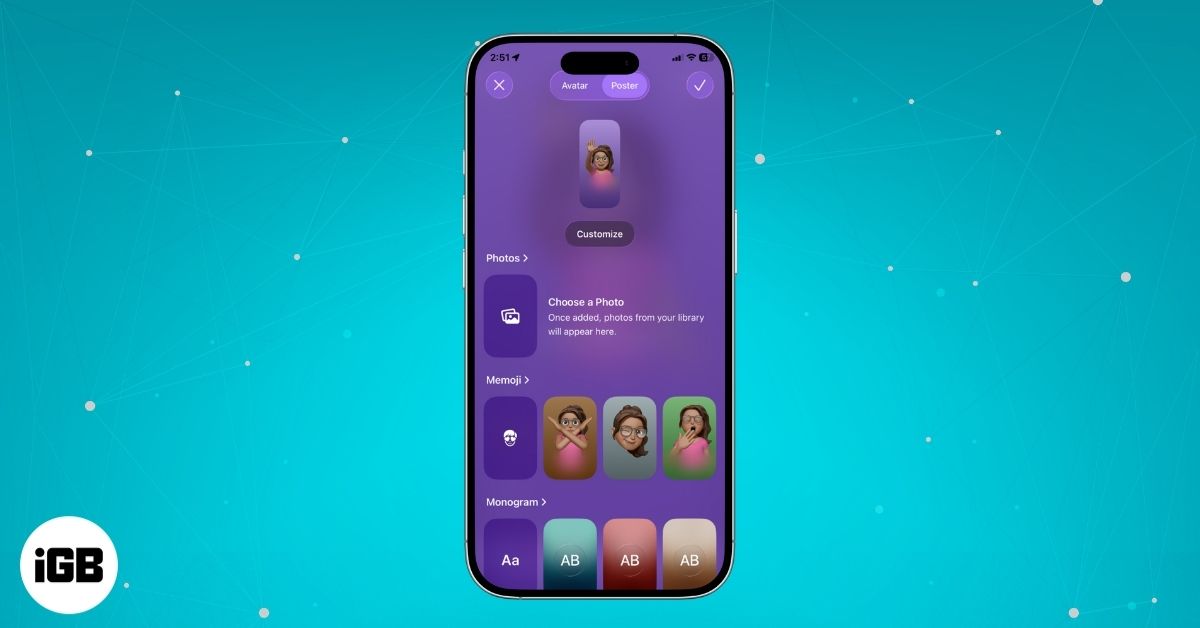
Contact Posters are one of the most fun and personal features on the iPhone. They allow you to design a full-screen contact card that appears when you call or FaceTime someone. You can customize them with photos, Memoji, colors, and different fonts.
In this guide, you’ll learn how to create, customize, and change Contact Posters on your iPhone. We’ll also cover ideas, privacy tips, and how to set posters for your contacts. Let’s jump in.
What You Need Before Creating a Contact Poster
Before setting up a Contact Poster, make sure:
- Your iPhone is running iOS 17 or later. The contacts should also have the latest iOS to see your custom poster
- Name & Photo Sharing is enabled (you turn it on during setup).
- FaceTime and Messages are signed in with your Apple ID.
- You have a clear photo or Memoji ready.
If everything checks out, you’re ready to design your poster.
How to Create and Personalize Your Contact Poster on iPhone
- Open the Phone app and tap the Contacts tab. Or launch the Contacts app directly.
- At the top, select My Card, then tap Shared Name and Photo.
- Move to the Poster tab at the top. Now, you will see three options: Photos, Memoji, and Monogram.
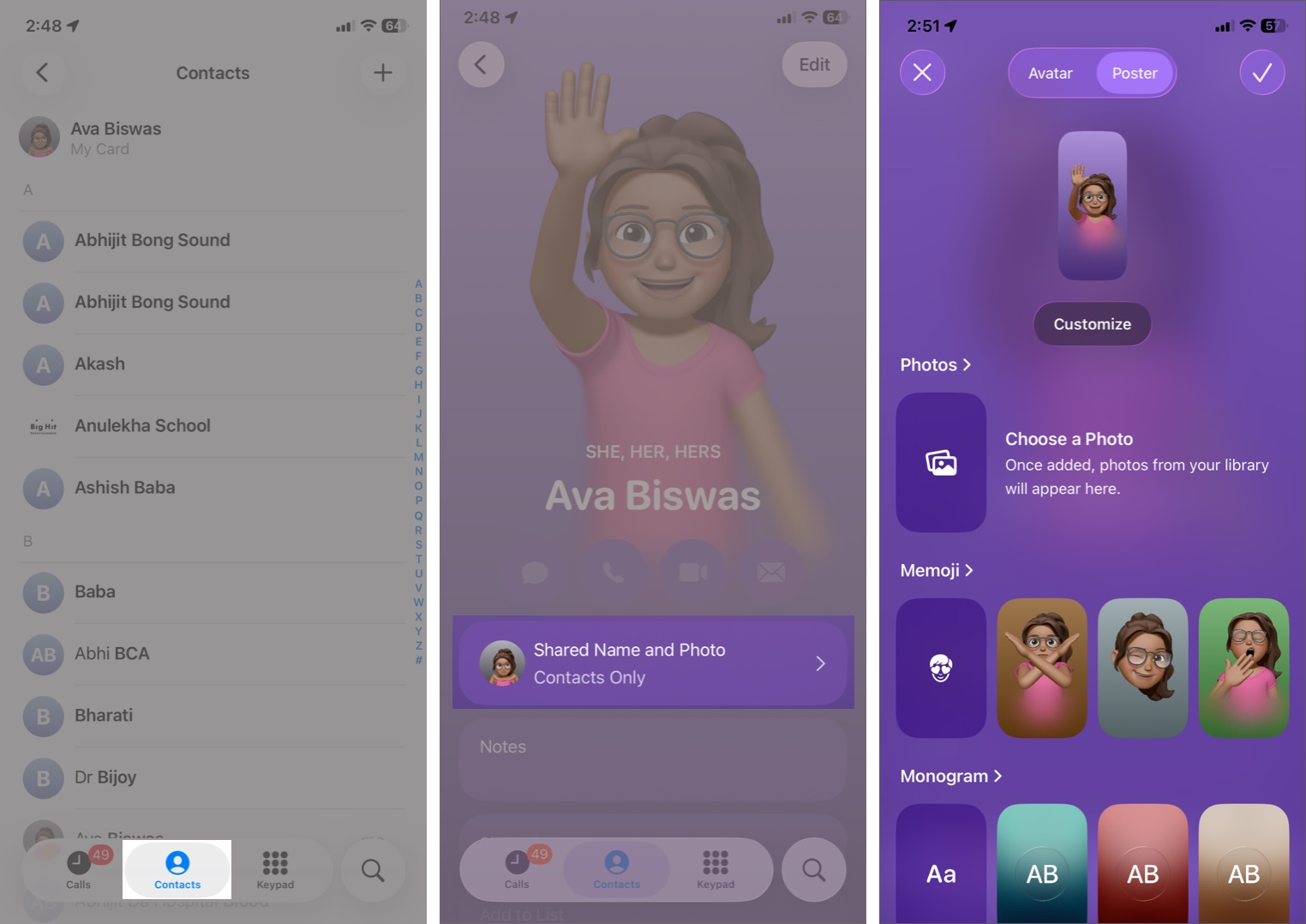
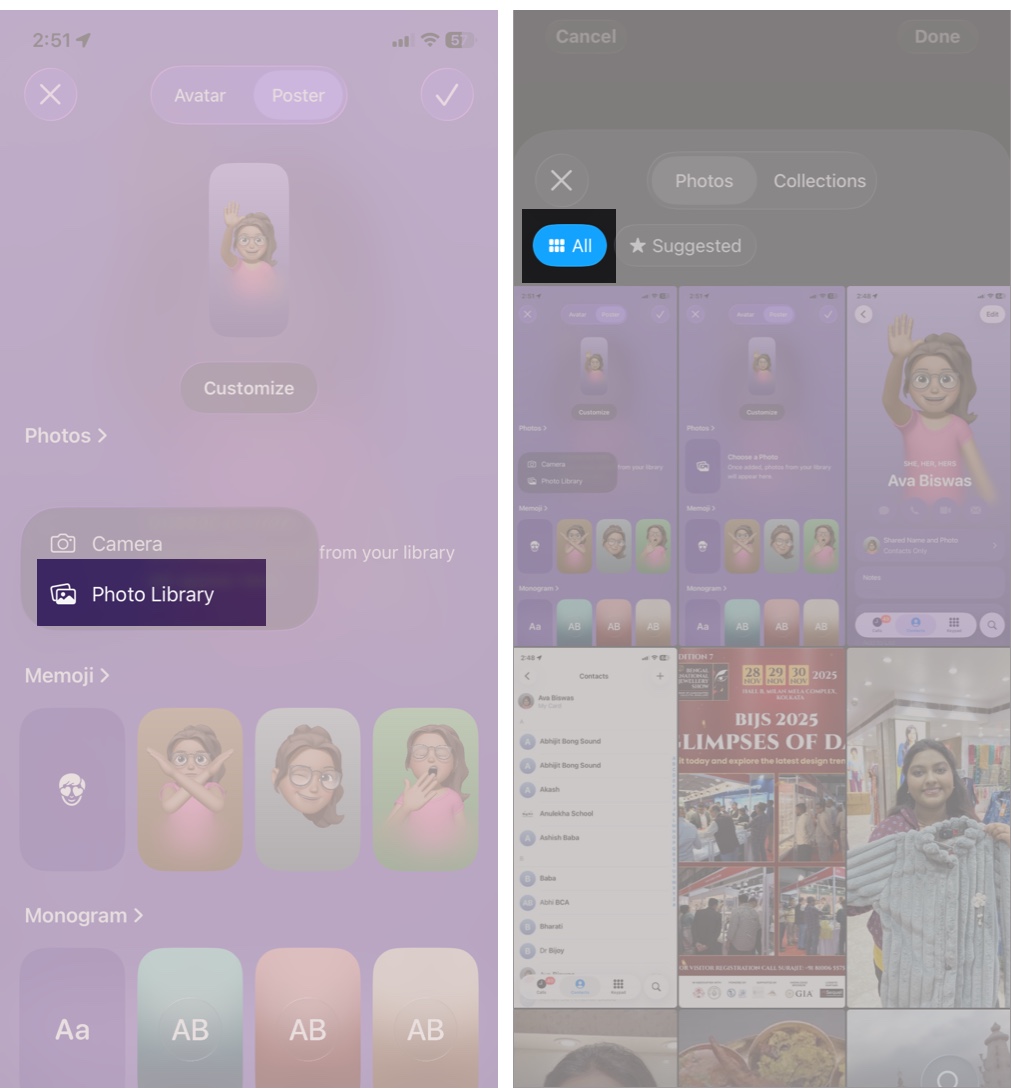
- Choose one style you like. Here I am tapping the image icon under Photos. Select Photo Library to add your favorite photos.
- Your iPhone will suggest the best-looking ones. You can go to the All tab and choose one. Portrait photos work great in this feature.
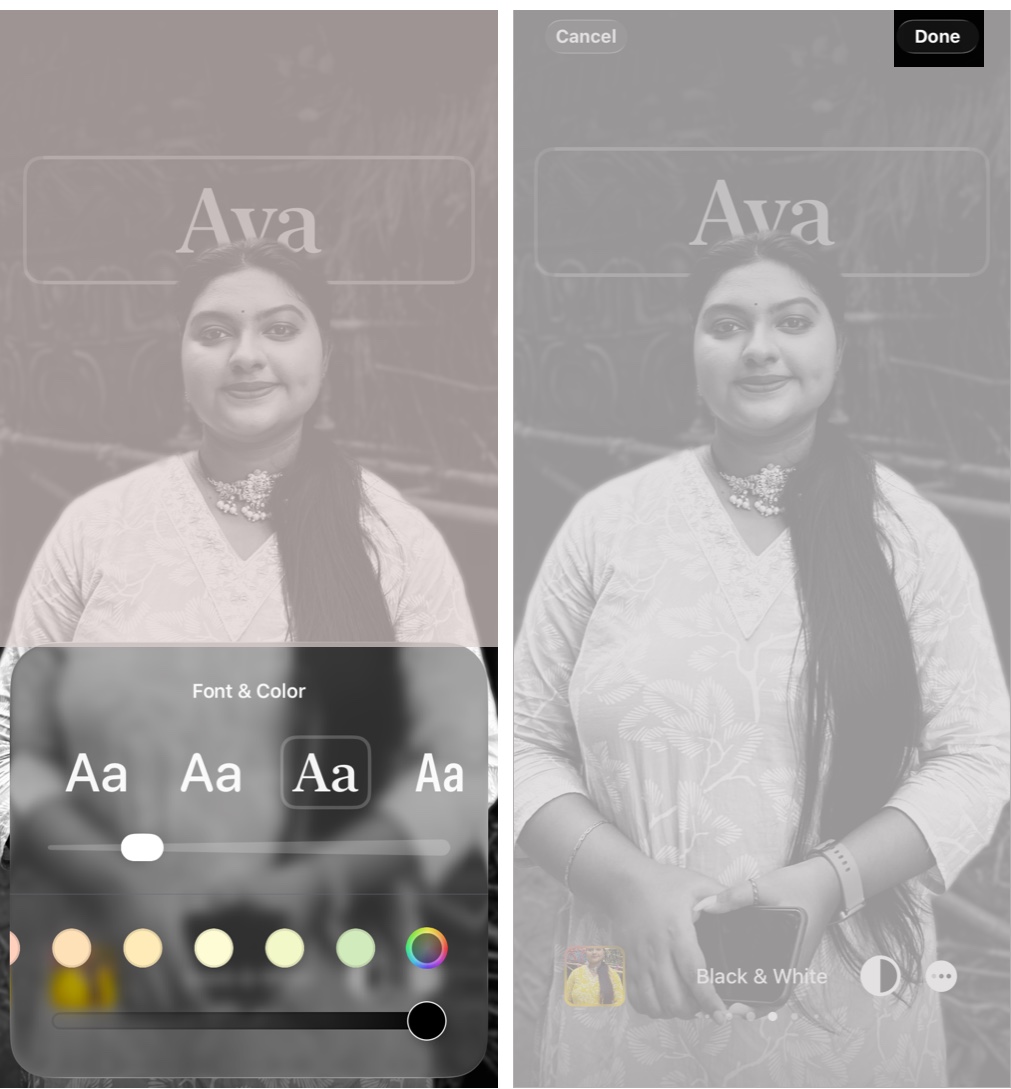
- Now, your iPhone crops out the photo and adds your name on top. Swipe left to add filters and color effects.
- To customize the font, tap on your name and select a style. You can also change the font color and weight.
- Once satisfied, tap Done at the top right corner. It will ask you to set an Avatar. We will discuss it later.
If you want to create a fun Memoji Contact Poster, follow the steps below:
- Select the Memoji icon under the Poster tab. It will show your Apple ID Memoji on the editing screen.
- Tap the Memoji icon again at the bottom right corner.
- Now, make an expression looking at the camera or choose from a predefined Memoji. Tap Next in the top right corner.
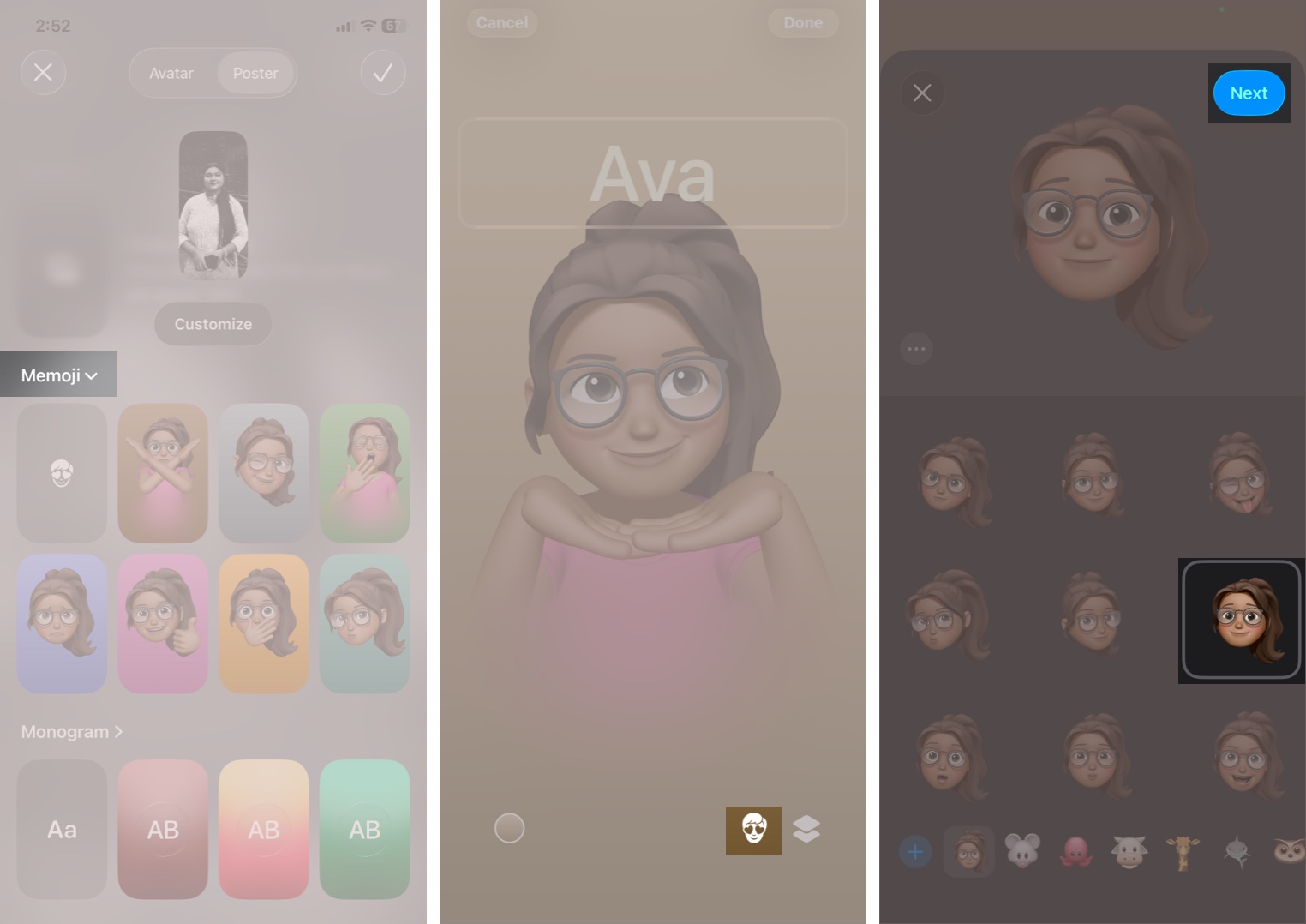
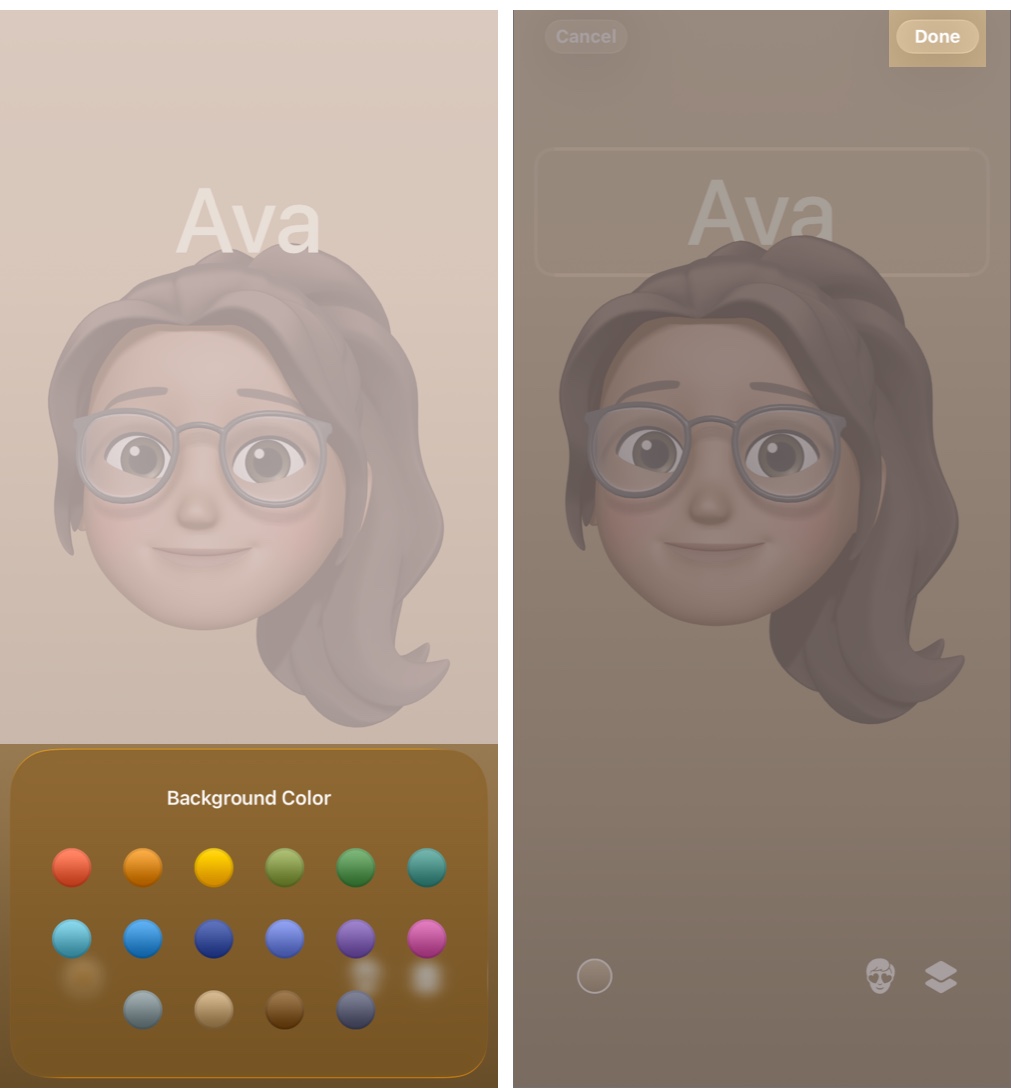
- Then select the color icon on the left and set a background color.
- Customize the font and tap Done to save the poster.
Inspiring iPhone Contact Poster Ideas
Want to make a unique Contact Poster? Try these:
- Minimalist: A simple monochromatic background with clean typography.
- Professional: A portrait photo in neutral colors for a polished look.
- Playful: A Memoji expression that reflects your personality.
- Color-blocked: Vibrant backgrounds, bold text.
- Themed: Pictures from travels, favorite hobbies, or seasonal looks.
Also Read: What’s New in the Phone App with iOS 26
How to Manage Contact Poster Sharing in Phone, FaceTime, and Messages
Once you finish creating your poster, people in your contacts will see it as a full-screen image during incoming calls. You’ll need to turn on sharing for it to appear.
- Go to Phone app > Contacts > My Card > Shared Name and Photo.
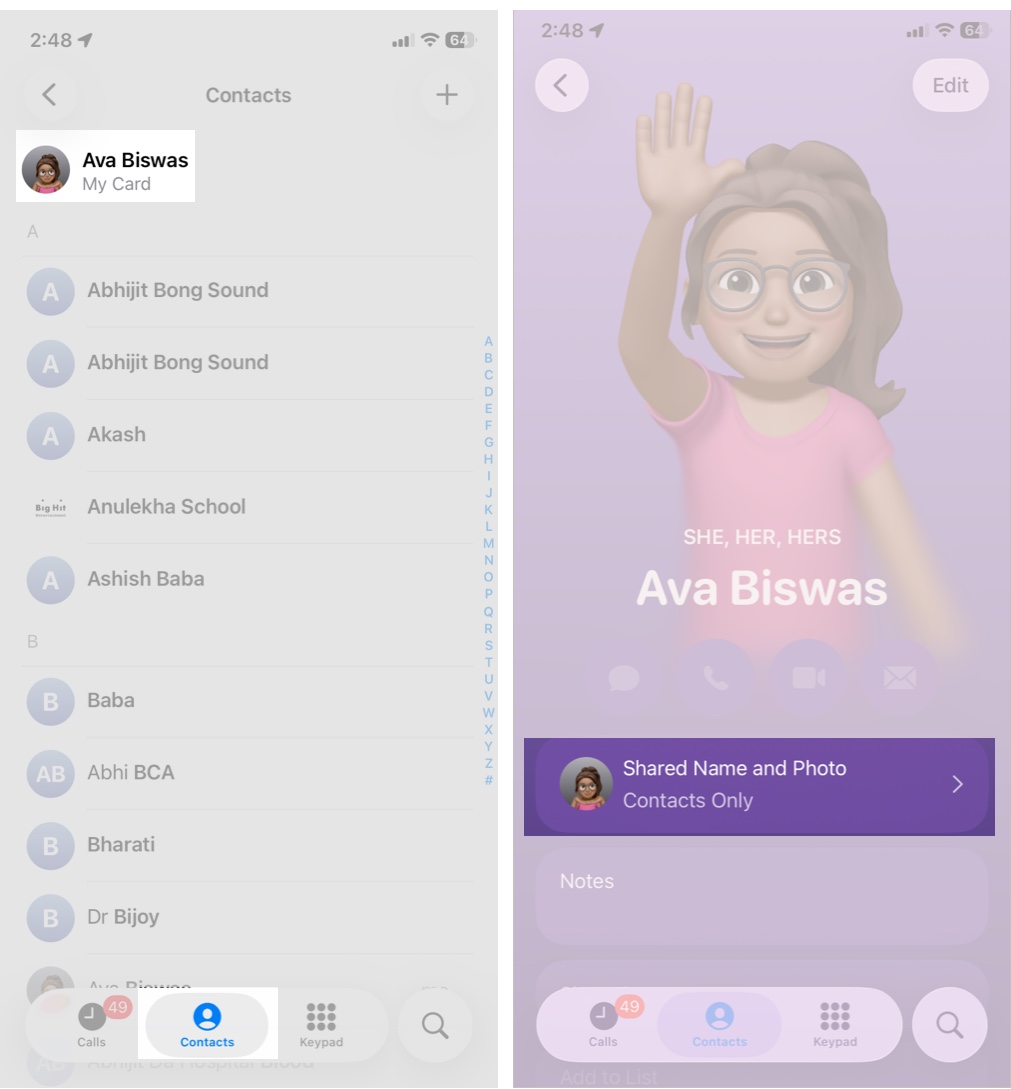
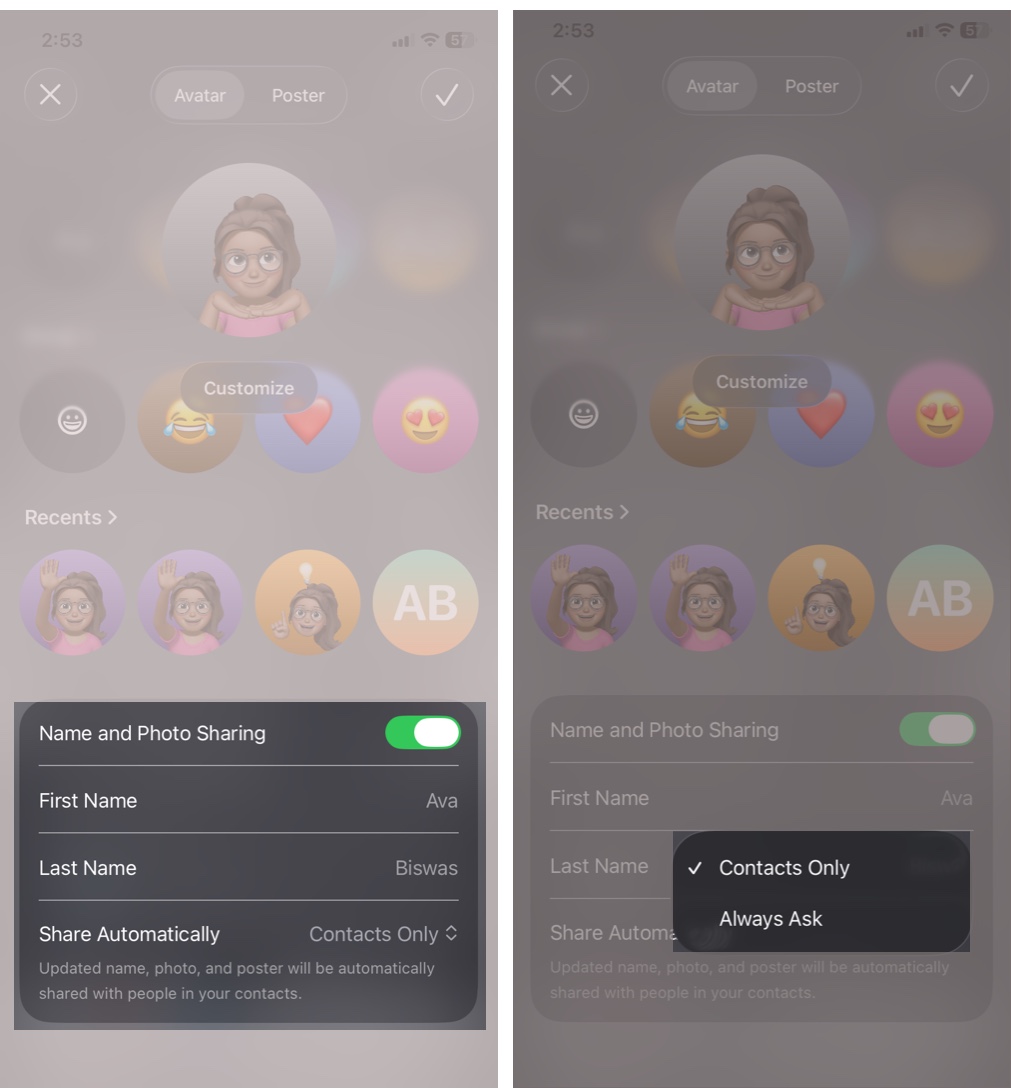
- Scroll down to the bottom and toggle on Name and Photo Sharing.
- You can edit your First Name and Last Name.
- Tap the dropdown next to the Share Automatically and choose your sharing mode:
- Contacts Only: Only people in your address book see your poster.
- Always Ask: You approve every sharing request.
Now, whenever you change your Contact Poster, everyone will see the updated one automatically in your contact card when you call, message, or FaceTime them. Your contacts should also enable sharing to enjoy the feature to the fullest.
Tip:
-
Whenever you use NameDrop to exchange your contact information, your customized poster will appear on their phone. It really looks professional rather than a simple name.
Switch Between Multiple Contact Posters
If you created several posters, you can easily switch between them:
- Open My Card in Contacts and select Shared Name and Photo.
- Move to the Poster tab and scroll down.
- Tap on Recents to see your previous Contact Posters.
- Select the one you want and tap the checkmark at the top.
- Set an Avatar, and you’re done!
How to Update Your Contact Photo on iPhone
As I mentioned before, you will be prompted to set an Avatar. You can use the same tools to create a Contact Photo (used in Messages and small profile icons).
- Open My Card > Shared Name and Photo.
- Under the Avatar tab, you will see four options: Photos, Memoji, Monogram, and Emoji.
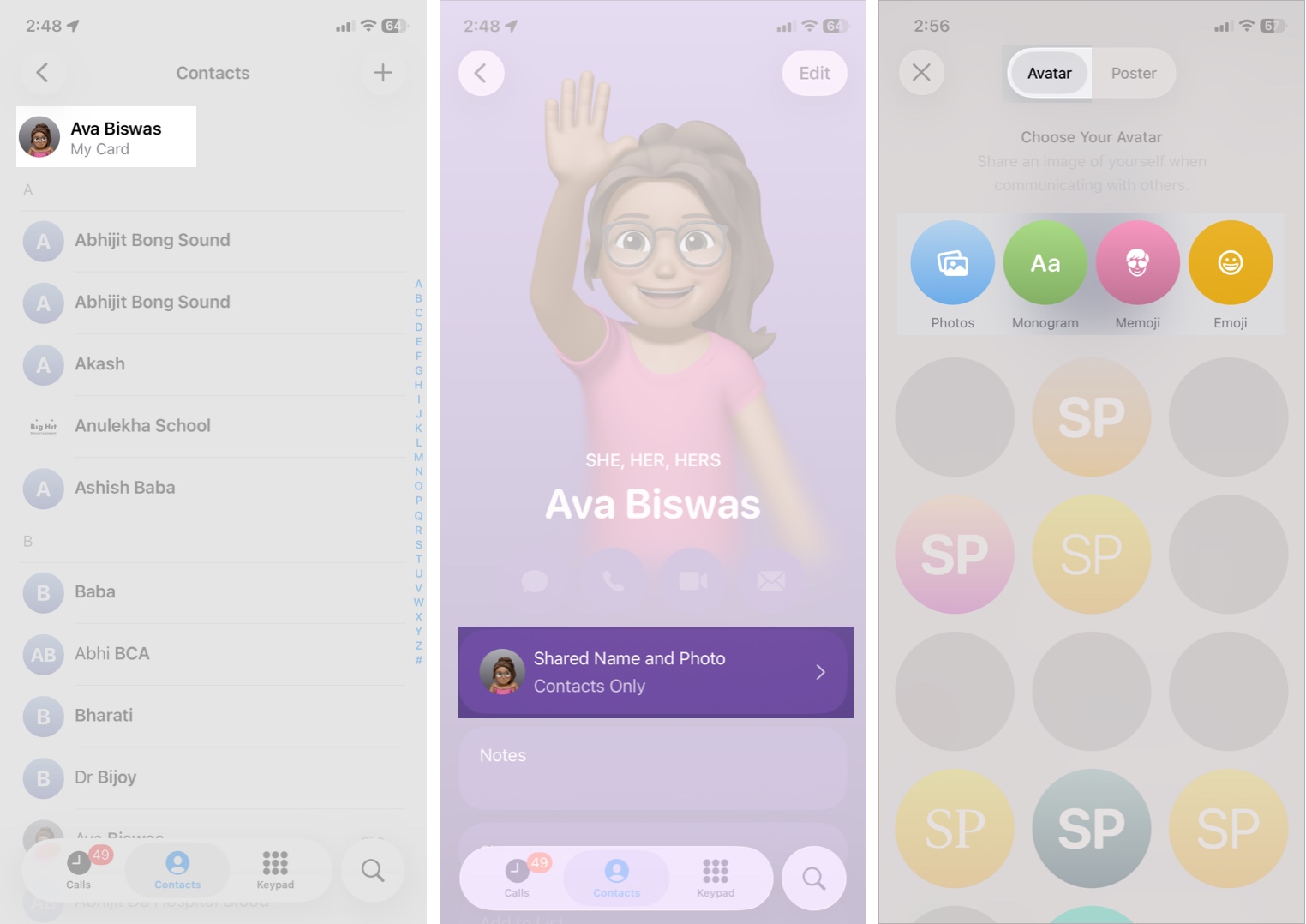
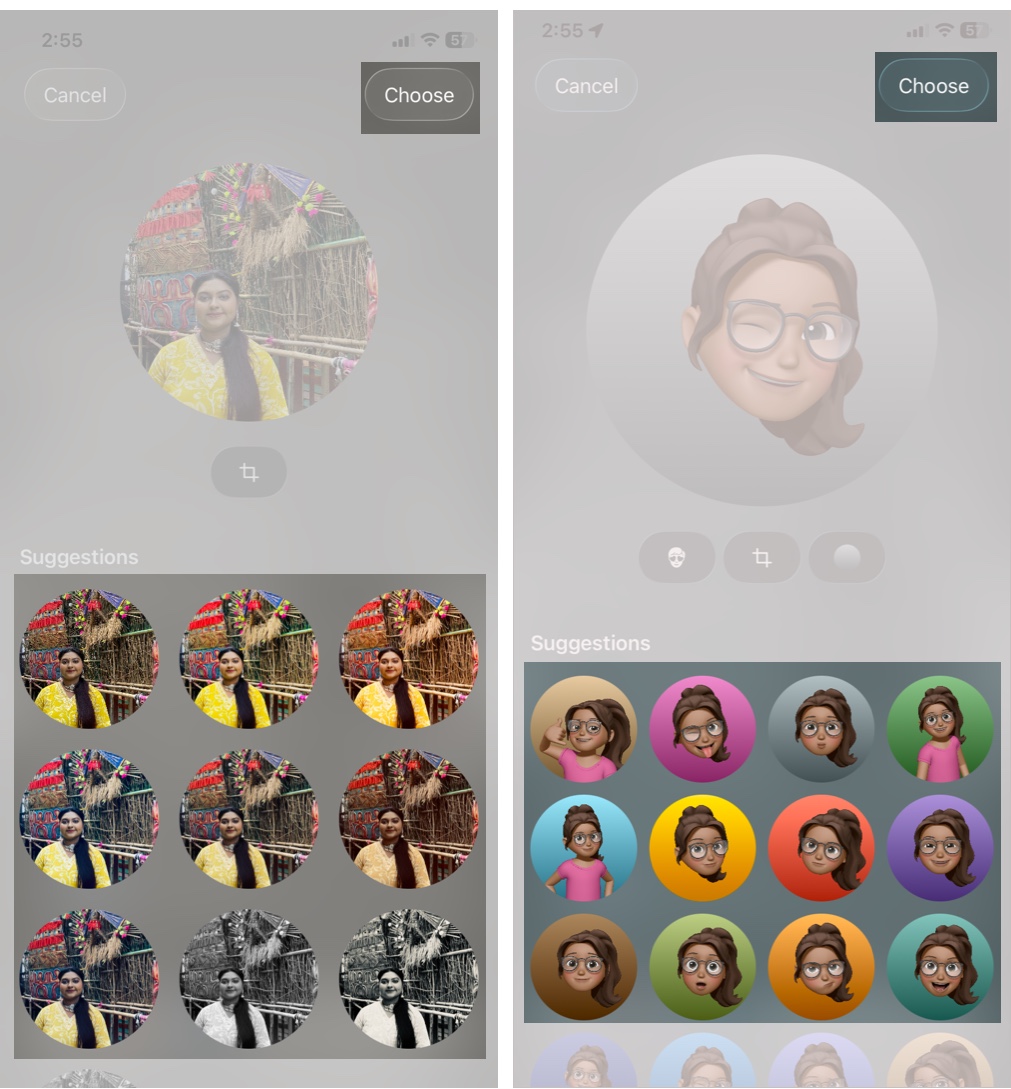
- Choose a style that suits you. If you select a photo from your library, you can crop it and add color filters. Tap Choose at the top to save it.
- For Memojis, select an expression, set a background color, and hit Choose.
How to Assign Contact Posters to Other Contacts
Contact Posters work only on iPhones running iOS 17 or later. If someone uses Android or an older iPhone, you can still set a custom poster for them so their photo appears whenever you call each other. It also helps you quickly tell apart contacts with similar names.
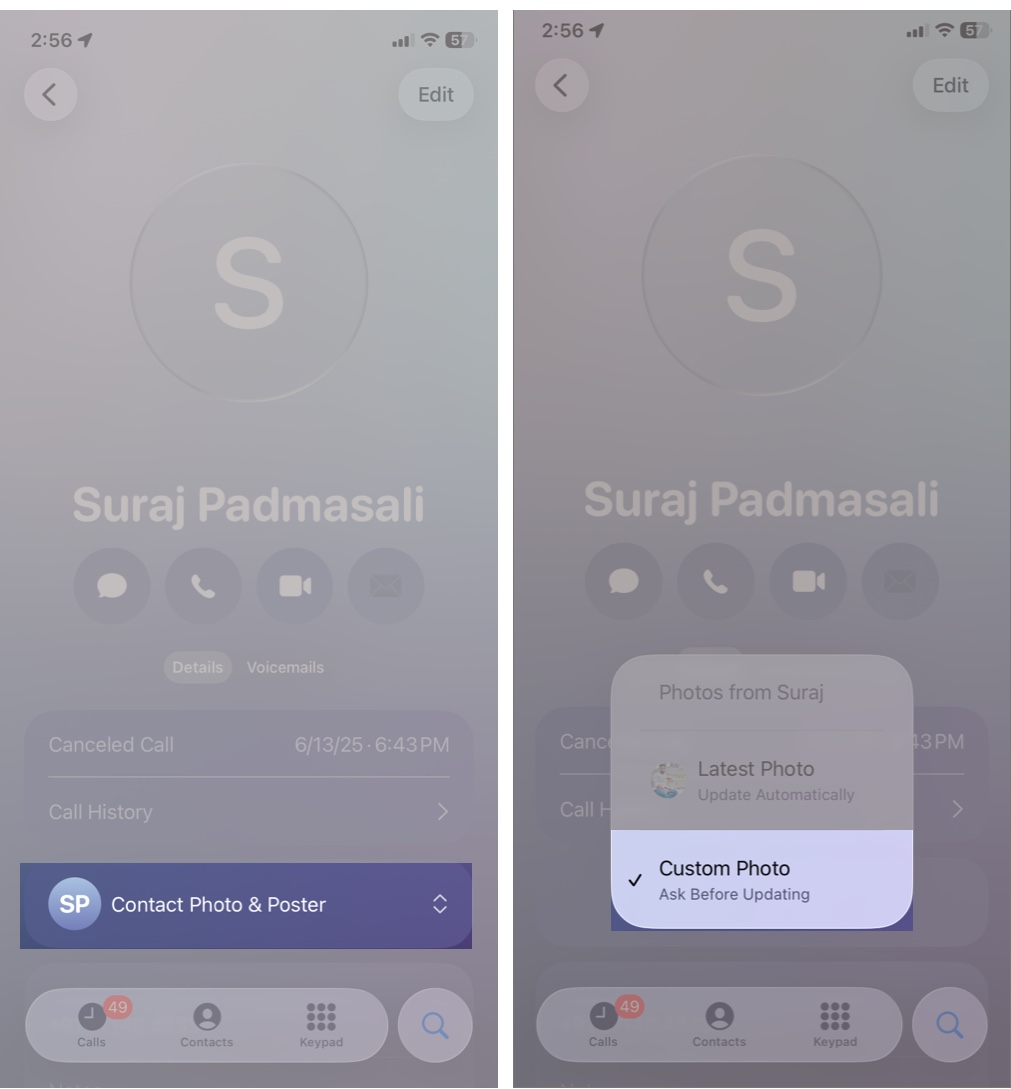
- Open Contacts and select the contact you want.
- Tap Contact Photo & Poster.
- Now, decide if you want to set a contact Avatar or Poster.
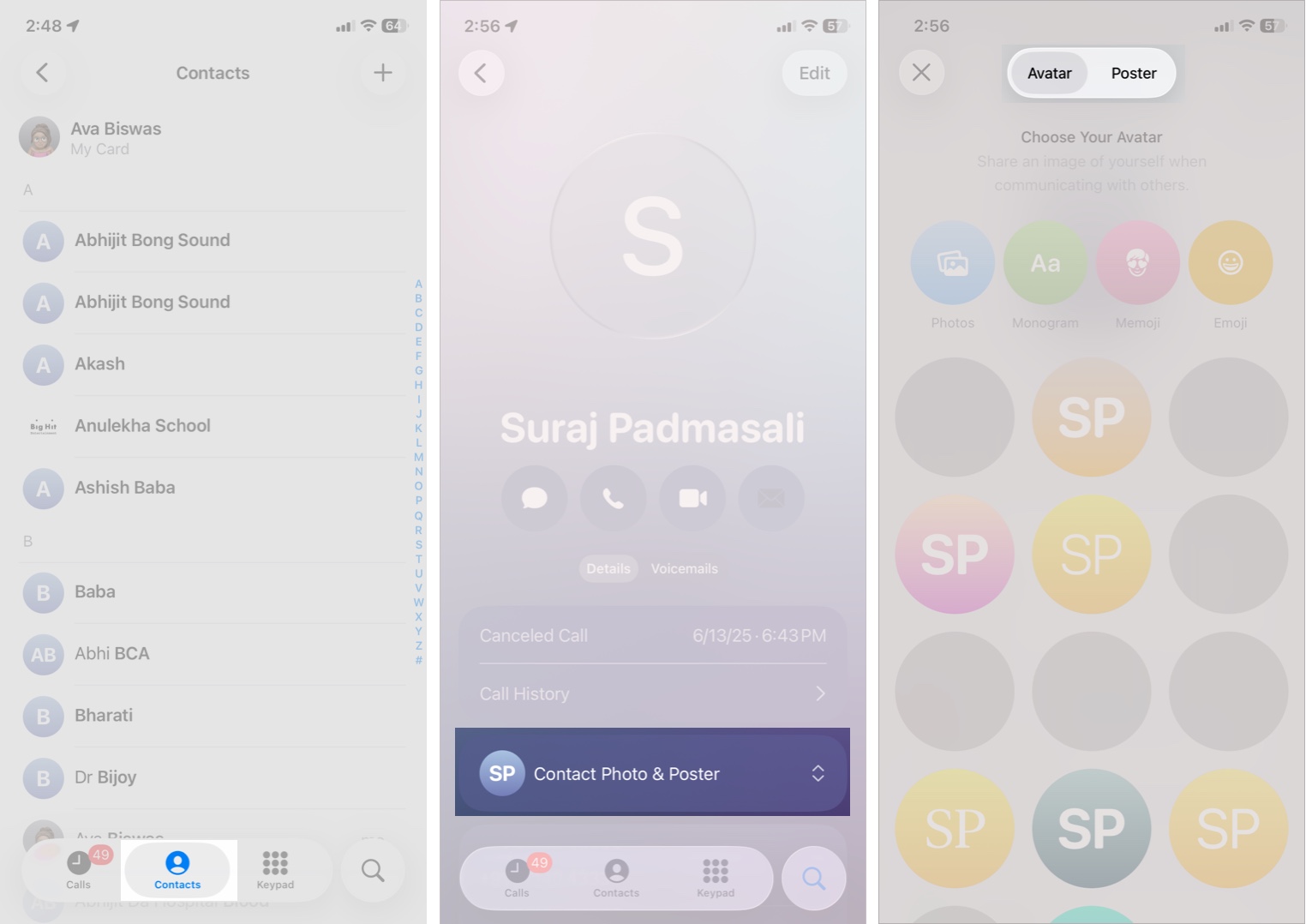
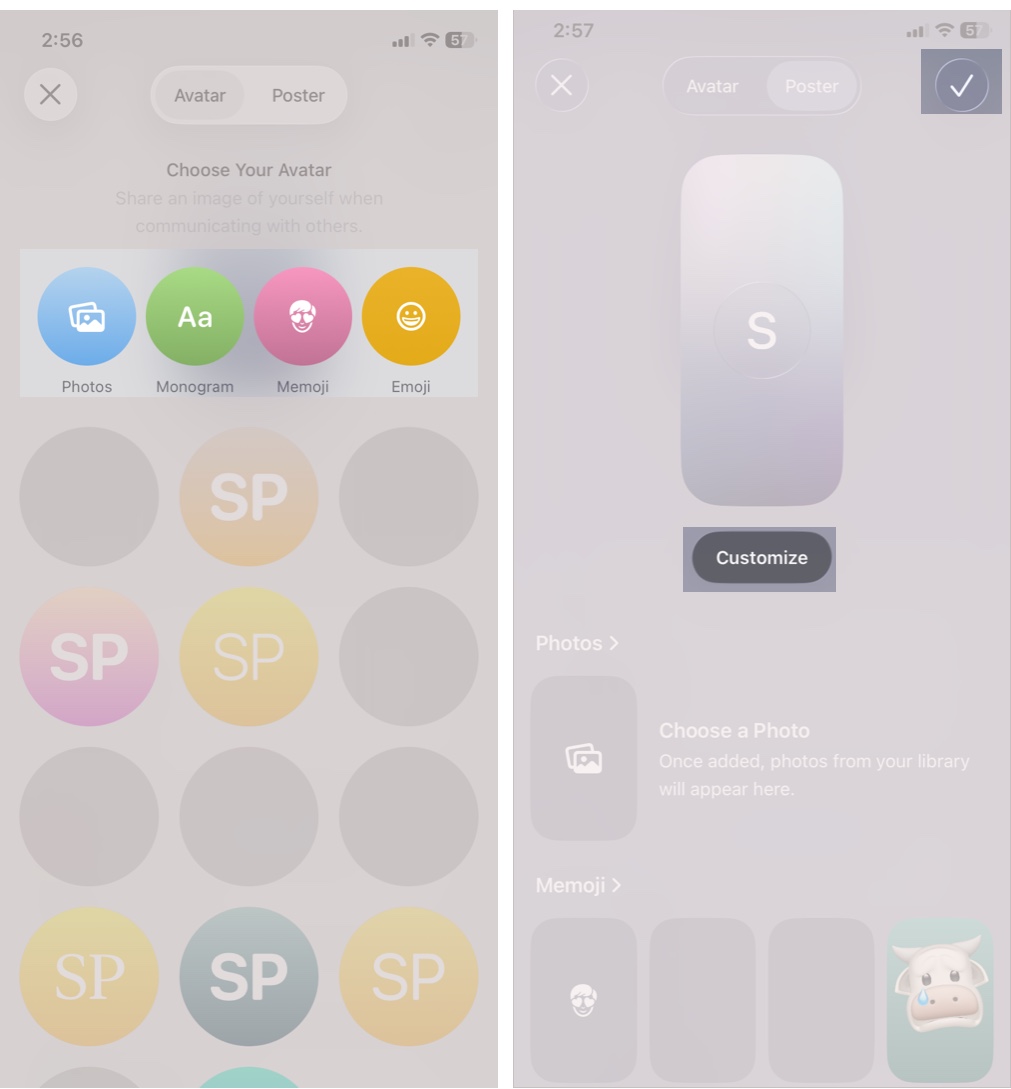
- Choose between Photos, Monogram, or Memoji.
- Now, customize the background color and fonts and tap Done.
Note:
If the contact has already set up their poster, you will see it when you open their contact card. To set a different one:
- Tap Contact Photo & Poster and select Custom Photo.
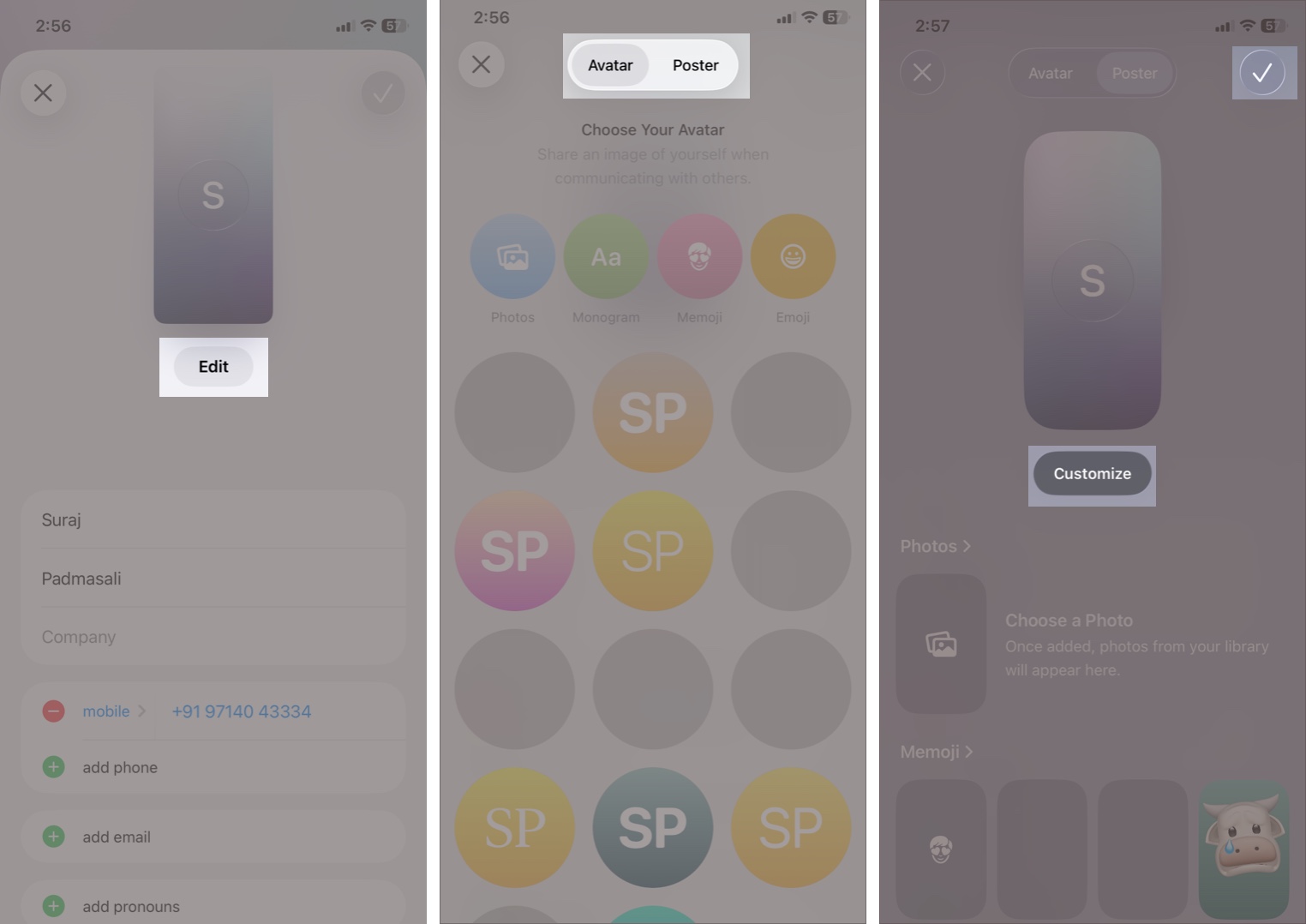
- Then tap Edit at the top right corner > Edit Contact Info.
- Again, tap Edit under the poster and set a Poster and Avatar.
- Customize the poster as needed, then tap the checkmark to save it.
Tips for Using Contact Posters Safely and Effectively
- Avoid sharing private information such as your home address, ID, or work details in your contact card.
- Use Always Ask sharing if you’re privacy-focused.
- Choose posters that are appropriate for work calls.
- If using personal photos, ensure they don’t reveal sensitive information.
- Keep your Apple ID secure because it syncs contact details across devices.
Fix Contact Poster Not Working on iPhone
| Issues | Solutions |
|---|---|
| The caller sees the wrong poster | The caller sees the wrong poster |
| Poster not updating after changes | Force-quit Phone or Contacts and reopen. Restart your iPhone to clear system glitches. |
| The option to create posters is missing | Ensure Contacts are enabled in iCloud. Update your iPhone. |
| Caller sees the wrong poster | Set your poster again. Disable and re-enable Name and Photo Sharing. |
If your issue is not listed above, follow our detailed guide to fix Contact Posters not working.
Customize Your Contact Card!
Contact Posters make calling and messaging more personal and visually fun. With iOS 26, Apple gives you powerful customization tools that feel simple and intuitive. Once you design your poster and set your sharing preferences, you’ll enjoy a more expressive calling experience while still maintaining control over your privacy.
Have you tried the feature yet? Let us know your experience below!
Frequently Asked Questions
Topics

Written by
Ava BiswasAva is a die-hard Apple aficionado and seasoned writer with a knack for breaking down complex tech concepts into easily digestible content. Having honed her writing and editing skills over 4 years at renowned media houses like TechBurner, Ava crafts informative and engaging articles including troubleshooting guides, product reviews, editorials at iGeeksBlog. When not typing, you can find her exploring the latest Apple releases or pondering the future of tech innovation.
View all posts →More from How-to

How to Turn Off Location on Snapchat (Step-by-Step Guide)
Want to stop sharing your location on Snapchat? This guide explains how Snapchat location sharing works and shows simple ways to turn off your location using Ghost Mode or phone settings. Stay in control of your privacy in just a few steps.
 VikhyatMarch 5, 2026
Snapchat Parental Controls: How to Set Up Family Center and Keep Your Teen Safe
Snapchat’s Family Center lets parents monitor their teen’s friend activity and screen time without reading private messages. Here’s how to set it up and what to expect.
VikhyatMarch 3, 2026
How to Block and Unblock Someone on Instagram
Instagram lets you block or unblock someone in seconds. Follow these simple steps to take full control of your privacy and online peace.
Ava BiswasMarch 2, 2026