
How to send iMessage sticker pack as gift on iPhone and iPad
Using stickers in iMessage provides a great way to add an expressive twist to your conversations. Whether you’re sending heartfelt wishes, sharing inside jokes, or expressing disbelief, there’s a sticker pack out there to convey it all. The good thing is, if you find an amazing pack, you can easily gift that iMessage sticker pack to your friends or family.
In this guide, I’ll walk you through the simple process of sending an iMessage sticker pack as a gift on iPhone and iPad. Additionally, I’ll offer some pro tips to help you find the best iMessage sticker packs worth gifting.
How to send iMessage sticker pack as a gift
Sticker packs in Messages are basically iMessage apps that you can download and use as usual. Therefore, the steps to gifting an iMessage sticker pack are similar to gifting a paid app. Here’s how you do it:
Note:
You can send iMessage sticker packs as gifts only to recipients in the same region as you.
- Locate and open the Messages app on your iPhone or iPad.
- Open any conversation → Tap the plus icon next to the text field.
- Tap Stickers → Swipe right to the left on the top bar to view the available sticker packs.
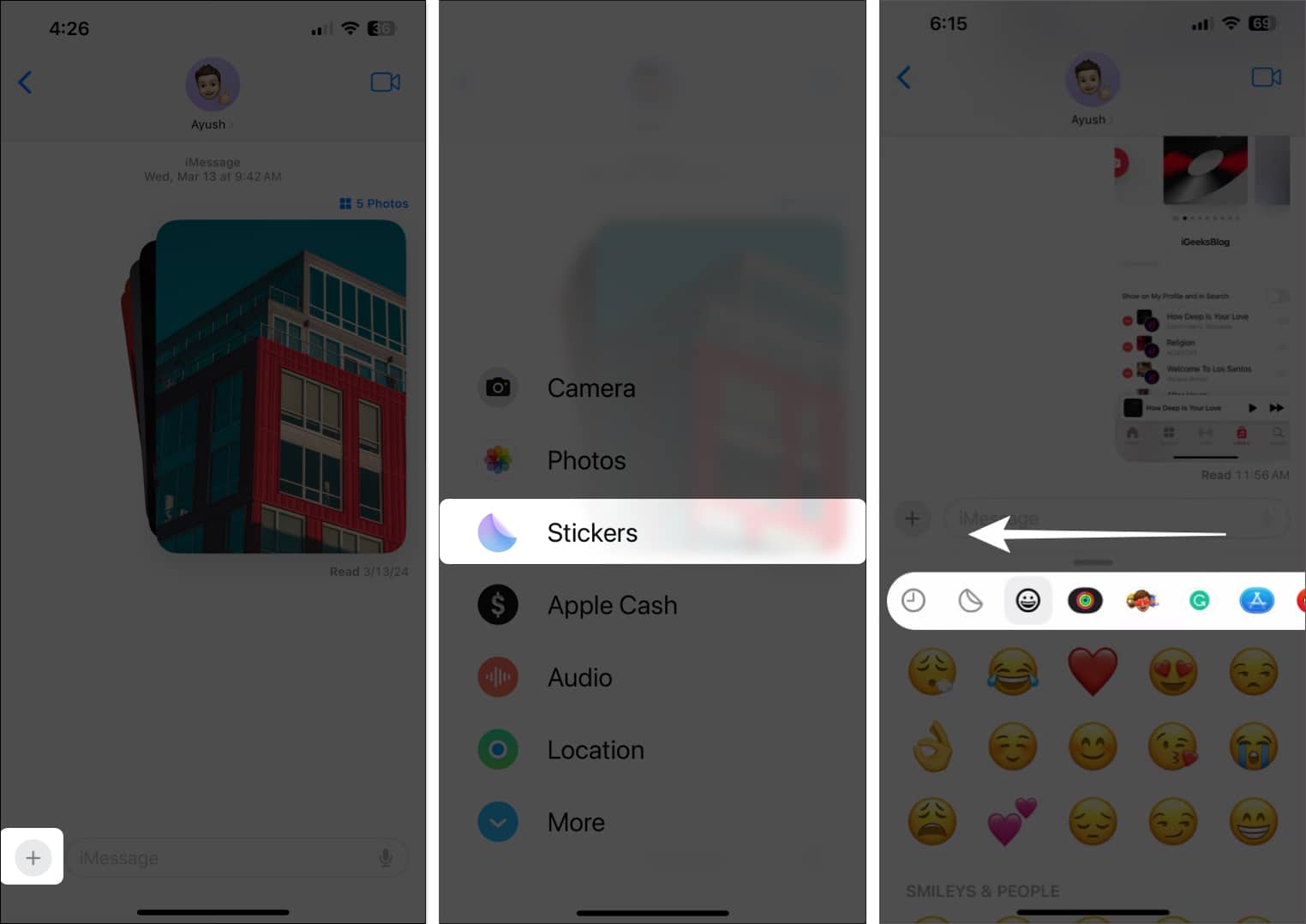
- Now, select Edit at the end of the bar → Pick Get Sticker Apps on the App Store.
- Find and open a paid iMessage sticker pack you wish to send as a gift.
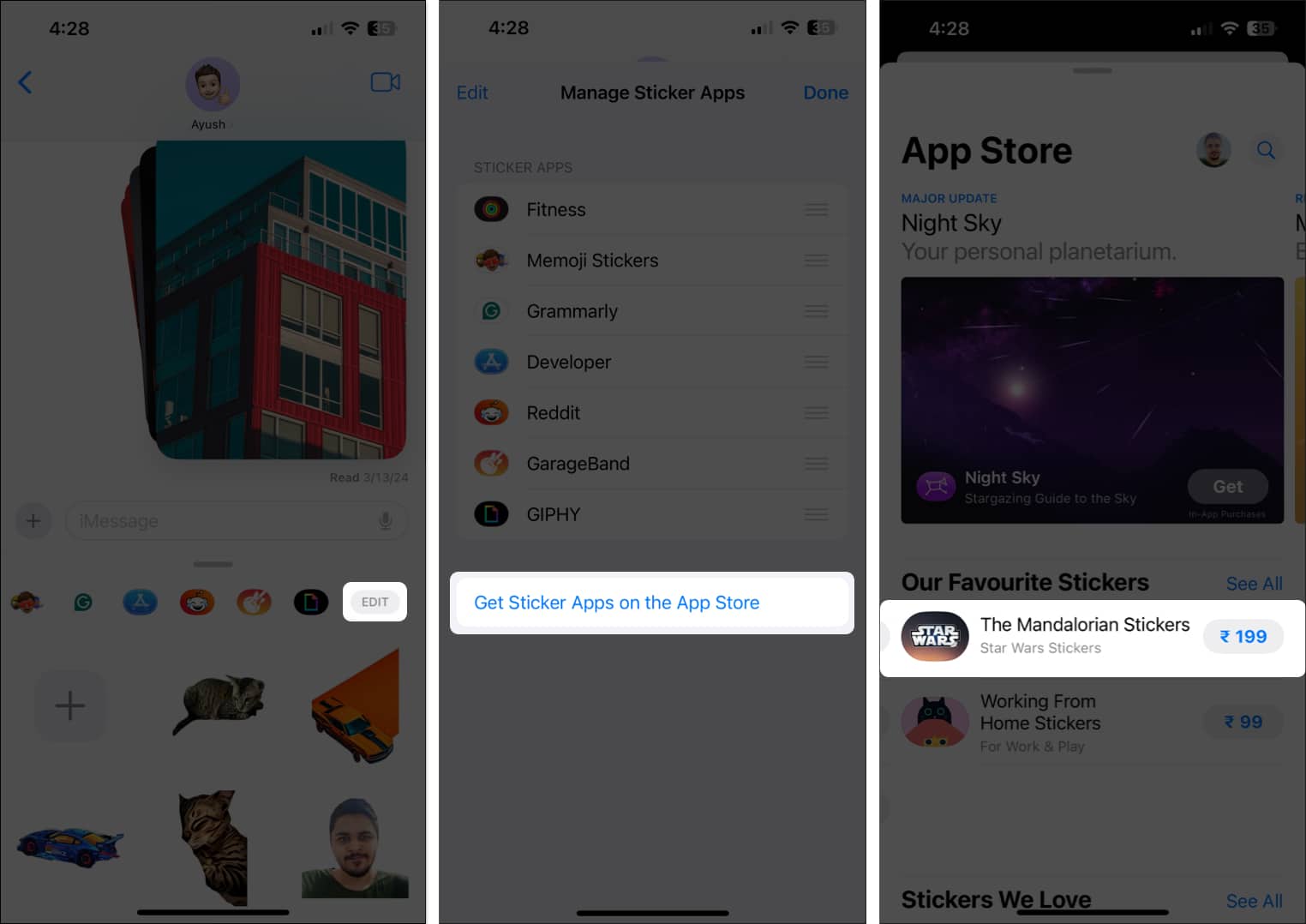
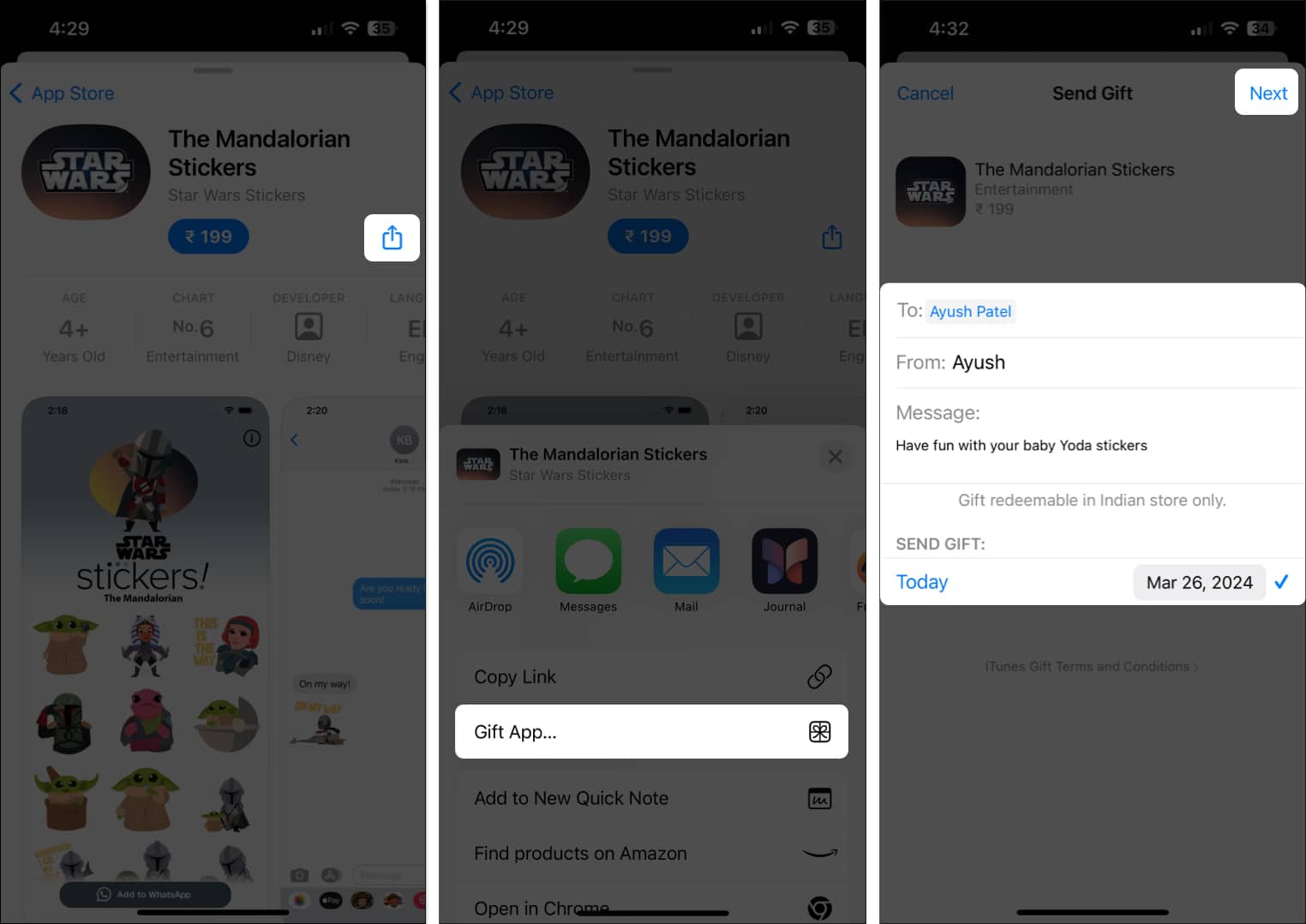
- Tap the Share icon located on the right-hand side → Then, select Gift App.
- Now, enter the email of the person to whom you wish to send the sticker pack.
- Optionally, you can add a personalized message → Select a date to send the gift.
- Select Next.
- Now, scroll horizontally to select a theme for the sticker pack cover → Then, tap Next.
- Finally, review the payment details for the gift → Then, tap Buy → BUY NOW.
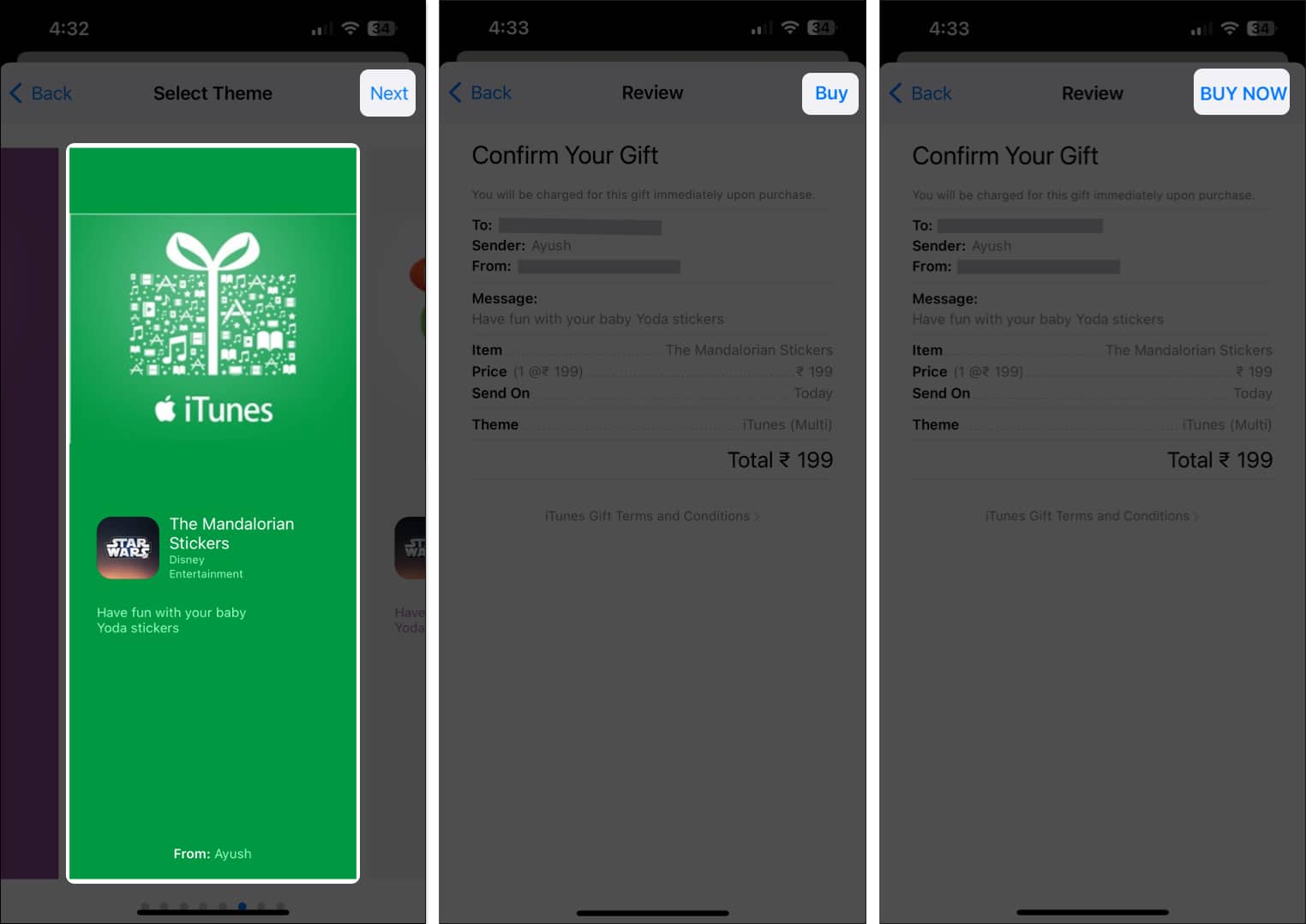
The recipient will get an email notification and can quickly download the sticker pack to add it to their sticker collection in the Messages app.
For a smoother transaction, make sure you have added sufficient funds to your Apple ID beforehand.
If you don’t want to share paid sticker packs, you can follow steps 1-4 → Pick a free sticker pack → Share it with your contact. As easy as that!
Tips to find best iMessage sticker packs
Discovering the perfect iMessage sticker pack to gift can be challenging. To ease this process, consider the recipient’s interests and explore popular and highly rated packs on the iMessage App Store. Alternatively, you can use unique features such as Live Stickers to ensure a delightful and personalized messaging experience.
Wrapping up…
Gifting iMessage sticker packs can be a great way to add a creative flair to plain old iMessage. I have personally enjoyed using this fun feature, and I’d highly recommend you give it a shot, too.
If you have any questions about gifting sticker packs, please leave them in the comments below. I’d be happy to respond.

Written by
Jignesh PadhiyarJignesh Padhiyar is the co-founder of iGeeksBlog.com, who has a keen eye for news, rumors, and all the unusual stuff around Apple products. During his tight schedule, Jignesh finds some moments of respite to share side-splitting content on social media.
View all posts →More from How-to
How to Share Screen on WhatsApp (iPhone, Android, and Desktop)
Sharing your screen on WhatsApp makes it easier to explain things visually. Here’s how to use screen sharing on iPhone, Android, and desktop devices.
 Avadesh JoshiMarch 6, 2026
How to Turn Off Location on Snapchat (Step-by-Step Guide)
Want to stop sharing your location on Snapchat? This guide explains how Snapchat location sharing works and shows simple ways to turn off your location using Ghost Mode or phone settings. Stay in control of your privacy in just a few steps.
 VikhyatMarch 5, 2026
Snapchat Parental Controls: How to Set Up Family Center and Keep Your Teen Safe
Snapchat’s Family Center lets parents monitor their teen’s friend activity and screen time without reading private messages. Here’s how to set it up and what to expect.
VikhyatMarch 6, 2026