
How to save an email as a PDF on iPhone, iPad, and Mac
Email communication is crucial in both personal and professional settings. Moreover, saving important Apple Mail conversations as PDF files offers significant benefits, such as record-keeping, sharing emails as attachments, and archiving for future reference.
If you also wish to manage and preserve your digital correspondence effectively, this guide is all you need. Let’s learn how to save an email as a PDF on iPhone, iPad, and Mac.
How to save an email as a PDF on iPhone or iPad
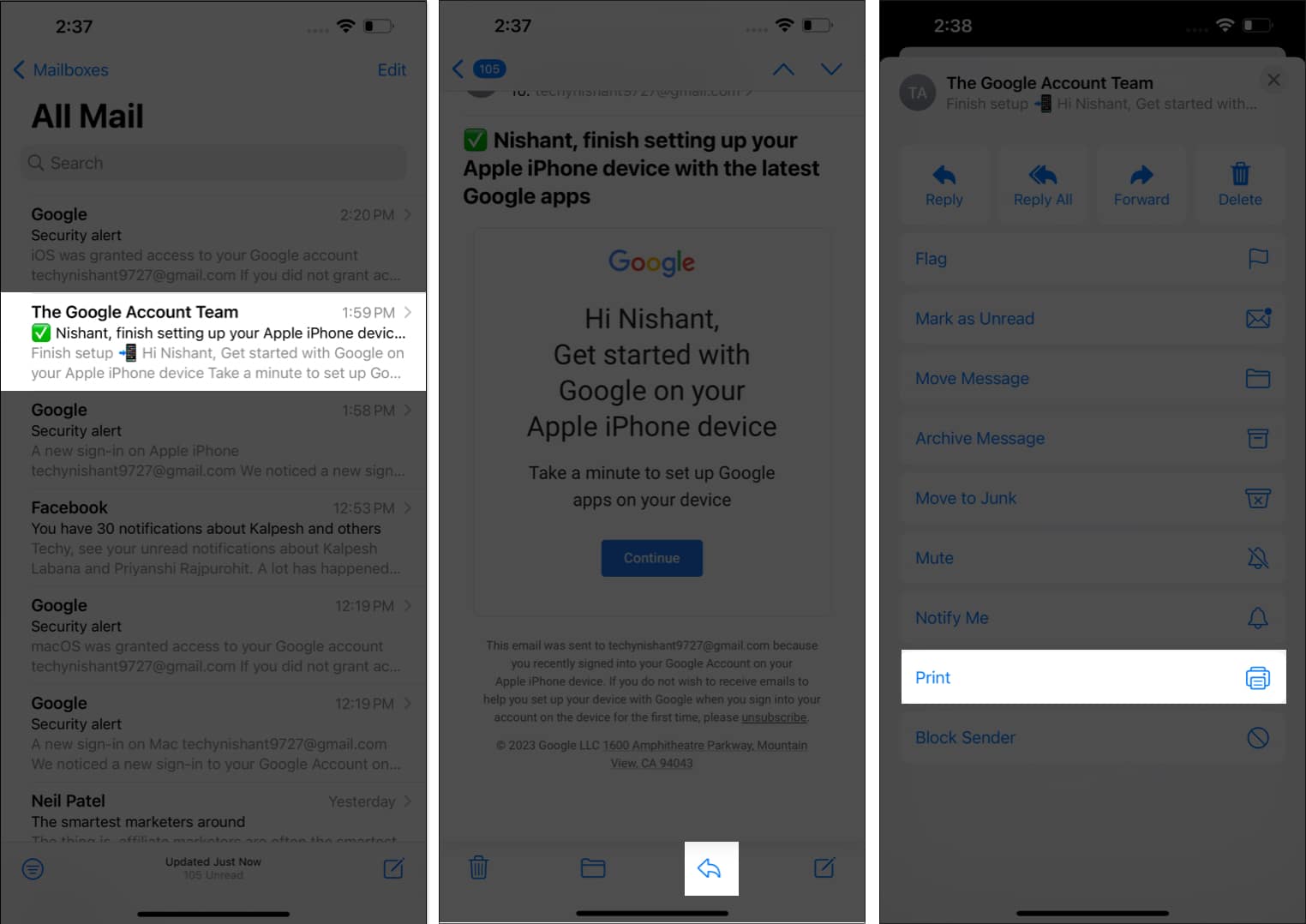
- Launch the Mail app on your iPhone or iPad.
- Open a mail you wish to save as PDF.
- Tap the reply to icon.
- Swipe up the interface → Select Print from the pop-up menu.
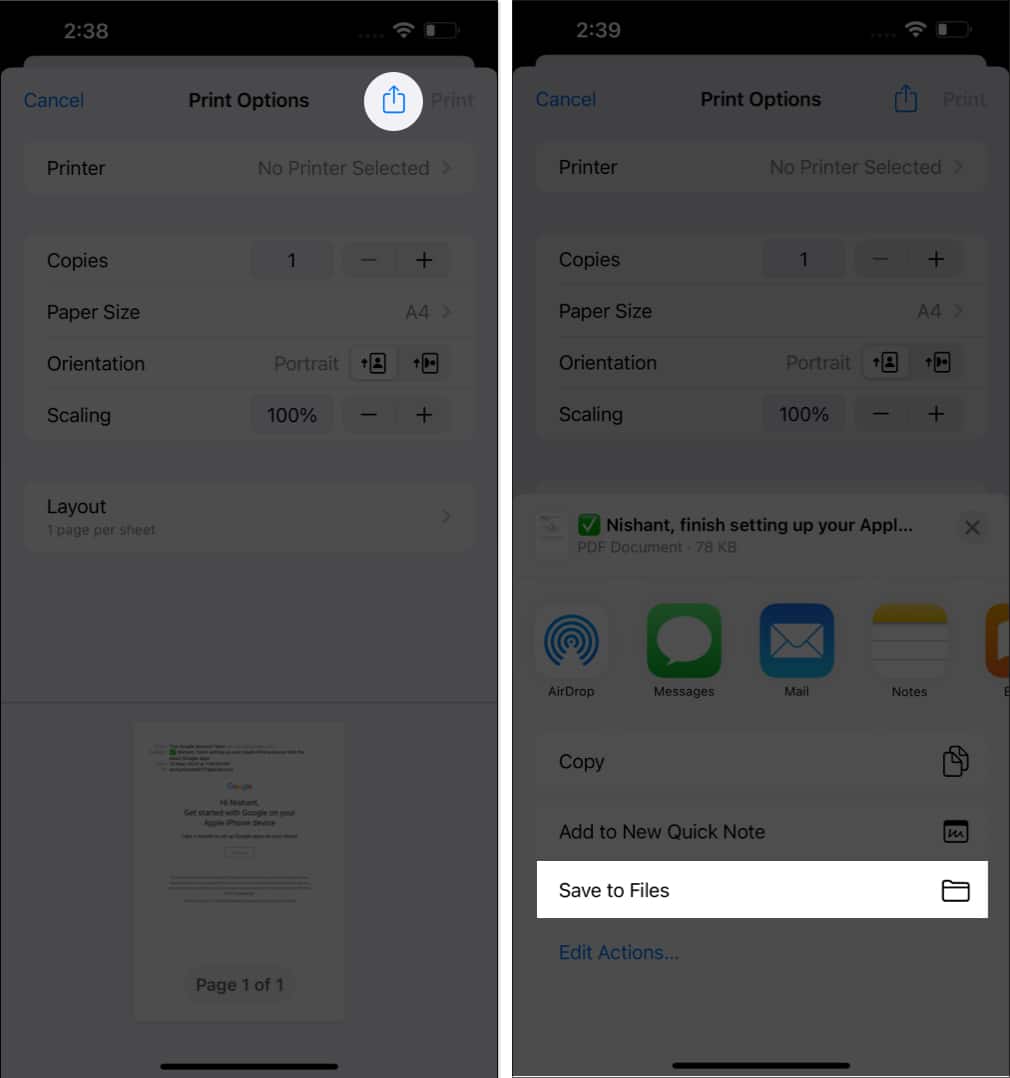
- Tap the Share icon → Swipe up the Share Sheet and select Save to Files.
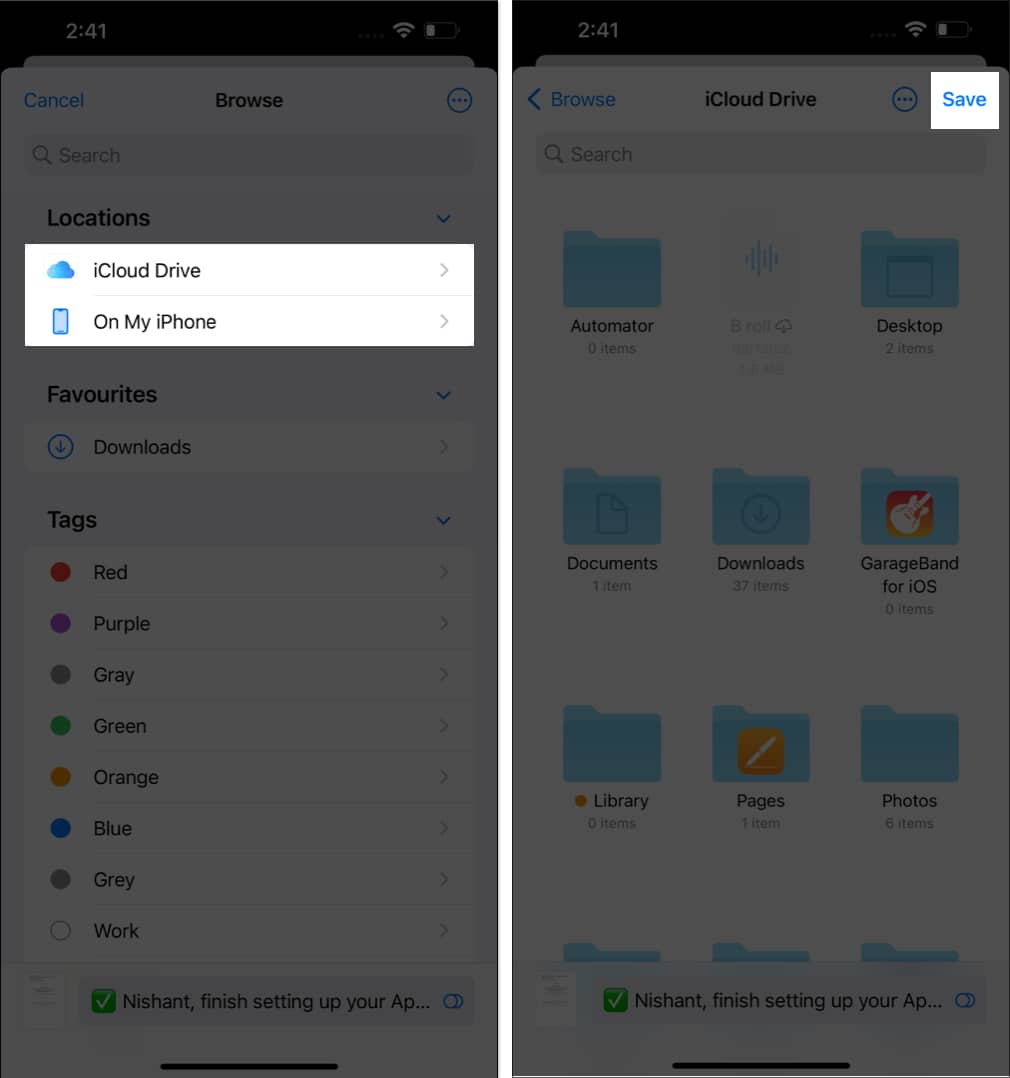
- Select a directory in iCloud Drive or On My iPhone on the Browse menu.
- Once you’ve designated a folder, tap Save to conclude the process.
Simple, right? Now, you can visit the folder you select to use the PDF file you created.
How to save an email as a PDF on Mac
- Launch the Apple Mail app on your Mac.
- Select a message or mail of your choice.
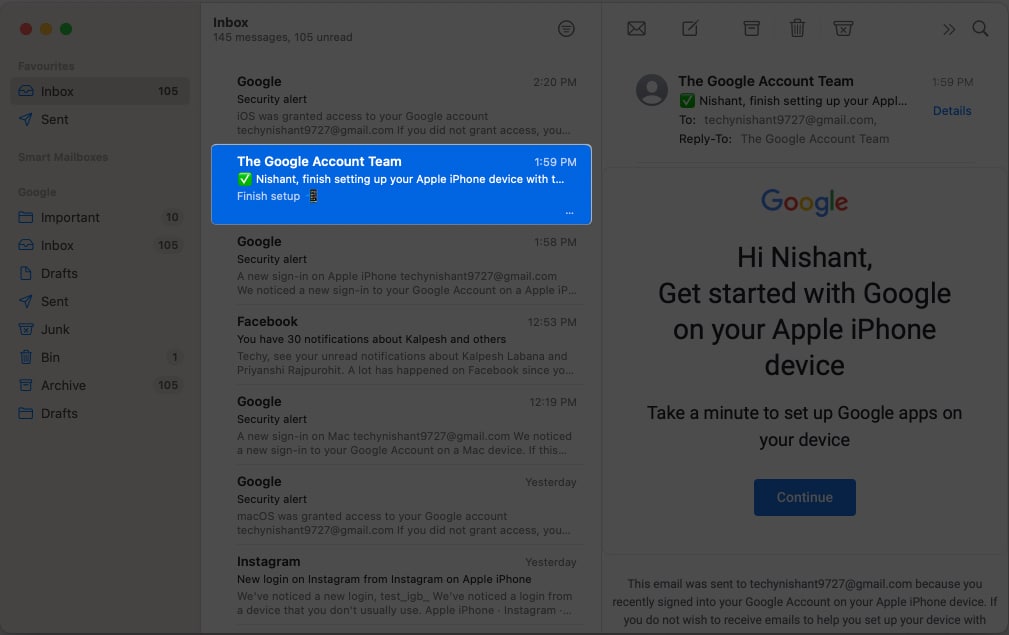
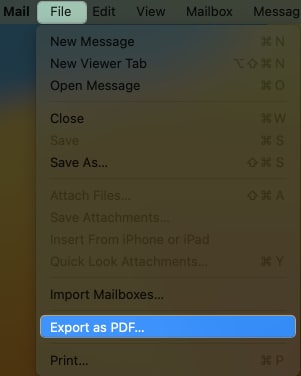
- Click on the File option from the menu bar.
- Select the Export as PDF option.
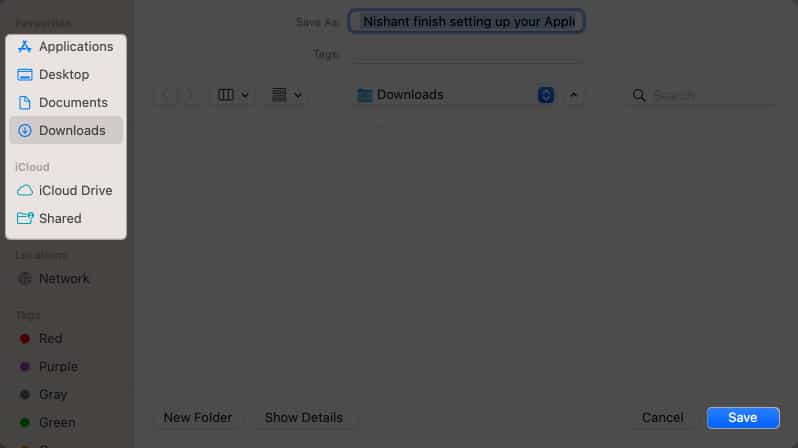
- Now, choose a destination from the from-down menu.
- Press Save to conclude the process.
Save multiple emails as PDFs at once on Mac
- While in the Mail app, go to File → Select Export as PDF.
- Choose a location as per your preference.
- Hit Choose to save all selected emails as PDFs.
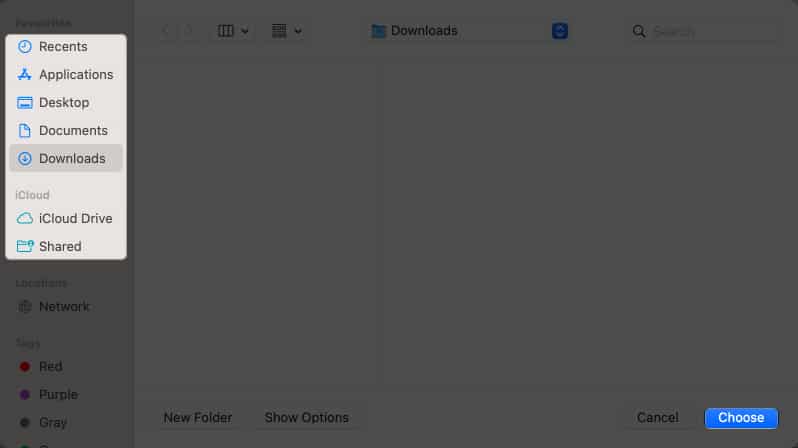
If you’re using Apple Mail on Mac, you can save multiple emails at once. However, on the iPhone and iPad, you can only save one mail at a time.
Yes, when you save an email as a PDF in Apple Mail, the PDF file will include any attachments that were present in the original email. This ensures that all the content, including attachments, is preserved in the converted PDF.
Yes, whilst saving the email as PDF via iPhone or iPad, you are enabled with multiple customization options to tweak with. But remember, the Mail app on Mac does not allow this feature.
You typically need an active internet connection to save emails as PDFs in Apple Mail. However, if you have already opened the email before going offline, you can save it as a PDF without an internet connection. Just ensure that you have previously loaded the email content.
It’s that simple!
All in all, by mastering this essential skill, you can now effortlessly convert your important email conversations into portable and easily shareable PDF files. Whether you need to forward emails as attachments, store them for future reference, or create a digital archive, the ability to save emails as PDFs offers unparalleled convenience and flexibility.
Thank you for reading. Feel free to drop your thoughts in the comments below.
Read more:
Frequently Asked Questions
Topics

Written by
Jibin JosephJibin Joseph is an editor at iGeeksBlog and has excellent attention to detail. He is a voracious reader, with interests ranging from philosophy and history to geopolitics and tech. When not reading or correcting grammar, you’d find him engaging in discussions about football. You can follow him on Twitter and Instagram at @4ibin.
View all posts →More from How-to

How to Turn Off Location on Snapchat (Step-by-Step Guide)
Want to stop sharing your location on Snapchat? This guide explains how Snapchat location sharing works and shows simple ways to turn off your location using Ghost Mode or phone settings. Stay in control of your privacy in just a few steps.
 VikhyatMarch 5, 2026
Snapchat Parental Controls: How to Set Up Family Center and Keep Your Teen Safe
Snapchat’s Family Center lets parents monitor their teen’s friend activity and screen time without reading private messages. Here’s how to set it up and what to expect.
VikhyatMarch 3, 2026
How to Block and Unblock Someone on Instagram
Instagram lets you block or unblock someone in seconds. Follow these simple steps to take full control of your privacy and online peace.
 Ava BiswasMarch 2, 2026