
How to reset iTunes Library on Mac and Windows PC
Whenever something goes wrong in iPhone and iPad, users normally reset their devices as a final resort. After going through rigmarole of different complex processes, a dejected iPhone user would certainly go for factory reset. But what if the user faces issues in his/her iTunes?
We have done much research in iTunes on different issues faced by users, but resetting iTunes library is something new we have been asked recently by many Apple fans.
Things you should know before resetting iTunes music library
Before we delve into this journey of resetting iTunes for your Mac and PC, here are a few things you must remember.
- Resetting your iTunes library means that all your playlists, ratings, play counts, and other customizations will be erased.
- Your iTunes won’t stop working after deleting music files. Don’t assume library changes will cause PC suite issues.
- Updating iTunes is not essential, but it is recommended. After updating, close the program to ensure the new information is updated in the next session.
- After resetting the music library, there is no need to uninstall and reinstall iTunes.
- Ensure your device does not synchronize with iTunes to avoid music duplication while creating a new playlist post-reset.
How to delete iTunes library from Mac and PC
If you prefer to avoid technical tasks and only have a small amount of content to remove, here’s a quick solution. The best part is the steps work for both Mac and PC. I have demonstrated the process via a Windows PC.
- Go to the iTunes app.
- Navigate to an existing Library.
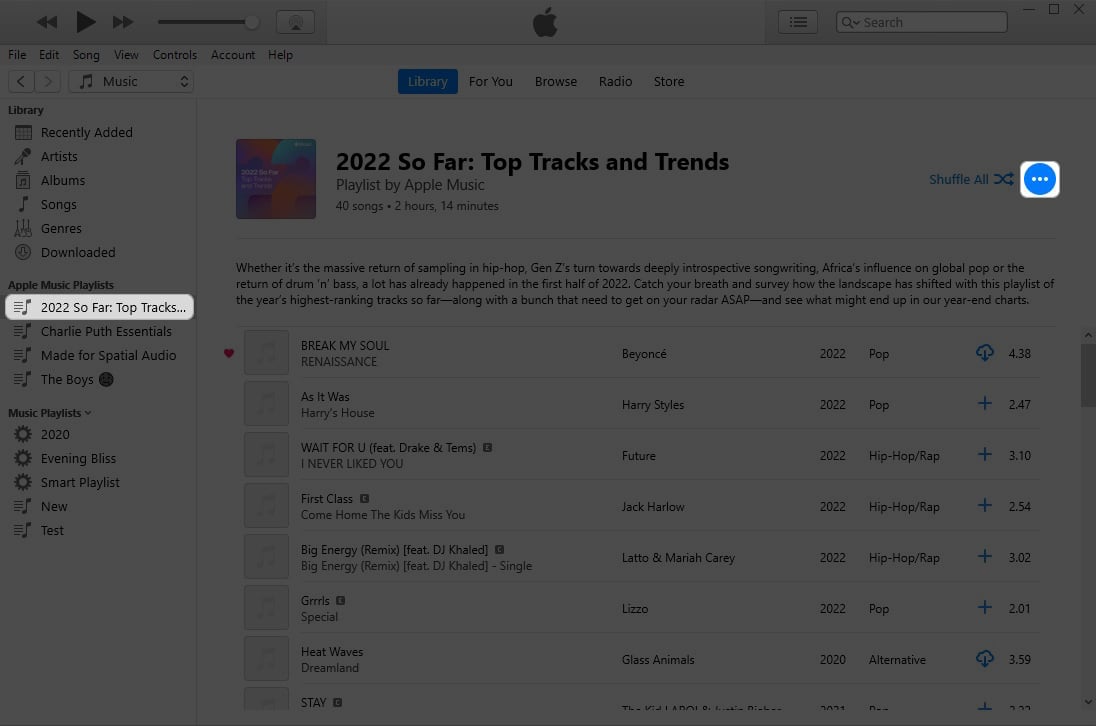
- Click the three-dot icon from the top-right corner.
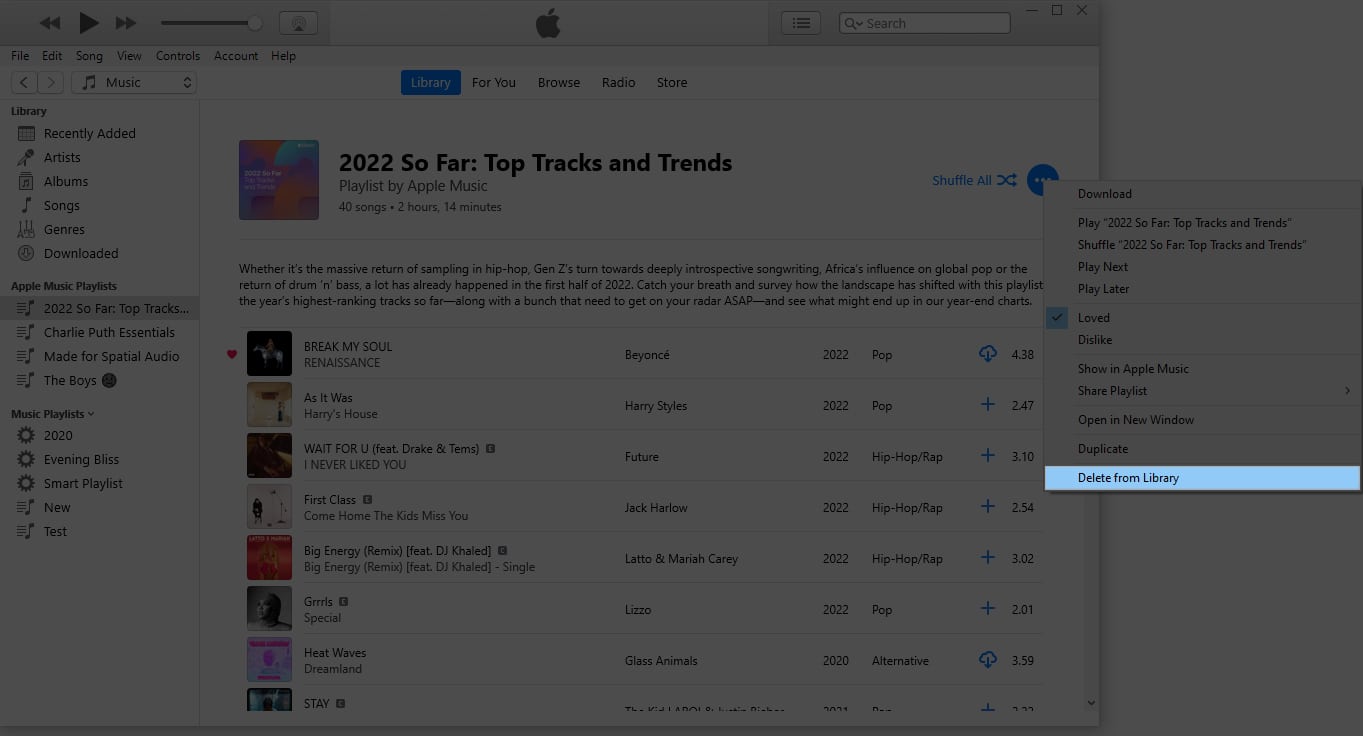
- Select Delete from Library from the menu.
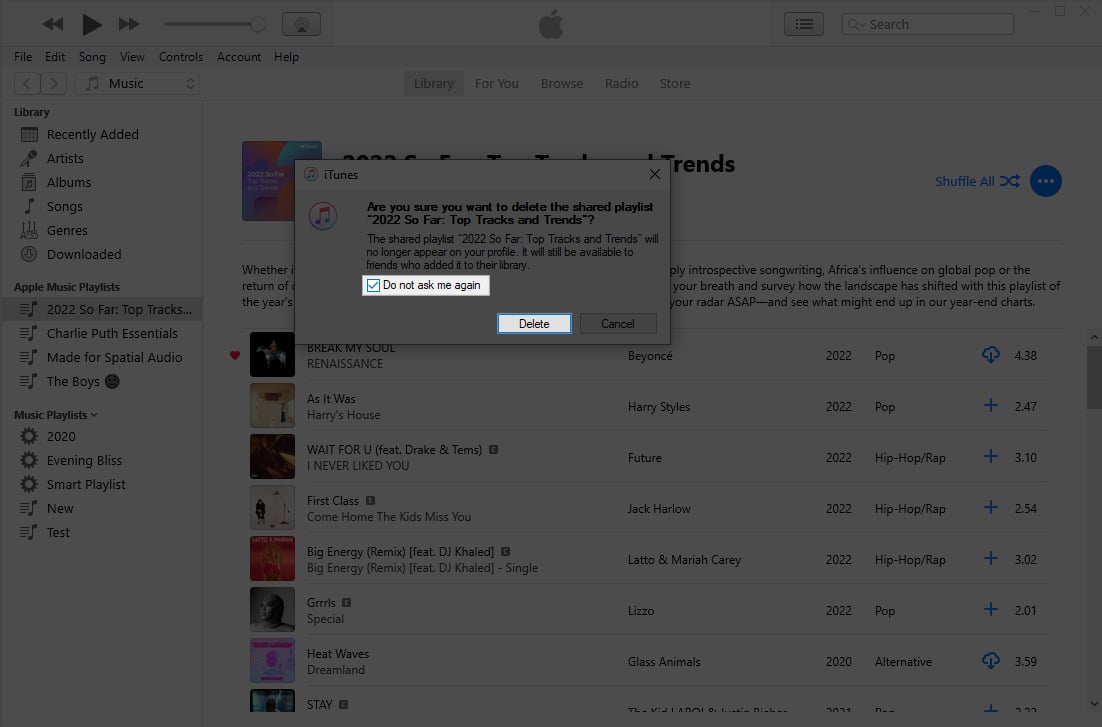
- Hit Delete to confirm your action.
If you wish, enable Do not ask me again.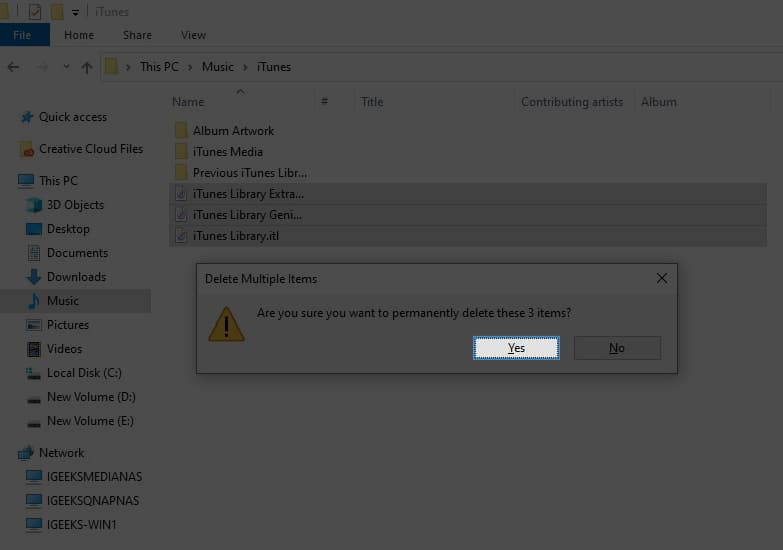
This process tends to reset the existing iTunes library on PC and Mac, allowing you to start from scratch.
How to reset iTunes Library on Mac
- Launch the Finder app on Mac.
- Click Go on the menu bar.
- Choose Home from the drop-down menu.
- Select the Music → iTunes folder to proceed.
- Now, choose and delete iTunesLibrary.itl & iTunesMusicLibrary.xml files.
How to reset iTunes Library on Windows PC
- Access the Folder app on your Windows computer.
- Go to Music → iTunes to proceed.
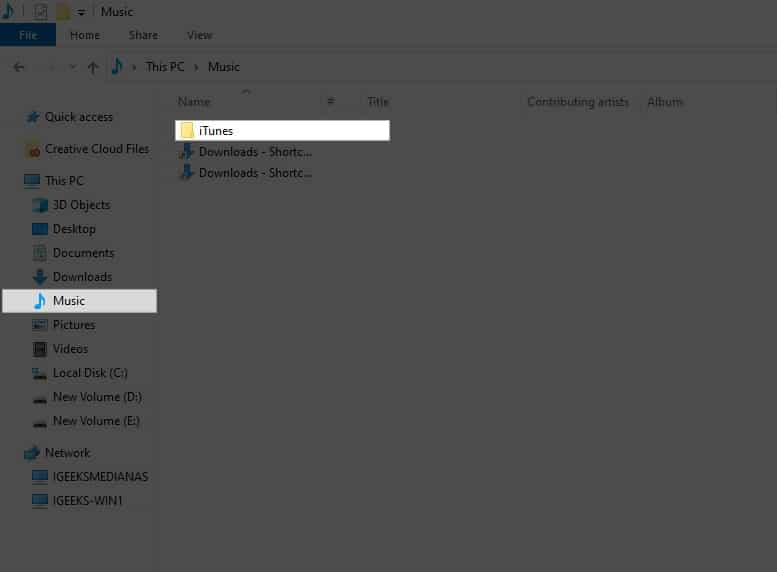
- Select all Library files.
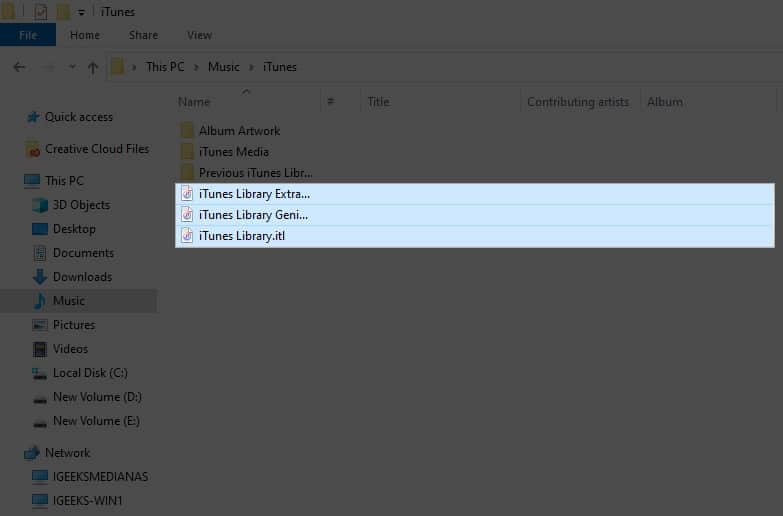
- Simultaneously press Shift + Delete to remove the files permanently.
- Click Yes to conclude the process.
- Your iTunes has been successfully reset.
Note:
Upon following the steps, regardless of the device, you can head to the iTunes app and create a new music library accordingly.
Benefits of resetting iTunes Library on Mac and Windows computer
Now that you know the nooks and crooks of resetting iTunes on Mac and PC, let’s hover through some of this practice’s benefits.
- One notable advantage is the ability to fix possible bugs and errors surfacing over the iTunes library, such as missing files or potential glitches.
- If iTunes is running slow or experiencing problems, resetting the library can help resolve issues.
- Users who have been using iTunes for some time may want to get rid of the pile of irrelevant media files and start over.
- Resetting iTunes also allows users to free up valuable storage space by removing duplicate or unnecessary files from the library, primarily when you’ve split the iTunes library into multiple folders.
- Finally, it allows users to start afresh with their music collections while retaining important data like playlists and ratings.
Given all these benefits, it’s safe to conclude that resetting the iTunes library regularly allows for a more streamlined and optimized user experience for all users on this platform.
Keep the music alive!
And there you have it, folks! Your iTunes library is now dancing to a new beat. Whether on the sleek Mac stage or the Windows performance arena, resetting your iTunes library is the backstage pass to a seamless audio experience. So, hit reset and let the music play on.
Thank you for reading. If you found this guide helpful, please take a moment to share your thoughts in the comment section below.
Read more:
Topics

Written by
Dhvanesh AdhiyaThe founder of iGeeksBlog, Dhvanesh, is an Apple aficionado, who cannot stand even a slight innuendo about Apple products. He dons the cap of editor-in-chief to make sure that articles match the quality standard before they are published.
View all posts →More from How-to

How to Turn Off Location on Snapchat (Step-by-Step Guide)
Want to stop sharing your location on Snapchat? This guide explains how Snapchat location sharing works and shows simple ways to turn off your location using Ghost Mode or phone settings. Stay in control of your privacy in just a few steps.
 VikhyatMarch 5, 2026
Snapchat Parental Controls: How to Set Up Family Center and Keep Your Teen Safe
Snapchat’s Family Center lets parents monitor their teen’s friend activity and screen time without reading private messages. Here’s how to set it up and what to expect.
VikhyatMarch 3, 2026
How to Block and Unblock Someone on Instagram
Instagram lets you block or unblock someone in seconds. Follow these simple steps to take full control of your privacy and online peace.
 Ava BiswasMarch 2, 2026