
How to know who has read your messages in WhatsApp Group
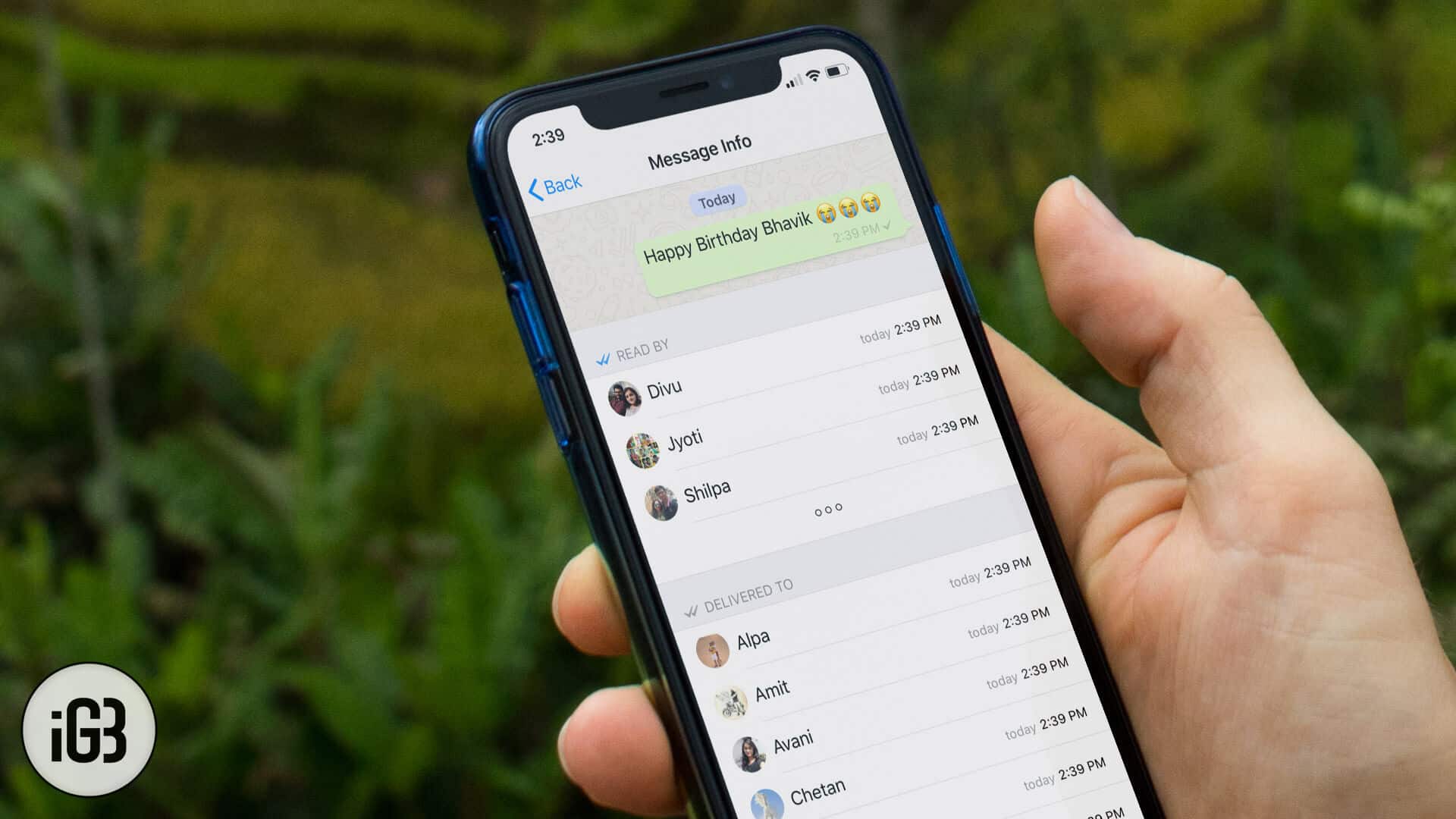
WhatsApp’s read receipt feature – the two blue tick marks—lets you know that your message has been read by the receivers; in individual conversation. But what about group conversation? Well, you have to slightly dig dip to know who has read your WhatsApp group message on iPhone or Android.
At times, WhatsApp users may require knowing if their group message has been read by all or not just in case the message is very important for everyone. If you are unaware of this little trick, here is how you can discover it.
Know who has read your WhatsApp Group message on iPhone
Step #1. Launch WhatsApp.
Step #2. Tap on any group.
Step #3. Send a new message to the group, if you want to do a fresh experiment.
Step #4. Tap and hold on the sent message, a menu will popup then tap on Info.
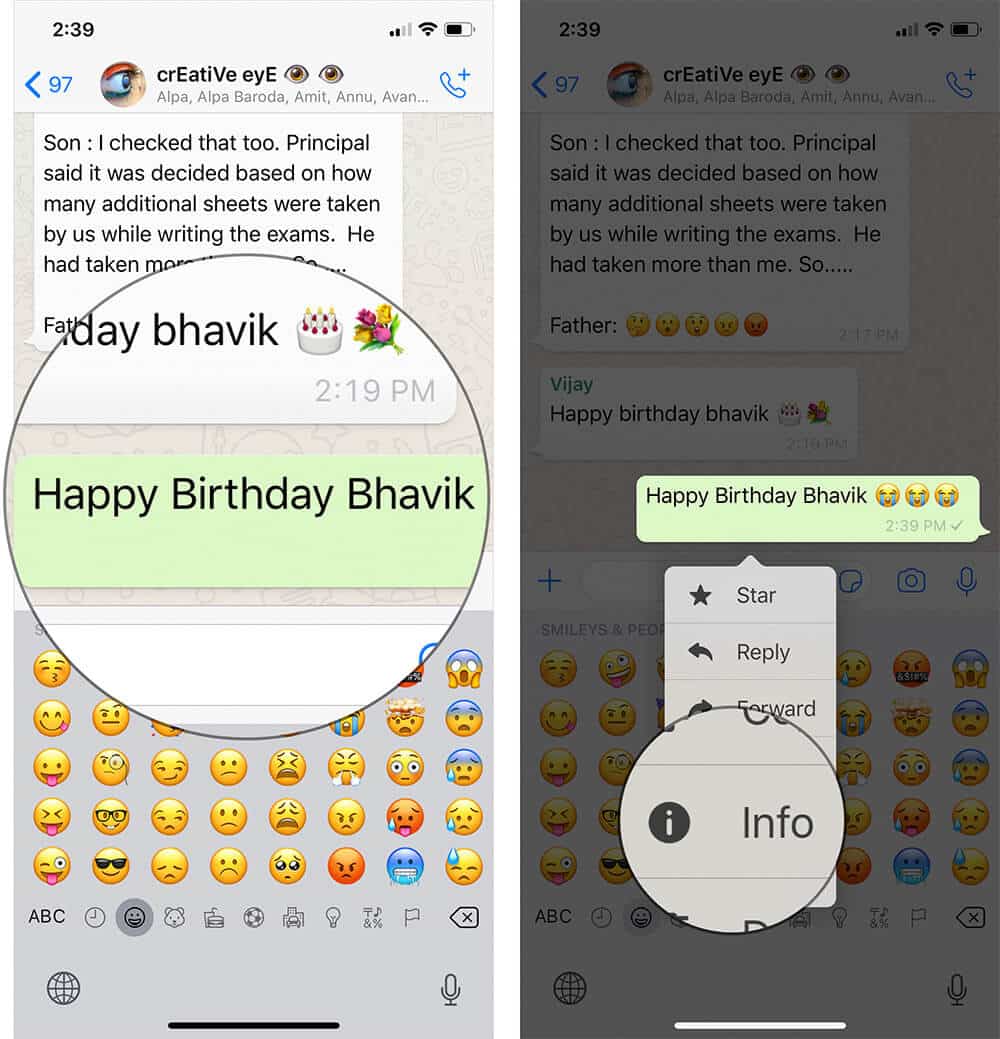
Step #5. Now, you will see who has read your message under Read By.
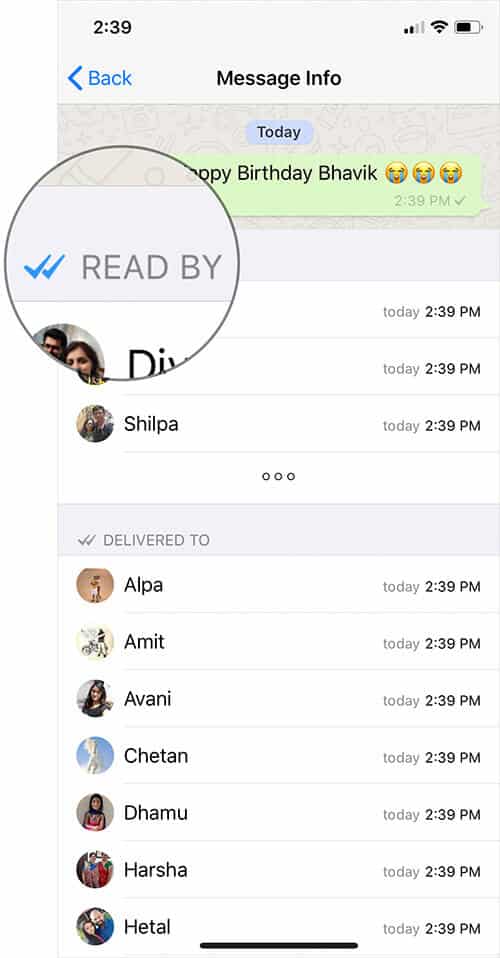
Those who haven’t read your message as yet will be listed under Delivered To.
Note:
When you send a message on WhatsApp, it will show:

Clock Icon: Message is being sent.

One gray checkmark: WhatsApp Message sent successfully but not delivered.

Two gray checkmarks: WhatsApp Message successfully delivered.

Two blue checkmarks: when the message is read.
That’s it!
There is another way to know who has read the WhatsApp group message on iPhone.
Step #1. Follow the first three steps as mentioned above.
Step #2. Now swipe from right to left on the sent message (Text, Image or Video).
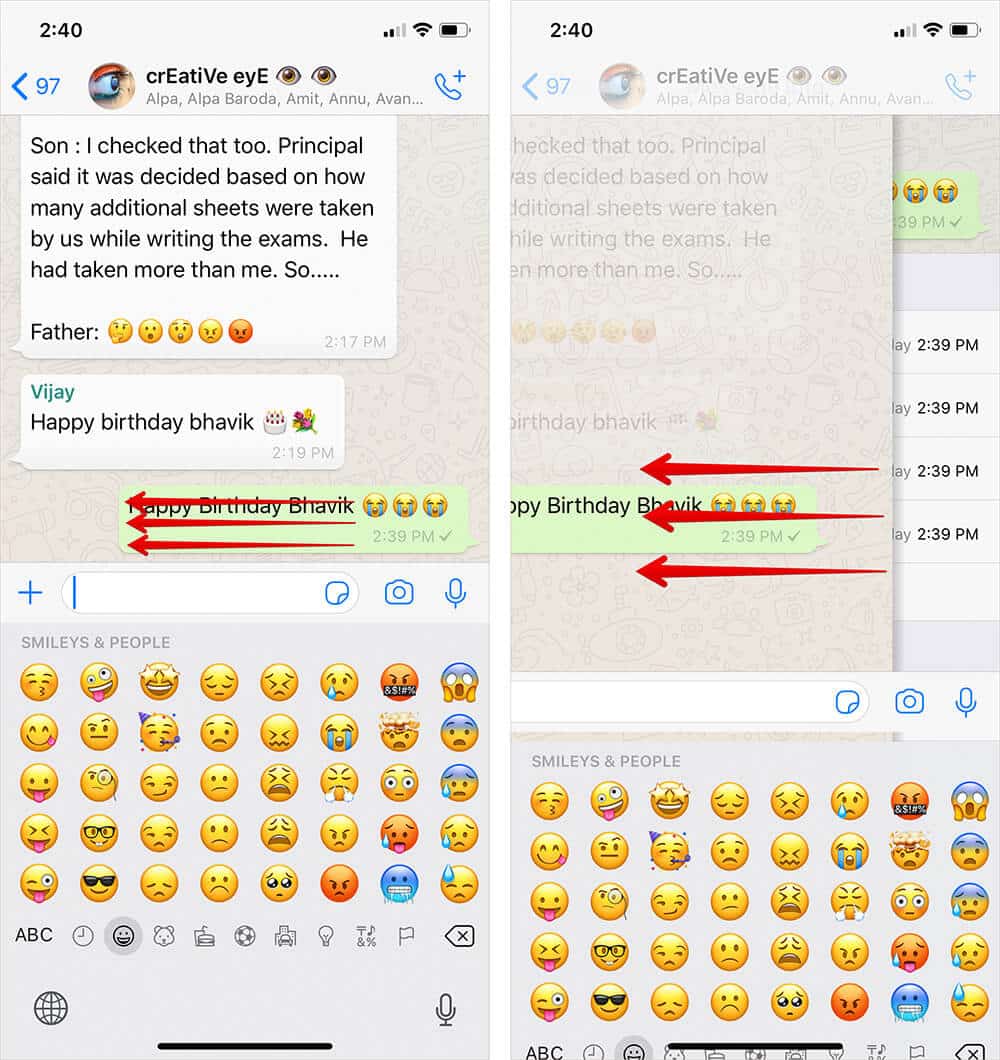
Step #3. And the same Message Info screen will appear.
Here, you can check who has read your message.
How to Disable Read Receipts in WhatsApp on iPhone
If you no longer want others to find out whether you read their message or not, disable Read Receipts. When you turn it off, you can’t see read receipts from other people as well. Besides, it’s always sent in the group conversation.
Know who has read your WhatsApp Group message on Android
Step #1. Open WhatsApp and Tap on Group.
Step #2. Tap on Hold the Message you just sent.
Step #3. Tap on “i” (information) icon.
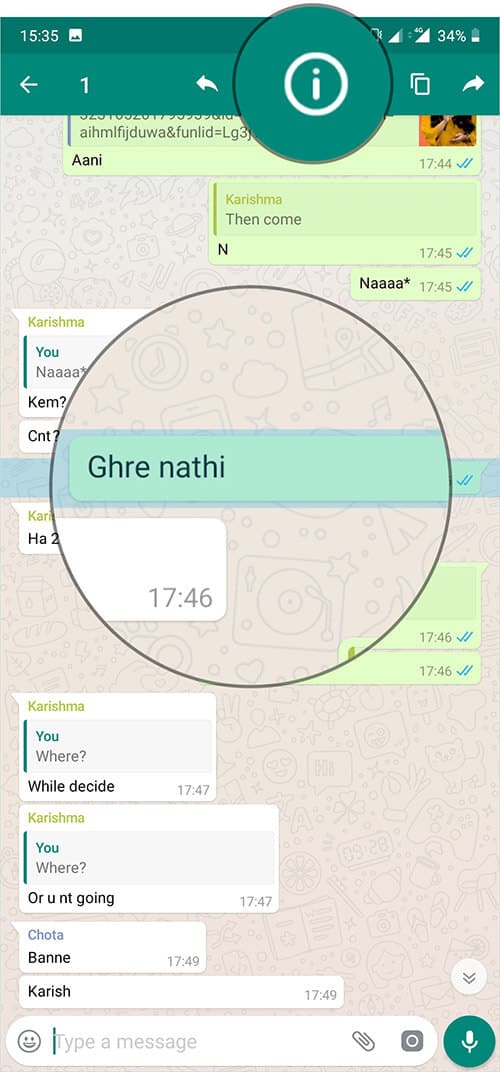
Step #4. On this screen, you will be able to see the name of the person(s) who has read your message.
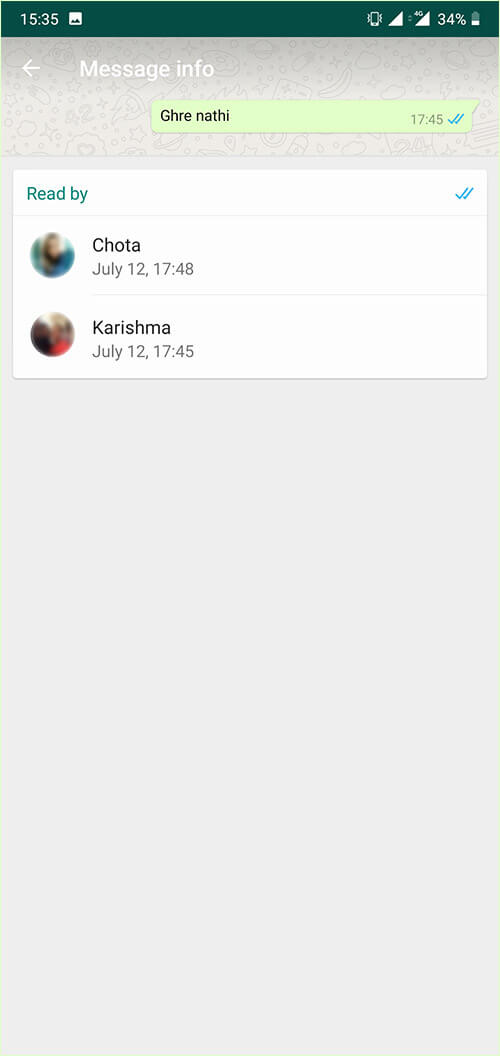
Unlike the iPhone, there is no other way like swipe gesture.
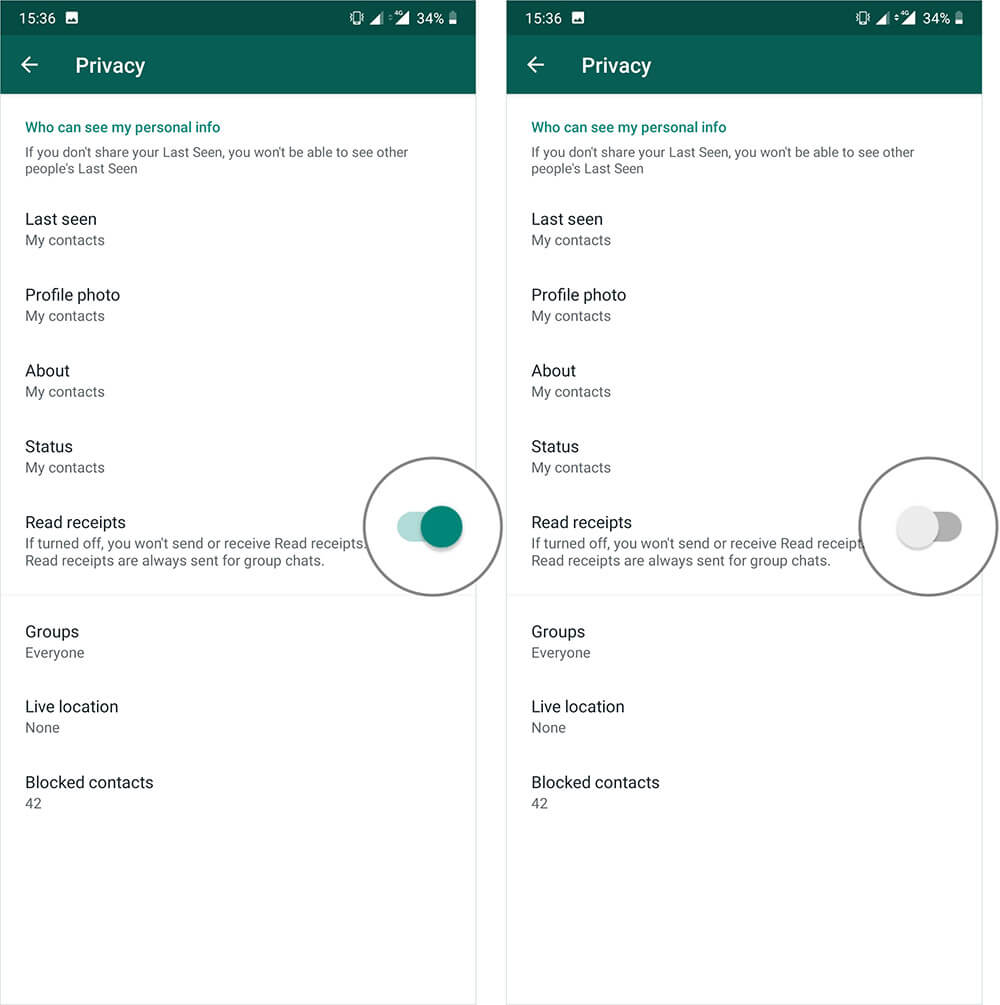
How to turn off read receipts in WhatsApp on Android
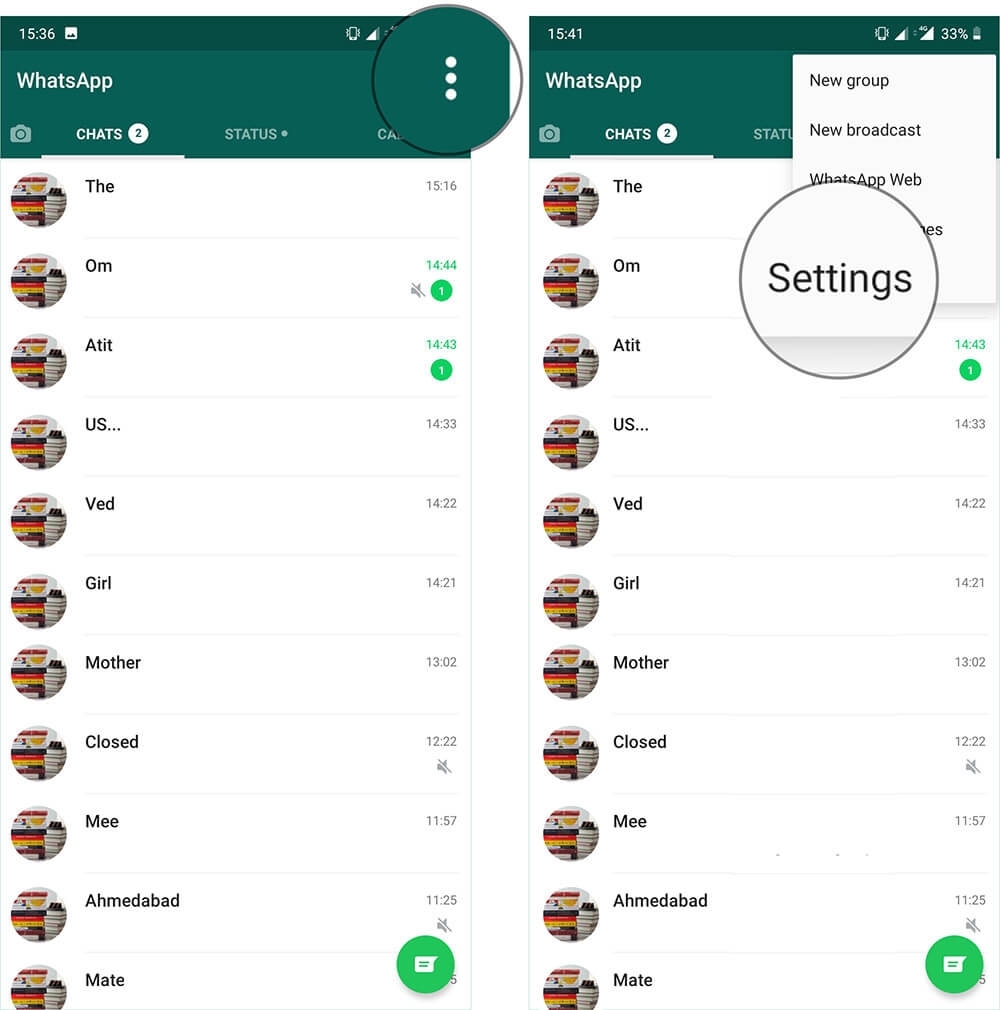
Step #1. Open WhatsApp and tap on that vertical ellipsis and tap on Settings.
Step #2. Tap on Account then Privacy.
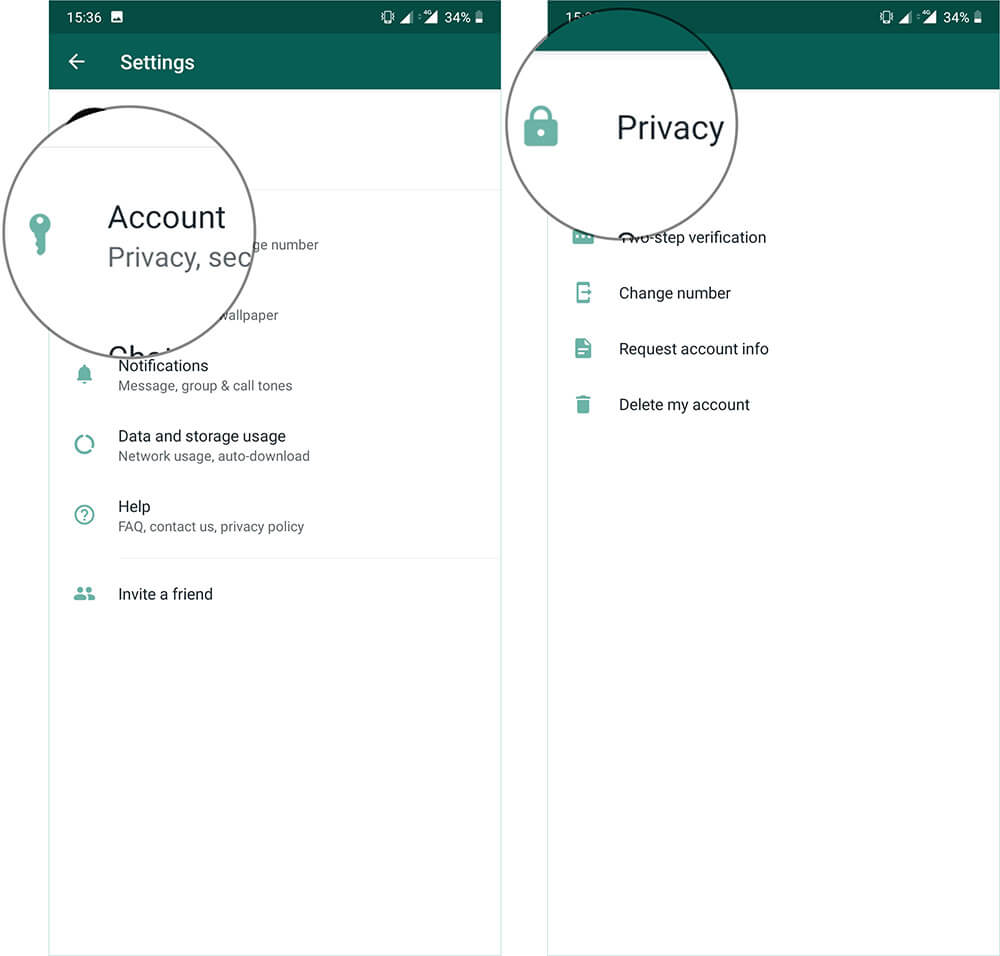
Step #3. Toggle the switch next to Read Receipts.
Signing Off…
Read Receipts feature has existed for a long time in the stock Messages app for iPhone. The stock message app allows you to enable/disable individual read receipts so that you are able to have needed control over this feature. I wish WhatsApp brought the same functionality to the messaging app to enhance the privacy of users.
As we are talking about improving the messaging experience, you would want to have a look at these related posts:
What do you think of it? Share your valuable feedback in the comments below.
Topics

Written by
Jignesh PadhiyarJignesh Padhiyar is the co-founder of iGeeksBlog.com, who has a keen eye for news, rumors, and all the unusual stuff around Apple products. During his tight schedule, Jignesh finds some moments of respite to share side-splitting content on social media.
View all posts →More from How-to

How to Turn Off Location on Snapchat (Step-by-Step Guide)
Want to stop sharing your location on Snapchat? This guide explains how Snapchat location sharing works and shows simple ways to turn off your location using Ghost Mode or phone settings. Stay in control of your privacy in just a few steps.
 VikhyatMarch 5, 2026
Snapchat Parental Controls: How to Set Up Family Center and Keep Your Teen Safe
Snapchat’s Family Center lets parents monitor their teen’s friend activity and screen time without reading private messages. Here’s how to set it up and what to expect.
VikhyatMarch 3, 2026
How to Block and Unblock Someone on Instagram
Instagram lets you block or unblock someone in seconds. Follow these simple steps to take full control of your privacy and online peace.
 Ava BiswasMarch 2, 2026