
How to Set Up an Apple Recovery Key: A Complete Guide
Locked out of your Apple Account? This complete guide explains what an Apple Recovery Key is, why it strengthens your security, and how to set it up, replace it, or remove it on iPhone, iPad, and Mac.

If you use Apple devices, you already know your Apple Account sits at the center of your digital life. It unlocks your iPhone, backs up your photos, secures your messages, syncs your passwords, and gives you access to services like Apple Music, iCloud, and FaceTime.
So when you cannot sign in because you forgot your password, got locked out, or lost your device, everything suddenly feels fragile. Apple’s standard recovery process works, but it can take several days. That is not ideal when you need immediate access. That is exactly where an Apple Recovery Key comes in.
This guide explains what a recovery key is, why you might want one, and how to set it up on your Apple devices.
What is an Apple Recovery Key?
An Apple Recovery Key is a 28-character, randomly generated code that serves as a backup method to regain access to your account if something goes wrong.
There is an important tradeoff. When you enable a recovery key, you turn off Apple’s standard account recovery methods.
If you lose access to your devices and also lose your recovery key, you will be permanently locked out of your account. Apple cannot restore access. This feature offers powerful protection, but it requires careful handling.
Standard Recovery vs. Recovery Key: What’s the Difference?
| Feature | Standard Recovery | Recovery Key |
| Recovery method | Verification via trusted devices/phone | 28‑character recovery key & trusted number |
| Speed | May take days | Instant recovery |
| Apple assistance | Apple can help restore access | Apple cannot help if the key is lost |
| Security | Strong | Maximum. Key required for resets |
| Risk | Low risk | Apple cannot help if the key is lost |
| Best for | Convenience-focused users | Security‑focused users |
Why You Should Enable an Apple Recovery Key
Once enabled, the recovery key becomes one of the only ways to reset your Apple Account password.
Here is why that matters:
- Greater control over account recovery: You rely on your recovery key and trusted phone number rather than Apple’s extended verification process.
- Stronger security protection: If someone tries to take over your account, they cannot reset your password without the recovery key, even if they have your device or password.
How to Set Up an Apple Recovery Key on iPhone or iPad
Before setting up your recovery key, make sure you meet the following two requirements:
- Your device is running iOS 14 or later, iPadOS 14 or later, or macOS Big Sur or later.
- Two-Factor Authentication (2FA) is enabled.
Steps to Set It Up
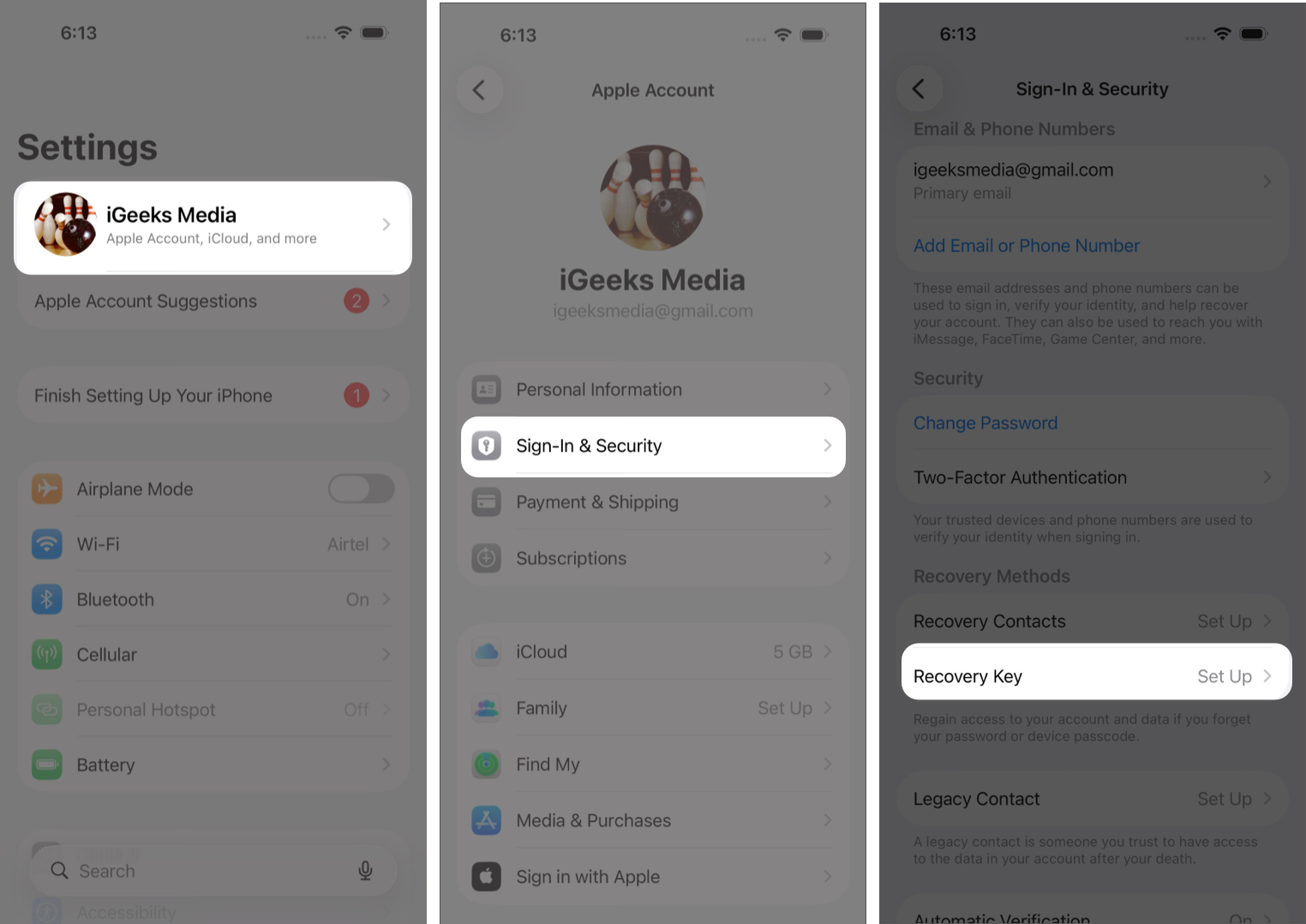
- Open Settings and tap your Apple Account name at the top.
- Tap Sign-In & Security.
- Select the Recovery Key. You will see an introduction and a warning about setting up the Recovery Key.
- Tap Continue > Use Recovery Key. Apple warns you that standard account recovery will be disabled.
- Authenticate with Face ID, Touch ID, or your passcode.
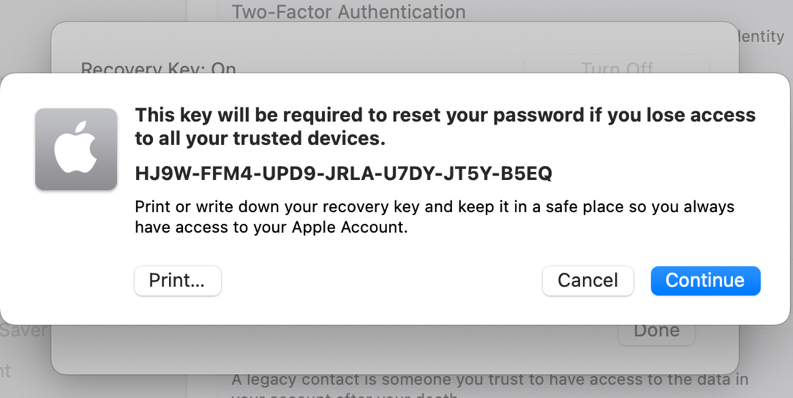
- Your 28-character recovery key appears. This step is critical. Write it down. Print it. Store it somewhere secure. Do not take a screenshot. Apple will not display it again after setup.
- Tap Continue and re-enter the key to confirm.
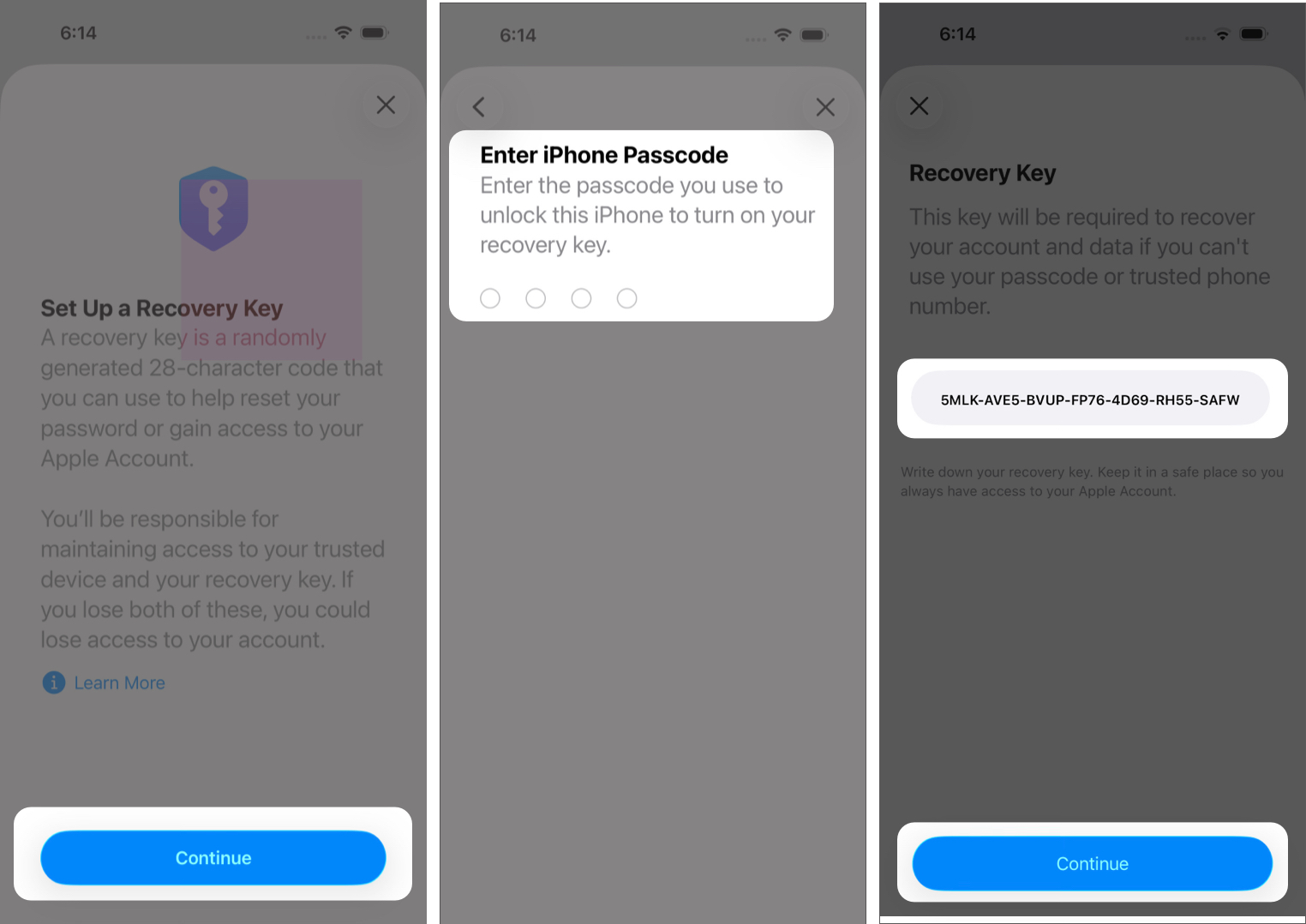
Once verified, your recovery key is active.
How to Set Up an Apple Recovery Key on Mac
If you are using macOS Sonoma or later:
- Open System Settings and click your Apple Account name.
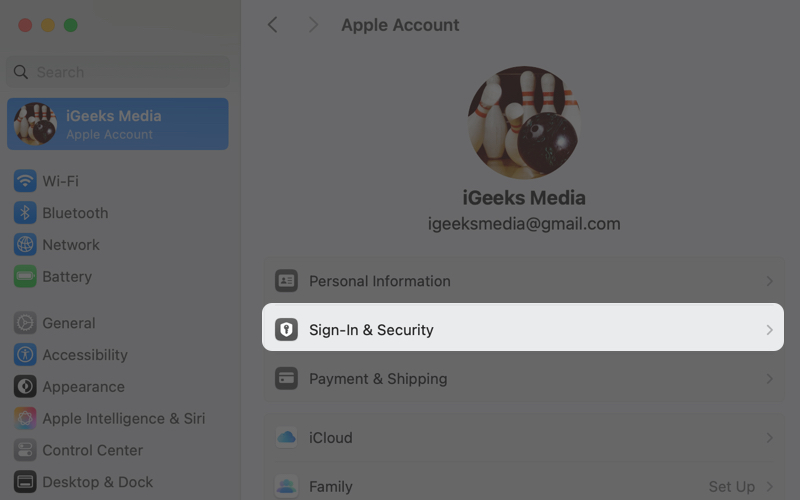
- Select Sign-In & Security, then click Recovery Key.
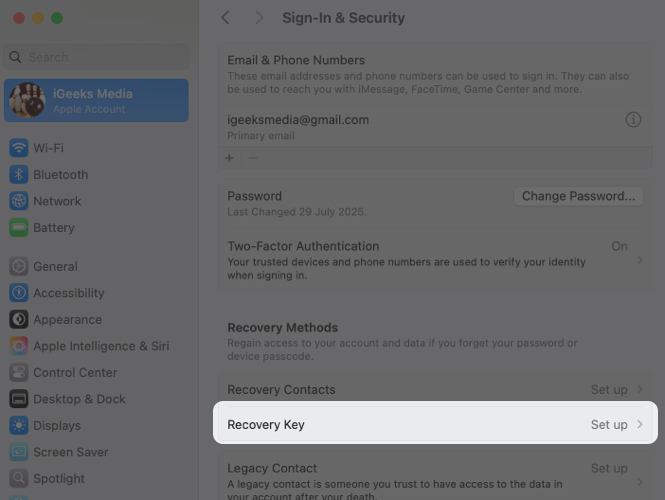
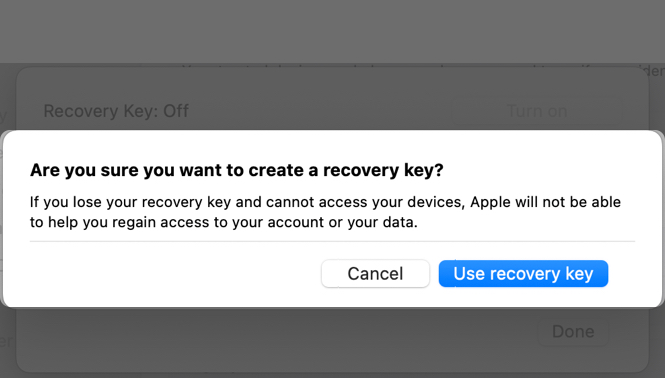
- A pop-up will appear. Click Turn On, and another pop-up will appear with a warning; click Use Recovery Key.
- Enter your Mac administrator password and hit Allow.
- There’s your Recovery Key. Print it or write it down, again, no screenshots, no keeping it in iCloud.
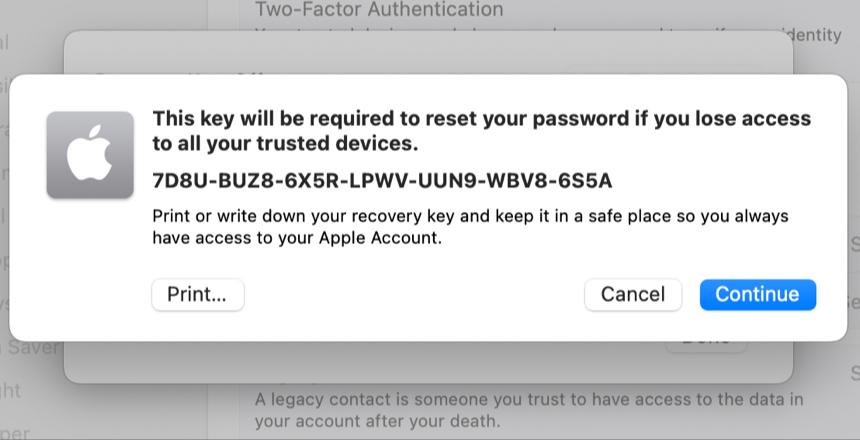
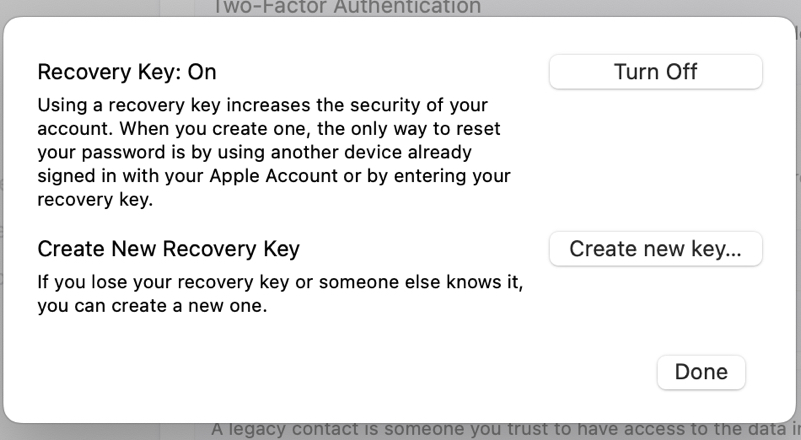
- Enter the recovery key you just wrote down for verification. Once you click Done, the setup is complete. You will be redirected to the recovery key setup page.
How to Create a New Recovery Key
If you lose your recovery key but still have access to a trusted device, you can replace it.
On iPhone or iPad:
- Go to Settings > Apple Account Name > Sign-In & Security.
- Tap Recovery Key.
- You will see the Recovery Key setup page with remove and replace key options. Tap Replace Recovery Key.
- Again, tap Replace Recovery Key in the pop-up box, and follow the same steps to verify.
On Mac:
- Go to System Settings and select Sign-In & Security, same as the previous steps.
- Click the Recovery Key. A pop-up with setup options will appear.
- Click Create New, enter Mac admin password.
- Read the warning about the Forgot recovery key and then hit Replace Recovery Key.
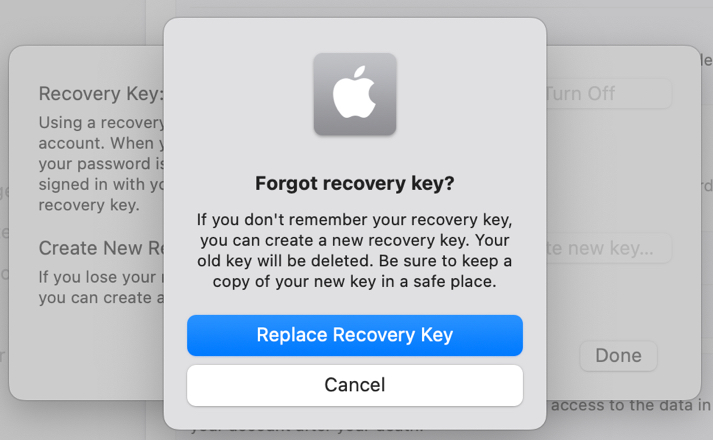
- Your new key will appear. Again, write it down. This replaces your old key, making the old one invalid.
How to Use an Apple Recovery Key
If you forget your Apple Account password:
Apple will ask for:
- Your 28-character recovery key
- A verification code was sent to your trusted phone number
- Enter both to regain access immediately.
This bypasses the multi-day account recovery process entirely.
How to Remove an Apple Recovery Key
If you decide you no longer want to use a recovery key:
- Go to Settings > Apple Account Name > Sign-In & Security.
- Tap Recovery Key.
- On the setup screen, tap Remove Recovery Key. Enter the Passcode and confirm.
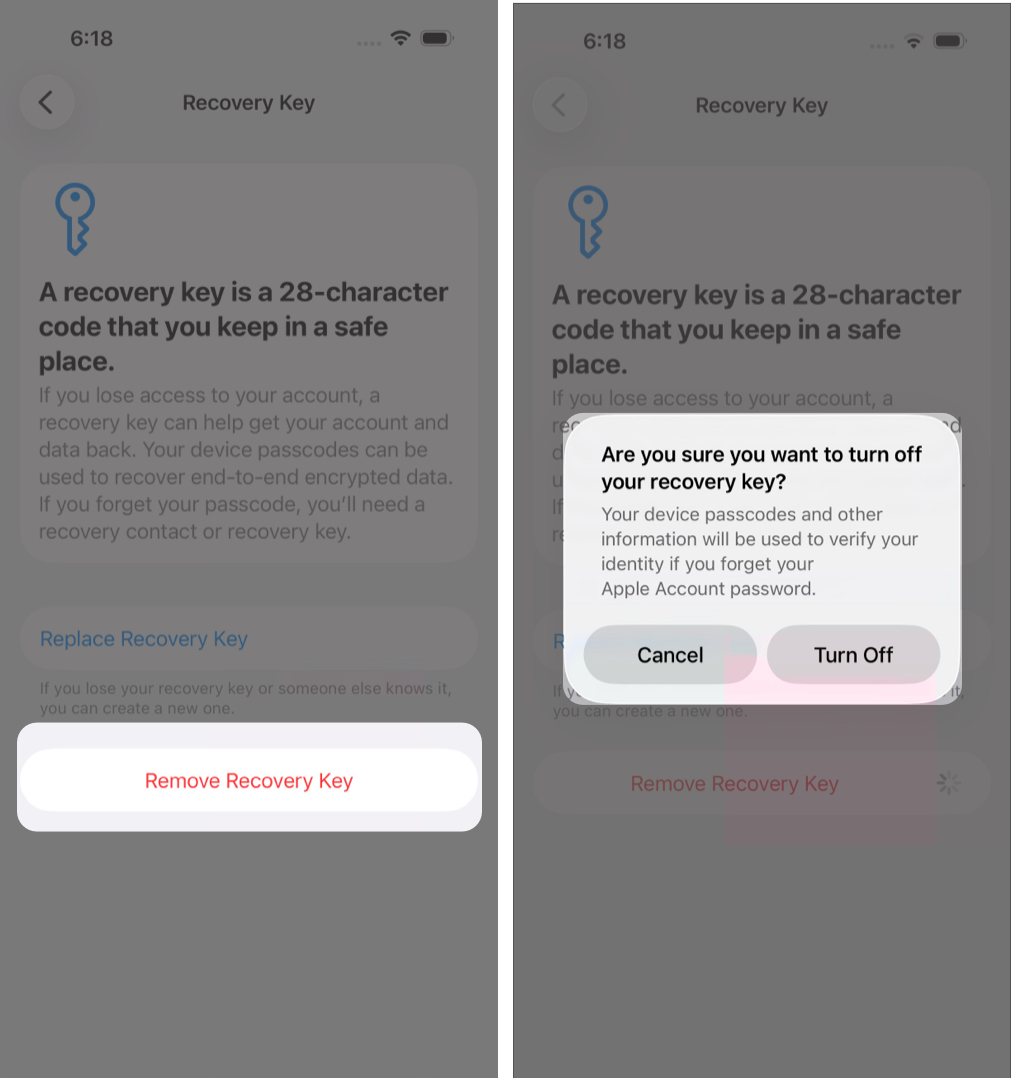
Your key has been removed.
Apple Recovery Key and Advanced Data Protection
Advanced Data Protection is Apple’s highest level of iCloud security. When enabled, most iCloud data becomes end-to-end encrypted. Only you can decrypt it. Apple cannot access or recover that data.
To enable Advanced Data Protection, Apple requires at least one recovery method:
- A Recovery Key
- A Recovery Contact
You can enable both for additional flexibility.
Final Thoughts
Setting up an Apple Recovery Key may feel intimidating at first, but it is one of the strongest steps you can take to protect your account.
For most users, enabling a recovery key makes sense, as long as you store it securely and understand the responsibility involved. Treat it like a physical safe key. If it is lost, access may be gone for good.
Frequently Asked Questions
Topics

Written by
Ayush PatelAyush is a writer with a keen interest in consumer technology and the Apple ecosystem. He has over three years of working experience at several big-name publications, including Guiding Tech, TechPP, and MobiGyaan. Here at iGeeksBlog, he specializes in crafting how-to guides, buying guides, and editorials related to all things Apple.
View all posts →More from How-to

How to Turn Off Location on Snapchat (Step-by-Step Guide)
Want to stop sharing your location on Snapchat? This guide explains how Snapchat location sharing works and shows simple ways to turn off your location using Ghost Mode or phone settings. Stay in control of your privacy in just a few steps.
 VikhyatMarch 5, 2026
Snapchat Parental Controls: How to Set Up Family Center and Keep Your Teen Safe
Snapchat’s Family Center lets parents monitor their teen’s friend activity and screen time without reading private messages. Here’s how to set it up and what to expect.
VikhyatMarch 3, 2026
How to Block and Unblock Someone on Instagram
Instagram lets you block or unblock someone in seconds. Follow these simple steps to take full control of your privacy and online peace.
 Ava BiswasMarch 2, 2026