
How to Make an iPhone Flash When Getting Calls, Texts, and Notifications
Make your iPhone flash for calls, texts, and notifications using LED Flash and the new Screen Flash in iOS 26 for brighter and more noticeable alerts.
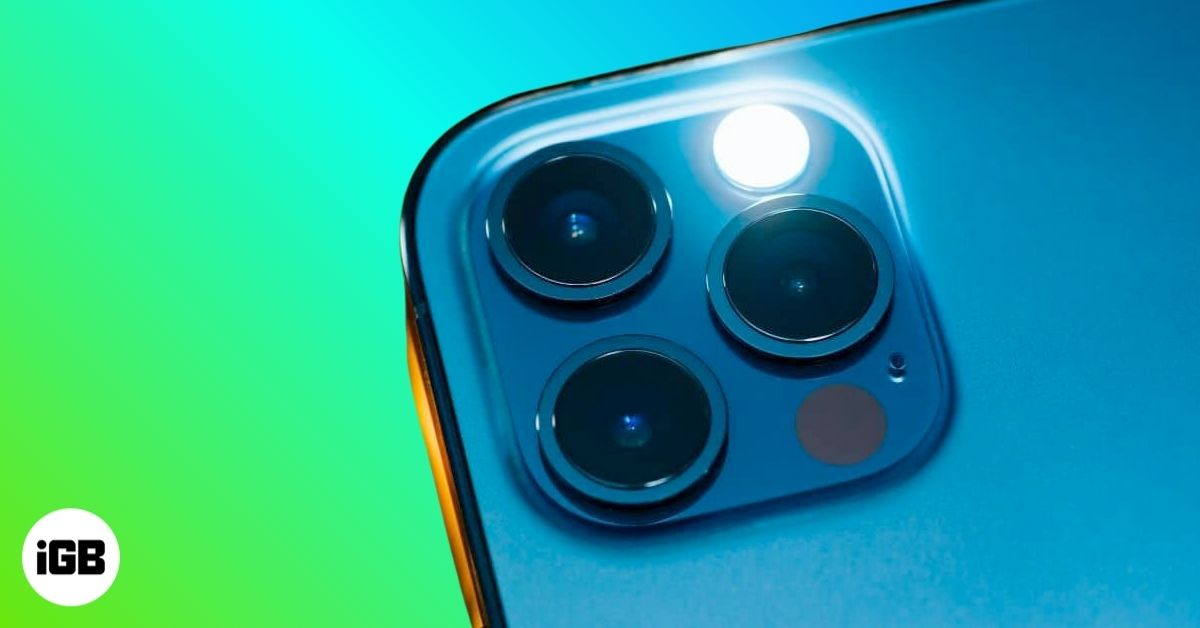
Do you often miss calls and messages when your iPhone is on silent mode or in a busy environment where you can’t hear it ring? If yes, there’s a smart solution. You can make your iPhone flash the rear LED or the entire screen to instantly notify you of incoming calls and messages, even when you cannot hear your phone, or it’s placed upside down.
Keep reading to learn how to set up flash alerts on your iPhone.
What Flash Alerts Are on iPhone (And How They Work)
Flash Alerts, when active, turn your incoming calls and notifications into attention-grabbing visual cues. When a call, message, or app alert arrives, your iPhone can blink the rear LED or flash the entire screen for a moment. This makes incoming alerts easier to notice in any situation, especially when the phone is silent, across the room or in a busy environment. It is a simple feature that adds an extra layer of visibility to important notifications.
Use it alongside the Time-Sensitive Notifications feature, and you’ll never miss an important update.
How to Turn On LED Flash Notifications on iPhone
If you often keep your iPhone face down and miss important alerts because it is muted or the notification sound is too faint, turning on LED Flash for Alerts can make those notifications much easier to catch. Here’s how you can enable it:
- Open Settings and head to Accessibility.
- Here, tap Audio & Visual under the Hearing section.
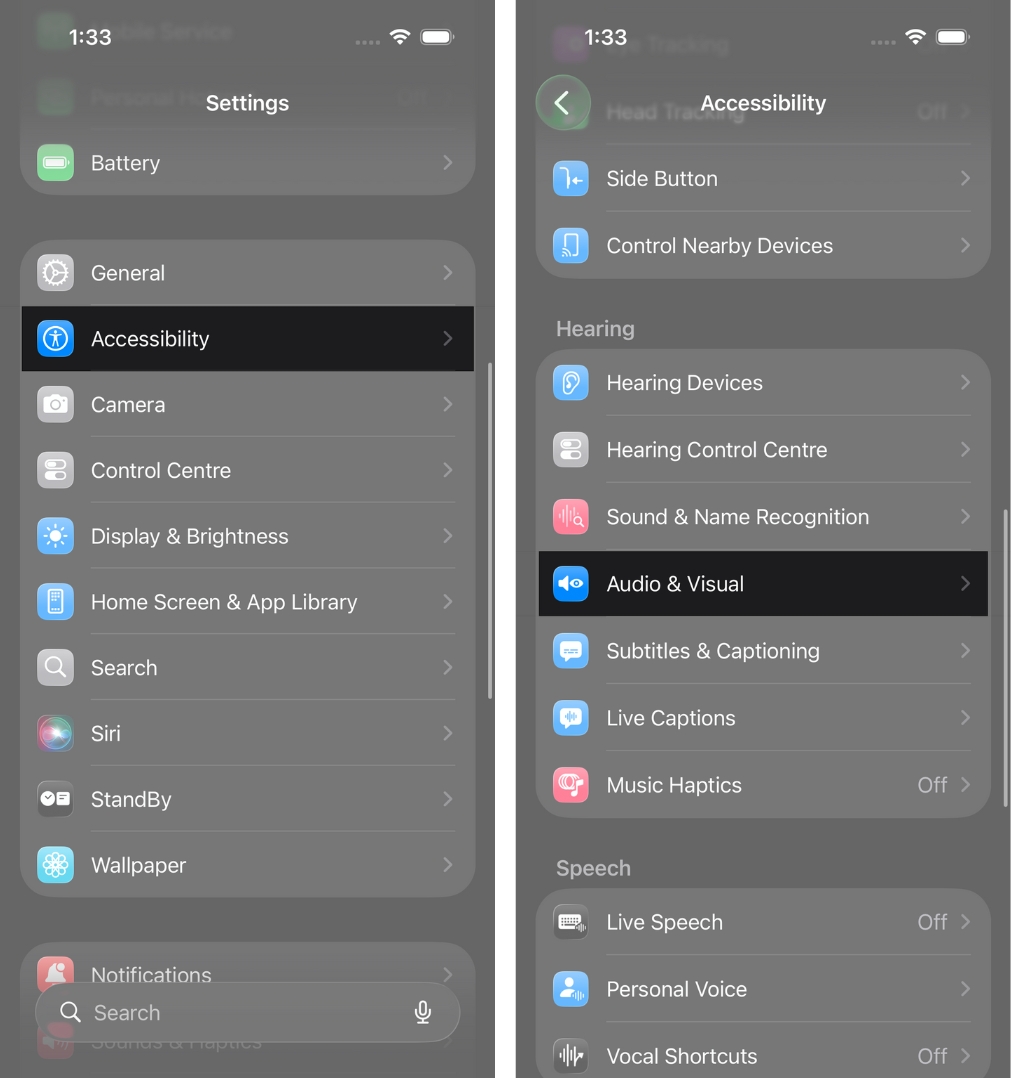
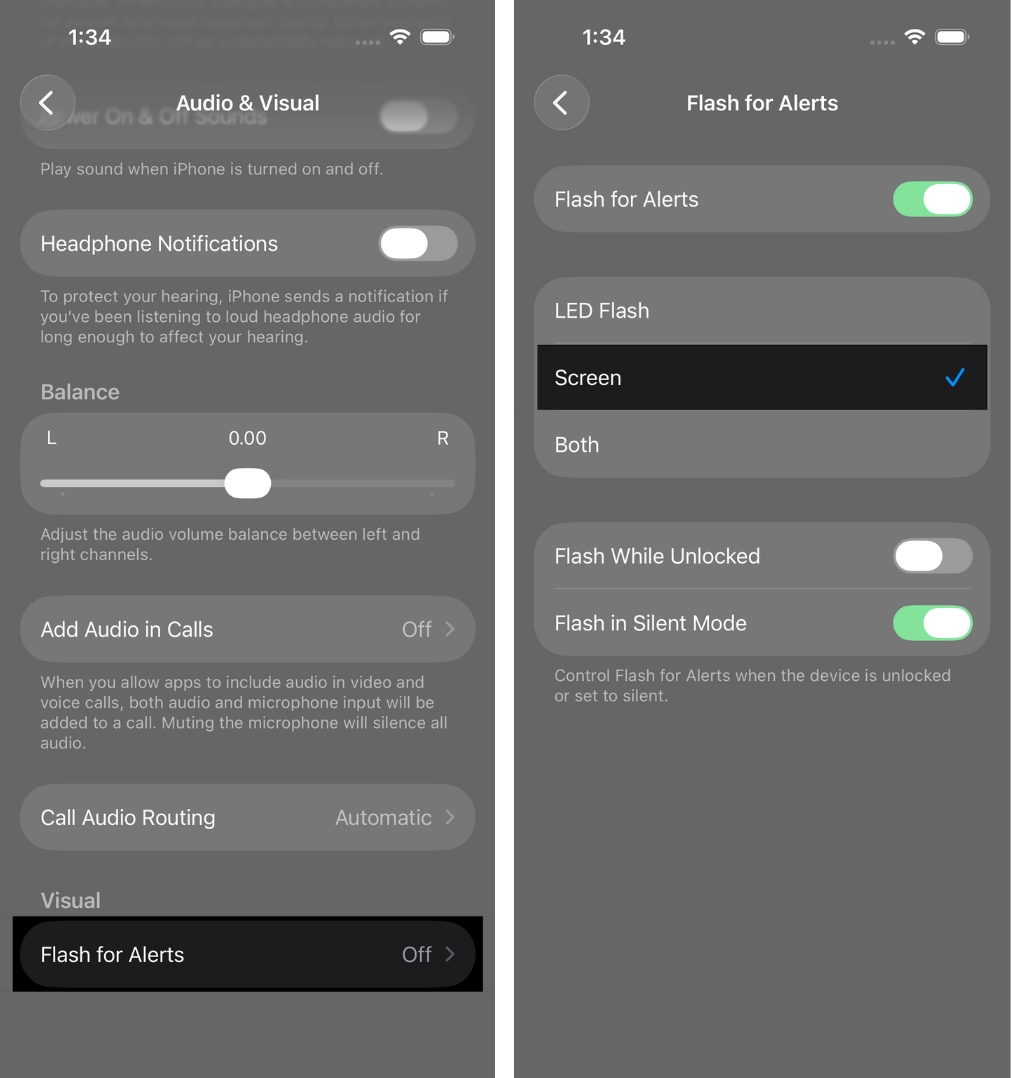
- Now, scroll to the bottom and tap Flash for Alerts under Visual.
- Toggle on Flash for Alerts.
- Make sure LED Flash or Both is selected.
- Next, toggle on Flash While Silent to receive alerts even when your iPhone is muted.
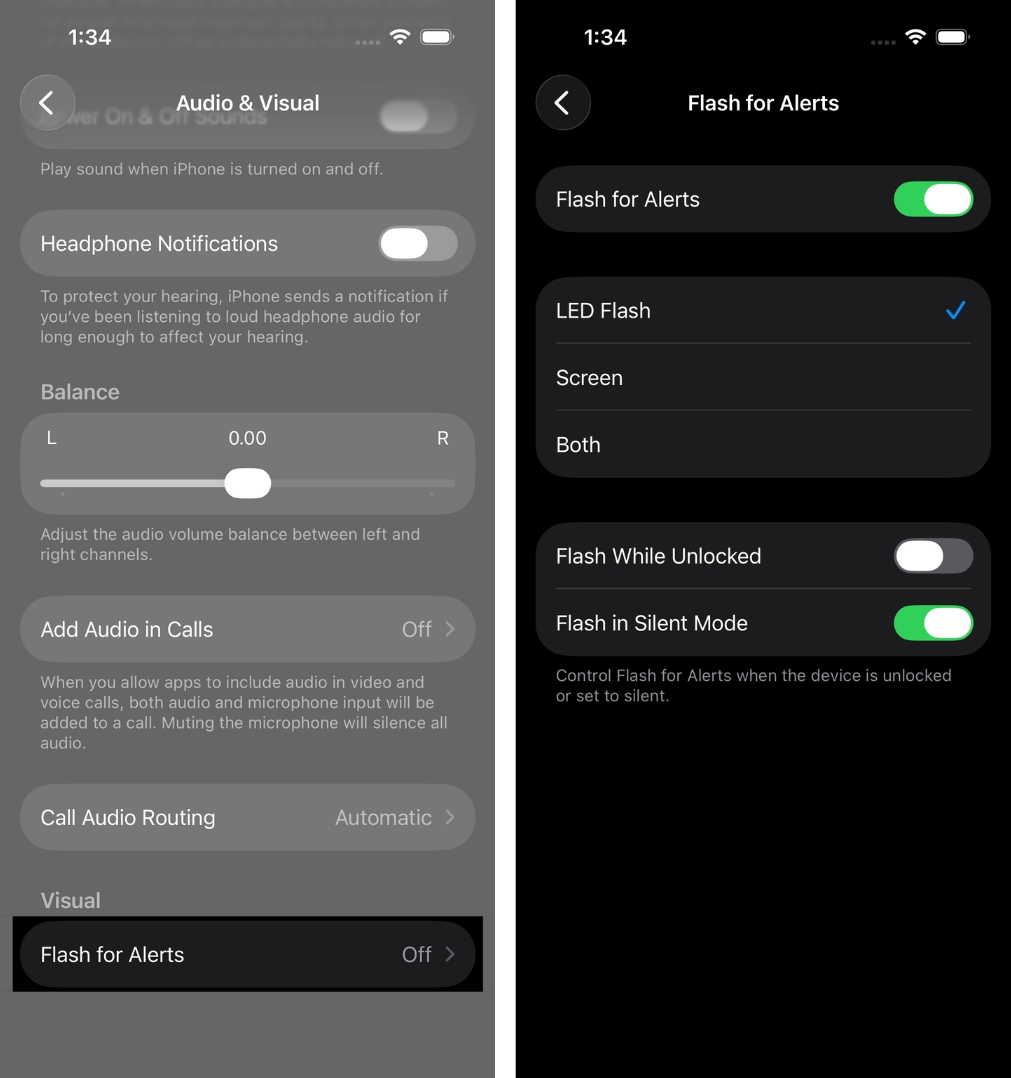
- If you want the rear LED to flash when your iPhone is unlocked and you’re using it, toggle on Flash While Unlocked. Otherwise, keep it off.
How to Turn On Screen Flash Notifications on iPhone
If your iPhone usually lies face up and you miss alerts because the vibration or sound doesn’t catch your attention, turning on Flash Screen ensures the display flashes brightly so you never miss an incoming call or message. Here’s how you can turn it on:
- Go to Settings → Accessibility → Audio & Visual.
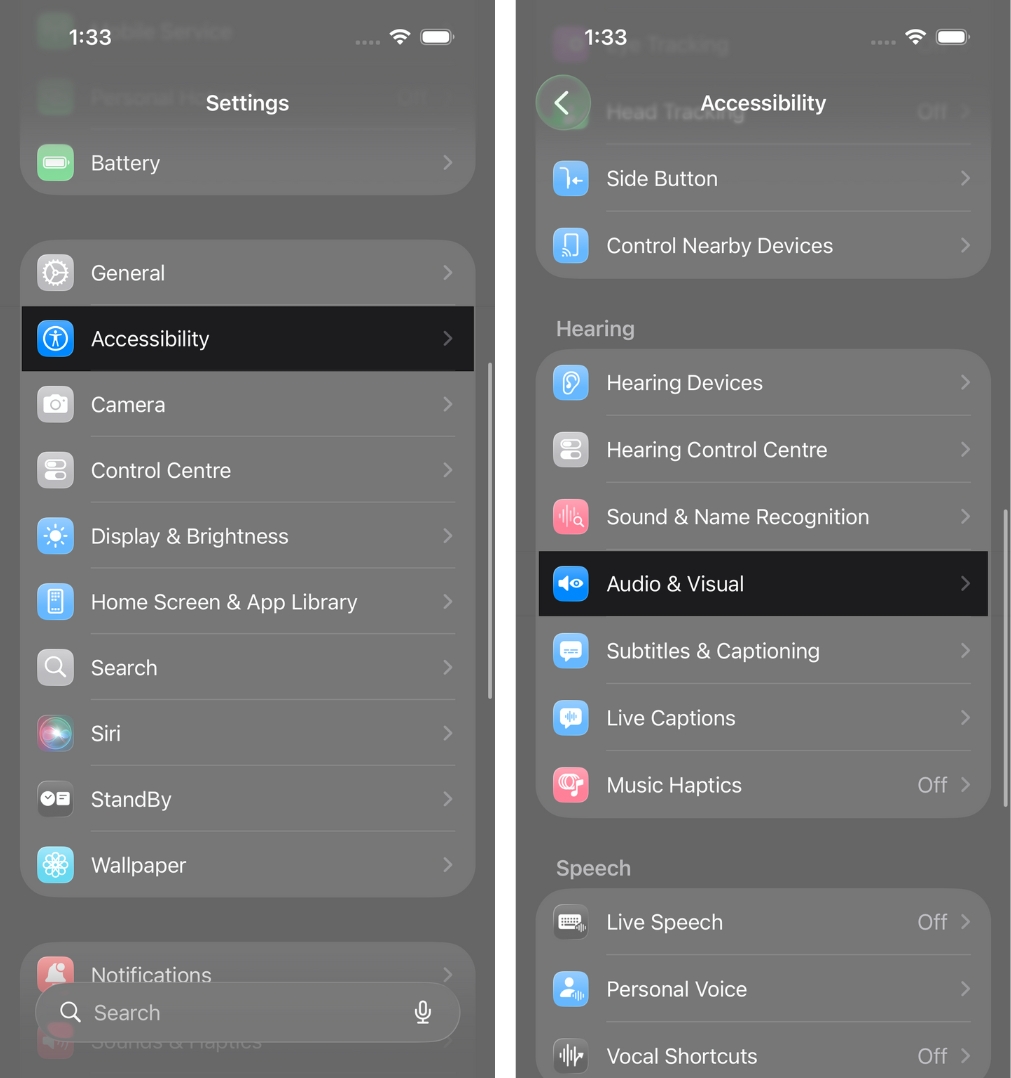
- Tap Flash for Alerts.
- Toggle on Flash for Alerts, then select the Screen or Both option.
Note:
How to Set Flash Alerts Only for Text Messages or Specific Apps
You can use LED Flash and Flash Screen for calls, messages, or selected apps, but the feature follows your system notification settings.
This means you cannot enable flash alerts only for messages or third-party apps unless you turn off notifications for every other app you don’t want triggering the flash.
Tips to Make Flash Alerts Work More Reliably
A few simple adjustments can help you get the most visibility and reliability from both LED and screen flash alerts:
- Use vibrations along with flash for a stronger alert.
- Avoid putting the phone in a tight pocket that hides the flash.
- Use both LED and Screen Flash for maximum visibility.
- Update your iPhone regularly for the latest improvements.
A Better Way to Catch Every Alert
That’s pretty much it. Flash alerts make your iPhone much easier to notice in any setting, with the rear LED flash being useful when the phone is face down and the screen flash when it is face up. Both variations ensure your calls and messages stand out instantly, and you stay more aware of important updates throughout the day.
Tried flash alerts on your iPhone? Share your experience or drop your questions in the comments below.
Frequently Asked Questions

Written by
Dhvanesh AdhiyaThe founder of iGeeksBlog, Dhvanesh, is an Apple aficionado, who cannot stand even a slight innuendo about Apple products. He dons the cap of editor-in-chief to make sure that articles match the quality standard before they are published.
View all posts →More from How-to

Snapchat Parental Controls: How to Set Up Family Center and Keep Your Teen Safe
Snapchat’s Family Center lets parents monitor their teen’s friend activity and screen time without reading private messages. Here’s how to set it up and what to expect.
 VikhyatMarch 3, 2026
How to Block and Unblock Someone on Instagram
Instagram lets you block or unblock someone in seconds. Follow these simple steps to take full control of your privacy and online peace.
 Ava BiswasMarch 2, 2026
Apple Watch Not Responding? 8 Fixes That Actually Work
Is your Apple Watch unresponsive or stuck on a black screen? Here are 8 proven fixes to help you unfreeze it and get it working again quickly.
VikhyatMarch 3, 2026