- iPhone models supporting iOS 27: Only iPhone 11 and newer and the iPhone SE (2nd generation and later).
- Preparation before installing latest iOS version: Back up your iPhone, clear enough storage, and stay plugged into power with Wi-Fi to avoid failed updates.
- Ways to install latest iOS: You can update over the air, enable automatic downloads, or connect to a Mac via Finder if storage is too tight.
- Precautions for smooth updating: Always back up, ensure stable Wi-Fi, and keep your iPhone charging to prevent corruption or interruptions during installation.
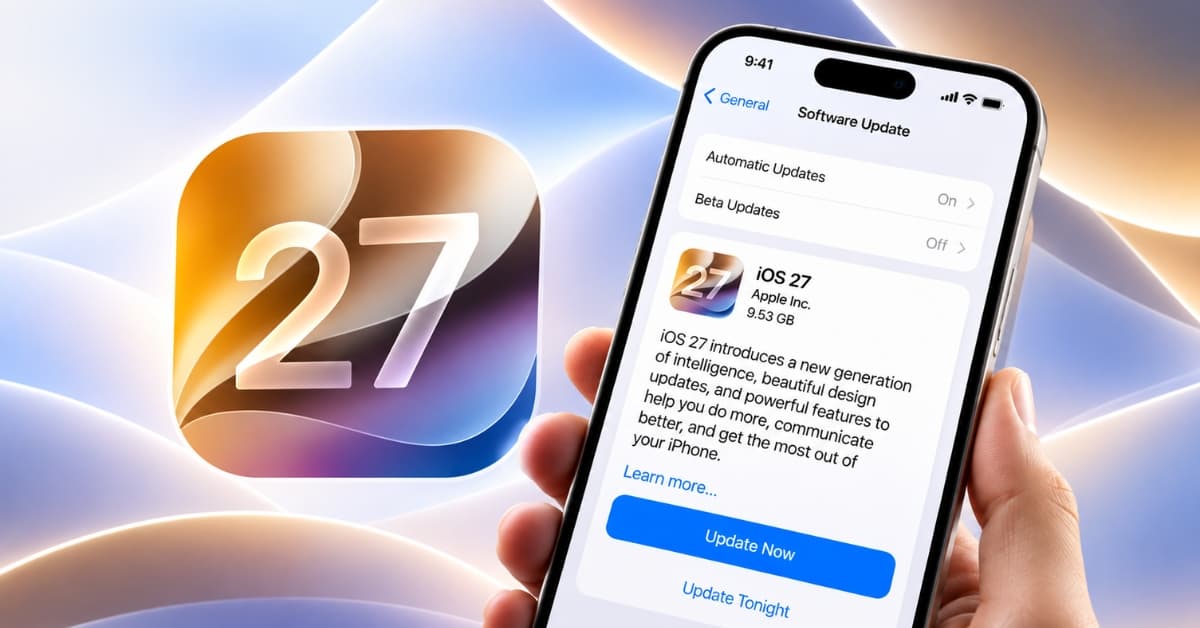
Apple has officially released iOS 27, bringing a major software update to compatible iPhones. The new version introduces Apple’s next-generation Siri AI, additional Apple Intelligence features, Liquid Glass customization, redesigned experiences across several apps, and a range of system improvements.
iOS 27 is available starting September 14, 2026, and comes pre-installed on Apple’s latest iPhone models, including the iPhone 18 Pro, iPhone 18 Pro Max, and iPhone Duo. Owners of compatible older iPhones can manually download and install the update.
However, to do that, you must first ensure that your iPhone supports iOS 27. If it does, take care of a few things in advance to ensure a smooth upgrade experience. Here’s everything you need to know about installing iOS 27 on your iPhone.
Does your iPhone support iOS 27?
The good news is that Apple hasn’t dropped any additional iPhone models from the iOS 27 compatibility list.
Just like iOS 26, iOS 27 supports the iPhone 11 and newer, along with the iPhone SE (2nd generation and later). Apple’s official compatibility list includes both older models and the latest 2026 iPhones.
This means that iOS 18 was the last major iOS update for the iPhone XS, XS Max, and iPhone SE (1st generation), launched in 2019.
Complete list of iPhones that support iOS 27:
- iPhone SE (2nd & 3rd generation)
- iPhone 11, iPhone 11 Pro, iPhone 11 Pro Max
- iPhone 12, iPhone 12 mini, iPhone 12 Pro, iPhone 12 Pro Max
- iPhone 13, iPhone 13 mini, iPhone 13 Pro, iPhone 13 Pro Max
- iPhone 14, iPhone 14 Plus, iPhone 14 Pro, iPhone 14 Pro Max
- iPhone 15, iPhone 15 Plus, iPhone 15 Pro, iPhone 15 Pro Max
- iPhone 16, iPhone 16 Plus, iPhone 16 Pro, iPhone 16 Pro Max, iPhone 16e
- iPhone 17, iPhone 17 Pro, iPhone 17 Pro Max, iPhone 17e
- iPhone Air
- iPhone Duo
- iPhone 18 Pro, iPhone 18 Pro Max
If your iPhone isn’t on this list, it cannot be upgraded to iOS 27.
iOS 27 vs Apple Intelligence: There’s an important difference
Before you update, there’s one important distinction worth knowing.
Supporting iOS 27 doesn’t automatically mean your iPhone supports Apple Intelligence. Apple’s AI features, including the new Siri AI, require newer hardware.
Apple Intelligence in iOS 27 is available on:
- iPhone 15 Pro, iPhone 15 Pro Max
- iPhone 16 and later
- iPhone Air
- iPhone 17 series
- iPhone 18 Pro, iPhone 18 Pro Max
- iPhone Duo
So, an iPhone 11 can run iOS 27 but cannot run Apple Intelligence.
How to prepare your iPhone for iOS 27
As mentioned, before you begin the latest iOS update process, you must perform a few actions to ensure no data loss or interruptions.
Here’s what you should do before installing iOS 27:
1. Back up your iPhone
This is the single most important step. Although an iOS update normally preserves your apps, photos, messages, and settings, having a recent backup gives you a way to recover your information if something goes wrong.
To back up with iCloud:
- Go to Settings → iCloud → iCloud Backup.
- Tap Back Up Now.
To back up with a Mac:
- Connect your iPhone with a cable.
- Open Finder and select your iPhone in the left sidebar.
- Click Back Up Now.
Wait until the backup finishes before starting the installation.
2. Free up enough space
The iOS 27 installer requires several gigabytes of free space to temporarily unpack it. If your iPhone is nearly full, the update may fail or freeze. To clear space on your iPhone, you can:
- Deleting unused apps
- Removing downloaded movies or TV shows
- Deleting unnecessary large video files
- Clearing old message attachments
- Moving photos and videos to another storage service
- Removing offline music or podcast downloads
Once done, check your available space by heading to Settings → General → iPhone Storage.
3. Plug in and connect to Wi-Fi
It’s best to download iOS 27 using a reliable Wi-Fi connection. A stable connection reduces the chance of the download being interrupted and also avoids using a large amount of cellular data.
Also, plug your iPhone into a charger before starting the installation. Apple’s automatic update system can download and install updates overnight when the iPhone is charging and connected to Wi-Fi.
3 ways to install iOS 27 on your iPhone
Whether your iPhone receives the latest iOS update over the air or not, there are three quick ways to download and install it on your iPhone.
1. Manually Install iOS 27 Over the Air (OTA)
As mentioned above, installing the latest iOS on your iPhone is pretty simple and can be done in just a few taps:
- Open Settings → General → Software Update.
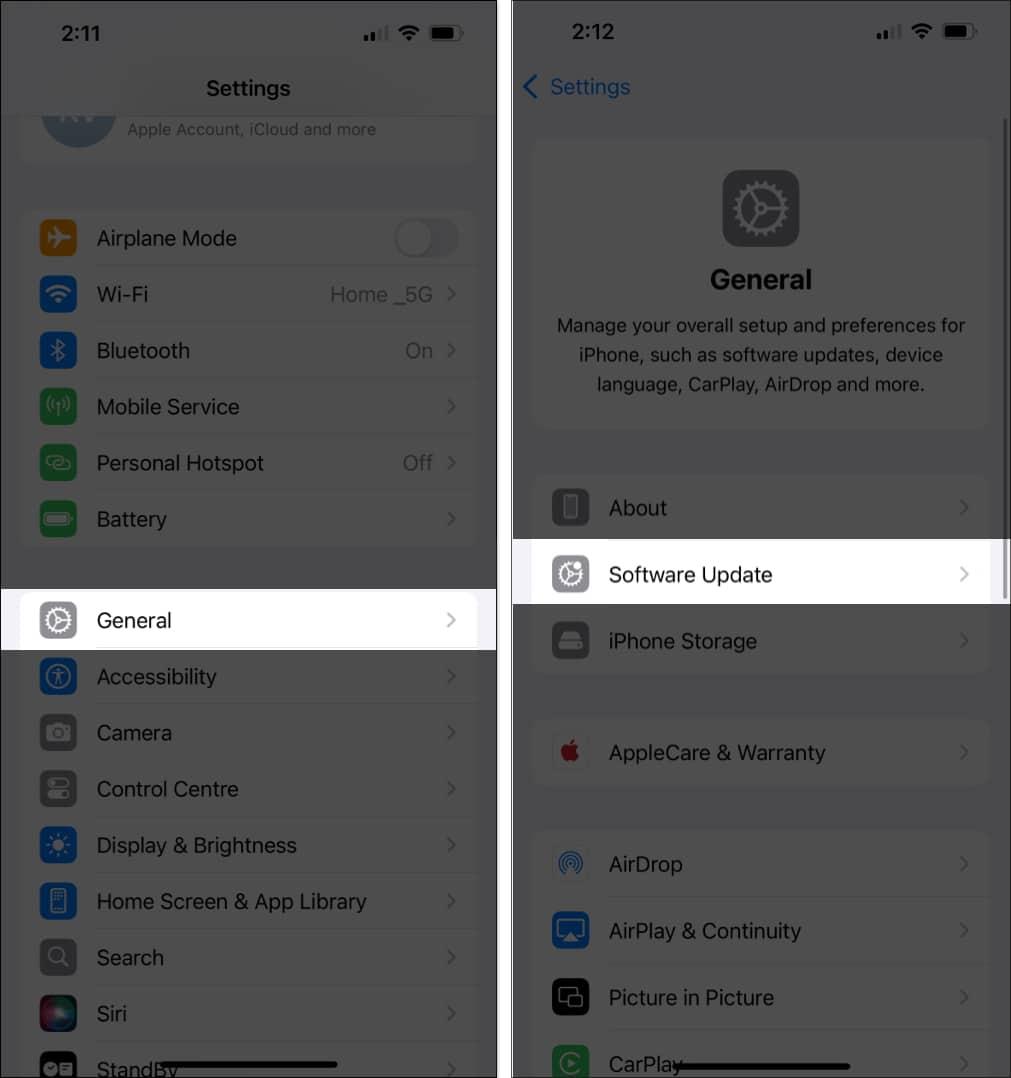
- Now wait for your iPhone to fetch the iOS 27 update.
- Hit the Download and Install button once the update appears.
- Enter your iPhone passcode if prompted.
- Agree to Apple’s terms and conditions.
- Wait for the download to finish. Your iPhone will restart and complete the installation.
Note:
The entire process can take some time depending on your internet connection, iPhone model, and Apple’s server load.
If iOS 27 doesn’t appear, restart your iPhone and try again.
2. Make Your iPhone Install iOS 27 Automatically
You can also set your iPhone to download iOS 27 as soon as it’s available and install it overnight automatically, so you wake up with your iPhone running the latest iOS.
Here’s how:
- Open Settings → General → Software Update.
- Here, tap Automatic Updates.
- Then, toggle on Automatically Install.
- Further, you can toggle on Security Responses & System Files to automatically install them with each iOS update.
Now, your iPhone will automatically download and install the latest iOS update and system files overnight once it’s available. Make sure it has at least 50% battery, is connected to a stable Wi-Fi network, and is locked. Apple says you’ll be notified before an automatic installation takes place.
3. Install the latest iOS using a Mac (Optional)
If you can’t free up enough space on your iPhone for the OTA update, you can connect it to your Mac and update via Finder. The reason is that OTA (over-the-air) updates require your iPhone to download and temporarily unpack the full iOS installer on its internal storage, which can require several gigabytes of free space.
Using Finder lets your Mac download and unpack the iOS update to the computer’s storage, then install it directly on your iPhone.
Here’s how:
- Connect your iPhone to your Mac using an MFi-certified cable.
- Now, open Finder and select your iPhone in the left sidebar.
- Next, go to General and click the Check for Update button on the right, and your Mac will start checking for the iOS 27 update.
- When the update appears, click the Download and Install button and follow the on-screen instructions.
If you’re updating an iPhone using a Windows PC, Apple provides the update process through its Windows software. Older Mac versions using macOS Mojave or earlier can also use iTunes for device updates.
Enjoy the new features in iOS 27
And that’s it; simply follow any of the methods detailed above, and you’ll have your iPhone running the latest iOS in no time. Remember, updating to a brand-new iOS release is exciting, but it’s even better when it goes smoothly.
So, make sure to back up your data, free up space, update your apps, and you’ll be ready to enjoy everything iOS 27 has to offer without any hiccups.