
How to connect AirPods with PS5 (2 Methods explained)
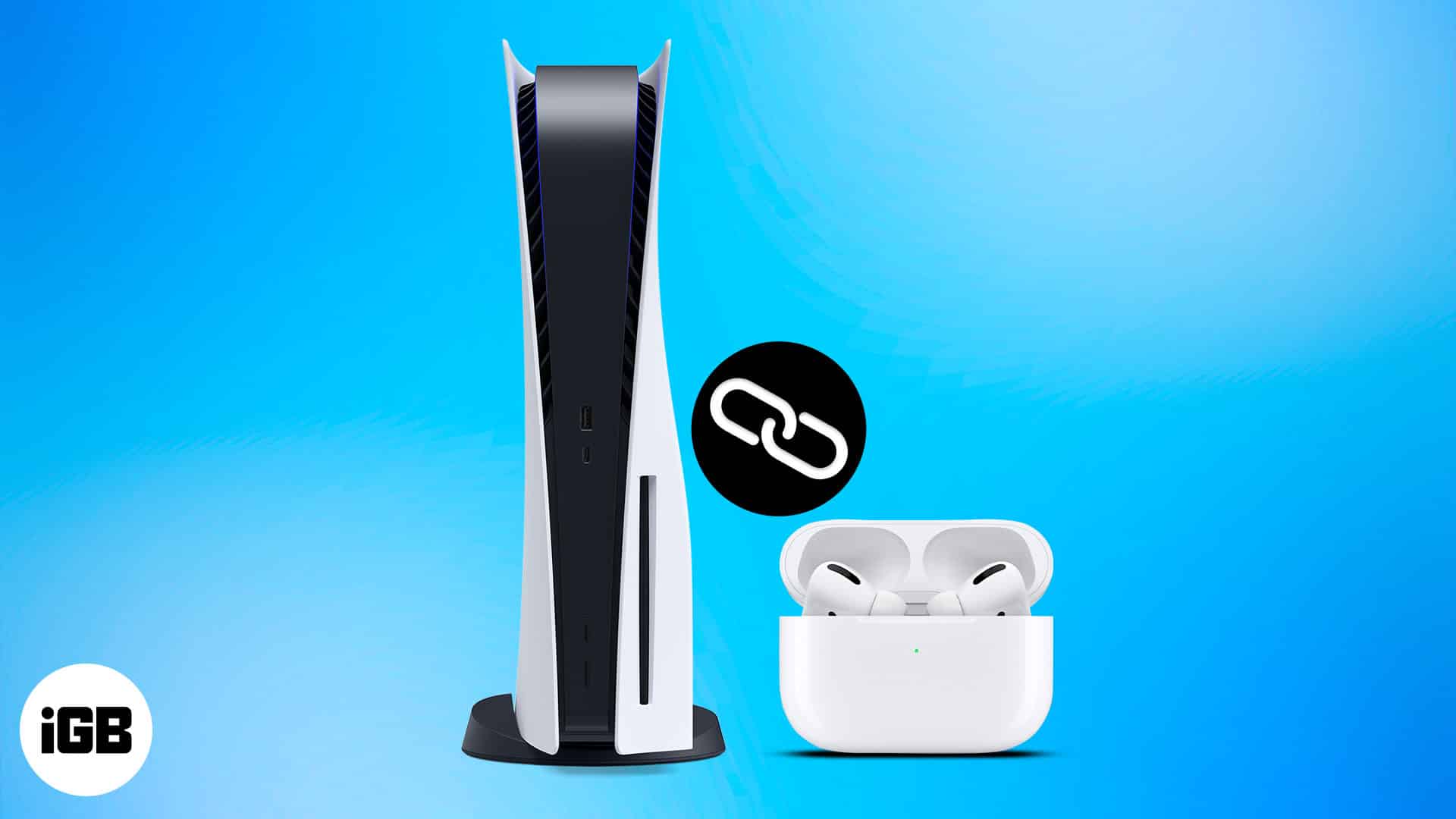
Things you should know:
- You must have a Bluetooth adapter.
- Connect AirPods to your PS5 with the Remote Play app on your iPhone. You can listen to audio through the AirPods.
- AirPods must be charged and paired to PS5.
Guess what? We can’t directly connect the AirPods and the Sony PS5, two of the most hyped products in tech. As the gaming console lacks built-in Bluetooth capability one must employ unconventional ways to use the two products together. In this article, I’ll guide how to connect AirPods to a PS5.
How to connect AirPods to PS5 using Bluetooth adapter
Make sure you have a Bluetooth adapter compatible with your PS5 before we begin the pairing process. If you don’t already have one, here are two Bluetooth adapter recommendations: Avantree Leaf Class and TP-Link.
Now, follow the steps below.
- Plug in the Bluetooth adapter to the USB port on your PS5.
- Enable the pairing mode on the Bluetooth adapter.
- Press and hold the side button on AirPods to pair it with the Bluetooth adapter.
AirPods should be in the case, and the lid should be open. - Pair the two devices.
Voila! You’ve successfully linked your AirPods to your PS5. Now you can play any sound-enabled game. Check our article if AirPods don’t connect to your device.
What to do if you can’t hear audio on your AirPods?
If you’ve executed the steps mentioned above and receive a crackling sound or can’t hear anything from your AirPods, then you might need to change your PS5’s output device. Check the instructions below to do so.
- Go to Settings from the home screen for PS5.
- Head to the Sound section.
- Choose Audio Output → Output Device.
- Select your Bluetooth Device.
Use Remote Play app to connect AirPods with PS5

Alternatively, you can also use a third-party app to connect your AirPods to your PS5.
- Launch the App Store on your iPhone.
- Search for PS Remote Play → tap Get.
- Open the app and Sign in to PlayStation with one of your Sony accounts.
- Now Go to the Settings app on your Smart TV.
- Head to System Settings → toggle on Enable Remote Play.

- Link devices by entering the code displayed on the TV.
Now, you can play any PS5 game with audio enabled by launching the app and connecting the AirPods to your iPhone.
Note:
This approach may cause some latency because your input signal is transferred via the app from your iPhone.
That’s it!
Did any of the above-mentioned tips help you? Please let me know in the comments. Also, if you have any additional Apple-related questions, ask away, and I’ll try my best to answer!
Frequently Asked Questions

Written by
Bhaskar SharmaBhaskar is a tech guru who turned wordsmith. Hiding his B.Tech degree in a closet, he ditched the corporate path to simplify tech for everyone. For the past 5 years, he's been dishing out how-tos, reviews, and sharp insights. But there's more! He's a witty interview champ and has been sharing his wisdom for 3 years. Furthermore, he has honed his editing skills for 1.5 years and is now delving into marketing to assist newcomers. When not jamming his fingers on those mechanical keyboards, you may find him on strings or engaging in sports. And by evening, his quotes will be appearing on your Instagram feeds.
View all posts →More from AirPods
AirPods Flashing Orange? What It Means and How to Fix It
Confused by the orange flashing light on AirPods? Find its meaning and quick troubleshooting steps that actually work.
 VikhyatJanuary 30, 2026
How to Fix AirPods Battery Drain Issues: Step-by-Step Guide
AirPods draining too fast or dying overnight? This step-by-step guide explains why it happens and shows you how to fix AirPods battery drain issues before replacing them.
 Mahit HuilgolJanuary 19, 2026
How to Update Your AirPods to the Latest Firmware Version
Make sure you enjoy the latest features on your AirPods.
 Ankur ThakurJanuary 16, 2026